


AI Summary
Would you like to receive real-time payment updates from PayPal Commerce in WPForms? With PayPal Commerce webhooks enabled, your site can stay synchronized with PayPal when payments or subscriptions are completed, refunded, canceled, or updated.
In this tutorial, we’ll show you how to set up PayPal Commerce webhooks in WPForms.
Before you get started, be sure to install WPForms on your WordPress site. After that, connect your site to your PayPal Commerce account.
Understanding Webhooks
Webhooks act as automated messages sent between applications when certain events take place. By integrating PayPal Commerce webhooks with WPForms, your WordPress site becomes synchronized with PayPal so payment statuses can update in real time.
Once webhooks are enabled, your site can stay informed when a payment is completed, refunded, canceled, or updated. This helps keep your payment records accurate in WPForms without requiring manual checks in your PayPal account.
Enabling Webhooks in WPForms
Webhooks are automatically configured for both new and existing users once their site is running WPForms version 1.10.0 or higher and PayPal Commerce is connected. If the automatic setup doesn’t complete successfully, you can manually configure the webhook settings by following the steps below.
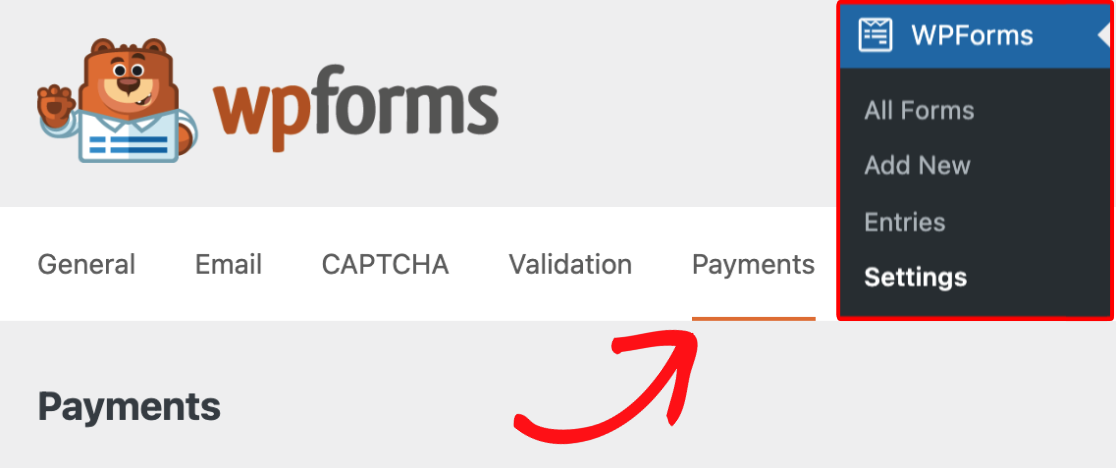
To begin, go to WPForms » Settings and select the Payments tab.
Next, scroll to the PayPal Commerce section and toggle on the Enable Webhooks option.
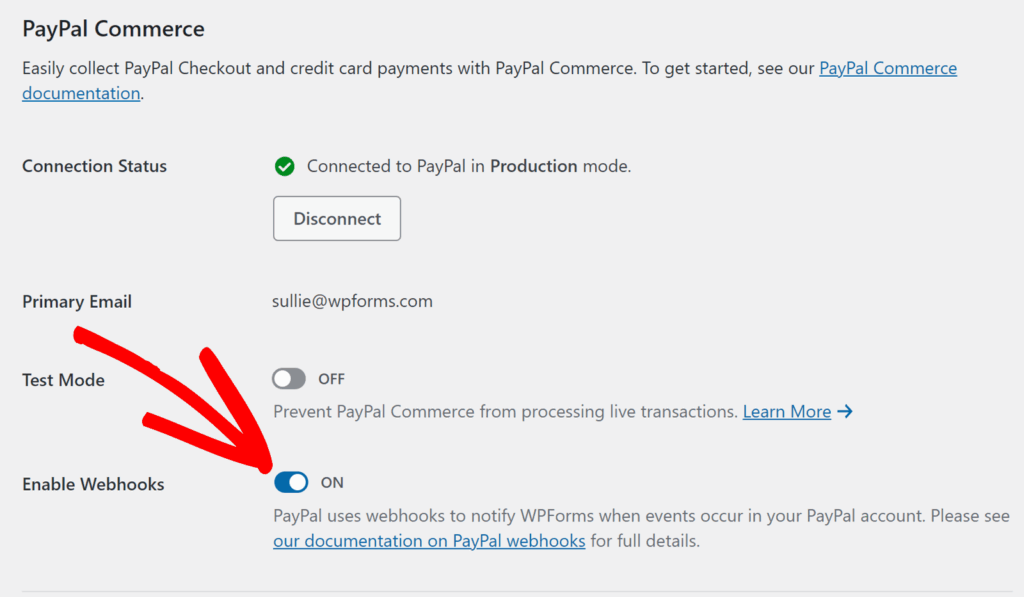
After that, click the Save Settings button.
After saving your settings, WPForms will try to configure webhooks automatically. If manual setup is needed, additional webhook settings will appear on the page.
These settings include the Webhooks Endpoint, Webhooks Sandbox ID and Webhooks Live ID fields.
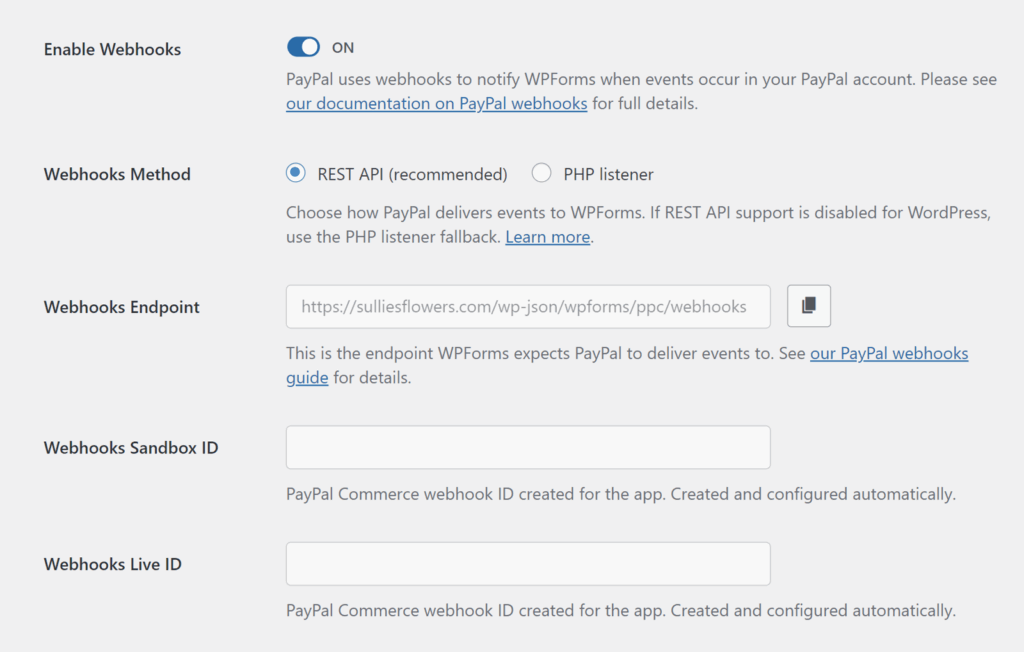
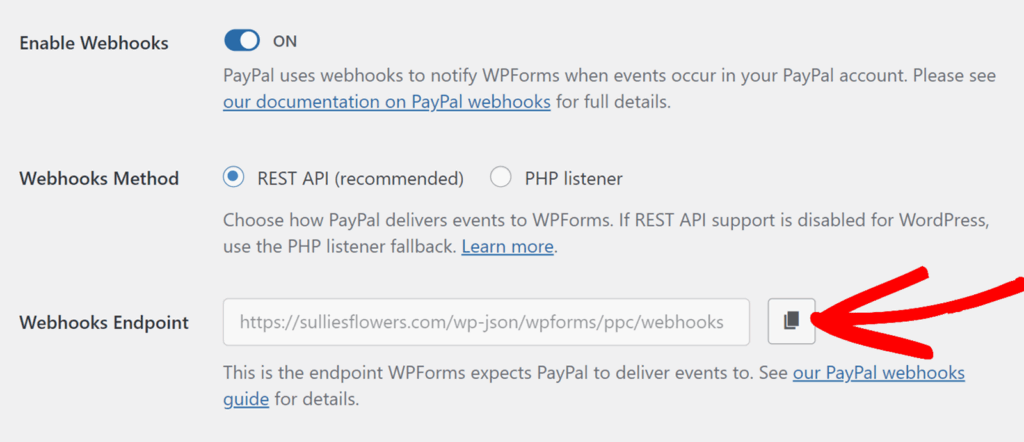
You’ll need the Webhooks Endpoint value later, so keep this page open in a separate browser tab.
Creating a Webhook in PayPal
In a new browser tab or window, log in to your PayPal Developer account and open Apps & Credentials from the left sidebar.
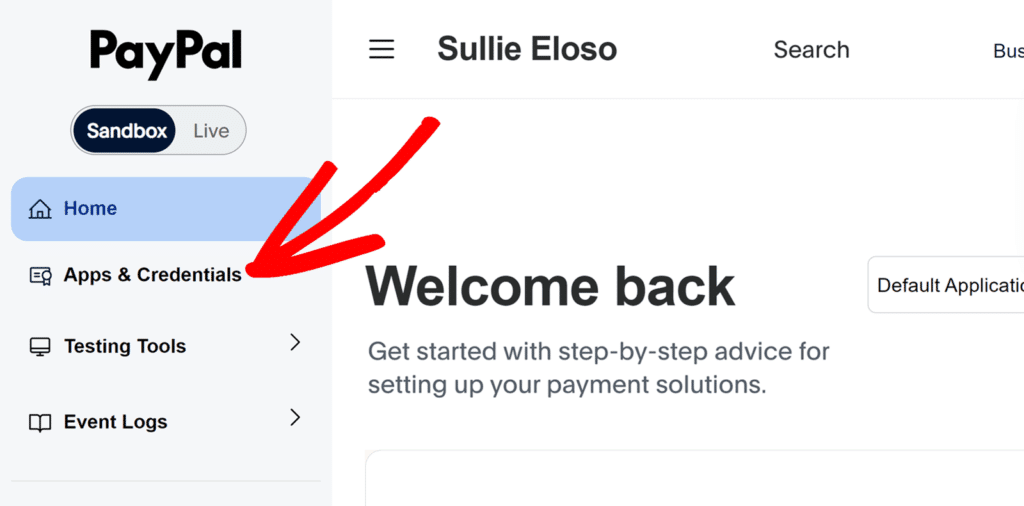
From the API Credentials section, select the app you want to use for your site. In Live mode, the app name will often be something like MyApp_WPForms. In Sandbox mode, select the sandbox app you’ve created for testing.
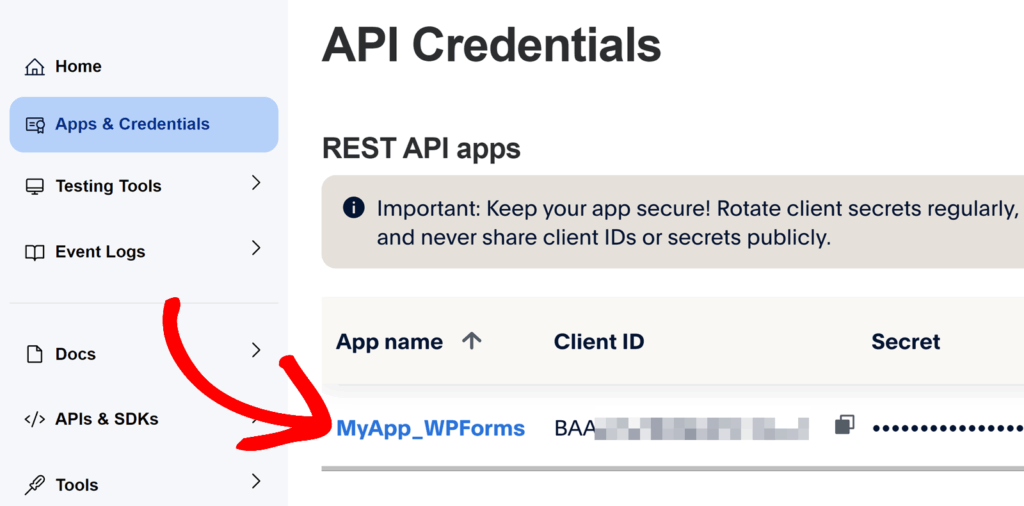
This will open the details page for your API credentials. Scroll to the bottom of the page until you reach the Webhooks section.
Next, click the Add Webhook button.
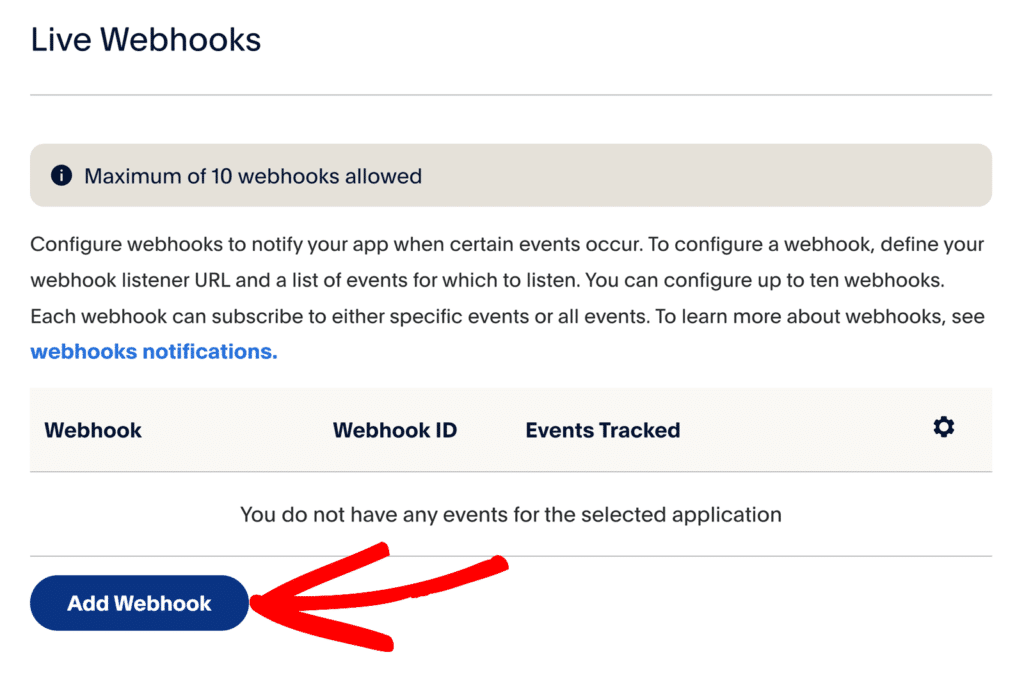
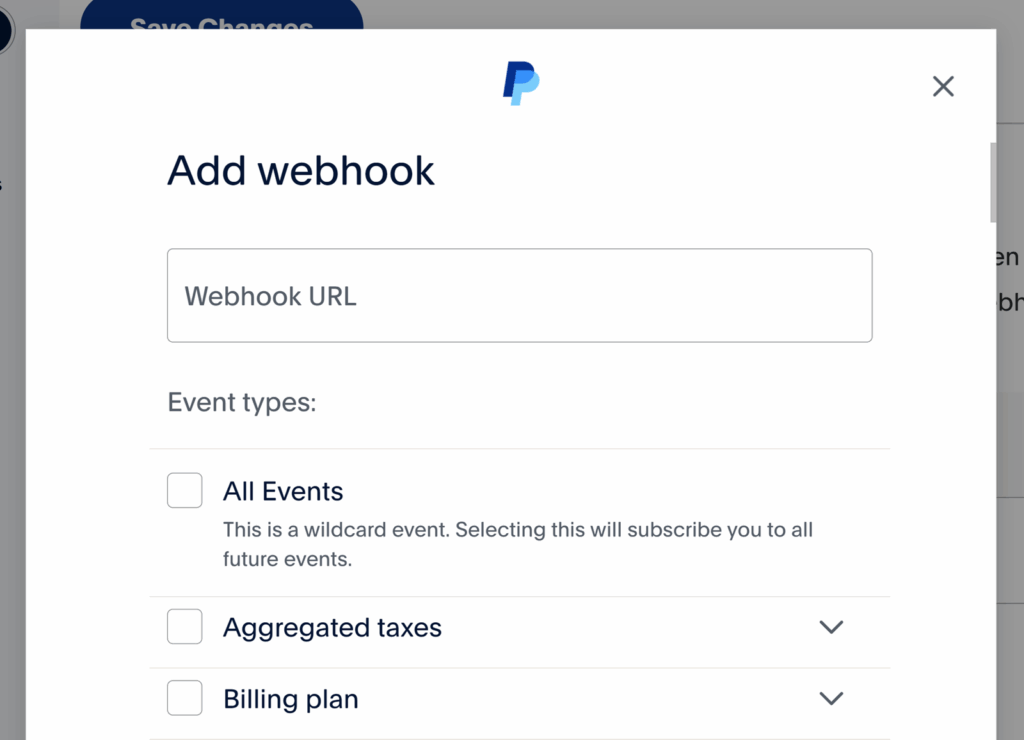
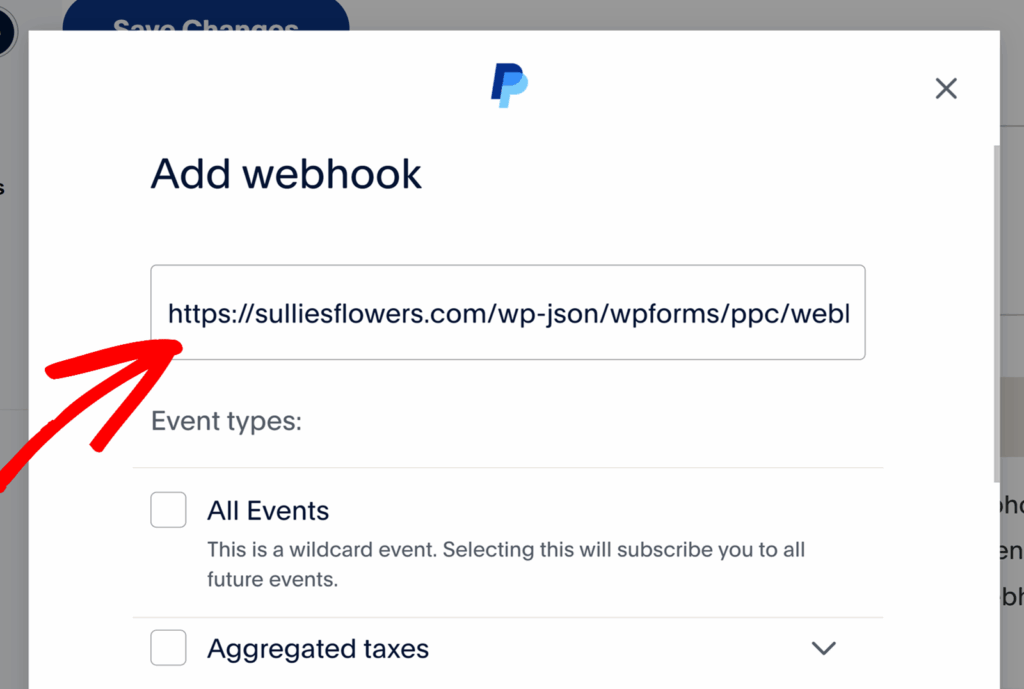
This will open the Add webhook modal where you’ll need to add the Webhooks Endpoint from WPForms into the Endpoint URL field.
For this, return to the browser tab with your WPForms settings page open. Once there, you’ll need to copy the Webhooks Endpoint by clicking the copy icon.
In the Webhook URL field, paste the Webhooks Endpoint value you copied from your WPForms settings page.
In the Event Types section, select the All Events checkbox.
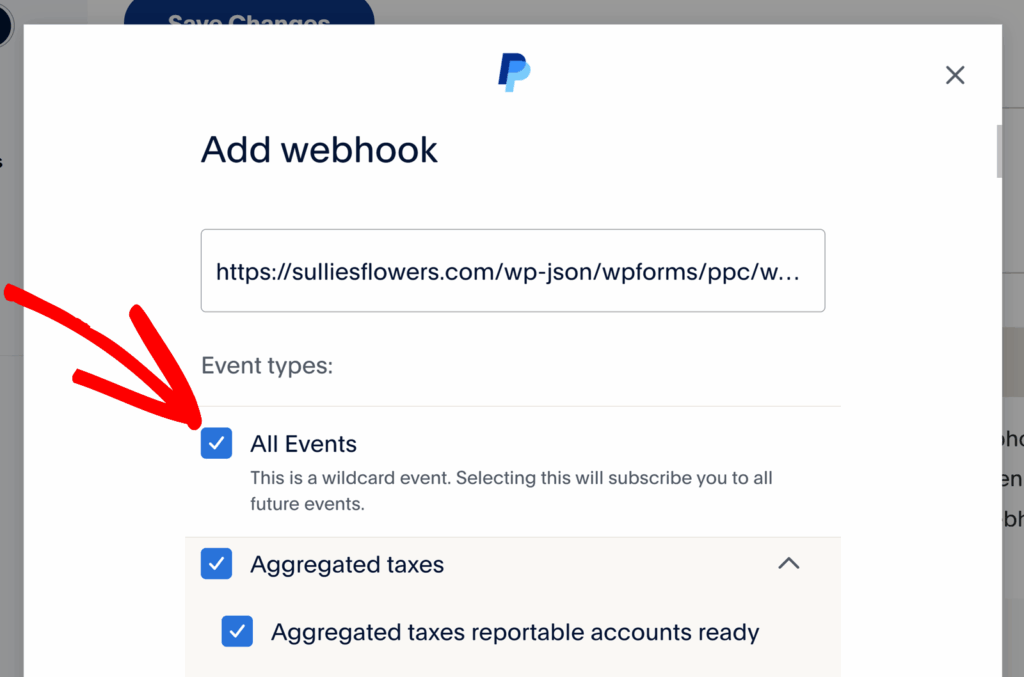
After that, scroll to the bottom of the modal and click the Save button to create the webhook.
Once the webhook has been created, PayPal will display it in the table for the current app. Copy the Webhook ID for the webhook you just created.
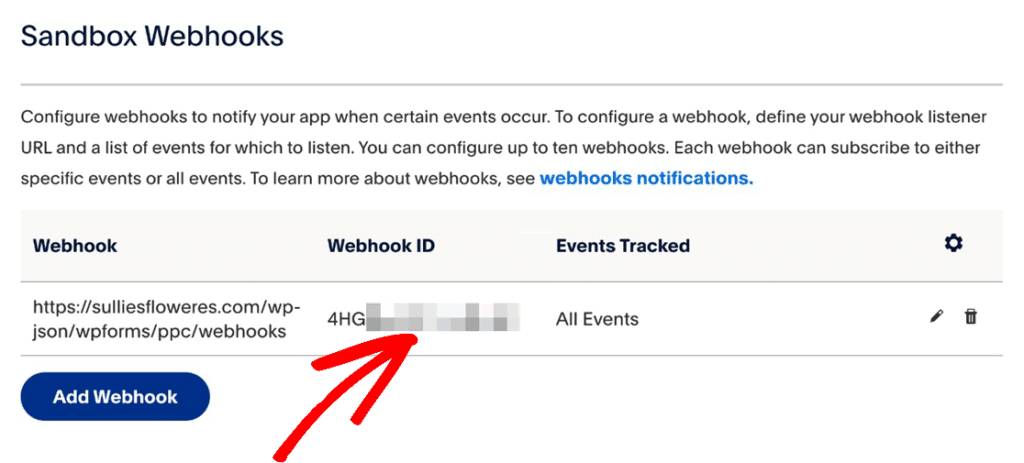
Return to your site’s WPForms » Settings » Payments page and paste the Webhook ID into the appropriate field:
- Use Webhooks Sandbox ID if your site is in Sandbox mode
- Use Webhooks Live ID if your site is in Live mode
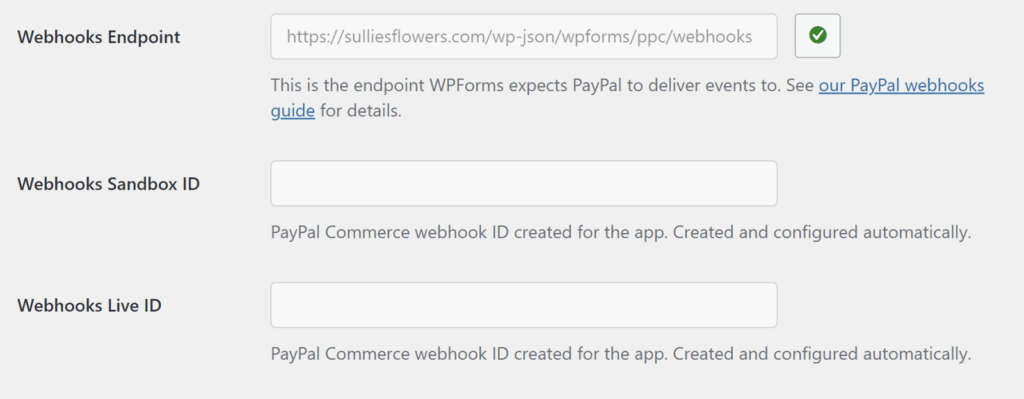
Be sure to click Save Settings after adding the Webhook ID.
That’s it! WPForms will now receive real-time updates from PayPal Commerce on your site.
Frequently Asked Questions
I’m not seeing the option to manually configure PayPal Commerce webhooks. How do I enable it?
If you connected PayPal Commerce on WPForms version 1.10.0 or higher, webhooks are configured automatically on your site, so you may not need to manually configure them.
However, if you’d like to show the manual webhook settings, go to WPForms » Settings and select the Payments tab. Then add &webhooks_settings to the end of the page URL. The URL should look similar to this:
https://example.com/wp-admin/admin.php?page=wpforms-settings&view=payments&webhooks_settings
Just be sure to replace example.com with your site’s actual domain.
Do I need to configure separate webhooks for Sandbox and Live modes?
Yes. Sandbox and Live modes use separate apps in PayPal, so you’ll need to create a webhook for each environment you plan to use. After creating each webhook, copy its ID into the matching field in WPForms.
That’s it! You now know how to set up PayPal Commerce webhooks in WPForms. Next, would you like to learn more about managing payments in WPForms? Be sure to check out our guide on viewing and managing PayPal Commerce payments.