


Resumo de IA
Você está se perguntando como criar modelos de formulário com sua marca que ressoem com a identidade da sua marca e garantam uma experiência de usuário consistente?
Formulários com sua marca que refletem as cores, o logotipo e o estilo da sua marca tornam seus formulários mais pessoais e profissionais, aumentando o engajamento e a confiança do usuário.
Crie um Modelo de Formulário Personalizado Agora! 🙂
Neste guia, vou guiá-lo pelas etapas para criar um formulário com sua marca que tenha uma ótima aparência e funcione perfeitamente para suas necessidades.
Como Criar um Modelo de Formulário Personalizado
Criar modelos de formulário personalizados é incrivelmente fácil com o WPForms. Siga as etapas abaixo para começar:
Neste Artigo
1. Instalar e Ativar o WPForms
WPForms é um plugin popular para WordPress que ajuda você a criar e gerenciar facilmente vários formulários em seu site, como formulários de contato, pesquisas e formulários de registro. Você não precisa de nenhum conhecimento de codificação para usá-lo.
O plugin também simplifica a criação de modelos de formulário personalizados que você pode usar para criar formulários personalizados. Ele oferece uma ampla gama de recursos de personalização, permitindo que você crie formulários que não são apenas atraentes, mas também responsivos.
Para começar, você precisará instalar o WPForms em seu site WordPress. Assim que for ativado, siga as etapas descritas abaixo para personalizar seu formulário. Salve-o como um modelo e use-o ao criar um novo formulário.
2. Crie um Formulário para Usar como Modelo
Primeiro, abra sua ferramenta de criação de formulários e escolha um formulário existente ou crie um novo para personalizar em seu modelo exclusivo.
Na área de configuração inicial do criador de formulários, você verá uma opção para nomear seu formulário. No campo Nomeie Seu Formulário, digite o nome do seu modelo.
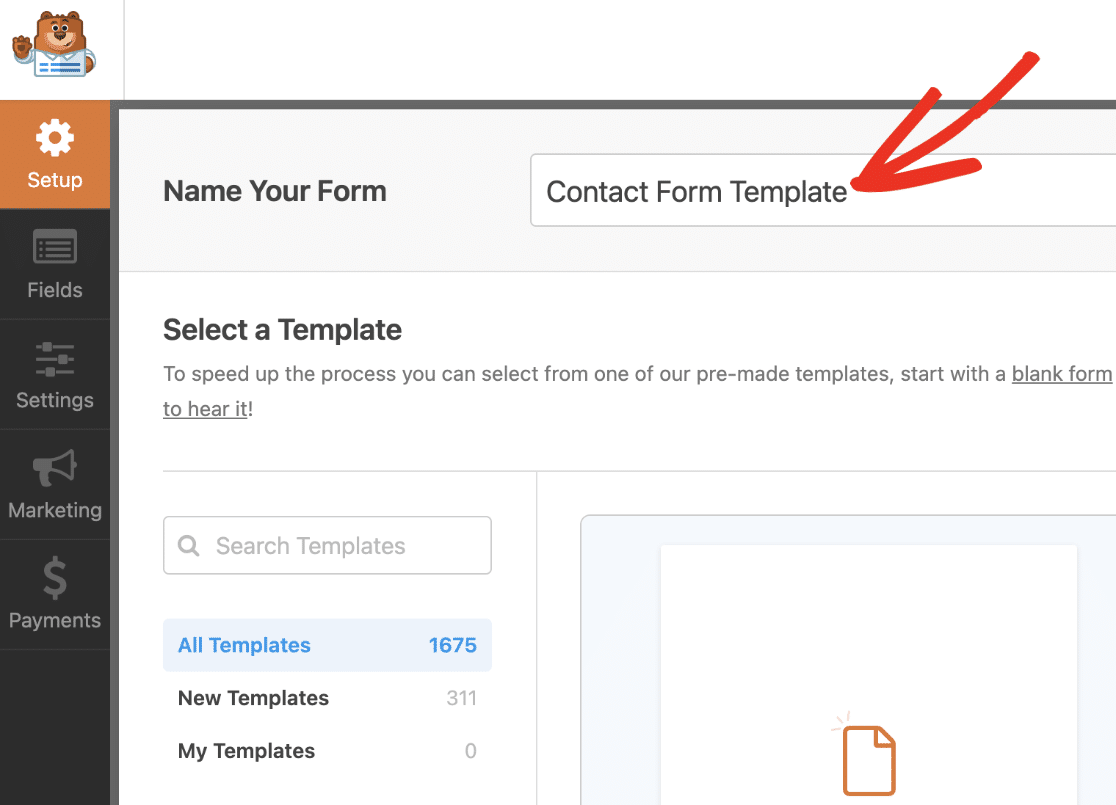
Este título ficará visível na biblioteca de modelos assim que você adicionar seu modelo personalizado a ela, portanto, certifique-se de usar um título curto, mas descritivo.
3. Adicione o Logo da Sua Marca ao Cabeçalho do Formulário
Clique nos campos que você deseja adicionar ao formulário no criador de formulários. Você também pode arrastar e soltar o campo na área de visualização.
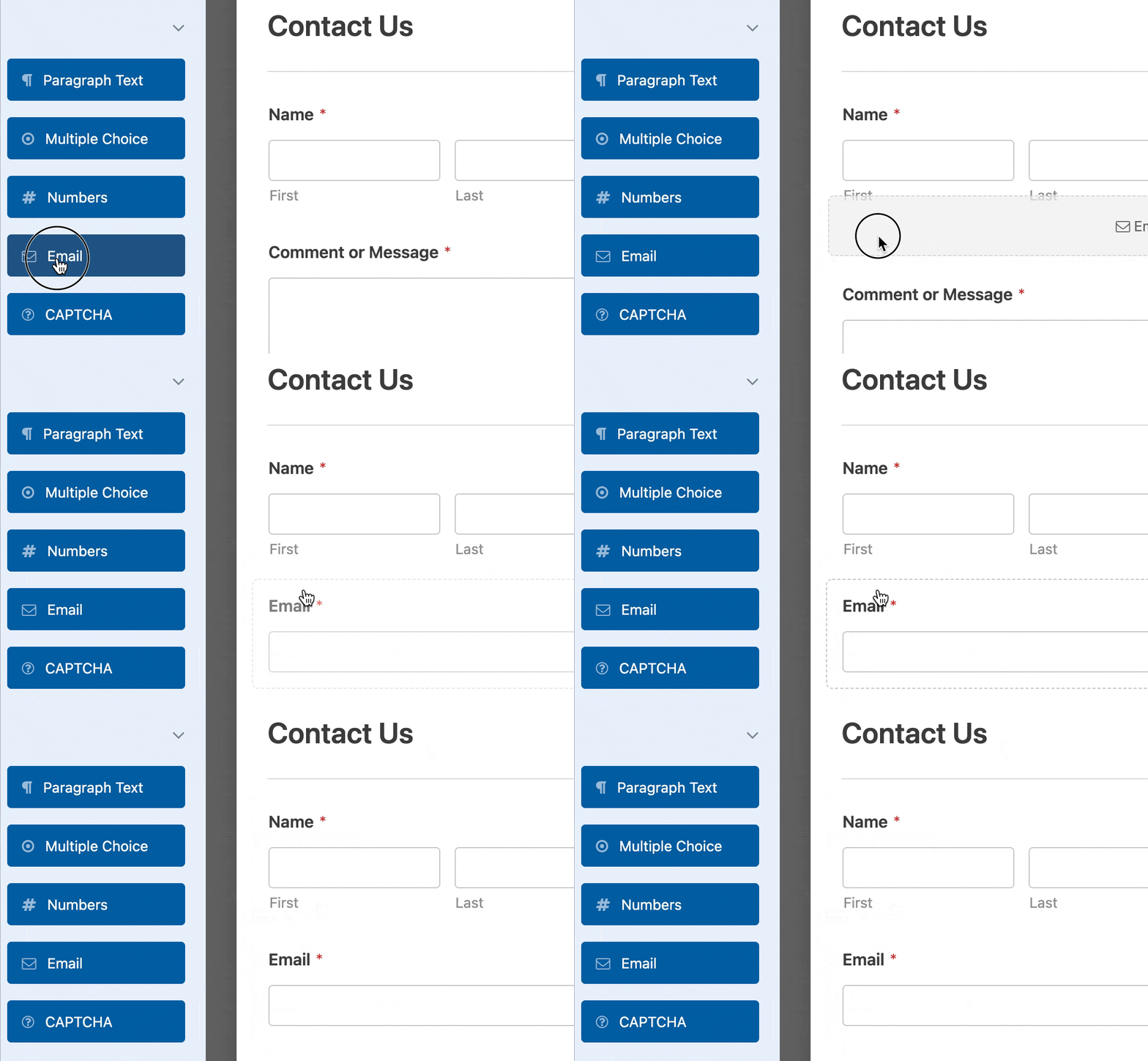
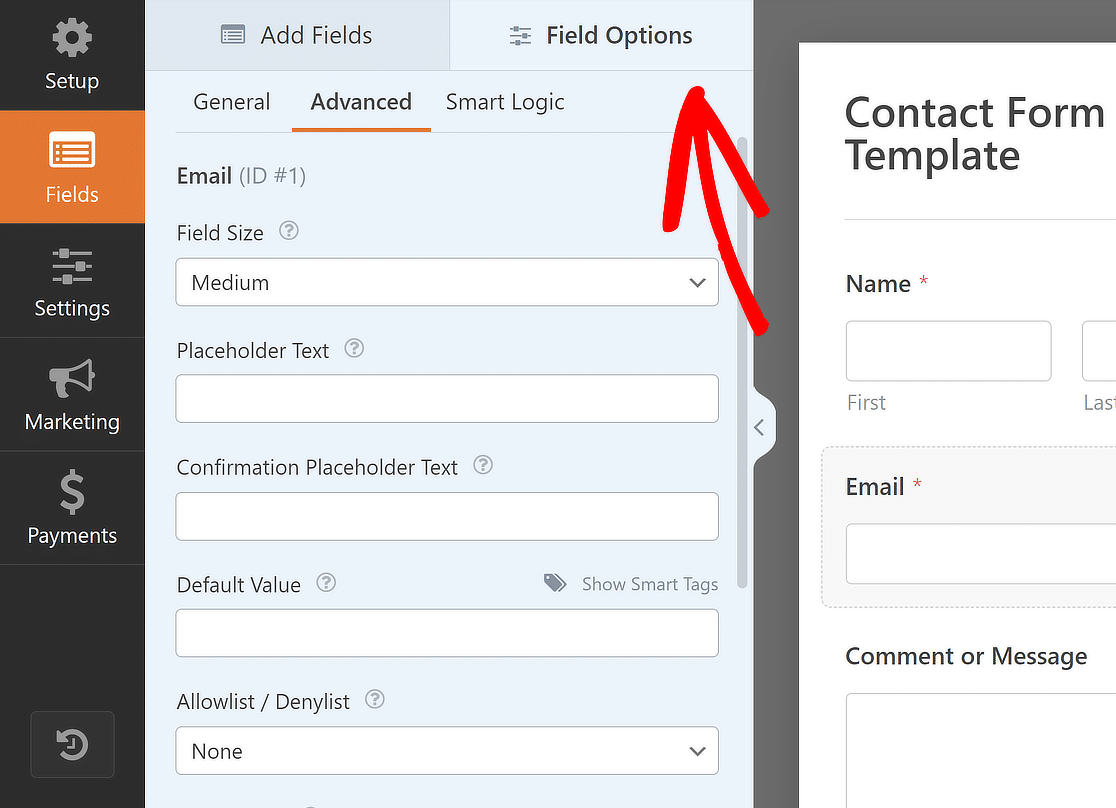
Se você clicar em qualquer campo na área de visualização, o painel Opções de Campo aparecerá. É aqui que você pode fazer mais alterações no campo.
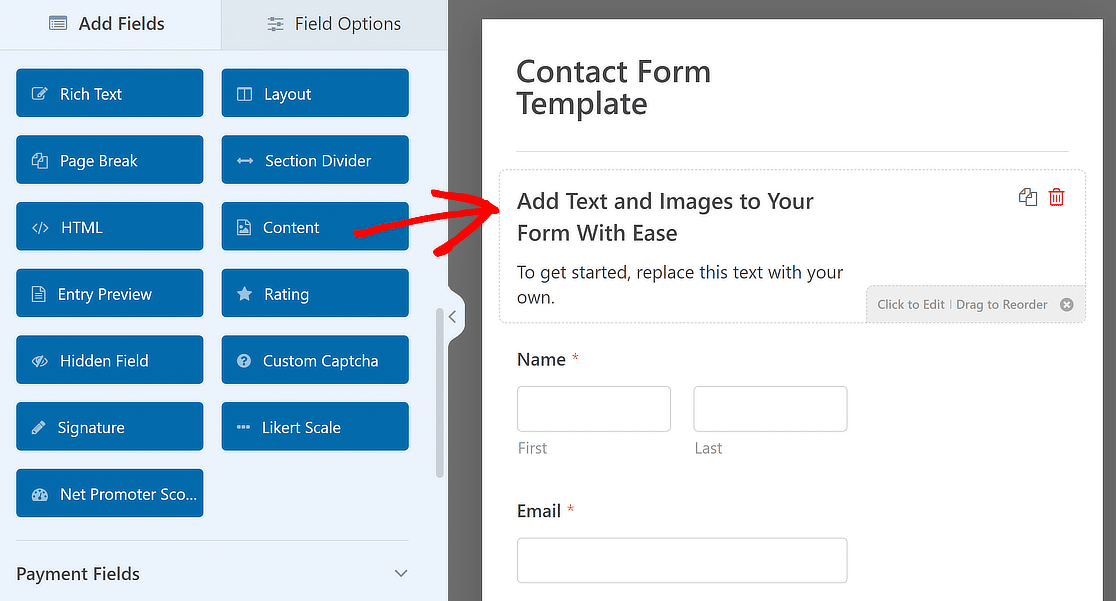
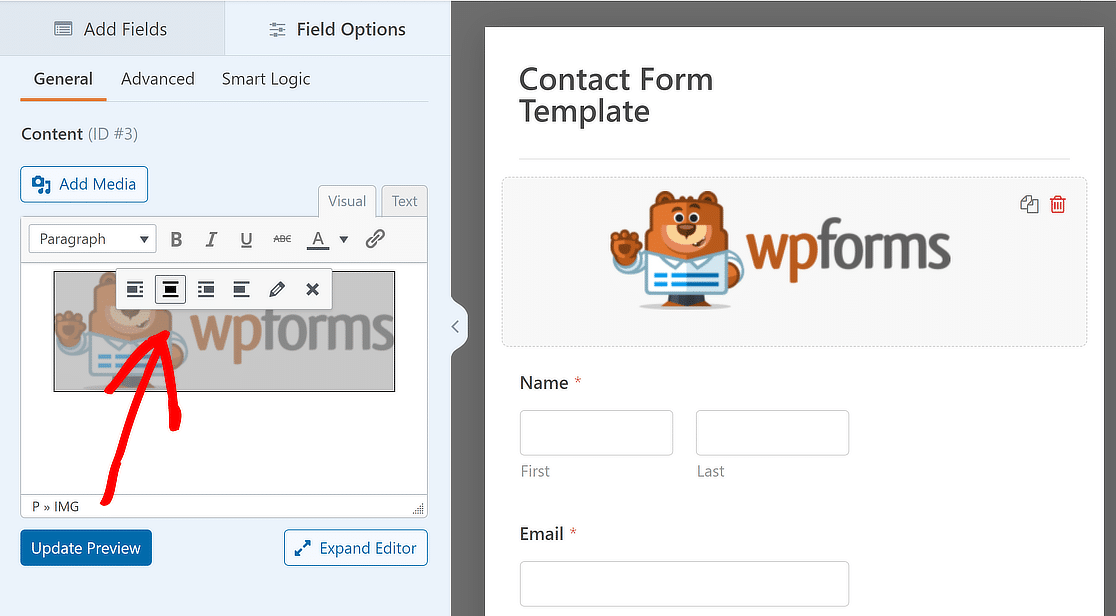
Depois de adicionar todos os campos de acordo com seu gosto, arraste e solte o Campo Conteúdo na parte superior do seu formulário para adicionar o logo da sua marca.
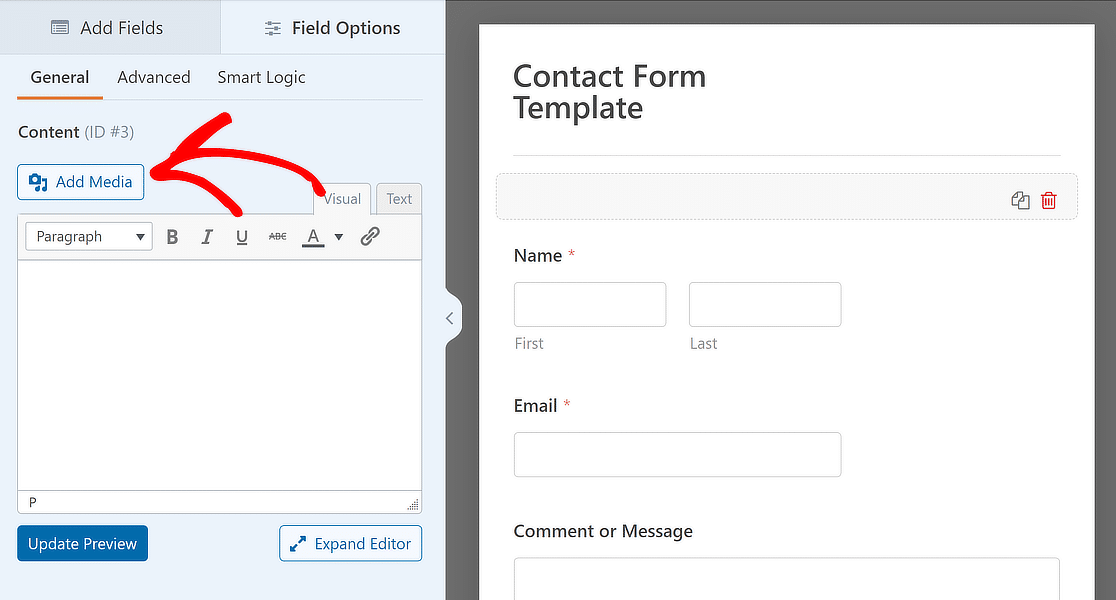
Depois disso, adicione novo texto ou remova o texto existente no editor Visual conforme necessário e clique no botão Adicionar Mídia.
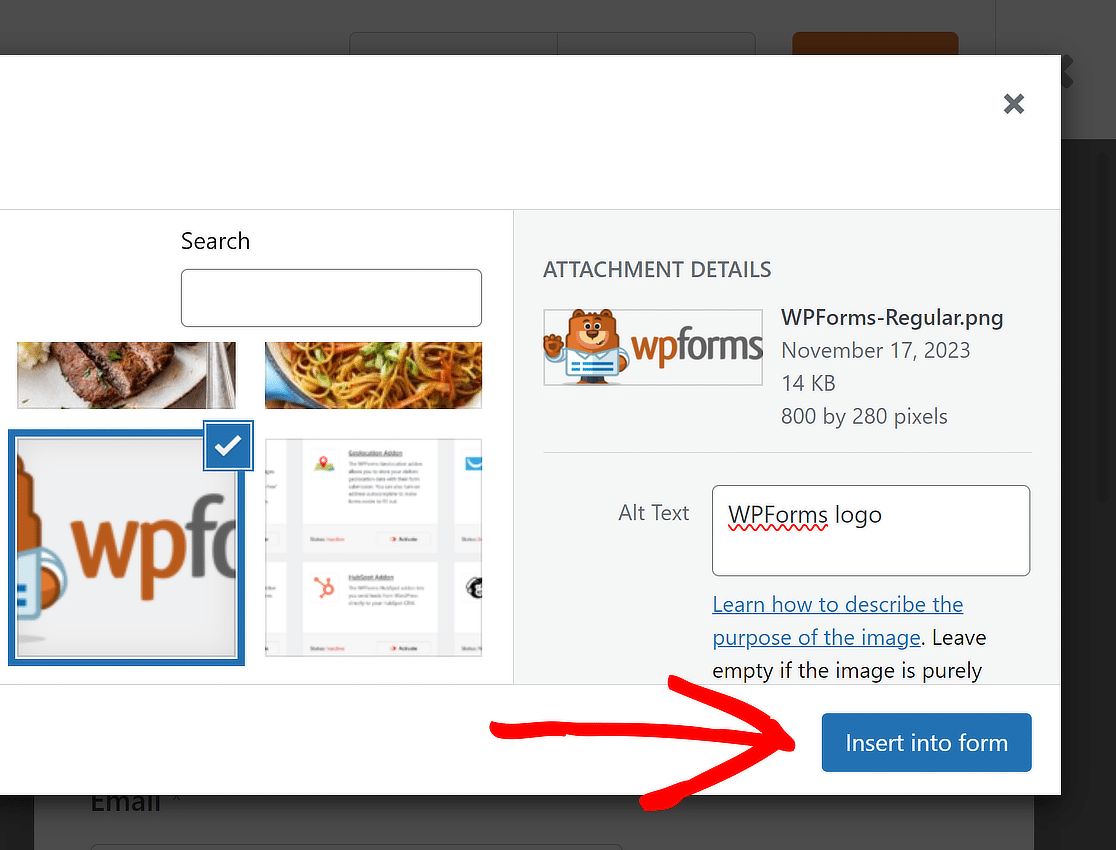
A partir daqui, você pode carregar o logo da sua marca ou selecioná-lo se ele já existir na Biblioteca de Mídia e clicar no botão Inserir no Formulário.
Seu logo de marca foi adicionado ao seu modelo. Sinta-se à vontade para alterar o alinhamento conforme adequado e clique em Atualizar Visualização para ver como seu formulário fica.
Leia Também: Como Permitir que Visitantes Dupliquem Campos de Formulário
4. Converta Seu Formulário em um Modelo Personalizado
Depois de configurar as configurações do seu formulário e adicionar os campos, você pode criar seu modelo de formulário. Para fazer isso, clique no ícone Menu antes do botão Visualizar.
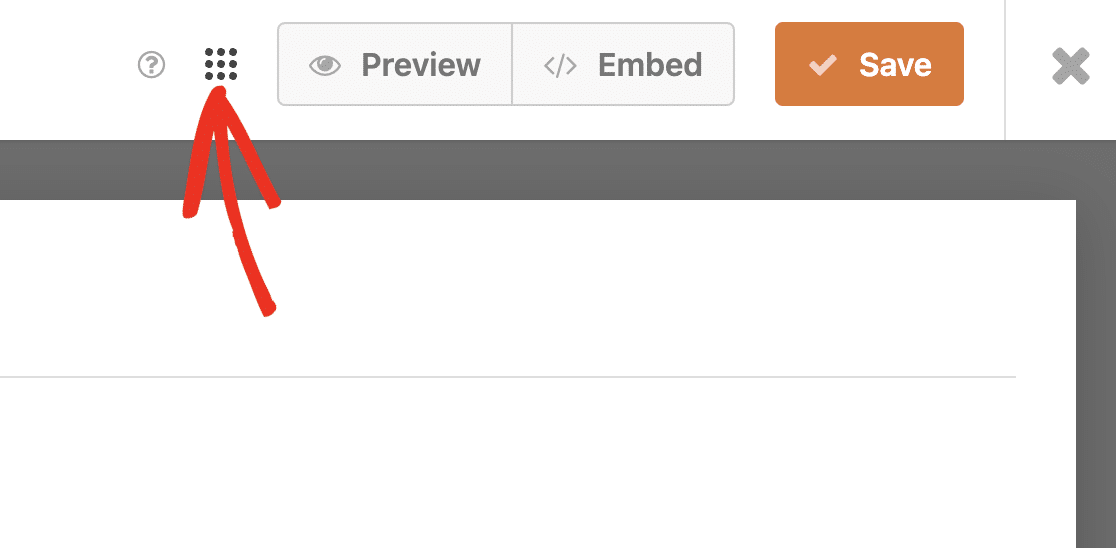
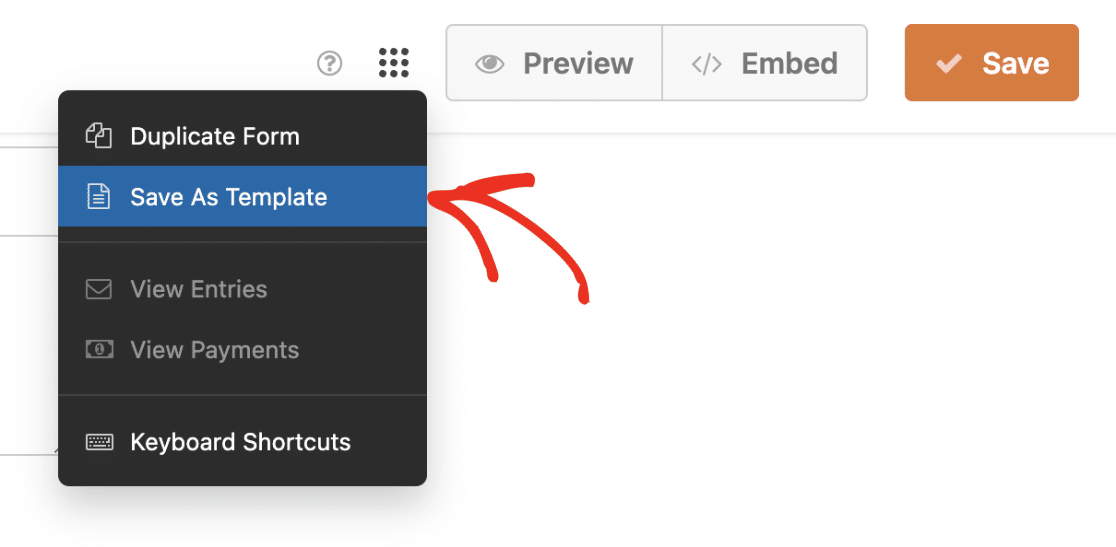
Em seguida, para criar seu modelo personalizado, você precisará selecionar o botão Salvar como Modelo.
Depois de seguir estas etapas, haverá uma tag MODELO ao lado do nome do formulário para mostrar que ele agora é um modelo.
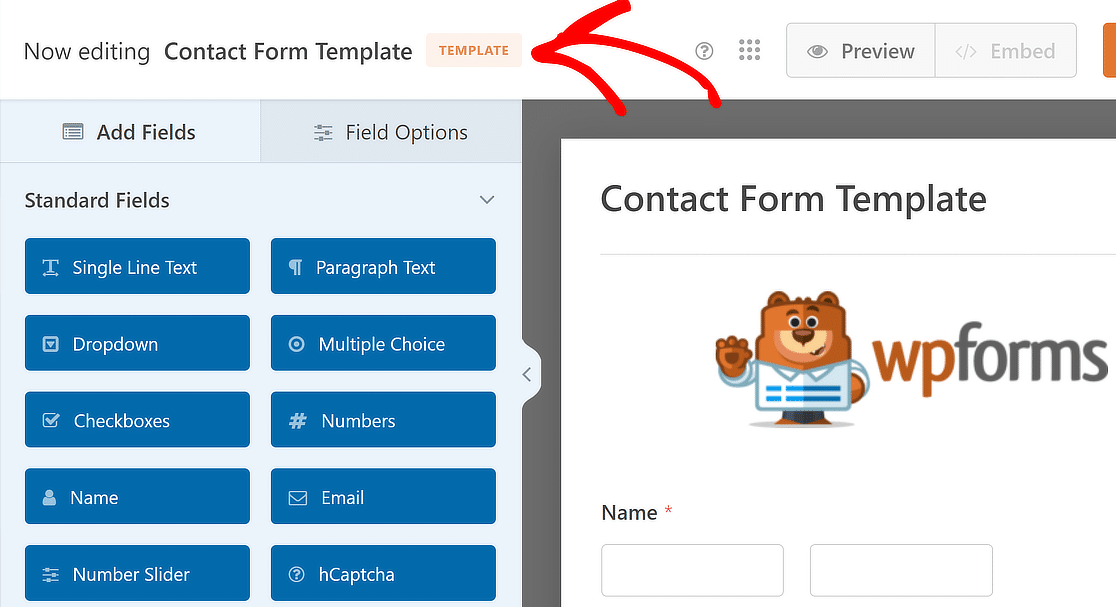
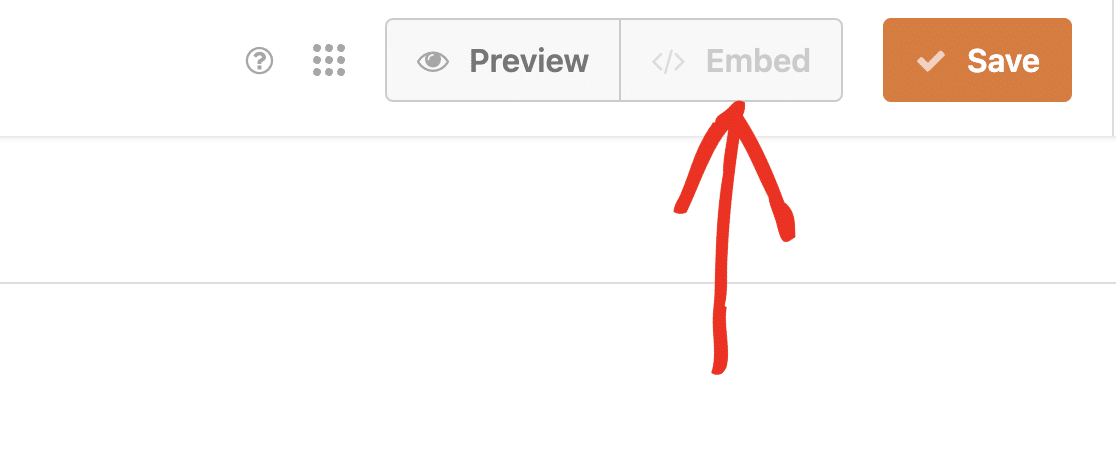
O botão Incorporar também será desativado, o que significa que você não poderá usar este modelo personalizado no front-end do seu site.
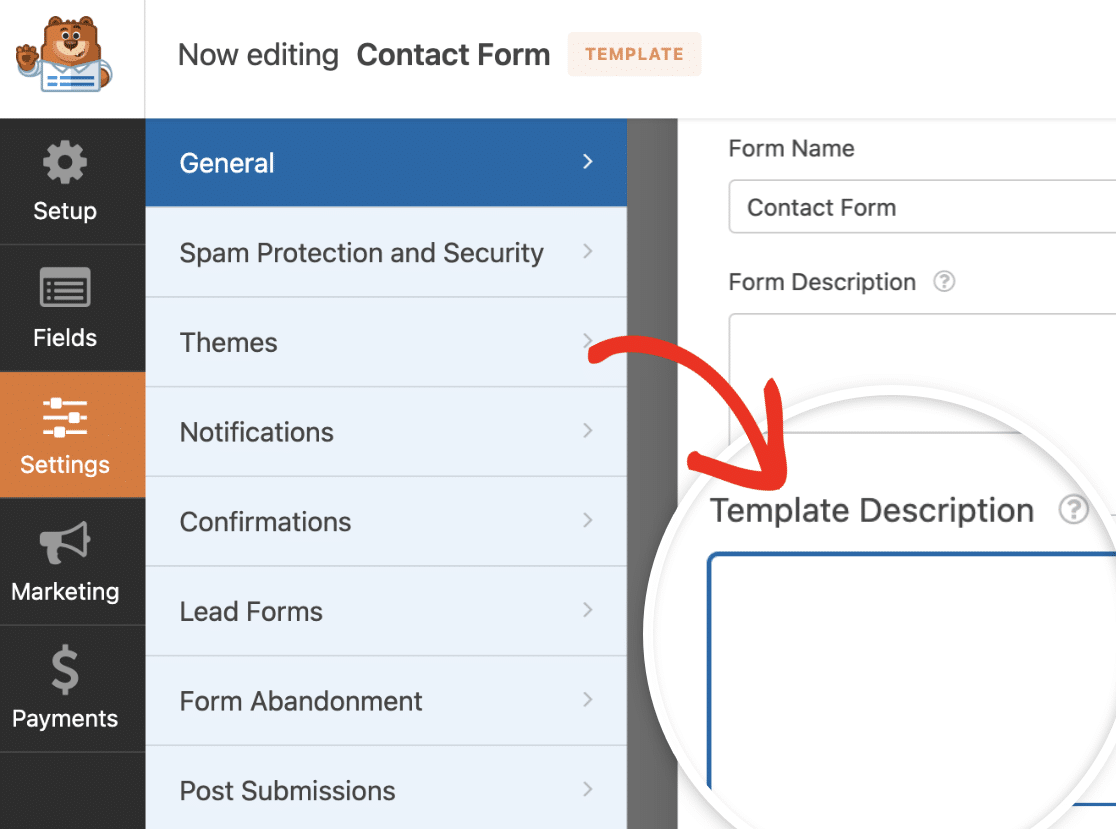
 Você pode dar uma breve descrição ao seu modelo, se desejar. Isso pode ajudar a fornecer um resumo rápido de como o modelo personalizado deve ser usado.
Para adicionar uma descrição, vá para Configurações » Geral no construtor de formulários. Em seguida, role para baixo e localize o campo Descrição do Modelo.
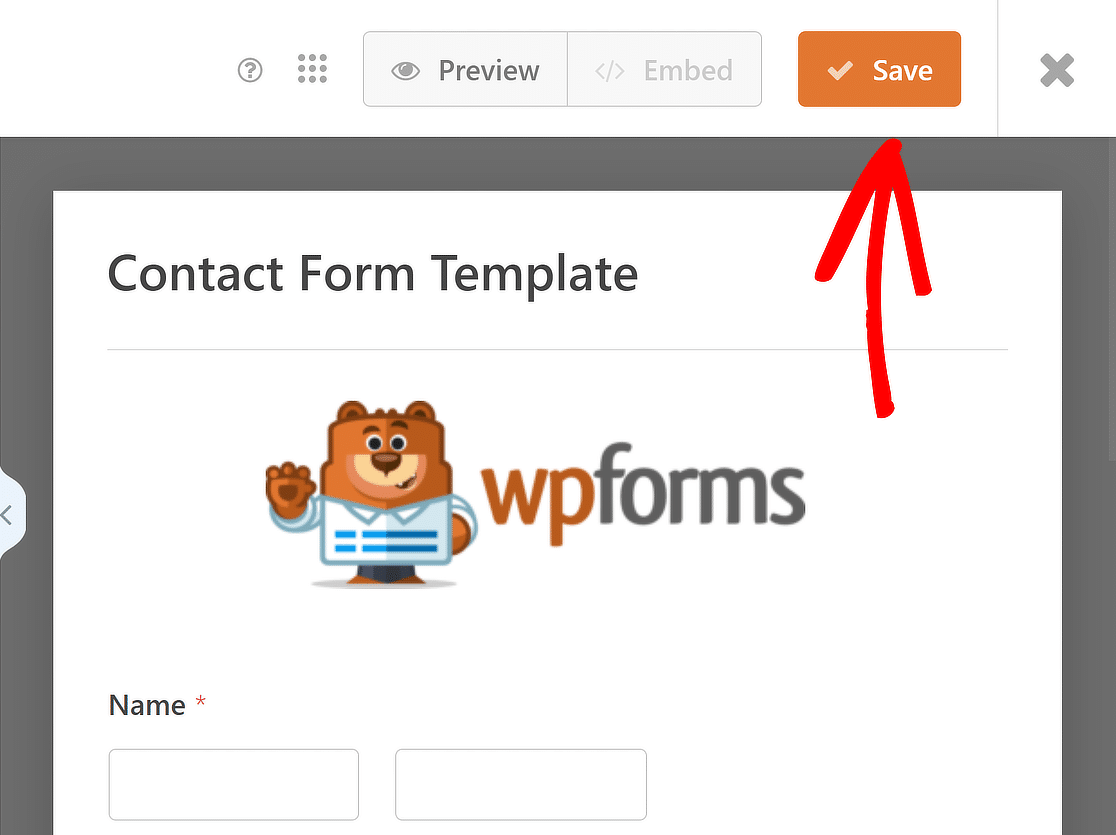
Em seguida, certifique-se de clicar no botão Salvar após terminar de atualizar o modelo personalizado para que suas alterações sejam refletidas.
5. Acesse Seu Modelo de Formulário Personalizado
Vá para WPForms » Modelos de Formulário para ver os modelos personalizados que você criou para o seu site. Depois, vá para o menu lateral e escolha Meus Modelos.
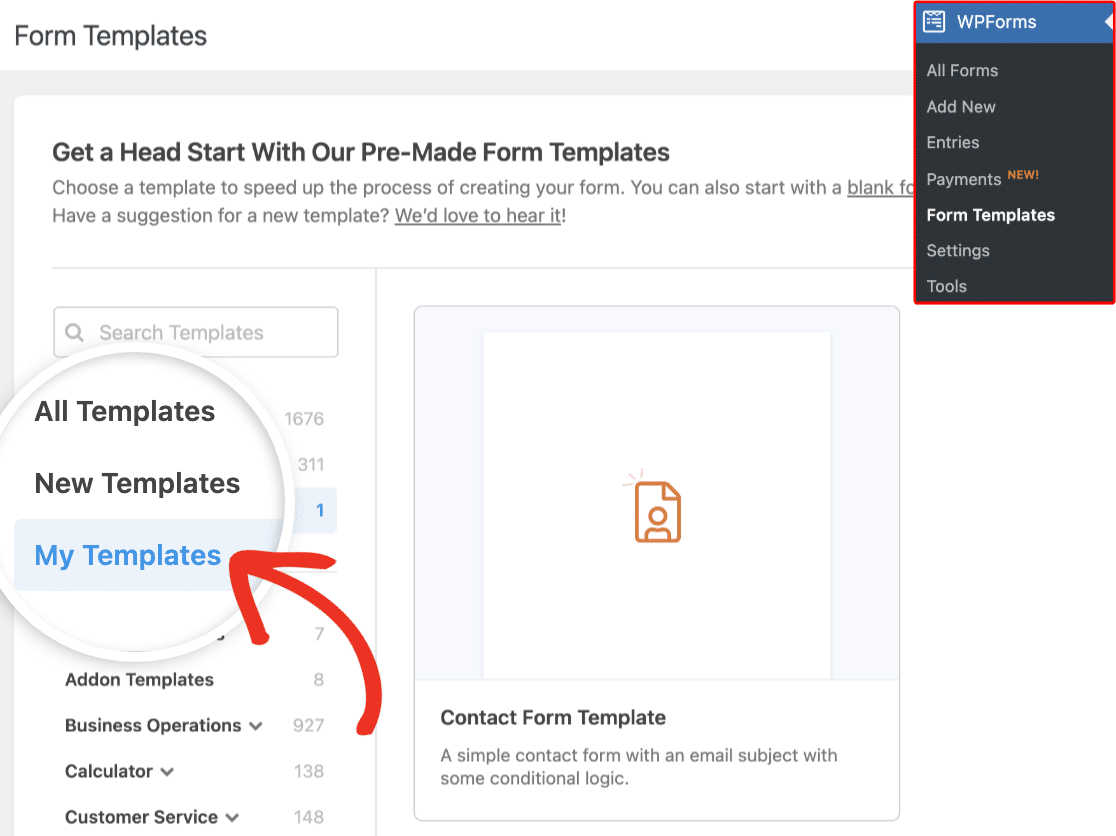
Ao passar o mouse sobre um modelo personalizado individual, você verá opções para usar, editar ou excluir o modelo.
Para usar seu modelo de formulário com marca, basta passar o mouse sobre o nome do modelo e clicar no botão Criar Formulário.
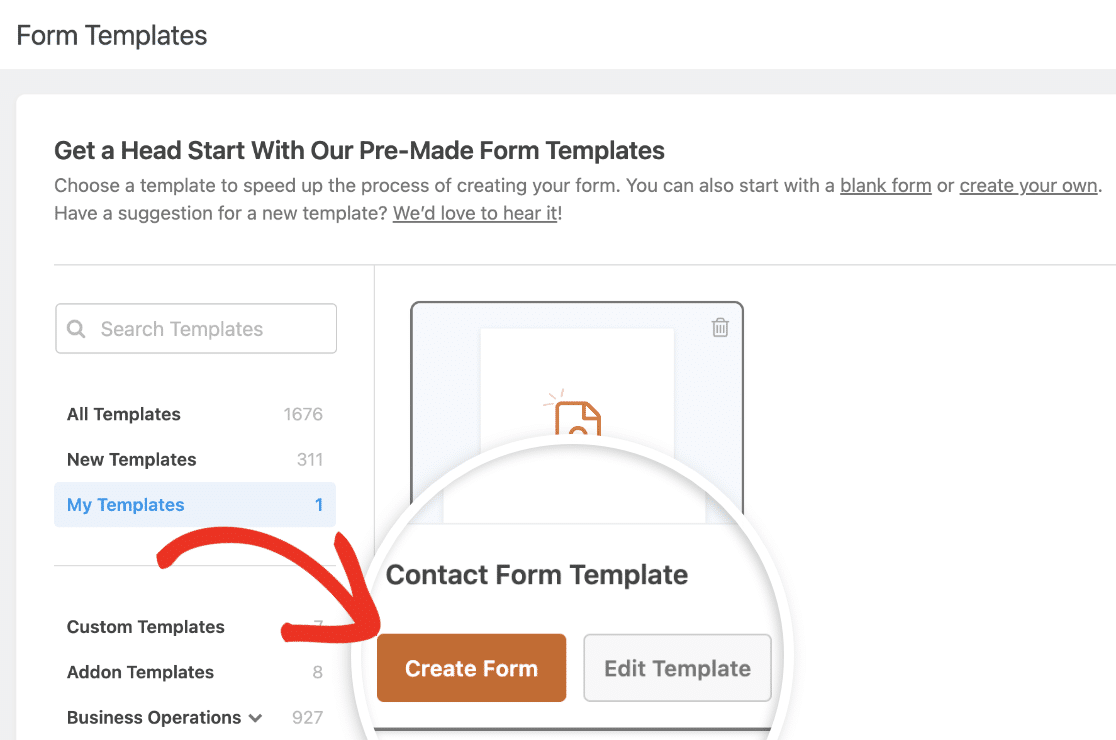
O texto do botão muda para “Usar Modelo” quando você vai para a página de modelos personalizados ao criar um novo formulário.
Você será levado à interface do construtor de formulários. Aqui, todos os campos do modelo personalizado escolhido já estarão no lugar.
Sinta-se à vontade para modificar esses campos para melhor atender às suas necessidades ou você pode simplesmente exibir o formulário como está.
6. Estilize Seu Modelo de Formulário Personalizado (Opcional)
Use o modelo com marca que você criou para criar um novo formulário. Depois de personalizar os campos, carregue o formulário no editor de blocos do WordPress.
No editor de blocos do WordPress, basta clicar no formulário para abrir opções adicionais de estilo e personalização para o bloco WPForms.
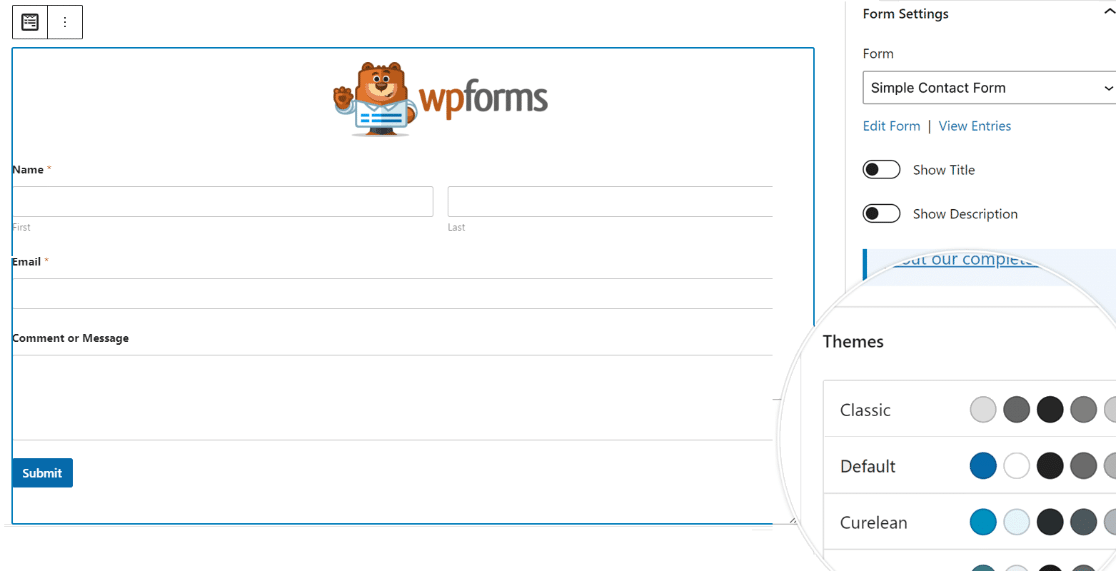
Você pode alterar o tema de cores, campos do formulário, rótulos, botões e os estilos de contêiner e plano de fundo sem escrever nenhum CSS nas configurações do bloco WPForms.
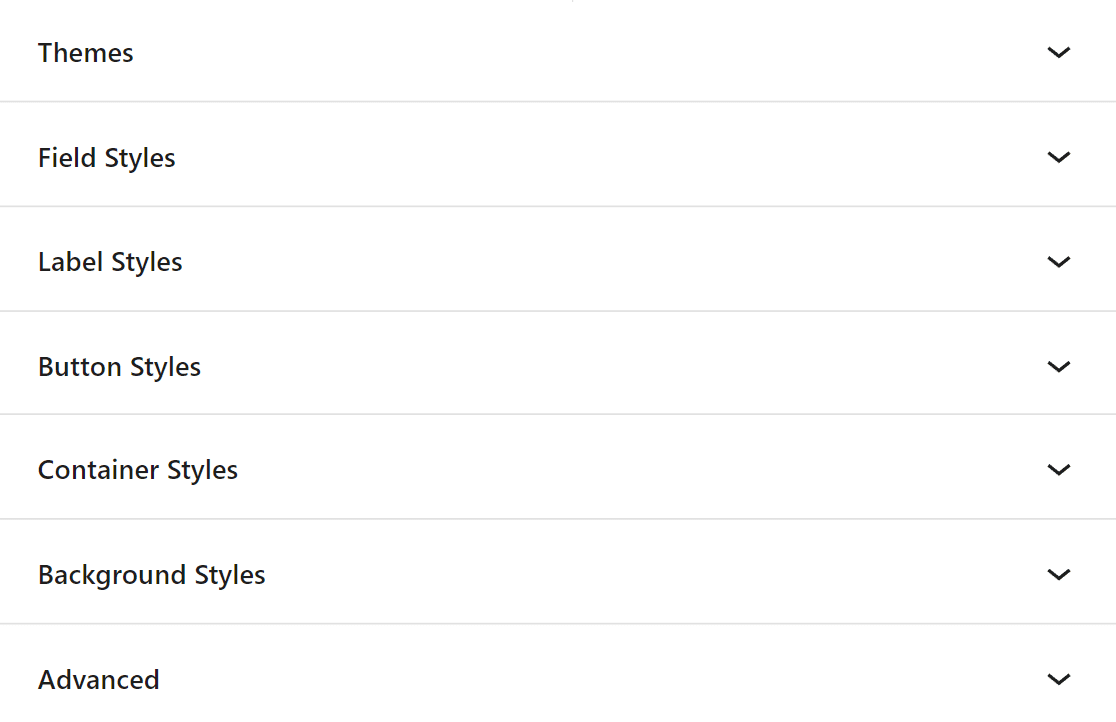
Depois de estilizar seu modelo de formulário com marca, clique na guia Avançado. Aqui, você pode copiar o código CSS contendo todos os estilos que você adicionou.
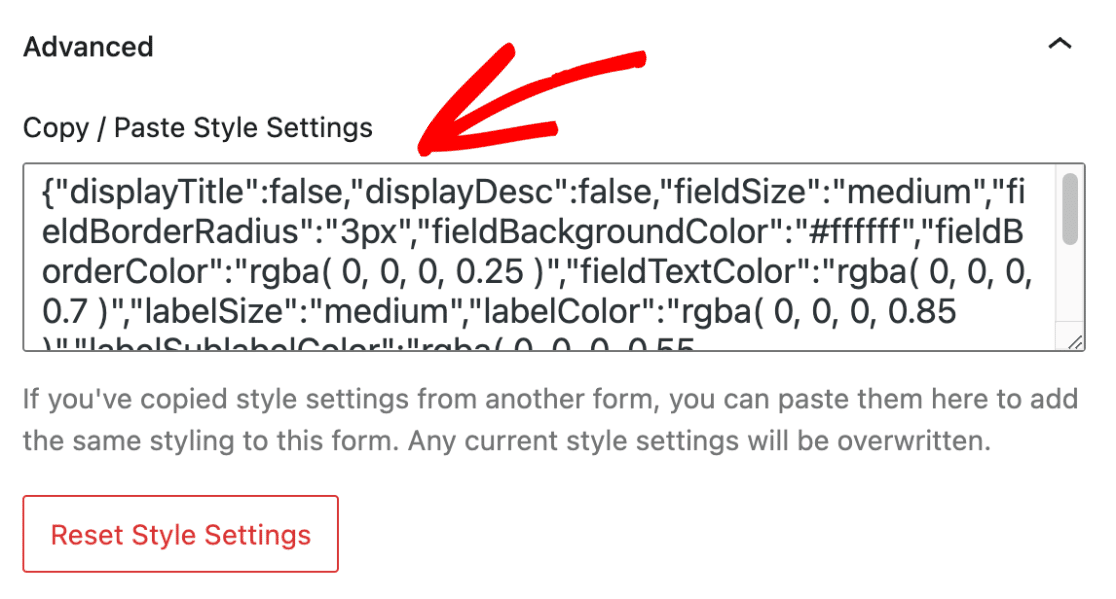
Sempre que criar um novo formulário usando o modelo de formulário com marca, basta colar o trecho de código, e o design do formulário usará os estilos do formulário anterior.
Perguntas Frequentes sobre Como Criar Modelos de Formulário com Marca
Modelos de formulário com marca são um tópico popular de interesse entre nossos leitores. Aqui estão as respostas para algumas perguntas comuns sobre eles.
O que é um formulário de marca?
Um formulário de marca é um tipo de formulário online que incorpora elementos da identidade de uma marca, como logotipos, esquemas de cores e fontes. Ele ajuda a manter uma presença de marca consistente em todas as interações com o cliente.
O que são modelos com marca?
Modelos com marca são layouts pré-projetados que incluem elementos de marca específicos adaptados a uma empresa. Esses modelos garantem que todas as comunicações e formulários permaneçam consistentes com a identidade visual da marca.
Quantos modelos de marca você pode ter no WPForms?
Com o WPForms, você pode criar e usar um número ilimitado de modelos com marca, que são salvos na guia Meus Modelos. Essa flexibilidade permite que você adapte formulários para vários propósitos, mantendo a aparência e a sensação da sua marca.
Como uso o WPForms para branding?
Para usar o WPForms para branding, comece acessando os recursos de Temas de Formulário e Modelos Personalizados.
Isso permite que você crie e aplique o estilo exclusivo da sua marca aos seus formulários de pedido, tornando as interações com os clientes mais profissionais e coesas.
Você pode personalizar esses modelos com as cores, logotipos e fontes da sua marca (os mesmos que você usa em redes sociais e aplicativos).
Em seguida, Saiba como Criar um Modelo de E-mail Personalizado
Através do WPForms, você pode facilmente alterar a aparência dos seus e-mails de notificação para criar uma experiência mais personalizada. Confira este guia para obter instruções sobre como criar um modelo de e-mail personalizado usando o WPForms.
Crie um Modelo de Formulário Personalizado Agora! 🙂
Pronto para construir seu formulário? Comece hoje mesmo com o plugin construtor de formulários WordPress mais fácil. WPForms Pro inclui muitos modelos gratuitos e oferece uma garantia de devolução do dinheiro em 14 dias.
Se este artigo ajudou você, por favor, siga-nos no Facebook e Twitter para mais tutoriais e guias gratuitos do WordPress.


