



Resumo de IA
Você quer conectar Formulários Elementor ao Google Sheets?
Embora o Elementor possa armazenar as entradas do seu formulário no seu painel do WordPress, há momentos em que você pode querer manter uma cópia das entradas e leads do seu formulário em uma Planilha Google.
Infelizmente, o Elementor Forms não oferece uma solução rápida para conectá-lo ao Google Sheets. Você terá que usar aplicativos de integração de terceiros como o Zapier para configurar essa automação.
A boa notícia é que existe uma maneira alternativa que é mais rápida, barata e fácil de configurar.
Neste post, mostraremos como conectar Formulários Elementor ao Google Sheets sem Zapier.
Sincronize Seus Formulários com o Google Sheets
Qual é a Melhor Maneira de Conectar Formulários Elementor ao Google Sheets?
A maneira padrão de conectar Formulários Elementor ao Google Sheets é usando webhooks para criar uma automação com o Zapier.
Não recomendamos este método para iniciantes porque:
- Requer webhooks, que podem ser um pouco complicados de configurar
- Você só pode criar um número limitado de entradas de linha em sua planilha porque o Zapier consome 1 tarefa de sua cota total para cada nova entrada criada.
Isso pode rapidamente se tornar caro à medida que as submissões do seu formulário aumentam.
Você pode evitar webhooks e Zapier completamente usando uma solução alternativa para enviar as entradas do seu formulário WordPress para sua planilha automaticamente.
A resposta é usar o WPForms Pro.
Como um plugin dedicado para criação de formulários, o WPForms Pro inclui uma integração nativa com o Google Sheets. Isso permite que você conecte qualquer formulário individual à sua planilha sem nenhum código ou uso de aplicativos de terceiros.
Além disso, o Elementor tem um widget WPForms, então você ainda pode usar o Elementor para construir suas páginas e incorporar qualquer formulário WPForms dentro da sua página.
E se você quiser saber mais sobre as diferenças entre esses criadores de formulários, veja nosso guia sobre Elementor Forms vs WPForms.
Agora que sabemos os benefícios de usar o WPForms Pro para simplificar o envio de entradas para o Google Sheets, vamos passar pelas etapas necessárias para concluir esta integração.
Como Conectar Formulários Elementor ao Google Sheets
Neste Artigo
1. Instalar WPForms Pro
O WPForms tem mais de 13 avaliações 5 estrelas no WordPress.org, tornando-o um dos plugins de formulário de contato mais bem avaliados.
Para instalar o WPForms Pro em seu site, você primeiro precisará comprar a licença Pro.
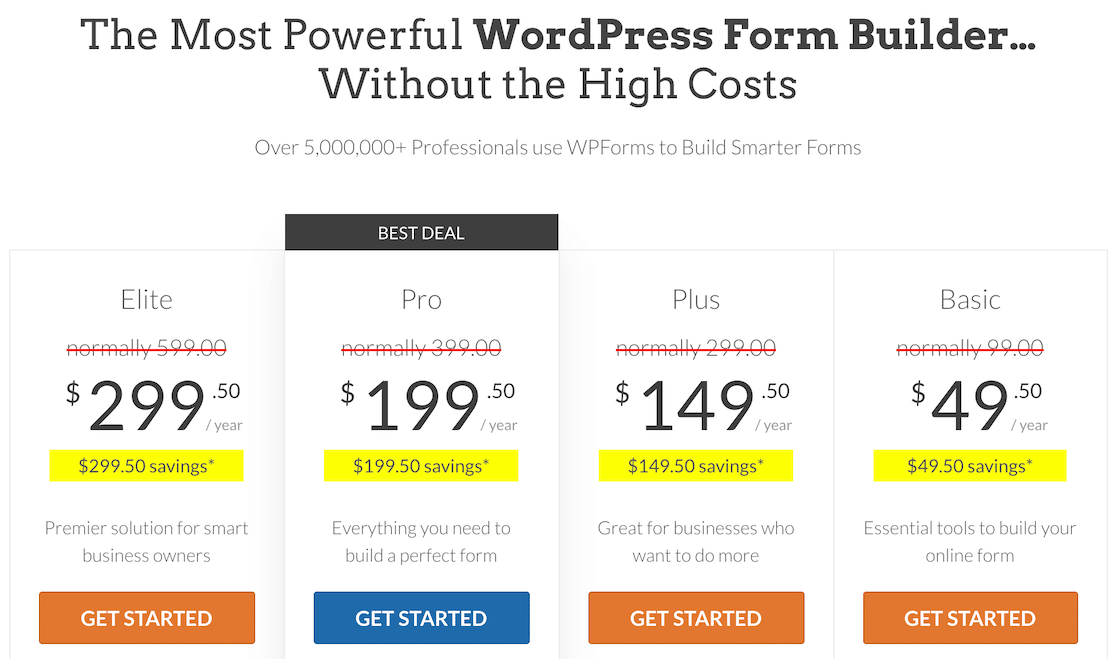
Quando você tiver concluído a compra, pode prosseguir e instalar o WPForms em seu site.
A instalação leva apenas alguns minutos. Quando o plugin for instalado e ativado, é hora de obter o complemento do Google Sheets, como mostramos na próxima etapa.
2. Instalar o Addon Google Sheets
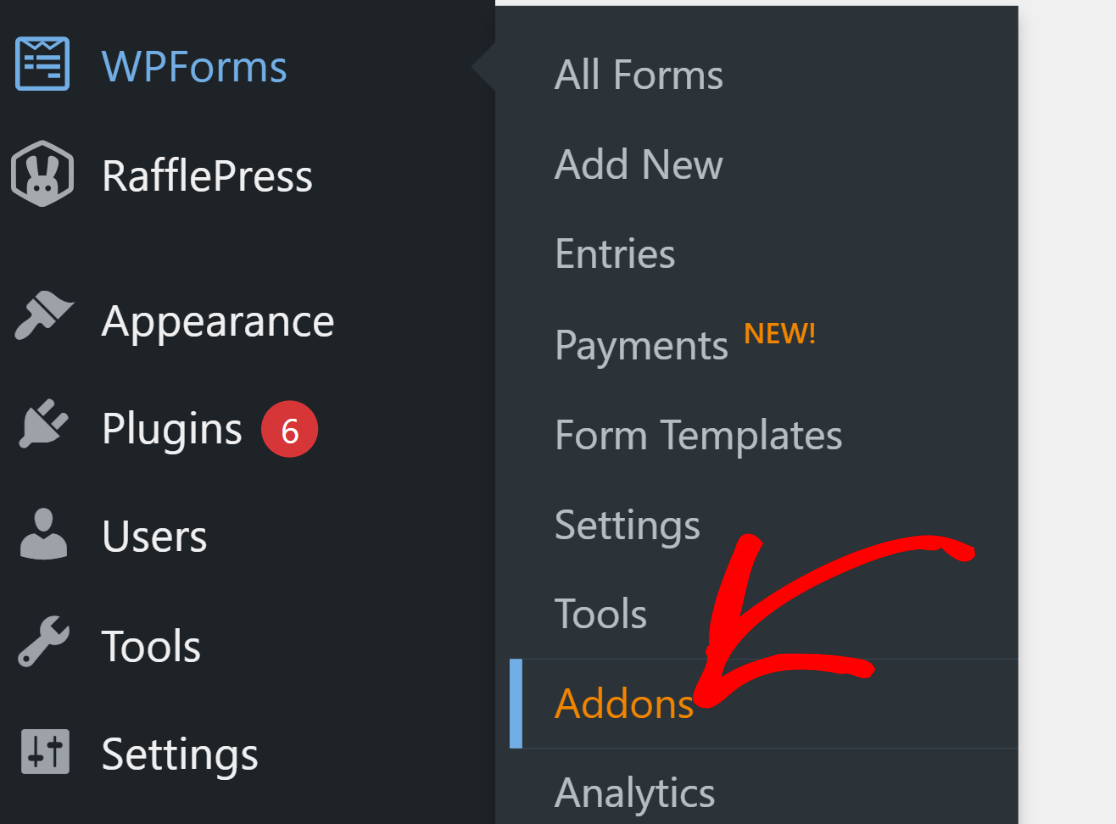
Instalar complementos no WPForms é rápido e fácil. No seu painel do WordPress, navegue até WPForms » Complementos.
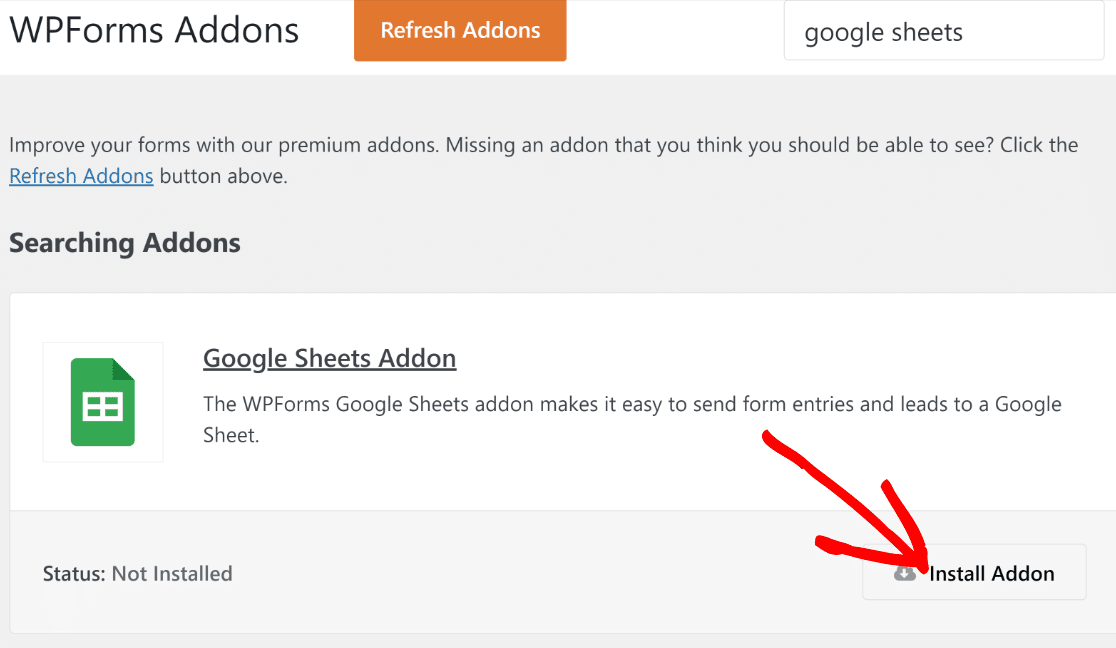
Na página Complementos do WPForms, pesquise pelo Complemento do Google Sheets. Quando o complemento aparecer na sua tela, clique no botão Instalar Complemento abaixo dele.
Assim que o complemento terminar de instalar e for ativado (isso leva apenas alguns segundos), você verá o status como Ativo.
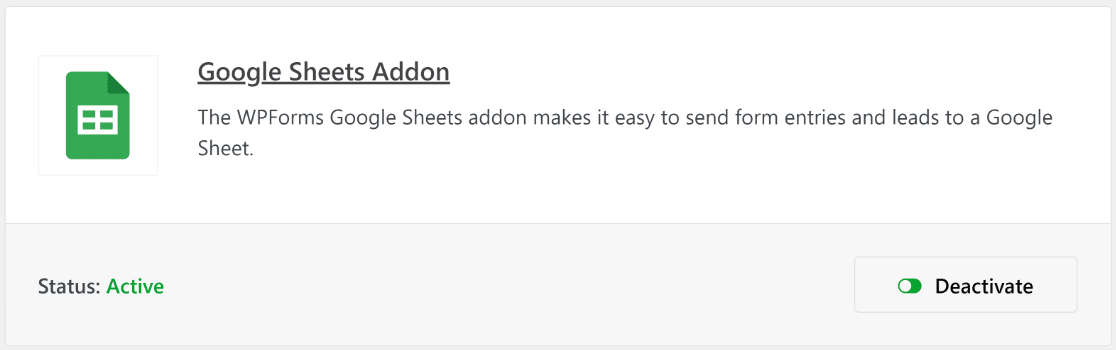
Temos o complemento pronto, mas ainda precisamos conectar o WPForms a uma Conta do Google para que ele possa se comunicar perfeitamente com nossas planilhas.
3. Integrar WPForms com uma Conta Google
Para conectar sua Conta do Google ao WPForms, clique em WPForms » Configurações no menu de administração. Depois disso, clique na guia Integrações localizada na barra de navegação horizontal.
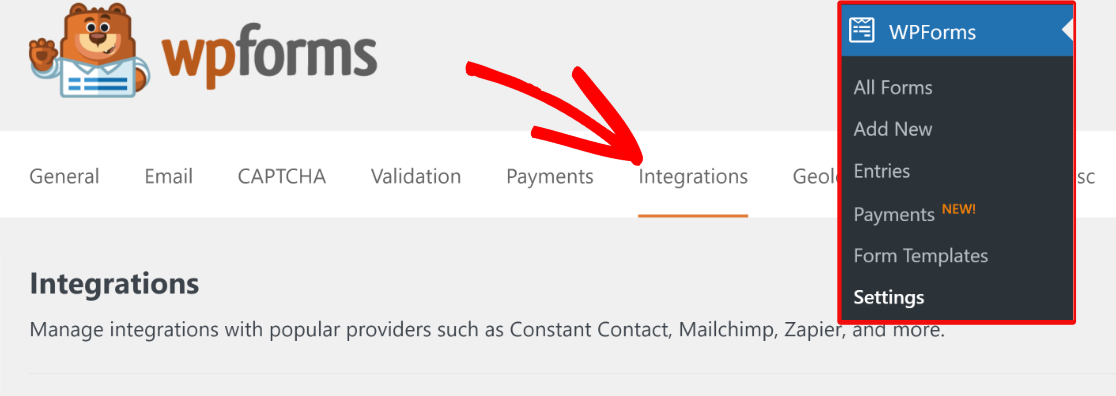
Dentro das configurações de Integrações, role para baixo até Google Sheets e clique nele para expandir seu menu de opções. Depois disso, clique em Adicionar Nova Conta.
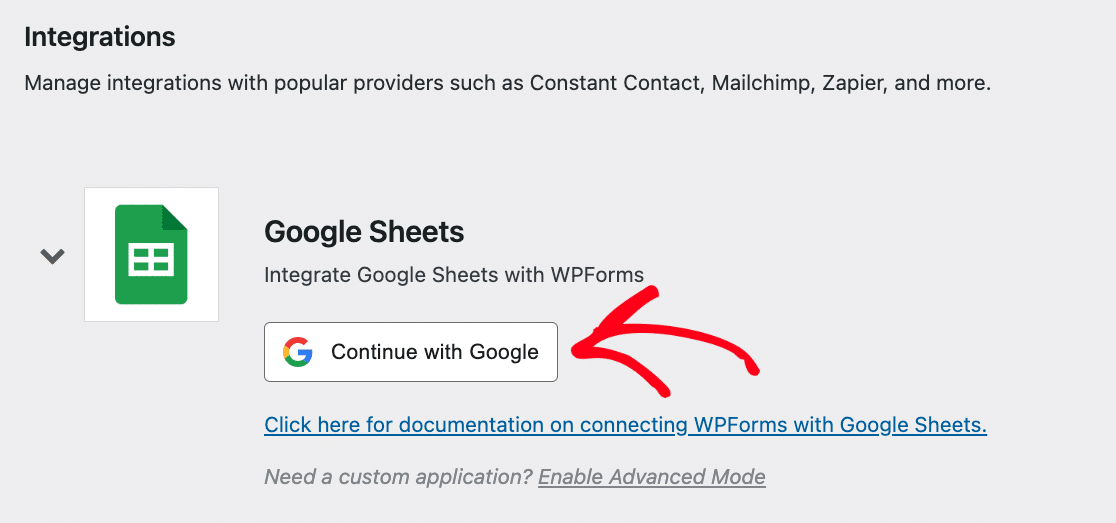
Se você já estiver conectado à sua conta do Google, poderá selecioná-la na lista. Ou você pode inserir as credenciais de login se ainda não tiver a conta salva.
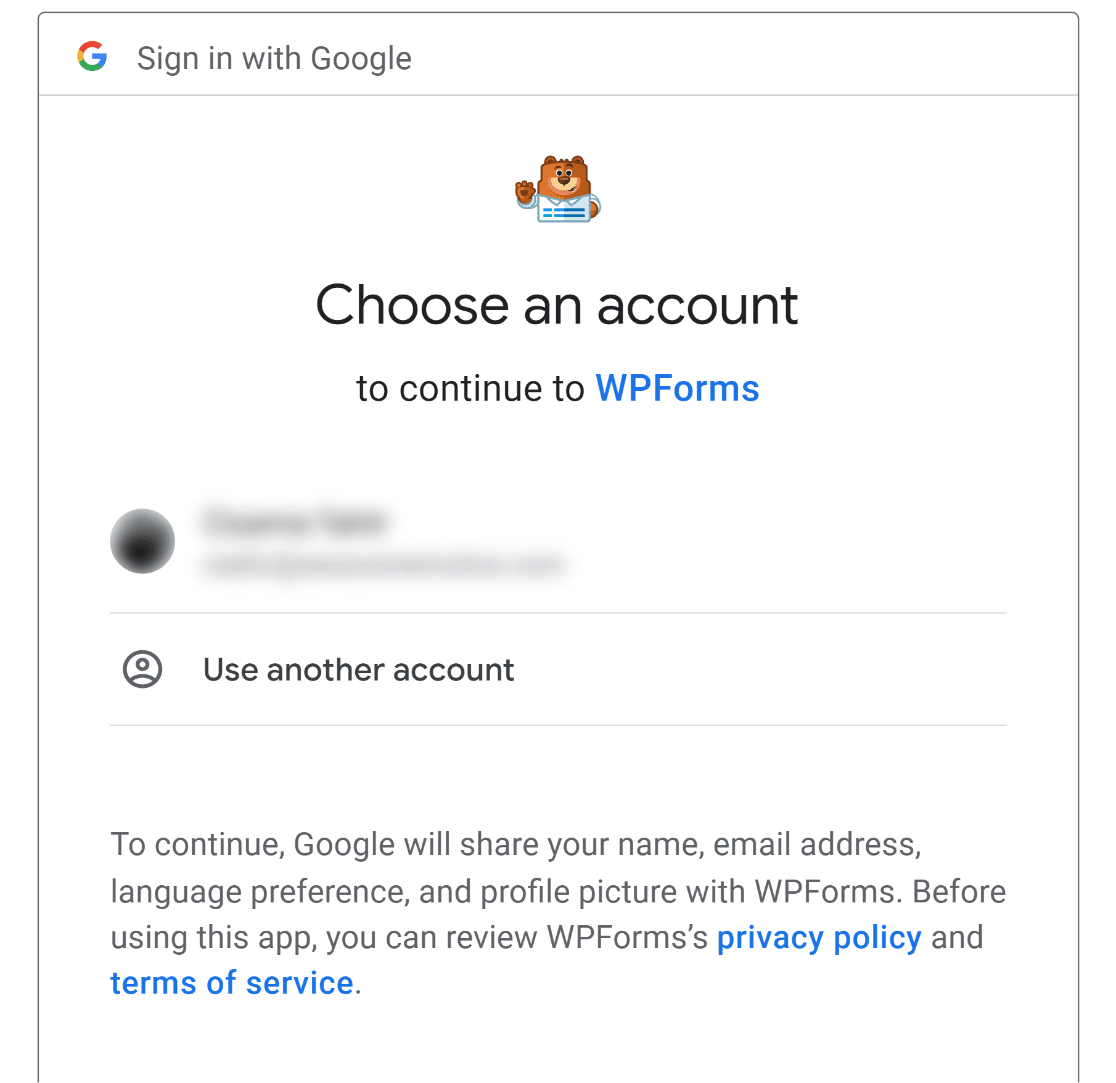
Após o login, você pode receber uma notificação de solicitação de permissão do WPForms para acessar sua conta do Google. Permita as permissões solicitadas e você deverá ser levado de volta à página de Integrações do WPForms com sua conta do Google agora conectada.

Agora que configuramos todos os plugins e integrações necessários, podemos prosseguir para a criação de um formulário de contato do WordPress que possa enviar dados para o Google Sheets.
4. Criar um Novo Formulário WordPress
Para criar um formulário no WPForms, vá para WPForms » Adicionar Novo no painel do WordPress.
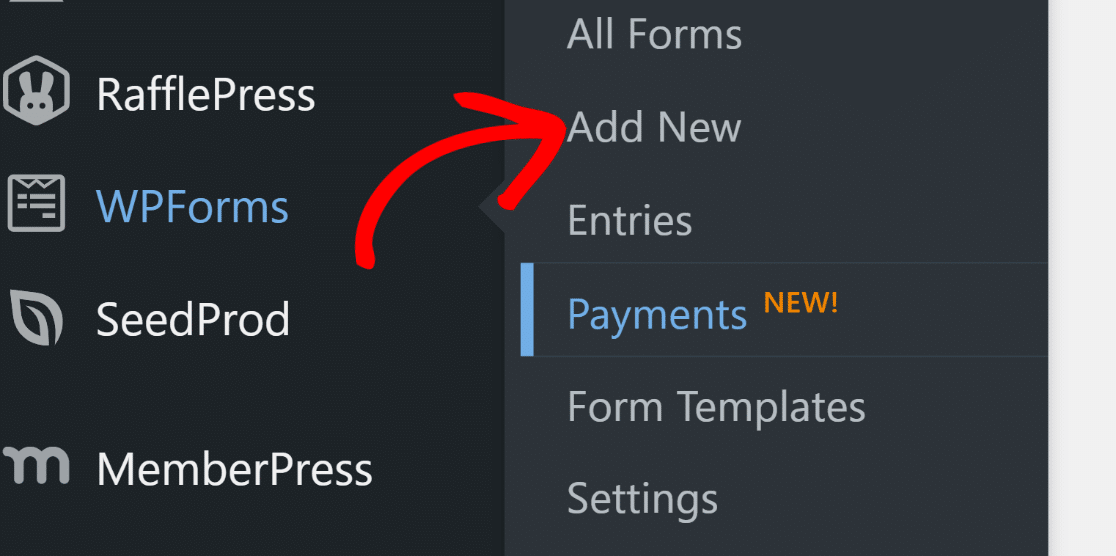
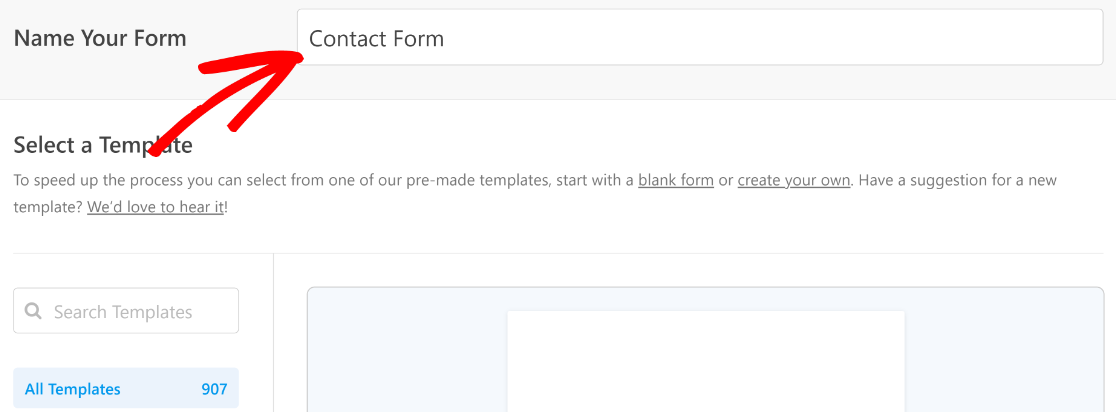
Isso abrirá a interface do construtor de formulários. Comece nomeando seu formulário. Você pode dar qualquer nome ao seu formulário, pois isso é apenas para sua referência interna.
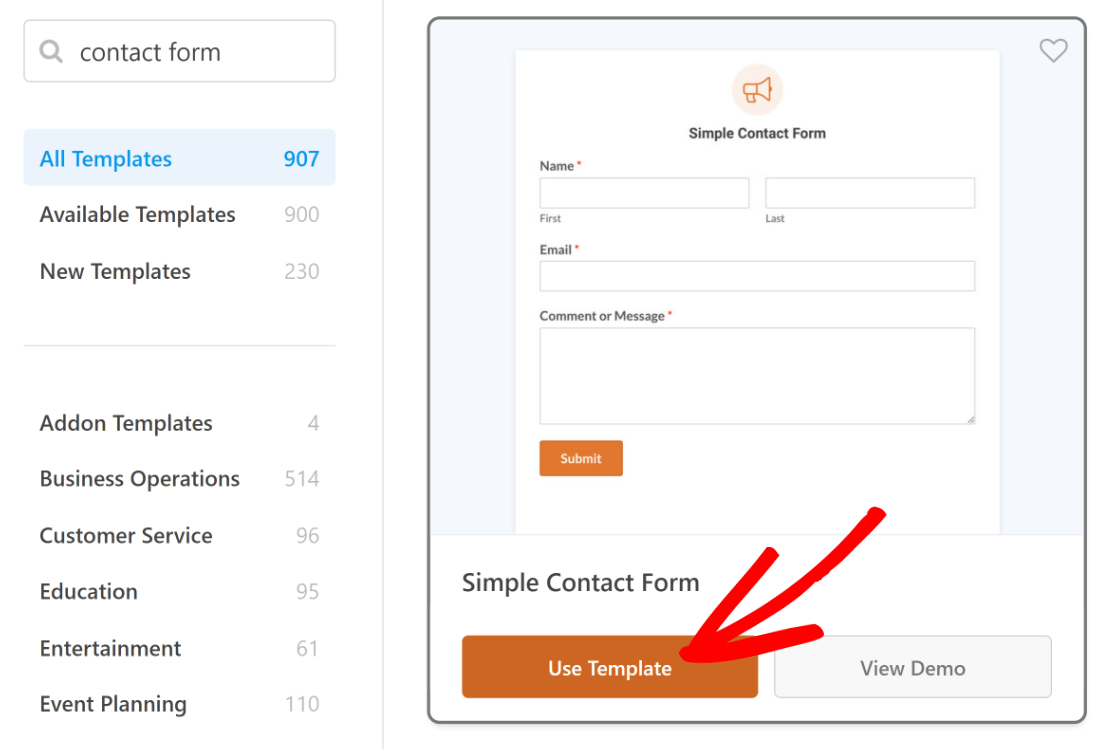
Em seguida, role para baixo até a seção Selecionar um Modelo. Aqui, você encontrará mais de 2.100 modelos de formulário que você pode usar como achar melhor.
Para este tutorial, usaremos o Formulário de Contato Simples.
Seu modelo selecionado será carregado em apenas alguns segundos.
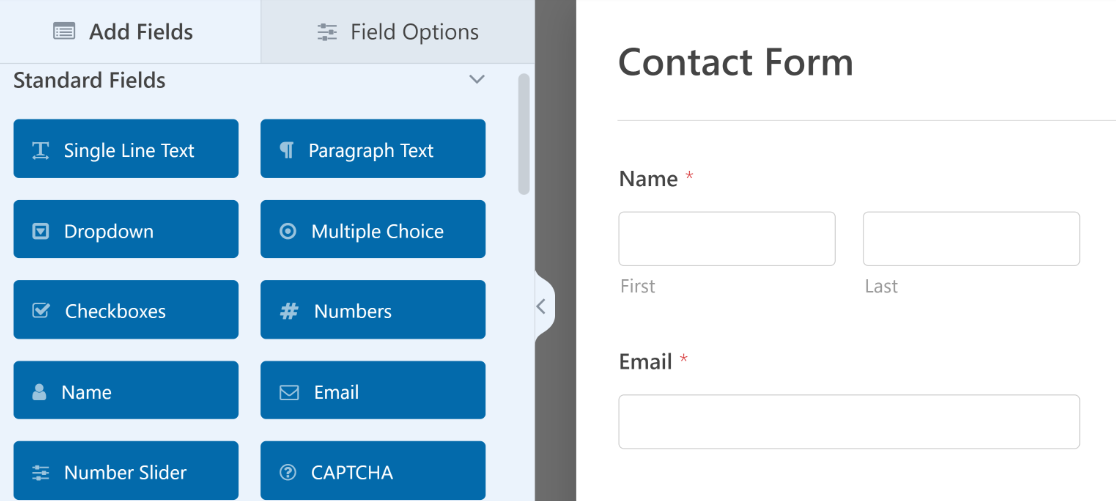
Sinta-se à vontade para personalizar seu modelo alterando ou removendo campos existentes ou apenas adicionando mais alguns conforme necessário.
Quando estiver satisfeito com a aparência do seu formulário, passe para a próxima etapa ou confira este guia para obter instruções sobre como criar um formulário de várias etapas no Elementor.
5. Conectar Seu Formulário a uma Planilha Específica
Antes que o WPForms possa começar a enviar os dados do seu formulário para uma planilha, você precisa configurar as opções de como os dados devem ser tratados do WPForms para o Google Sheets.
Você pode fazer isso clicando em Configurações dentro do construtor de formulários. Em seguida, selecione Google Sheets.
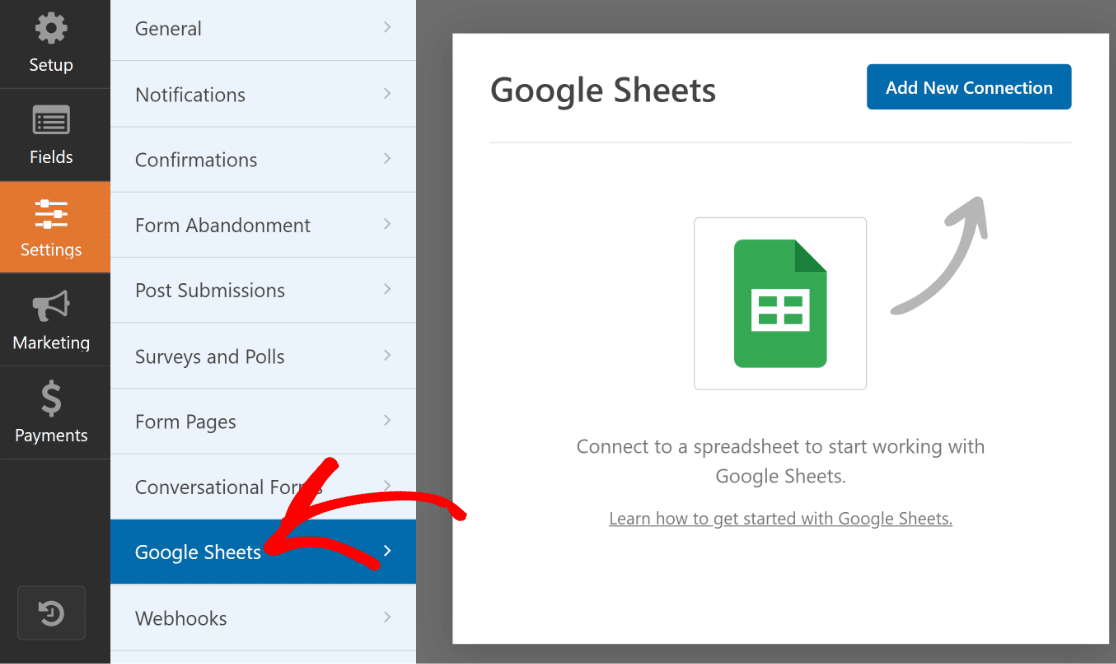
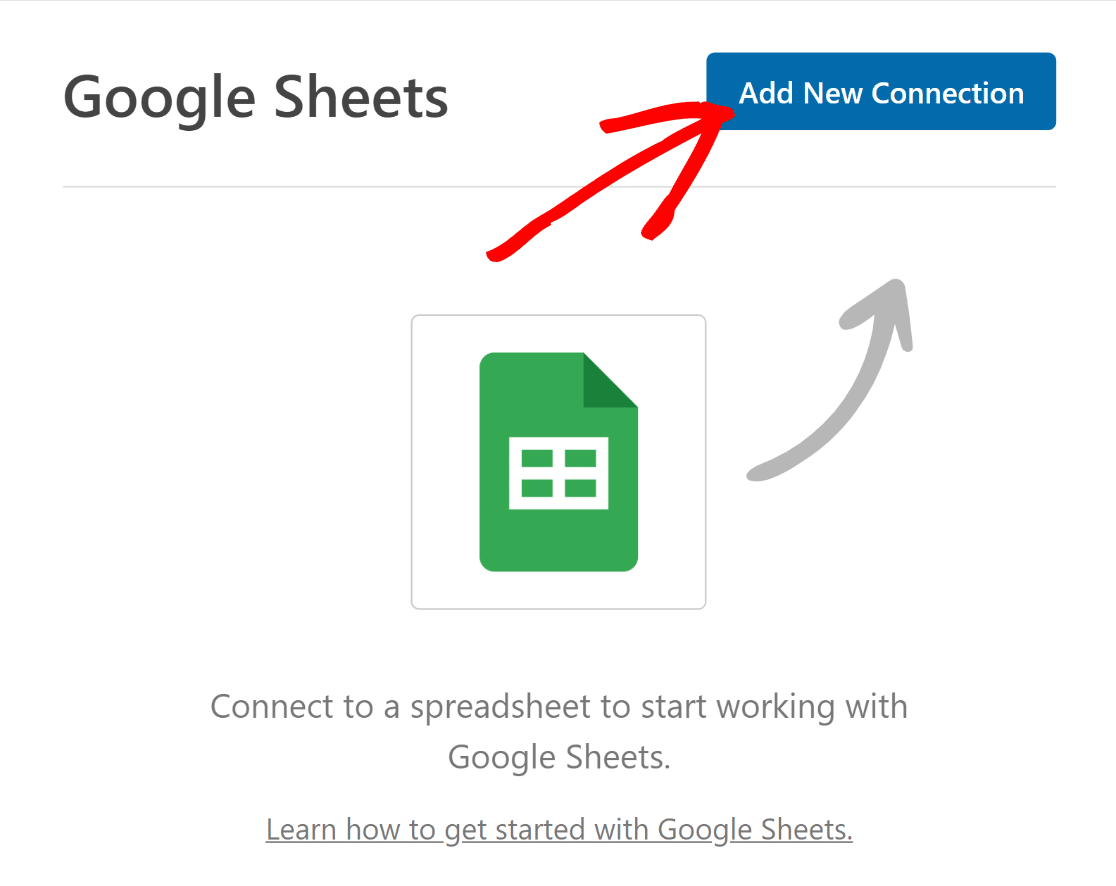
Pressione o botão azul Adicionar Nova Conexão no canto superior direito.
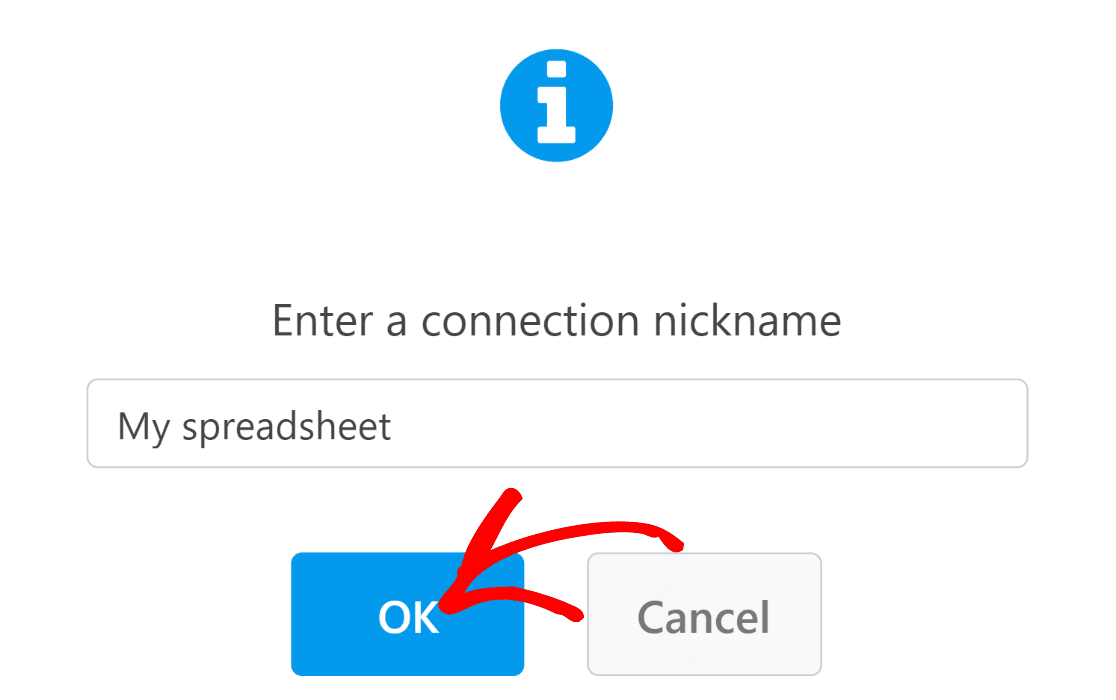
Você verá uma janela modal aparecer pedindo para você inserir um apelido para a conexão. Insira qualquer nome e, em seguida, pressione OK.
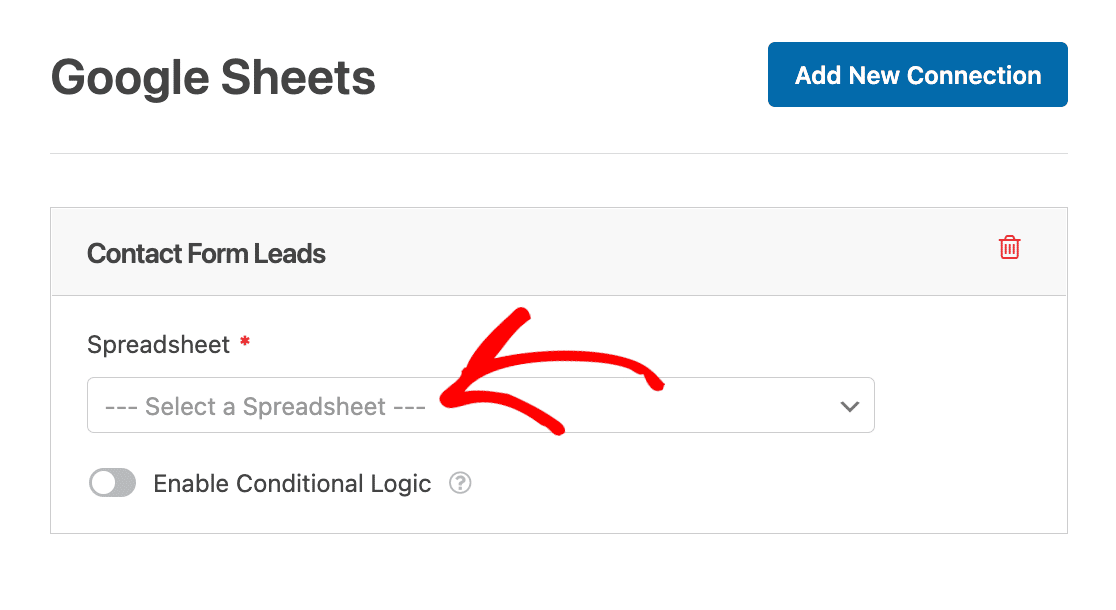
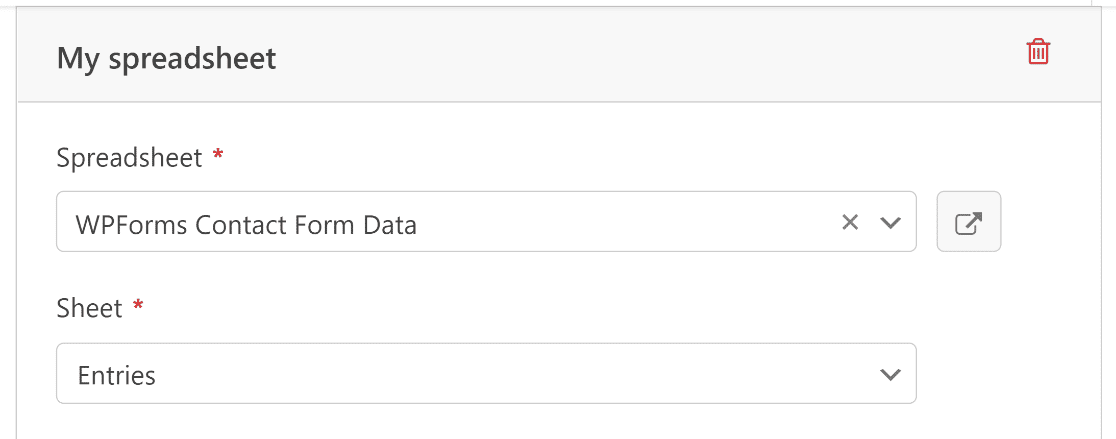
Agora você pode configurar as definições para a sua integração WPForms-Google Sheets. Primeiro, você precisa selecionar uma planilha para a qual deseja enviar os dados de envio do seu formulário.
Nós já configuramos uma planilha para o nosso formulário, então só precisamos selecioná-la. No entanto, você também pode criar uma nova planilha no menu suspenso, se desejar.
Clique no menu suspenso Spreadsheet para ver uma lista de todas as planilhas salvas na sua conta do Google e selecione uma.
Junto com a planilha, você também precisa selecionar a folha individual onde deseja enviar os dados do formulário. Em nosso exemplo, nomeamos esta folha como 'Entries'. Use o menu suspenso Sheet para selecionar a folha desejada.
Em seguida, mapearemos os campos do nosso formulário com as colunas da nossa planilha.
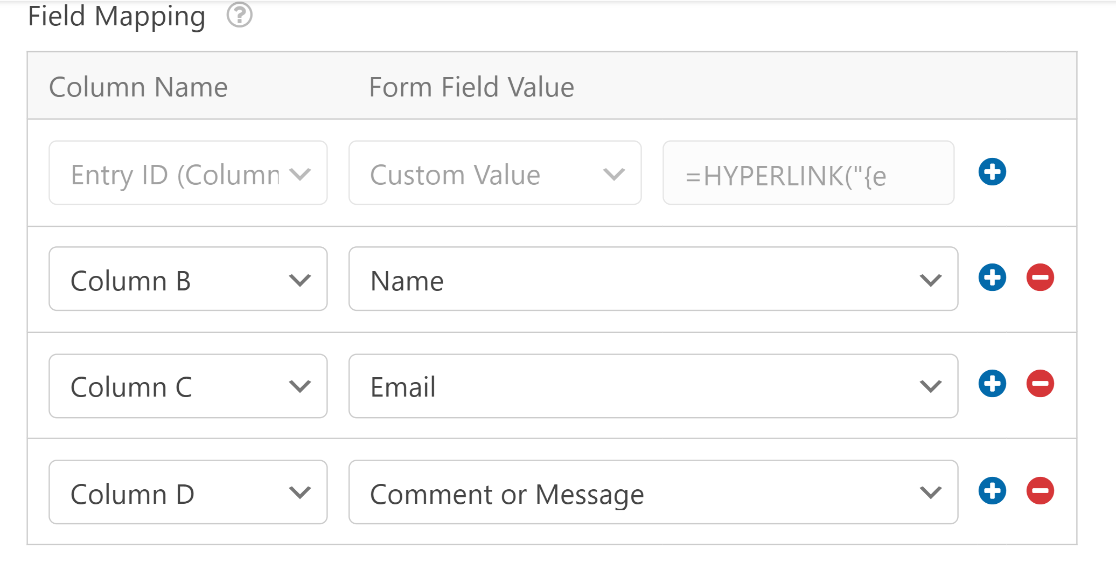
Por padrão, o WPForms usa a Coluna A da sua planilha para informações de ID de Entrada. Sinta-se à vontade para mapear seus campos principais começando pela Coluna B e assim por diante.
O processo de mapeamento é fácil. Comece selecionando uma Coluna usando o menu suspenso Column Name.
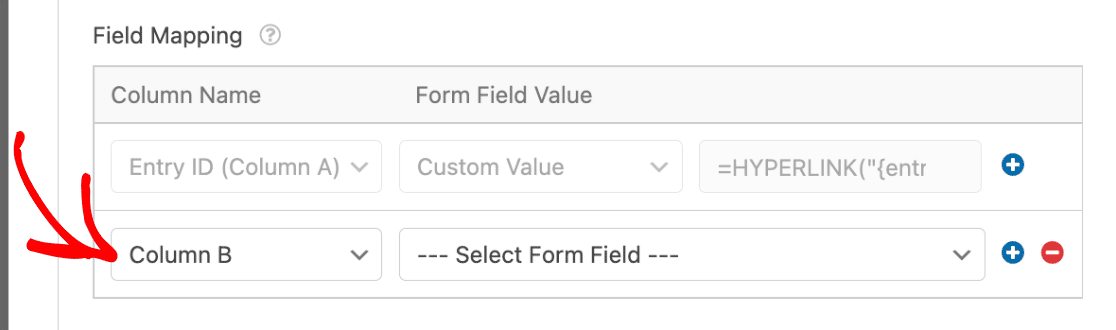
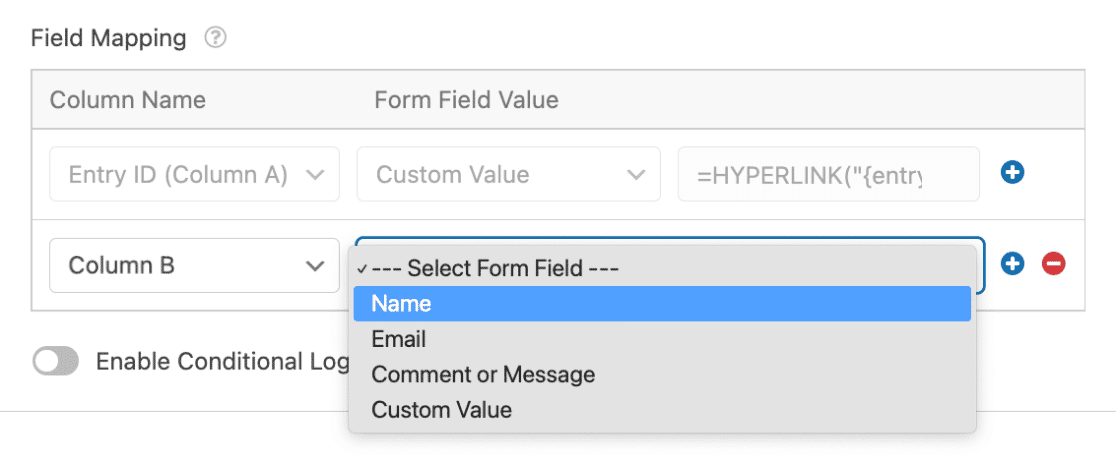
Em seguida, use o menu suspenso Form Field Value para determinar qual valor de campo deve ir para a coluna selecionada da sua folha.
Por exemplo, selecionamos a Coluna B no menu suspenso Column Name e o campo Name no menu suspenso Form Field Value para enviar os valores do campo Name de cada envio de formulário para a Coluna B, e assim por diante.
Se você quiser enviar os valores restantes dos campos do formulário para outras colunas da sua folha, pressione o botão de adição (+) para adicionar itens de mapeamento.
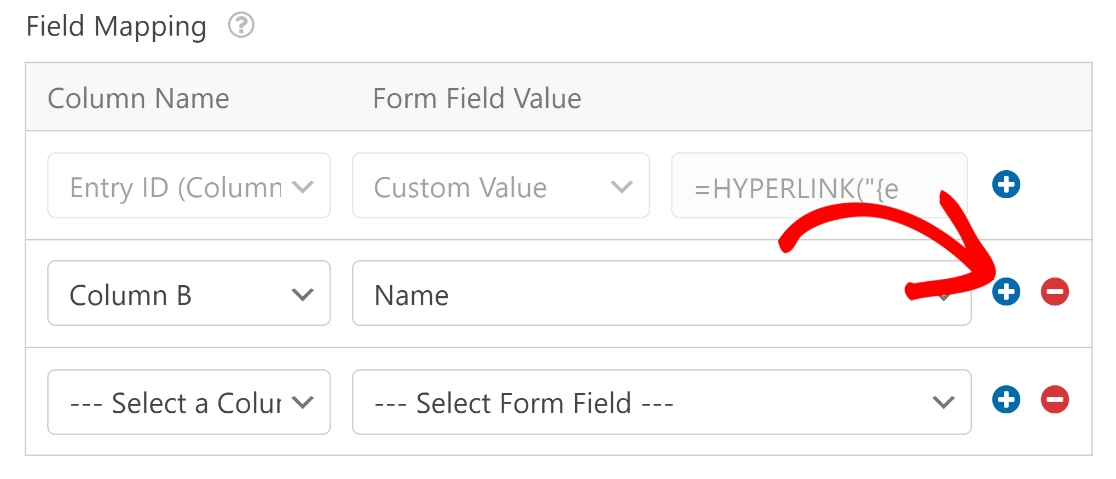
Repita este processo até ter mapeado todos os seus campos com as colunas de planilha desejadas.
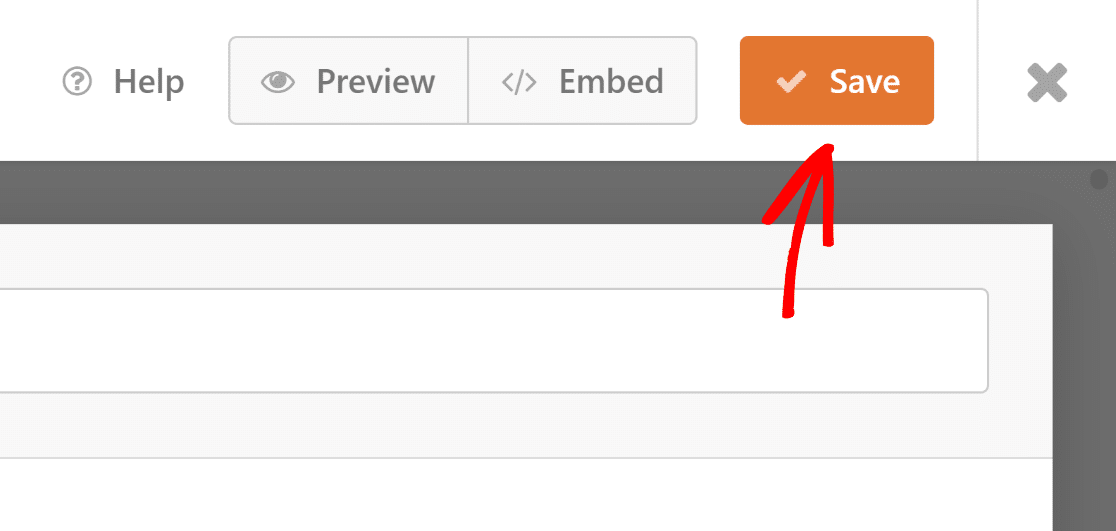
Quando terminar esta etapa, pressione o botão Save na parte superior do formulário para salvar seu progresso.
Agora, estamos prontos para usar o Elementor para adicionar nosso formulário de contato.
6. Incorporar Formulário Usando Elementor
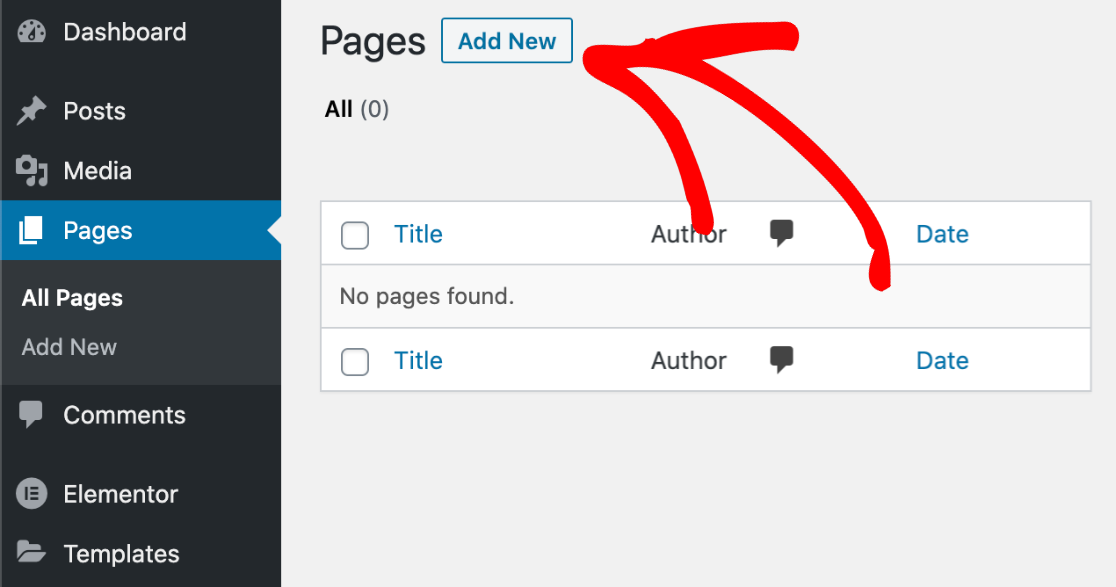
Abra seu painel do WordPress e vá para Pages. Selecione uma página existente da sua lista se quiser editá-la e inserir seu formulário, ou pressione Add New para criar uma nova página.
Dê um título à sua página. Em seguida, selecione o botão Edit with Elementor .

Isso iniciará a interface do construtor de páginas do Elementor. Assim que carregar, você poderá começar a projetar sua página adicionando diferentes elementos de bloco da barra lateral.
Para inserir o formulário que você acabou de criar, selecione o bloco WPForms e arraste-o para onde desejar em sua página.
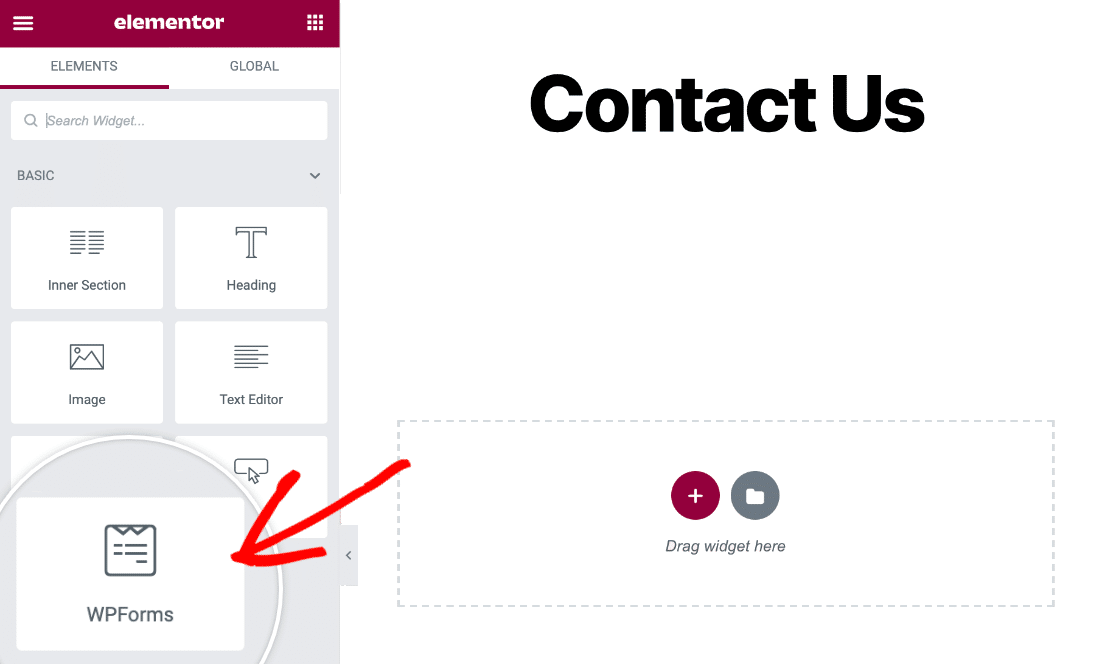
Depois de colocar o bloco WPForms em sua página, você pode usar o menu suspenso para selecionar seu formulário.
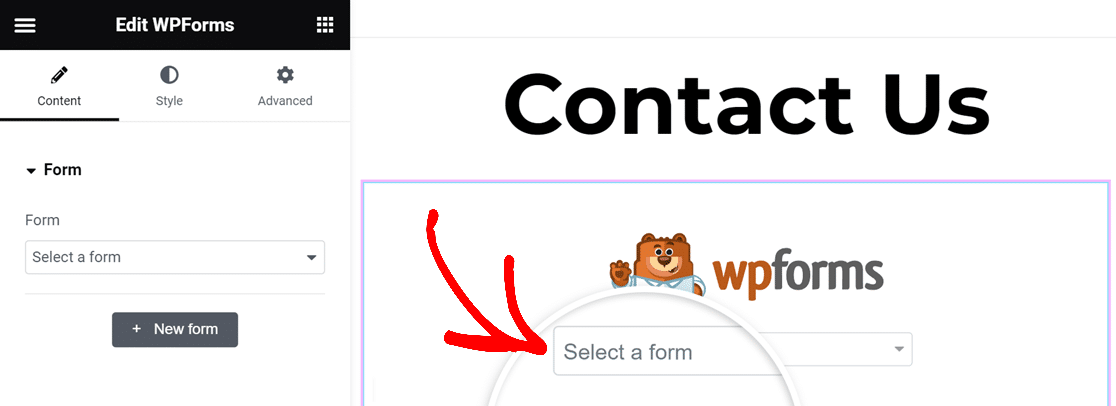
Seu formulário selecionado será carregado instantaneamente, e os campos aparecerão exatamente como você os configurou.
Antes de publicá-lo, você pode querer personalizar a aparência do formulário. Isso pode ser facilmente feito na aba Style.
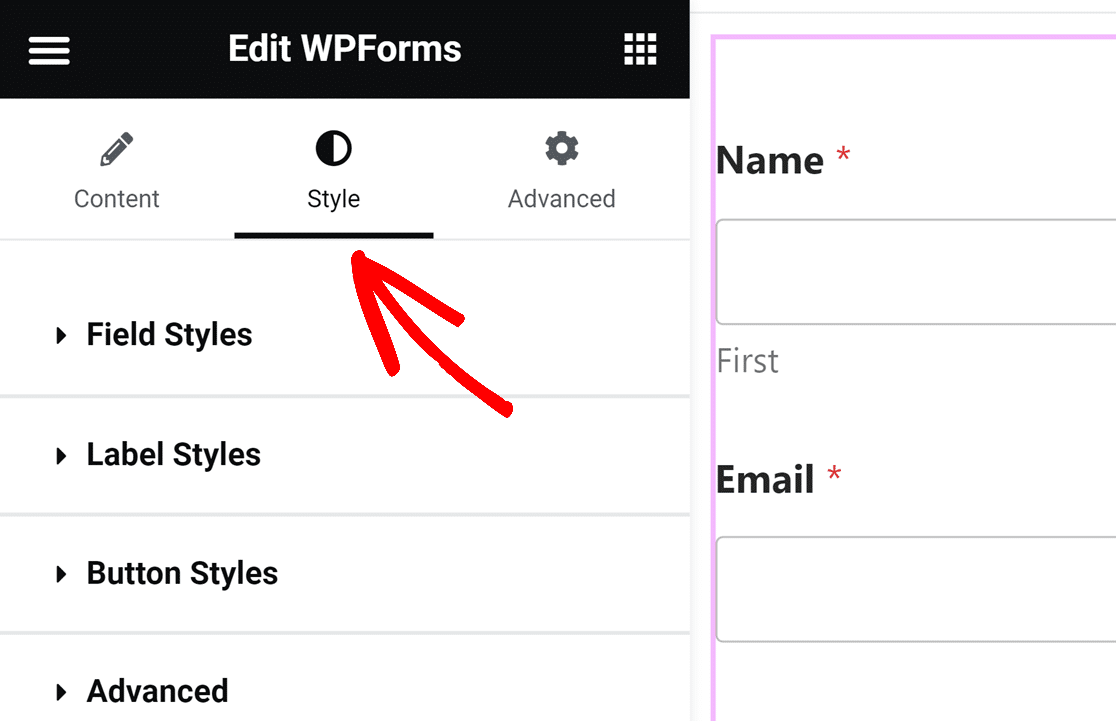
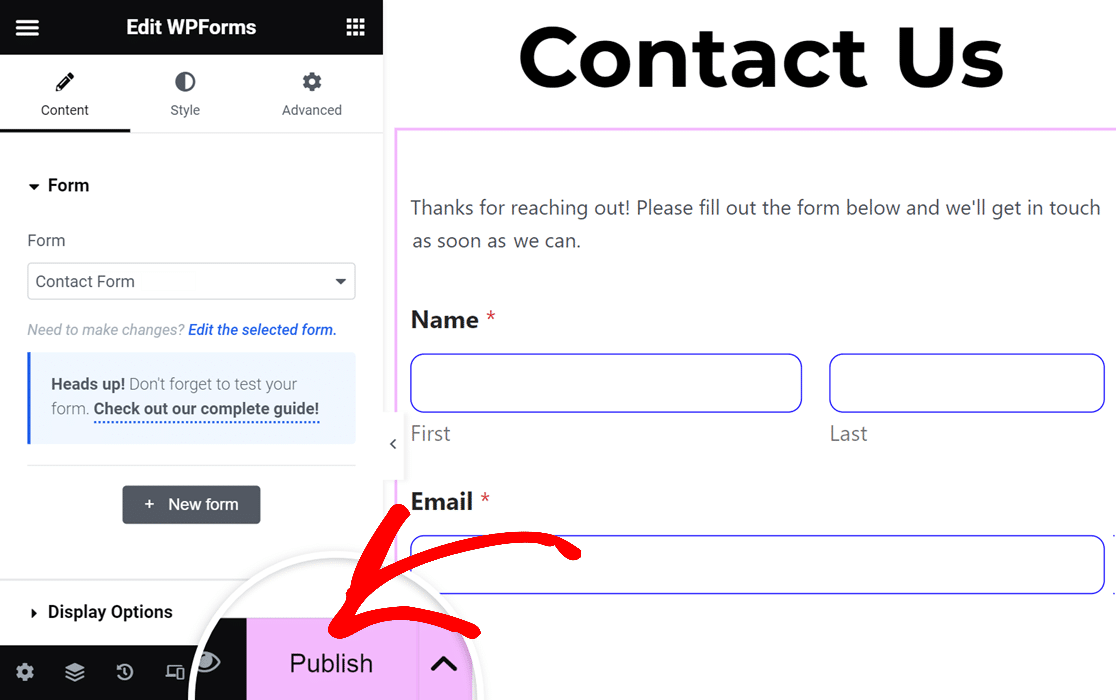
Quando terminar, prossiga e publique a página do seu formulário.
Agora, toda vez que um visitante enviar este formulário, você encontrará uma nova linha criada em sua planilha com os dados da entrada.
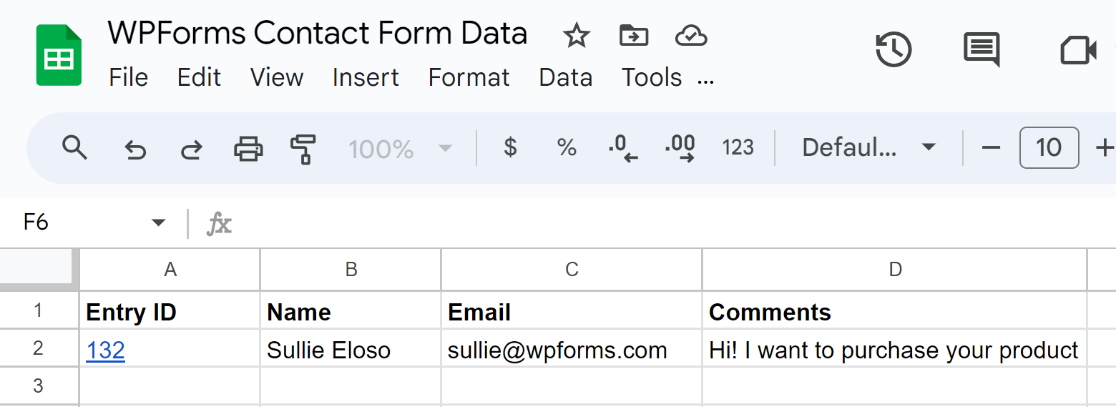
Se você clicar no link Entry ID, será levado diretamente para a tela de entrada do formulário dentro do seu painel do WordPress.
E é só isso.
Agora você pode conectar seus Formulários Elementor ao Google Sheets sem usar o Zapier ou configurar webhooks. Além disso, confira este guia se você quiser gerenciar eventos através do Google Sheets com um campo repetidor.
Perguntas Frequentes
Tem perguntas mais específicas sobre como conectar Formulários Elementor ao Google Sheets? Talvez você queira ler nossas respostas para algumas das perguntas mais frequentes:
O que preciso para enviar dados de Formulários Elementor para o Google Sheets?
No Elementor, não há funcionalidade integrada para enviar automaticamente os dados do seu formulário para o Google Sheets. Você precisará configurar webhooks e usar um aplicativo de terceiros, o Zapier, para que as submissões do seu formulário sejam enviadas para sua planilha. Não só isso é um processo demorado, mas também é caro porque o Zapier restringe o número de entradas que você pode enviar para o seu Google Sheets mensalmente, mesmo com seus planos pagos. Uma alternativa melhor é usar um construtor de formulários dedicado como o WPForms, que oferece uma integração nativa com o Google Sheets sem a necessidade de qualquer outro software.
Por que devo salvar os dados do meu formulário de contato no Google Sheets?
Salvar os dados do seu formulário de contato em uma planilha lhe dá a liberdade de classificar, analisar e organizar as entradas do seu formulário da maneira que desejar. Você pode facilmente compartilhar suas planilhas com outros membros da equipe para melhorar a colaboração no rastreamento de seus leads e no acompanhamento deles. Além disso, suas planilhas podem servir como backup para as entradas do seu formulário fora do seu ambiente WordPress.
Onde os dados do Formulário Elementor são armazenados?
O Elementor armazena os dados do seu formulário em seu banco de dados WordPress. Antes do Elementor Pro 3.2, não havia como acessar as submissões do seu Formulário Elementor sem usar plugins adicionais. Mas o Elementor agora vem com um menu de Submissões que permite visualizar e gerenciar suas entradas facilmente. Ainda assim, o Elementor não suporta uma integração nativa com o Google Sheets, então você precisará de uma alternativa como o WPForms para conectar diretamente seus formulários ao Google Sheets e, em seguida, usar o widget de bloco WPForms no Elementor para incorporá-lo.
Em seguida, Melhore seus Formulários de Contato Elementor
O Elementor tem um widget de formulário decente, mas não é um construtor de formulários dedicado. Como resultado, o Formulários Elementor sofre de muitas limitações que você não encontrará em construtores de formulários mais poderosos listados em nossa compilação dos melhores plugins de formulários Elementor.
E se você quiser criar um formulário Elementor gratuito, temos um guia separado para isso.
Pronto para construir seu formulário? Comece hoje mesmo com o plugin construtor de formulários WordPress mais fácil. WPForms Pro inclui muitos modelos gratuitos e oferece uma garantia de devolução do dinheiro em 14 dias.
Se este artigo ajudou você, por favor, siga-nos no Facebook e Twitter para mais tutoriais e guias gratuitos do WordPress.


