



Resumo de IA
Já pensou em como adicionar um recurso que calcula os dias entre datas em seu site?
Incorporar uma calculadora para encontrar o número de dias entre duas datas em seu site é um recurso simples, mas essencial para os usuários.
Crie uma Calculadora de Dias Entre Datas
Ela facilita processos para planejamento de eventos, cronogramas de projetos e agendamentos pessoais, oferecendo valor prático aos visitantes do seu site.
Neste artigo, forneceremos uma maneira rápida e fácil para os usuários obterem os dias entre duas datas em seu site, tornando-o mais interativo e útil.
Como uma Calculadora de Datas Online Agrega Valor ao seu Site
Adicionar uma calculadora de dias entre datas ao seu site oferece valor para uma variedade de aplicações e casos de uso, como:
- Calculadora de Prazo: Essencial para profissionais que gerenciam tarefas e atribuições. Auxilia no cálculo de dias úteis entre duas datas para projetos.
- Contagem Regressiva para Eventos: Cria expectativa para eventos futuros. Útil para planejadores de casamentos, organizadores de eventos e participantes.
- Calculadora de Visto: Ajuda no planejamento da duração de estadias e renovações. Crucial para agentes de viagens que fornecem conselhos aos clientes.
- Calculadora de Gravidez: Fornece uma contagem regressiva clara para a data prevista do parto. Útil para organizar eventos relacionados ao bebê, como chás de bebê.
- Calculadora de Data de Envio: Melhora o atendimento ao cliente, fornecendo prazos de entrega. Vital para empresas que gerenciam logística e estoque.
- Calculadora de Preços de Viagem, Reserva ou Aluguel: Auxilia no planejamento e orçamento de viagens. Ajuda viajantes a contar dias úteis entre datas para viagens.
Claro, se você encontrou este artigo, é provável que já tenha um motivo específico para querer determinar o número de dias entre duas datas.
Portanto, vamos direto ao assunto, mas adoraríamos saber como você pretende usar esta ferramenta — responda a este artigo abaixo para nos informar!
Como Calcular o Número de Dias Entre Datas
Criar uma calculadora de dias entre datas no WordPress com WPForms é incrivelmente fácil com o campo de seleção de data/hora. Tudo o que você precisa fazer é seguir estes passos simples abaixo:
Neste Artigo
1. Começando com WPForms Pro
O WPForms é a principal escolha para criar diversos formulários, incluindo calculadoras, que aumentam o engajamento online. Ele também vem com modelos de calculadora prontos para uso que atendem a vários negócios online, aprimorando a geração de leads.
Para criar uma calculadora de dias entre datas para este guia, é necessário ter o WPForms Pro. Esta versão não só oferece o addon de Cálculo, mas também desbloqueia recursos premium como integrações avançadas, lógica condicional, relatórios de formulário e muito mais.
Depois de garantir a licença Pro, você precisará instalar e ativar o plugin WPForms em seu site. Para obter orientação fácil, confira este tutorial direto sobre como instalar um plugin do WordPress.
2. Ativando o Addon de Cálculos
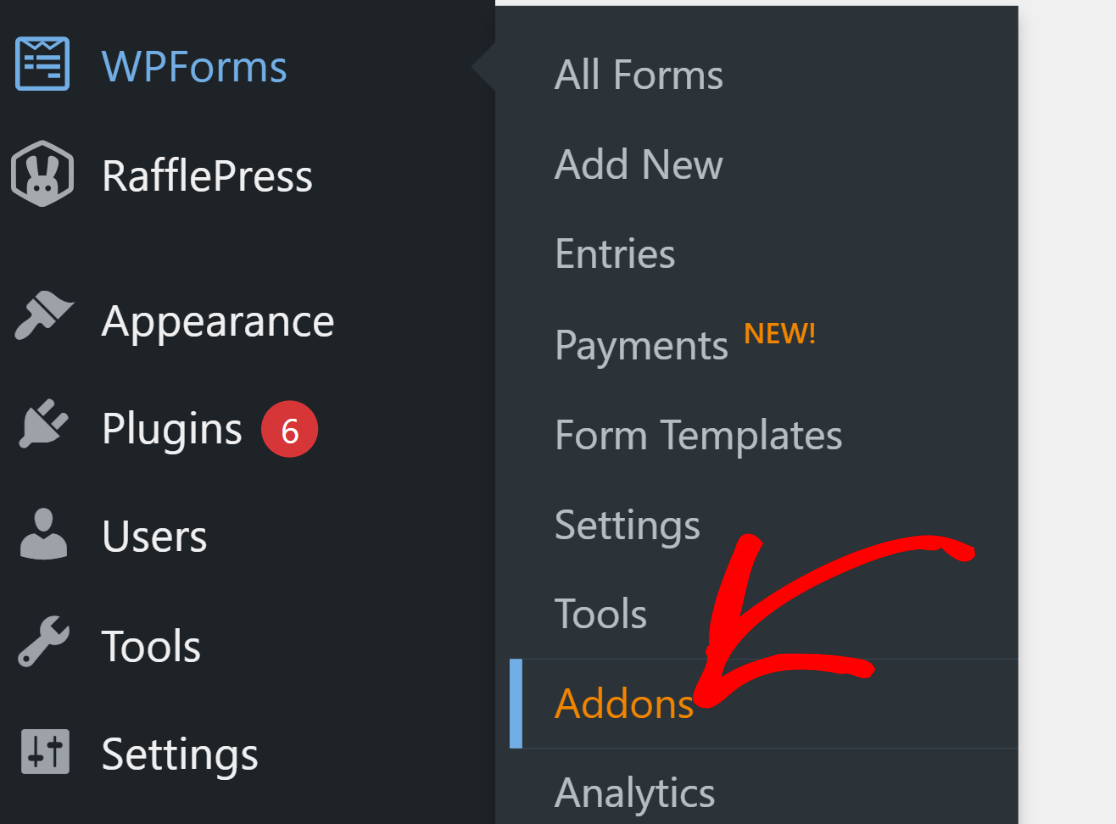
Adicionar o addon de Cálculos ao seu site é muito fácil. Vá para o seu painel do WordPress, clique em WPForms e depois em Addons.
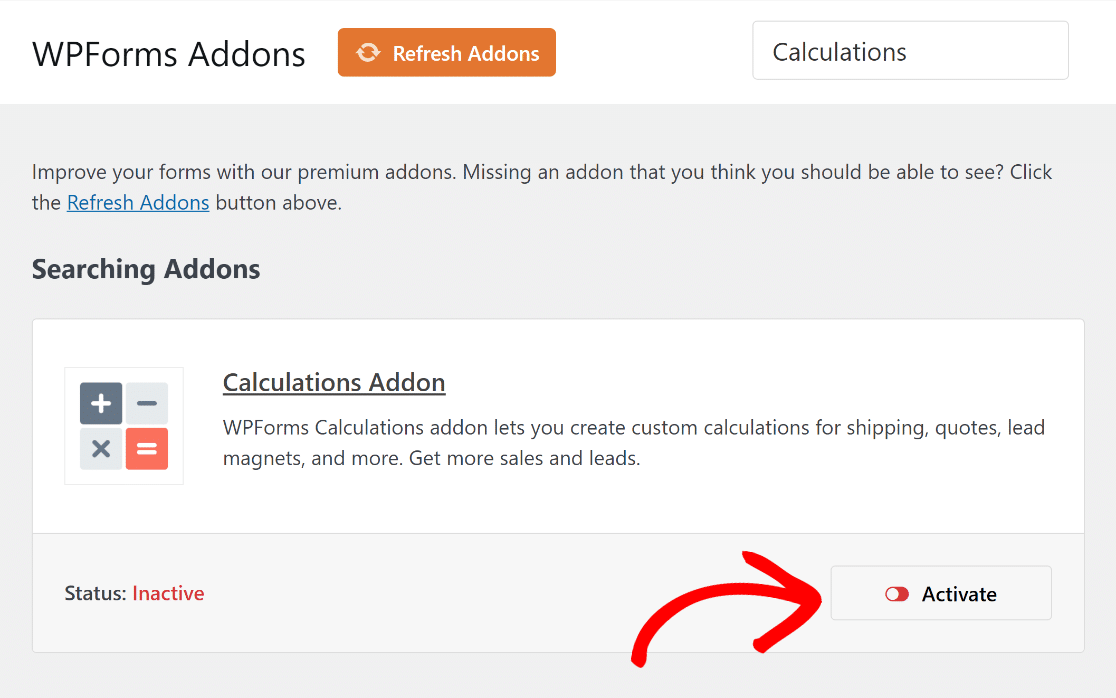
No campo Pesquisar Addons, simplesmente pesquise por “Cálculos”. Clique no botão Instalar Addon seguido pelo botão Ativar.
Esta etapa prepara você para criar uma calculadora personalizada que permite aos usuários calcular facilmente quantos dias existem entre duas datas em seu site.
3. Escolhendo o Modelo de Cálculos Correto
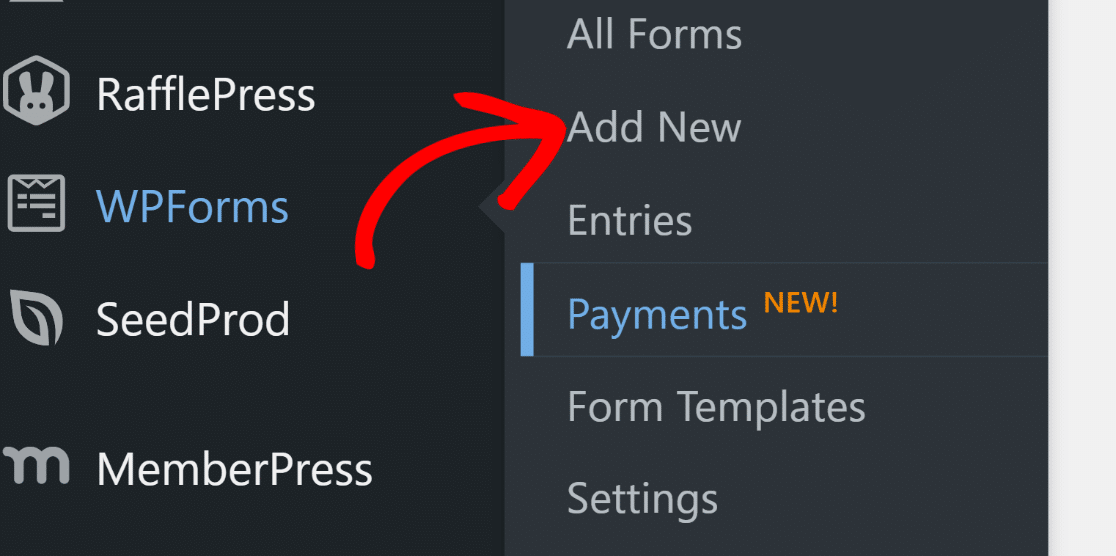
Agora, é hora de criar sua calculadora de contagem de dias entre datas. No seu painel, navegue até WPForms e clique em Adicionar Novo.
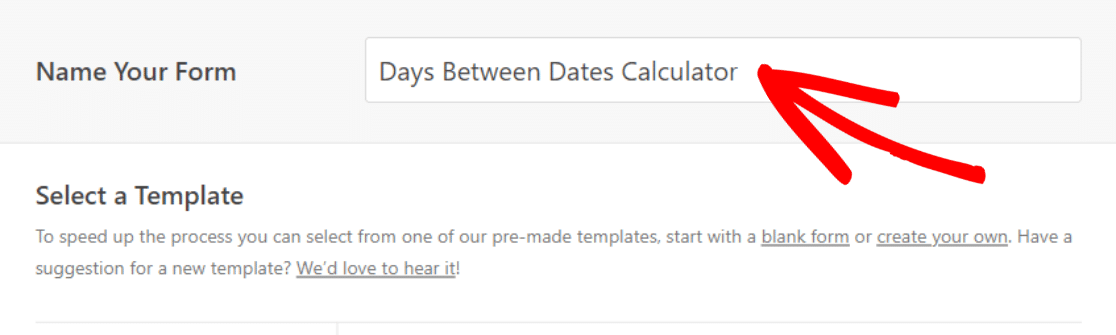
Na página seguinte, você dará um nome ao seu formulário. Chamaremos o nosso de “Calculadora de Dias Entre Datas” para este exemplo.
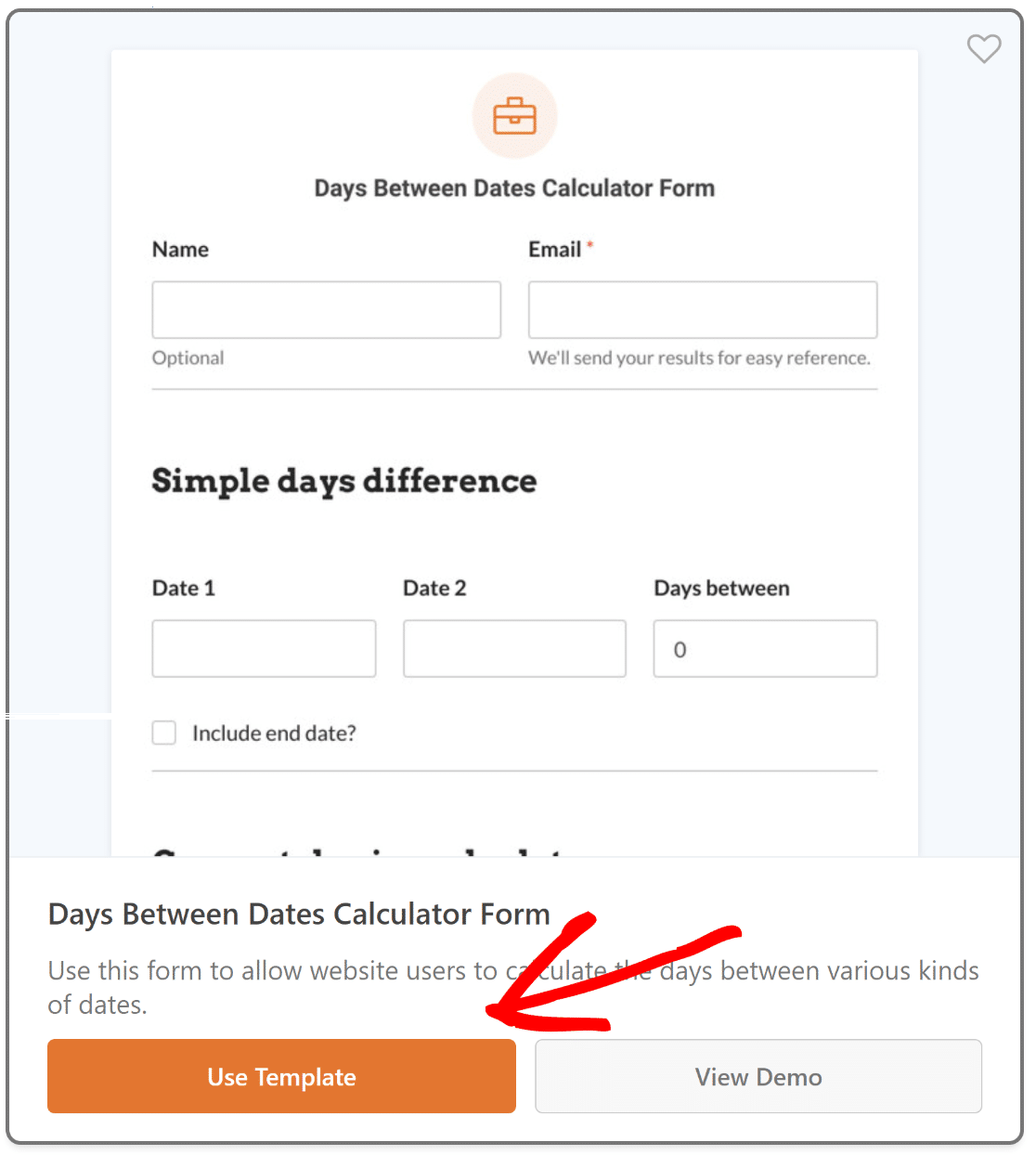
Em seguida, desça até a categoria Calculadora e escolha o Modelo de Calculadora de Dias Entre Datas clicando no botão Usar Modelo.
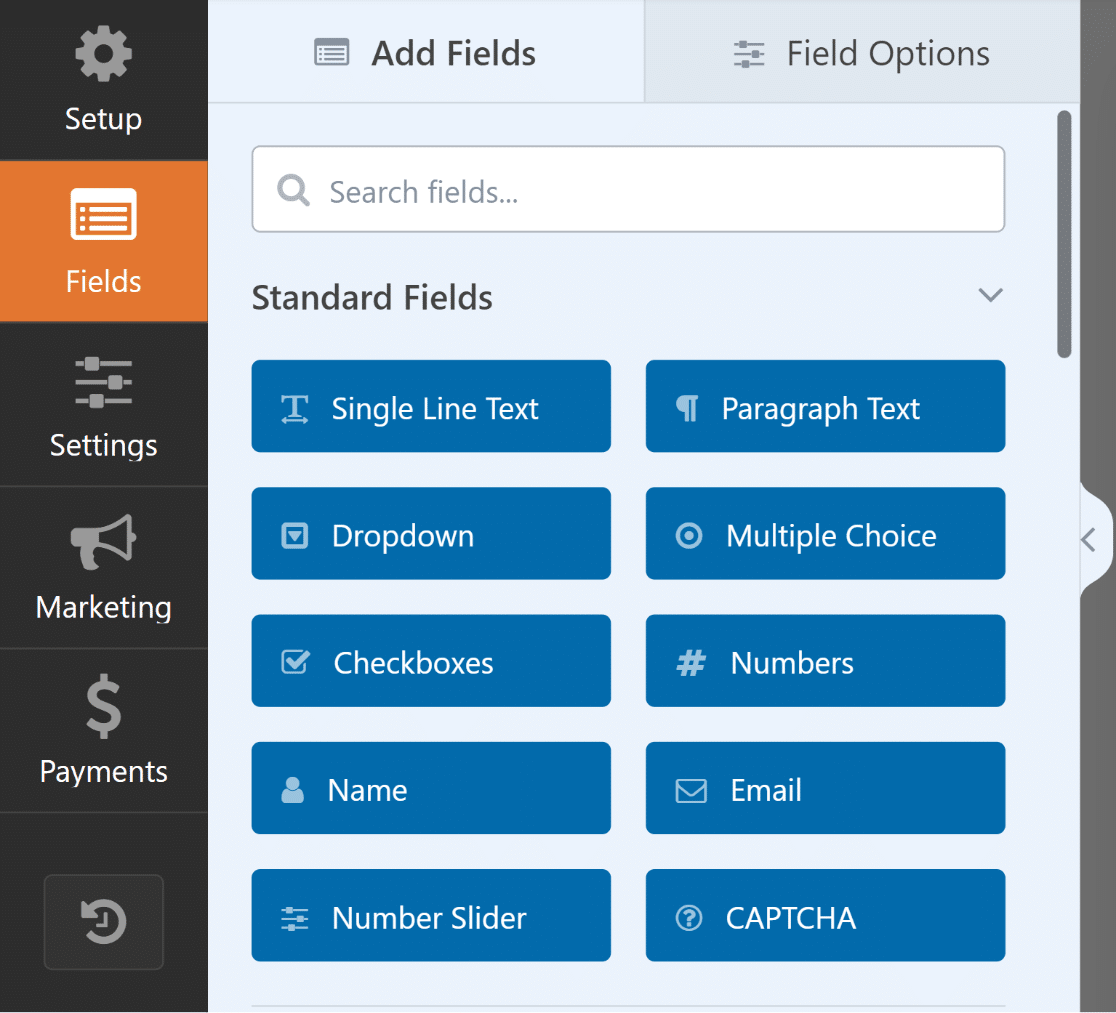
Esta ação o levará para a área de Campos. Aqui, o painel esquerdo exibe todos os campos disponíveis que você pode usar para personalizar ainda mais o modelo.
À direita, você encontrará uma prévia personalizável do seu formulário. Com um modelo já escolhido, os campos relevantes serão adicionados automaticamente.
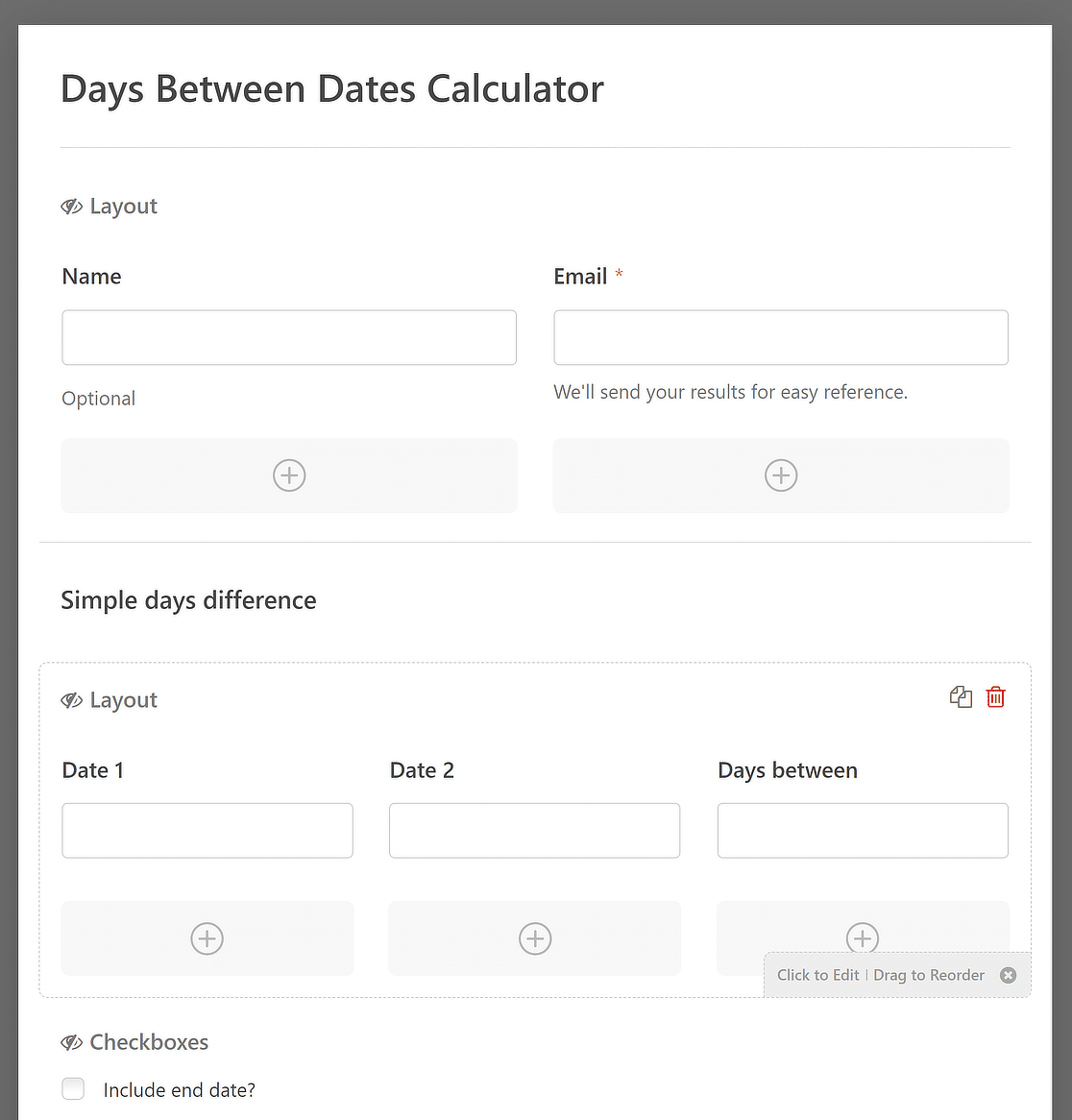
Utilize a interface amigável do WPForms para modificar, reordenar ou adicionar novos campos, garantindo que ele se alinhe perfeitamente ao estilo e aos requisitos do seu site.
4. Personalizando a Calculadora de Dias Entre Datas
Como você está usando um dos mais de 2.100 modelos de formulários do WordPress do WPForms, a maioria dos campos já terá o que você precisa para incorporar o formulário diretamente ao seu site, sem muita personalização.
No entanto, se você está procurando algumas maneiras criativas de usar o modelo. Você ficará satisfeito em saber que ele basicamente tem 3 seções diferentes, que podem ser adaptadas para uma variedade de casos de uso diferentes. Por exemplo:
- Diferença simples de dias: Esta seção é ideal para cálculos diretos. Digamos que você tenha um site de planejamento de eventos. Os visitantes podem determinar rapidamente quantos dias faltam para o grande evento, adicionando a data de início e a data de término.
- Calculadora de preço de aluguel de carro: Nesta configuração, seu formulário pode se tornar uma ferramenta vital para empresas de aluguel de carros. Os clientes podem inserir as datas de retirada e devolução para subtrair e calcular a duração do aluguel.
- Contagem regressiva de dias: Imagine que você está organizando uma promoção especial em seu site de comércio eletrônico. Com esta configuração, os clientes podem ver uma contagem regressiva para a data de término da promoção. Alternativamente, para sites de viagens, isso poderia contar regressivamente para uma viagem agendada ou um evento especial.
Para personalizar para esses cenários, remova quaisquer campos ou seções adicionais que não sejam necessários, clicando neles e usando o botão Excluir.
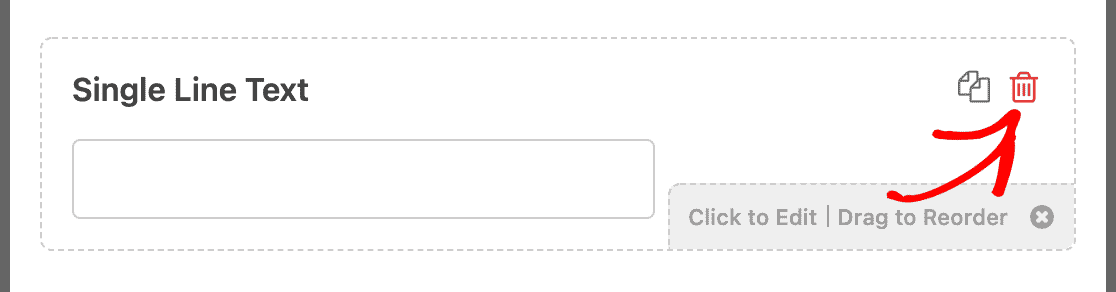
Para personalizações focadas na funcionalidade do formato de data, estilo do seletor de data e ações gerais de envio de formulário, confira as sugestões abaixo:
Alterar Formato da Data
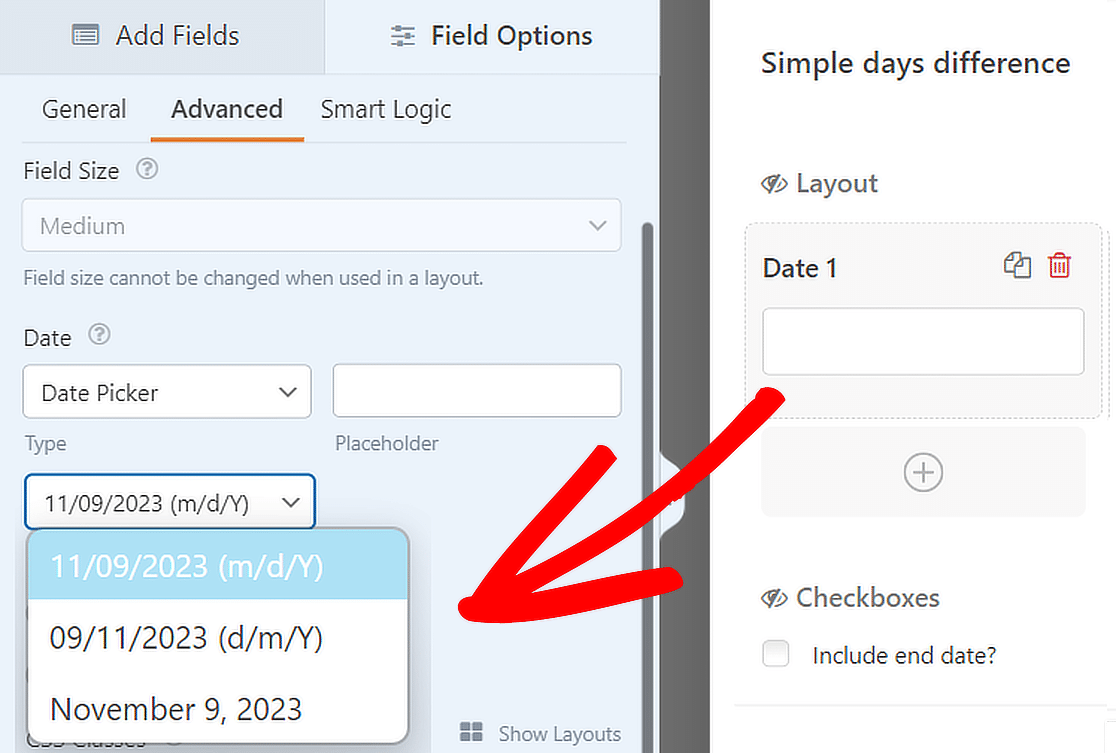
O subcampo Data vem com várias opções integradas por padrão para formatar datas específicas. Estas consistem em:
- M/D/A: Formata a data de acordo com Mês, Dia e Ano.
- D/M/A: Formata a data de acordo com Dia, Mês e Ano.
- Mês, Dia, Ano: Formata a data em uma string que inclui o Mês, Dia e Ano completos.
Escolha o estilo desejado para o calculador de dias entre datas modificando o formato para Data 1 e Data 2 no template.
Isso pode ser feito clicando em qualquer campo de data, navegando até a aba Avançado e, em seguida, abrindo as opções de Formato.
Use um Dropdown de Data
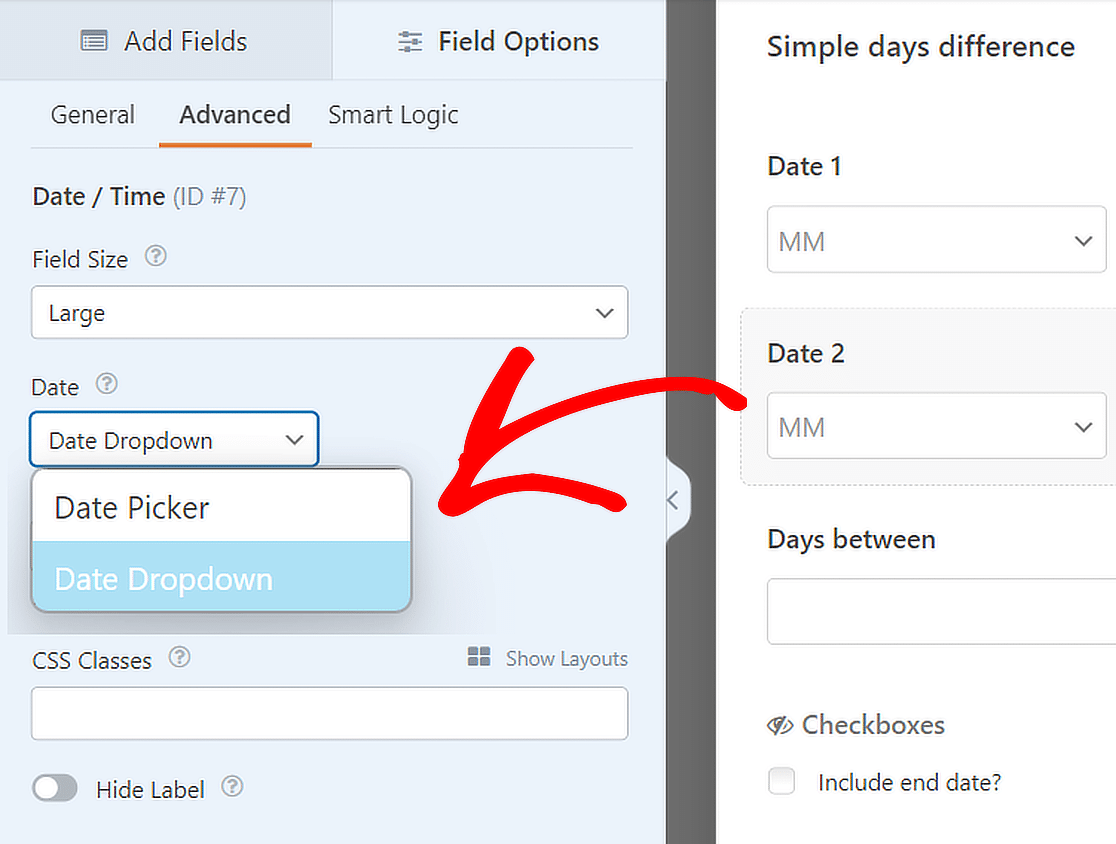
Você tem até mesmo a capacidade de personalizar várias opções de exibição para o subcampo Data. As opções incluem a alteração do Tipo.
Basta selecionar qualquer campo de data na pré-visualização do formulário à direita, depois navegar até a aba Avançado, selecionar Tipo e, em seguida, Dropdown de Data.
Remover Botão de Envio
Você também pode modificar seus formulários para cálculos contínuos e em tempo real sem a necessidade de uma ação de envio de formulário.
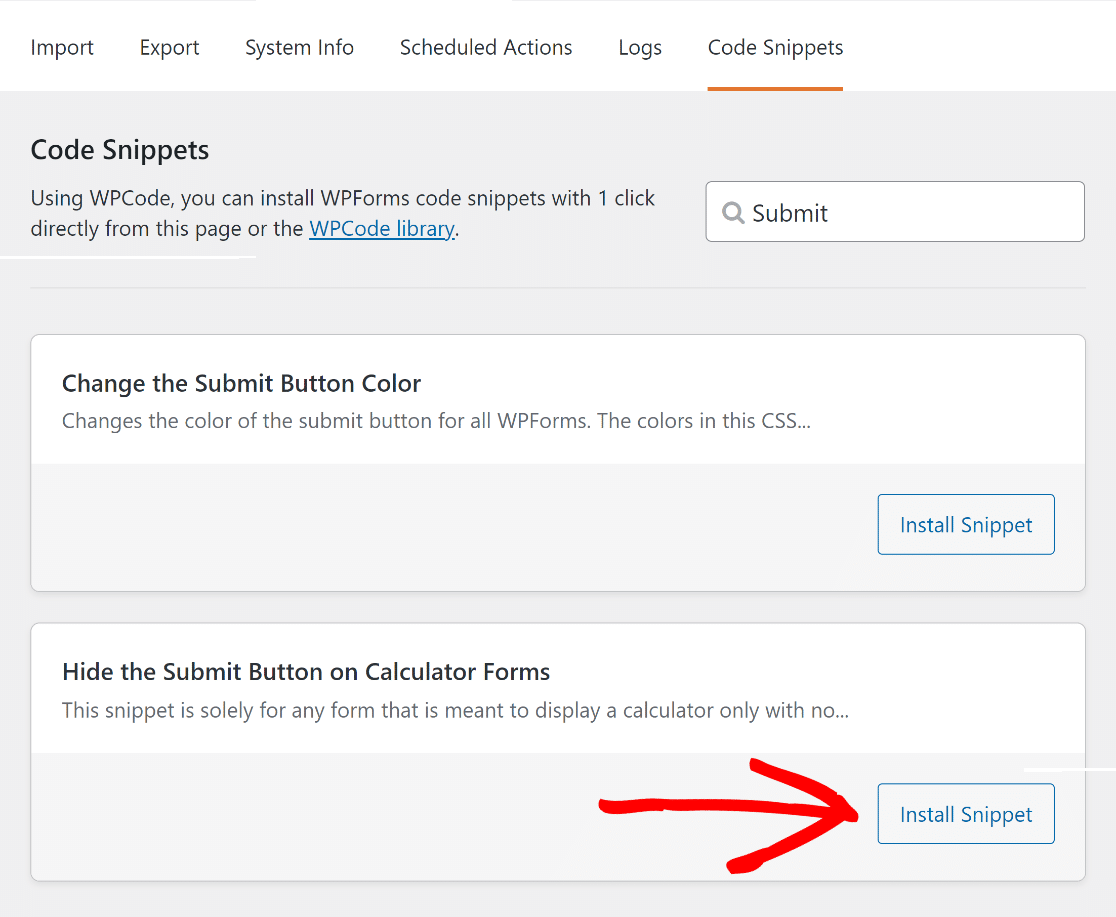
No seu painel WordPress, vá em WPForms » Ferramentas. Em seguida, navegue até a aba Snippets de Código.
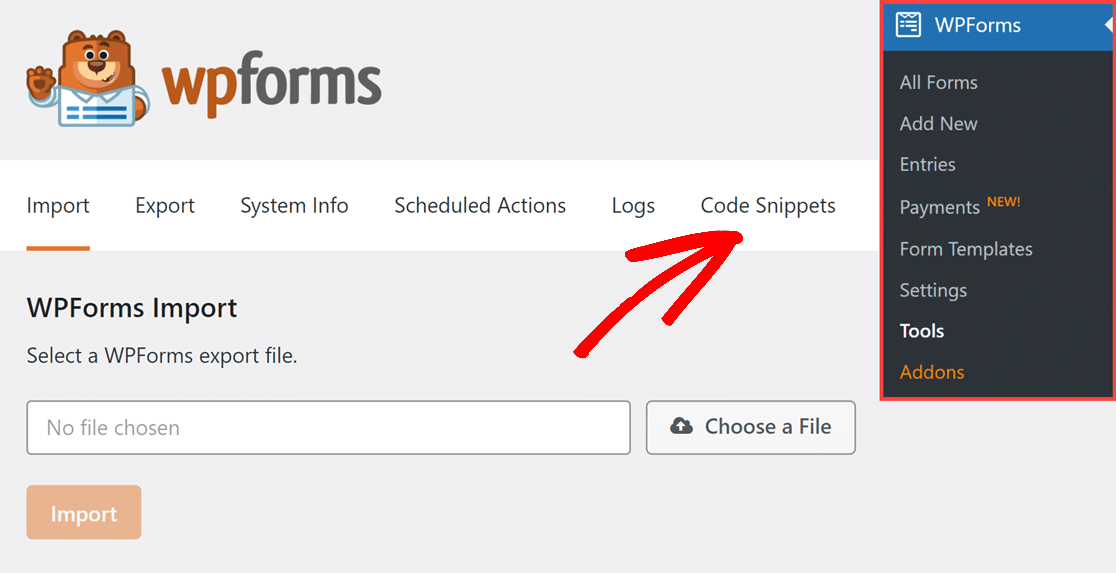
Agora, procure o snippet do botão de ocultar envio digitando seu nome no campo Pesquisar Snippets. Em seguida, clique no botão Instalar Snippet.
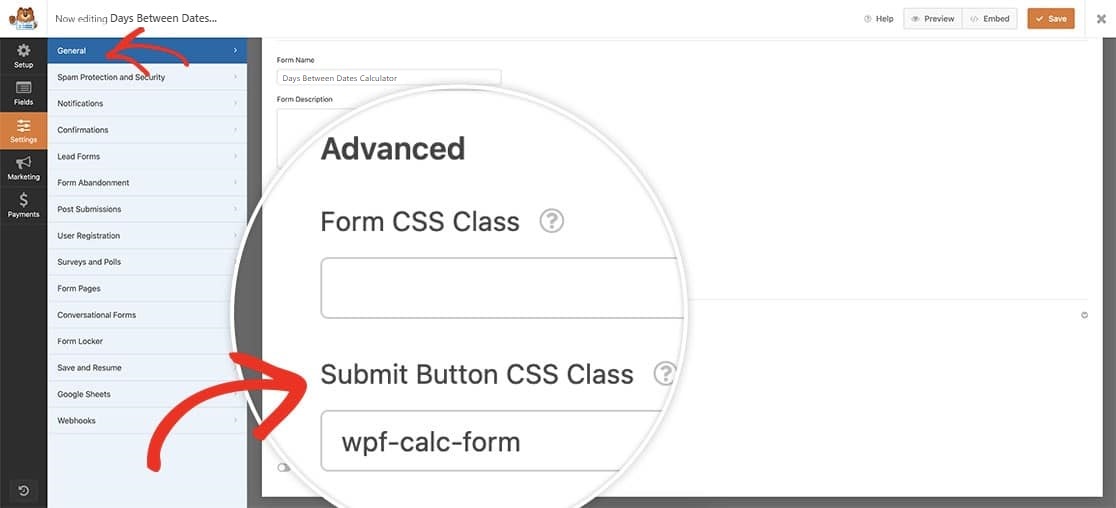
Depois disso, cole o CSS wpf-calc-form na Classe CSS do Botão de Envio em seu construtor de formulários para ativar o snippet de código.
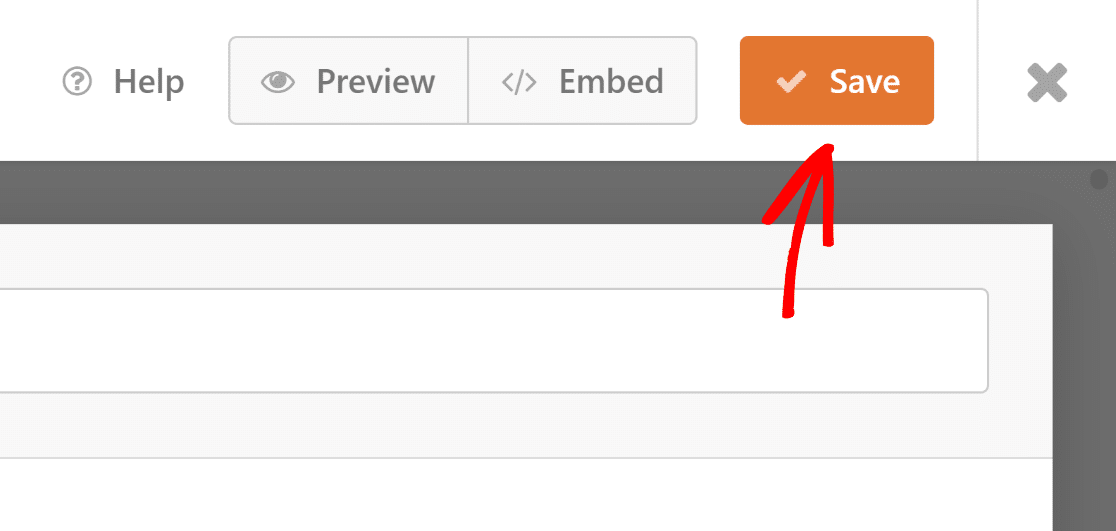
Depois de personalizar seu calculador de dias entre datas para incluir todos os recursos que você deseja, não se esqueça de pressionar o botão Salvar.
Então é isso! Você agora pode publicar o calculador de dias em seu site, o que ajudará você a obter mais leads.
5. Publicando a Calculadora de Dias Entre Datas
Após criar seu calculador de dias com o template, você pode usar o editor de blocos para estilizar ainda mais e publicá-lo em seu site WordPress.
Para prosseguir, você pode criar uma nova página ou post, ou fazer atualizações em um existente. Clique no botão Adicionar Bloco e, em seguida, escolha o ícone WPForms.
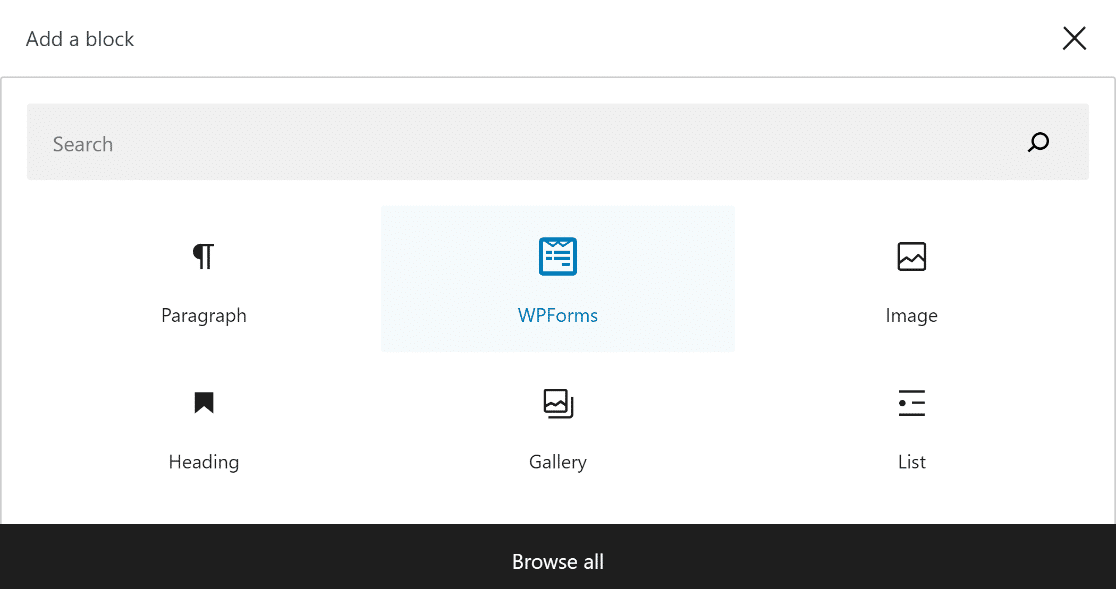
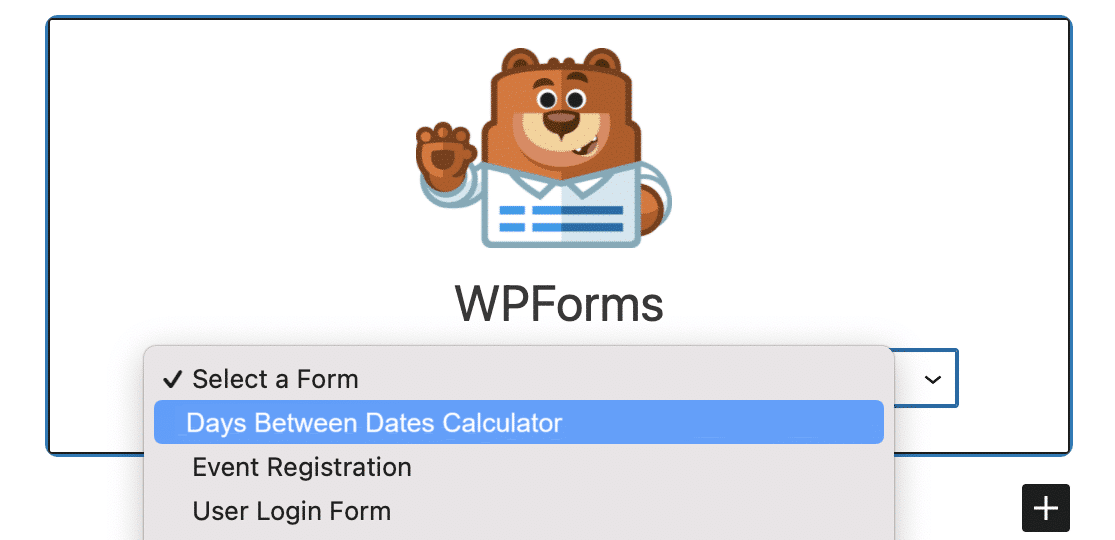
Em seguida, anexe seu próprio formulário de calculadora online à sua página ou post e escolha-o no menu suspenso do widget WPForms.
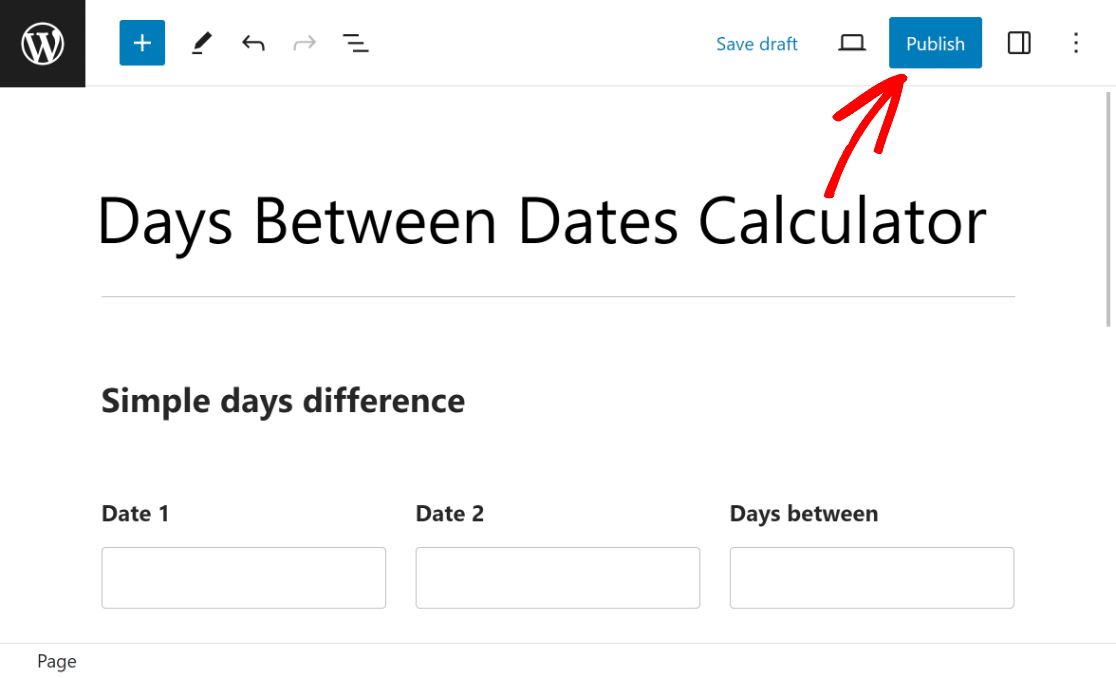
Se você estiver satisfeito com a aparência do seu formulário, tudo o que você precisa fazer é clicar no botão Atualizar ou Publicar para torná-lo ativo.
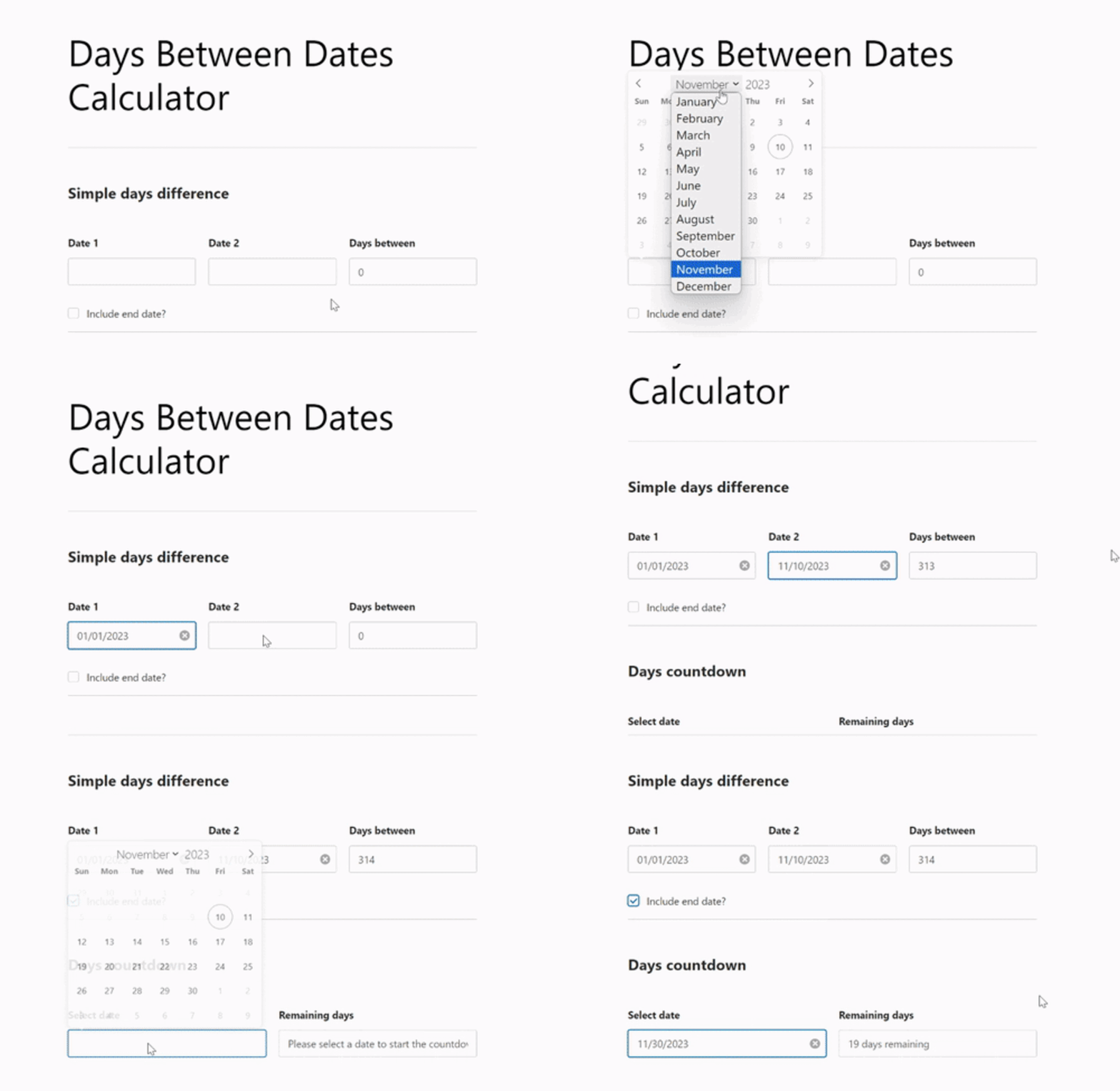
Também é importante testar o formulário incorporado e garantir que ele funcione como esperado no front-end para ter certeza de que não há problemas.
Perguntas Frequentes sobre Calculadoras de Dias Entre Datas
Aprender como obter uma calculadora de dias entre datas é um tópico popular entre nossos leitores. Aqui estão as respostas para algumas perguntas comuns sobre isso.
Como calculo os dias entre duas datas?
Para calcular dias entre duas datas, use uma calculadora de dias entre datas em seu site. O WPForms Pro com o addon de Cálculos torna simples adicionar esse recurso. Ele computa automaticamente o número total de dias entre quaisquer duas datas selecionadas, oferecendo uma ferramenta valiosa para os visitantes.
Como calcular o dia a partir da data?
Ao descobrir como calcular o dia a partir de uma data, adicionar uma calculadora de dias entre datas ao seu site pode ser uma jogada inteligente. Com o WPForms Pro, integrar esse recurso é fácil. Ele permite que os usuários selecionem uma data e vejam quantos dias se passaram ou faltam até aquele dia.
Como você calcula as datas entre períodos?
Para calcular as datas entre períodos, considere usar o WPForms Pro com seu addon de Cálculos em seu site. Essa funcionalidade permite que os usuários insiram duas datas, e a calculadora exibirá o total de dias entre esses períodos, aprimorando a experiência do usuário em seu site.
Em seguida, Aprenda Como Alterar os Cálculos do Preço Total com WPForms
Você gostaria de alterar o valor total do pedido usando os cálculos do WPForms com base nos produtos que um usuário seleciona? Aprenda a usar o WPForms para adicionar opções de produtos que alteram os preços totais.
Crie uma Calculadora de Dias Entre Datas
Pronto para construir seu formulário? Comece hoje mesmo com o plugin construtor de formulários WordPress mais fácil. WPForms Pro inclui muitos modelos gratuitos e oferece uma garantia de devolução do dinheiro em 14 dias.
Se este artigo ajudou você, por favor, siga-nos no Facebook e Twitter para mais tutoriais e guias gratuitos do WordPress.


