


Riassunto AI
Il tuo modulo è attivo e raccoglie risposte, ma ora ha bisogno di una modifica, magari un nuovo campo o una modifica a chi vede cosa. La modifica fa parte del mantenere i tuoi moduli utili man mano che le tue esigenze crescono.
Con WPForms AI, puoi gestire queste modifiche ai moduli in pochissimo tempo. Puoi aggiungere campi, riordinarli, impostare la logica condizionale, configurare le notifiche e altro ancora, tutto da un singolo prompt.
In questa guida, ti mostrerò come modificare un modulo WordPress esistente con l'IA utilizzando Smart Edit e condividerò un altro fantastico metodo che ti permetterà di modificare i tuoi moduli WordPress direttamente tramite Claude, ChatGPT o Cursor!
Inizia a Modificare i Tuoi Moduli con l'IA 🙂
Come Modificare un Modulo WordPress con l'IA
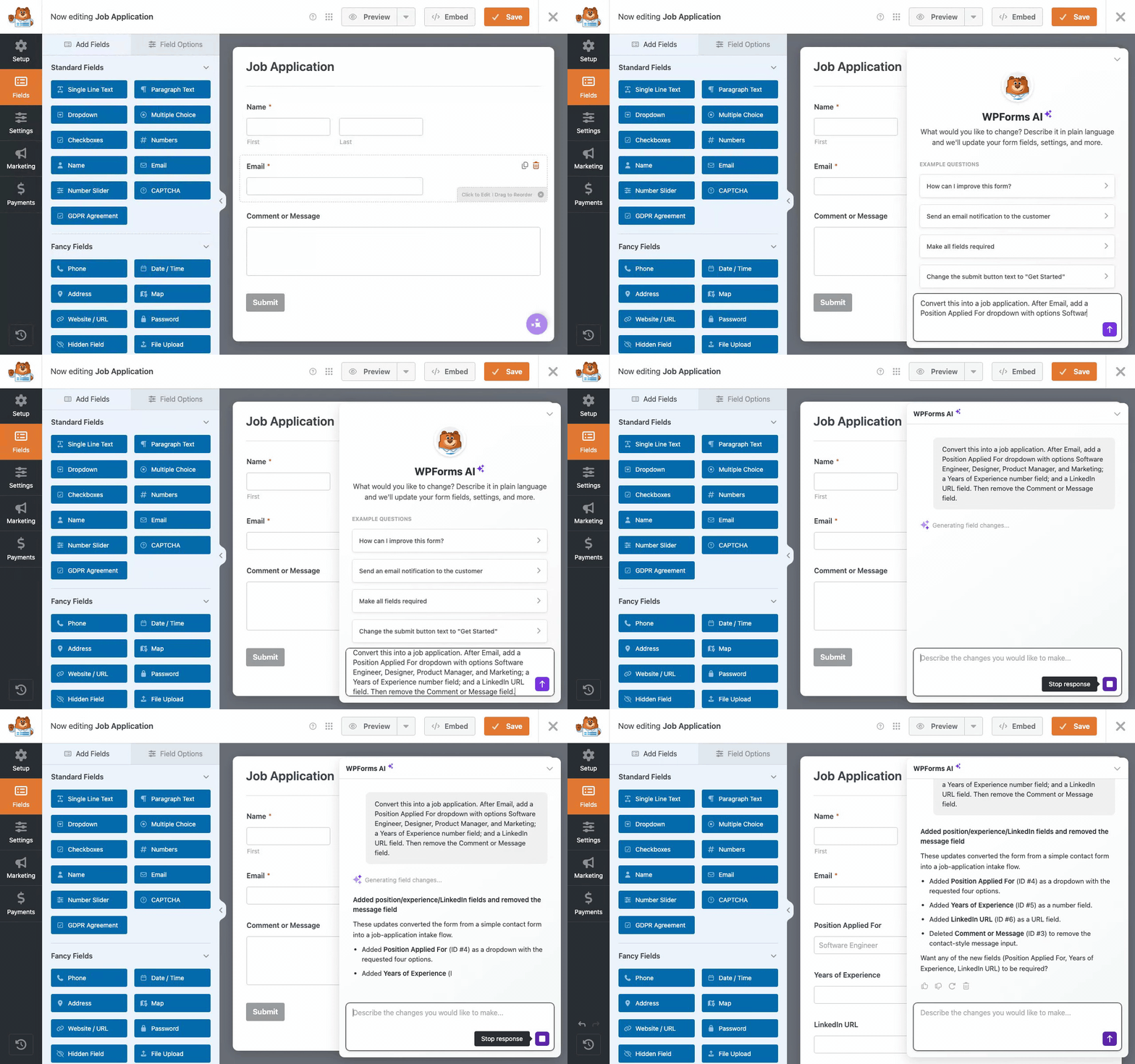
Per modificare un modulo WordPress con l'IA, apri il modulo in WPForms, fai clic su Smart Edit e descrivi la modifica desiderata in linguaggio naturale.
La modifica appare subito nel tuo builder e puoi continuare a perfezionarla con richieste successive. Per istruzioni passo passo, continua a leggere:
- Passaggio 1: Installa il plugin WPForms
- Passaggio 2: Apri il Tuo Modulo e Avvia Smart Edit
- Passaggio 3: Modifica i Campi Descrivendo la Modifica
- Passaggio 4: Aggiungi o Aggiorna la Logica Condizionale con una Richiesta
- Passaggio 5: Aggiorna le Notifiche e la Conferma del Tuo Modulo
- Passaggio 6: Annulla Qualsiasi Modifica in un Clic
- Modifica i Tuoi Moduli da Claude, ChatGPT o Cursor
Passaggio 1: Installa il plugin WPForms
Prima di poter modificare qualsiasi cosa con l'IA, devi avere WPForms sul tuo sito. Se lo hai già installato, procedi pure saltando al passaggio successivo.
WPForms è il costruttore di moduli più facile da usare per principianti per WordPress, con oltre 5 milioni di persone che lo utilizzano per tutto, dai moduli di contatto alle registrazioni di eventi.
I suoi strumenti AI, raggruppati come WPForms AI, si trovano all'interno del builder che già conosci, quindi non c'è alcuno strumento separato da configurare o una nuova schermata da imparare.
Smart Edit è gratuito in WPForms Lite, ma consiglio di passare a Pro, poiché sblocca la libreria completa di oltre 40 componenti aggiuntivi lungo il percorso: Sondaggi e Quiz, Abbandono Moduli e molto altro.

Per iniziare, installa WPForms sul tuo sito web. Se hai bisogno di aiuto, segui queste istruzioni su come aggiungere un plugin a WordPress.
Inizia Oggi Stesso con WPForms 🙂
Passaggio 2: Apri il Tuo Modulo e Avvia Smart Edit
Smart Edit si trova all'interno del costruttore di moduli, quindi la prima mossa è aprire il modulo che desideri modificare.
Nella tua bacheca di WordPress, vai su WPForms » Tutti i Moduli. Quindi, trova il modulo che desideri modificare e fai clic sul suo nome per aprirlo nel builder.

Una volta caricato il builder, cerca il pulsante Smart Edit nell'angolo in basso a destra e fai clic su di esso.

Quando il pannello di chat scorre verso destra, puoi digitare le tue modifiche in parole semplici, nello stesso modo in cui messaggeresti a un collega che conosce già il tuo modulo.

Non sono necessarie formulazioni speciali, quindi le richieste semplici funzionano meglio, come chiedere di aggiungere un campo, rinominare un'etichetta o modificare un'impostazione. Smart Edit pone una rapida domanda di follow-up ogni volta che qualcosa non è chiaro.
Passaggio 3: Modifica i Campi Descrivendo la Modifica
La maggior parte delle modifiche riguarda i campi stessi, sia che ne aggiungi uno, ne rimuovi uno o cambi ciò che viene richiesto. Con Smart Edit, descrivi la modifica nella chat e questa appare nel builder senza alcun riposizionamento manuale.
Supponiamo che tu voglia che i partecipanti ti dicano come parteciperanno. Nel pannello della chat, digita “Aggiungi un menu a discesa chiamato Come parteciperai con le opzioni Di persona e Online, e rendilo obbligatorio”, quindi premi Invio.

Il nuovo campo viene inserito subito dopo l'email e Smart Edit pubblica un riepilogo di ciò che ha modificato esattamente. Poiché agisce solo su ciò che hai richiesto, il resto del tuo modulo rimane esattamente com'era.
Puoi rinominare le etichette con la stessa facilità. Ad esempio, gli ho dato un prompt per “Rinomina il campo Commenti in Requisiti dietetici” in modo che l'etichetta corrisponda a ciò che sto effettivamente chiedendo.

La riorganizzazione funziona allo stesso modo e posso semplicemente digitare un altro prompt come, “Sposta il campo Come parteciperai sopra Requisiti dietetici” e i campi si riorganizzano da soli.
Passaggio 4: Aggiungi o Aggiorna la Logica Condizionale con una Richiesta
La logica condizionale mostra o nasconde i campi in base a ciò che qualcuno seleziona, e costruirla manualmente significa aprire ogni campo e scrivere regole, ma Smart Edit gestisce l'intera operazione da una singola frase.
Sul modulo di registrazione, i partecipanti online non hanno bisogno di rispondere alla domanda dietetica. Nel pannello della chat, posso semplicemente digitare “Mostra il campo Requisiti dietetici solo quando Come parteciperai è impostato su Di persona.”

In uno o due secondi, la regola viene scritta e applicata al campo senza che tu debba aprire un singolo pannello delle impostazioni, e Smart Edit spiega esattamente cosa ha impostato.
Puoi confermare la regola da solo aprendo il campo Requisiti dietetici e guardando sotto la scheda Logica intelligente. Si legge proprio come una che costruiresti manualmente.

Se preferisci creare regole di logica condizionale senza IA, ecco come impostarla manualmente.
Passaggio 5: Aggiorna le notifiche e la conferma del tuo modulo
Oltre ai campi, Smart Edit aggiorna anche i messaggi che vengono inviati dopo che qualcuno ha inviato il modulo. Ciò copre le notifiche via email e la conferma che le persone vedono sullo schermo.
Al momento il tuo modulo di registrazione invia la sua notifica all'amministratore del sito. Digita “Invia una notifica a [email protected] ogni volta che qualcuno si registra” per aggiungerne una per il tuo team.

Smart Edit crea la notifica con un destinatario e una riga dell'oggetto già compilati, quindi ti dice cosa ha impostato. Se la formulazione non è del tutto corretta, invia un altro prompt per modificarla.
Successivamente, aggiorna ciò che le persone vedono dopo la registrazione. Digita una semplice richiesta come “Cambia il messaggio di conferma per ringraziarli e informarli che il loro biglietto è in arrivo.”

Puoi anche cambiare il testo del pulsante di invio nella stessa richiesta, con una frase come “Rinomina il pulsante di invio in Prenota il Mio Posto”.
Passaggio 6: Annulla Qualsiasi Modifica in un Clic
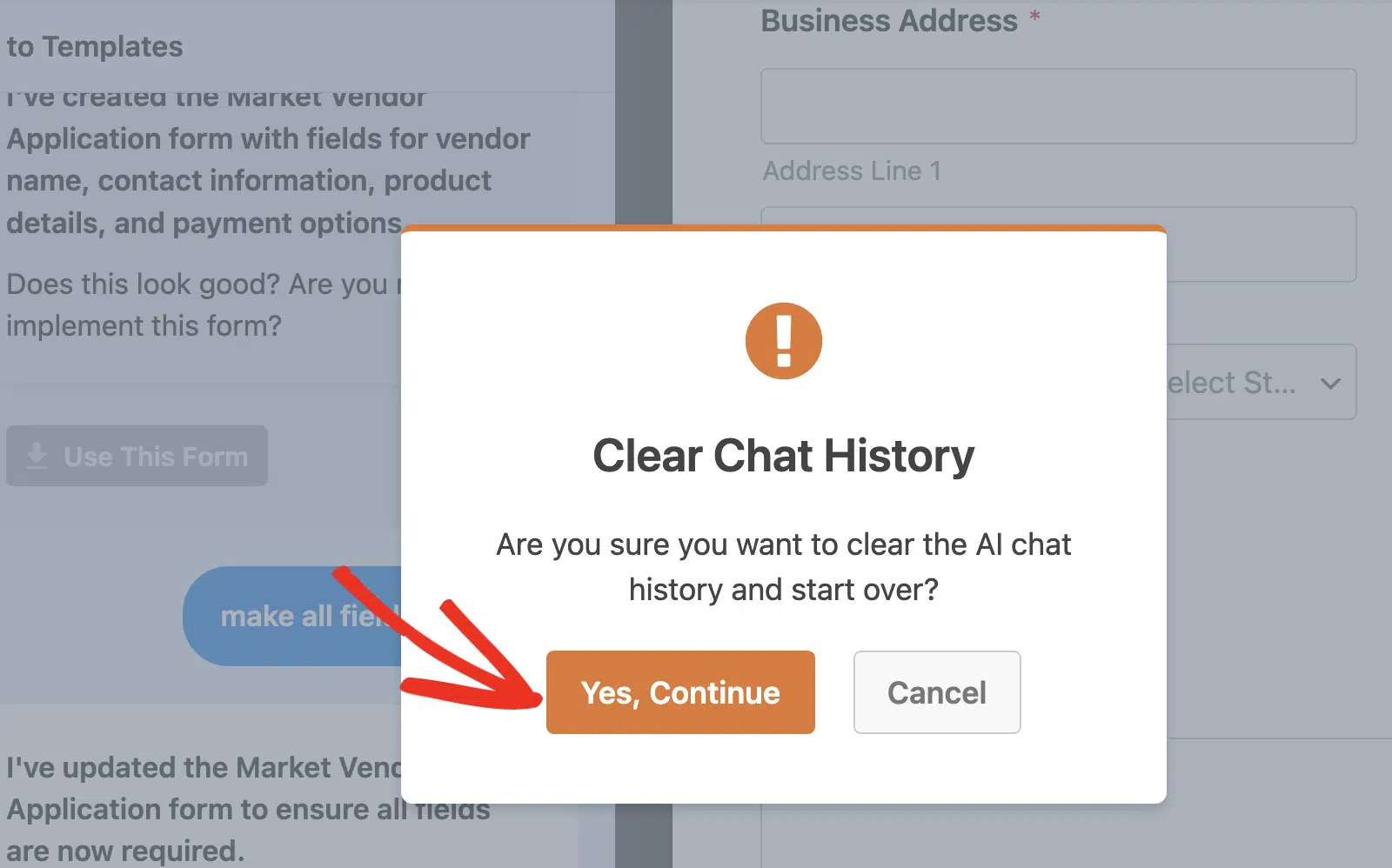
Ogni modifica apportata da Smart Edit viene salvata come un singolo snapshot, quindi un clic annulla l'intera operazione, indipendentemente da quanti campi o regole ha toccato.
Se una modifica non è quella che desideravi, fai clic sull'opzione Annulla su quel messaggio nella chat. Facendo clic su questa icona si aprirà una finestra di conferma.
Una volta fatto clic sul pulsante Sì, Continua, l'intera cronologia della chat verrà cancellata, permettendoti di iniziare una nuova chat con l'IA di WPForms.
Smart Edit può anche esaminare il tuo lavoro come un copilota, quindi puoi chiedergli qualcosa come “Rivedi questo modulo e suggerisci miglioramenti”, e leggerà i tuoi campi e le impostazioni, offrendo quindi raccomandazioni specifiche.
Questo è un modo semplice per individuare un campo obbligatorio mancante o un'etichetta confusa prima della pubblicazione. Quando tutto sembra a posto, salva il tuo modulo. Quindi procedi e testalo per assicurarti che si comporti come ti aspetti.
Il tuo modulo di registrazione ora ha un nuovo menu a discesa, logica condizionale che nasconde la domanda sulla dieta agli ospiti online e una notifica aggiuntiva.
Modifica il tuo prossimo modulo con l'IA 🙂
Modifica i Tuoi Moduli da Claude, ChatGPT o Cursor
WPForms consente inoltre ad assistenti come Claude, ChatGPT e Cursor di leggere tutti i moduli sul tuo sito WordPress, creare un nuovo modulo da zero o modificare/cambiare i tuoi moduli.
Per attivarlo, vai su WPForms » Strumenti e apri la scheda AI MCP. Quindi, fai clic su Installa e attiva WPVibe, il server MCP gratuito del team dietro WPForms.

Una volta che WPVibe è attivo, collega il tuo assistente incollando il tuo URL del server e seguendo la rapida configurazione per Claude, ChatGPT o Cursor.
Quando aggiungi il connettore, WPVibe ti chiede di accedere con il tuo indirizzo email. Controlla la tua casella di posta per un messaggio da WPVibe e fai clic sul pulsante Accedi al suo interno.

Nella scheda AI MCP, attiva l'interruttore Abilita accesso in scrittura MCP. È disattivato per impostazione predefinita, quindi il tuo assistente può apportare modifiche solo una volta che lo consenti, e solo un amministratore può attivarlo.

Dal tuo assistente, puoi creare moduli, aggiungere e modificare campi, e aggiornare il titolo, la descrizione e il testo del pulsante di invio di un modulo.
Dopo che ha apportato una modifica, apri il modulo in WPForms » Tutti i moduli per rivedere il risultato nel costruttore di moduli, proprio come qualsiasi modulo creato manualmente.

FAQ sulla modifica di moduli WordPress con l'IA
La modifica di moduli WordPress con l'IA è ancora nuova, quindi sorgono alcune domande comuni su Smart Edit, logica condizionale e connessione di un assistente IA.
Posso modificare un modulo esistente con l'IA, o solo crearne di nuovi?
Sì, puoi modificare qualsiasi modulo che hai già creato, non solo quelli generati con l'IA. Apri un modulo di anni fa, avvia Smart Edit e inizia a modificarlo digitando.
La modifica dei moduli con l'IA è gratuita?
Sì, Smart Edit è incluso in WPForms Lite senza costi aggiuntivi, e anche la modifica dei moduli da un assistente IA connesso è gratuita su Lite.
L'IA può aggiungere la logica condizionale al mio modulo?
Puoi descrivere la regola in linguaggio naturale, ad esempio mostrando un campo solo quando un altro ha un certo valore, e Smart Edit la costruirà e la applicherà per te.
Posso annullare una modifica apportata dall'IA?
Sì, ogni modifica di Smart Edit viene salvata come uno snapshot, quindi un singolo clic annulla tutto ciò che ha toccato. Puoi sperimentare liberamente e annullare qualsiasi cosa non ti piaccia.
Claude o ChatGPT possono modificare direttamente i miei moduli WordPress?
Possono farlo, una volta che li hai connessi tramite un server MCP come WPVibe e attivato l'accesso in scrittura. Il tuo assistente potrà quindi aggiungere campi, modificare quelli già presenti e aggiornare le impostazioni di base del modulo dalla tua finestra di chat.
È sicuro consentire a un assistente IA di modificare i miei moduli?
L'accesso in scrittura è disattivato per impostazione predefinita e solo un amministratore può attivarlo. Anche con esso abilitato, gli assistenti non possono eliminare moduli né toccare notifiche, conferme o impostazioni di pagamento, e ogni modifica viene registrata nel builder per tua revisione.
Quali campi modulo può modificare l'IA?
Sia Smart Edit che gli assistenti connessi funzionano con campi comuni come testo a riga singola, testo paragrafo, email, numeri, menu a discesa, scelta multipla, caselle di controllo e nome.
Successivamente, Genera un Modulo Completamente Nuovo con l'IA
La modifica è un aspetto del lavoro con l'IA in WPForms, e partire da zero è l'altro. WPForms AI può generare un modulo completamente nuovo con l'IA da un singolo prompt in pochi secondi, fornendoti un punto di partenza che puoi poi perfezionare con Smart Edit.
Se stai ancora valutando le tue opzioni, il nostro riepilogo dei migliori costruttori di moduli IA per WordPress confronta i migliori strumenti e dove si colloca ciascuno.
Inizia a Creare e Modificare Moduli con l'IA :)
Pronto a creare il tuo modulo? Inizia oggi stesso con il plugin per la creazione di moduli WordPress più semplice. WPForms Pro include molti modelli gratuiti e offre una garanzia di rimborso di 14 giorni.
Se questo articolo ti è stato utile, seguici su Facebook e X (Twitter) per altri tutorial e guide gratuite su WordPress.





