








WordPress Form Themes

Form Styles & Themes

Simple yet powerful options. Endless possibilities.

  • 40+ Pre-Made Themes
  • Front-End, Block Editor & Shortcode Support
  • Intuitive Styling Controls
  • Elementor & Divi Support

Everything You Need to Style Forms on the Page

Forget page-specific CSS and duplicate forms. With WPForms, your WordPress form themes and every style control sit right beside your form.

Style It on the Page

Click Edit Form Theme in your admin bar and the Form Theme panel opens beside your live form.

Every Change, Live

Colors, borders, and buttons update on the form as you adjust them, with your page all around it.

A Look for Every Page

Save on any page to change just that spot, or on the preview page to set the default.

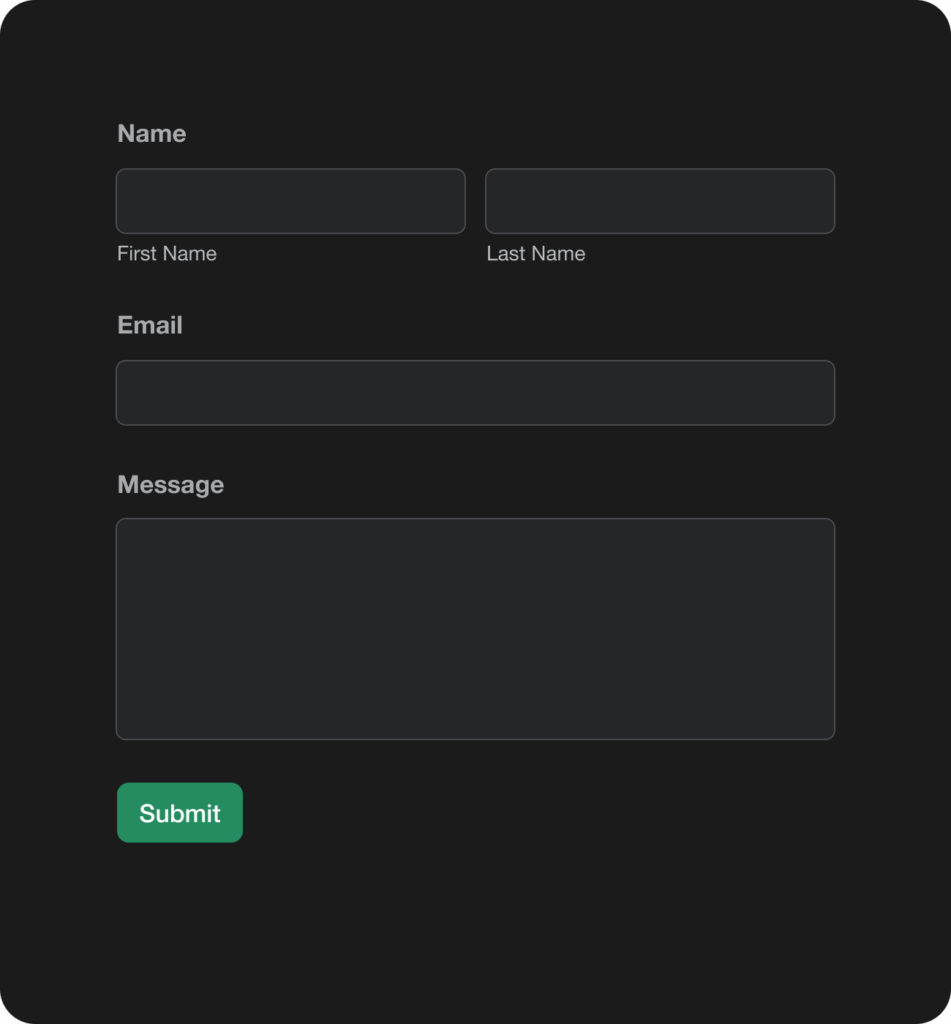
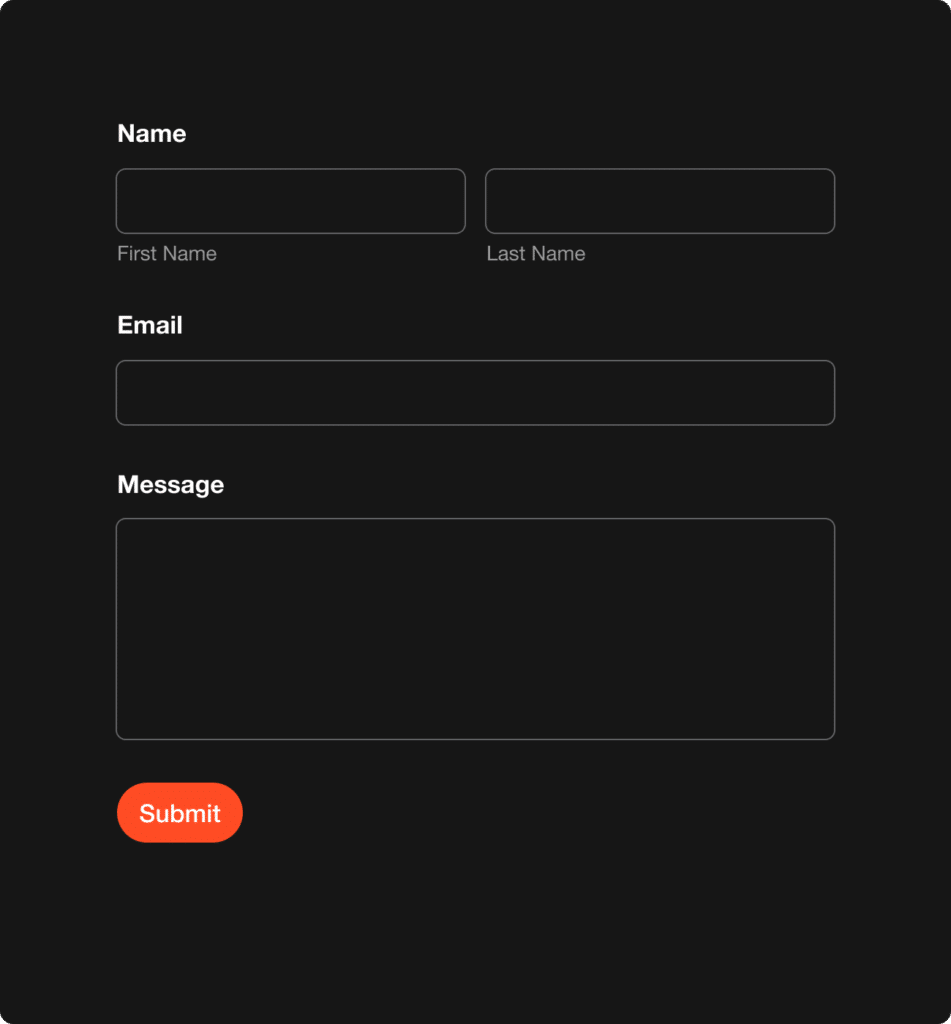
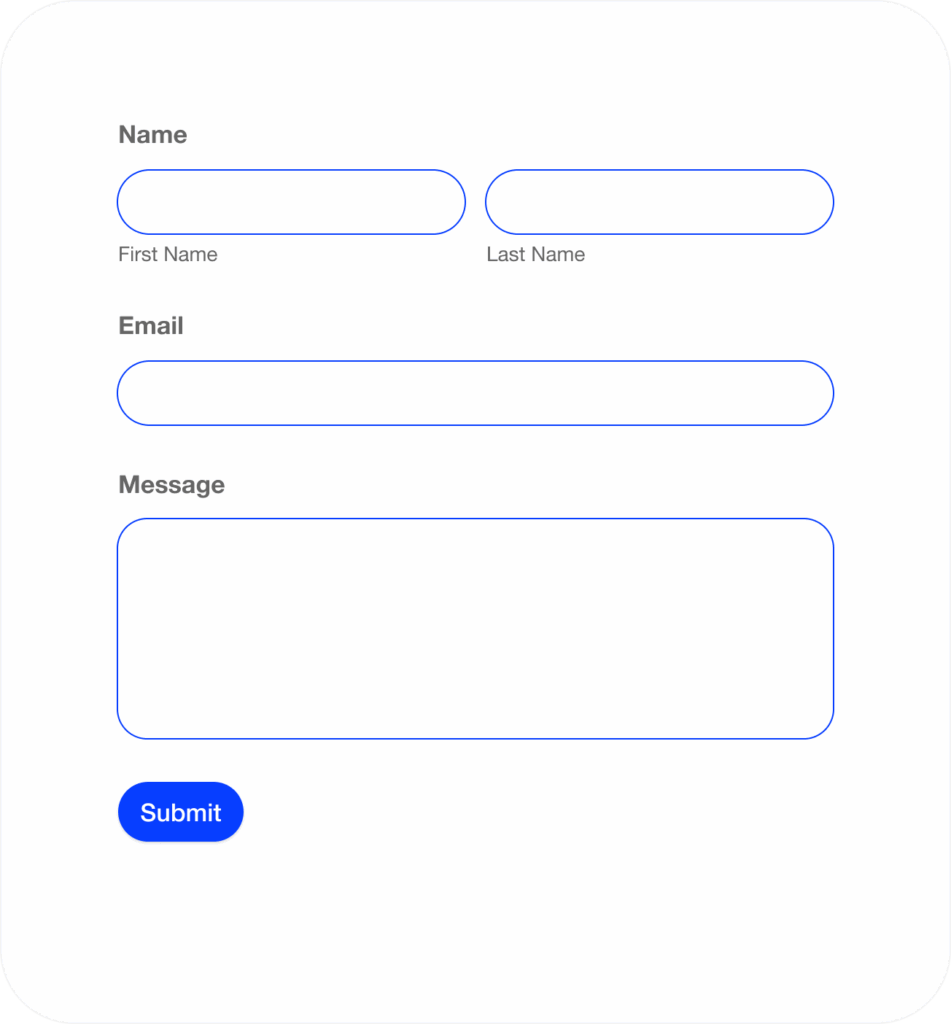
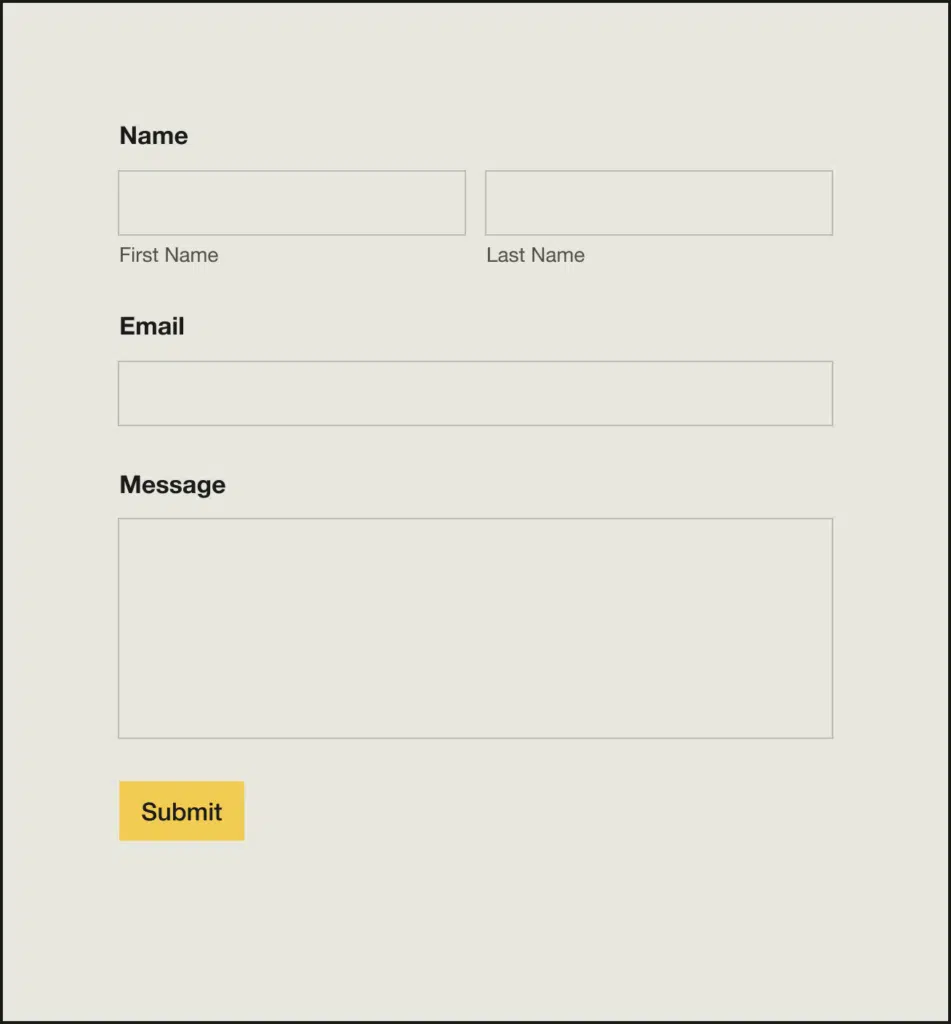
40+ Stock Themes

Start from Classic, Default, or a designer-made stock theme, then tweak it into a copy of your own.

Field, Label & Button Styles

Sizes, borders, corner radius, and colors for every part of the form, on every plan.

Backgrounds & Containers

Paid plans add gradients, images, stock photos, padding, and shadows behind your form.

Edit Theme Everywhere

The Form Builder, the block editor, Elementor, and Divi each open the panel on that exact form.

Your Styles Stay Put

Teammates who can edit forms but not manage settings only see the Themes list.

On Every Plan

The Form Theme panel comes with every WPForms plan, including Lite.

WordPress Form Themes for Every Kind of Site

Whether you run one contact form or a dozen campaign pages, each form can wear the look its page needs.

Small Business Owners

Open your contact page, click Edit Form Theme, and match the form to your brand right there.

Set the button to your logo’s color, round the field corners to suit your photos, and click Save Changes.

It takes just a few clicks, it’s beginner-friendly, and there’s no CSS to learn and no designer to call.

With WordPress form themes you style on the page, your form simply looks like part of your business.

Small business owner matching a form's button to the logo color with WordPress form themes on the live page

Marketers

Open a landing page, set the form’s colors to match the campaign, and save right there.

Only that page changes, so the launch gets a form dressed for it while every other page keeps the everyday style.

Meanwhile, it’s still one form with one set of entries, so your results never split across copies of the same form.

Marketer styling a signup form to match a campaign landing page, saved for that page only

Agencies & Developers

A form can wear a different look on every client page, whether it sits in a block, a shortcode, an Elementor widget, or a Divi module, with no page-specific CSS to maintain.

Set up a few custom form themes, then hand over the site.
Clients who can edit forms but not manage settings only see the Themes list, so they can switch between your form themes while the style settings stay in your hands.

Client switching between custom form themes in a Form Theme panel that shows only the Themes list

Online Store Owners

Launch a sale page and style its order form right there to match the offer around it, from the button color to the background. Your product pages keep their usual look.

On top of that, every order still lands in the same form’s entries, so there’s no copy of the order form to keep in sync for each page.

Order form restyled to match a holiday sale page while product pages keep their usual look

Everything the Front-End Form Themes Editor Can Do For You

A closer look at the Form Theme panel, from the first click in your admin bar to the moment you save.

See Every Change on the Real Page

Visit any page that shows your form, click **Edit Form Theme** in your admin bar, and the Form Theme panel opens right beside it.

Pick a stock theme or adjust a color, a border, or a button, and the form updates on the spot, surrounded by your own headings, photos, and colors.

As a result, you judge the look exactly where your visitors will. If the page holds more than one form, the Form selector lists them all and scrolls to the one you pick.

Styling WordPress form themes live on the page with the Form Theme panel opened from the admin bar
One WPForms form shown with its default look on most pages and its own look on a sale page

Give the Same Form Its Own Look on Each Page

Save on the form’s preview page and you set its default look, the one every page uses unless it has its own. Save on any other page and only that spot changes.

So one form can stay quiet in a sidebar and stand out on a landing page, while it remains one form, with one set of fields to edit and one set of entries to check.

Every other page keeps the look it already had.

Start From 40+ Ready-Made WordPress Form Themes

Classic and Default come with every plan, and any paid plan opens up the full set of stock themes, from soft pastels to dark, dramatic looks.

Hover over a stock theme’s color dots to see which one is the button, the label, or the field border. Then change whatever you like.

WPForms saves your version as a copy, such as “Ocean (Copy)”, so the original stays as it was and your custom theme is ready for the next form.

Wall of ready-made WordPress form themes with a stock theme saved as a custom copy
Field, label, and button style settings for border radius, border size, and colors in WPForms

Style Every Part of the Form, on Every Plan

Field Styles, Label Styles, and Button Styles come with every WPForms plan, including WPForms Lite.

Set the size, the border style and thickness, the corner radius, and the colors for your fields, labels, sublabels, error messages, and buttons.

For example, matching your submit button to the other buttons on your site is a quick trip to Button Styles. Plus, every choice uses menus and color pickers, with no code required.

Match Even Your Boldest Page

On any paid plan, starting with WPForms Basic, Container Styles dress the box your form sits in with padding, a border, rounded corners, and a shadow.

Background Styles go further: a solid color, your own image, a gradient that runs radial, vertical, horizontal, or diagonal, or a photo picked from the built-in stock library with a live preview.

Until you choose your own colors, the gradient ends in your button color, so it matches from the first click.

Choosing a stock photo and a diagonal gradient background for a WPForms form
Edit Theme buttons in the Form Builder, block editor, Elementor, and Divi opening one Form Theme panel

Open It From Wherever You Build

An Edit Theme button in the Form Builder, the WordPress block editor, Elementor, and Divi opens the Form Theme panel on that exact form.

From the block editor or Elementor, it saves your page first if you have unsaved changes, and it asks before saving a published page. Switch back, and the preview there refreshes with the new look.

In short, you build with the drag and drop form builder you know, and every form, block, and Elementor widget you styled before keeps its look.

Form Theme Gallery

Dozens of themes at the ready, so you can quickly find the look and feel that’s right for your site.

Aero
Blossom
Bokeh
Concrete
Cotton Candy
Craft
Elegance
Feathered
Flynn
Fresh
Frost
Gloom
Greenery
Hallway
Harvest
Jungle
Lush
Manhattan
Matrix
Monstera
Negative
Palm
Plaster
Range
Rustic
Scrap
Solitude
Sonic
Spring
Tidal
Vintage
Western

Make Every Form Fit. It’s That Simple.

Join the 5+ million professionals who use WPForms to capture leads, collect payments, and give every form a look that fits its page.

✓ 14-Day Money-Back Guarantee · ✓ Setup in Under 5 Minutes · ✓ No Coding Required · ✓ Used on 5+ Million Sites

View all

Frequently Asked Questions and Resources

Have questions about WordPress form themes in WPForms? We’ve got answers.

What are WordPress form themes in WPForms?

WordPress form themes in WPForms are ready-made styles for your forms: colors, borders, field shapes, and button styles you apply in one click.

WPForms includes 40+ stock themes, and you can tweak any of them or save your own custom themes.

A form theme only changes how your form looks. It never changes your WordPress theme, and it’s different from a form template, which sets the fields a form starts with.

What is the Front-End Form Themes Editor?

The Front-End Form Themes Editor is the WPForms Form Theme panel that opens on the live pages where your forms appear.

Click Edit Form Theme in your admin bar, pick a form theme or adjust a style, and the form changes in front of you before you click Save Changes.

It also opens from the Edit Theme link on a form’s preview page, and from the Edit Theme button in the Form Builder, the WordPress block editor, Elementor, and Divi.

Is the Front-End Form Themes Editor free?

Yes, the Front-End Form Themes Editor comes with every WPForms plan, including the free WPForms Lite.

On Lite, you get Field Styles, Label Styles, Button Styles, and the Classic and Default form themes.

Any paid plan, starting with WPForms Basic, adds Container Styles, Background Styles with gradients and stock photos, and the full set of 40+ stock themes.

Compare plans to see everything each license includes.

If I change a form on one page, does it change everywhere?

No. When you save on a regular page, only that spot changes, so the same form can look different on two pages.

To change the form’s default look, the one every page uses unless it has its own, save from the form’s preview page. To open it, go to Settings » Themes in the Form Builder.

Either way, your styles are saved on your own WordPress site, and the form keeps one set of fields and one set of entries.

Will updating WPForms change the styles I already set?

No. Forms, WordPress blocks, and Elementor widgets you styled before keep looking exactly as they did. What changes is where you edit them.

The Form Builder, the block editor, and Elementor now show an Edit Theme button that opens the Form Theme panel on that exact form, and Divi gets the same button.

Do I need to know CSS to style my forms?

No, WordPress form themes in WPForms need no code. You pick form themes, colors, sizes, and corner styles from menus and color pickers, and you see the result on your page as you go.

That said, if you like writing CSS, site administrators will find a Custom CSS box in the panel’s Advanced section, and this CSS guide covers the classes WPForms uses.

Can I style my forms on a phone?

Yes. On a phone, where WordPress hides most admin bar items, a floating Form Theme button appears at the bottom of the page and opens the same panel, so you can adjust your WordPress form themes from anywhere.

Your styled forms also stay mobile friendly for visitors, because every form theme adapts to small screens on its own.

Does it work with Elementor, Divi, and the block editor?

Yes. The WPForms block in the WordPress block editor, the WPForms widget in Elementor, and the WPForms modules in Divi each show an Edit Theme button that opens the Form Theme panel on that exact form. A look you save there stays with that form on that page.

Forms you add with a shortcode or a widget work the same way: open the page, click Edit Form Theme, and save.

Who can change form styles on my site?

Anyone who can edit a form can open the Form Theme panel.

However, people who can edit forms but can’t manage your site’s settings see only the Themes list, so they can switch between your form themes while the style settings stay with you.

Custom CSS and Copy / Paste Style Settings are for site administrators only.

Why don't I see Edit Form Theme in my admin bar?

First, update WPForms to the latest version and make sure you’re logged in and viewing a page that shows a WPForms form.

Then go to WPForms » Settings » General, check that Include Form Styling is set to Base and form theme styling, and reload the page.

This guide to the Include Form Styling setting explains each option.

🔔 Subscribe to get our latest updates
📧 Subscribe to Emails

Email Subscription

Join our Newsletter

We won’t spam you. We only send an email when we think it will genuinely help you. Unsubscribe at any time!
Improvement New Feature

Meet the New Front-End Form Themes Editor

Hero banner announcing the new Front-End Form Themes Editor; bear mascot on the left and stacked form illustrations on the right.

The Front-End Form Themes Editor lets you restyle your WPForms forms on the pages where they’re embedded, with each adjustment showing up as you make it.

Saving from the form’s preview page sets its default look, while saving anywhere else changes that one placement only.

Open it from the admin bar’s Edit Form Theme item, or from an Edit Theme button inside the builder, the block editor, Elementor, or Divi.

Every form ends up looking at home wherever it appears.

Integration New Feature

Grow Your Drip List Right From Any WPForms Form

Announcement banner:'Announcing Drip for All WPForms Users' with a mascot on the left and a circular logo on the right.

Drip now works inside WPForms itself, so any form can create or update subscribers in your Drip account without a separate addon to manage.

Tags set on a connection travel with each new subscriber, which lets the Drip workflow tied to that tag pick them up straight away.

Link a Drip account in WPForms » Settings » Integrations, then set up a connection from the Marketing panel of the form builder.

Sites that ran the earlier Drip addon keep their accounts, connections, and field mappings exactly as they were.

New Feature Payments

Start Your Stripe Subscriptions With a Trial Period

Left-aligned hero text: “Add a Trial Period to Stripe Subscriptions in WPForms,” with a bear avatar and an ANNOUNCEMENT badge on dark blue background.

A Stripe subscription sold through WPForms can now begin with a trial period: the subscriber signs up today, and their first payment waits until the trial is over.

The card is collected and checked at signup, held by Stripe, and charged automatically on the day the trial ends.

The length is a number of days, weeks, months, or years, chosen in the form builder’s Payments tab for each Stripe subscription you sell.

Each trial shows up in WPForms » Payments with a Trialing status until that first payment lands.

Improvement

Weekly Email Summary

Hero banner announcing the WPForms Weekly Email Summary with a mascot circle on the left and a white analytics card on the right, on a dark blue background.

The weekly summary WPForms emails you now opens with stat tiles for entries, views, and spam, each marked with how it moved against the previous week.

Beneath them, a table gives every form its own line, and when the data earns it the headline changes to call out a best week, a milestone, or a form that has gone quiet.

A single button takes you from the email back into WPForms, so the thing worth checking is one click away.

Integration New Feature Payments

Paystack Addon

Introducing the WPForms Paystack Addon: Accept Payments in Nigeria, Ghana, South Africa, and Kenya

The Paystack addon brings card, bank transfer, and mobile money payments to your forms for buyers in Nigeria, Ghana, South Africa, and Kenya.

Buyers click submit and pay in the Paystack popup in naira, cedis, rand, or Kenyan shillings, with no new field to add to your form.

Bank transfer and mobile money payments are saved as Pending, and WPForms can hold your notification emails until Paystack confirms the payment, then completes the order on its own.

Every Paystack payment shows up in WPForms » Payments, and full refunds can be issued without leaving WordPress.