


Resumo de IA
Gerenciar despesas em uma empresa pode ser uma dor de cabeça, especialmente quando as aprovações atrasam ou as solicitações são ignoradas. Criar um formulário de aprovação de despesas pode economizar muito tempo e aborrecimento ao gerenciar as solicitações da equipe.
Formulários de aprovação de despesas garantem que todas as solicitações financeiras sejam revisadas sistematicamente de acordo com a política corporativa e as projeções financeiras. Isso ajuda a facilitar o processo de aprovação e simplifica as coisas para todos os envolvidos.
Crie Seu Formulário de Aprovação de Despesas Agora 📝
Neste guia, mostrarei como configurar um poderoso formulário de aprovação de despesas usando o WPForms. Passei por esse processo e sei os passos exatos para torná-lo o mais tranquilo possível, mesmo que você seja novo na criação de formulários!
Como Criar Formulários de Despesas para Sua Pequena Empresa Facilmente!
Você pode contar com a facilidade de uso e a funcionalidade do WPForms para projetar um formulário de aprovação de despesas no WordPress. Siga os passos abaixo para começar:
1. Assine e Instale o WPForms Pro
WPForms é o melhor plugin construtor de formulários para adicionar formulários personalizados ao WordPress. Você pode usá-lo para criar qualquer tipo de formulário WordPress e publicá-lo facilmente em seu site. Ele inclui até mais de 2.100 modelos de formulários WordPress, incluindo formulários de solicitação de despesas.
Como usaremos os Addons Salvar e Continuar e Assinatura para este guia, você deve assinar o WPForms Pro para acessar integrações premium, addons e recursos extras como lógica condicional.
Após comprar a assinatura do WPForms Pro, é hora de instalar e ativar o plugin em seu site WordPress.
Atualize para o WPForms Pro Agora! :)
2. Obtenha os Addons Salvar e Continuar e Assinatura
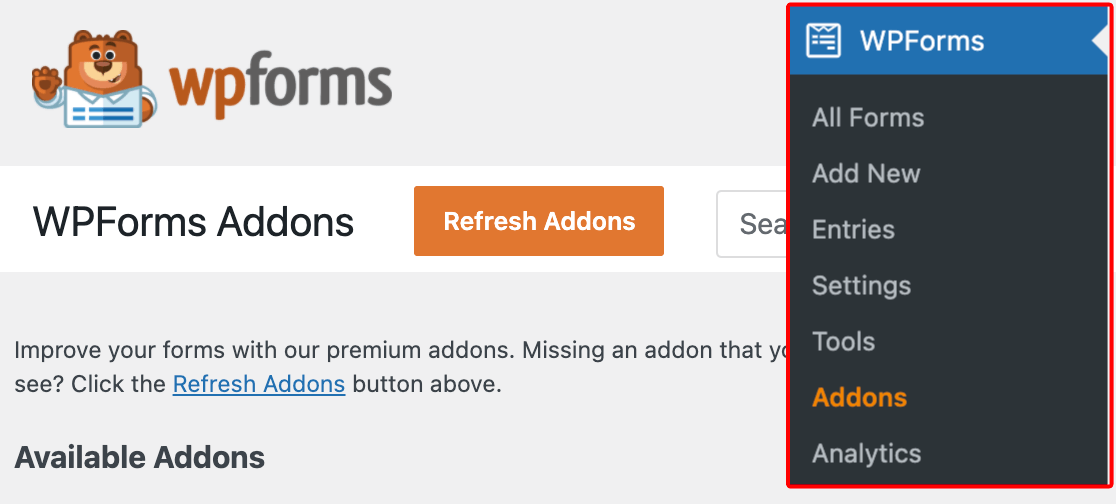
No painel de administra ilde extacileo do seu WordPress, navegue at ilde extacile WPForms e clique em Addons na lista de op ilde extaciles.
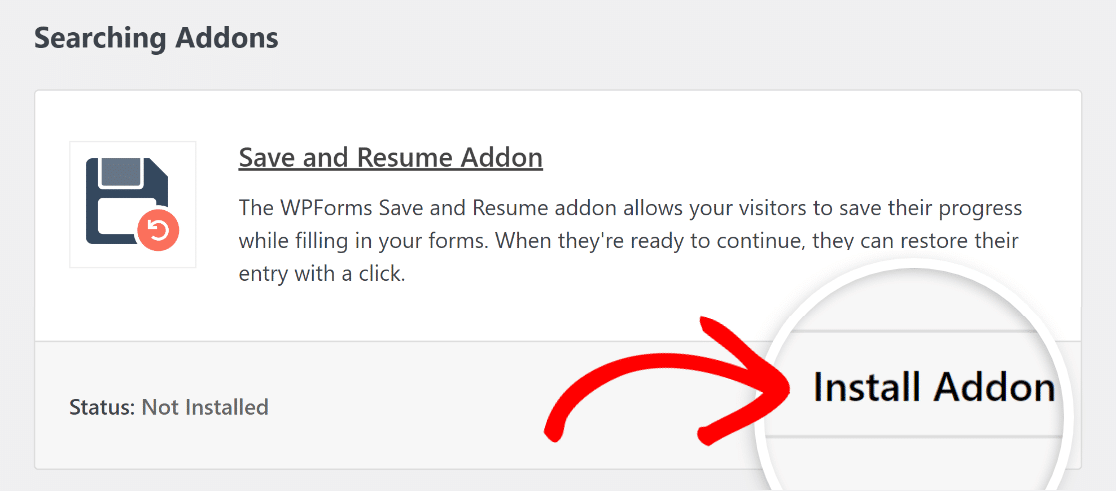
Agora, procure pelo Addon Salvar e Continuar digitando o nome dele no campo Pesquisar Addons. Em seguida, clique em Instalar Addon.
Após o addon ser instalado com sucesso, pressione o mesmo botão novamente para Ativar. E repita o mesmo processo para o Addon de Assinatura.
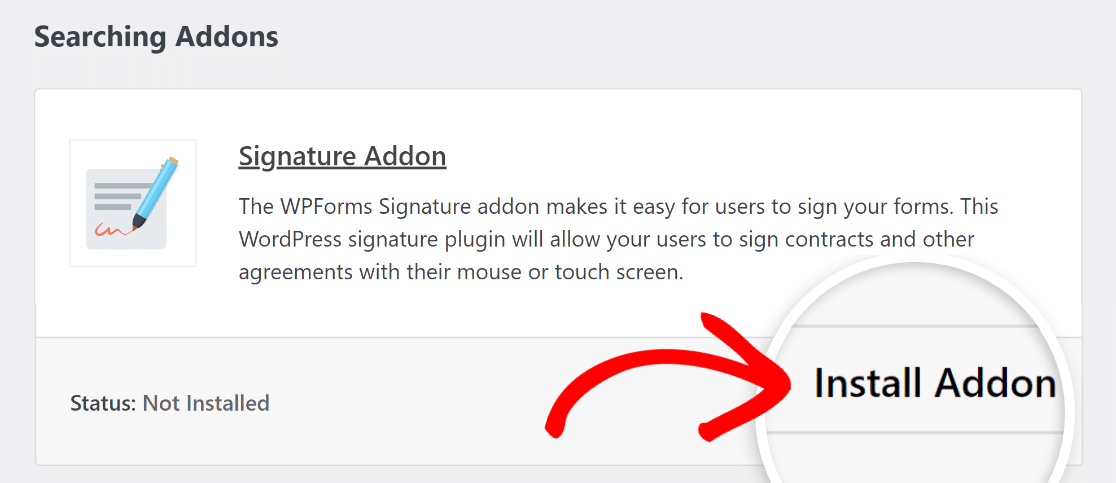
Ótimo trabalho até agora! Agora, vamos guiá-lo pelos passos fáceis para criar seu formulário de aprovação de despesas com a ajuda de um modelo existente do WPForms Pro.
3. Utilize o Modelo de Formulário de Aprovação de Despesas
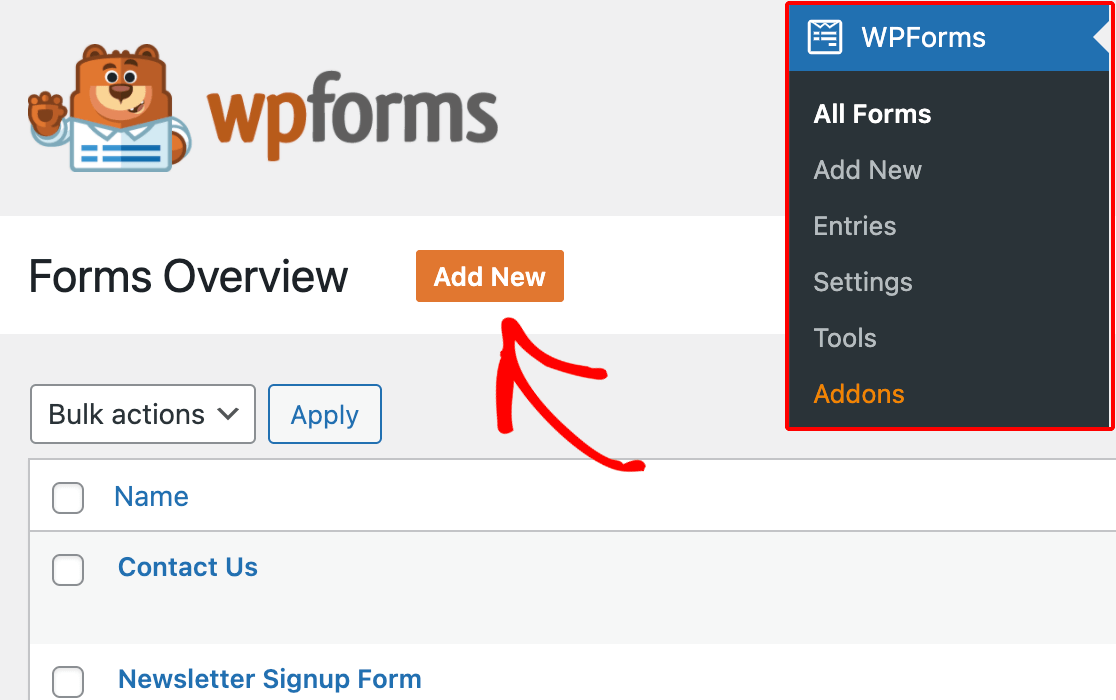
No painel de administração do seu WordPress, navegue até WPForms e clique em Adicionar Novo na lista de opções.
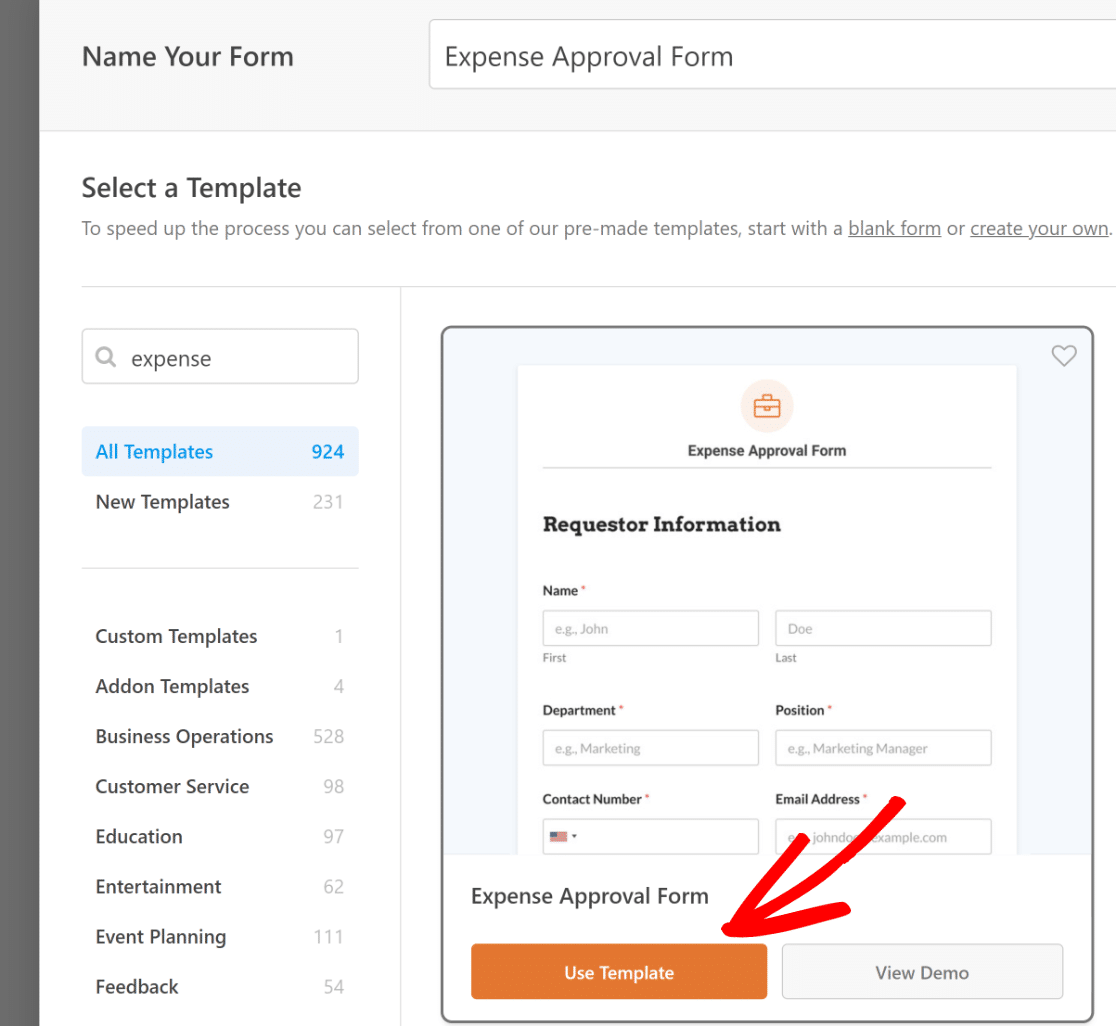
Nomeie Seu Formulário e, em seguida, use a caixa de pesquisa para encontrar o modelo de Formulário de Aprovação de Despesas. Assim que ele aparecer, clique no botão Usar Modelo.
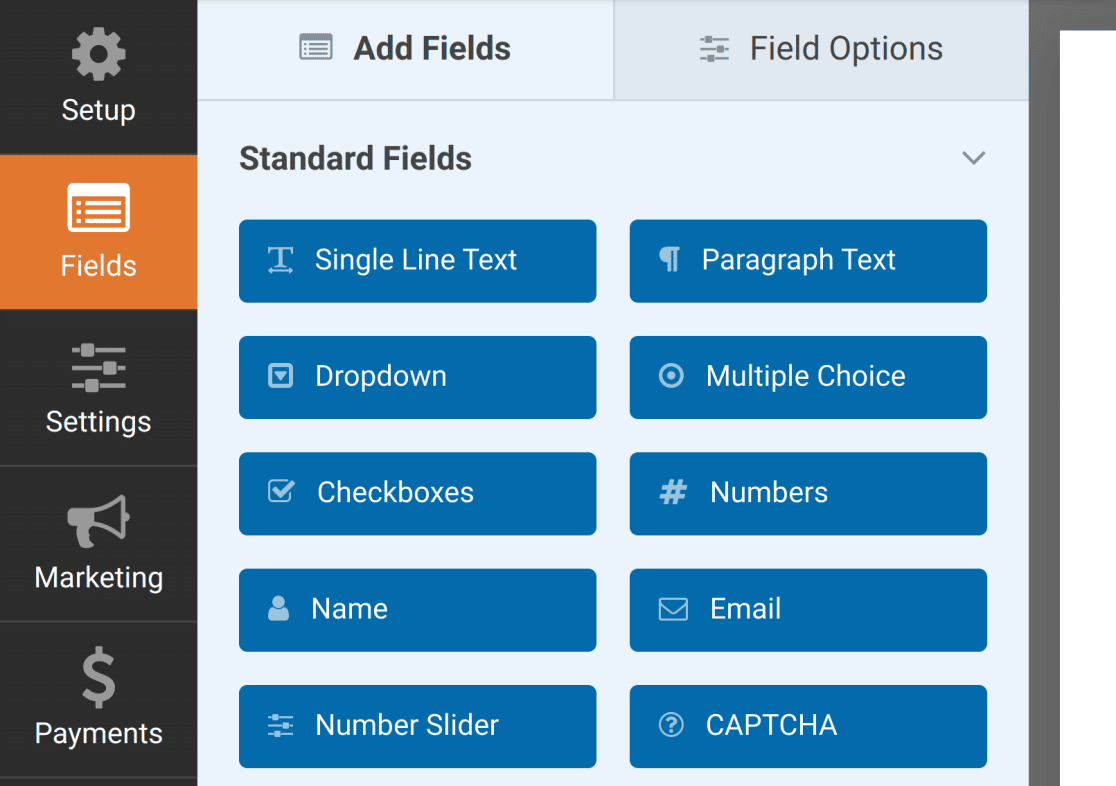
Você será direcionado para a tela Campos, onde os campos disponíveis aparecem no painel esquerdo. Aqueles aos quais você tem acesso dependerão do seu nível de licença.
No painel direito, você verá uma prévia editável do seu formulário. Como estamos usando um modelo, os campos já estarão adicionados.
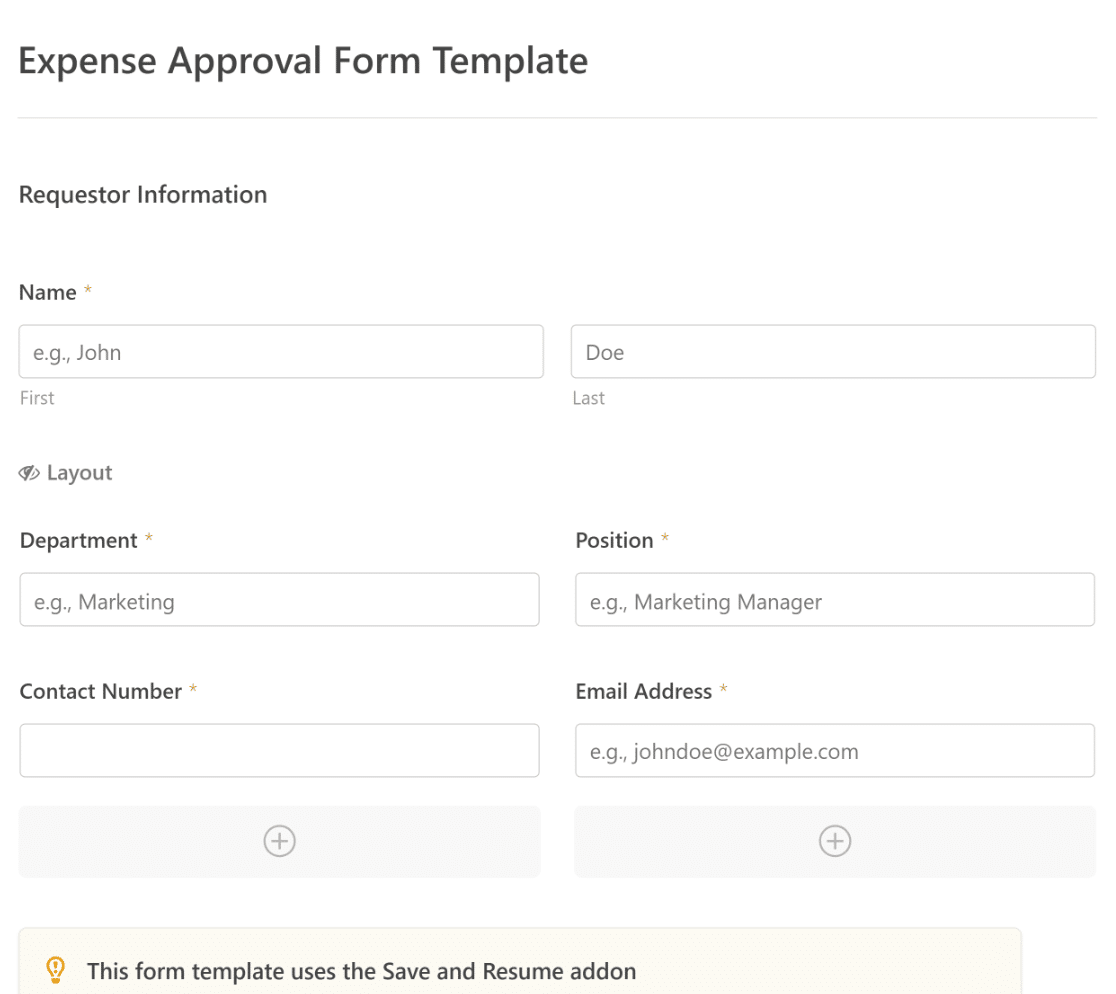
Você notará que este modelo é criado com campos que automatizam a captura das informações do solicitante, detalhes de despesas e aprovação via Assinatura.
Se necessário, você pode usar o construtor de formulários intuitivo do WPForms para adicionar, modificar e organizar campos facilmente, adaptando o formulário ao seu gosto. Você também pode salvar seu formulário personalizado como um modelo para reutilizá-lo, se desejar.
Obtenha o Modelo de Formulário de Aprovação de Despesas 📝
4. Configure as Definições de Salvar e Continuar
Navegue até Configurações » Salvar e Continuar no construtor de formulários. Para ativar a funcionalidade de salvar e continuar, ative a opção Ativar Salvar e Continuar.
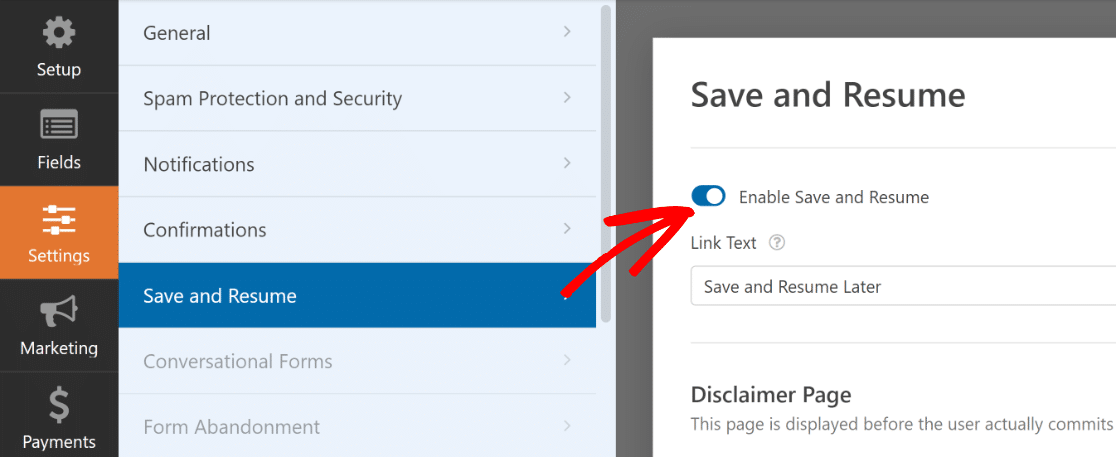
Ao ativar a funcionalidade Salvar e Continuar, você poderá alterar várias configurações. Explicamos cada uma delas abaixo.
Personalizar Texto do Link Salvar e Continuar
Para começar, você pode personalizar o texto do link que os usuários clicarão para salvar o progresso em seu formulário.
Você pode alterar o texto no campo fornecido. Por padrão, ele diz "Salvar e Continuar Depois", mas você pode alterá-lo para o que quiser.
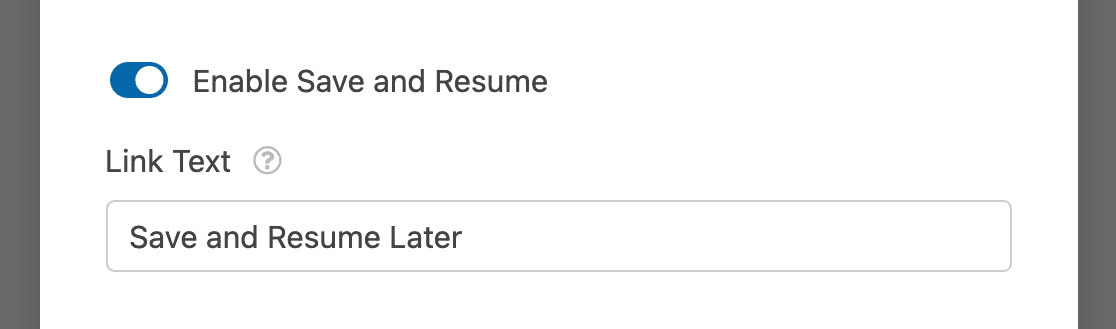
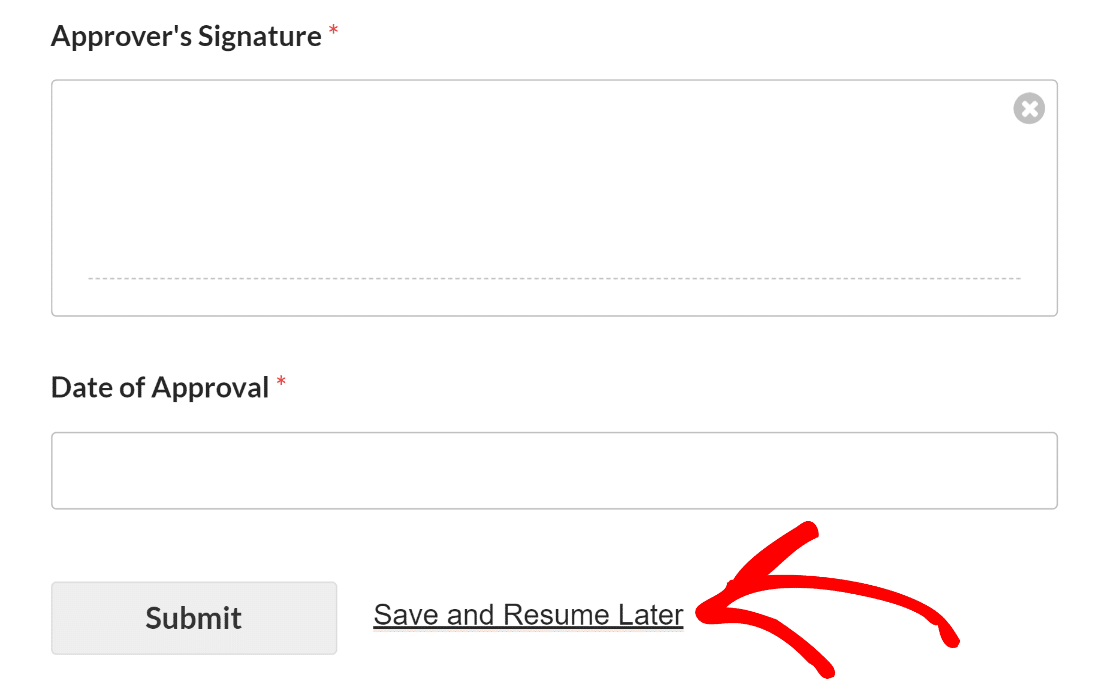
Este link será exibido no frontend do seu site na parte inferior do seu formulário, ao lado do botão rotulado Enviar.
Ativar uma Página de Isenção de Responsabilidade
Você pode adicionar uma página de isenção de responsabilidade opcional que será exibida quando um solicitante clicar no link Salvar e Continuar. Para fazer isso, ative a opção Ativar Página de Isenção de Responsabilidade.
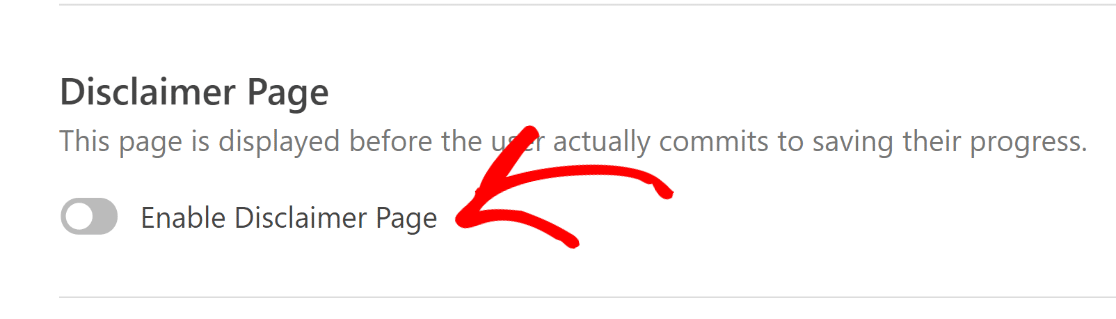
Isso abrirá um editor de texto que você pode usar para modificar o conteúdo da sua página de isenção de responsabilidade assim que ela for exibida.
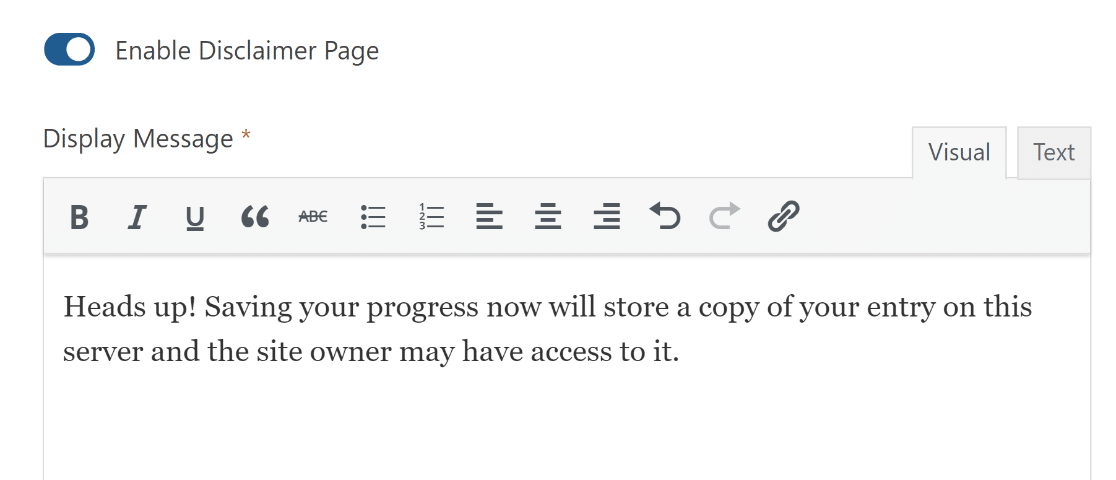
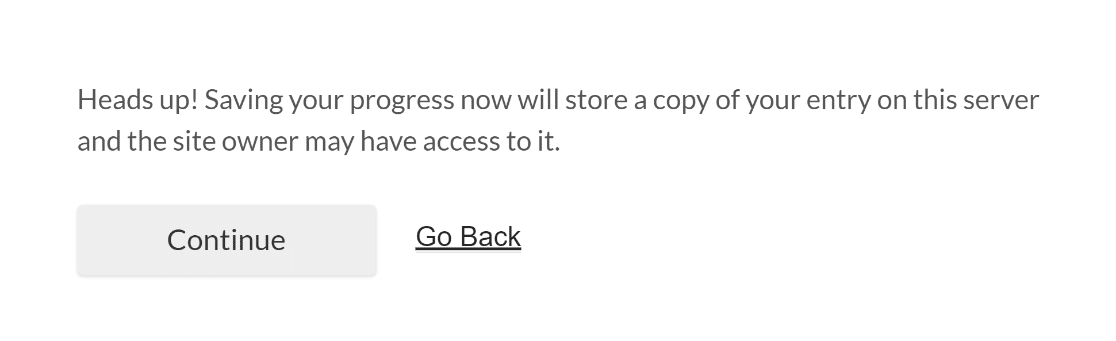
Quando um usuário clicar no link salvar e continuar em seu formulário de solicitação de despesas, ele verá sua página de isenção de responsabilidade. Isso garante que eles estejam cientes dos termos e condições associados ao salvamento de seu progresso.
Após visualizar a isenção de responsabilidade, os usuários terão duas opções. Eles podem confirmar sua decisão de salvar o progresso e sair do formulário clicando no botão Continuar. Alternativamente, eles podem clicar no link Voltar para retornar ao formulário.
Personalizar a Página de Confirmação de Salvar e Continuar
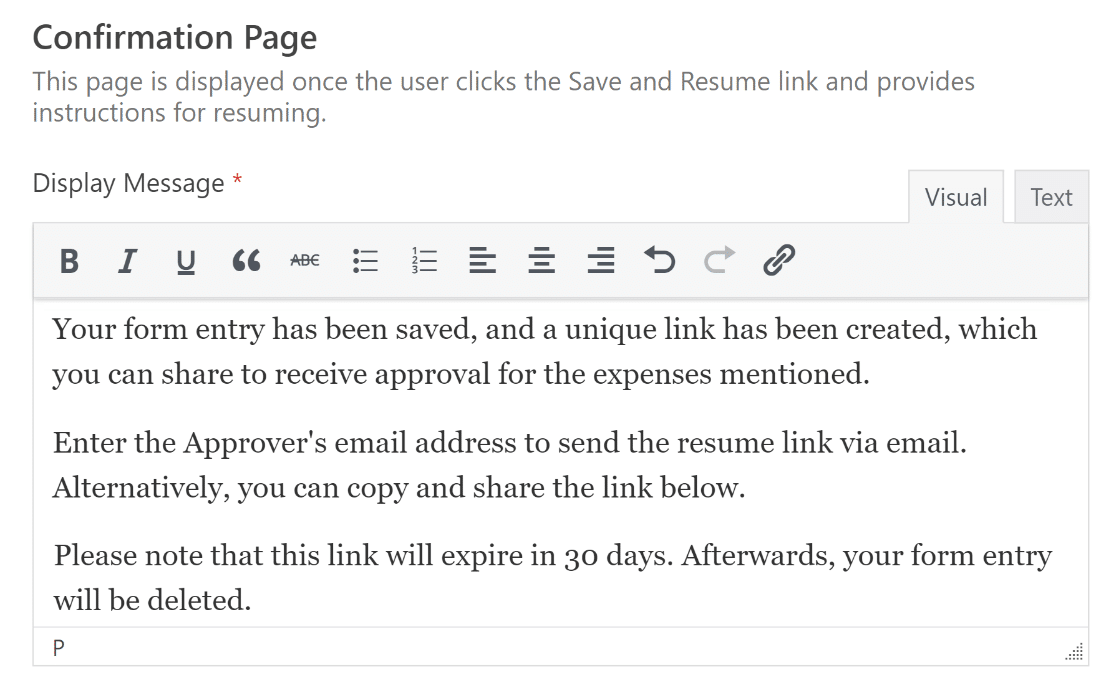
Quando um solicitante do seu formulário de aprovação de despesas salvar o progresso, ele verá uma Página de Confirmação aparecer.
Esta mensagem pode ser personalizada para ajudá-los a entender a próxima etapa do processo de aprovação de despesas.
Para aqueles que preferem uma abordagem mais prática, uma opção para copiar e compartilhar manualmente o link também pode ser discutida.
Isso pode ser feito ativando a opção Ativar Link de Continuação abaixo da mensagem de exibição da página de confirmação.

Ele também pode orientar o solicitante a inserir o endereço de e-mail do indivíduo responsável pela aprovação das despesas para enviar o link de continuação diretamente a ele.
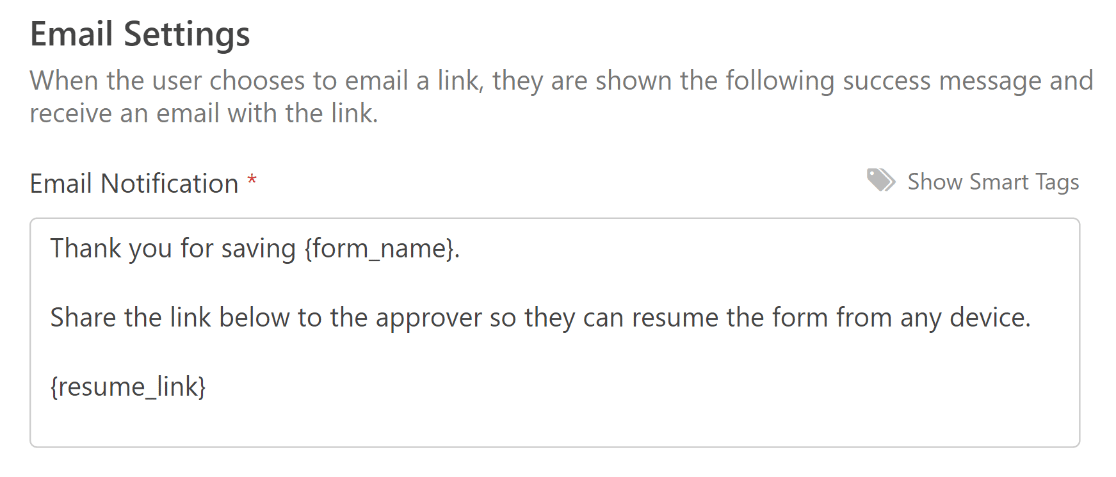
Para enviar notificações por e-mail aos aprovadores com links para continuar o formulário e fornecer sua aprovação, ative a configuração Ativar Notificação por E-mail.

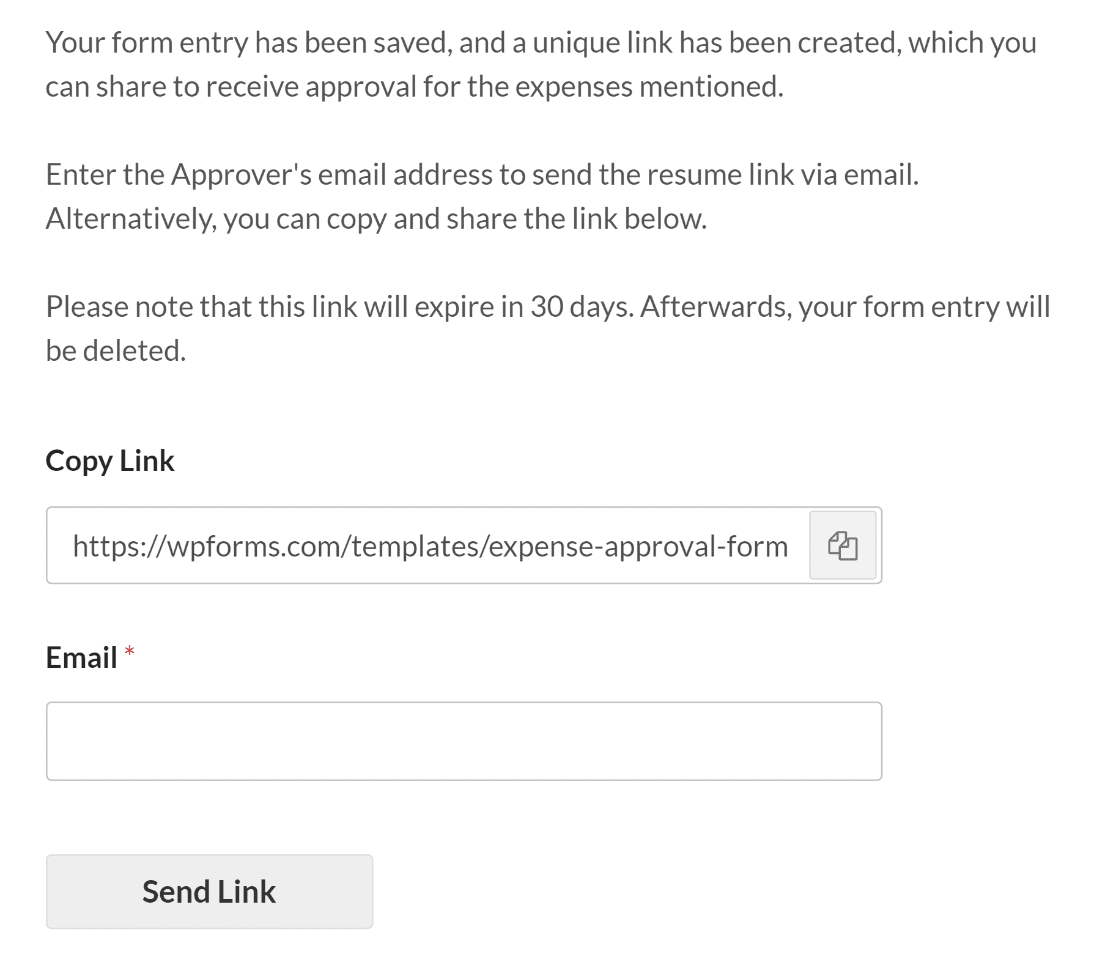
Independentemente de como alguém escolher compartilhar os links dos usuários para salvar e continuar, esses URLs deixarão de funcionar após 30 dias.
Sugerimos deixar isso claro para os usuários ao personalizar suas mensagens de salvar e continuar, para que tenham menos probabilidade de perder seu trabalho devido à inatividade.
Personalizar a Mensagem de Notificação por E-mail
Assim que você ativar a opção Ativar Notificação por E-mail, um editor de texto aparecerá para você personalizar a mensagem de notificação por e-mail.
Embora você possa alterar a mensagem padrão para o que quiser, certifique-se de que a notificação por e-mail tenha a tag inteligente {resume_link} Smart Tag.
Esta Smart Tag fornecerá um link para o formulário que foi apenas parcialmente preenchido, permitindo que o aprovador continue e conceda a solicitação de despesas.
Personalizar o Campo de Assinatura no Seu Formulário
Para garantir a autenticidade das solicitações de aprovação de despesas, o modelo de formulário que estamos usando vem com campos de Assinatura tanto para o solicitante quanto para o aprovador.
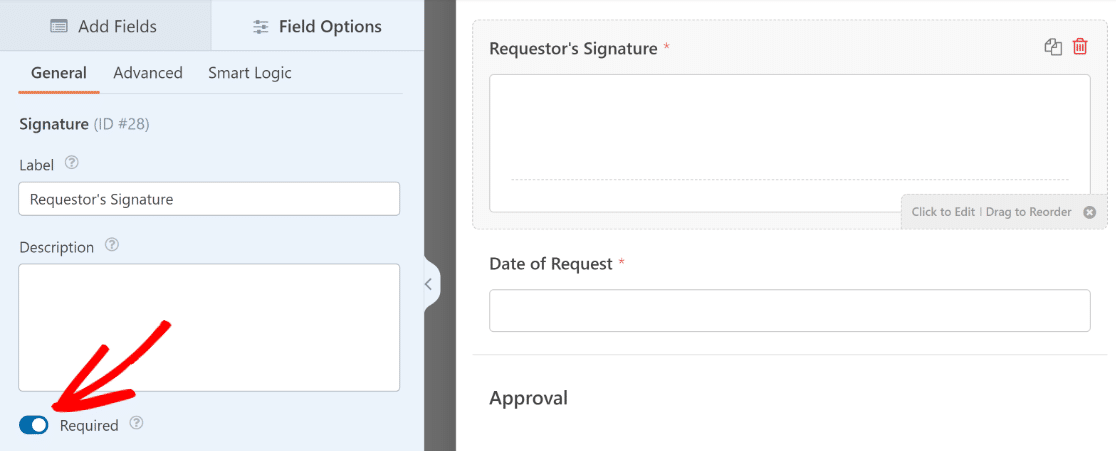
Clique em qualquer um dos campos de Assinatura na área do construtor de formulários para editar seu rótulo, descrição ou cor da tinta, ou marque-o como um campo Obrigatório.
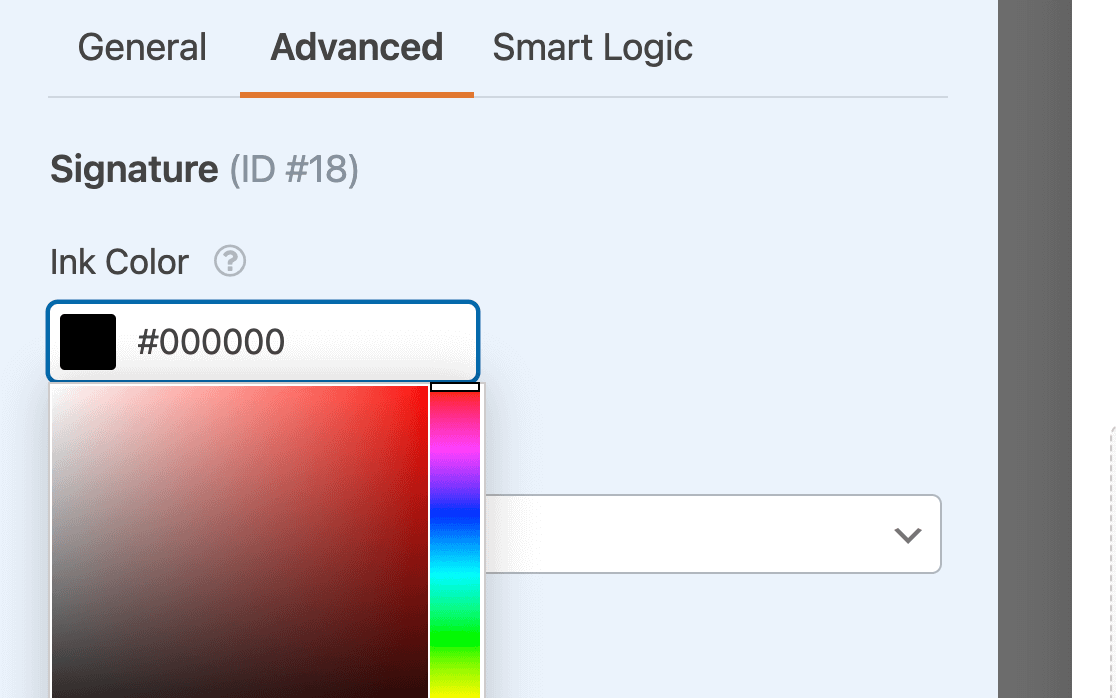
Você também tem a capacidade de alterar a cor da tinta usada para a assinatura eletrônica dentro da Seção Avançada.
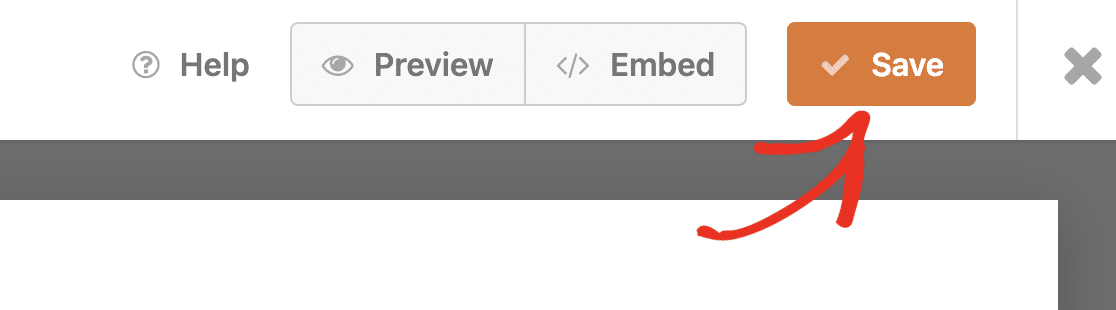
Depois de terminar de configurar essas definições, certifique-se de salvar seu formulário antes de sair do construtor de formulários.
Ativar Notificações e Confirmações de Formulário
É crucial configurar as mensagens e notificações que aparecerão depois que um usuário preencher e enviar seu formulário.
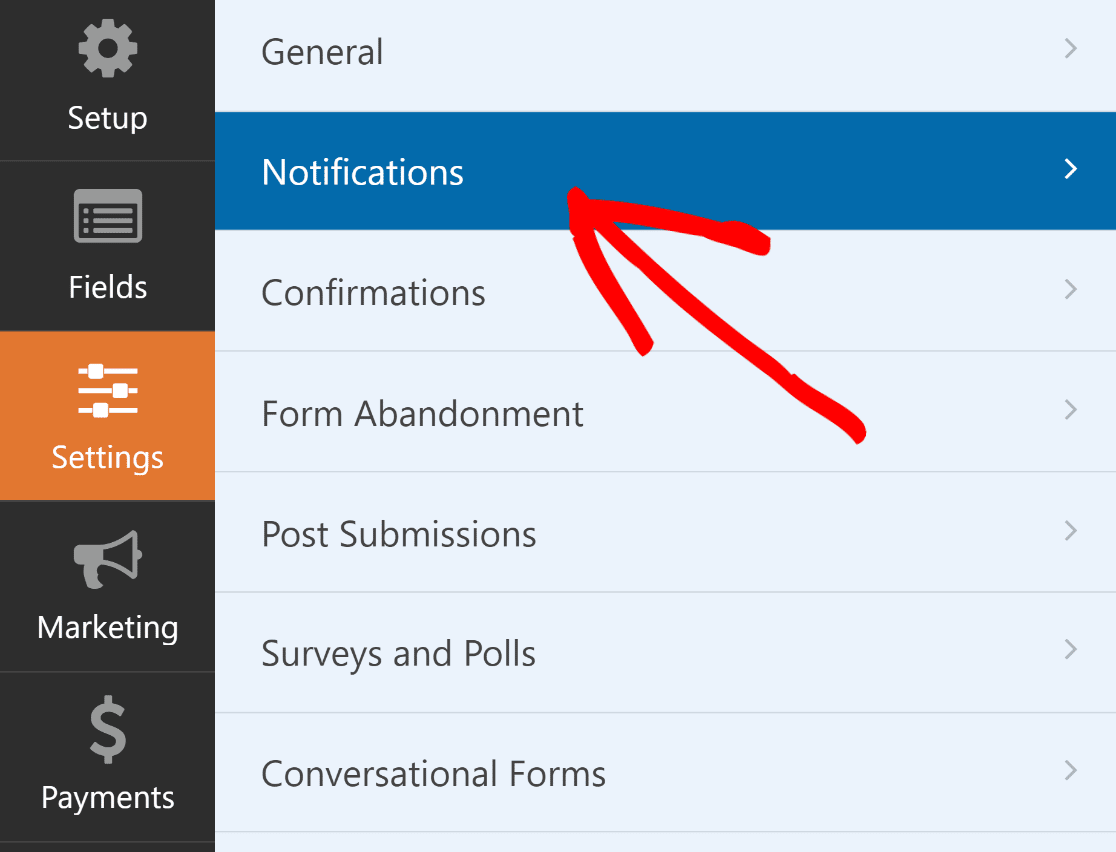
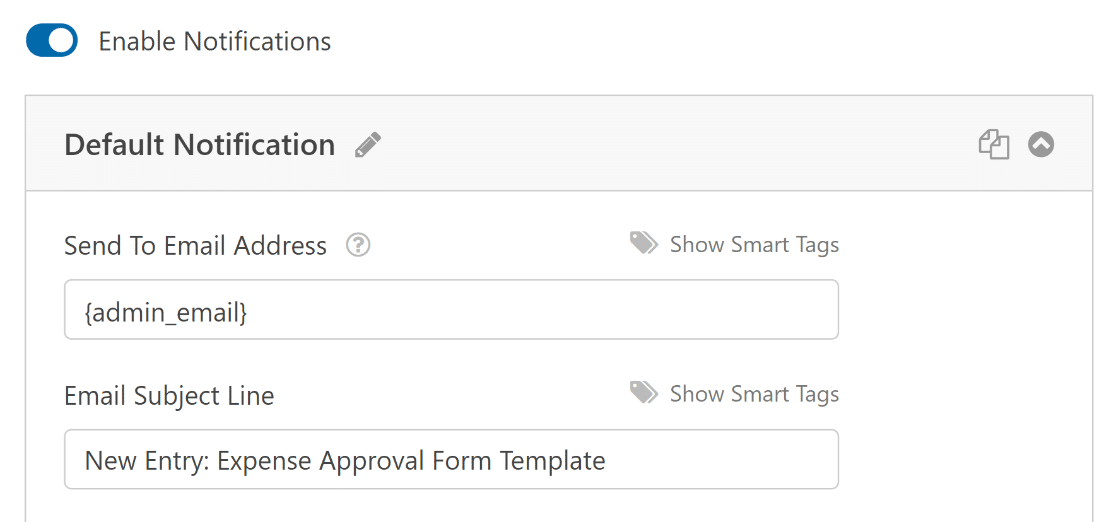
Isso é fácil de fazer. Na tela do Construtor de Formulários, navegue até a guia Configurações e selecione Notificações.
Vá para WPForms » Pagamentos e clique na guia Cupons para ver seu resumo de cupons para transações feitas via WPForms.
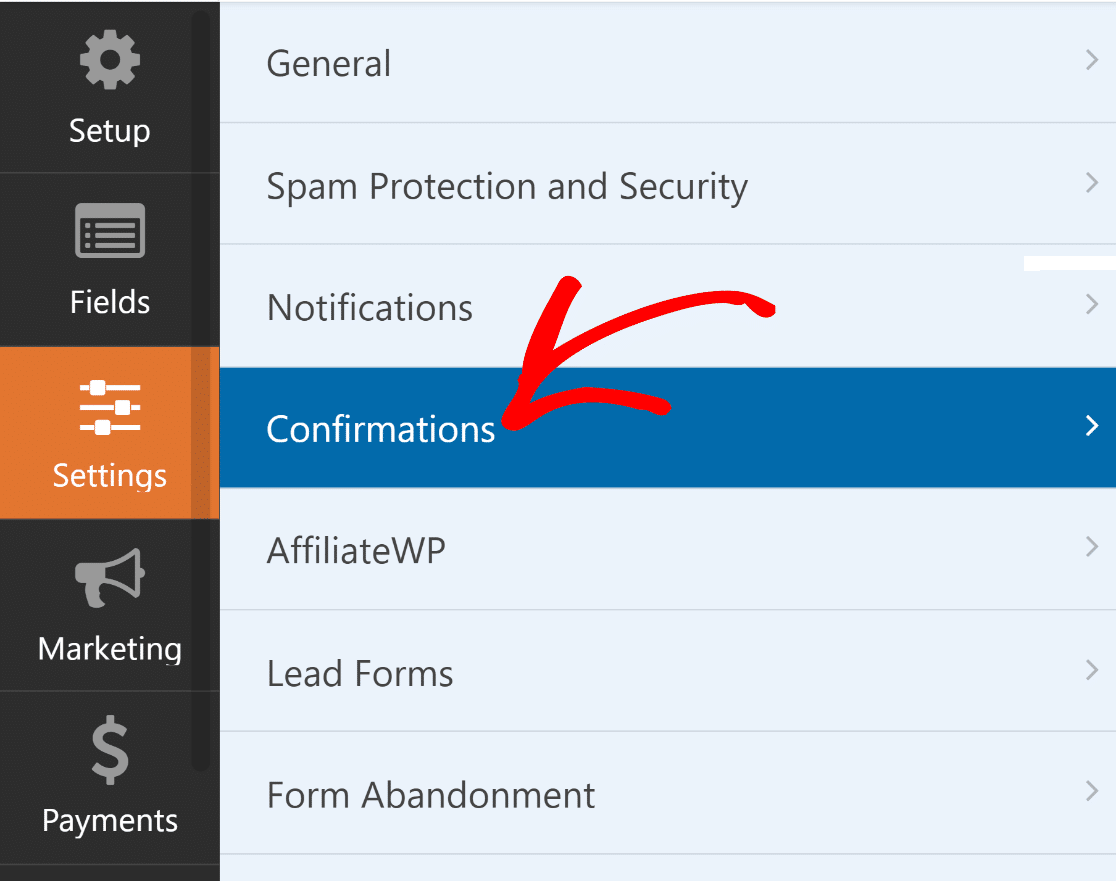
Em seguida, na aba Configurações, selecione Confirmações para modificar a mensagem que os tomadores de decisão receberão ao fornecer sua aprovação e completar o formulário.
Você também pode usar a configuração Tipo de Confirmação no WPForms para exibir uma mensagem, vincular a outra página ou redirecionar o usuário.
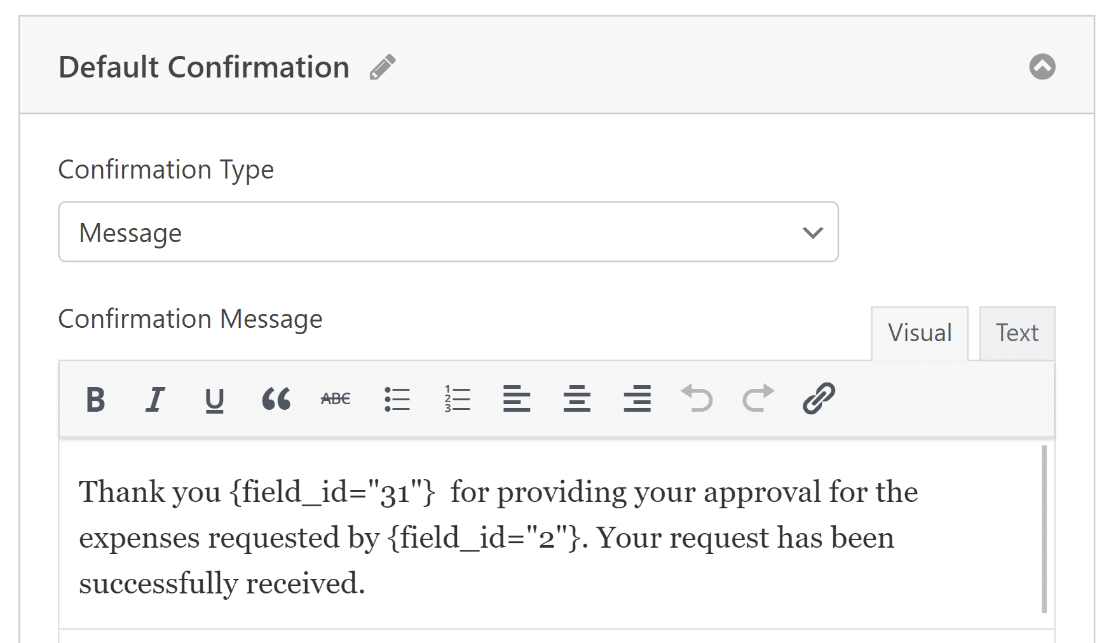
Depois de configurar suas configurações de notificação por e-mail e confirmação, clique no botão Salvar novamente para salvar seu progresso atual.
5. Publique Seu Formulário de Aprovação de Despesas
Agora que você construiu seu formulário de aprovação de despesas usando o modelo, pode adicioná-lo ao seu site WordPress e estilizá-lo ainda mais usando o editor de blocos.
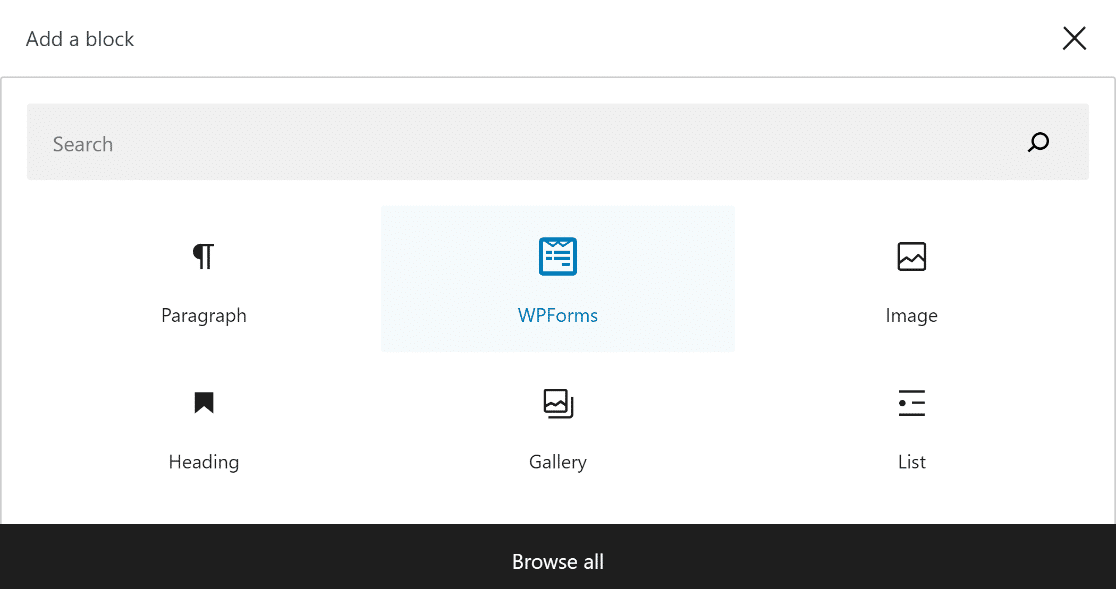
Crie uma nova página/post ou simplesmente atualize um existente. Depois disso, clique no botão Adicionar Bloco e selecione o ícone WPForms.
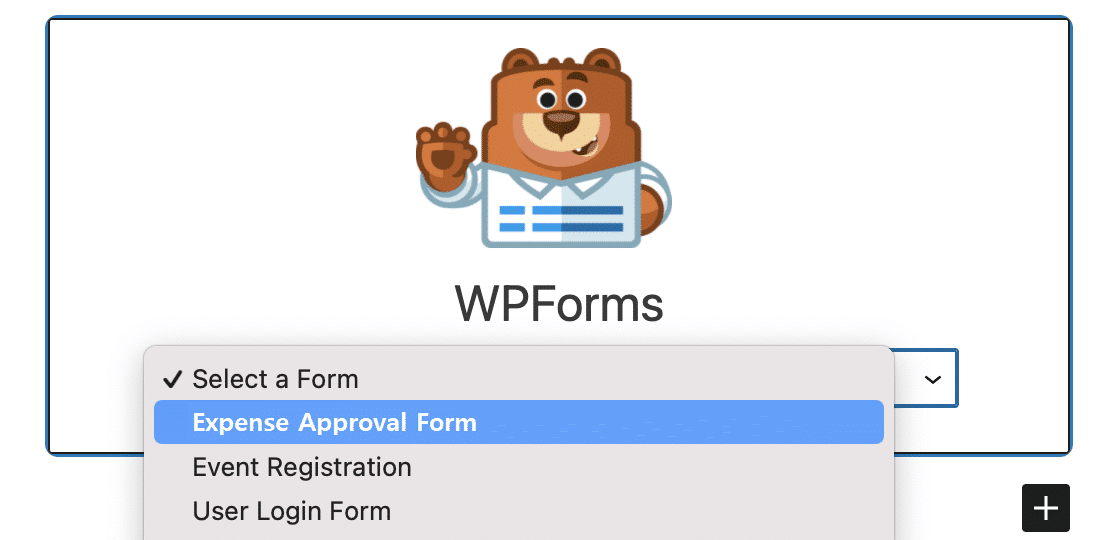
Em seguida, selecione seu formulário de pré-aprovação de despesas no menu suspenso no widget WPForms para anexá-lo à sua página/postagem.
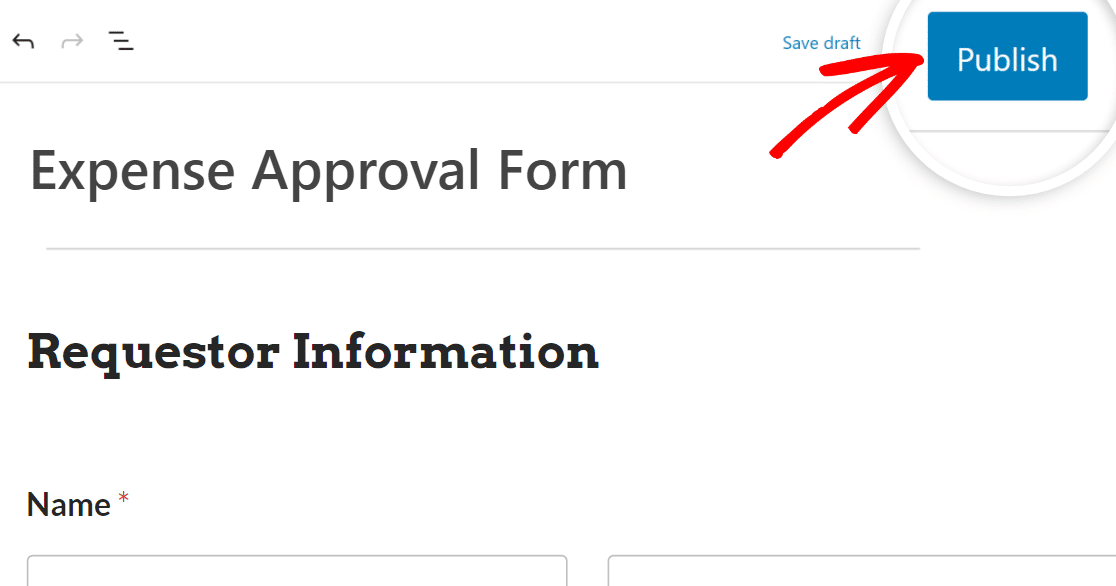
Se você estiver satisfeito com a aparência do seu formulário, clique no botão Atualizar ou Publicar, e seu formulário ficará ativo.
Agora, tudo o que você precisa fazer é testar o formulário incorporado após a publicação para garantir que ele funcione como esperado e evitar quaisquer problemas.
Perguntas Frequentes sobre Formulários de Aprovação de Despesas
Formulários de aprovação de despesas são um tópico popular entre nossos leitores. Aqui estão as respostas para algumas perguntas comuns sobre eles.
O que é um formulário de aprovação de despesas?
Um formulário de aprovação de despesas é um documento que os funcionários enviam para obter reembolso de despesas de negócios. Ele detalha as despesas relacionadas ao trabalho que os funcionários pagam do próprio bolso e requer documentação de suporte, como recibos.
Por que as empresas usam formulários de aprovação de despesas?
As empresas usam formulários padronizados de despesas para controlar gastos e garantir que as despesas estejam de acordo com as políticas. O fluxo de trabalho de aprovação permite a supervisão e a justificativa dos gastos dos funcionários. Os formulários criam uma trilha digital auditável para relatórios financeiros.
Quais informações são necessárias em um formulário de aprovação de despesas?
Os detalhes típicos incluem nome do funcionário, departamento, data da solicitação da despesa, fornecedor, descrição, propósito comercial, códigos de projeto, valor, cópia do recibo e assinaturas de aprovação. A política da empresa descreve os detalhes e comprovantes necessários.
Quem precisa assinar/aprovar um formulário de aprovação de despesas?
Os formulários de despesas passam por uma cadeia de aprovação que varia de acordo com a empresa. Aprovadores comuns são o funcionário, gerente, supervisor de contabilidade, gerente de recursos humanos, controlador ou CFO.
Em seguida, confira mais modelos de formulário de autorização de despesas
Se você está procurando maneiras mais criativas de criar formulários de despesas e relacionados a finanças para sua empresa, é um bom momento para conferir as demonstrações desses modelos:
- Formulário Simples de Despesas
- Formulário de Requisição
- Formulário Online de Reembolso
- Formulário de Reembolso de Despesas
- Formulário de Aprovação de Despesas de Capital
Crie seu Formulário de Aprovação de Despesas Agora
Pronto para criar seu formulário? Comece hoje mesmo com o plugin de criação de formulários WordPress mais fácil. WPForms Pro inclui muitos modelos gratuitos e oferece uma garantia de devolução do dinheiro em 14 dias.
Se este artigo ajudou você, por favor, siga-nos no Facebook e Twitter para mais tutoriais e guias gratuitos do WordPress.


Olá,
Se um componente principal de um formulário de aprovação de despesas é uma cópia de um recibo, por que este formulário não suporta manter o upload do arquivo quando um aprovador volta para continuar e aprovar? Porque depois que o aprovador aprova, você também não permite que ele retorne ao solicitante para anexar o recibo novamente. Não faz sentido.
Olá Harrison – Atualmente, não temos o recurso de manter o arquivo adicionado no campo de upload de arquivo ao continuar o formulário. Concordo que isso seria útil e o incluirei em nosso rastreador de solicitações de recursos.
Funcionalidade realmente muito boa.
Existem várias etapas de aprovação de várias pessoas internas entre os membros do WordPress?
O gerente pode negar o formulário de despesas ou solicitar a revisão do formulário?
O usuário/gerente/CEO pode rastrear o(s) seu(s) relatório(s) de despesas?
Olá Ray – Quando tiver um tempo, por favor, entre em contato conosco com mais detalhes sobre sua necessidade em nosso suporte para que possamos ajudar.
Se você tiver uma licença WPForms, terá acesso ao nosso suporte por e-mail, então por favor envie um ticket de suporte.
Caso contrário, oferecemos suporte complementar limitado no fórum de suporte do WPForms Lite no WordPress.org.
Obrigado 🙂