



Resumo de IA
Você deseja adicionar automaticamente seus clientes de seus formulários do WordPress ao seu software de contabilidade favorito, o QuickBooks?
Com o WPForms, você pode integrar facilmente seus formulários online ao QuickBooks para não precisar adicionar seus clientes manualmente, o que pode economizar muito tempo.
Neste artigo, explicaremos como integrar o QuickBooks Online aos seus formulários do WordPress.
O WordPress se integra ao QuickBooks?
Sim, você pode integrar o QuickBooks Online ao WordPress para adicionar clientes automaticamente ao seu banco de dados do QuickBooks.
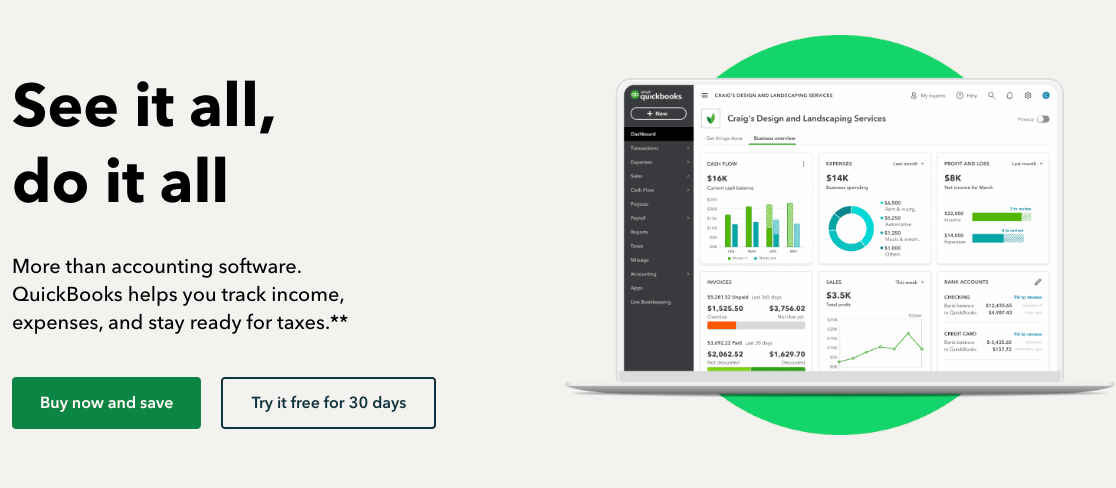
O QuickBooks é um software de contabilidade para pequenas empresas que vem com muitos recursos, como sincronização bancária online, faturamento personalizado e muito mais. Adicionar os detalhes de seus clientes ao QuickBooks permite que você crie e envie facilmente faturas personalizadas para seus clientes.
Com o QuickBooks, você também pode criar uma demonstração de lucros ou perdas e um demonstrativo de fluxo de caixa. Como ele pode realizar muitas tarefas simples de contabilidade automaticamente, ele economiza seu tempo em contabilidade e papelada.
Como Integrar o QuickBooks Online aos Seus Formulários do WordPress
A maneira mais fácil de adicionar clientes automaticamente ao QuickBooks é usar o WPForms e seu complemento Zapier. Isso permitirá que você crie um formulário de pedido personalizado para o seu site WordPress e o conecte ao QuickBooks Online para enviar automaticamente as informações do cliente para o seu programa de contabilidade.
Neste Artigo
Etapa 1: Instalar e Ativar o WPForms
Para adicionar seus clientes ao QuickBooks a partir de um formulário do WordPress, a primeira coisa que você precisa fazer é instalar e ativar o plugin WPForms.
Aqui está um guia passo a passo sobre como instalar um plugin do WordPress se você precisar de ajuda adicional.
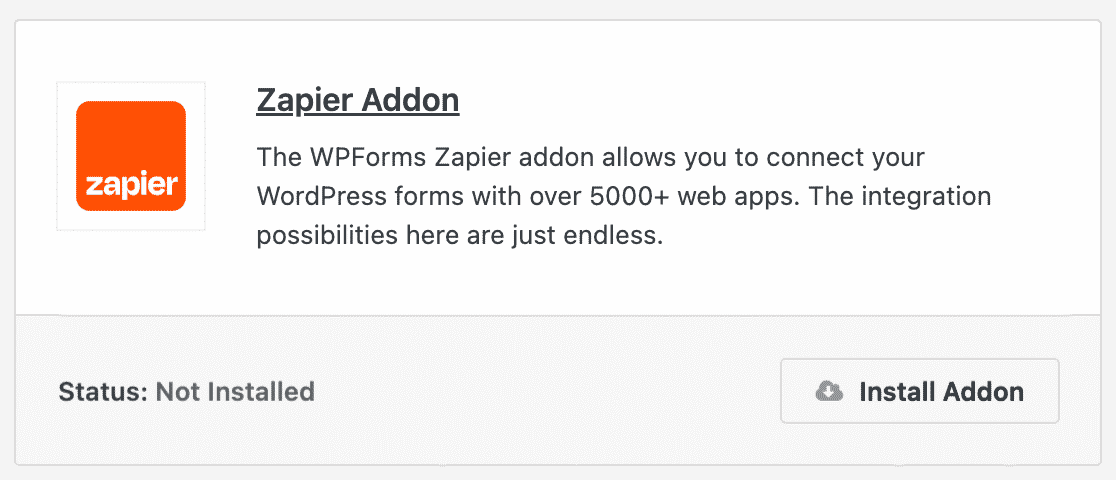
Para importar contatos para o QuickBooks a partir do seu formulário, você também precisará instalar e ativar o complemento Zapier em seu site.
O complemento Zapier permite conectar seus formulários do WordPress a mais de 7.000 aplicativos da web, incluindo o aplicativo QuickBooks.
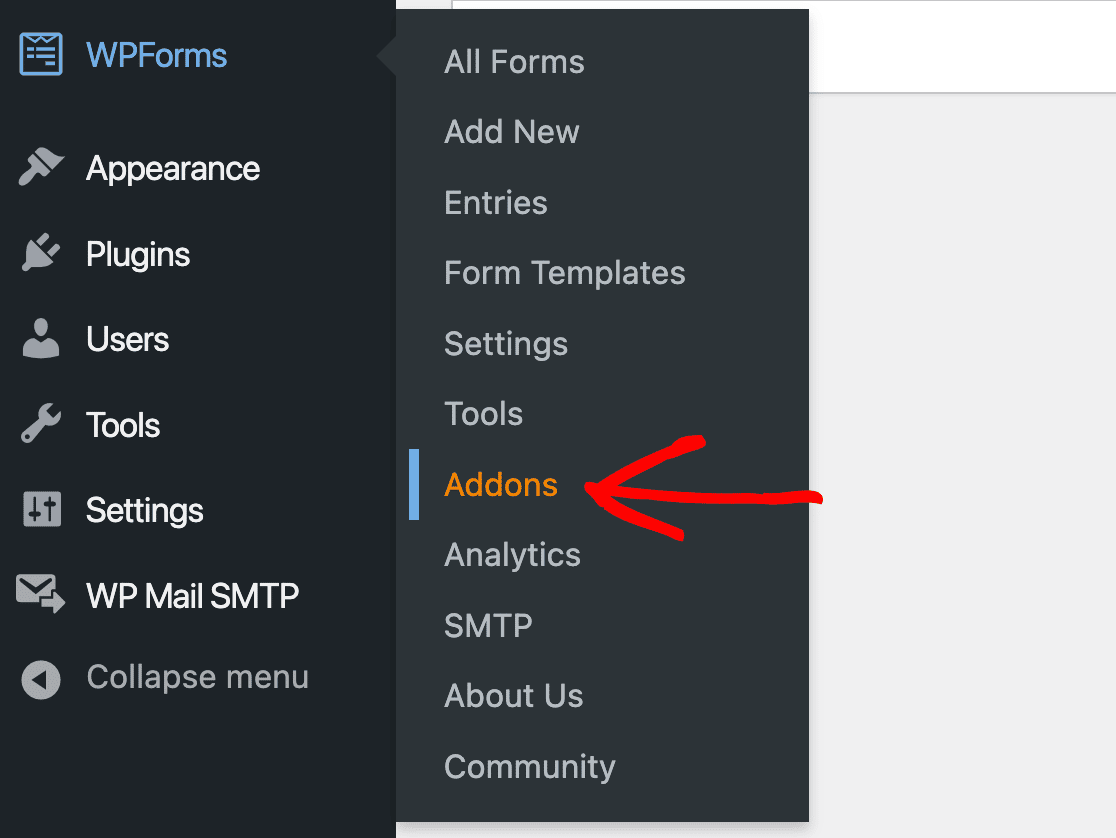
Na sua área de administração do WordPress, vá para WPForms » Addons.
Em seguida, encontre o complemento Zapier e clique em Instalar Complemento.
Para mais ajuda com esta etapa, você pode conferir nosso tutorial sobre como instalar e usar o addon Zapier.
Etapa 2: Crie seu formulário QuickBooks
Após a instalação, você precisará criar um formulário do WordPress para conectar à sua conta QuickBooks.
Para nosso exemplo, criaremos um formulário de pedido simples, mas você também pode conectar seu formulário de contato, formulário de solicitação de orçamento, formulário de agendamento, ou qualquer outro formulário que você use em seu site WordPress.
No seu painel do WordPress, vá para WPForms » Adicionar Novo. Aqui você pode nomear seu formulário e escolher entre centenas de modelos disponíveis.
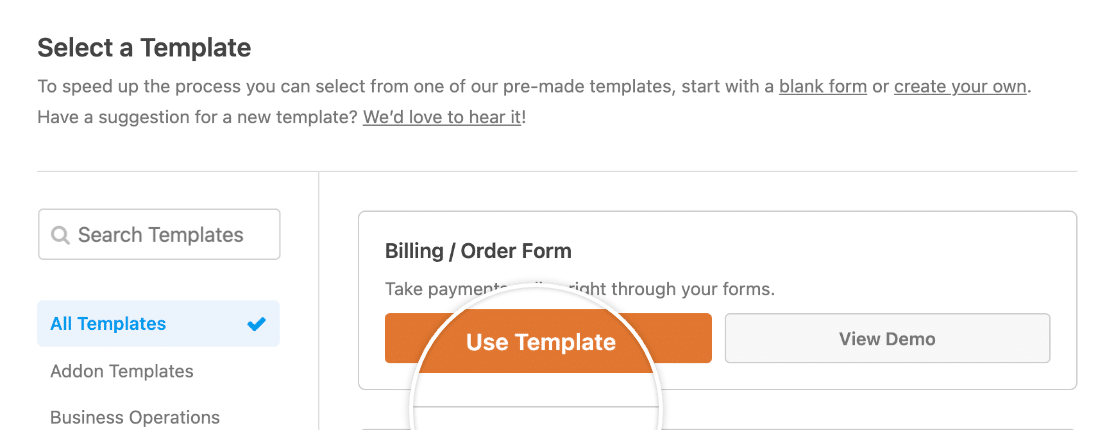
Seu modelo será carregado no construtor de formulários e, em seguida, você poderá personalizá-lo. Arraste e solte campos para reorganizá-los, clique neles para editar seus rótulos, descrições e placeholders, e adicione e remova campos conforme achar melhor.
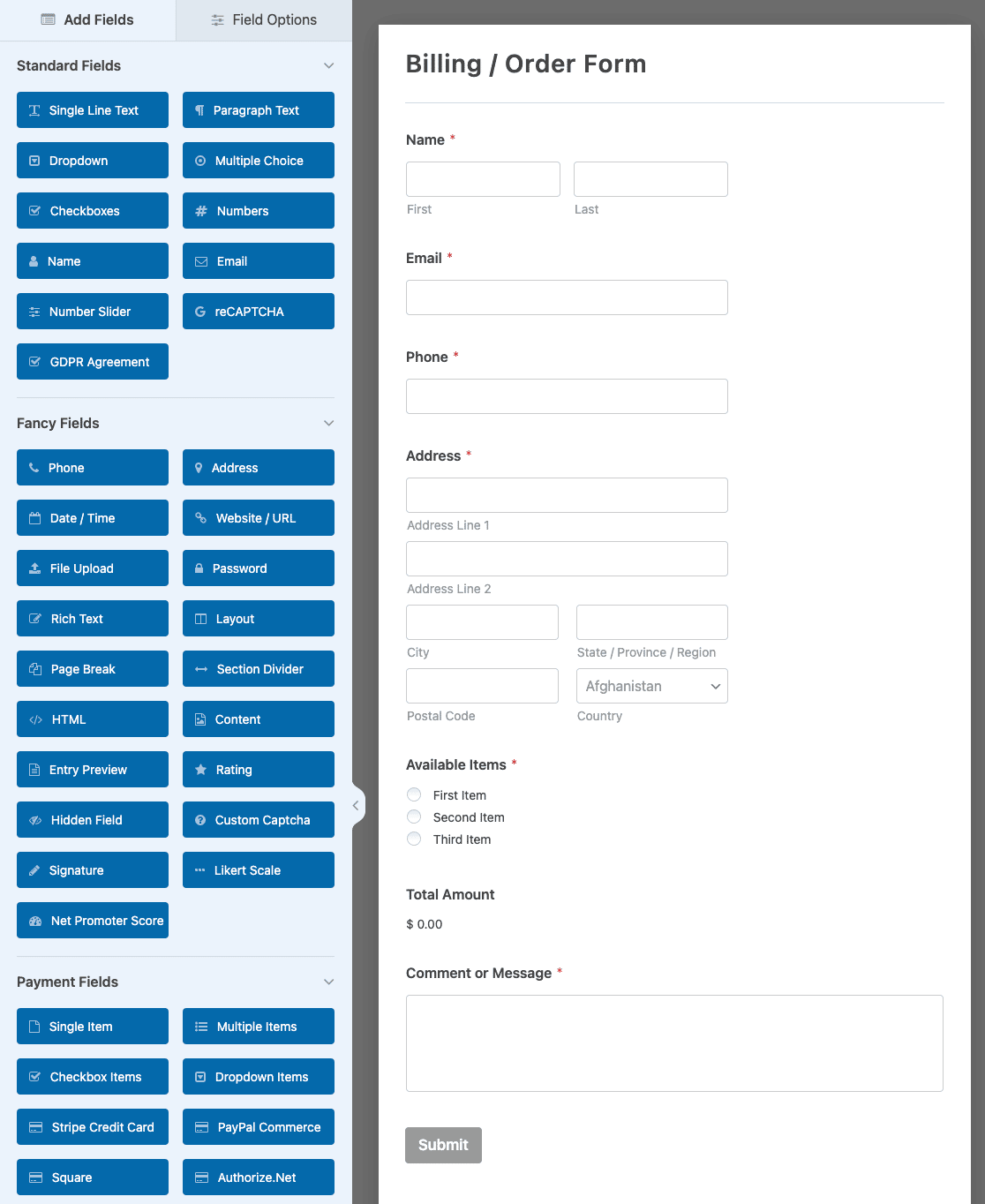
Quando estiver satisfeito com seu formulário, clique em Salvar no topo do construtor.

Etapa 3: Envie uma Entrada de Teste
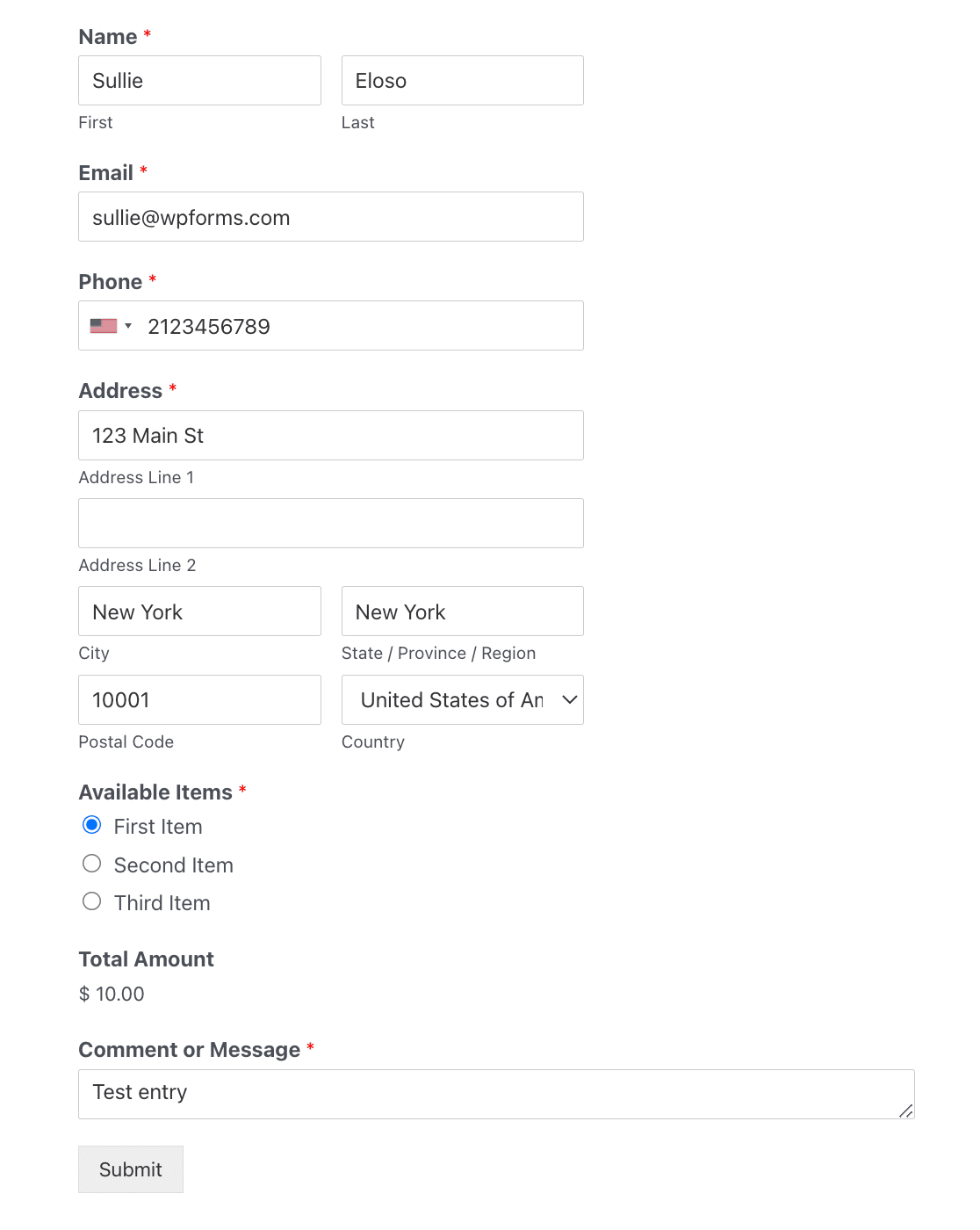
Depois de terminar de criar seu formulário, você precisa enviar uma entrada de teste para ele. Isso é necessário para completar a conexão no Zapier, então não pule esta etapa!
Você pode enviar uma entrada de teste clicando no botão Visualizar no construtor de formulários.

Em seguida, preencha seu formulário e envie-o.
Passo 4: Conecte o WPForms ao Zapier
Agora, vamos ver como conectar formulários do WordPress ao QuickBooks via Zapier.
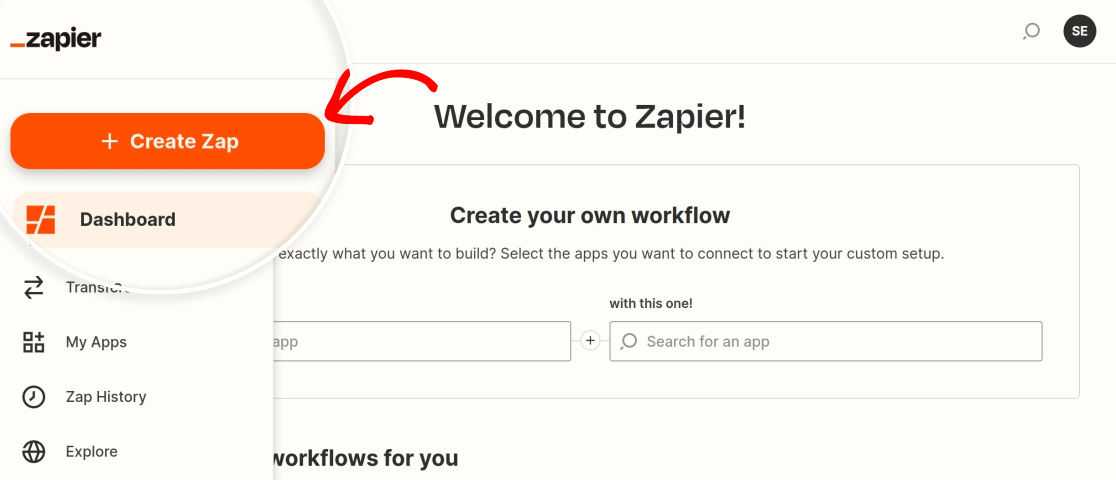
Faça login na sua conta Zapier e clique no botão Criar Zap.
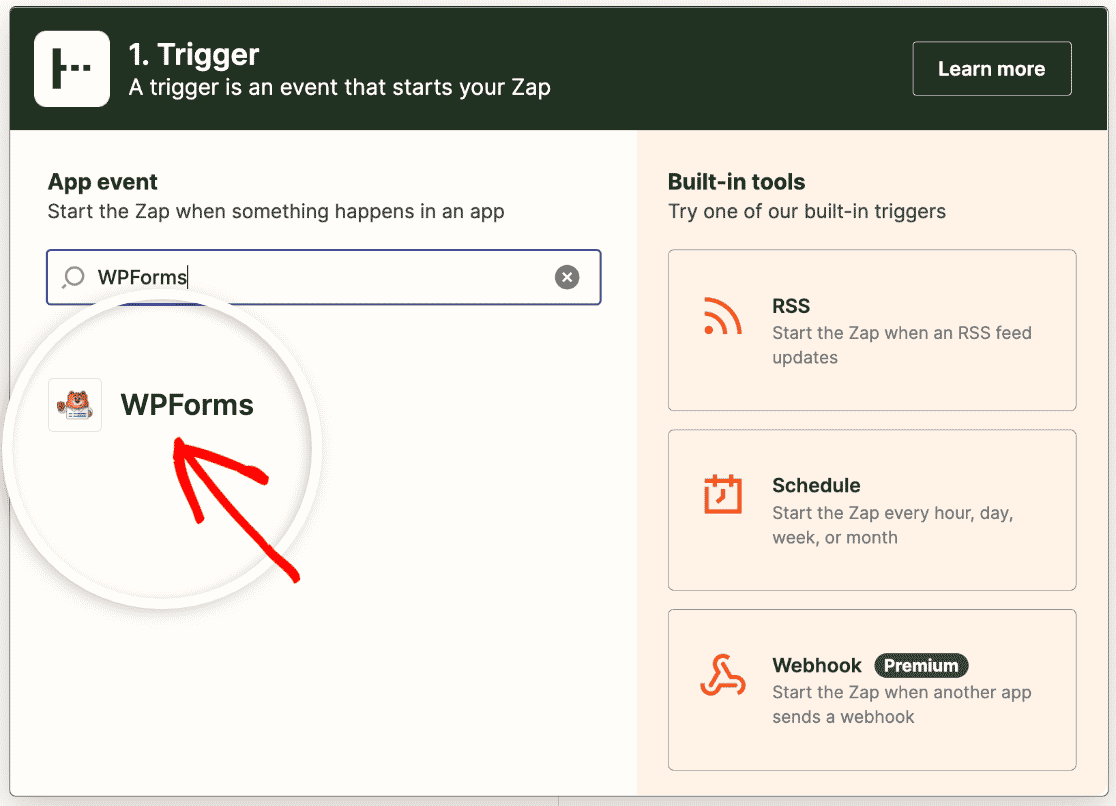
Primeiro, escolha WPForms como seu aplicativo de gatilho.
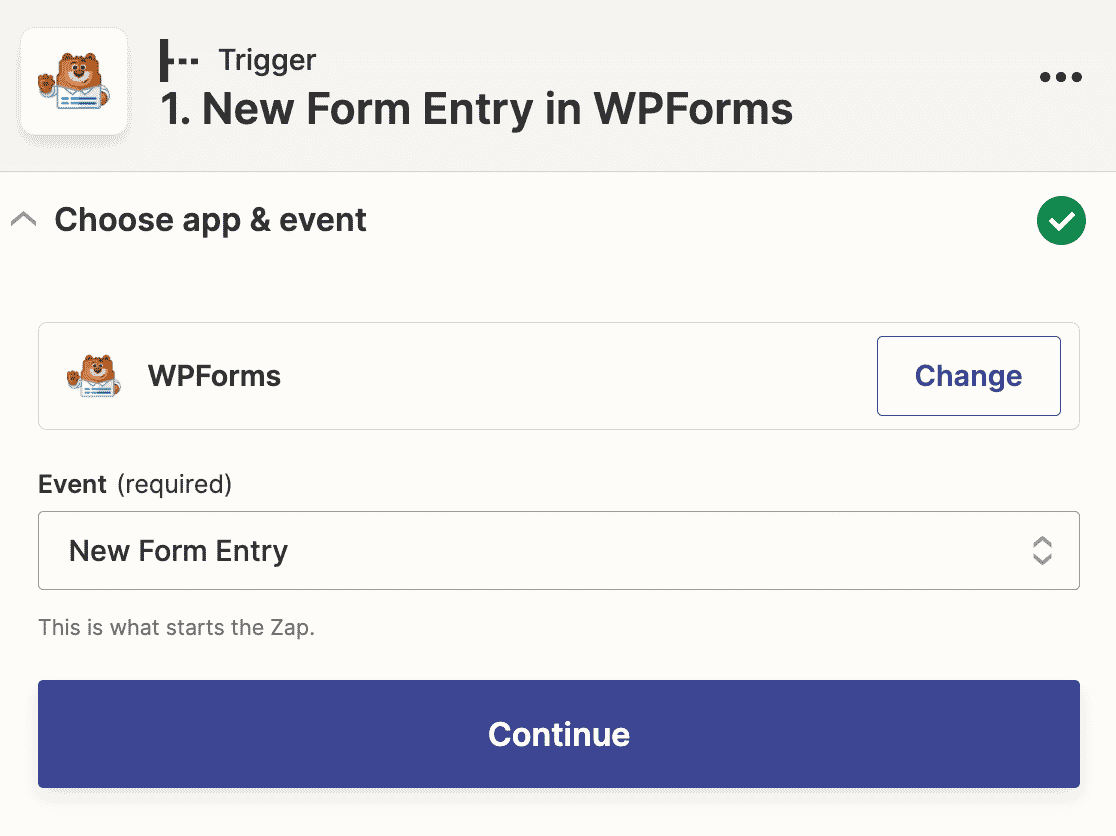
Em seguida, você precisará selecionar a ação que precisa ocorrer para acionar seu zap. A única opção para WPForms é Nova Entrada de Formulário, então selecione-a no menu suspenso.
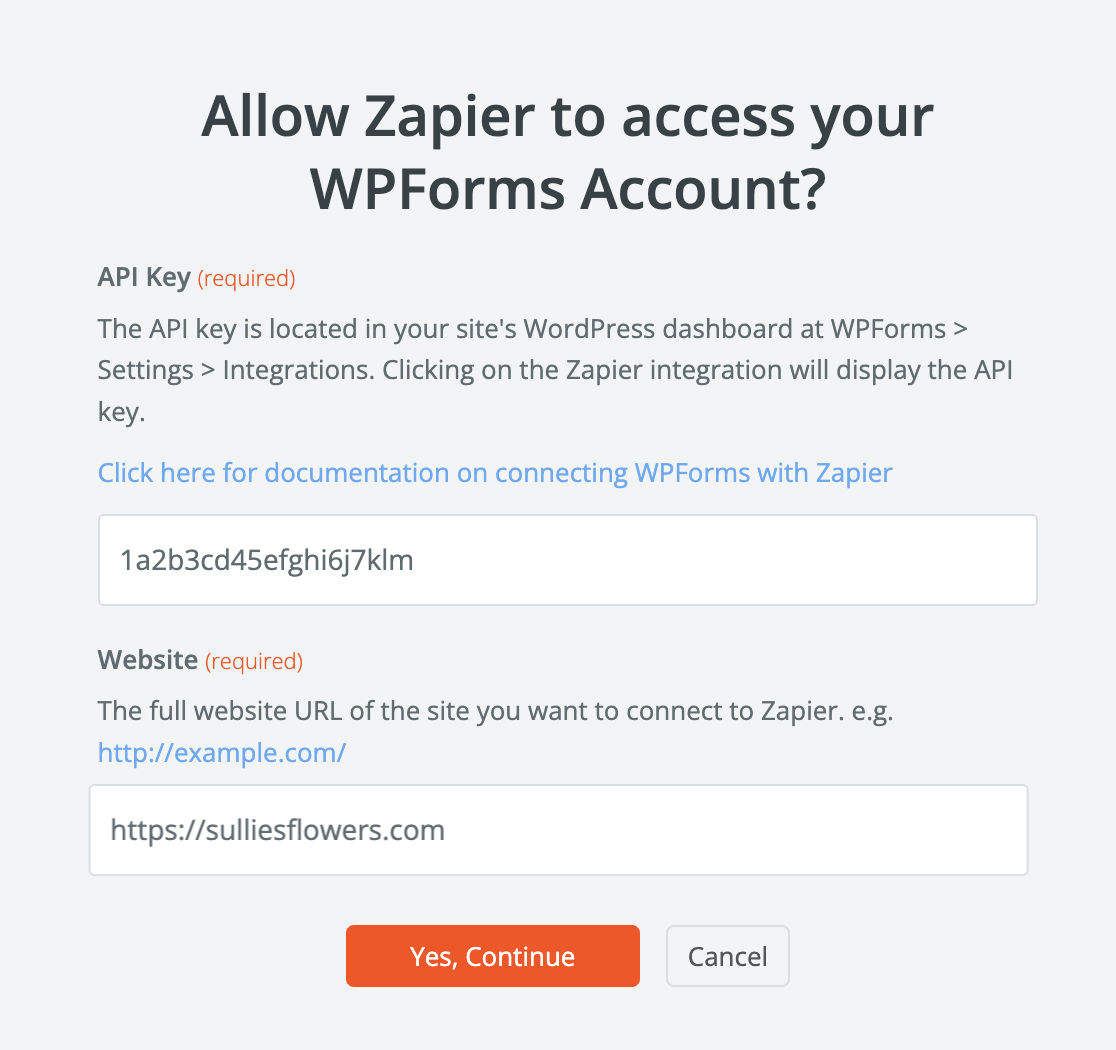
Agora o Zapier pedirá que você faça login na sua conta WPForms. Clique no botão Entrar.
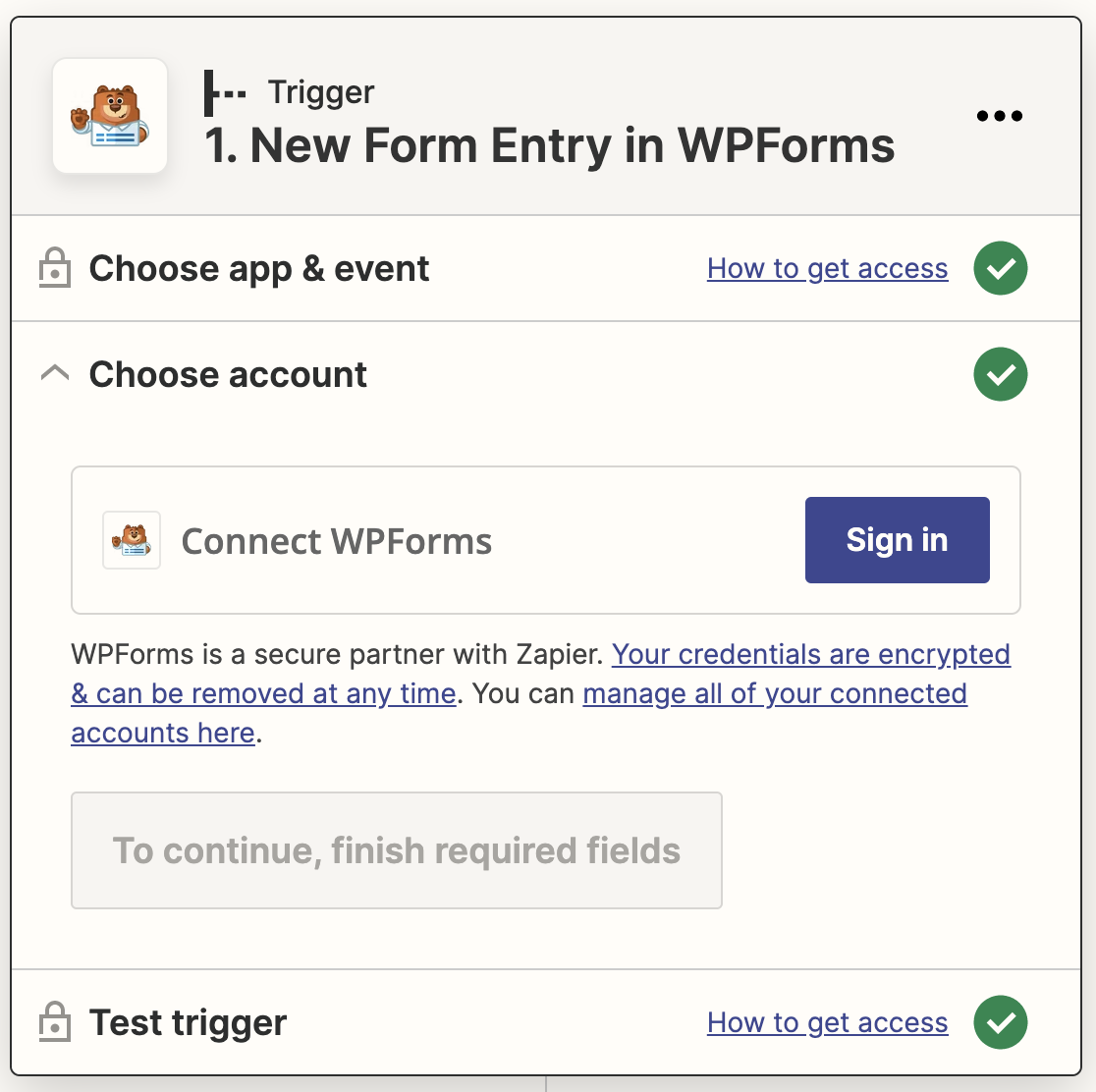
Isso abrirá uma janela pop-up onde você precisará inserir o URL do seu site e sua chave de API do Zapier.
Você pode encontrar sua chave de API do Zapier no seu painel do WordPress. Vá para WPForms » Configurações » Integrações e encontre a seção Zapier. Expanda-a para copiar sua chave.
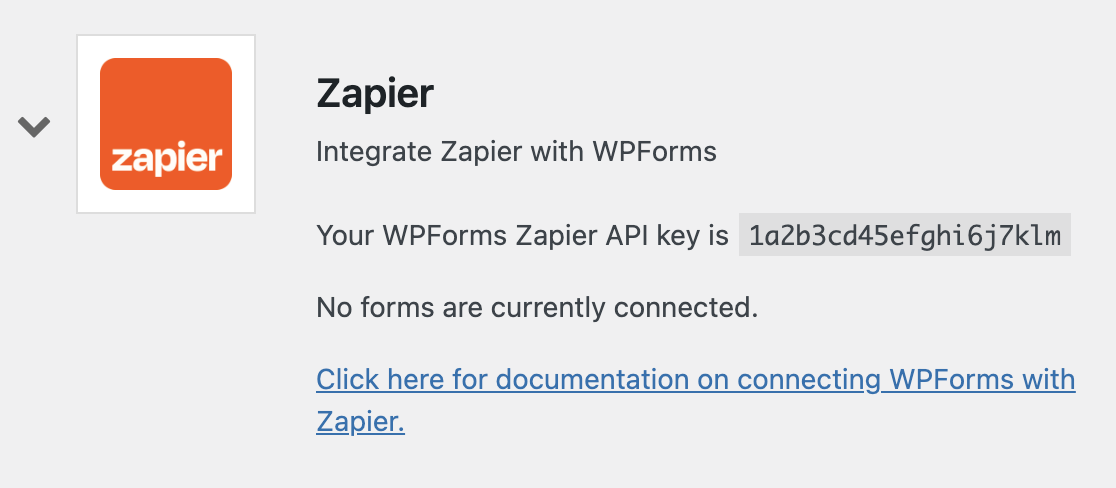
Em seguida, cole a chave na janela pop-up e clique em Sim, Continuar para fechá-la e passar para a próxima etapa.
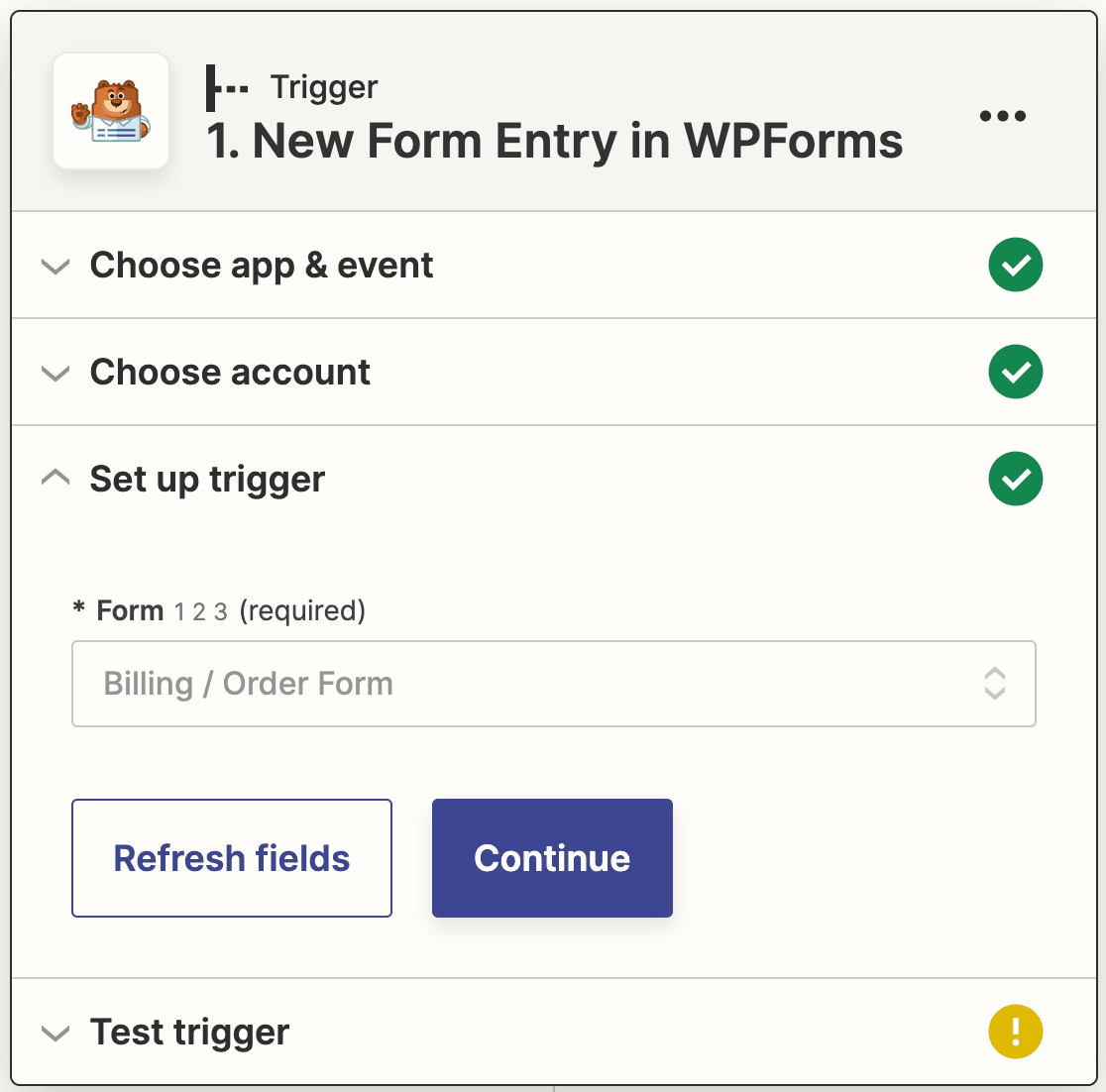
Em seguida, você precisa escolher o formulário que criou na Etapa 2 no menu suspenso.
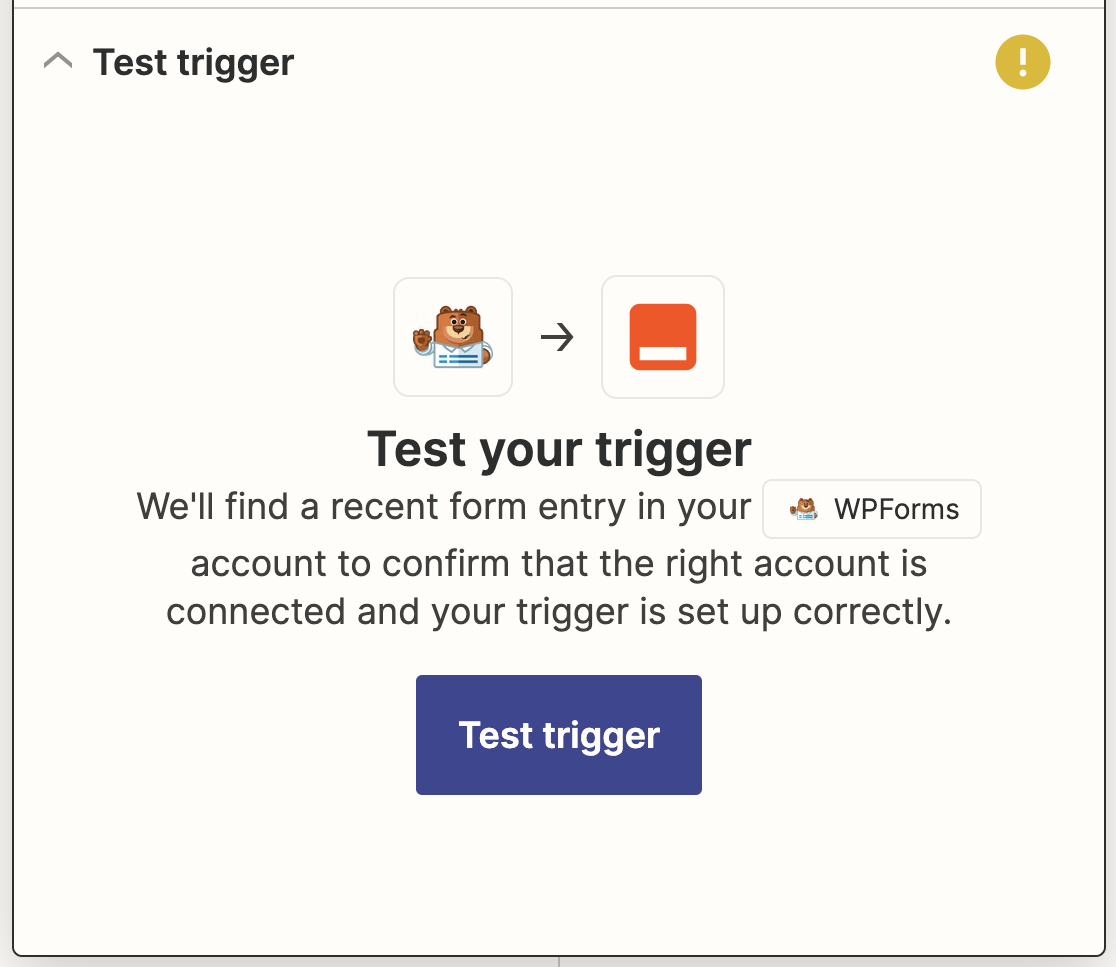
Neste ponto, o Zapier testará sua conexão para garantir que está funcionando corretamente. Clique em Testar gatilho para começar.
Se você fez tudo certo até agora, verá a entrada de teste que enviou anteriormente junto com uma mensagem de sucesso.
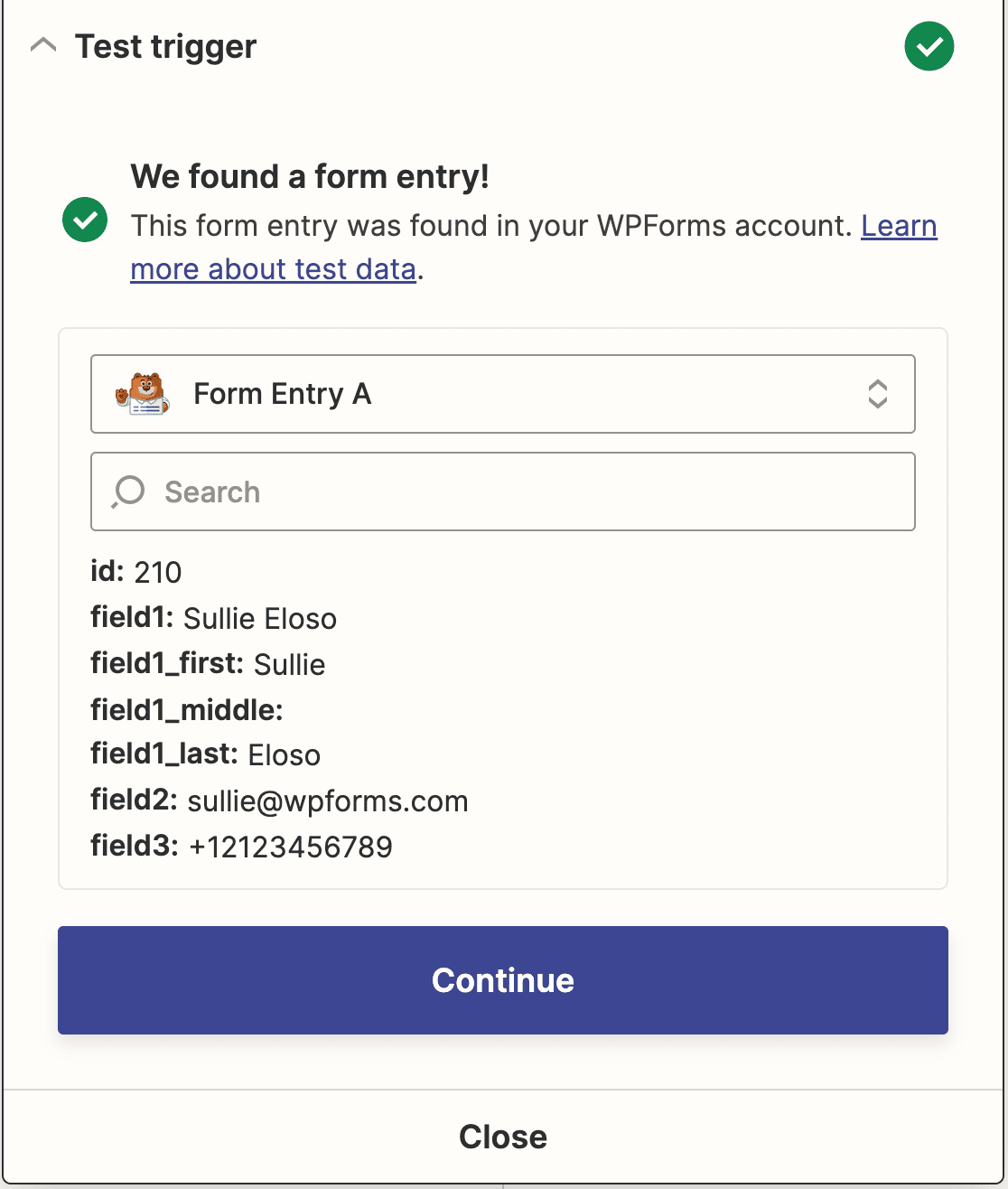
Clique em Continuar para passar para a conexão do Zapier com o QuickBooks.
Etapa 5: Conecte o Zapier ao QuickBooks
Agora que você conectou o Zapier ao plugin WPForms, é hora de conectar o WPForms ao QuickBooks.
O primeiro passo para sincronizar com o QuickBooks Online é escolher o QuickBooks como o aplicativo de ação. Digite QuickBooks na sua barra de pesquisa e clique nele quando ele aparecer.
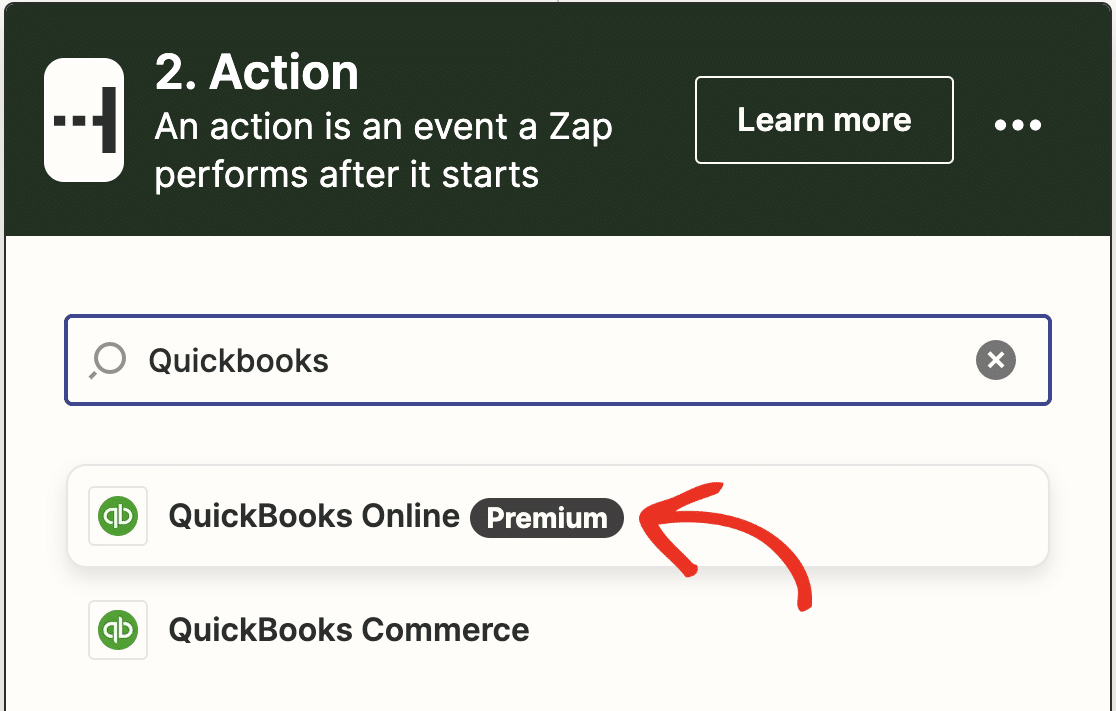
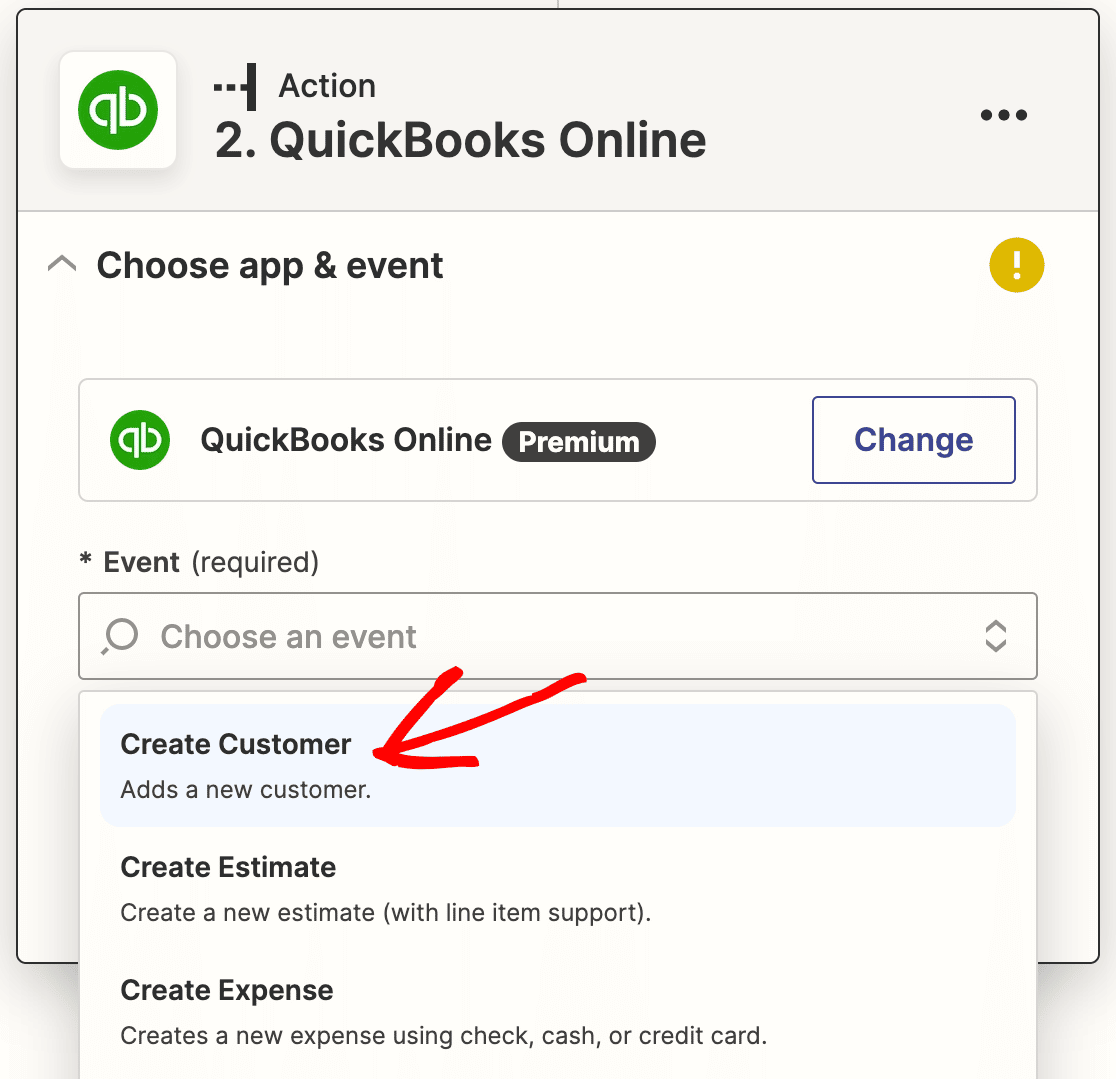
Em seguida, você será solicitado a selecionar uma ação do QuickBooks. Como estamos procurando criar um novo cliente no QuickBooks a partir do WordPress, escolha Criar Cliente e clique em Continuar.
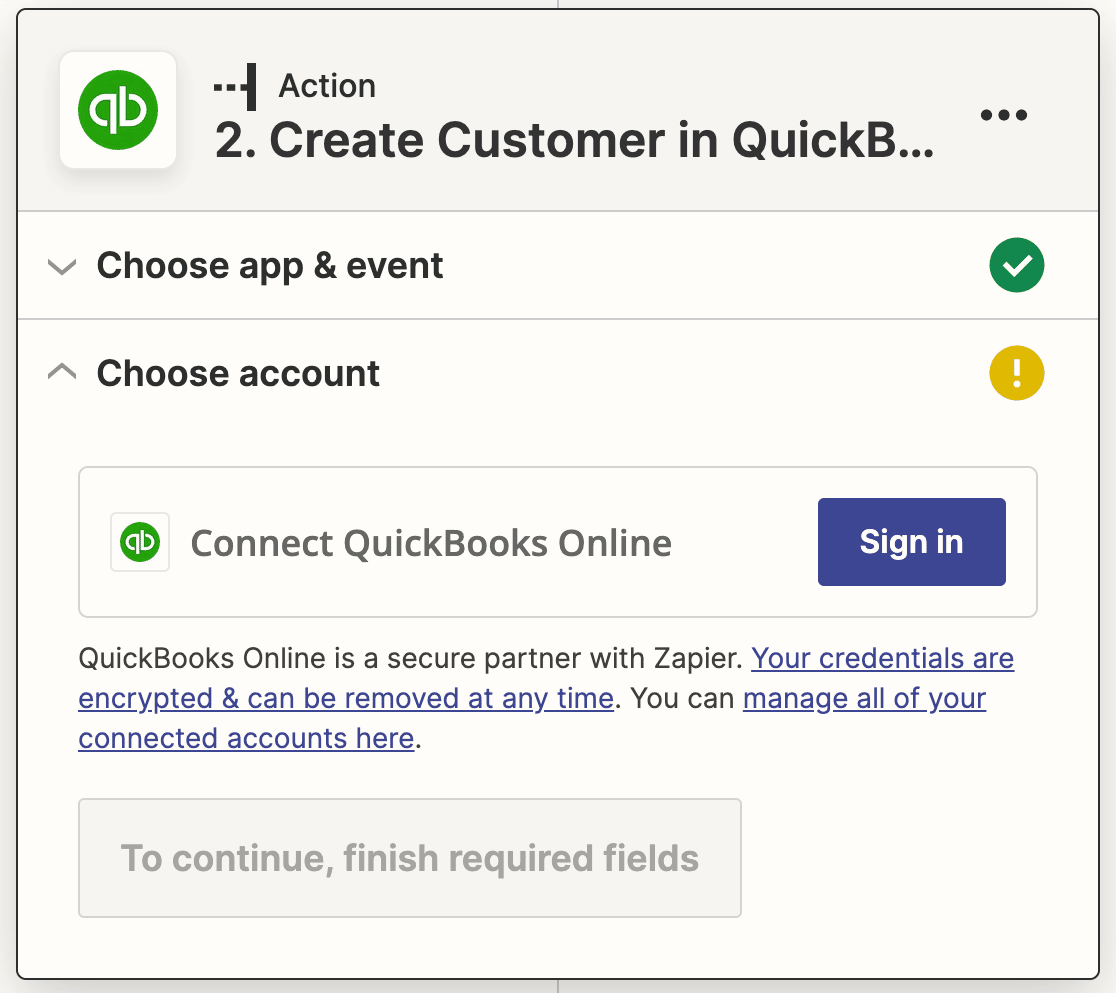
Agora você precisa conectar sua conta QuickBooks ao Zapier. Clique no botão Entrar novamente.
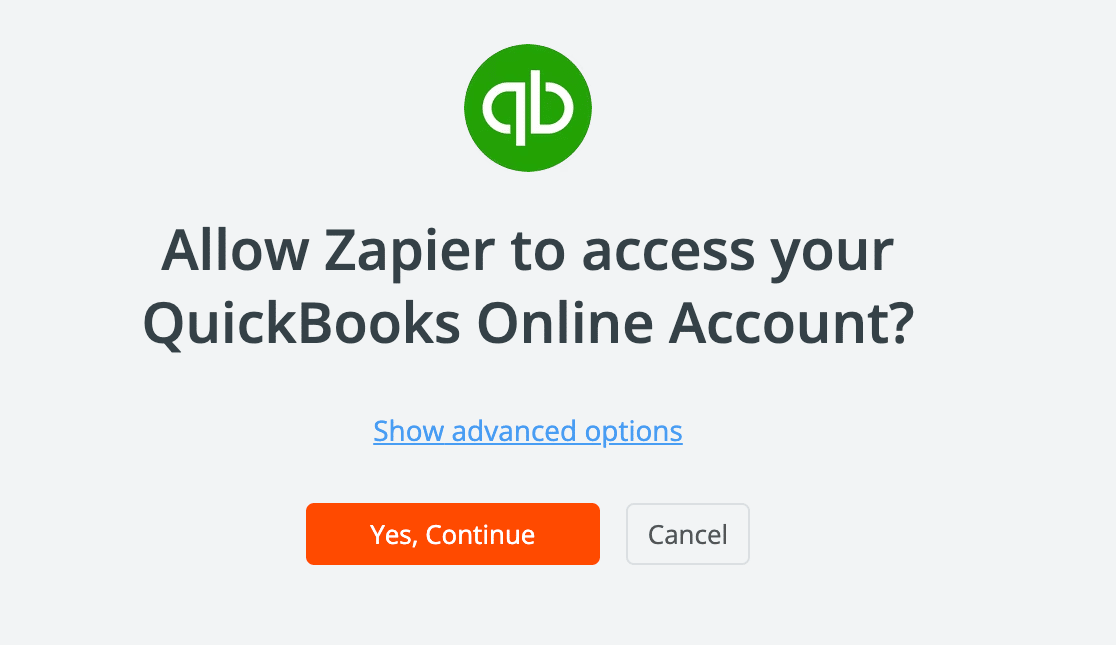
Na janela pop-up, clique em Sim, Continuar para permitir que o Zapier acesse sua conta QuickBooks.
Em seguida, insira suas credenciais de login para entrar na sua conta QuickBooks. Depois de fazer login, o Zapier solicitará novamente permissão para acessar o QuickBooks. Clique em Conectar para continuar.
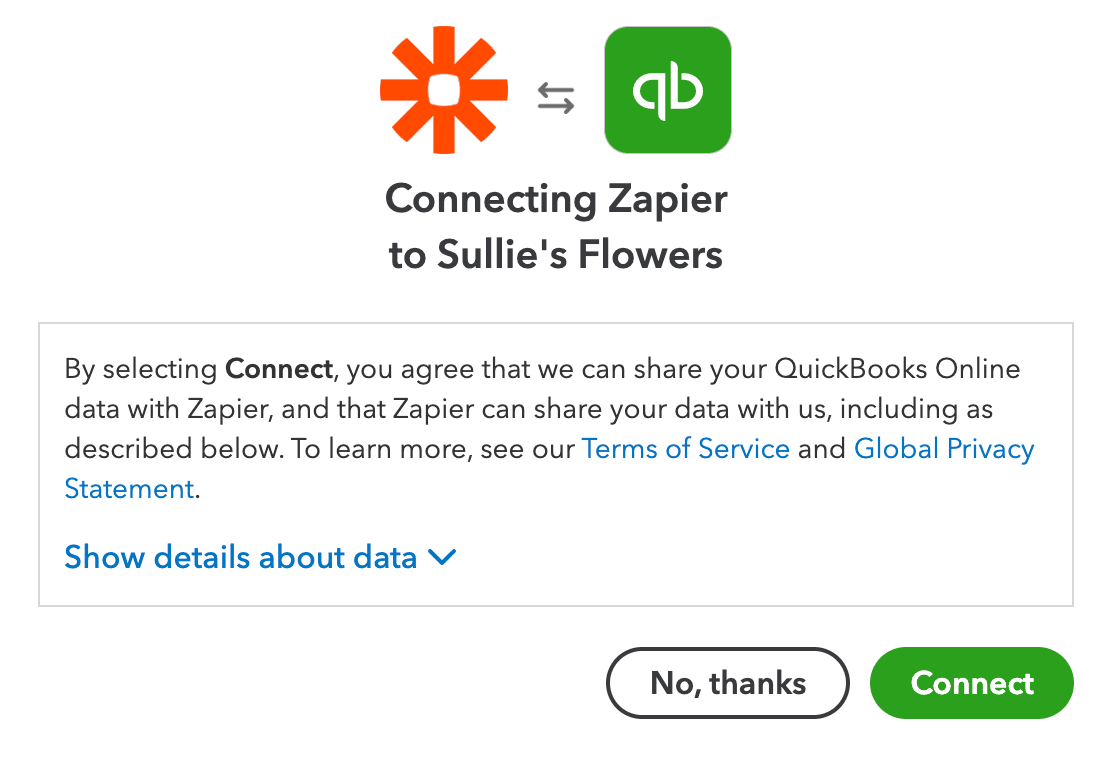
Após o fechamento da janela pop-up, clique em Continuar novamente.
Em seguida, você precisa criar um modelo para os novos clientes que serão criados no QuickBooks sempre que alguém enviar seu formulário. Para fazer isso, selecione o campo correspondente para seu formulário em cada um dos menus suspensos.
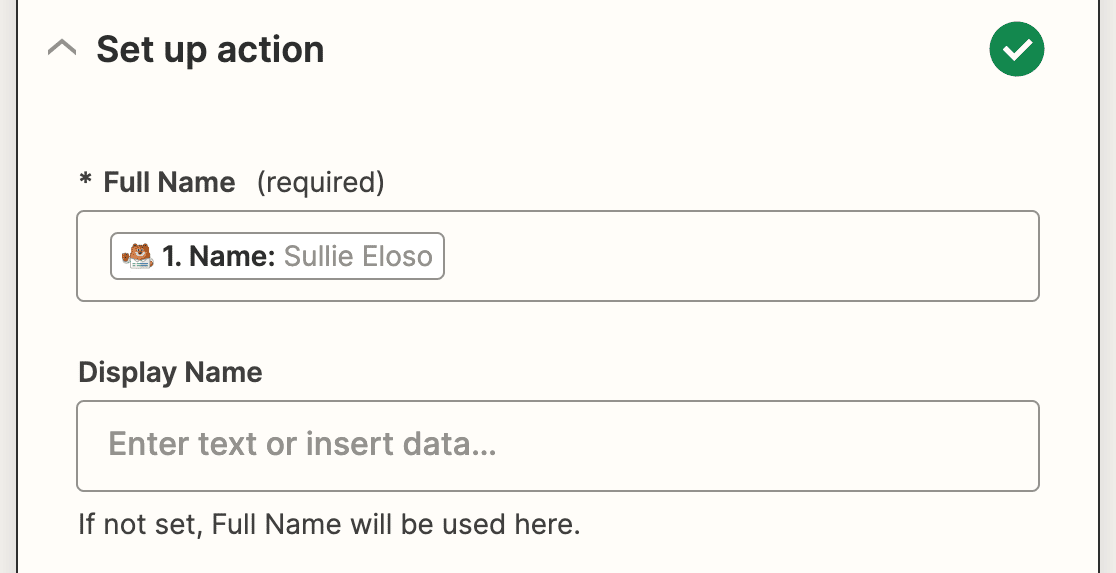
O único campo obrigatório é Nome Completo, mas você pode adicionar vários outros detalhes do seu formulário, incluindo informações de contato e impostos.
Depois de mapear todos os campos do seu formulário que você deseja enviar para o Quickbooks, clique em Continuar mais uma vez. Agora o Zapier testará sua conexão com o Quickbooks, assim como fez para o WPForms. Clique em Testar ação para começar.
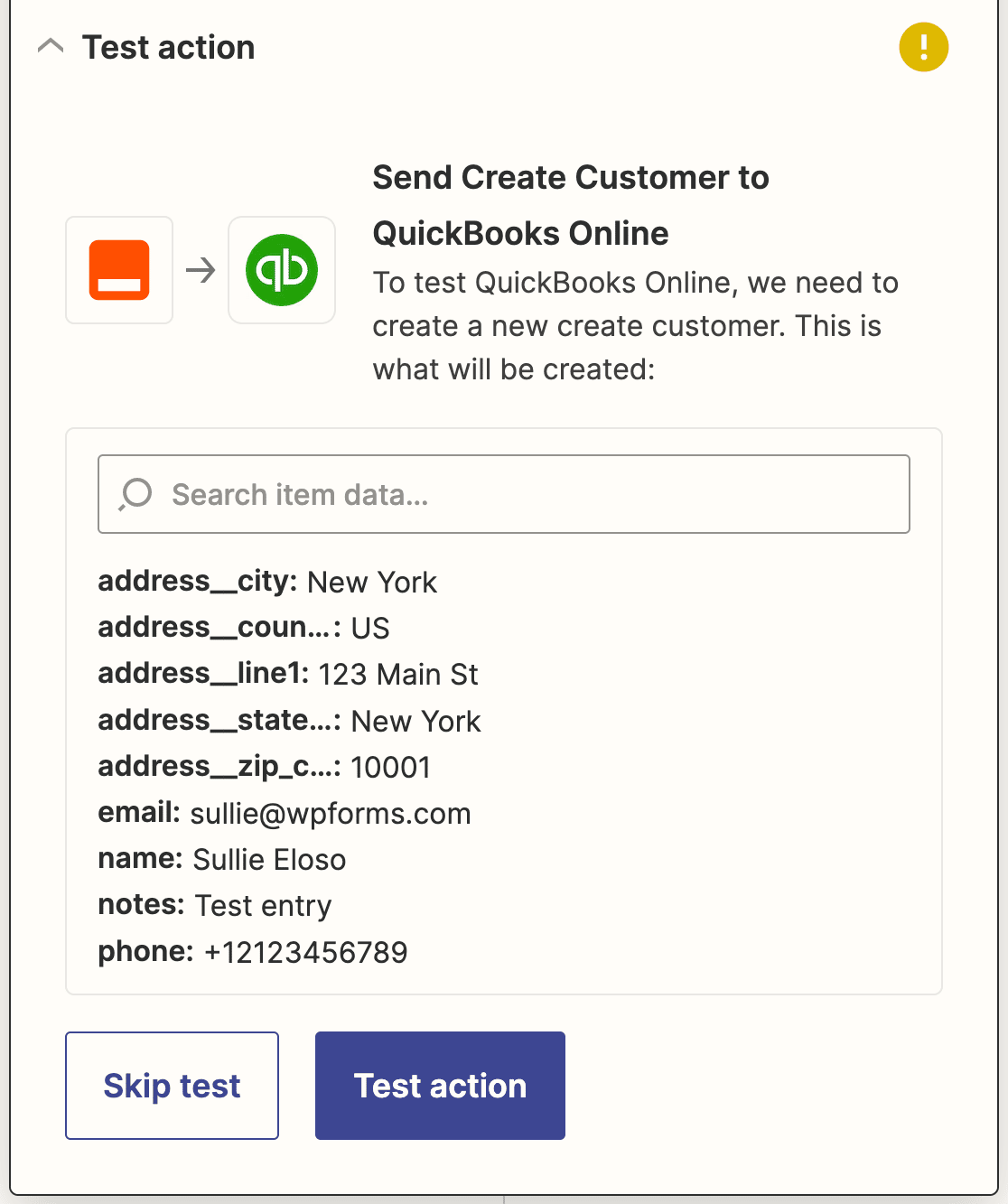
Se você fez tudo certo, verá uma mensagem de sucesso.
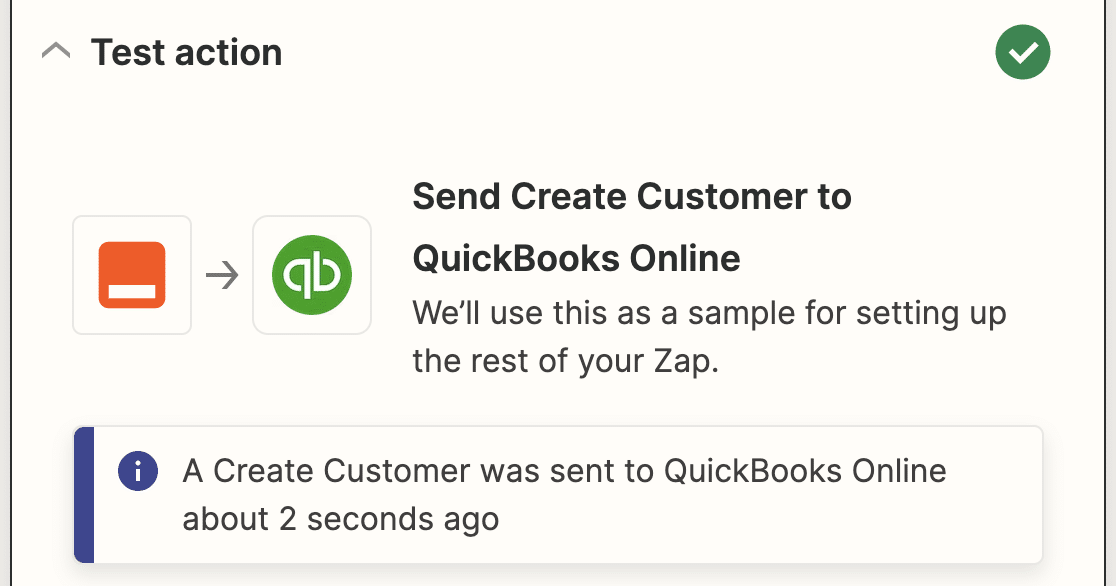
Antes de fechar o Zapier, certifique-se de publicar seu Zap também.
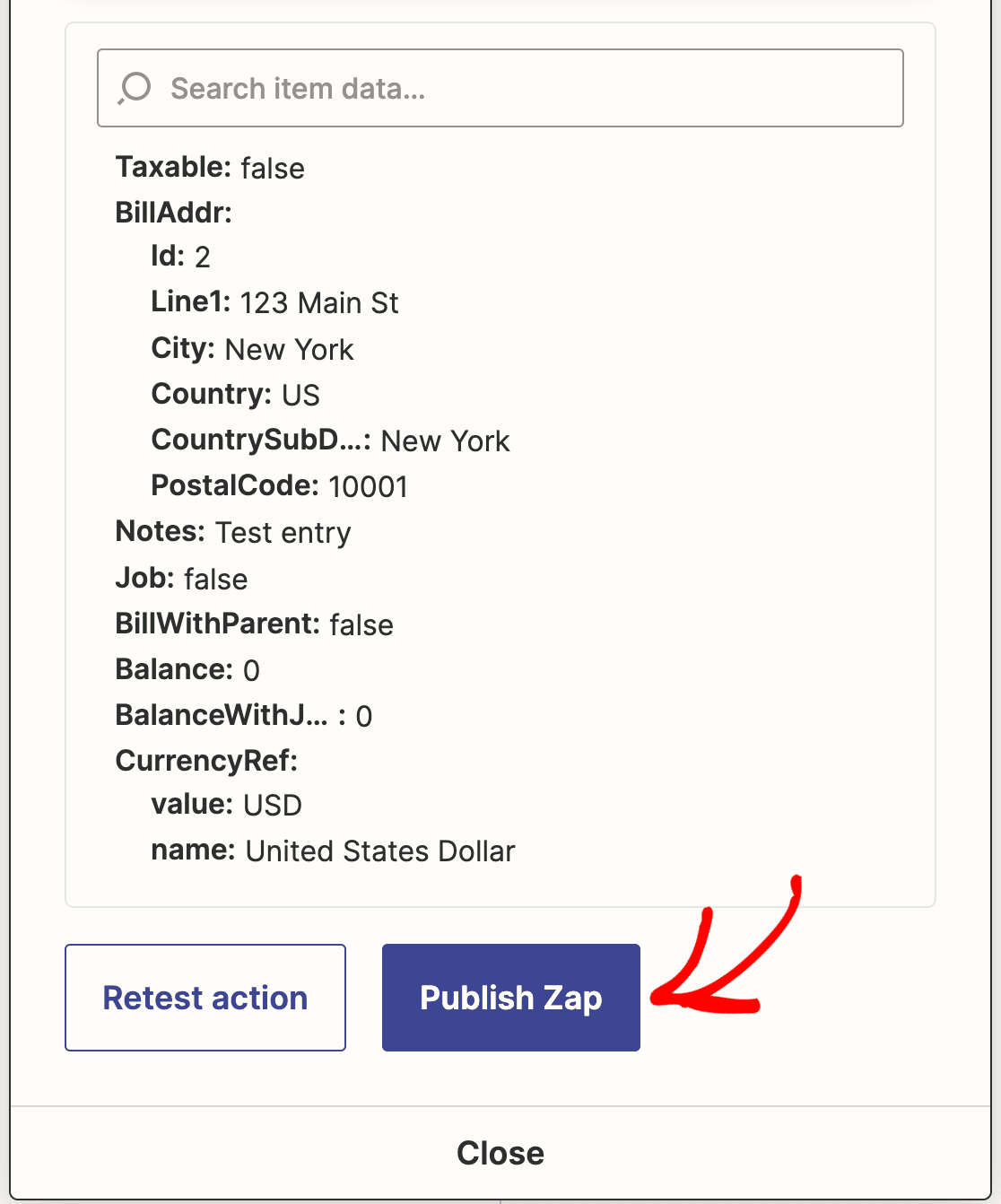
Finalmente, não se esqueça de voltar ao seu site WordPress e incorporar seu formulário em uma postagem de blog, página ou widget. Dessa forma, os clientes poderão encontrá-lo e preenchê-lo facilmente.
Em seguida, Expanda seus negócios com formulários de leads
Pronto! Agora você sabe como integrar seus formulários WordPress com o QuickBooks Online. Agora, sempre que alguém preencher seu formulário, ele será adicionado como um novo cliente em seu banco de dados do QuickBooks Online.
Quer expandir seus negócios coletando leads com formulários otimizados? O addon WPForms Lead Forms ajuda você a criar formulários de leads personalizados para coletar informações de clientes potenciais.
Crie Seu Formulário WordPress Agora
O que você está esperando? Comece hoje mesmo com o plugin de formulários do WordPress mais poderoso.
Se você gostou deste artigo, siga-nos no Facebook e Twitter para mais tutoriais gratuitos de WordPress.


