



Resumo de IA
Você está se perguntando como enviar automaticamente um contato para sua conta do Google a partir do seu formulário do WordPress? Enviar todos os detalhes de contato para sua conta do Google permite que você os acesse facilmente em diferentes propriedades do Google, como Gmail, Android, etc.
A boa notícia é que não há necessidade de usar um plugin separado de Contatos do Google para WordPress para fazer isso – você pode simplesmente usar o WPForms, o plugin de formulário de contato mais amigável para iniciantes para WordPress.
Crie Seu Formulário WordPress Agora
Neste artigo, mostraremos como adicionar um contato do Google a partir dos seus formulários do WordPress.
Neste Artigo
Como Adicionar Automaticamente um Contato do Google a Partir de Seus Formulários WordPress
O Google permite que você tenha até 25.000 contatos. Para a maioria das pequenas empresas, esse é um espaço enorme.
Quando alguém envia seu formulário do WordPress, você pode enviar automaticamente os detalhes de contato para sua conta do Google. Tudo o que você precisa fazer é usar o addon Zapier do WPForms. O addon Zapier permite conectar seus formulários do WordPress a mais de 7.000 aplicativos da web, incluindo coisas como Drip, Jira e o aplicativo Contatos do Google.
Adicionar um contato à sua conta do Google automaticamente a partir dos seus formulários tem muitos benefícios.
- Isso economiza seu tempo porque você não precisa mais adicionar contatos manualmente à sua conta do Google.
- Você pode facilmente selecionar os detalhes de contato ao enviar um e-mail ou fazer uma ligação. Não há necessidade de olhar as entradas do formulário para obter detalhes de contato toda vez que você tentar entrar em contato com seus clientes.
- Você pode adicionar os detalhes de contato a um grupo de contatos específico. Dessa forma, você pode organizar seus contatos comerciais separadamente dos seus contatos pessoais.
Crie Seu Formulário do WordPress
A primeira coisa que você precisa fazer é instalar e ativar o plugin WPForms. Aqui está um guia passo a passo sobre como instalar um plugin do WordPress.
Após a instalação, você precisará criar um formulário. Você pode ver nosso tutorial sobre como criar um formulário de contato simples no WPForms. Vamos renomear o formulário como Adicionar um Contato do Google apenas para este exemplo.
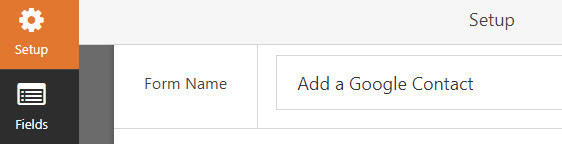
Para importar contatos para o Google Contacts a partir do seu formulário, você precisará instalar e ativar o addon Zapier em seu site.
Para mais ajuda com esta etapa, você pode conferir nosso tutorial sobre como instalar e usar o addon Zapier.
Crie um Zap no Zapier
Faça login na sua conta Zapier e clique no botão Make a Zap na navegação superior.
Em seguida, siga o guia passo a passo do Zapier para criar um Zap. Para ver capturas de tela de cada etapa, você pode consultar nosso tutorial sobre como usar o Zapier com o WPForms.
Certifique-se de escolher o formulário Adicionar um Contato do Google que você acabou de criar, quando for solicitado a configurar Opções de Edição. Você deve ter pelo menos uma entrada de teste no seu formulário antes de buscar as entradas existentes.
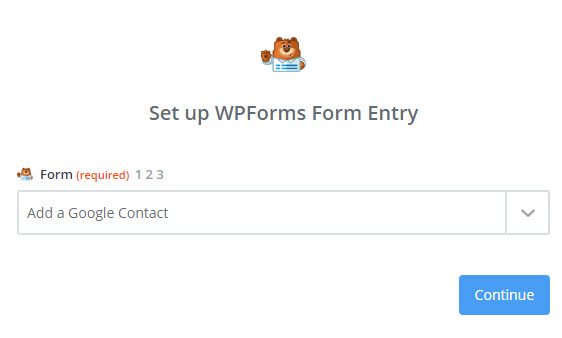
Você deverá então ver uma mensagem de confirmação bem-sucedida.
Conecte Formulários do WordPress a Contatos do Google
Agora que você conectou o Zapier ao plugin WPForms, é hora de conectar o WPForms ao Google Contacts.
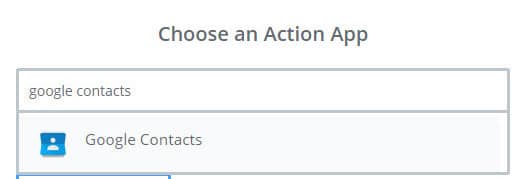
O primeiro passo é escolher Google Contacts como o aplicativo de ação.
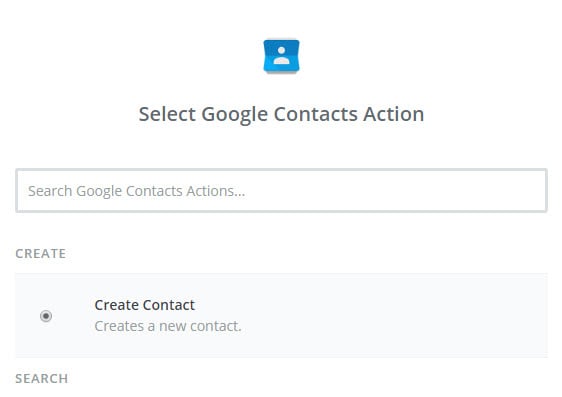
Em seguida, você será solicitado a selecionar a ação do Google Contacts. Como estamos procurando criar um novo contato no Google Contacts a partir do WordPress, vamos escolher Criar Contato e clicar em Continuar.
Agora você precisa conectar sua conta do Google ao Zapier. Clique em Conectar uma Conta.
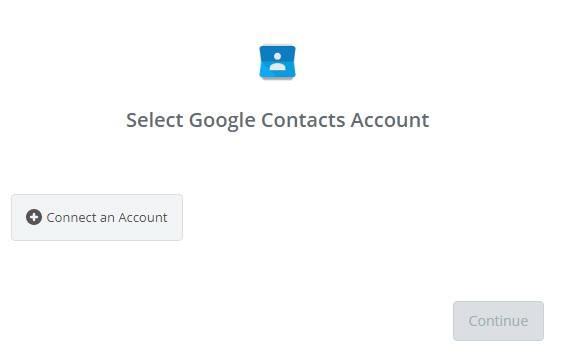
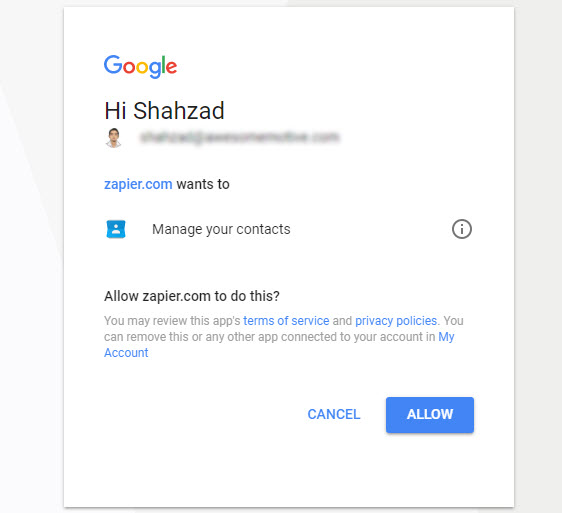
Em seguida, você precisará autorizar o Zapier a acessar seus dados de Contatos do Google. Após autorizá-lo, clique em Continuar.
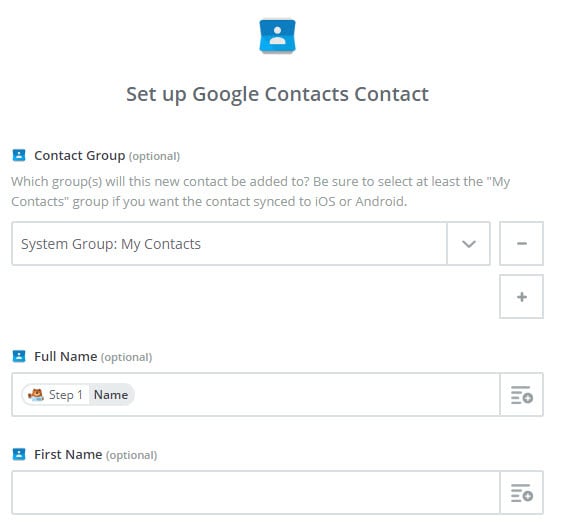
Em seguida, você será solicitado a configurar o Contato do Google Contacts. Nesta etapa, você precisará conectar cada campo do formulário ao campo apropriado do Google Contacts. Após configurar os campos, você pode clicar em Continuar.
Se você quiser testar quais dados estão sendo atualizados no Google Contacts, clique em Testar. Agora você verá os dados exatamente como na captura de tela abaixo. Clique em Criar e Continuar.
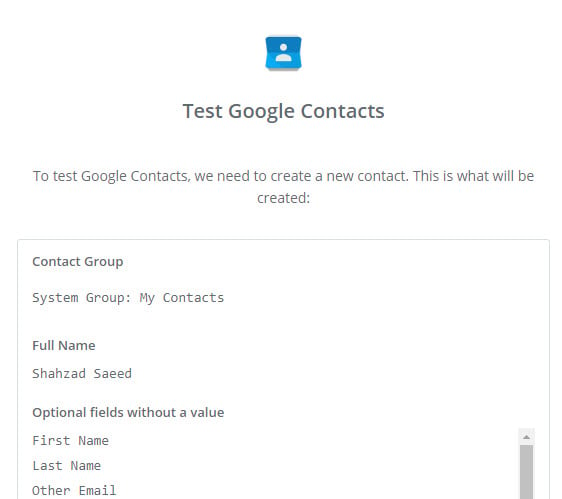
Você acabou de testar o aplicativo Google Contacts no Zapier com sucesso.
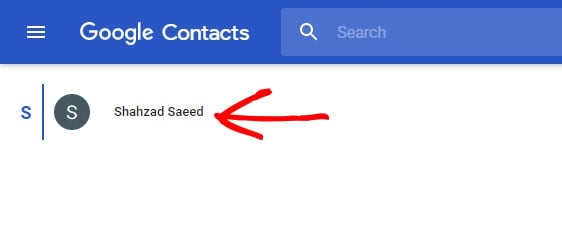
E você pode fazer login na sua conta do Google e visitar a página do Google Contacts para verificar os dados atualizados.
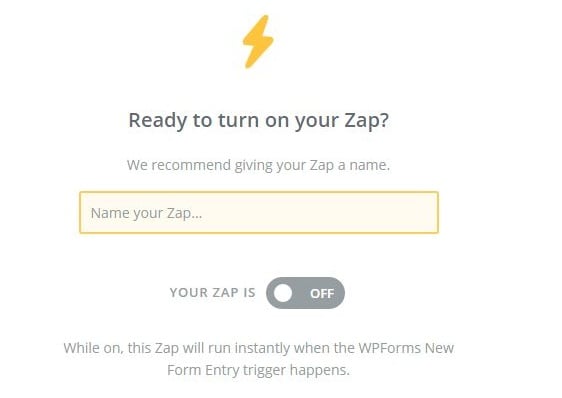
Na etapa final, certifique-se de ativar seu Zap. Você também pode dar um nome apropriado ao seu Zap. Ao ativar o Zap, você pode enviar contatos automaticamente para sua conta do Google sempre que seus visitantes enviarem o formulário em seu site.
Ótimo trabalho, você concluiu o tutorial.
Em Conclusão
E aí está – agora você sabe exatamente como conectar seus formulários do WordPress ao Google Contacts.
Agora, todos os futuros detalhes de contato de seus prospects serão adicionados automaticamente à sua conta do Google – assim que eles enviarem seu formulário.
E para incentivar seus prospects a enviar seu formulário, você também pode querer redesenhar sua página de contato. Você pode conferir nossos exemplos impressionantes de páginas de contato para inspiração.
Então, o que você está esperando? Comece hoje mesmo com o plugin de formulários do WordPress mais poderoso.
Se você gostou deste artigo, siga-nos no Facebook e Twitter para mais tutoriais gratuitos do WordPress.


