



Resumen de IA
¿Quieres agregar automáticamente a tus clientes desde tus formularios de WordPress a tu software de contabilidad favorito, QuickBooks?
Con WPForms, puedes integrar fácilmente tus formularios en línea con QuickBooks para que no tengas que agregar a tus clientes manualmente, lo que puede suponer un gran ahorro de tiempo.
En este artículo, te explicaremos cómo integrar QuickBooks Online con tus formularios de WordPress.
¿Se integra WordPress con QuickBooks?
Sí, puedes integrar QuickBooks Online con WordPress para agregar automáticamente clientes a tu base de datos de QuickBooks.
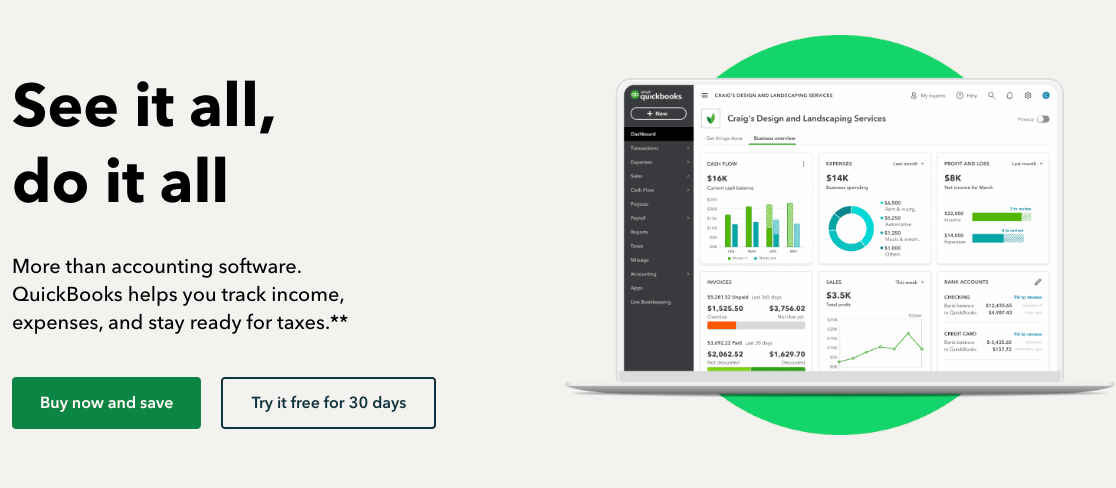
QuickBooks es un software de contabilidad para pequeñas empresas que viene con toneladas de funciones como sincronización bancaria en línea, facturación personalizada y más. Agregar los detalles de tus clientes a QuickBooks te permite crear y enviar fácilmente facturas personalizadas a tus clientes.
Con QuickBooks, también puedes crear un estado de pérdidas y ganancias y un estado de flujos de efectivo. Como puede realizar muchas tareas de contabilidad sencillas automáticamente, te ahorra tiempo en contabilidad y papeleo.
Cómo integrar QuickBooks Online con tus formularios de WordPress
La forma más fácil de agregar automáticamente clientes a QuickBooks es usar WPForms y su complemento Zapier. Esto te permitirá crear un formulario de pedido personalizado para tu sitio de WordPress y conectarlo a QuickBooks Online para enviar automáticamente la información del cliente a tu programa de contabilidad.
Paso 1: Instalar y activar WPForms
Para agregar tus clientes a QuickBooks desde un formulario de WordPress, lo primero que debes hacer es instalar y activar el plugin WPForms.
Aquí tienes una guía paso a paso sobre cómo instalar un plugin de WordPress si necesitas ayuda adicional.
Para importar contactos a QuickBooks desde tu formulario, también necesitarás instalar y activar el complemento Zapier en tu sitio.
El complemento Zapier te permite conectar tus formularios de WordPress a más de 7000 aplicaciones web, incluida la aplicación QuickBooks.
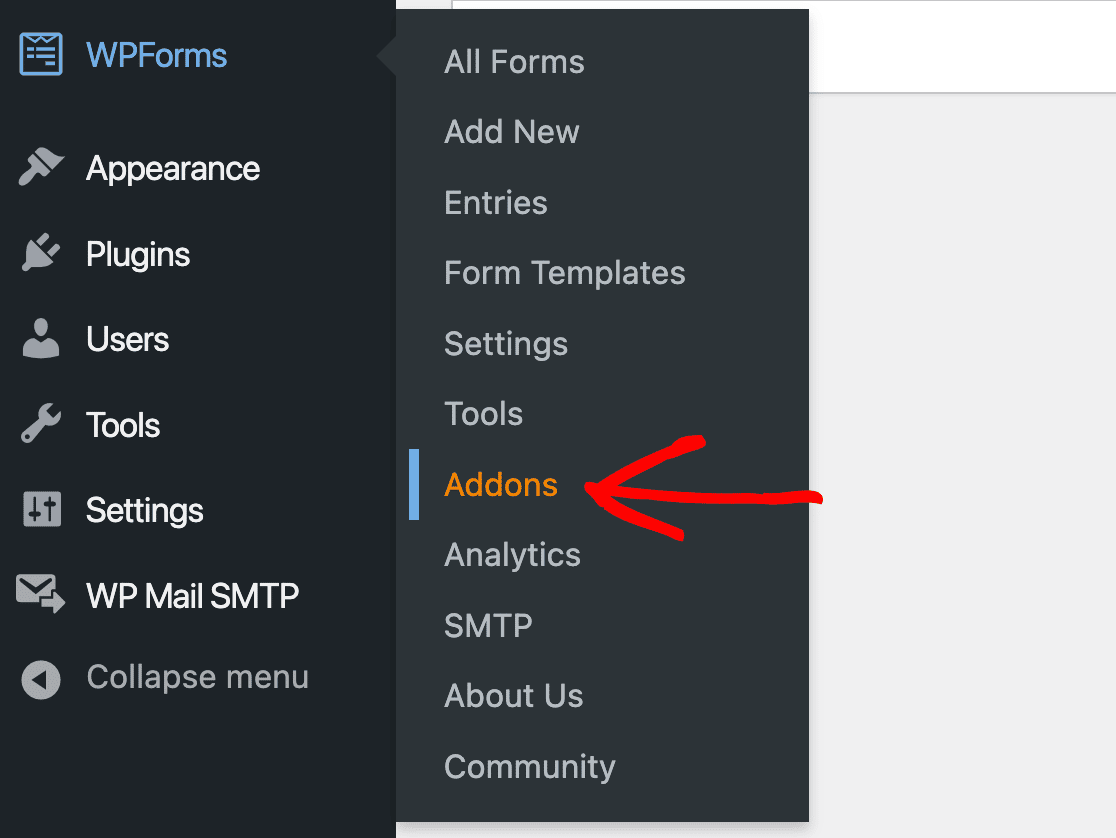
En tu área de administración de WordPress, ve a WPForms » Complementos.
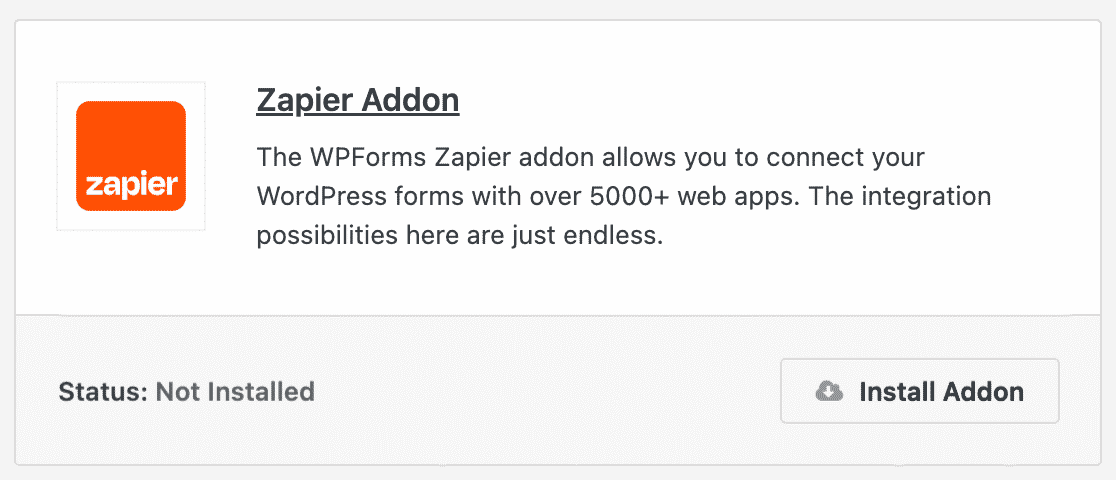
Luego, busca el complemento Zapier y haz clic en Instalar complemento.
Para obtener más ayuda con este paso, puedes consultar nuestro tutorial sobre cómo instalar y usar el complemento Zapier.
Paso 2: Crear tu formulario de QuickBooks
Después de la instalación, deberás crear un formulario de WordPress para conectarlo a tu cuenta de QuickBooks.
Para nuestro ejemplo, crearemos un formulario de pedido simple, pero también podrías conectar tu formulario de contacto, formulario de solicitud de presupuesto, formulario de reserva de citas, o cualquier otro formulario que utilices en tu sitio de WordPress.
En tu panel de WordPress, ve a WPForms » Nuevo. Aquí puedes nombrar tu formulario y elegir entre cientos de plantillas disponibles.
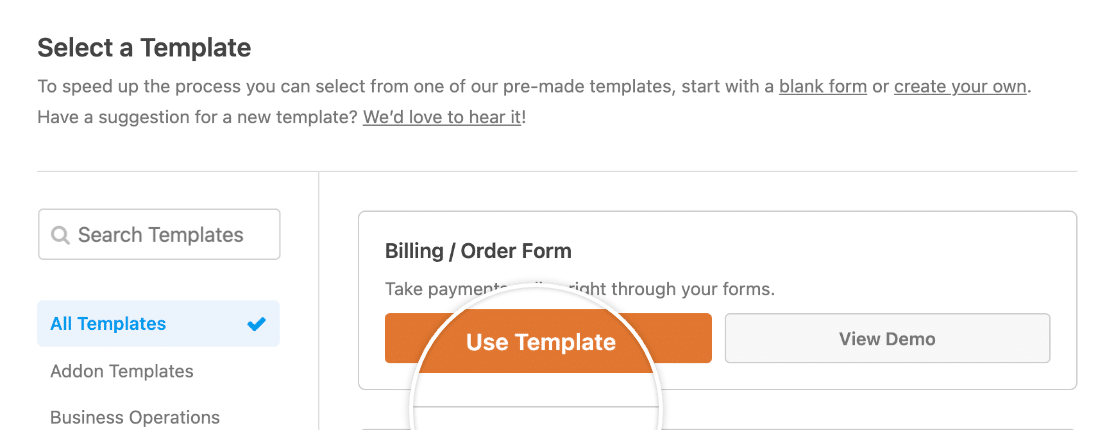
Tu plantilla se cargará en el creador de formularios y luego podrás personalizarla. Arrastra y suelta campos para reorganizarlos, haz clic en ellos para editar sus etiquetas, descripciones y marcadores de posición, y agrega y elimina campos según sea necesario.
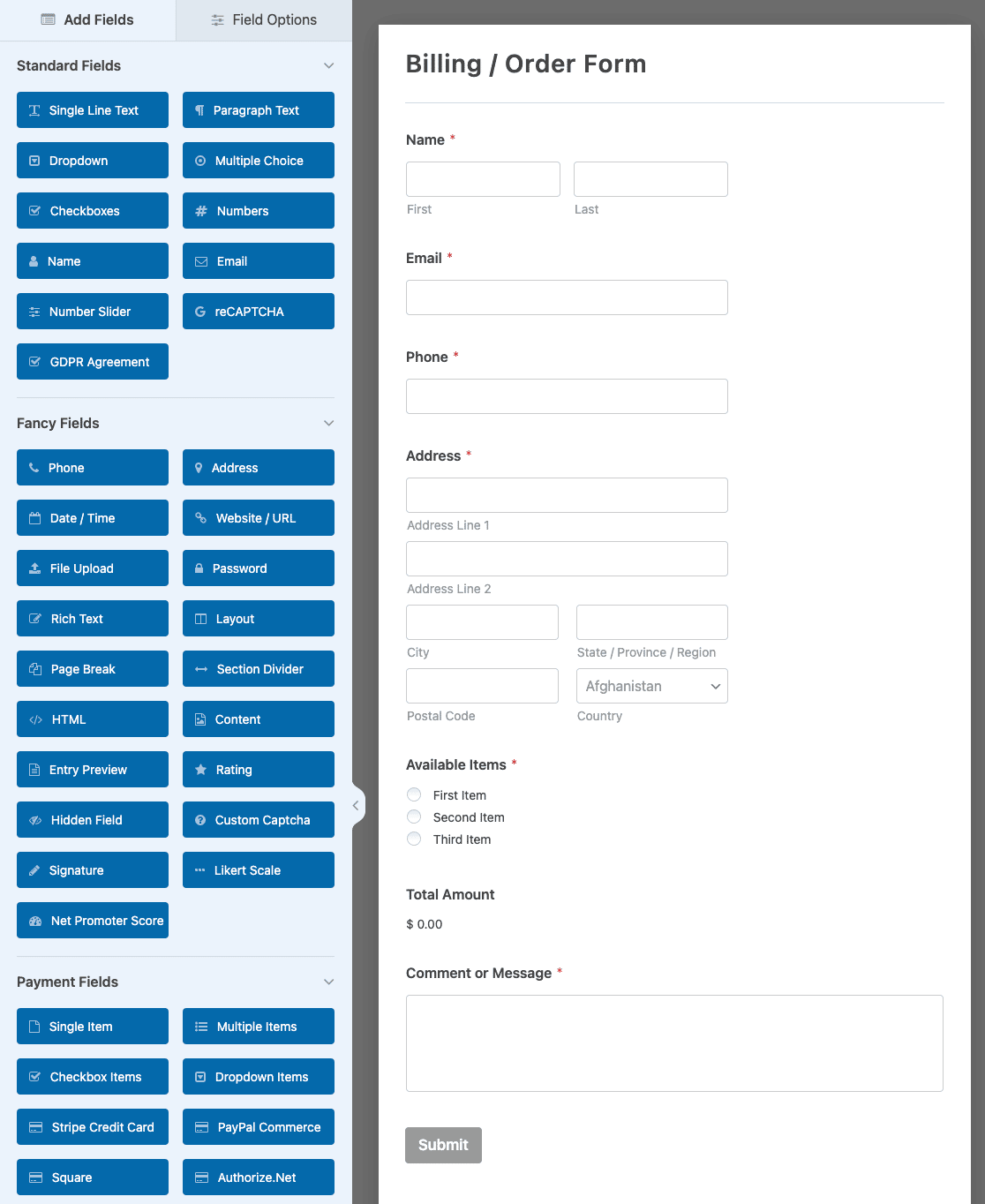
Cuando estés satisfecho con tu formulario, haz clic en Guardar en la parte superior del creador.

Paso 3: Enviar una entrada de prueba
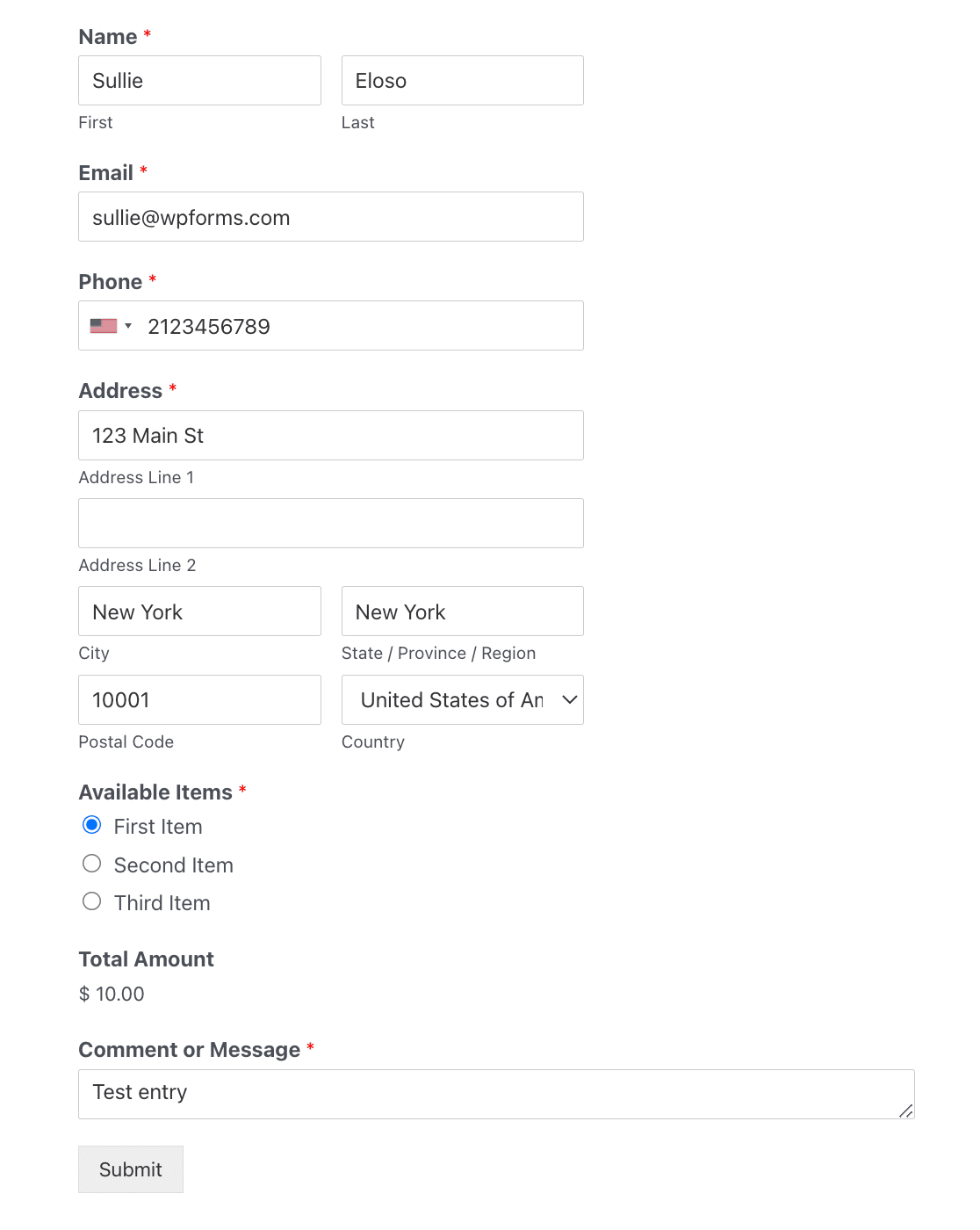
Una vez que hayas terminado de crear tu formulario, necesitas enviar una entrada de prueba. Esto es necesario para completar la conexión en Zapier, ¡así que no te saltes este paso!
Puedes enviar una entrada de prueba haciendo clic en el botón Vista previa en el creador de formularios.

Luego, rellena tu formulario y envíalo.
Paso 4: Conecta WPForms a Zapier
Ahora veamos cómo conectar formularios de WordPress con QuickBooks a través de Zapier.
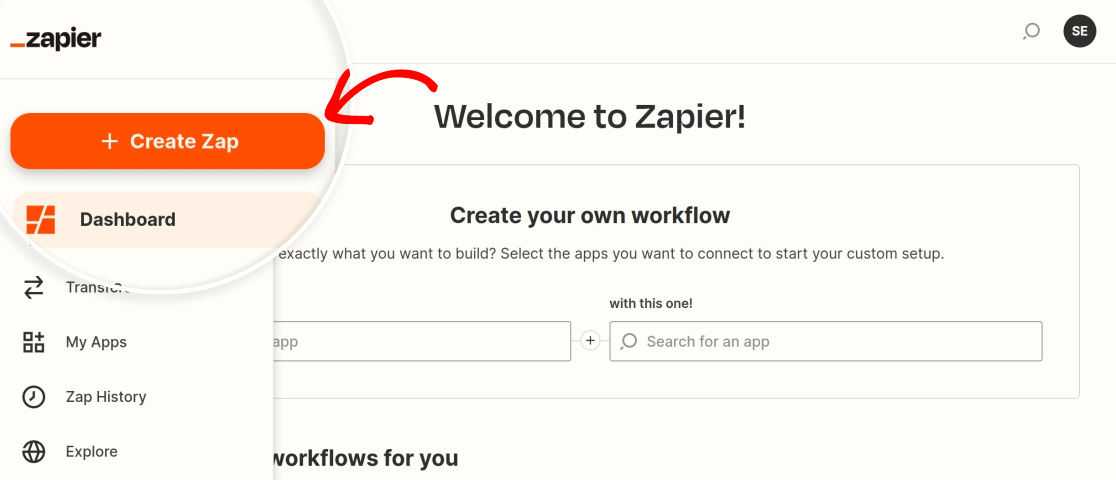
Inicia sesión en tu cuenta de Zapier y haz clic en el botón Crear Zap.
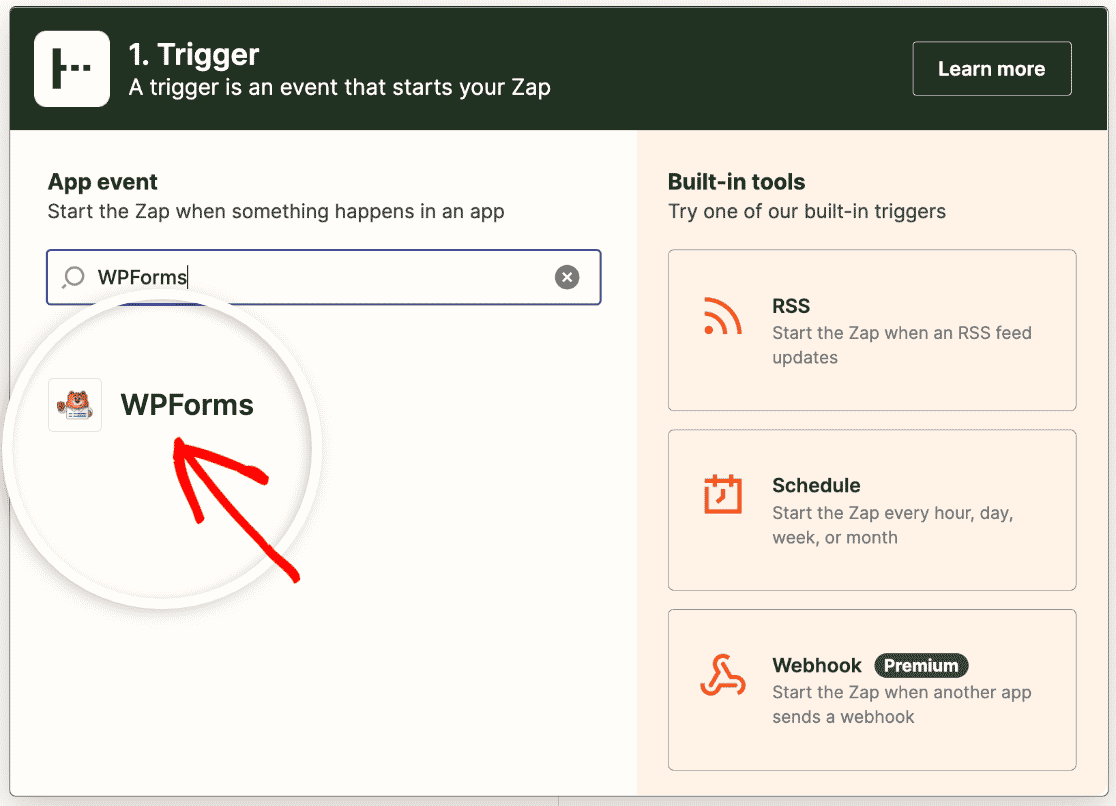
Primero, elige WPForms como tu aplicación de activación.
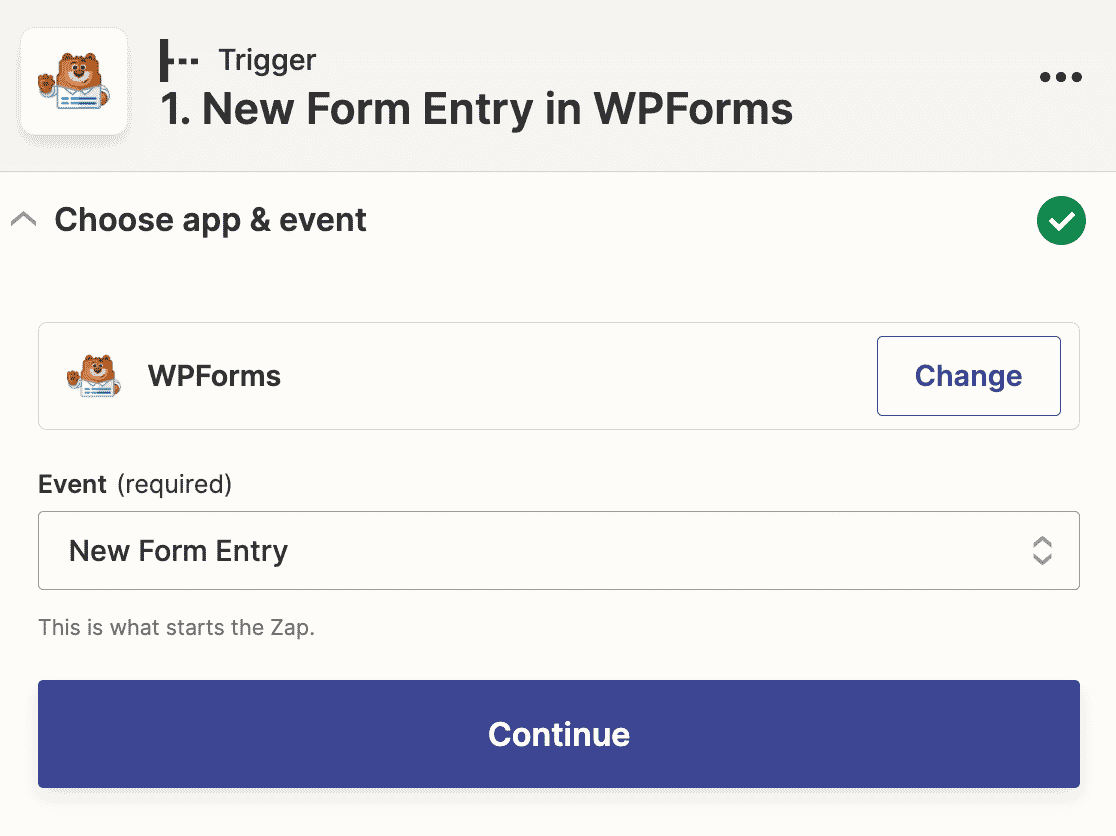
A continuación, deberás seleccionar la acción que debe tener lugar para activar tu zap. La única opción para WPForms es Nueva entrada de formulario, así que selecciónala en el menú desplegable.
Ahora Zapier te pedirá que inicies sesión en tu cuenta de WPForms. Haz clic en el botón Iniciar sesión.
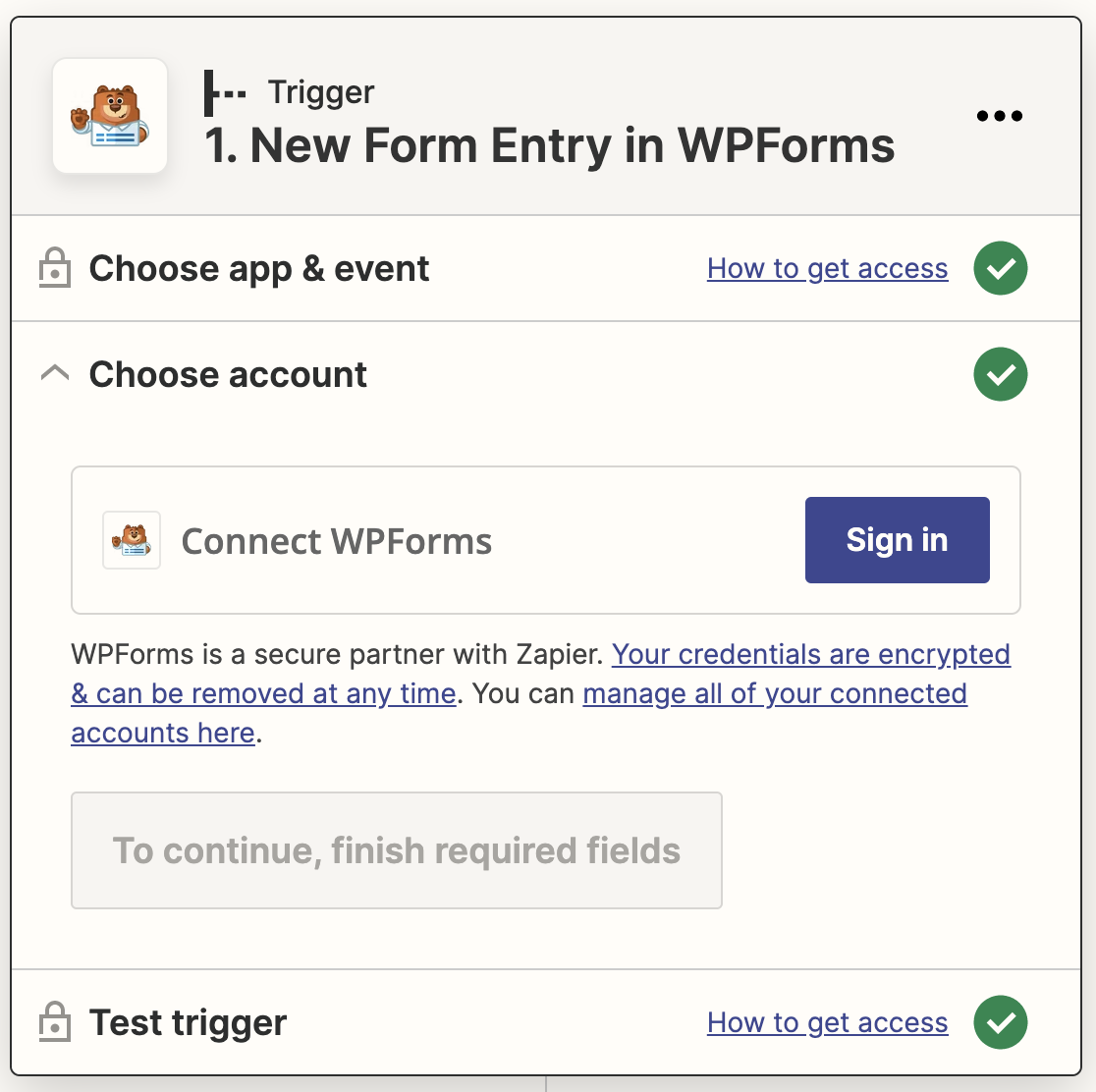
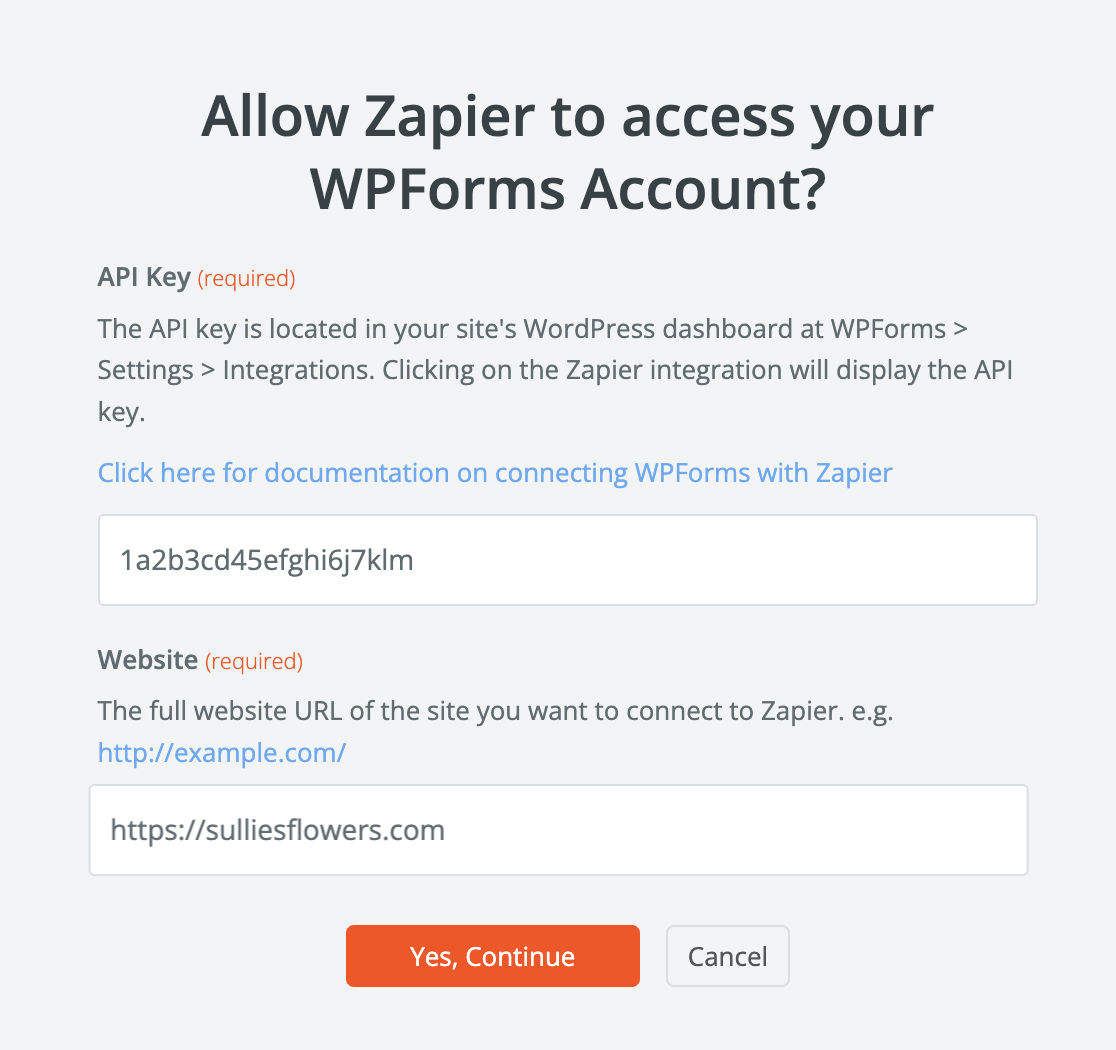
Esto abrirá una ventana emergente donde deberás introducir la URL de tu sitio y tu clave API de Zapier.
Puedes encontrar tu clave API de Zapier en tu panel de WordPress. Ve a WPForms » Ajustes » Integraciones y busca la sección Zapier. Expándela para copiar tu clave.
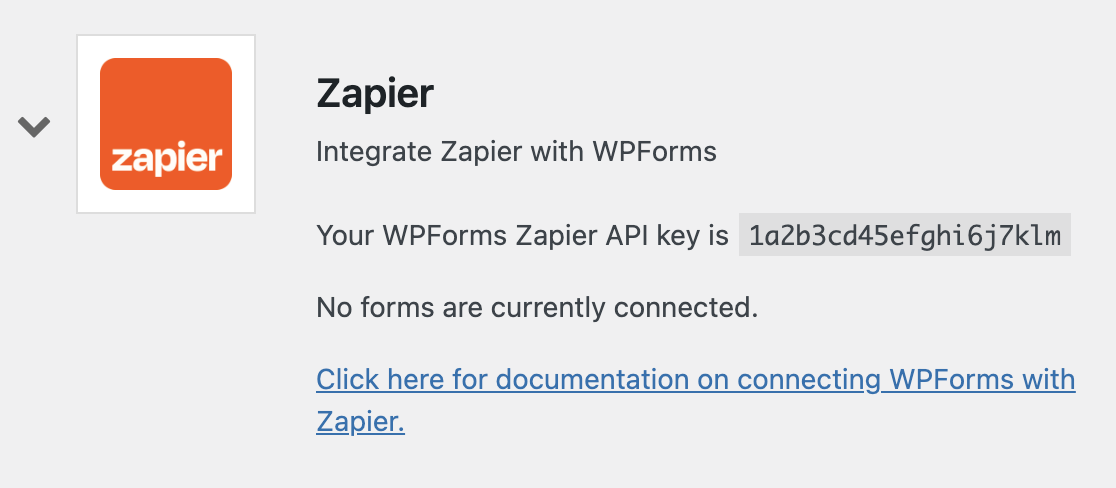
Luego, pega la clave en la ventana emergente y haz clic en Sí, Continuar para cerrarla y pasar al siguiente paso.
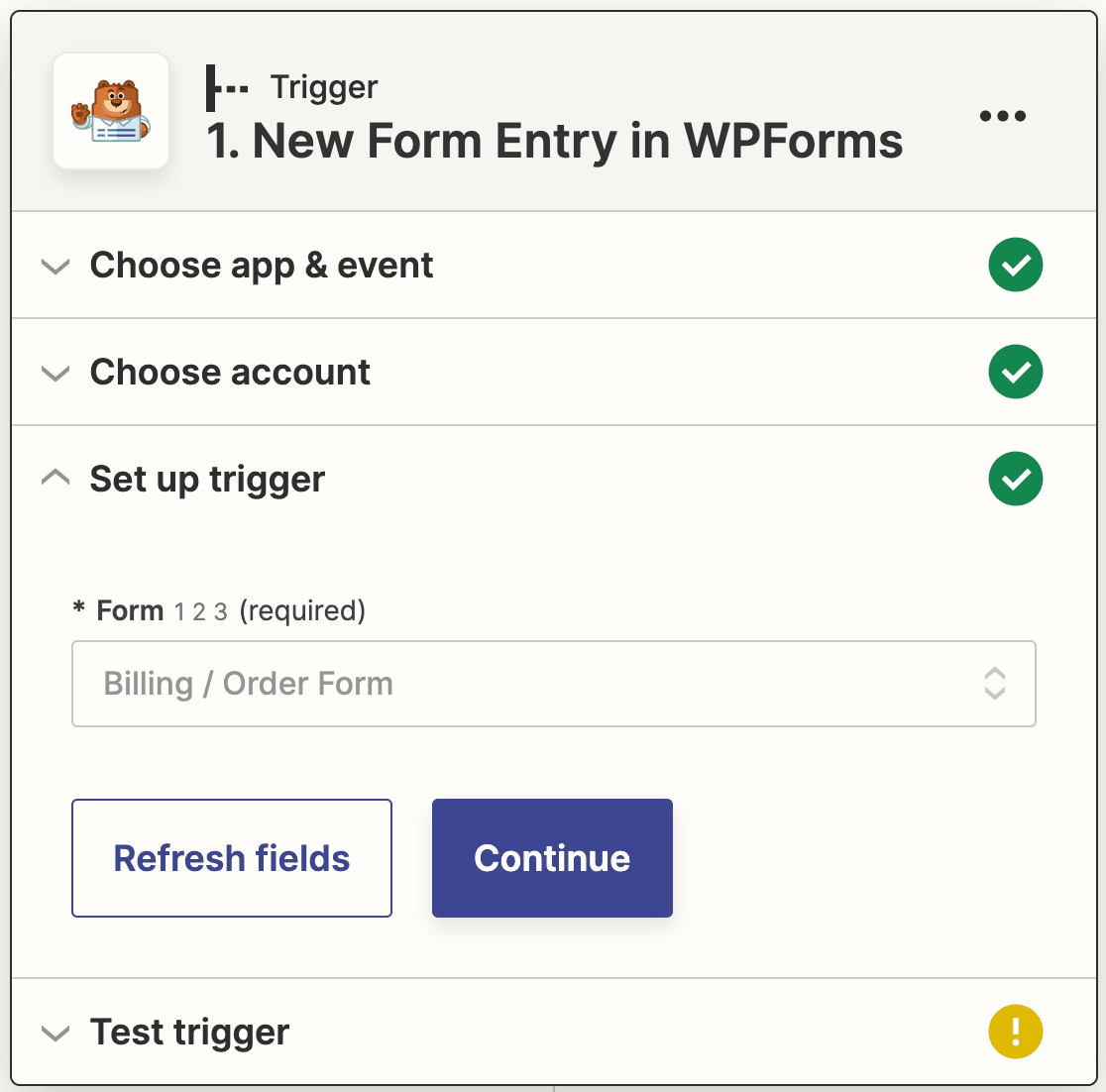
A continuación, debes elegir el formulario que creaste en el Paso 2 en el menú desplegable.
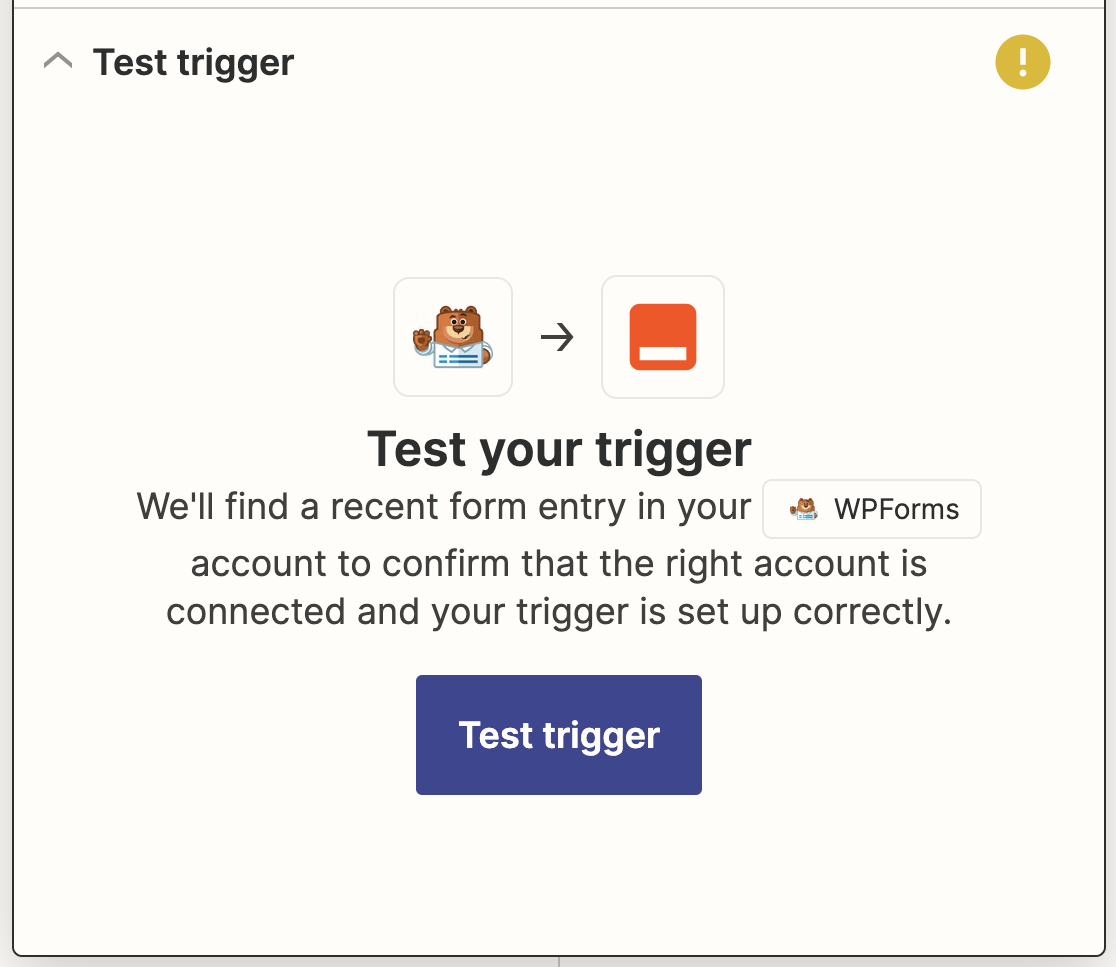
En este punto, Zapier probará tu conexión para asegurarse de que funciona correctamente. Haz clic en Probar activador para empezar.
Si has hecho todo bien hasta ahora, verás la entrada de prueba que enviaste anteriormente junto con un mensaje de éxito.
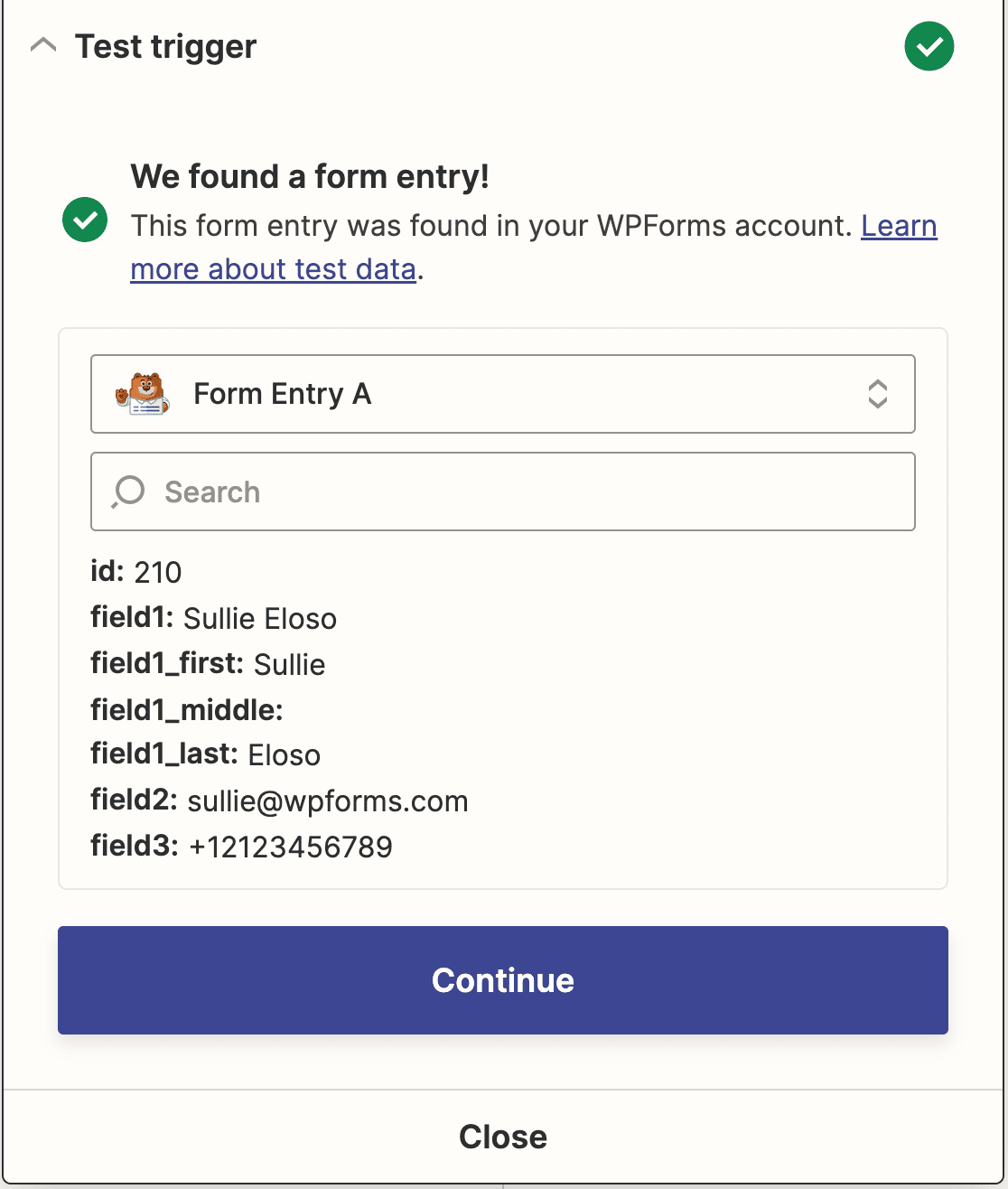
Haz clic en Continuar para pasar a conectar Zapier con Quickbooks.
Paso 5: Conectar Zapier a QuickBooks
Ahora que has conectado Zapier con el plugin WPForms, es hora de conectar WPForms con QuickBooks.
El primer paso para sincronizar con QuickBooks Online es elegir QuickBooks como la aplicación de acción. Introduce QuickBooks en tu barra de búsqueda y luego haz clic en ella cuando aparezca.
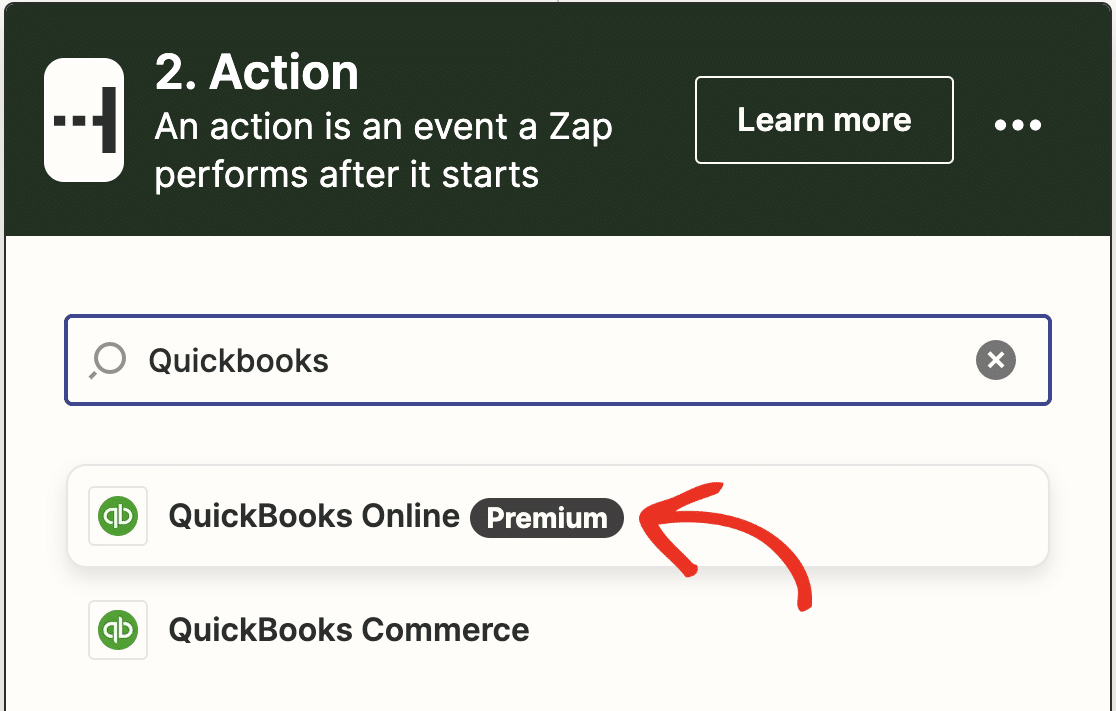
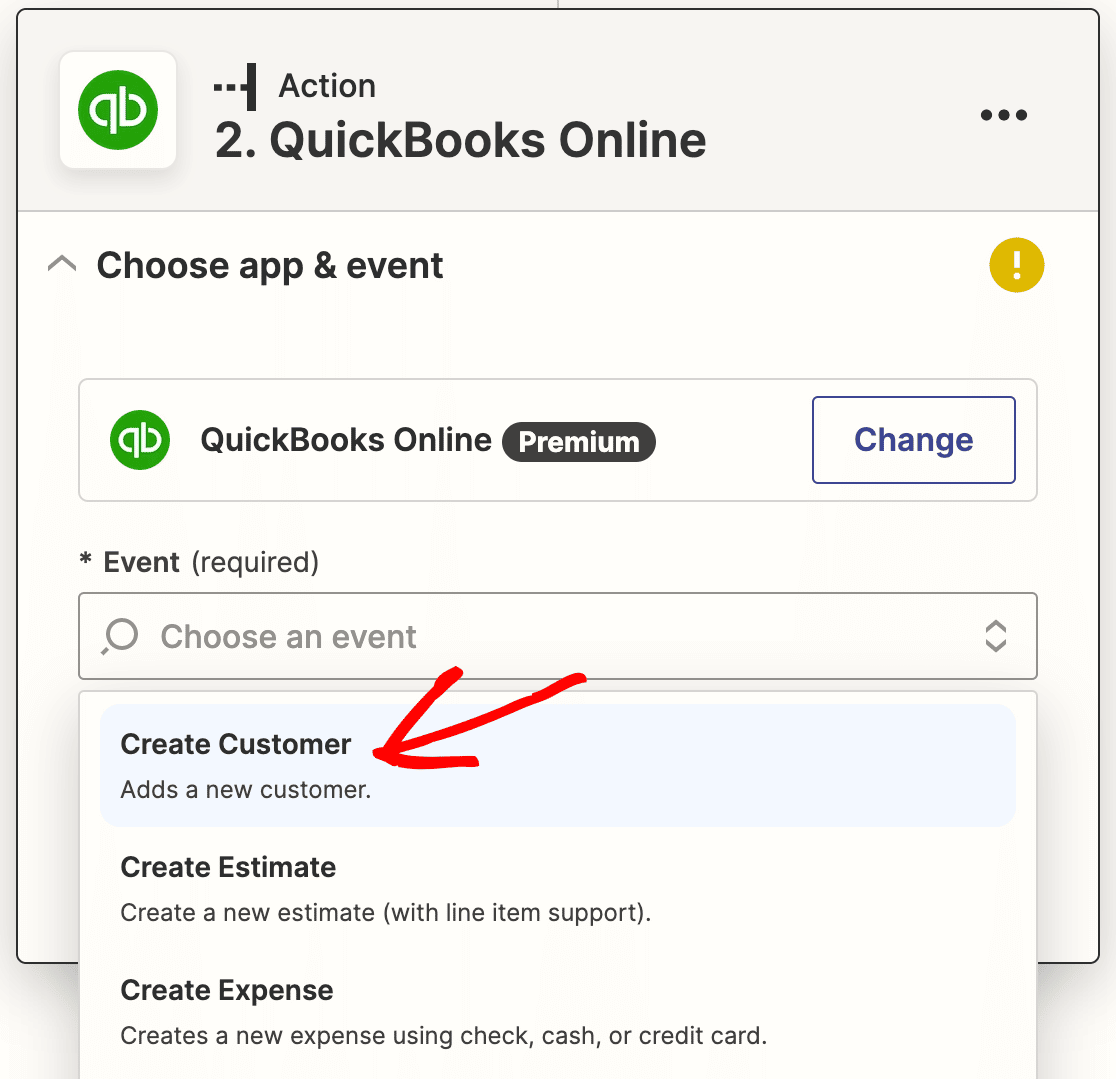
Luego, se te pedirá que selecciones una acción de QuickBooks. Como queremos crear un nuevo cliente en QuickBooks desde WordPress, elige Crear cliente y haz clic en Continuar.
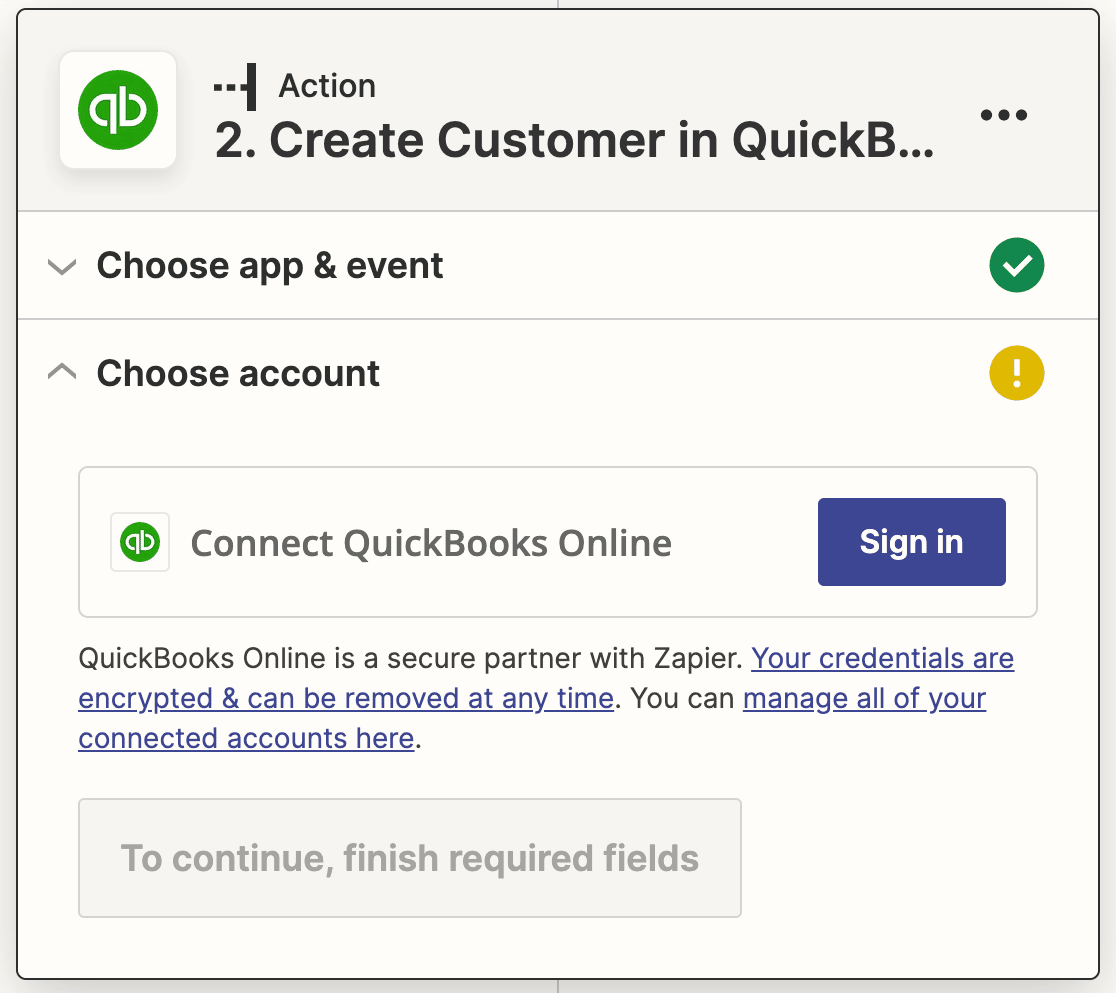
Ahora necesitas conectar tu cuenta de QuickBooks a Zapier. Haz clic en el botón Iniciar sesión de nuevo.
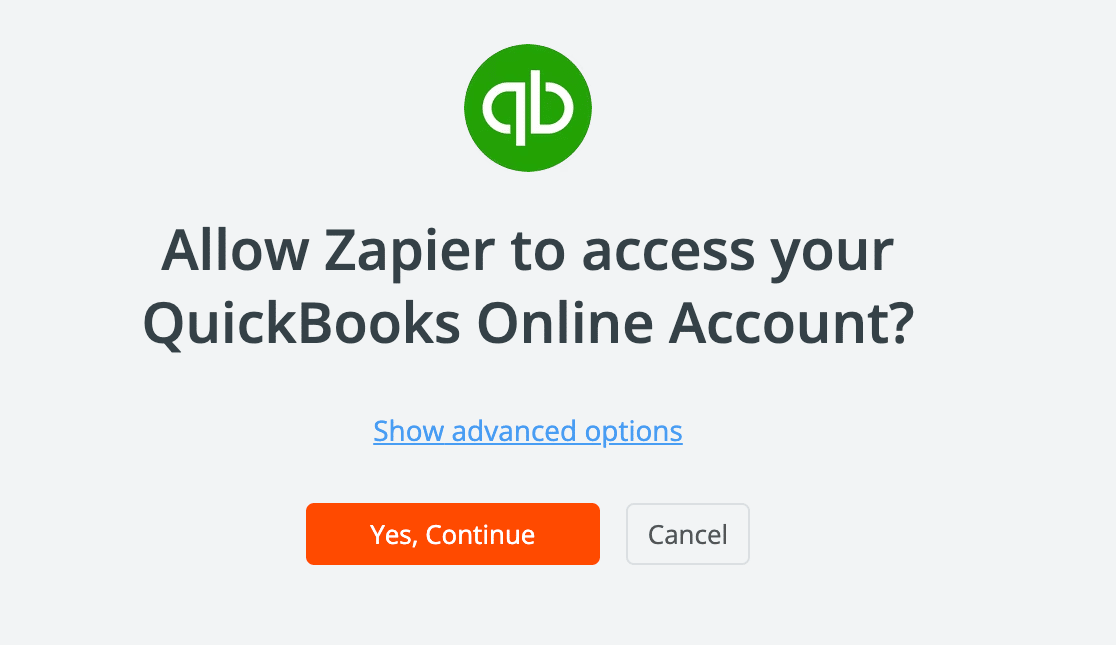
En la ventana emergente, haz clic en Sí, Continuar para permitir que Zapier acceda a tu cuenta de Quickbooks.
Luego, introduce tus credenciales de inicio de sesión para acceder a tu cuenta de Quickbooks. Después de iniciar sesión, Zapier volverá a pedir permiso para acceder a Quickbooks. Haz clic en Conectar para continuar.
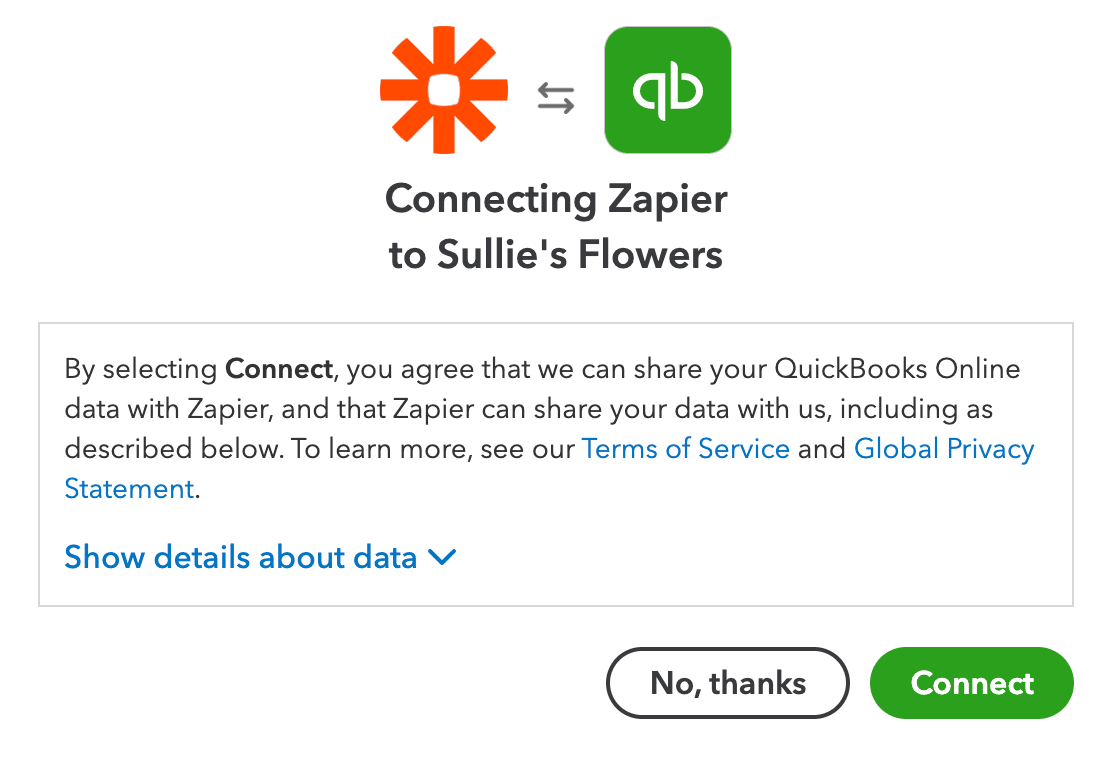
Después de que se cierre la ventana emergente, haz clic en Continuar de nuevo.
A continuación, necesitas crear una plantilla para los nuevos clientes que se crearán en Quickbooks cada vez que alguien envíe tu formulario. Para ello, selecciona el campo correspondiente para tu formulario en cada uno de los menús desplegables.
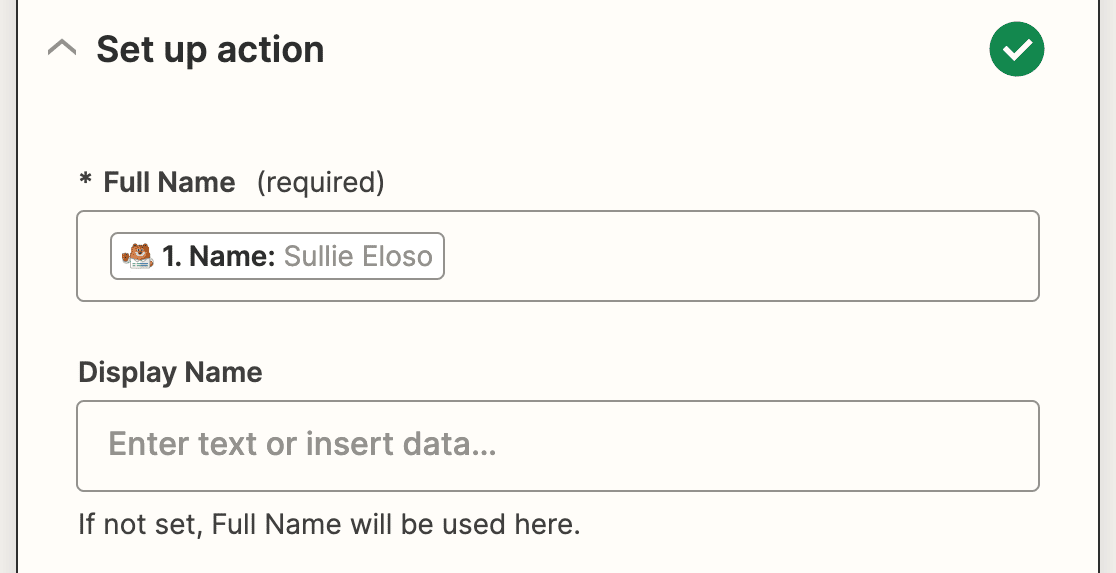
El único campo obligatorio es Nombre completo, pero puedes añadir varios detalles más de tu formulario, incluyendo información de contacto y fiscal.
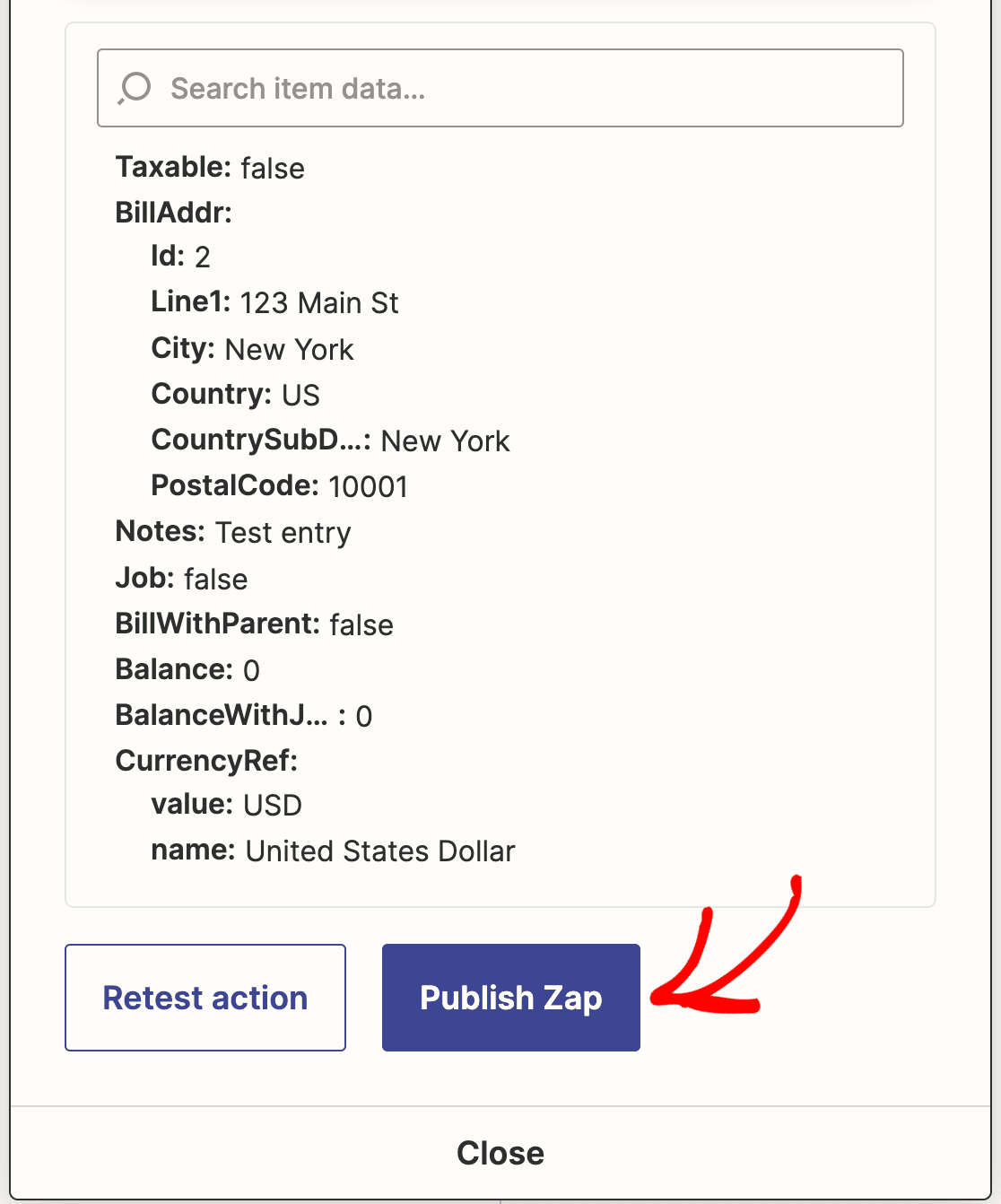
Una vez que haya mapeado todos los campos de su formulario que desea enviar a Quickbooks, haga clic en Continuar una vez más. Ahora Zapier probará su conexión de Quickbooks tal como lo hizo para WPForms. Haga clic en Probar acción para comenzar.
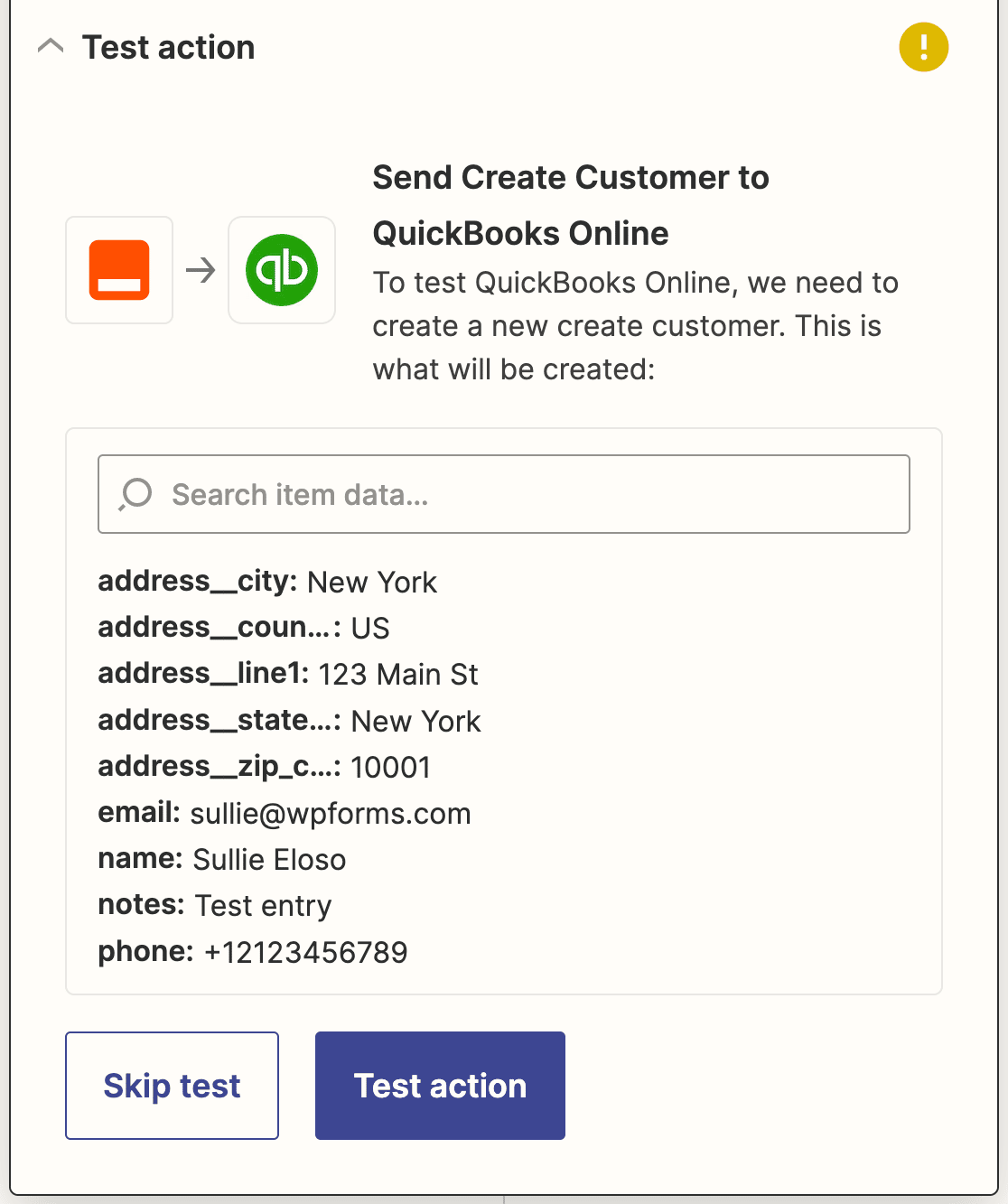
Si ha hecho todo bien, verá un mensaje de éxito.
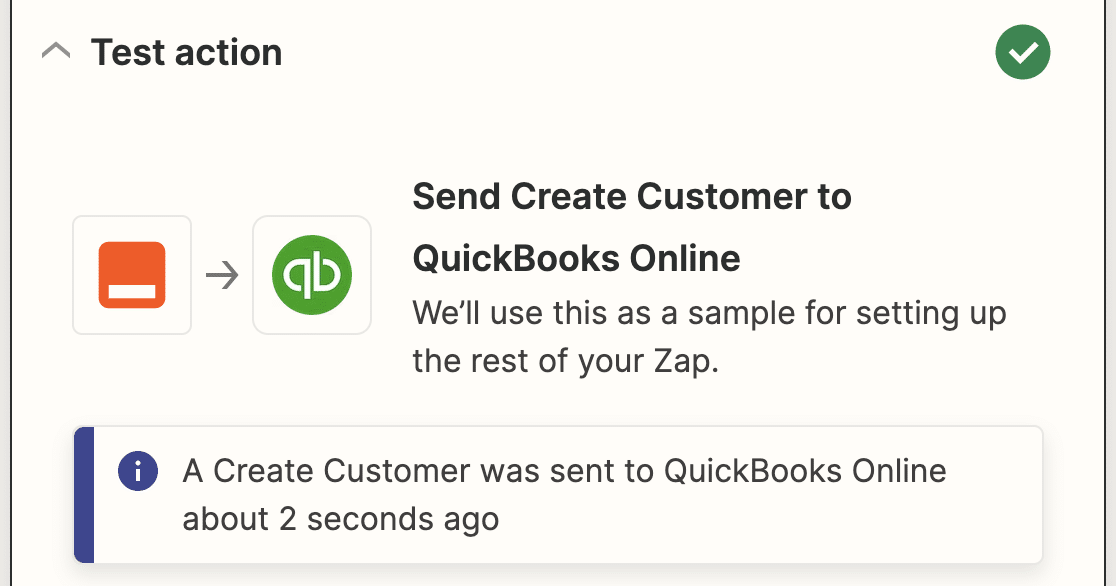
Antes de cerrar Zapier, asegúrese de publicar también su Zap.
Finalmente, no olvide volver a su sitio de WordPress e incrustar su formulario en una publicación de blog, página o widget. De esa manera, los clientes podrán encontrarlo y completarlo fácilmente.
A continuación, haga crecer su negocio con formularios de generación de leads
¡Ahí lo tiene! Ahora sabe cómo integrar sus formularios de WordPress con QuickBooks Online. Ahora, cada vez que alguien complete su formulario, se agregará como un nuevo cliente en su base de datos de QuickBooks Online.
¿Quiere hacer crecer su negocio recopilando leads con formularios optimizados? El complemento WPForms Lead Forms le ayuda a crear formularios de generación de leads personalizados para recopilar información de clientes potenciales.
Crea tu formulario de WordPress ahora
¿A qué está esperando? Empiece hoy mismo con el plugin de formularios de WordPress más potente.
Si le ha gustado este artículo, síganos en Facebook y Twitter para obtener más tutoriales gratuitos de WordPress.





