


AI Summary
Do you want to hide points of interest (POIs) like restaurants, shops, and other businesses on your Map Field so only your custom markers are visible? Google Maps displays these POIs by default, but you can customize the map appearance using Google Cloud Console’s cloud-based map styling feature.
This tutorial shows you how to create a custom map style in Google Cloud Console, configure it to hide POIs, and apply it to your WPForms Map Field using a code snippet.
Creating a Custom Map Style in Google Cloud Console
To begin, open the Google Cloud Console and select the project where your Google Places API key is configured. Next, click on Map Styles from the left sidebar or go directly to Map Styles.
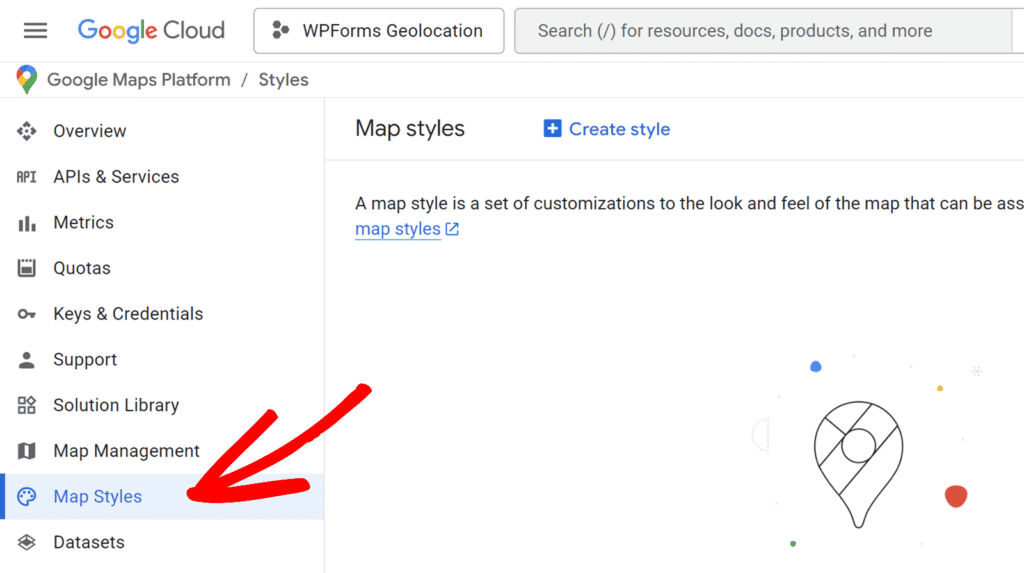
Once there, click the Create map style button to begin a new map style.
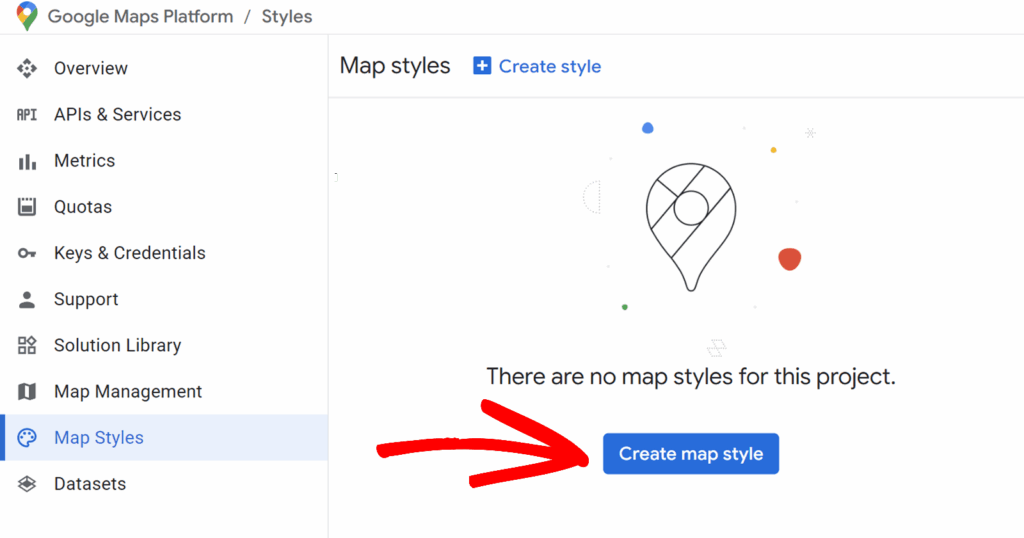
Next, in the modal window that appears, select a mode for your map by choosing either Light or Dark. If desired, you can also select an optional theme such as Monochrome to apply additional styling. Once you’ve made your selections, click the Customize button to open the style editor.
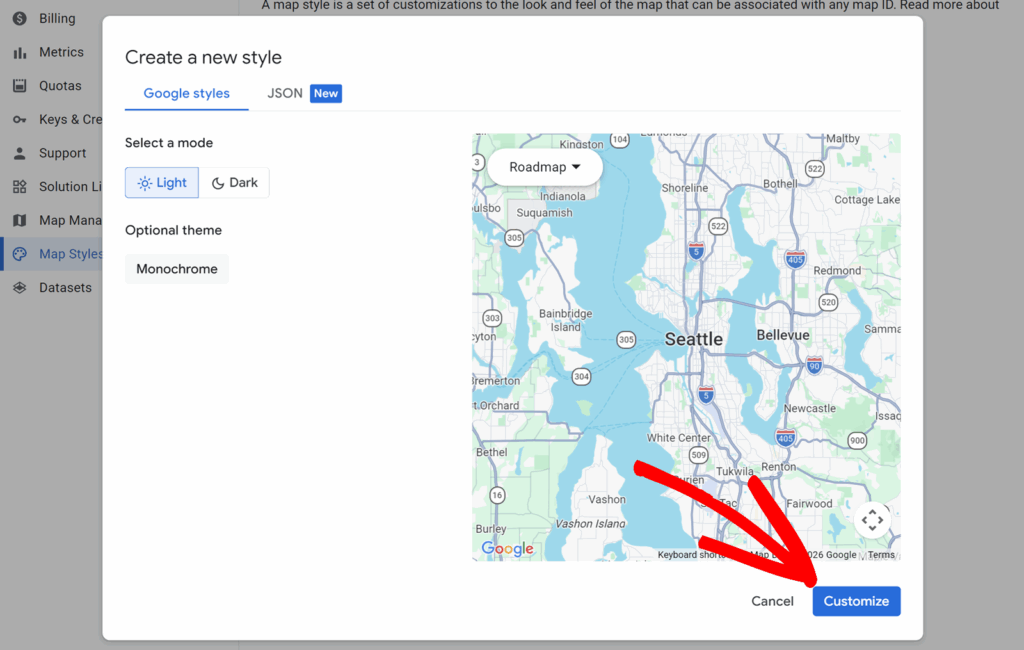
Once the style editor has opened, find and click on the Points of interest category. This expands to reveal a list of individual Points of interest (POI) types, such as Emergency, Entertainment, Food and drink, Lodging, Recreation, Retail, and others.
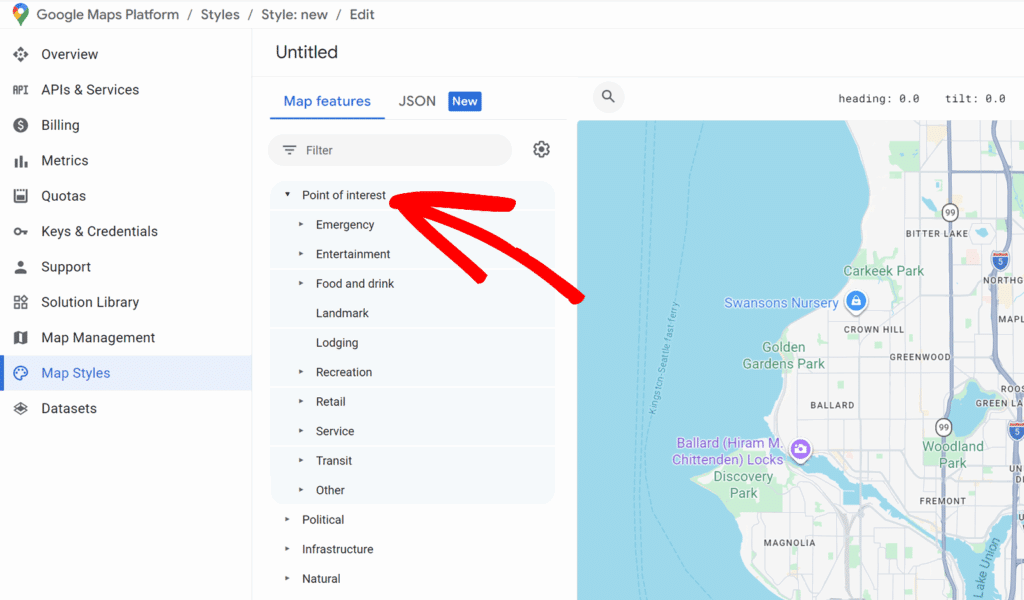
To hide POIs, click the eye icon on the right side of the screen for each category you want to hide. You can hide all POIs at once by clicking the eye icon next to the main Points of Interest category, or you can selectively hide specific POI types by clicking the eye icon next to each individual category.
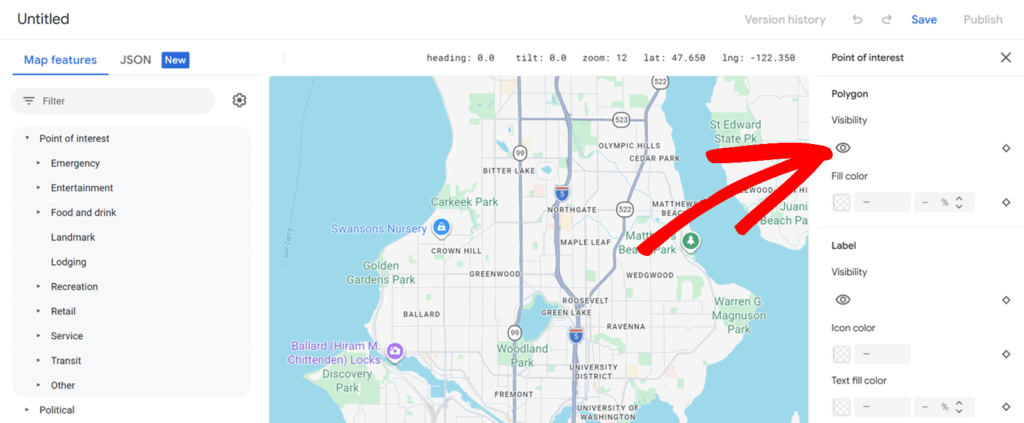
After configuring your map style, click Save.
Getting Your Map ID
Once your style is published, you’ll need to create a Map ID and associate it with your style to use it in WPForms.
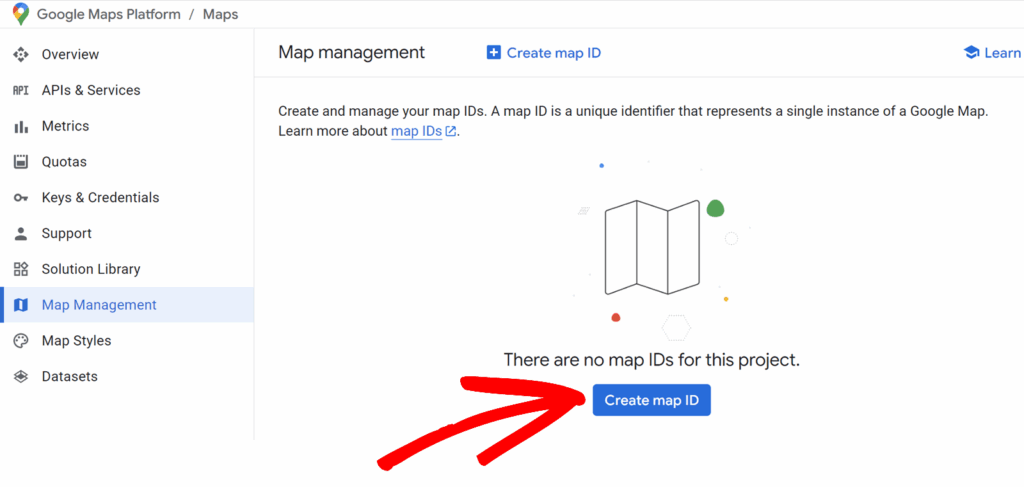
To do so, navigate to the Map Management section from the left sidebar and click Create map ID in your Google Cloud Console.
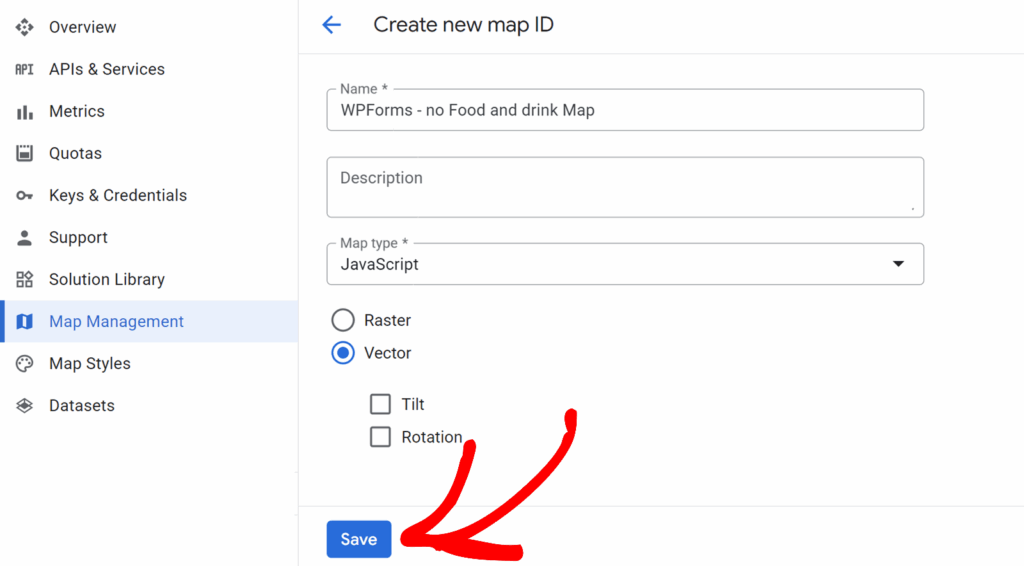
In the dialog that appears, enter a descriptive name for your Map ID, select JavaScript as the Map type, and choose Vector from the available options.
Once done, click Save to create the new map ID.
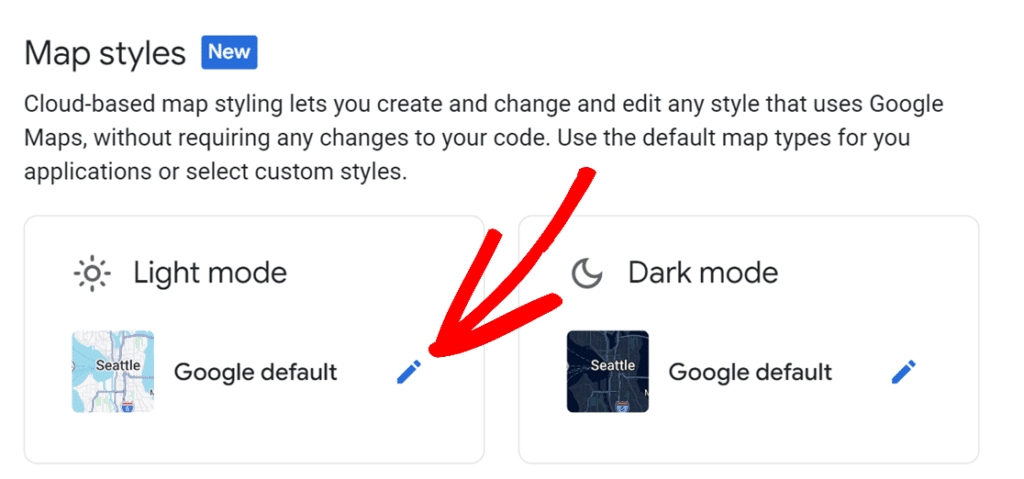
Once your Map ID is created, scroll down on the Map ID page to the Map styles section. Click the pencil icon next to the Google default map style.
This opens a sidebar where you’d need to select your custom map style. In the sidebar, find your published style under the My Styles section and select it.
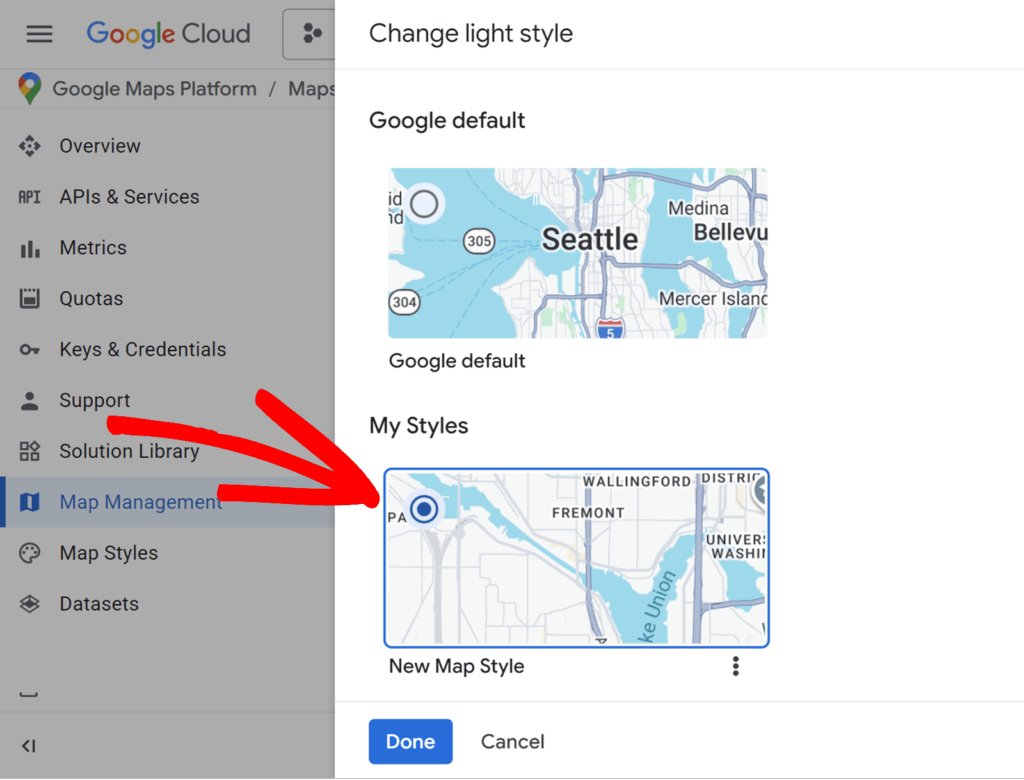
Then, click Done to associate your custom style with the Map ID.
This ensures the style you’ve configured will be applied whenever this Map ID is used.
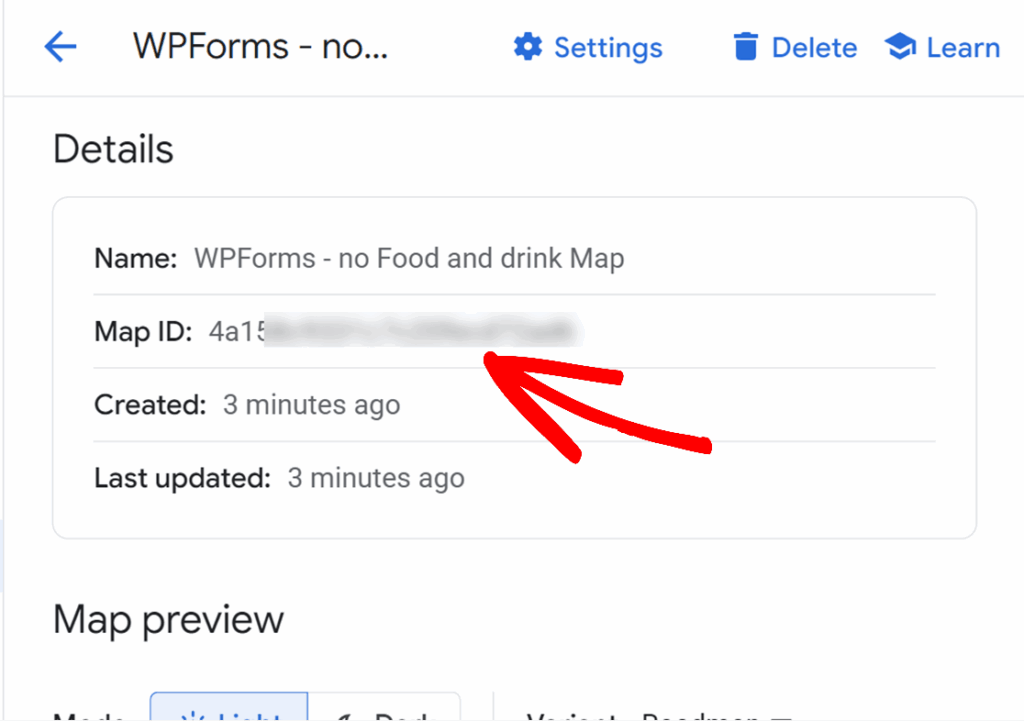
Finally, copy the Map ID value displayed on the Map ID page, as you’ll need this ID to integrate the custom style with WPForms in the next step.
Applying the Map ID to Your Map Field
To apply your custom map style to the WPForms Map Field, use the following PHP code snippet. Customize it with your form ID, field ID, and the Map ID you copied.
- On line 11, replace
111with your actual form ID - On line 15, replace
222with your actual Map Field ID - On line 19, replace
'your-map-id'with the Map ID you copied from Google Cloud Console (keep the quotes around it)
After saving the code snippet with your customized values, your Map Field will use the custom style from Google Cloud Console. The map will display only your custom markers without any points of interest, giving you a clean, focused view of your locations.
That’s it! You can now hide points of interest on your Map Field and show only your custom markers. For more ways to customize your forms, check out our guide on customizing WPForms with code.