


Resumo de IA
Já se perguntou como aumentar o envolvimento do utilizador e a geração de leads no seu site com um formulário de vários passos no Elementor?
Estes formulários guiam os utilizadores através do processo passo a passo, tornando-o menos avassalador e mais fácil de usar.
WPForms integra-se com o Elementor para lhe dar todo o poder de um construtor de páginas combinado com a versatilidade do melhor construtor de formulários disponível. Vou guiá-lo através do básico da configuração de um formulário de vários passos no Elementor em alguns passos simples.
Crie o Seu Formulário de Vários Passos no Elementor
1. Instalar o Plugin WPForms
O WPForms é uma escolha de destaque para a criação de formulários de vários passos. Está repleto de mais de 2.100 modelos prontos a usar que se adequam a diferentes necessidades de negócios online, perfeito para aumentar a interação do utilizador.
Para este tutorial, é essencial ter a licença WPForms Pro. Vem repleta de funcionalidades como o Suplemento Lead Forms, integrações avançadas e muito mais, que são cruciais para criar um formulário de vários passos no Elementor.
Assim que tiver a licença Pro, instalar e ativar o WPForms no seu site é simples. Para obter assistência, aqui está um guia simples sobre como instalar um plugin do WordPress.
2. Ative o Suplemento Lead Forms
Vamos usar o suplemento Lead Forms para criar o formulário de vários passos. Adoro a forma como este suplemento converte um formulário normal num layout moderno e atrativo de vários passos.
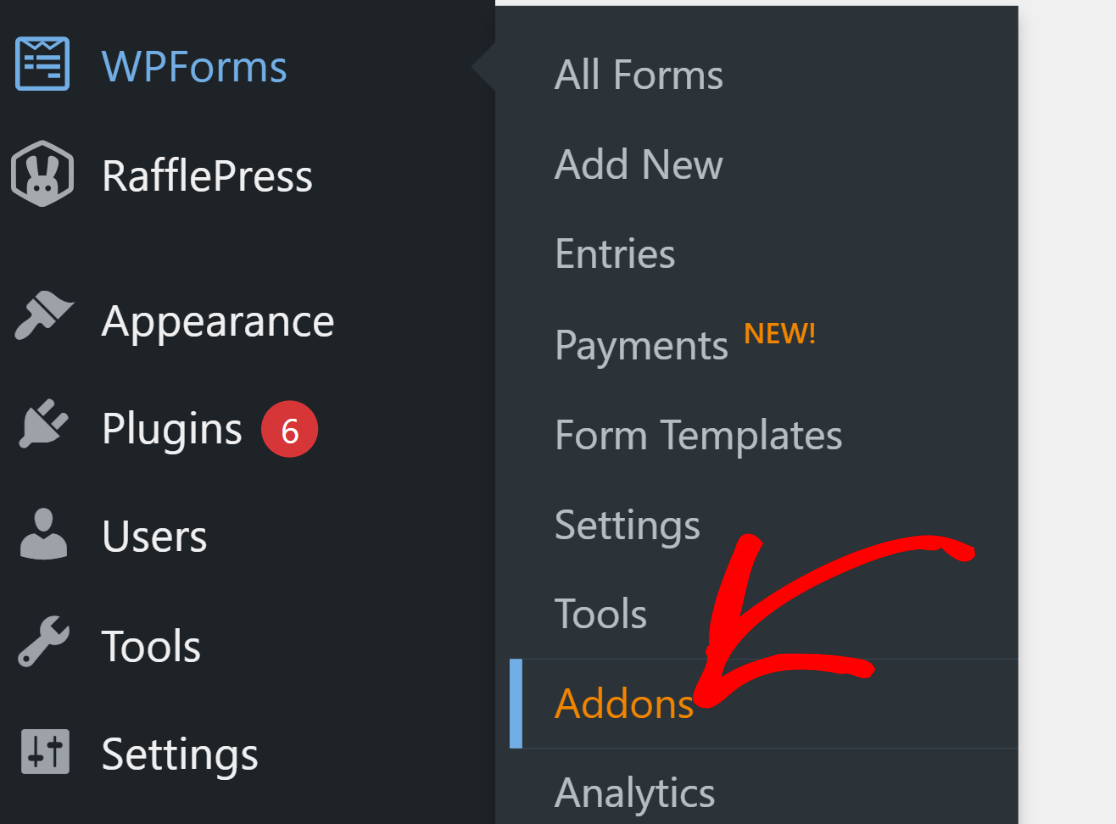
Instalar o suplemento Lead Forms é muito simples. No seu painel do WordPress, vá a WPForms e, em seguida, clique em Addons.
Depois disso, procure por “Lead Forms” na área Pesquisar Suplementos. Em seguida, clique em Instalar Suplemento e depois no botão Ativar.
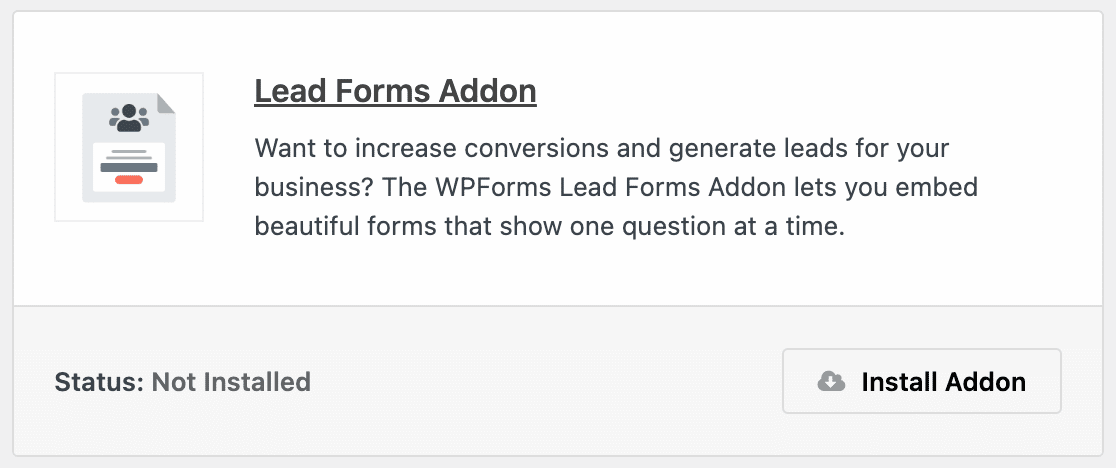
Este passo prepara-o para construir um Formulário de Vários Passos personalizado no Elementor no seu website, melhorando o envolvimento do utilizador.
3. Selecione o Modelo de Vários Passos do Elementor
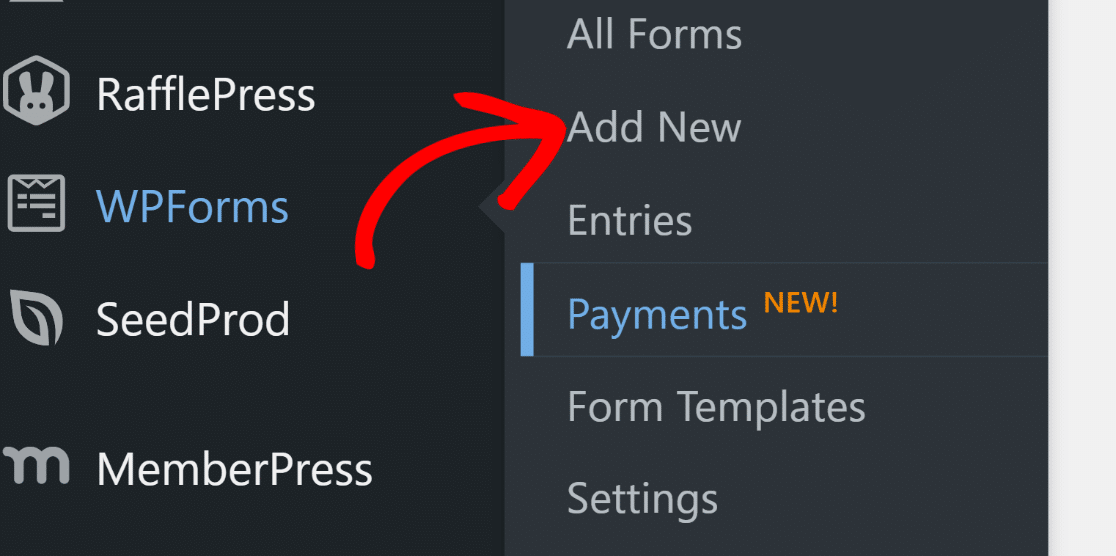
Agora, vamos criar os seus campos de formulário de Vários Passos no Elementor. No seu painel do WordPress, vá a WPForms e clique em Adicionar Novo.
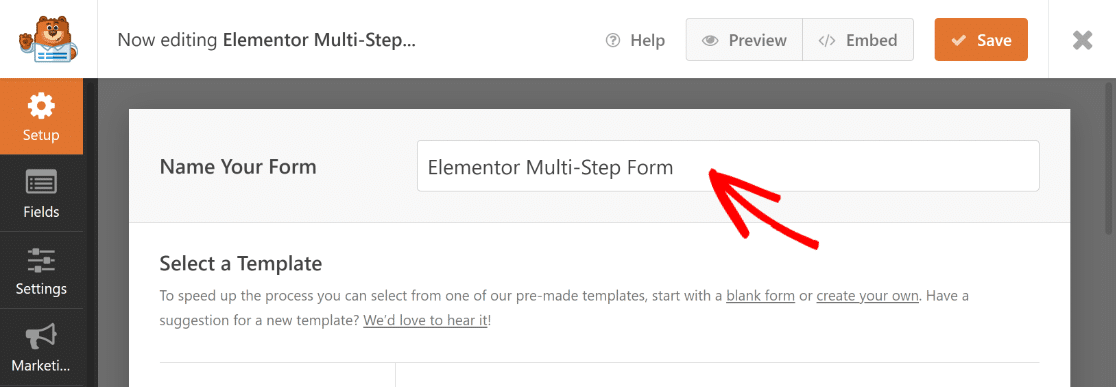
Dê um nome ao seu formulário na página seguinte. Para efeitos deste tutorial, chamaremos o nosso “Formulário de Vários Passos no Elementor”.
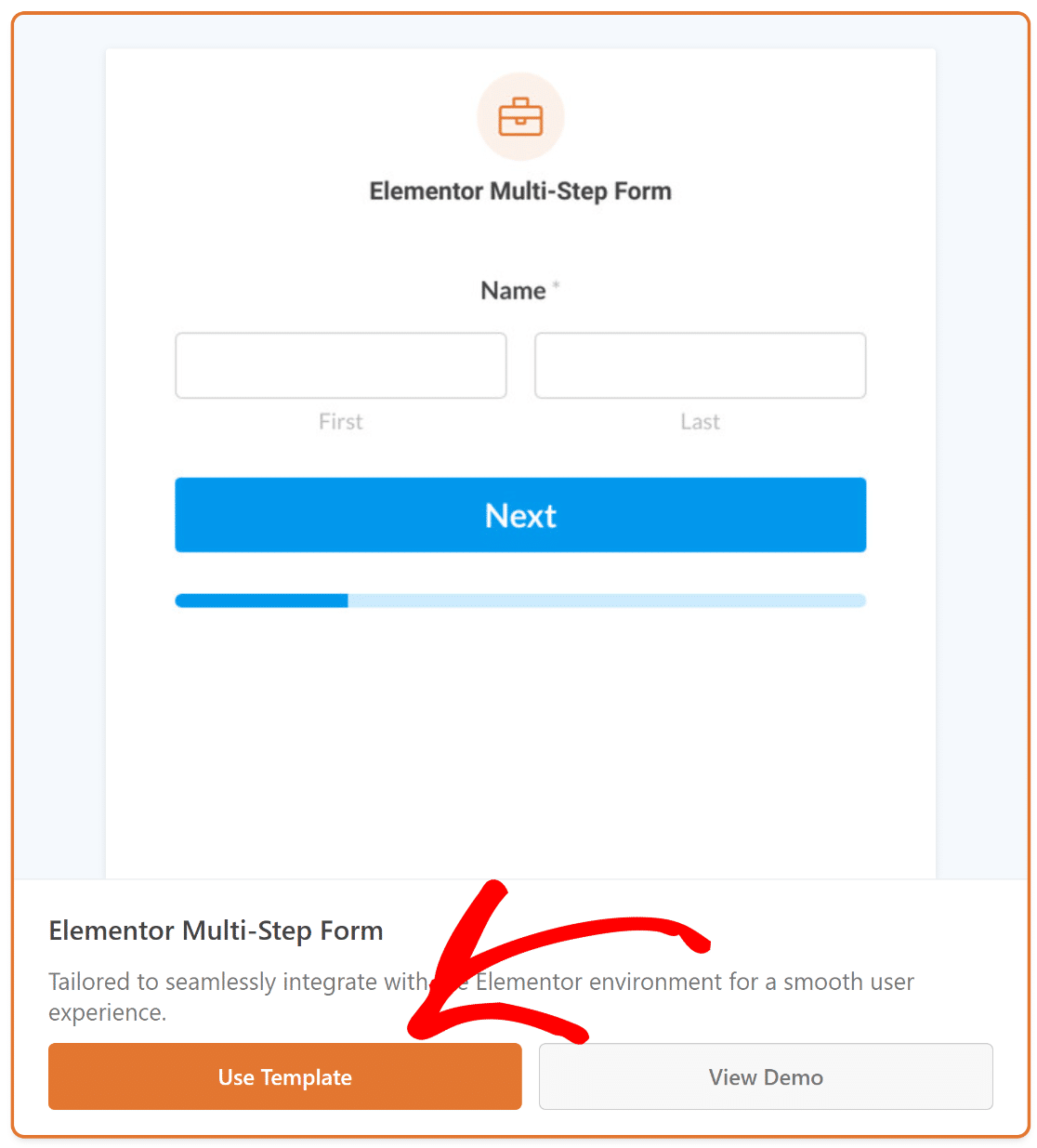
Assim que terminar, use o campo de pesquisa para encontrar o Modelo de Formulário de Vários Passos no Elementor. Em seguida, clique no botão Usar Modelo.
Será agora redirecionado para a secção Campos no ecrã do construtor de formulários. Aqui, os campos disponíveis estão listados à esquerda.
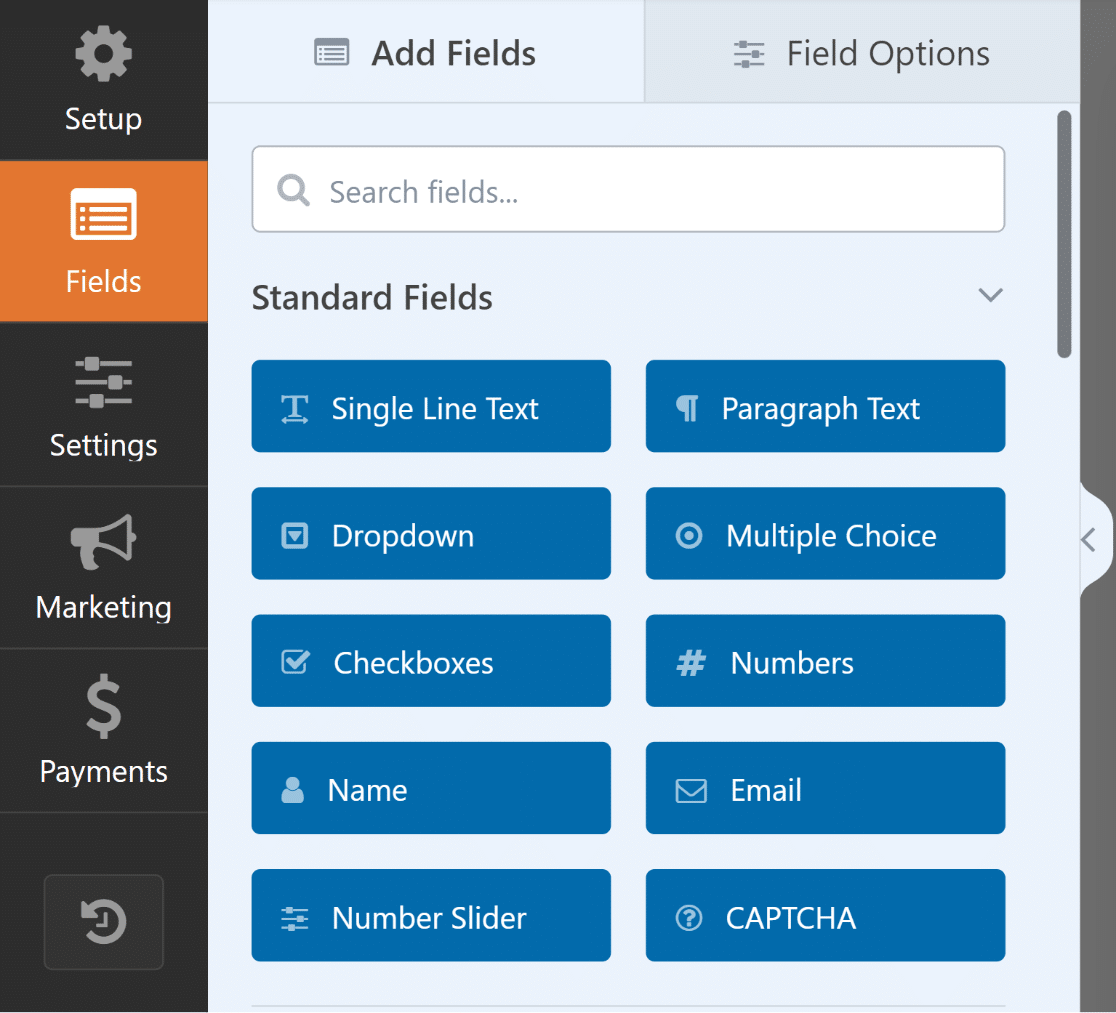
No lado direito do construtor de formulários, verá uma pré-visualização modificável do seu formulário, com os campos essenciais já definidos.
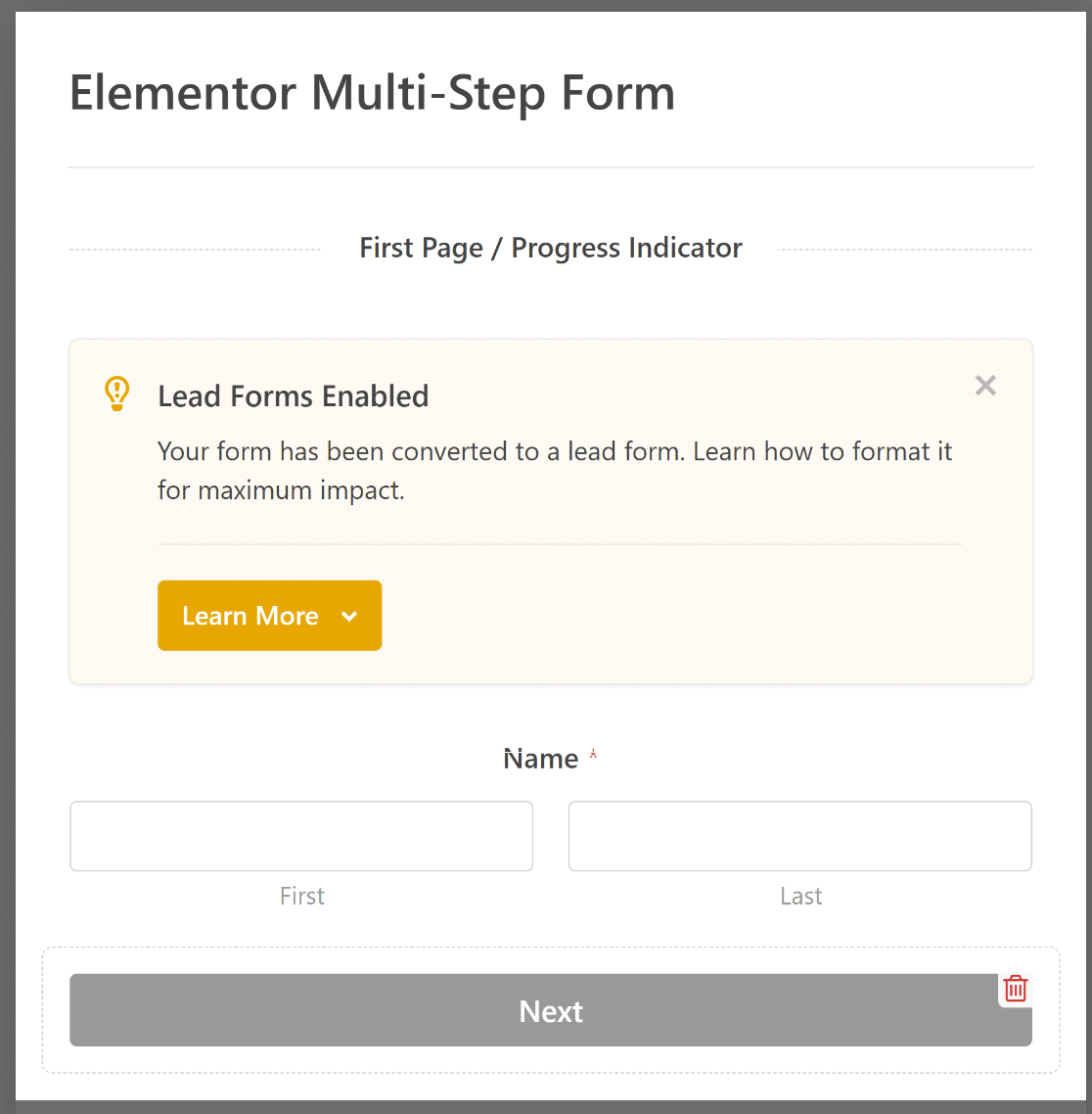
Sinta-se à vontade para usar o construtor de arrastar e soltar do WPForms para ajustar ou adicionar campos, personalizando o formulário para o seu website WordPress.
4. Personalize Notificações e Confirmações
Configurar notificações garante que está sempre atualizado sobre novas submissões de formulários. Vá a Definições e depois a Notificações no construtor de formulários.
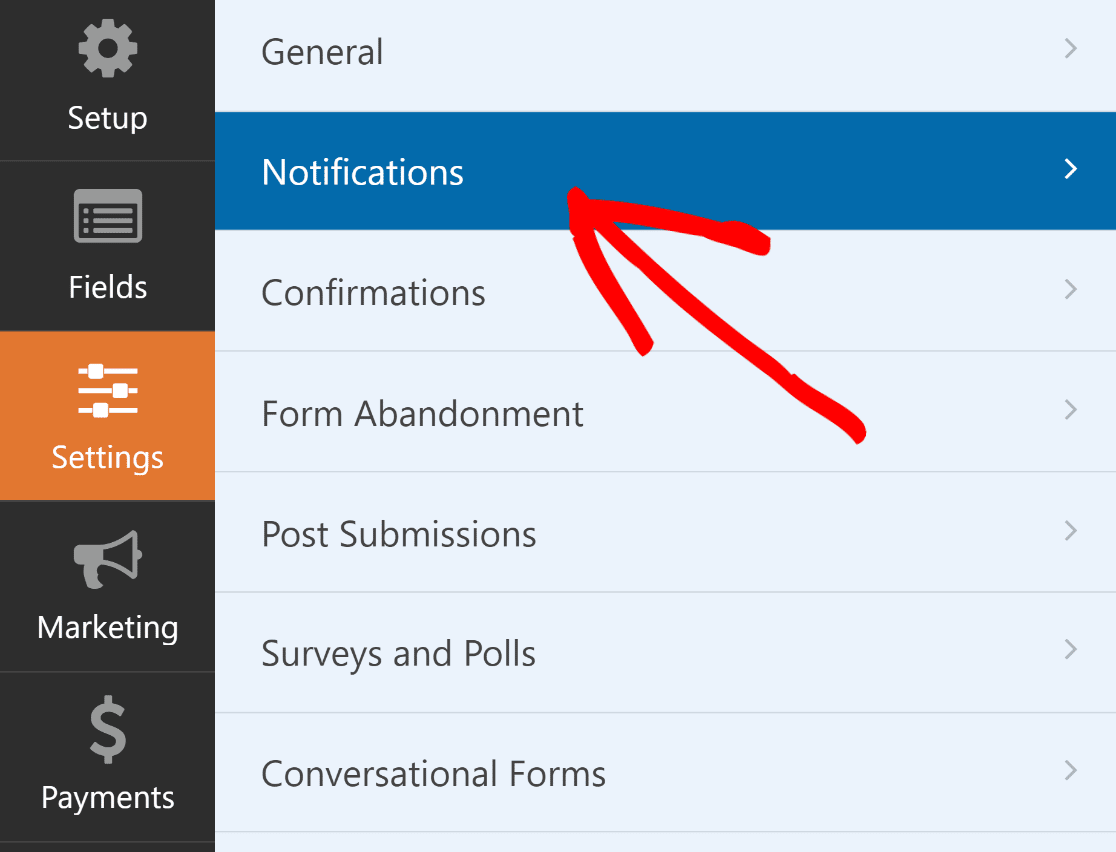
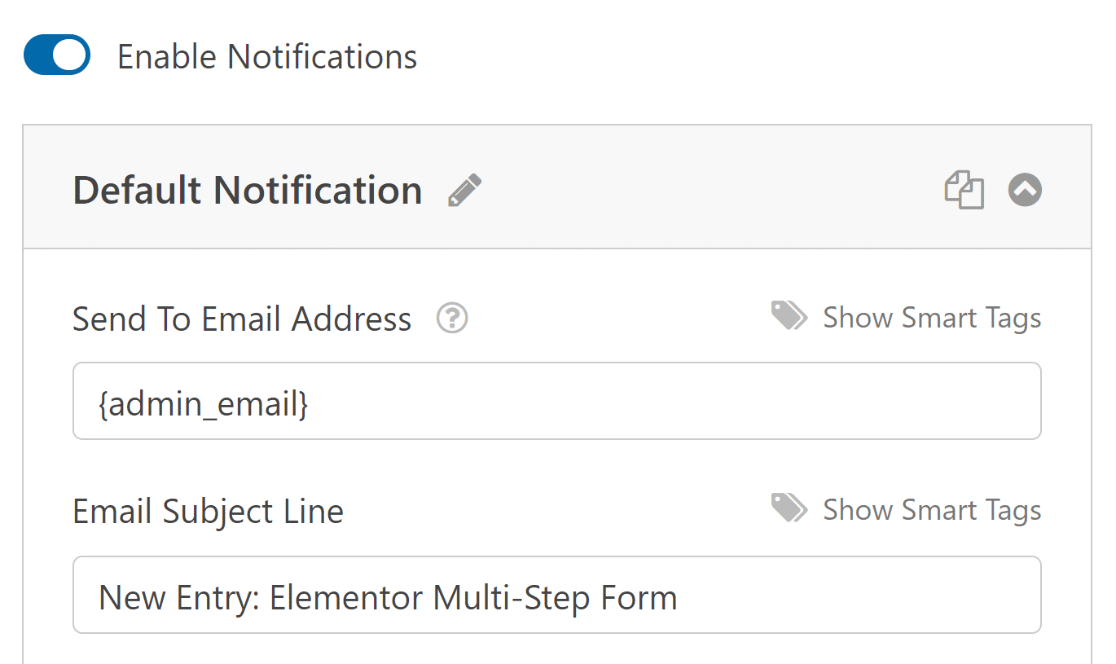
A partir daqui, edite as definições de notificação padrão, como a linha de assunto, ou altere os e-mails dos destinatários conforme necessário.
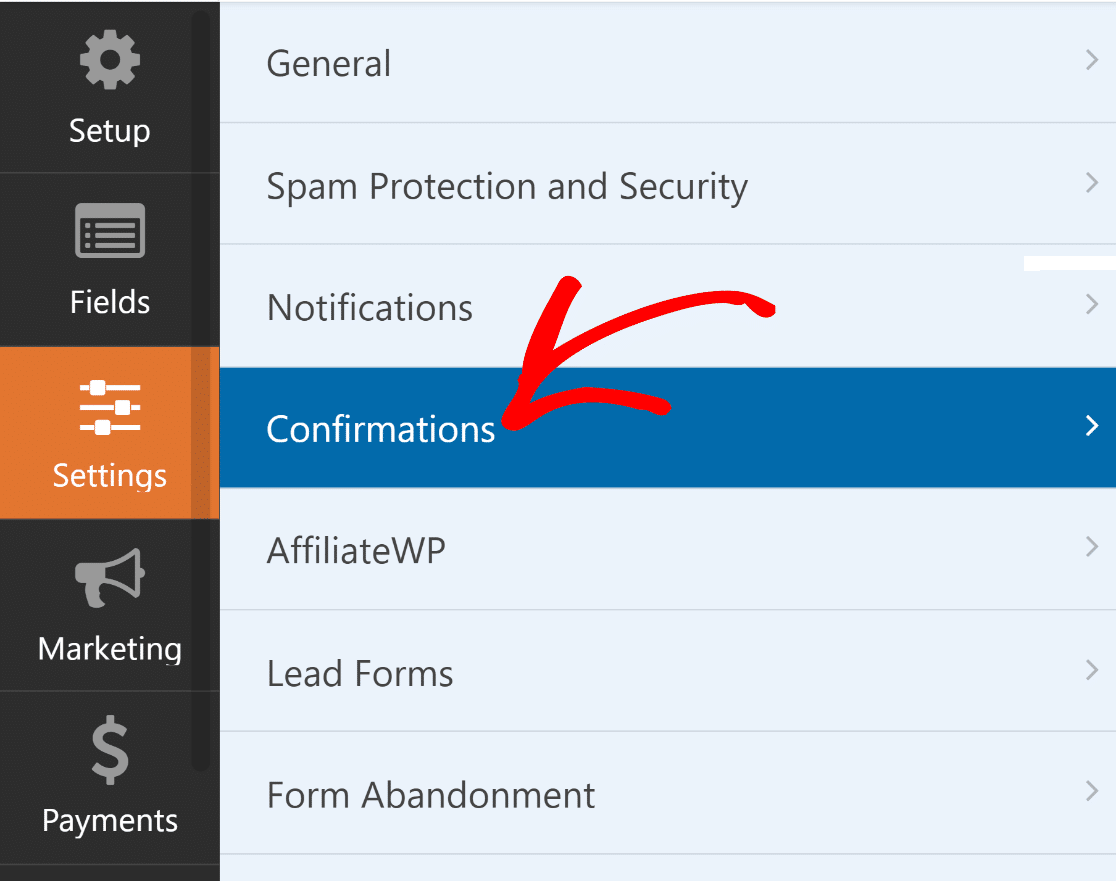
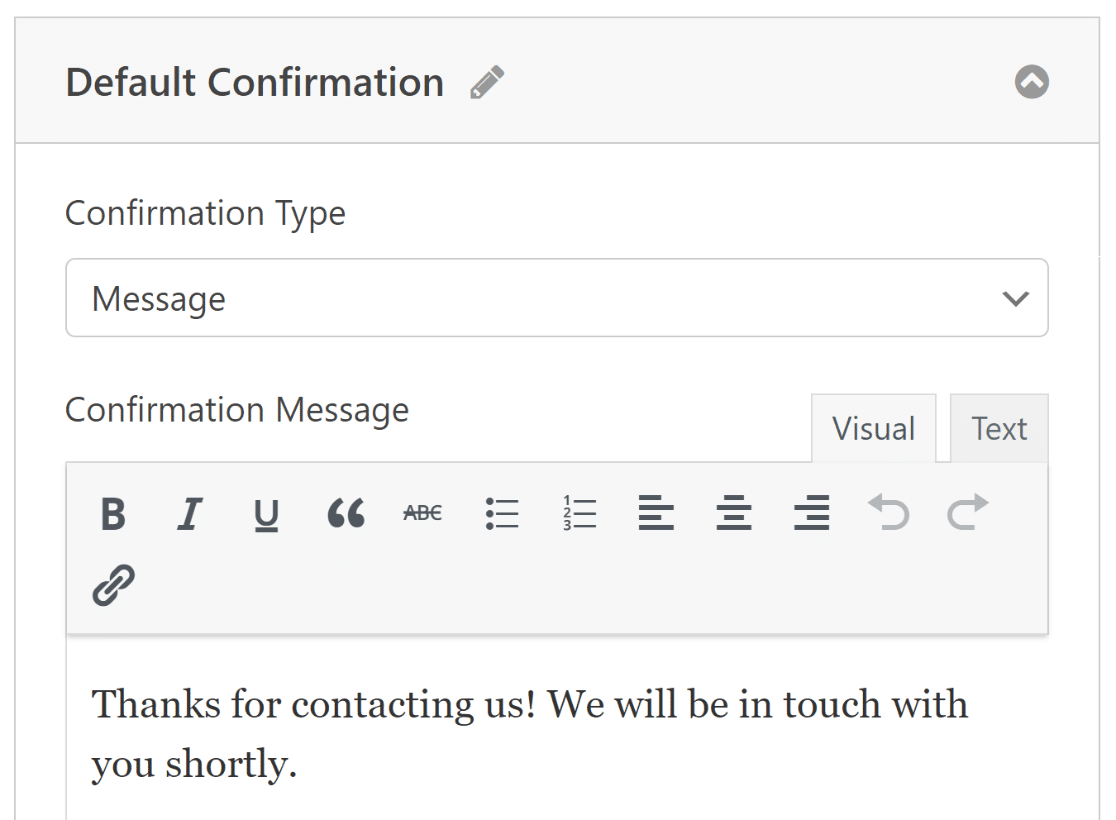
Pode agora selecionar Confirmações no menu Definições para configurar respostas para submissões de formulários bem-sucedidas.
Escolha o Tipo de Confirmação que melhor se adapta ao seu site – uma mensagem, exibição de página ou um redirecionamento.
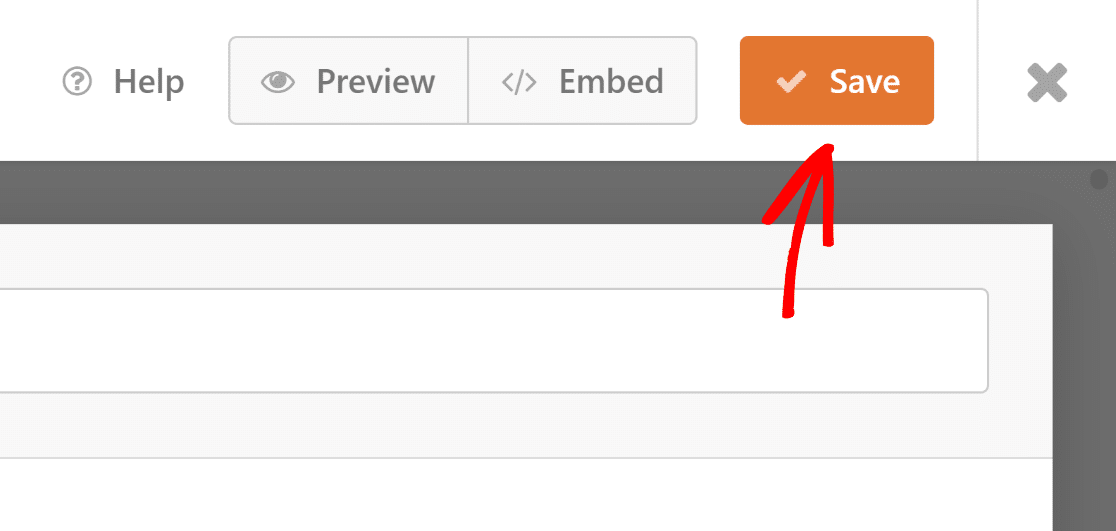
Lembre-se de guardar as suas alterações para manter o seu formulário e as suas definições atualizadas. Está tudo pronto para publicar o formulário no seu site Elementor!
5. Publique o Seu Formulário de Vários Passos via Elementor
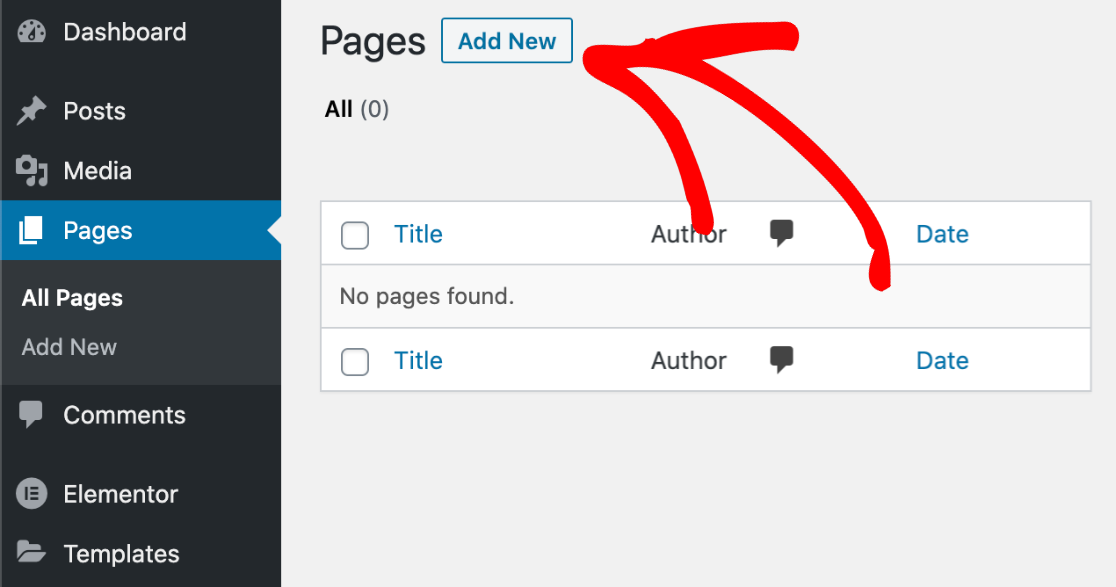
Nesta etapa, tem de criar uma página personalizada a partir do Elementor. No painel do WordPress, clique em Páginas e, em seguida, prima o botão Adicionar Nova.
Continue e digite o título da sua página no topo. Depois disso, clique no botão azul Editar com Elementor para iniciar a interface do construtor de páginas.

Por favor, aguarde alguns segundos para o Elementor carregar no seu navegador. Encontrará vários elementos no lado esquerdo que pode adicionar à sua página.
Em seguida, utilize o campo Pesquisar Widget ou procure na secção Básica no Elementor para localizar o bloco WPForms.
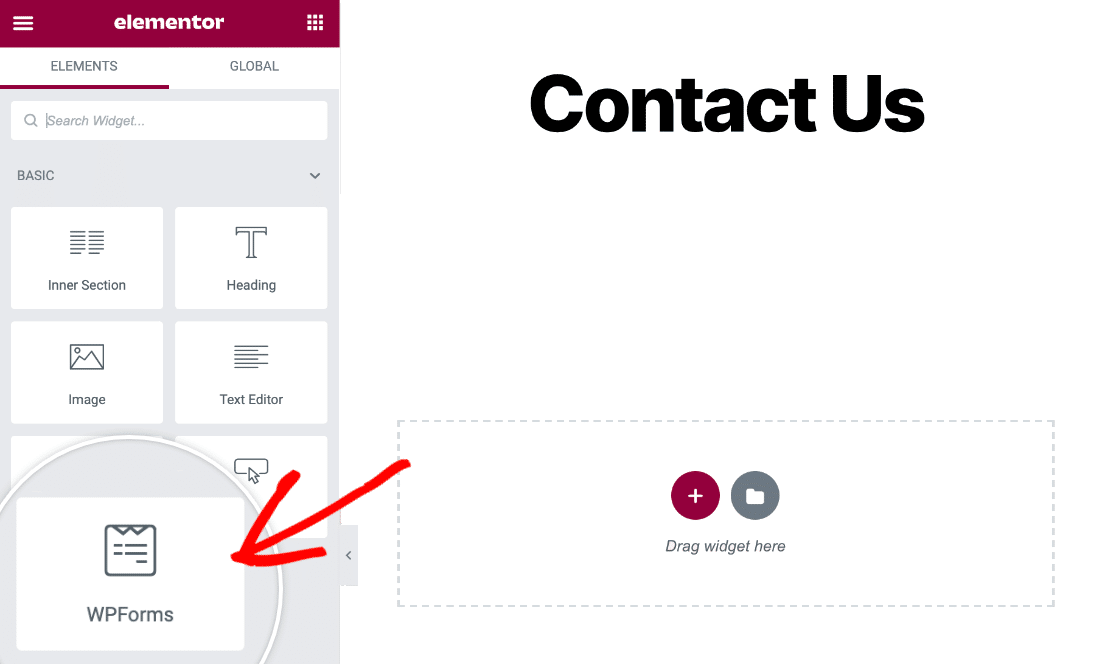
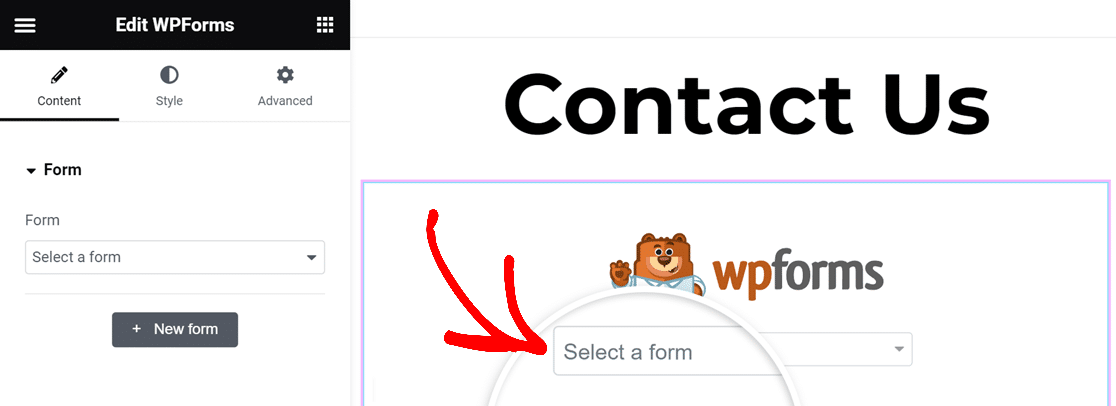
Para adicionar o bloco WPForms à sua página, basta arrastá-lo e soltá-lo. Em seguida, clique no menu suspenso para escolher o formulário que criou recentemente.
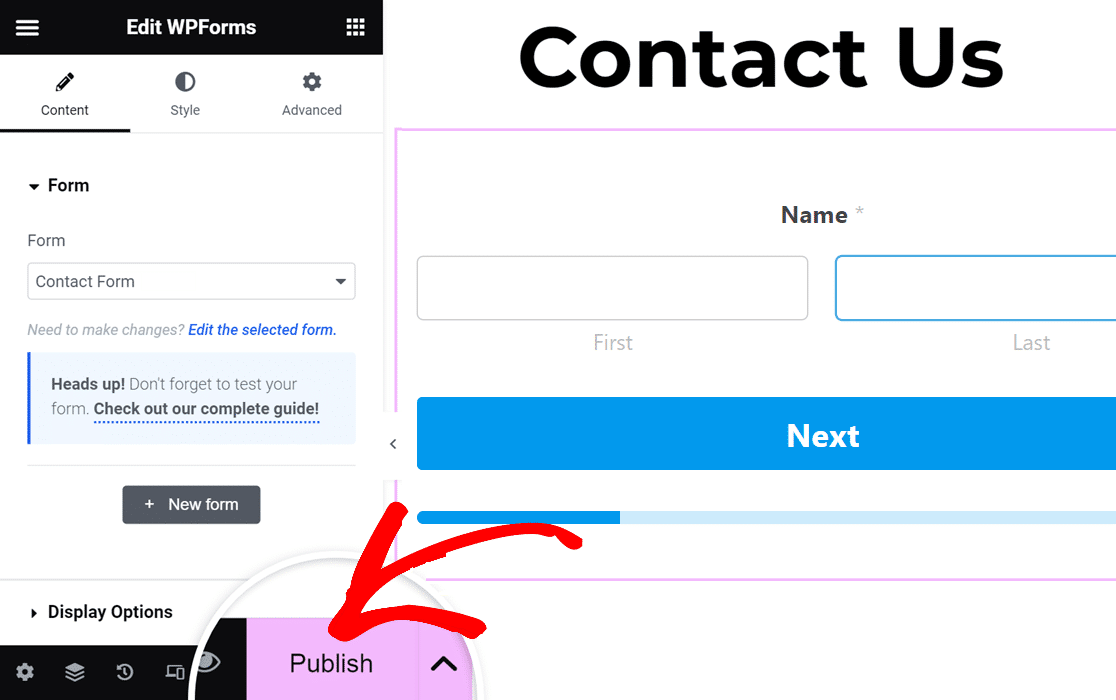
É hora de publicar o seu formulário de contacto Elementor de vários passos. Simplesmente clique no botão Publicar na barra de ferramentas inferior.
Finalmente, clique em Dar uma Vista de Olhos para ver o seu formulário de contacto.
É isso! O seu formulário Elementor de vários passos está agora ativo e preparado para receber respostas.
Crie o Seu Formulário de Vários Passos no Elementor
FAQs sobre Formulários de Vários Passos do Elementor
Os formulários de vários passos são uma das funcionalidades mais populares no WPForms. Aqui estão algumas respostas às perguntas que recebemos com mais frequência.
O Elementor tem um construtor de formulários?
Sim, o Elementor Pro tem um construtor de formulários. No entanto, para capacidades mais avançadas, como a criação de formulários de vários passos, a integração do Elementor com o WPForms Pro e o Addon Lead Forms oferece-lhe muito mais opções para recolha de dados, ajustes de layout e facilidade de utilização. Descobrirá que usar o WPForms permite aumentar as conversões de formulários e reduzir o abandono de formulários.
Porquê usar formulários de vários passos no design web?
Os formulários de vários passos oferecem vários benefícios importantes em relação aos formulários regulares:
- Dividir um formulário longo em passos mais pequenos e geríveis torna-o menos avassalador para os utilizadores. Isto pode reduzir as taxas de abandono de formulários. Os utilizadores são mais propensos a completar o formulário se for mais fácil de usar.
- Os formulários de vários passos permitem agrupar campos relacionados logicamente, tornando o formulário mais fácil de entender e navegar.
- Os utilizadores podem ver o quão longe estão no processo, o que pode encorajá-los a completar o formulário.
- Passos de formulário mais curtos são mais fáceis de navegar em dispositivos móveis.
- Ao apresentar apenas alguns campos de cada vez, reduz o esforço mental exigido dos utilizadores, fazendo com que o formulário pareça mais fácil de completar.
Quais são alguns casos de uso comuns para formulários de vários passos?
Os formulários de vários passos têm vários usos comuns no WordPress:
- Dividir o fluxo de compra num site de eCommerce: envio, faturação e revisão da encomenda.
- Registo de utilizador: informações básicas, depois preferências e, finalmente, detalhes da conta.
- Inquéritos e questionários: agrupar perguntas por tópico ou complexidade.
- Candidaturas de emprego: separação de informações pessoais, experiência profissional, formação e questões adicionais.
- Reservas: seleção de datas, depois serviços, depois dados pessoais.
Em seguida, Corrigir E-mails de Notificação do Formulário de Contacto do Elementor
Está a ter problemas em receber e-mails dos formulários de contacto do Elementor? É simples corrigir este problema para que receba sempre alertas por e-mail. Este guia irá mostrar-lhe como corrigir formulários de contacto do Elementor que não enviam e-mails.
Crie o Seu Formulário de Vários Passos no Elementor
Pronto para criar o seu formulário? Comece hoje com o plugin construtor de formulários WordPress mais fácil. O WPForms Pro inclui muitos modelos gratuitos e oferece uma garantia de devolução do dinheiro em 14 dias.
Se este artigo o ajudou, por favor siga-nos no Facebook e Twitter para mais tutoriais e guias gratuitos do WordPress.





