


Resumen de IA
Cambiar el correo electrónico de administrador de WordPress parece un trabajo de dos segundos, y la mayor parte del tiempo lo es. Vas a tu configuración, introduces la nueva dirección y guardas.
Sin embargo, hay una pega que confunde a la gente, y es el paso de confirmación. WordPress envía un enlace de verificación a la nueva dirección antes de realizar el cambio.
Esto significa que, si tu sitio no envía correos electrónicos de forma fiable, el enlace nunca llega y el cambio falla silenciosamente. A mí también me pasó la primera vez.
Así que te explicaré todo, empezando por la forma rápida de cambiar la dirección desde tu panel de control, luego cómo asegurarte de que la confirmación llega a tu bandeja de entrada y, por último, qué hacer si te quedas bloqueado y no puedes recibir ese correo electrónico en absoluto.
Cómo cambiar el correo electrónico del administrador de WordPress
Esta guía cubre las tres situaciones en las que es más probable que te encuentres, ya sea un cambio normal desde tu panel, un cambio que no se guardará debido a la entrega de correo electrónico o un cambio forzado para cuando te hayas bloqueado y no puedas recibir la confirmación.
- Los dos tipos de correo electrónico de administración de WordPress
- Método 1: Cambiar el correo electrónico de administración en la configuración
- Método 2: Cambiar la dirección de correo electrónico de un usuario
- ¿No recibes el correo electrónico de confirmación? Soluciona primero la entrega de correo electrónico de WordPress
Los dos tipos de correo electrónico de administración de WordPress
Antes de cambiar nada, es útil saber a qué correo electrónico te refieres realmente, porque WordPress almacena dos diferentes y realizan trabajos distintos.
- Dirección de correo electrónico de administración: WordPress utiliza este correo electrónico para avisos importantes como fallos de actualización, registros de nuevos usuarios y moderación de comentarios. Lo cambias en Ajustes » Generales.
- Correo electrónico de la cuenta de usuario: Esta es la dirección asociada a un inicio de sesión específico, incluido el tuyo. WordPress la utiliza para restablecer contraseñas y notificaciones personales. La cambias en el perfil de ese usuario en Usuarios.
Si quieres actualizar a dónde van los avisos de administración de tu sitio, ese es el primero. Si estás cambiando el correo electrónico de tu propio inicio de sesión, ese es el segundo. La mayoría de las personas terminan haciendo ambas cosas, así que te guiaré por cada una.
Método 1: Cambiar el correo electrónico de administración en la configuración
Esta ruta funciona para la gran mayoría de los casos y solo toma unos treinta segundos.
- Desde tu panel de WordPress, ve a Ajustes » Generales.
- Busca el campo Dirección de correo electrónico de administración cerca de la parte superior.
- Elimina la dirección antigua y escribe la nueva.
- Desplázate hacia abajo y haz clic en Guardar cambios.
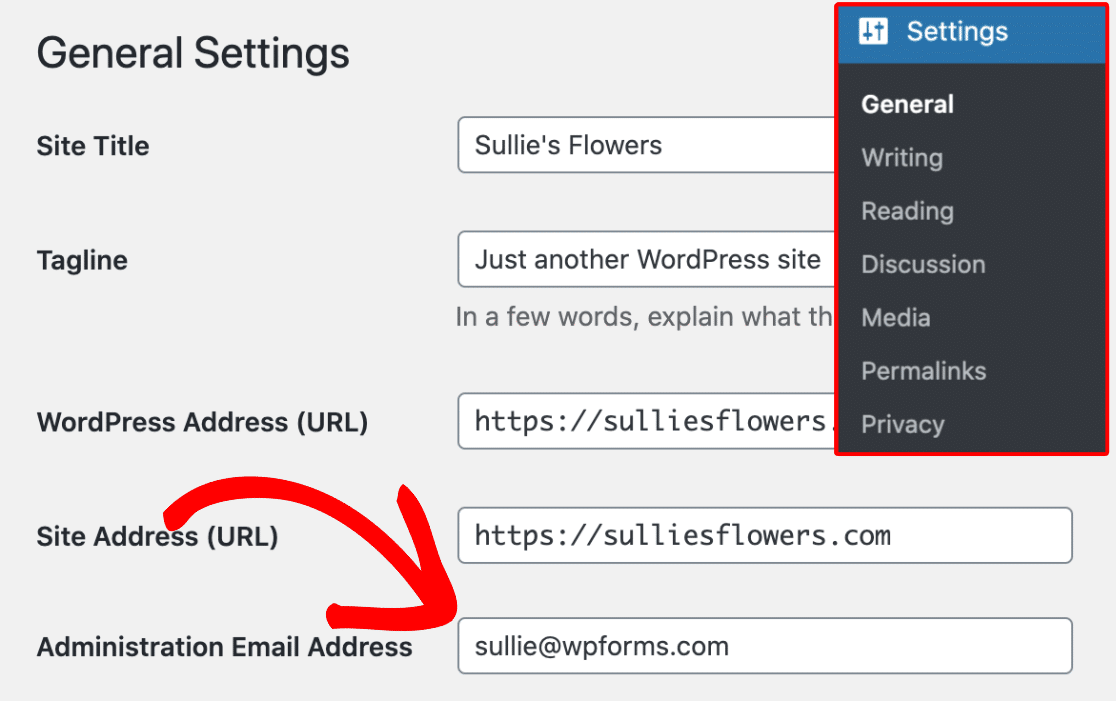
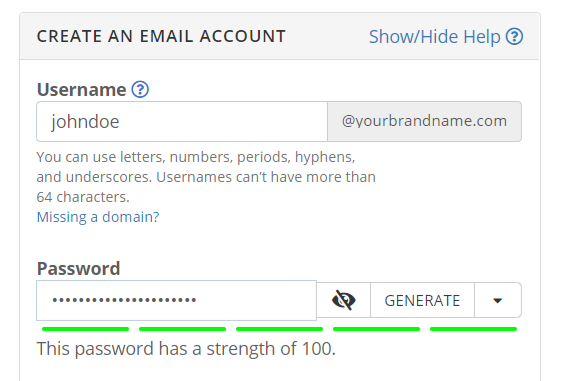
Una breve nota sobre qué poner ahí. Yo usaría una dirección de marca de tu propio dominio, como [email protected], en lugar de una cuenta gratuita de Gmail o Yahoo.
Parece más profesional y es más fácil de mantener cuando cambias de proveedor de alojamiento. Si aún no tienes una, aquí te explico cómo configurar una dirección de correo electrónico de empresa gratuita.
Lo que sorprende a la gente es que WordPress no cambia la dirección de inmediato. Primero envía un enlace de confirmación al nuevo correo electrónico y muestra un aviso pendiente hasta que hagas clic en ese enlace.

Abre la nueva bandeja de entrada, haz clic en el enlace y el cambio se habrá realizado. Si ese correo electrónico nunca llega, no te preocupes, no estás atascado. Salta a la solución de entrega de correo electrónico a continuación y luego vuelve para terminar este paso.
Método 2: Cambiar la dirección de correo electrónico de un usuario
El correo electrónico de administración del sitio y tu correo electrónico personal de usuario son independientes, por lo que cambiar uno no afecta al otro. Para actualizar una cuenta de usuario, ve a Usuarios » Todos los usuarios y haz clic en Editar debajo de la persona que deseas modificar.

Esto abre el perfil de ese usuario. Desplázate hacia abajo hasta el campo Correo electrónico y escribe la nueva dirección.

Haz clic en Actualizar perfil en la parte inferior para guardar los cambios.
Si estás editando tu propia cuenta mientras estás conectado, WordPress envía un correo electrónico de confirmación a la nueva dirección, y deberás hacer clic en el enlace interior para completar el cambio.
Ese es el mismo paso de confirmación que antes, lo que nos lleva al problema que detiene a mucha gente.
¿No recibes el correo electrónico de confirmación? Soluciona primero la entrega de correo electrónico de WordPress
Esta es la verdadera razón por la que la gente se atasca en lo que parece una tarea sencilla. Genuinamente no puedes completar el cambio si el correo electrónico de confirmación no te llega, y un gran número de sitios de WordPress tienen problemas para enviar correos electrónicos en primer lugar.
La causa es técnica pero vale la pena entenderla, porque por defecto WordPress envía correos usando la función PHP mail(), que la mayoría de los servidores de hosting no tienen configurada correctamente.
Sin una autenticación adecuada, proveedores como Gmail y Outlook tratan esos mensajes como sospechosos, por lo que terminan en la carpeta de spam o se descartan por completo. Por eso tu sitio de WordPress no envía correos electrónicos como esperarías.
La solución es enrutar tu correo electrónico a través de un servicio autenticado adecuado usando WP Mail SMTP, el plugin de entregabilidad de correo electrónico más popular para WordPress.
Reconfigura la forma en que WordPress envía correos para que tus mensajes, incluida esa confirmación de administrador, lleguen realmente a la bandeja de entrada, y la versión gratuita es todo lo que necesitas aquí.
Mientras configuras todo, es un buen momento para configurar tus ajustes de correo electrónico de WordPress de la manera correcta para que todo lo que tu sitio envíe llegue a su destino.
Instalar WP Mail SMTP (Es Gratis)
Ve a buscar el plugin. La forma más sencilla es buscar WP Mail SMTP en Plugins » Añadir nuevo en tu panel de control.
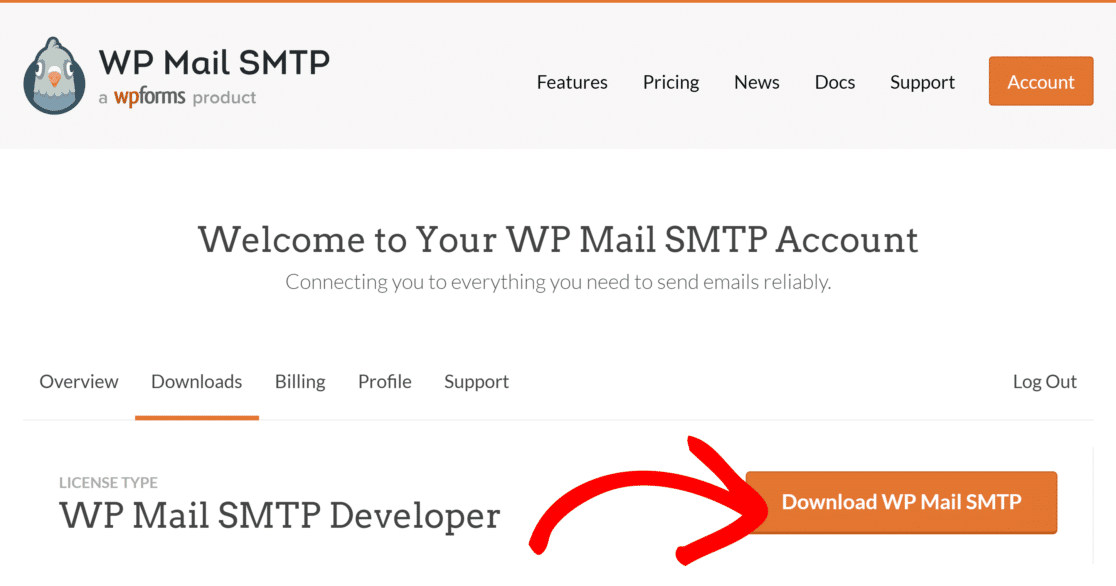
Si has comprado una licencia, también puedes descargar el plugin desde la pestaña Descargas en tu cuenta de WP Mail SMTP y subirlo manualmente, que es lo que muestran las capturas de pantalla a continuación.
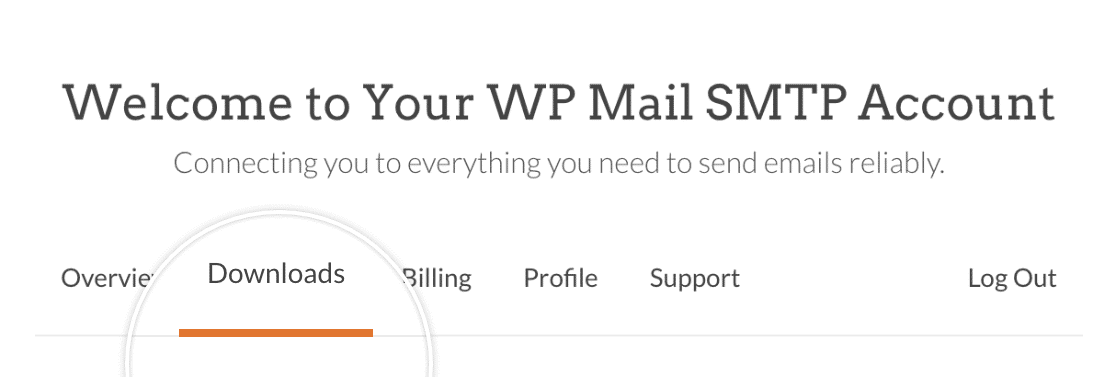
Haz clic en el botón Descargar WP Mail SMTP para guardar el archivo zip en tu ordenador.
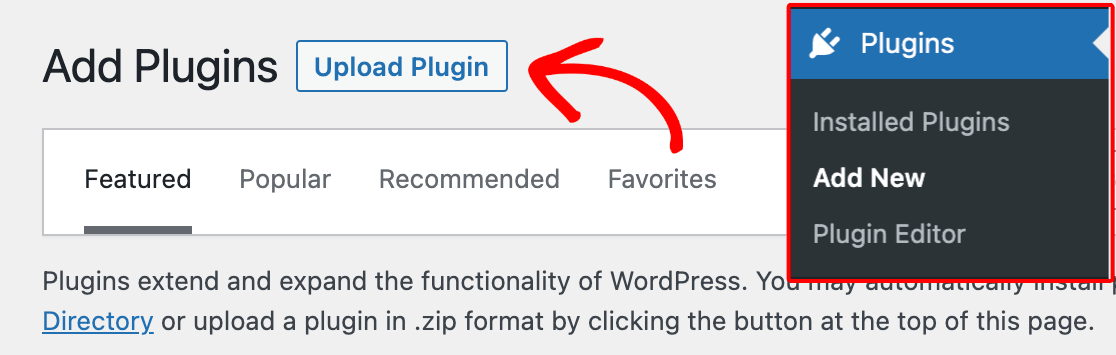
De vuelta en tu panel de control, ve a Plugins » Añadir nuevo y pulsa el botón Subir plugin.
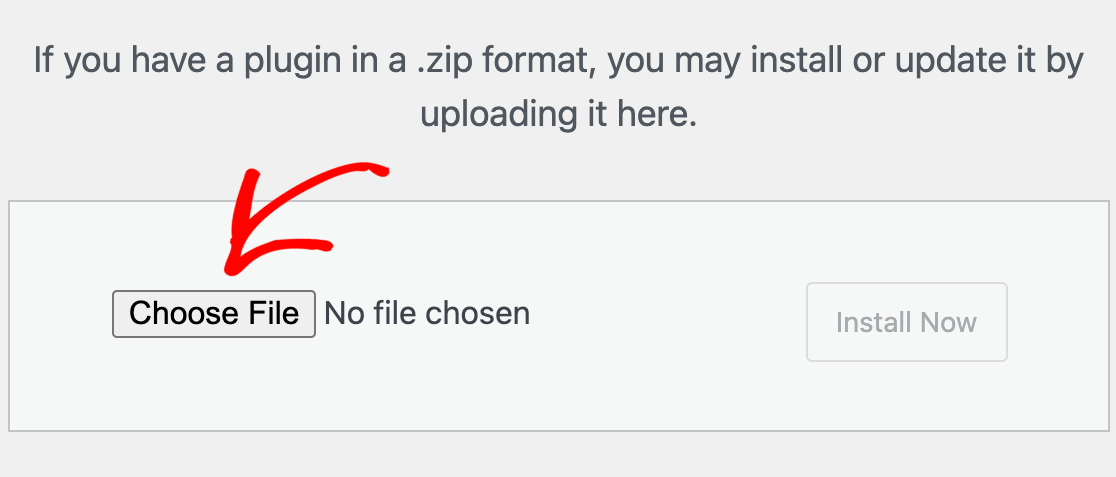
Haz clic en Elegir archivo y selecciona el zip de WP Mail SMTP que acabas de descargar.
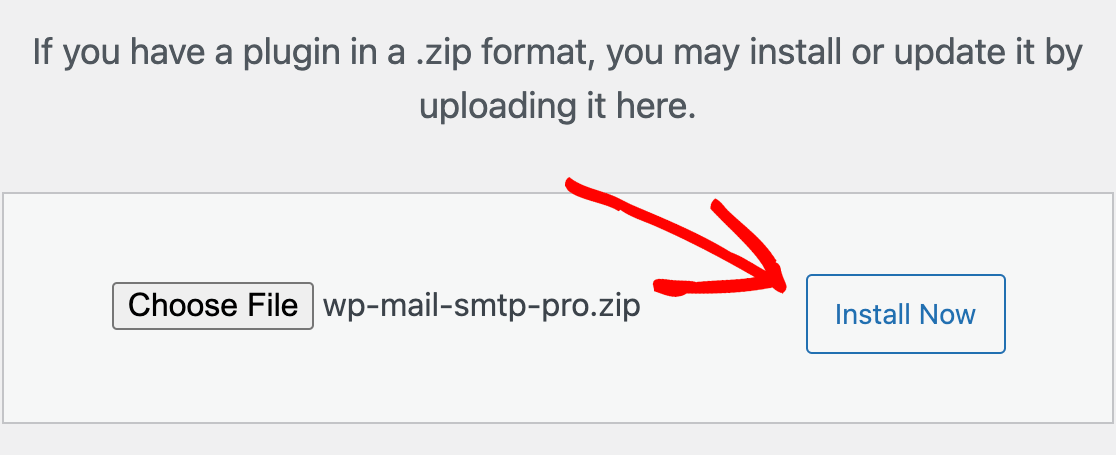
Una vez que el archivo se suba, haz clic en Instalar ahora.
Cuando la instalación finalice, haz clic en Activar plugin.
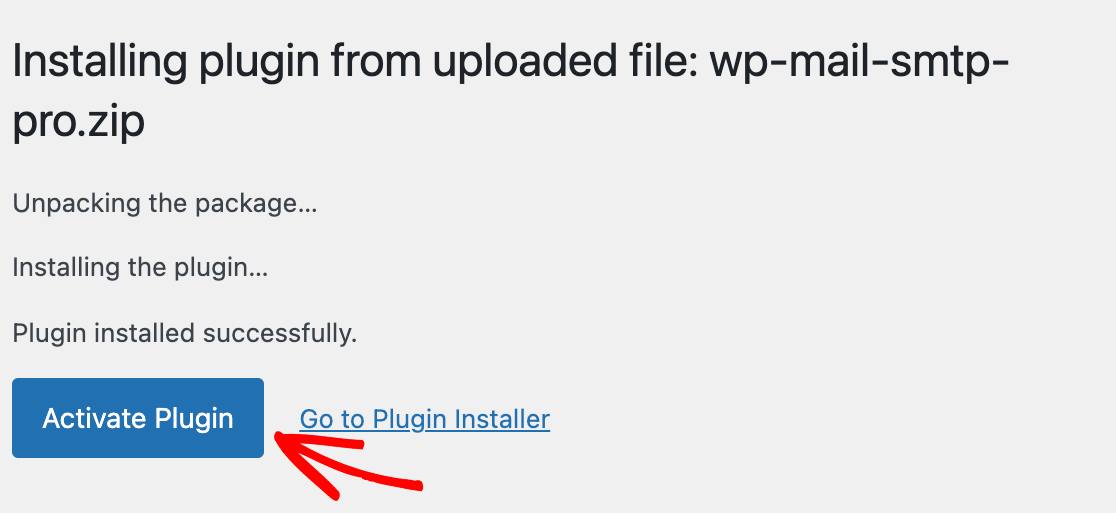
Así de instalado y listo para configurar está el plugin.
Conectar WP Mail SMTP con SendLayer
Ahora necesitas conectar tu sitio a un servicio de envío de correos, que es el servicio que realiza el envío real. WP Mail SMTP funciona con todos los principales proveedores, y puedes comparar los mejores proveedores de servicios SMTP si tienes alguna preferencia.
Para este tutorial usaré SendLayer, ya que es el que WP Mail SMTP recomienda primero y la prueba gratuita cubre unos cientos de correos electrónicos, lo que es suficiente para confirmar una dirección.
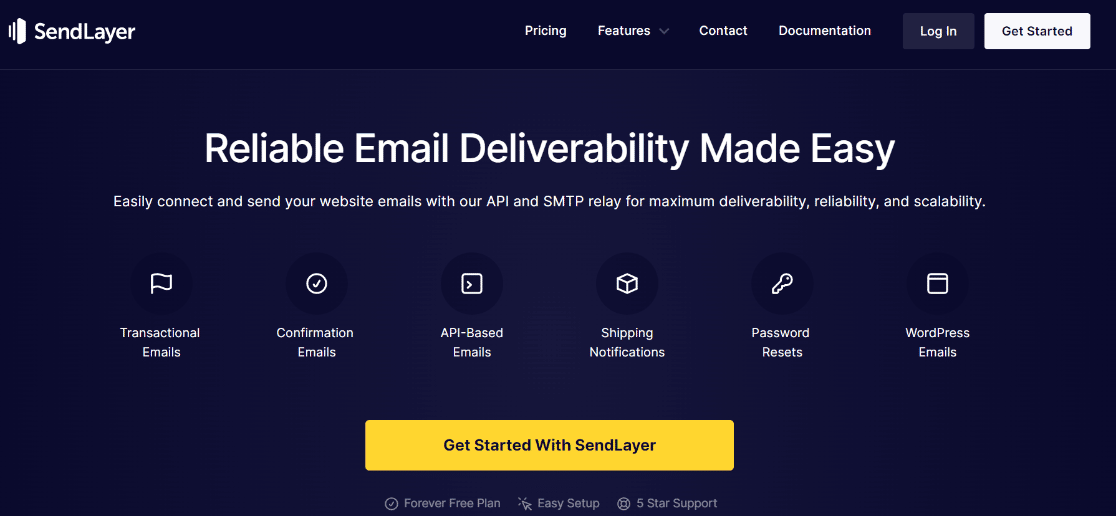
Si aún no tienes una cuenta, sigue la breve guía de SendLayer sobre cómo crear una nueva cuenta. Una vez dentro, inicia sesión en el panel de SendLayer y autoriza tu dominio para que tus correos electrónicos se verifiquen como legítimos.
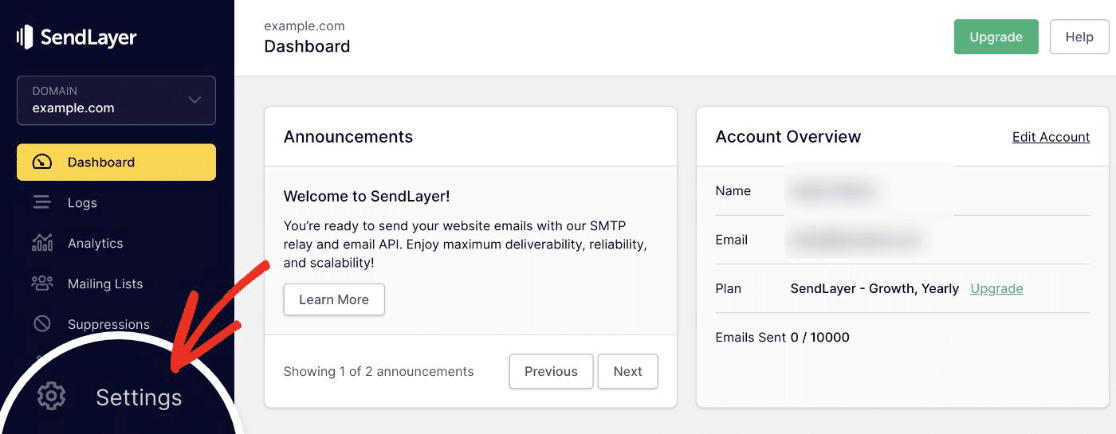
Con tu dominio autorizado, regresa a tu panel de WordPress. WP Mail SMTP abre automáticamente su Asistente de Configuración, donde seleccionas SendLayer como tu servicio de envío y continúas.
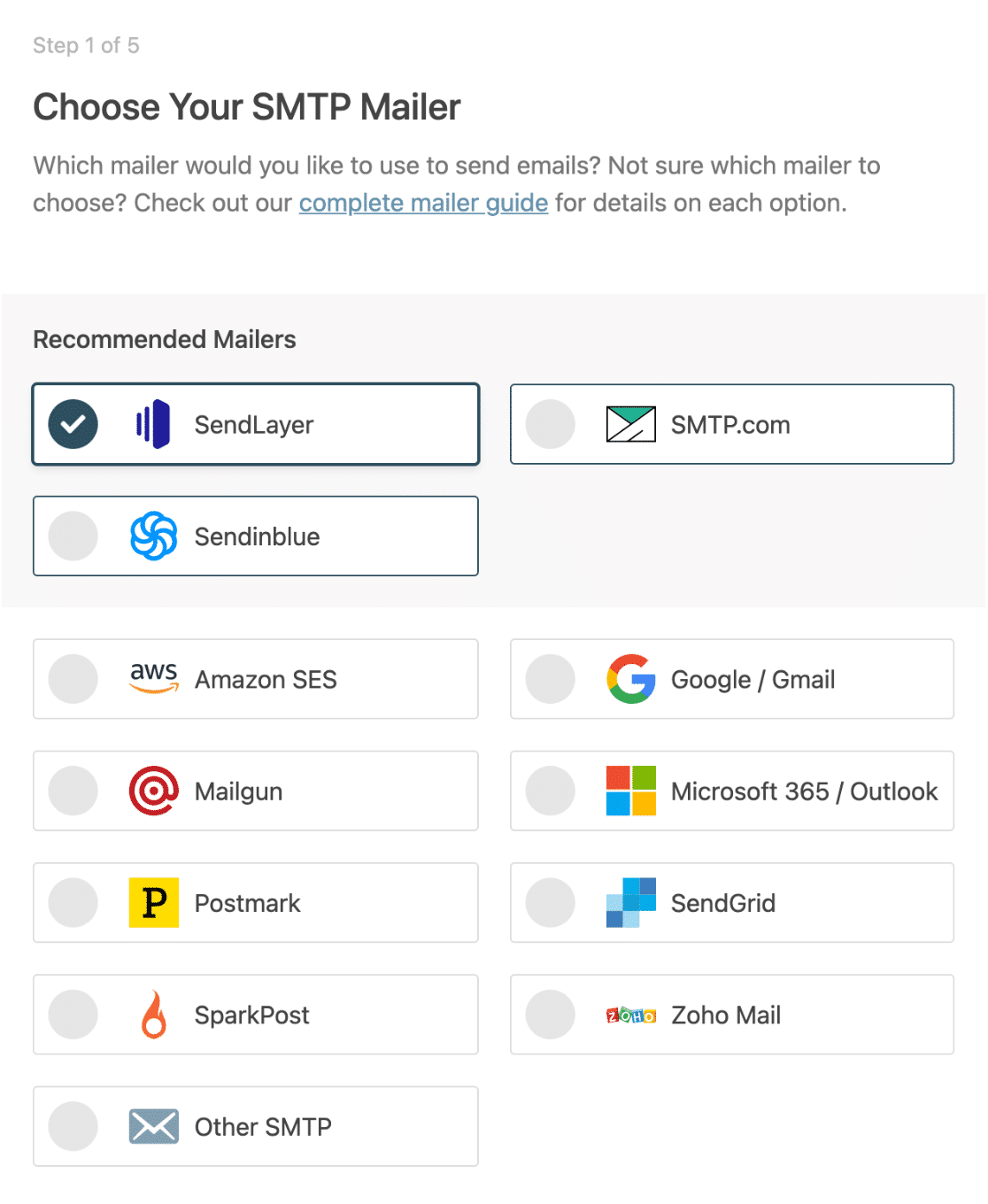
WP Mail SMTP también tiene una opción más nueva, Conexión Rápida de SendLayer, que vincula ambos en unos dos minutos sin ninguna configuración de DNS, pero los pasos estándar aquí funcionan en cualquier sitio. A continuación, el asistente te pide algunos detalles:
- Clave API: Cópiala desde tu panel de SendLayer.
- Nombre del remitente: El nombre desde el cual deseas que provengan tus correos electrónicos.
- Correo electrónico del remitente: La dirección desde la cual tu sitio envía correos, que es tu nueva dirección de correo electrónico de administrador.
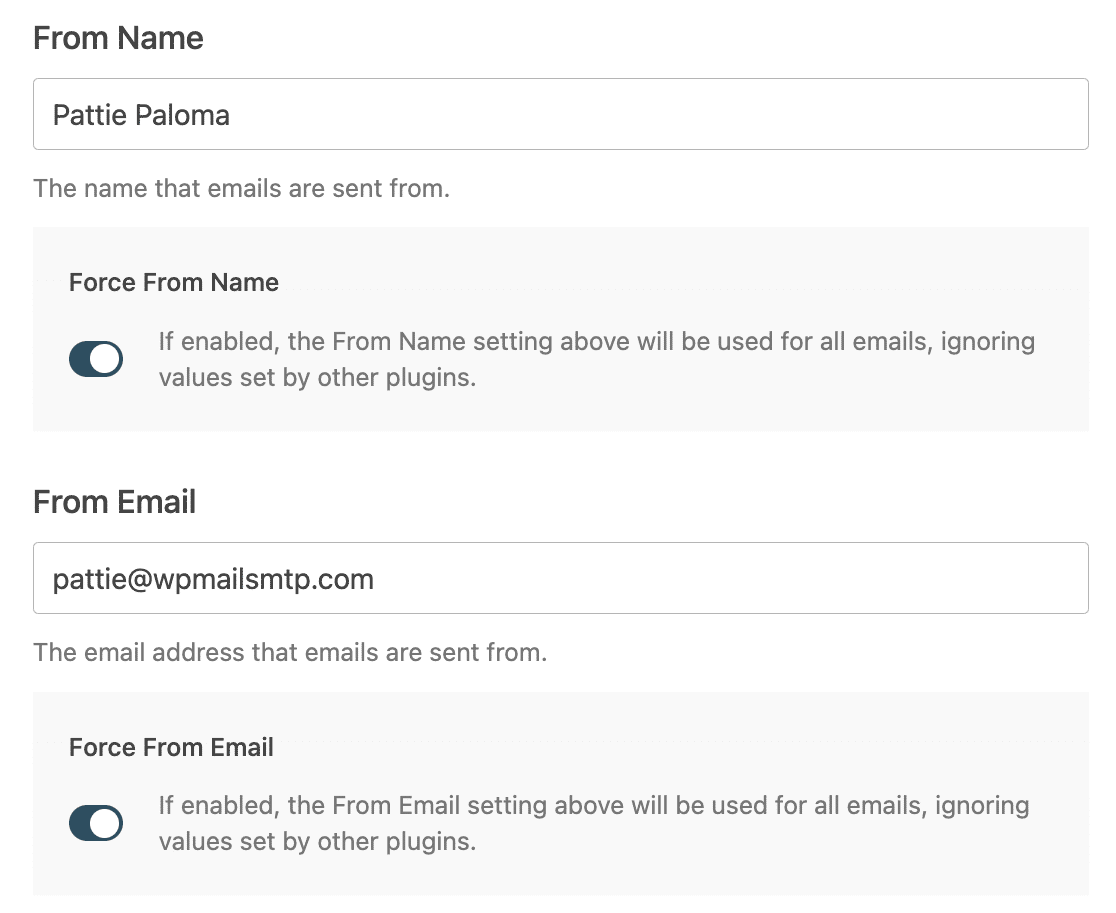
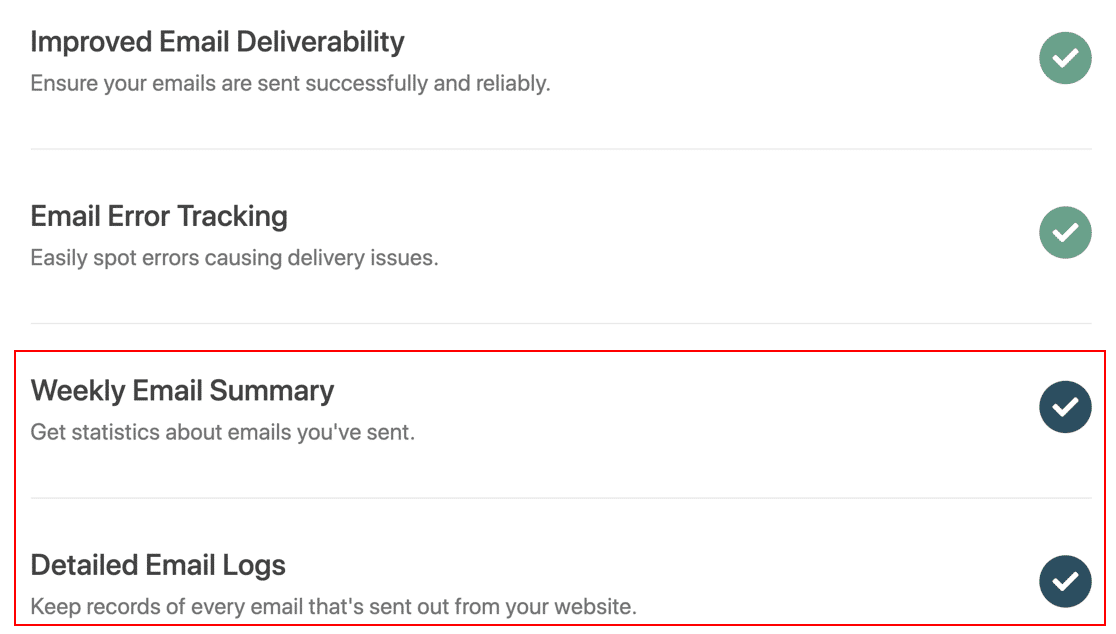
Hacia el final del asistente, puedes activar el resumen semanal de correos electrónicos y el registro de correos electrónicos para tener un registro de lo que envía tu sitio.
Yo activaría estas opciones, ya que facilitan mantener un registro de cada correo electrónico que envía tu sitio y detectar problemas de entrega a tiempo.
Ahora regresa a Ajustes » Generales (o a tu perfil de usuario) y solicita el cambio de correo electrónico de nuevo. Esta vez la confirmación llegará a tu bandeja de entrada, harás clic en el enlace y el nuevo correo electrónico de administrador estará activo.
Método 3: Cambiar el Correo Electrónico del Administrador Sin Confirmación (Usando phpMyAdmin)
Si no puedes acceder a tu panel en absoluto, puedes cambiar el correo electrónico del administrador directamente en la base de datos de tu sitio. Esto omite el paso de confirmación por completo, por lo que es la solución alternativa cuando nada más funciona.
Haz una copia de seguridad de tu base de datos primero, ya que la estás editando manualmente. Aquí está el proceso:
- Inicia sesión en el panel de control de tu hosting y abre phpMyAdmin. Muchos hosts también te permiten acceder a la base de datos desde su propio panel.
- Selecciona tu base de datos de WordPress y abre la tabla wp_options. El prefijo de tu tabla podría ser diferente de
wp_, así que busca el nombre que coincida. - Busca la fila donde el option_name sea admin_email.
- Haz clic en Editar, reemplaza el valor en option_value con tu nueva dirección y guarda.
Eso actualiza el correo electrónico de administración del sitio inmediatamente, sin ningún paso de confirmación.
Para cambiar el correo electrónico de inicio de sesión de un usuario específico de esta manera, abra la tabla wp_users en su lugar, busque al usuario y edite el campo user_email. Una vez que haya vuelto, aún configuraría WP Mail SMTP usando los pasos anteriores para que sus correos electrónicos futuros se envíen realmente.
Preguntas frecuentes sobre cómo cambiar el correo electrónico de administración de WordPress
Aquí están las preguntas que veo con más frecuencia cuando las personas cambian su dirección de correo electrónico de administración de WordPress.
¿Por qué no se cambia mi correo electrónico de administración de WordPress?
En casi todos los casos, el cambio está pendiente de confirmación. WordPress envía un enlace de verificación a la nueva dirección y no cambiará hasta que haga clic en él.
Si ese correo electrónico no llega, su sitio tiene un problema de entrega de correo electrónico, así que configure WP Mail SMTP como se describe anteriormente y solicite el cambio nuevamente.
¿Cuál es la diferencia entre el correo electrónico de administración y el correo electrónico de un usuario?
El correo electrónico de administración en Ajustes » Generales es el contacto de todo el sitio para avisos de administración como actualizaciones y nuevos registros.
El correo electrónico de un usuario se encuentra en su perfil en Usuarios y se encarga de los restablecimientos de contraseña y las notificaciones personales. Son independientes, por lo que cambiar uno no cambia el otro.
¿Cómo cambio el correo electrónico de administración si no puedo acceder?
Utilice el método de la base de datos en phpMyAdmin. Abra la tabla wp_options, busque la fila admin_email y edite su valor. Esto omite el correo electrónico de confirmación, que es lo que lo hace útil cuando no puede iniciar sesión ni recibir correo.
¿Dónde se almacena el correo electrónico de administración de WordPress?
El correo electrónico de administración de su sitio se almacena en la tabla wp_options bajo el nombre de opción admin_email. Los correos electrónicos individuales de los usuarios se almacenan en la tabla wp_users en el campo user_email.
A continuación, evite restablecimientos de contraseña no autorizados
Si recibe constantemente correos electrónicos de recuperación de contraseña, podría ser alguien que intenta acceder a su sitio web. Evite estas molestas notificaciones y aprenda cómo evitar que los spambots envíen solicitudes de restablecimiento de contraseña no autorizadas.
Una vez que sus correos electrónicos de WordPress lleguen a la bandeja de entrada de manera confiable, las notificaciones de sus formularios de contacto y registro también llegarán, lo que significa que realmente verá los clientes potenciales que las personas le envían.
Crea tu formulario de WordPress ahora
¿Listo para crear tu formulario? Empieza hoy mismo con el plugin de creación de formularios de WordPress más fácil. WPForms Pro incluye muchas plantillas gratuitas y ofrece una garantía de devolución de dinero de 14 días.
Si este artículo te ha sido útil, síguenos en Facebook y X (Twitter) para más tutoriales y guías gratuitas de WordPress.





