


Resumo de IA
Se você está usando o WPForms para coletar leads, processar inscrições ou obter feedback, você já está no caminho certo. Mas como saber se seus formulários estão performando no seu melhor?
O WPForms oferece várias ferramentas integradas para ajudar você a analisar o desempenho dos formulários, entender o comportamento do usuário e fazer melhorias baseadas em dados. Quer saber como usar essas ferramentas com seus formulários? Vou mostrar neste artigo!
Como Usar a Análise do WPForms para Melhorar Seus Formulários
Ferramentas de Análise Integradas do WPForms
O WPForms oferece várias maneiras de acompanhar o desempenho do formulário diretamente do seu painel do WordPress. Essas ferramentas ajudam você a:
- Ver como os usuários interagem com seus formulários.
- Identificar tendências de envio e comportamento do usuário.
- Detectar abandono de formulário e envios incompletos.
- Analisar onde os usuários podem ter dificuldades ao preencher o formulário.
- Acompanhar pagamentos e receita de formulários de pedido.
Portanto, em vez de apenas adivinhar o que está funcionando, você pode tomar decisões informadas com base em dados reais do usuário.
Crie seu formulário WordPress agora
1. Usando a Aba de Entradas
A Aba de Entradas fornece dados detalhados sobre envios individuais, o que permite visualizar todas as entradas enviadas do formulário, acompanhar as respostas de cada campo e identificar tendências comuns nos envios dos usuários.
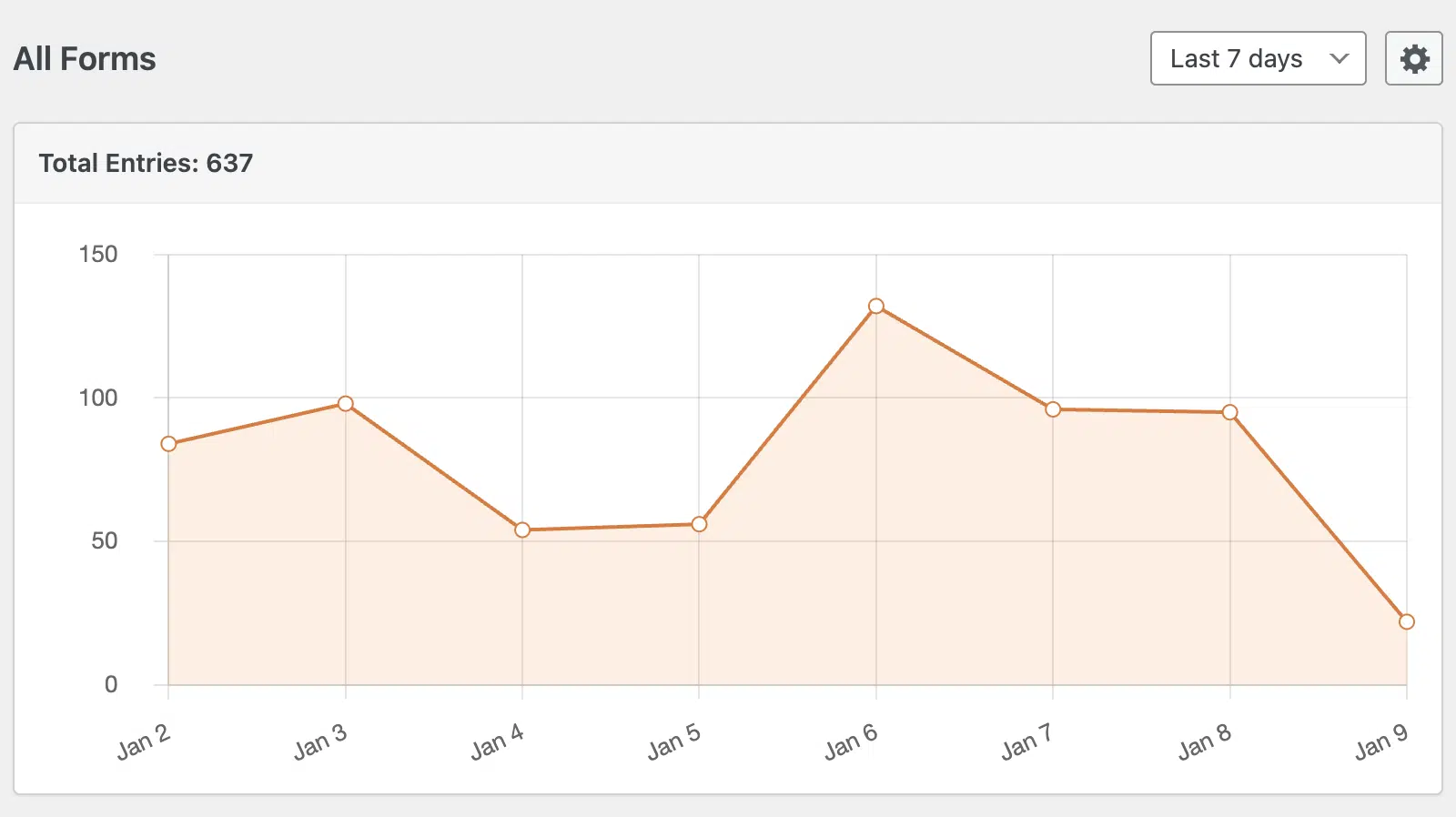
E se você estiver usando o addon de Abandono de Formulário, também poderá detectar formulários incompletos ou abandonados para entender onde os usuários desistem.
Como Acessar a Aba de Entradas
1. Faça login no seu painel do WordPress.
2. Vá para WPForms » Entradas.
3. Selecione o formulário que deseja analisar.

A partir daqui, você verá uma lista de todos os envios do formulário, completos com carimbos de data/hora, respostas de campo e detalhes do usuário.
Como Usar Dados de Entrada para Melhorar Seus Formulários
- Se os usuários frequentemente pulam um campo específico, considere simplificá-lo ou removê-lo.
- Se as respostas forem vagas, reescreva as perguntas para maior clareza ou forneça opções de múltipla escolha.
- Se os tempos de envio forem anormalmente longos, otimize o layout e as instruções do formulário.
2. Resumos por E-mail para Acompanhamento de Tendências
Como usuário do WPForms, você receberá resumos por e-mail — que fornecem uma visão geral semanal do desempenho do seu formulário — entregues diretamente na sua caixa de entrada.

Esse recurso ajuda você a se manter atualizado sobre as tendências de envio sem precisar fazer login no seu painel do WordPress.
Como Usar os Resumos por E-mail do WPForms
1. Certifique-se de que os Resumos por E-mail não estejam desativados nas Configurações do seu WPForms.

2. Receba um relatório semanal resumindo o desempenho dos formulários, incluindo contagens de envios e tendências.
3. Use esses dados para avaliar rapidamente quais formulários estão tendo bom desempenho e quais podem precisar de ajustes.
Como Usar Resumos por E-mail para Otimizar Formulários
- Identifique os horários de pico de envio para ajustar os esforços de marketing de acordo.
- Detecte quedas repentinas nos envios, que podem indicar problemas técnicos ou fadiga do formulário.
- Compare as tendências semanais para acompanhar as melhorias após fazer ajustes no formulário.
3. Entendendo o Comportamento do Usuário
Para insights ainda mais profundos, o addon User Journey rastreia como os visitantes interagem com seu site antes de enviar um formulário.

Como Usar o Addon User Journey
1. Ative o addon User Journey no WPForms.
2. Visualize a jornada completa dos usuários que enviaram formulários, incluindo as páginas que visitaram antes de completar o formulário.
Benefícios de Rastrear Jornadas de Usuário
- Descubra quais páginas geram mais envios de formulários.
- Identifique possíveis gargalos na experiência do usuário.
- Ajuste o conteúdo da página ou os CTAs para aumentar as taxas de conversão.
4. Acompanhamento de Pagamentos
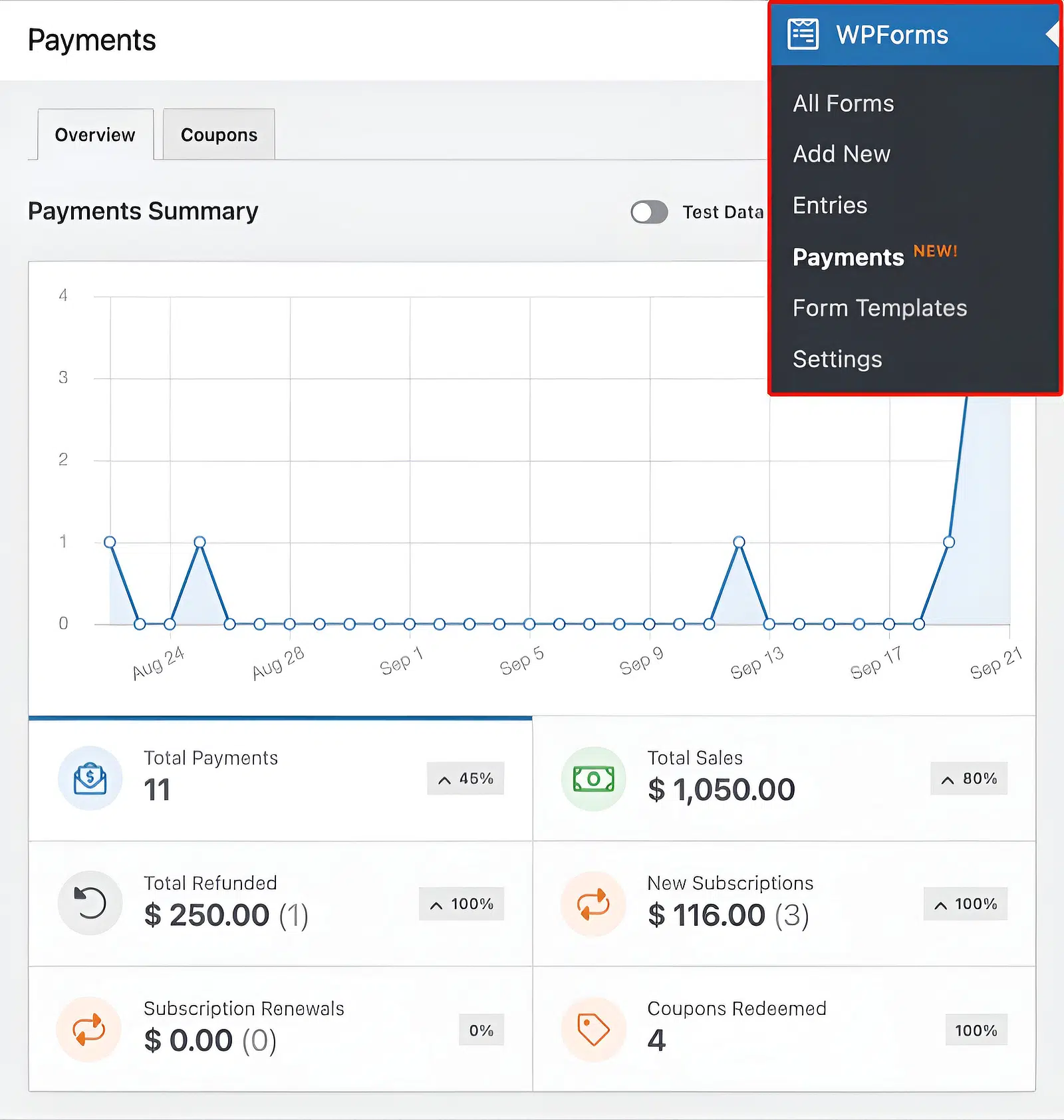
Se você estiver usando o WPForms para formulários de pedidos, doações ou quaisquer transações relacionadas a pagamentos, a aba Pagamentos ajuda você a monitorar a receita e o status das transações.
Como Acessar o Rastreamento de Pagamentos
1. Vá para WPForms » Pagamentos.
2. Visualize os detalhes da transação, incluindo valores, status do pagamento e informações do cliente.
3. Filtre os pagamentos por formulário, data ou status para acompanhar o desempenho ao longo do tempo.
Como Usar Dados de Pagamentos para Melhorar Seus Formulários
- Identifique quais produtos ou serviços geram mais receita.
- Acompanhe pagamentos incompletos e entre em contato com potenciais clientes.
- Detecte tendências em atividades de doação ou vendas para refinar sua estratégia de arrecadação de fundos ou marketing.
5. Acompanhamento Avançado com o Google Analytics

Para insights mais profundos, o WPForms se integra ao Google Analytics para rastrear envios de formulários como eventos. Isso permite que você:
- Meça as conclusões de metas no Google Analytics.
- Compare o desempenho do formulário entre diferentes fontes de tráfego.
- Identifique quais canais de marketing geram mais envios de formulários.
Para configurar isso, você pode usar a integração do WPForms com o Google Analytics ou adicionar o rastreamento manualmente através do Gerenciador de Tags do Google.
Leia Mais: Como Configurar o Rastreamento de Formulários WordPress no GA4 (O Jeito Fácil)
Com o WPForms, você pode refinar continuamente seus formulários para obter melhores conversões e engajamento do usuário. Fique de olho no desempenho, faça ajustes com base em insights e veja seus formulários terem um desempenho melhor do que nunca.
Crie seu formulário WordPress agora
Perguntas Frequentes
Procurando algo em particular? Consulte nossas perguntas mais frequentes:
Posso receber relatórios de desempenho de formulários por e-mail?
Sim! O WPForms oferece Resumos por E-mail, que fornecem uma visão geral semanal de seus envilhos de formulário e tendências. Isso ajuda você a se manter informado sobre o desempenho do formulário sem precisar verificar manualmente.
Como sei se os usuários estão abandonando meus formulários antes de enviar?
Se você tiver o complemento de Abandono de Formulário, o WPForms capturará envilhos parciais, permitindo que você veja onde os usuários desistem e ajuste seus formulários de acordo para melhorar as taxas de conclusão.
Existe uma maneira de ver o que os usuários fazem antes de enviar um formulário?
Sim, o complemento Jornada do Usuário rastreia as páginas que um visitante visualizou antes de preencher e enviar um formulário. Essa informação ajuda você a entender qual conteúdo está gerando conversões.
Em seguida, aprimore esse botão de Enviar
Estamos em uma boa sequência aqui com todas as maneiras de usar análises para melhorar seus formulários. Mas vou compartilhar mais uma ideia: dar atenção ao botão de envio do seu formulário!
Confira o artigo completo para aprender todas as nossas dicas para o botão de envio: melhores práticas para aumentar cliques.
Pronto para criar seu formulário? Comece hoje mesmo com o plugin de criação de formulários WordPress mais fácil. WPForms Pro inclui muitos modelos gratuitos e oferece uma garantia de devolução do dinheiro em 14 dias.
Se este artigo ajudou você, por favor, siga-nos no Facebook e Twitter para mais tutoriais e guias gratuitos do WordPress.


