



Resumo de IA
Gostaria de adicionar um formulário de contato do WordPress dentro de um slider para facilitar a conexão dos visitantes com você?
É inteligente colocar um formulário de contato em um slider, pois ele aproveita bem o espaço e mantém as pessoas interessadas, adicionando maneiras fáceis de se conectar.
Adicione Seu Formulário de Contato a um Slider! :)
Se você deseja adicionar essa funcionalidade ao seu site, você está no lugar certo. Confira estas etapas para adicionar um formulário de contato do WordPress em um slider.
Como Adicionar um Formulário de Contato a um Slider no WordPress
Para fazer isso, combinaremos 2 plugins populares do WordPress: WPForms e Soliloquy. Siga as etapas abaixo para começar:
Etapa 1: Instale e Ative o Plugin WPForms
As versões WPForms Lite e Pro possibilitam a criação de um formulário de contato, que você pode incorporar em qualquer lugar do seu site.

Portanto, a primeira coisa que você precisa fazer é instalar e ativar o plugin WPForms. Aqui está um guia passo a passo sobre como instalar um plugin do WordPress.
Etapa 2: Crie um Novo Formulário de Contato para o Slider
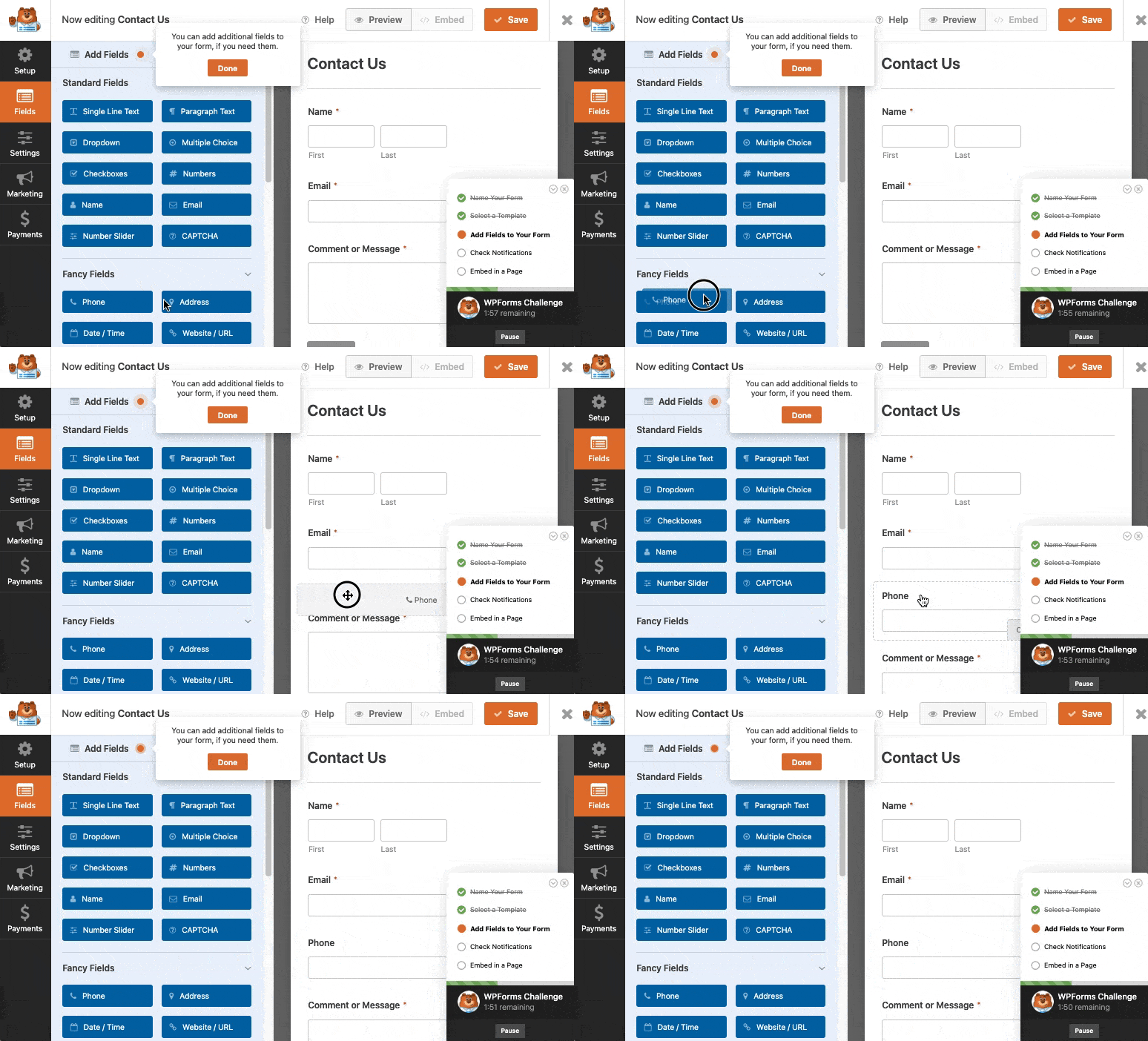
Depois de ativar o plugin WPForms, vamos criar um novo formulário de contato. Confira este guia sobre como criar um formulário de contato simples.
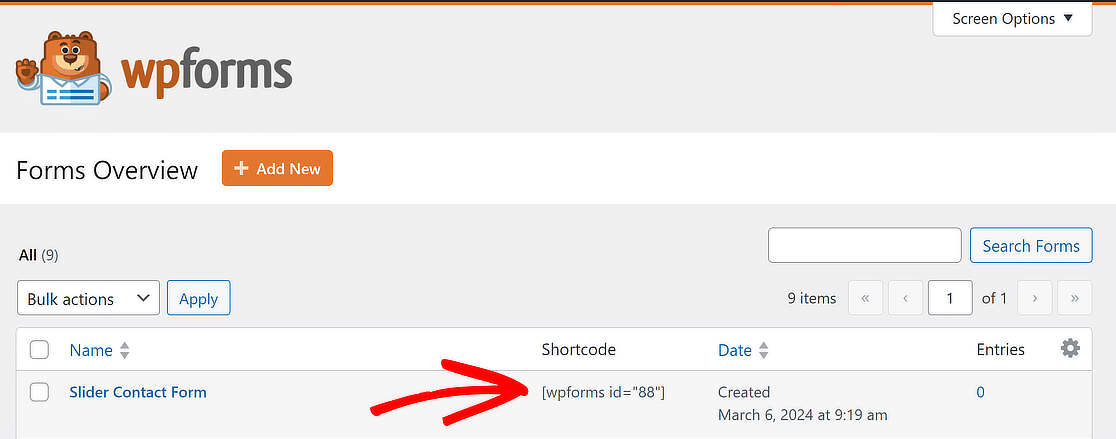
Após salvar seu formulário, copie seu shortcode. Usaremos esse código mais tarde. Você pode encontrar seu shortcode clicando em WPForms » Todos os Formulários.
Ótimo trabalho até agora! Agora, vamos guiá-lo pelas etapas de configuração do slider do WordPress, onde você adicionará seu formulário de contato.
Etapa 3: Configure Seu Slider do WordPress via Soliloquy
Você precisará instalar e ativar o plugin de slider Soliloquy. Aqui está um guia passo a passo sobre como instalar o plugin de slider Soliloquy.
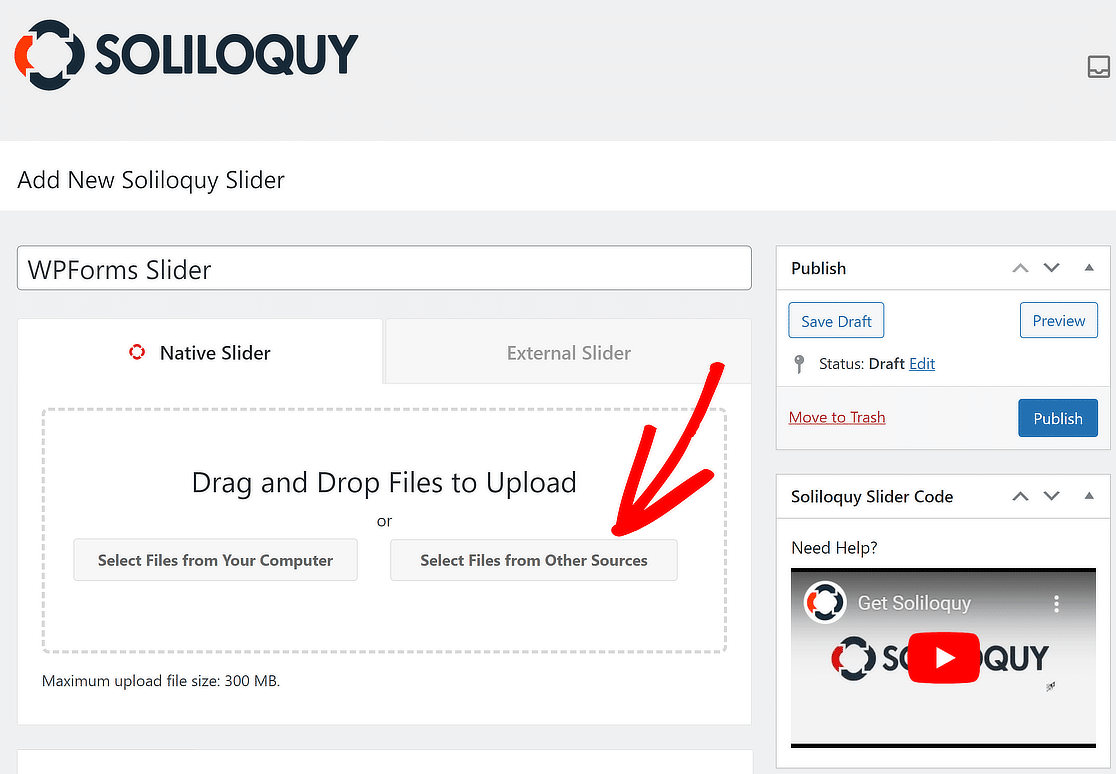
Agora, visite Soliloquy » Adicionar Novo para criar um slider. Aqui, você precisa adicionar o shortcode do WPForms, o que pode ser feito clicando em Selecionar Arquivos de Outras Fontes.
Uma janela pop-up aparecerá. A partir daqui, clique em Inserir Link de Slide HTML à esquerda. Coloque um título neste slide e insira o shortcode do formulário de contato.
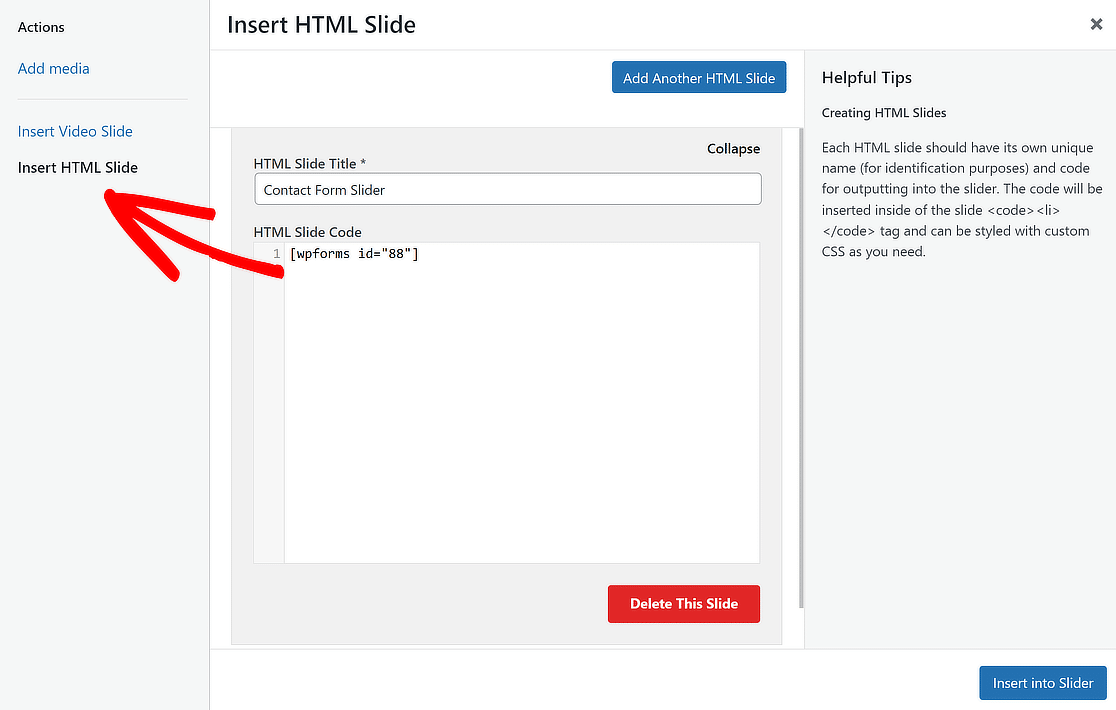
É aqui que você colocará seu shortcode do WPForms e dará um título ao seu Slide HTML. Depois, clique no botão Inserir no Slider.
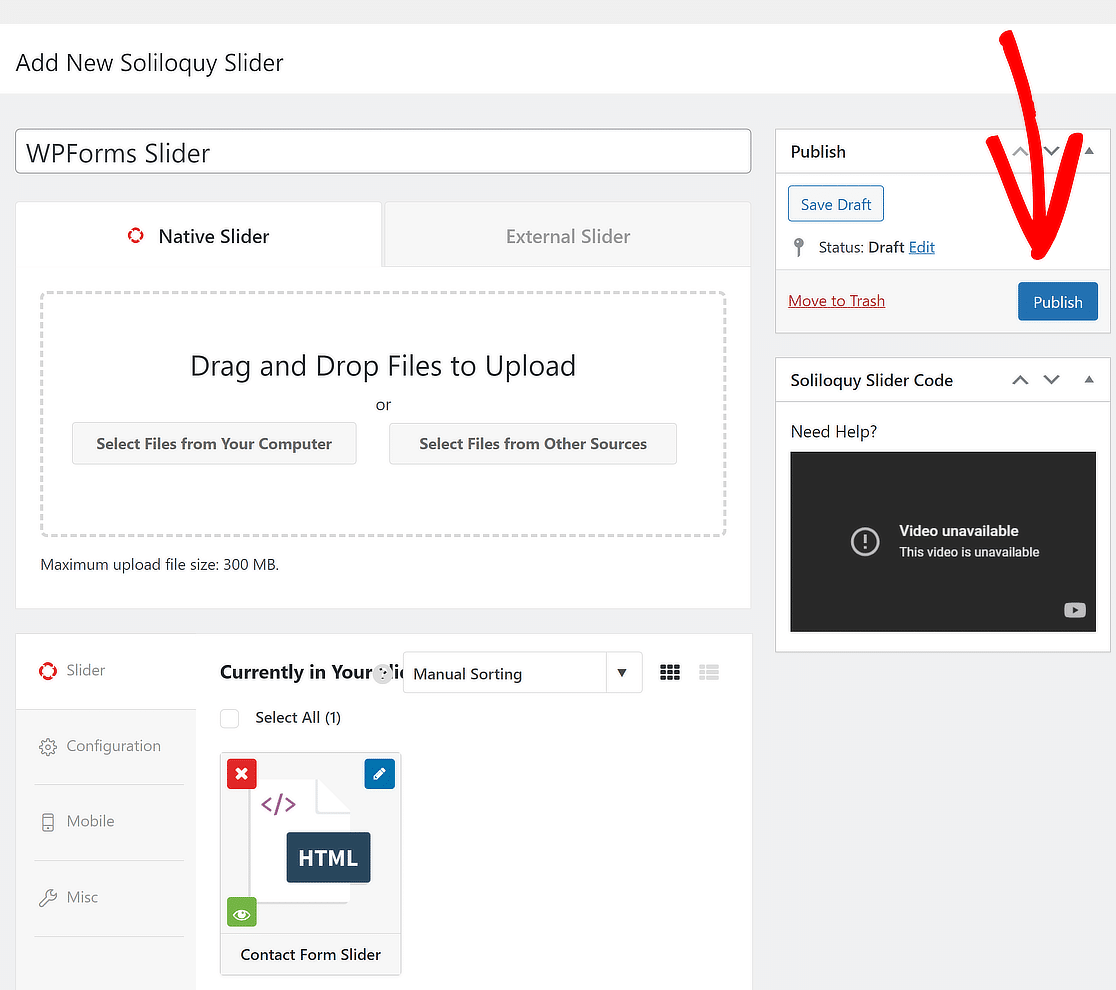
Você também pode adicionar quaisquer slides adicionais que desejar. Quando terminar, basta clicar no botão Publicar no lado direito da página.
Etapa 4: Exiba o Slider do WordPress com um Formulário de Contato
Você está quase terminando. Agora é hora de adicionar seu slider a uma postagem ou página. Simplesmente edite uma postagem/página existente ou crie uma nova onde você deseja adicionar o slider.
Dentro da tela de edição de sua postagem/página, clique no ícone + (Mais) para adicionar um novo bloco e adicione o bloco Soliloquy.
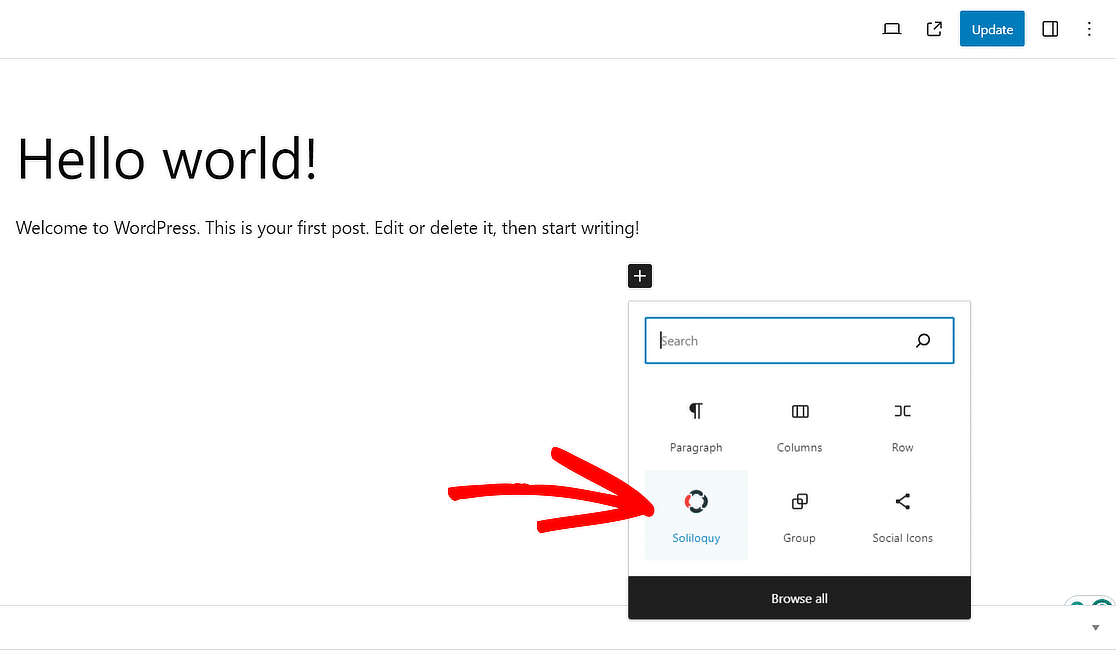
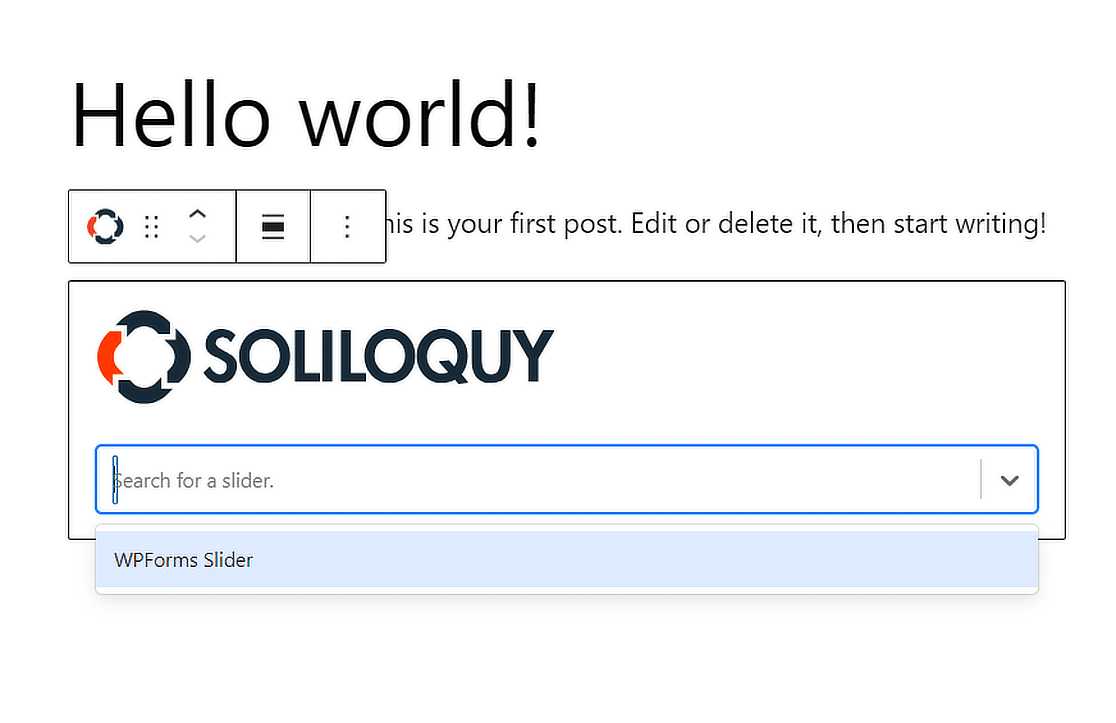
Isso adicionará o bloco Soliloquy ao editor de blocos do WordPress. Agora, simplesmente selecione o Slider que você criou anteriormente.
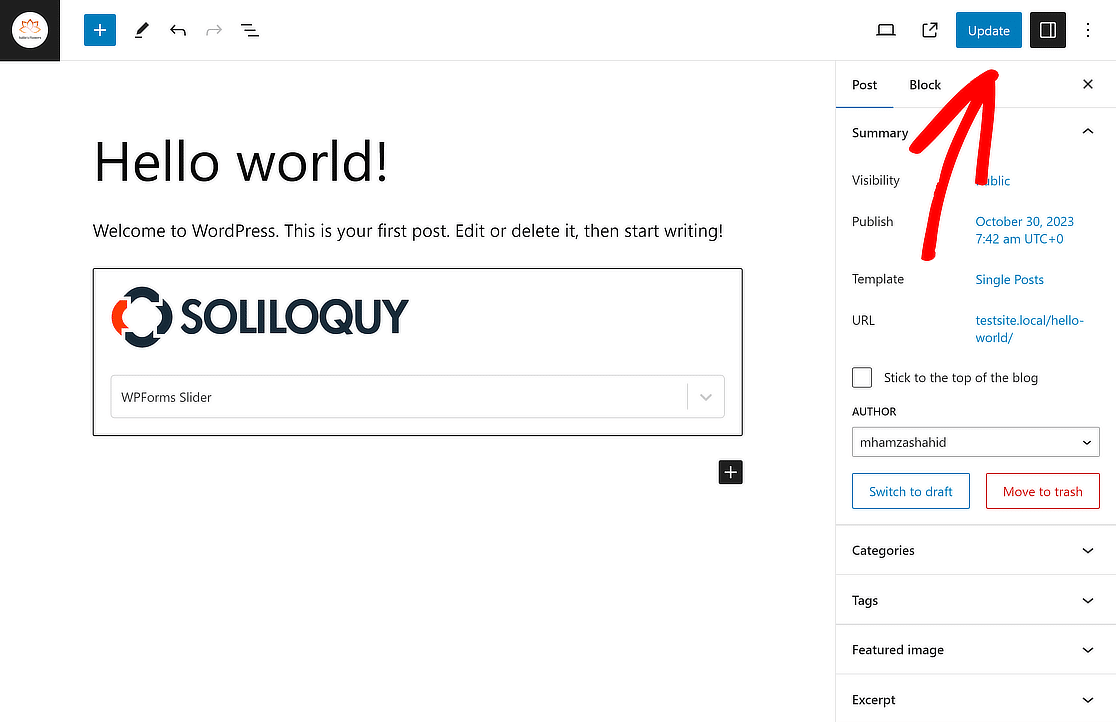
Finalmente, Publique ou atualize sua postagem/página para tornar seu formulário de contato em um slider ativo, em pouco tempo!
É isso! Esperamos que este artigo tenha ajudado você a aprender como adicionar um formulário de contato do WordPress em um slider.
Mais perguntas sobre como adicionar um formulário do WordPress em um slider
Como adicionar um formulário de contato em um slider no WordPress?
Para adicionar um formulário de contato em um slider no WordPress, você pode usar o plugin WPForms junto com o plugin de slider Soliloquy. Primeiro, crie um formulário de contato com o WPForms.
Em seguida, instale e ative o plugin Soliloquy e use seu recurso de slider dinâmico para incorporar o formulário de contato dentro do slider. Isso permite que os visitantes interajam com o formulário diretamente do slider em seu site.
Como adiciono um formulário à minha barra lateral no WordPress?
Para adicionar um formulário à sua barra lateral no WordPress, comece criando seu formulário usando o WPForms. Assim que o formulário estiver pronto, vá para a seção Aparência » Widgets no seu painel do WordPress.
Arraste o widget WPForms para a sua área de barra lateral e selecione o formulário que você criou. Salve suas alterações e o formulário aparecerá na sua barra lateral.
Como incorporo um formulário em uma página do WordPress?
Incorporar um formulário em uma página do WordPress é simples com o WPForms. Primeiro, crie o formulário no WPForms. Em seguida, abra a página onde você deseja incorporar o formulário e clique no botão + para adicionar um bloco.
Escolha o bloco WPForms e selecione seu formulário no menu suspenso. Após adicionar, publique ou atualize a página para exibir o formulário.
Como adiciono um slider personalizado no WordPress?
Você pode usar o plugin Soliloquy para adicionar um slider personalizado no WordPress. Após instalar e ativar o Soliloquy, crie um novo slider fazendo upload de suas imagens e personalizando as configurações para combinar com o estilo do seu site. Uma vez configurado, use o shortcode fornecido pelo Soliloquy para incorporar o slider em qualquer página ou post.
Em seguida, aprenda como criar formulários do WordPress livres de spam
Você também pode querer conferir nosso guia sobre como criar formulários de contato do WordPress livres de spam. Enquanto isso, aprenda também como adicionar uma imagem de cabeçalho ou logotipo a um formulário no WordPress.
Crie Seu Formulário WordPress Agora
Pronto para criar seu formulário? Comece hoje mesmo com o plugin de criação de formulários WordPress mais fácil. WPForms Pro inclui muitos modelos gratuitos e oferece uma garantia de devolução do dinheiro em 14 dias.
Se este artigo ajudou você, por favor, siga-nos no Facebook e Twitter para mais tutoriais e guias gratuitos do WordPress.


Você tem que comprar uma versão atualizada do Soliloquy? Não me dá a opção de adicionar HTML.
Olá Nate - Ótima pergunta!
Eu pesquisei um pouco e vejo que você precisará ter uma versão paga do plugin Soliloquy para acessar o recurso de 'Slide de Adicionar HTML'.
Caso seja útil, você pode entrar em contato com a equipe de suporte do Soliloquy.
Espero que isso ajude! :)