


Resumo de IA
Alguém acessa seu site, encontra exatamente o que quer, vai para o checkout... e então hesita. Não porque não quer, mas porque o total parece muito para pagar de uma vez.
Esse é o momento para o qual o "Compre Agora, Pague Depois" (BNPL) foi feito.
E agora, graças à integração do PayPal no WPForms, você pode oferecê-lo em qualquer formulário do WordPress! Você não precisa de WooCommerce ou de uma configuração complexa. E nenhuma atualização paga é necessária.
Neste guia, vou detalhar o que o PayPal Pay Later realmente é, por que ele funciona tão bem para itens de maior valor e exatamente como ativá-lo no WPForms.
Como Adicionar "Compre Agora, Pague Depois" (BNPL) aos Seus Formulários do WordPress
- Passo 1: Instale ou Atualize o WPForms Lite
- Passo 2: Conecte Sua Conta PayPal
- Passo 3: Crie ou Abra Seu Formulário de Pagamento
- Passo 4: Configure o Valor do Seu Pagamento
- Passo 5: Adicione o Campo PayPal ao Seu Formulário
- Passo 6: Personalize as Configurações do Campo PayPal
- Passo 7: Salve e Incorpore Seu Formulário
- Dicas para Aproveitar ao Máximo o "Pague Depois"
- Perguntas Frequentes sobre BNPL
O que é "Compre Agora, Pague Depois"?
Compre Agora, Pague Depois é exatamente o que parece: seu cliente paga por uma compra em parcelas ao longo do tempo, geralmente sem juros, em vez de tudo de uma vez. É basicamente a versão moderna e baseada em aplicativo de um plano de pagamento, exceto que o cliente recebe o item imediatamente.
A versão do PayPal — chamada Pay Later — permite que clientes elegíveis dividam compras em parcelas. Nos EUA, isso significa opções como Pagar em 4 (quatro pagamentos quinzenais) ou Pagar Mensalmente para valores maiores. As opções exatas variam por país.
Aqui está a parte que mais importa para você como vendedor:
- Você recebe o pagamento integral, imediatamente. O PayPal paga o valor total adiantado.
- O PayPal assume o risco. Se um cliente perder pagamentos, esse é um problema do PayPal, não seu.
- Não há nada extra para você gerenciar. Sem rastrear parcelas, sem cobrar pagamentos atrasados.
Da perspectiva do cliente, remove o impacto de um grande custo inicial. Da sua perspectiva, remove um dos principais motivos pelos quais as pessoas abandonam o checkout.
Para Quem é Isso?
Você pode estar pensando: “isso é para lojas de e-commerce, não para mim”. Mas o BNPL é especialmente poderoso fora do e-commerce tradicional, que é exatamente por que ele é importante para usuários do WPForms.

Pense em situações como estas:
- Um fotógrafo ou videomaker cobrando de US$ 400 a US$ 1.200 por um pacote. Dividir isso em quatro pagamentos pode ser a diferença entre fechar o negócio e perder o cliente.
- Um estúdio de yoga ou coach de fitness vendendo uma assinatura premium ou um pacote de workshops. Oferecer o "Pague Depois" reduz a barreira para o "sim".
- Uma organização sem fins lucrativos realizando uma campanha de arrecadação de fundos onde os doadores podem dar mais se puderem parcelar.
- Um consultor ou freelancer enviando faturas por meio de um formulário do WordPress para clientes que prefeririam parcelar.
- Um organizador de eventos vendendo inscrições onde o preço do ingresso é alto o suficiente para causar hesitação.
Nenhuma dessas pessoas precisa de WooCommerce! Elas só precisam de um formulário que aceite pagamentos. E agora esse formulário também pode oferecer o "Pague Depois".
O Que Você Precisará Antes de Começar
Antes de mergulhar no tutorial, verifique rapidamente estes itens:
- Versão WPForms Lite 1.10.0 ou posterior. O PayPal Pay Later está disponível em todos os planos, incluindo o WPForms Lite.
- Uma conta PayPal Business. Se você não tiver uma, pode criar uma gratuitamente em paypal.com.
- Elegibilidade do Pay Later. O PayPal Pay Later está atualmente disponível nos EUA, Reino Unido, Austrália, Alemanha, França, Espanha, Itália e Canadá, entre outros países. A disponibilidade depende das configurações de país da sua conta PayPal.
Como Adicionar o PayPal Pay Later ao Seu Formulário WordPress (Passo a Passo)
Agora vamos ao tutorial passo a passo!
Passo 1: Instale ou Atualize o WPForms Lite
Se você ainda não tem o WPForms instalado, vá até o painel do WordPress e acesse Plugins » Adicionar Novo. Procure por "WPForms" e clique em Instalar Agora, depois em Ativar.

Já usa o WPForms? Certifique-se de que está na versão 1.10.0 ou posterior (vá para Painel » Atualizações, se necessário). Essa é a versão que introduziu o PayPal Pay Later e expandiu as opções de pagamento.
Crie seu formulário WordPress agora
Passo 2: Conecte Sua Conta PayPal
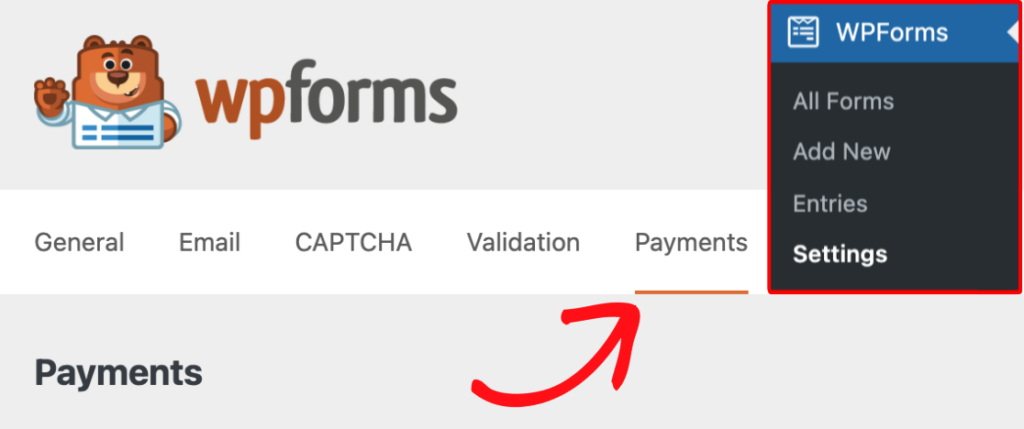
No painel do WordPress, vá para WPForms e depois em Configurações » Pagamentos.
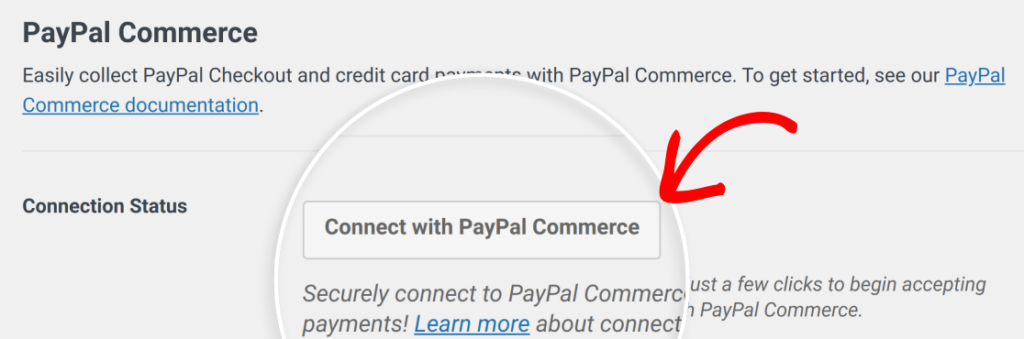
Em seguida, clique no botão Conectar com PayPal Commerce e siga as instruções para fazer login na sua conta PayPal Business.
O WPForms lida com a autorização de forma segura. Você será redirecionado de volta para a página de configurações após a conexão e verá sua conta PayPal confirmada com um visto verde.

Passo 3: Crie ou Abra Seu Formulário de Pagamento
Vá para WPForms e crie um novo formulário para começar, ou clique em Editar em um existente. Para um formulário de pagamento, o modelo de Formulário de Cobrança / Pedido é um ótimo ponto de partida — ele vem com os campos corretos pré-configurados.
Dê um nome ao seu formulário, escolha seu modelo e você chegará ao construtor de formulários de arrastar e soltar.
Passo 4: Configure o Valor do Seu Pagamento
Certifique-se de que seu formulário tenha um campo Total ou Item Único selecionado nos Campos de Pagamento disponíveis para usar com o PayPal. O WPForms passará automaticamente o valor correto para o PayPal no checkout.

Se você está vendendo um serviço de preço fixo, defina um campo de Item Único com seu preço. Se você está oferecendo preços variáveis ou vários itens, use uma lista de produtos ou o campo Total.
O Pay Later funciona com pagamentos únicos e assinaturas recorrentes — portanto, seja vendendo um produto, um pacote de sessões ou uma assinatura mensal, ele atende às suas necessidades.
Passo 5: Adicione o Campo PayPal ao Seu Formulário
Ainda dentro dos Campos de Pagamento, você verá o campo PayPal — arraste-o para o seu formulário onde você quiser que a seção de pagamento apareça.

Uma vez que esteja no formulário, clique no campo PayPal para abrir suas configurações.
Passo 6: Personalize as Configurações do Campo PayPal
Nas configurações do campo PayPal, você verá uma lista de métodos de pagamento que pode habilitar.

Mas espere, tem mais! O campo PayPal Commerce suporta:
- Cartões de crédito e débito (Visa, Mastercard, Amex, Discover, Maestro — tudo pelo mesmo campo)
- Google Pay e Apple Pay — checkout com um toque para usuários de celular
- Venmo — popular entre compradores dos EUA, especialmente o público mais jovem
- Fastlane — checkout acelerado do PayPal que preenche automaticamente os detalhes para clientes recorrentes
Você pode habilitar quantas opções desejar. Os clientes verão as opções disponíveis no checkout — o Pague Depois aparece como um botão próprio ao lado do botão padrão do PayPal.

Você também pode personalizar a aparência do botão, como formato, cor e tamanho, para que ele se ajuste à identidade visual do seu site em vez de parecer um widget genérico de terceiros.
Basta clicar na guia Avançado nas configurações do campo e se divertir!

Passo 7: Salve e Incorpore Seu Formulário
É só isso! Clique em Salvar no construtor de formulários, depois adicione o formulário a qualquer página ou postagem do seu site. Você pode usar o bloco WPForms no editor do WordPress ou copiar o shortcode e colá-lo onde precisar.

Quando os visitantes chegarem ao seu formulário, o checkout do PayPal abrirá diretamente na sua página… Sem redirecionamentos, sem sair do seu site. A opção Pague Depois aparece como um botão próprio, permitindo que os clientes escolham como desejam pagar sem nenhum atrito.
E quando um pagamento for efetuado ou um plano Pague Depois for aceito, seu painel do WPForms será atualizado em tempo real. Você verá pagamentos confirmados, renovações de assinatura e reembolsos em um só lugar.
Dicas para Aproveitar ao Máximo o "Pague Depois"
- Destaque na sua página. Não deixe apenas o botão aparecer no checkout. Mencione perto dos seus preços que o PayPal Pague Depois está disponível. Algo tão simples quanto “Pague em parcelas com o PayPal” pode reduzir a hesitação antes mesmo de alguém chegar ao seu formulário.
- Use para seus produtos de maior valor. O Pague Depois tem o maior impacto nas conversões para itens de R$ 100 ou mais, onde o custo total inicial é o principal ponto de atrito.
- Combine com outros métodos de pagamento. O campo PayPal do WPForms permite oferecer cartões, Google Pay, Apple Pay, Venmo e Pague Depois ao mesmo tempo. Dê opções aos clientes e eles terão mais chances de concluir o checkout.
- Considere fazer um upgrade para remover a taxa de 3%. Se você processa pagamentos regularmente, o WPForms Pro remove a taxa por transação e adiciona lógica condicional — útil se você quiser mostrar o Pague Depois apenas para pedidos acima de um valor mínimo.
Pronto para Parar de Perder Vendas no Checkout?
Comprar Agora, Pagar Depois é um daqueles recursos que parecem ser para grandes lojas de varejo. Mas são frequentemente as pequenas empresas independentes que mais se beneficiam.
Quando seu preço é alto o suficiente para causar um momento de hesitação, o Pague Depois remove a barreira. E agora você pode oferecê-lo gratuitamente, em qualquer formulário, sem precisar do WooCommerce ou de um plano de plugin pago.
Perguntas Frequentes sobre BNPL
Preciso do WooCommerce para usar o PayPal Pague Depois no WordPress?
Não! Essa é uma das melhores coisas sobre esta atualização. O WPForms funciona independentemente do WooCommerce — você só precisa de um formulário, uma conta PayPal e o WPForms Lite.
Eu recebo o pagamento imediatamente quando um cliente usa o Pague Depois?
Sim. O PayPal paga o valor total adiantado quando um cliente seleciona Pagar depois. O acordo de parcelamento é entre o cliente e o PayPal — você está totalmente fora desse ciclo.
O Pagar depois funciona para pagamentos recorrentes ou assinaturas?
O Pagar depois foi projetado para financiamento de compras únicas, não para cobrança contínua de assinaturas. Para assinaturas, a cobrança padrão do PayPal se aplica.
Posso oferecer o Pagar depois em qualquer tipo de formulário?
Sim — formulários de pedido, formulários de registro de eventos, formulários de doação, formulários de reserva, formulários de fatura. Se o seu formulário coleta um valor de pagamento, você pode adicionar o campo PayPal e habilitar o Pagar depois.
Em seguida, Adicione Opções de Vários Locais ao Seu Formulário de Reserva
Agora que você sabe como adicionar opções do PayPal a algo como um formulário de pedido ou formulário de reserva — agora considere levar esse formulário de reserva para o próximo nível com pin locations on an interactive map.
É possível com o tutorial que linkei acima!
Crie seu formulário WordPress agora
Pronto para criar seu formulário? Comece hoje mesmo com o plugin de criação de formulários WordPress mais fácil. WPForms Pro inclui muitos modelos gratuitos e oferece uma garantia de devolução do dinheiro em 14 dias.
Se este artigo ajudou você, por favor, siga-nos no Facebook e Twitter para mais tutoriais e guias gratuitos do WordPress.


