


Resumo de IA
Às vezes, você precisa mostrar informações dentro de um formulário sem dar às pessoas a chance de alterá-las. Talvez você esteja exibindo detalhes da conta, talvez esteja transferindo um valor de outra etapa, ou talvez o campo controle uma automação e precise permanecer exatamente como está.
No WPForms, você pode transformar quase qualquer campo em um campo somente leitura com um único interruptor. Você não precisa escrever nenhum código, encontrar uma solução alternativa ou arriscar que os visitantes substituam algo importante.
Abaixo, vou guiá-lo sobre por que esse recurso é útil e como configurá-lo. Vamos lá!
Crie seu formulário WordPress agora
Como Adicionar um Campo "Somente Leitura" ao seu Formulário WordPress
Por que preciso de um campo somente leitura no meu formulário?
Campos somente leitura ajudam quando você deseja mostrar informações, mas não permitir que os visitantes as alterem. Algumas situações em que isso ocorre incluem:
- Exibindo detalhes pré-preenchidos
Se o seu site tiver perfis de membros, você pode exibir coisas como nível de associação, data de renovação ou um número de cliente para que os usuários possam confirmar as informações associadas à conta deles. Por exemplo, você pode inserir Smart Tags como {user_email} ou {user_display_name} para mostrar os detalhes da conta de um usuário sem permitir que ele edite esses valores. - Exibindo contexto de outra parte do seu site
Se um formulário atualiza uma listagem ou postagem existente, um campo somente leitura pode exibir seu ID, título ou categoria para que o usuário saiba exatamente o que está editando. - Congelando dados gerados pelo sistema
Alguns fluxos de trabalho atribuem automaticamente números de rastreamento, códigos ou IDs de ticket. Um campo somente leitura permite que os usuários vejam esses valores enquanto os mantêm bloqueados para garantir a precisão. - Mostrando detalhes que sua equipe possui
Formulários internos geralmente têm campos como departamento ou gerente de projeto que não devem ser alterados pela pessoa que envia a solicitação. - Protegendo campos que acionam ações adicionais.
Qualquer campo vinculado a notificações, integrações ou lógica condicional é mais seguro deixá-lo intocado.
Adicionar um Campo Somente Leitura no WPForms
Você pode transformar um campo em um campo somente leitura em literalmente 2 etapas: Selecione o campo que deseja que seja "somente leitura" e ative esta opção.
É isso! Mas, para fins de clareza, vamos começar do início do seu formulário.
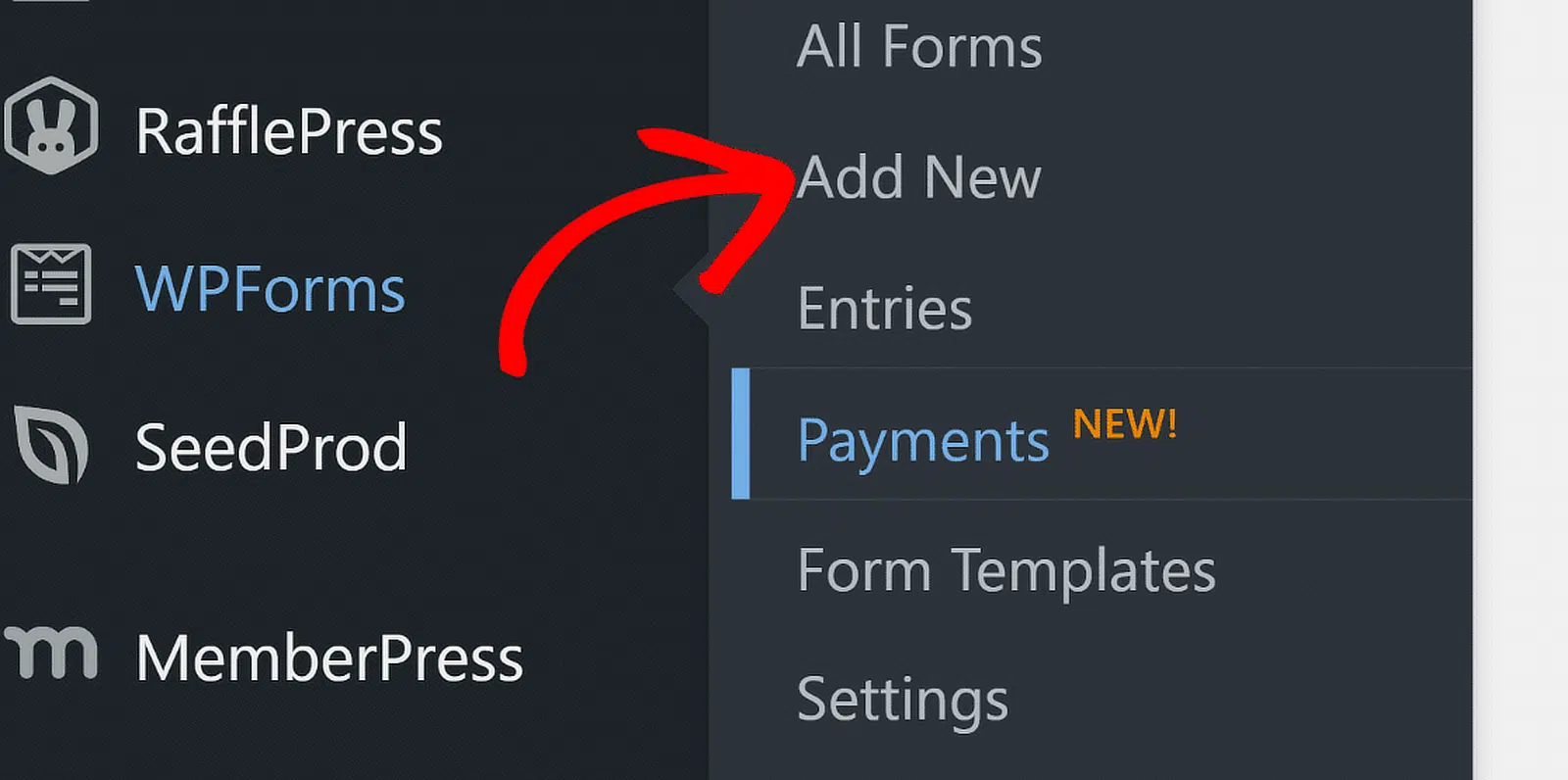
1. Abra seu formulário no construtor do WPForms
Comece abrindo um formulário existente ou criando um novo.
Você pode definir quase qualquer tipo de campo como somente leitura — texto, números, dropdowns e muito mais.
2. Clique no campo que você deseja bloquear
Selecione o campo para abrir suas opções no painel esquerdo.
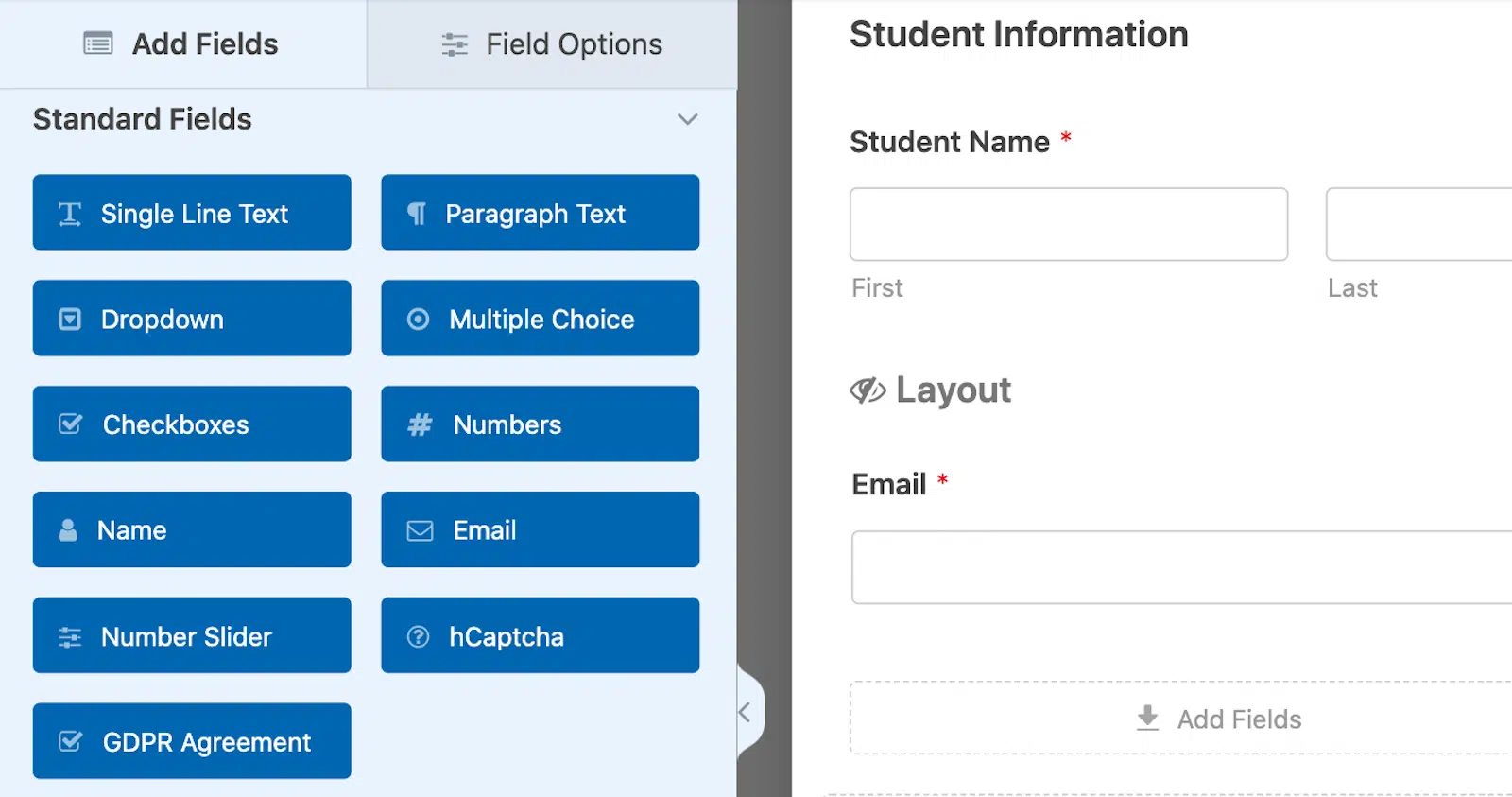
Você pode fazer isso com campos novos ou com os que já estão no seu formulário.
3. Abra a aba Avançado e ative "Somente Leitura"
Na aba Avançado, você verá um interruptor "Somente leitura". Ative-o para bloquear o campo, permitindo que os visitantes vejam o valor, mas não o alterem.

4. Salve seu formulário
Quando terminar de editar as configurações do campo, lembre-se de Salvar seu formulário.

Uma vez ativada a configuração, o campo fica bloqueado. Ele ainda aparece no formulário e seu valor ainda é enviado com a entrada.
Campos somente leitura parecem ligeiramente esmaecidos ou visualmente desativados para que fique claro que não podem ser editados. Esse estilo funciona em ambos os temas do WPForms — Clássico e Moderno — e em construtores de páginas como Gutenberg, Elementor e Divi.
Seus visitantes não poderão alterar o valor, mas ele ainda será incluído quando eles enviarem o formulário.

Crie seu formulário WordPress agora
Dicas para Usar Campos Somente Leitura de Forma Eficaz
Um pouco de planejamento faz uma grande diferença. Aqui estão algumas práticas recomendadas:
- Mantenha os campos somente leitura próximos aos campos editáveis com os quais estão relacionados.
- Evite bloquear muitos campos — os visitantes podem se perguntar com o que eles têm permissão para interagir.
- Use Smart Tags para preencher automaticamente informações úteis.
- Campos somente leitura ainda funcionam com lógica condicional, então você pode mostrá-los ou ocultá-los com base nas respostas do usuário.
Perguntas Frequentes Sobre Campos Somente Leitura
Posso tornar qualquer campo somente leitura?
A maioria dos tipos de campo pode ser bloqueada. A opção está na aba Avançado para cada campo.
O valor de um campo somente leitura será salvo na entrada?
Sim. O valor ainda é incluído na submissão final.
Posso preencher um campo somente leitura automaticamente?
Você pode. Smart Tags e valores padrão funcionam da mesma forma para campos somente leitura.
Campos somente leitura funcionam com lógica condicional?
Sim — você pode usá-los com quaisquer regras de mostrar/ocultar.
Qual é a diferença entre um campo somente leitura e um campo desativado?
Um campo desativado não envia seu valor. Um campo somente leitura envia.
Em seguida, Adicione um Campo de Câmera ao Seu Formulário
Neste tutorial, mostrei como você pode tornar certos campos somente leitura, dando a si mesmo controle sobre esse aspecto. Mas, no outro extremo do espectro, você pode considerar adicionar um campo de câmera ao seu formulário como uma forma de dar aos seus usuários seu próprio tipo de controle.
O campo de câmera é ótimo para formulários de inscrição e outras instâncias onde você precisa de uma foto ou vídeo instantâneo, e mostrarei como adicioná-lo facilmente ao seu formulário neste post do blog. Dê uma olhada!
Pronto para criar seu formulário? Comece hoje mesmo com o plugin de criação de formulários WordPress mais fácil. WPForms Pro inclui muitos modelos gratuitos e oferece uma garantia de devolução do dinheiro em 14 dias.
Se este artigo ajudou você, por favor, siga-nos no Facebook e Twitter para mais tutoriais e guias gratuitos do WordPress.


