



Resumo de IA
Quando alguém preenche um formulário no seu site WordPress, para onde esses dados realmente vão? Se você estiver usando o plugin de formulário certo, a resposta é: direto para o banco de dados do seu WordPress, automaticamente.
Com o WPForms, cada envio de formulário é armazenado no banco de dados do seu site no momento em que um visitante clica em enviar. Você não precisa configurar nada extra.
A partir daí, você pode visualizar envios, pesquisá-los e filtrá-los, exportar para CSV ou Excel, sincronizar com o Google Sheets e até gerar PDFs.
Neste guia, mostrarei exatamente onde seus dados de formulário do WordPress residem, como acessá-los, como gerenciar seus envios no painel e o que você pode fazer com todos esses dados armazenados.
Crie seu formulário WordPress agora
Como Salvar Dados de Formulário no Banco de Dados do WordPress
Como você aprenderá abaixo, você deve ser capaz de acessar e visualizar seu banco de dados do WordPress, mesmo que não tenha experiência técnica. Vamos começar com onde os dados realmente residem, e depois passaremos para como acessá-los e gerenciá-los.
- Onde o Banco de Dados do WordPress é Armazenado?
- Como Acesso Meu Banco de Dados do WordPress?
- Como Gerenciar Entradas de Formulário no WordPress
- Visualizando Pagamentos no WPForms
- O Que Fazer Com Seus Dados de Formulário Armazenados
- Bônus: Mantendo Seus Dados de Formulário Armazenados em Conformidade com o GDPR
Onde o Banco de Dados do WordPress é Armazenado?
Mesmo que você não o veja no frontend, o WordPress cria automaticamente um banco de dados para você quando é instalado pela primeira vez.
Os dados de nome, host, nome de usuário e senha são armazenados no arquivo de configuração chamado wp-config.php nas configurações do banco de dados MySQL.
WPForms armazena todos os dados de formulário enviados em 6 tabelas no seu banco de dados nativo do WordPress:
- wp_wpforms_entries: Os valores dos campos das suas submissões de formulário são armazenados aqui.
- wp_wpforms_entry_meta: Metainformações sobre suas entradas, como IDs e datas associadas.
- wp_wpforms_entry_fields: Informações de entrada codificadas dos seus formulários.
- wp_wpforms_tasks_meta: Informações sobre tarefas em segundo plano processadas pelo WPForms.
- wp_wpforms_payments: Detalhes de pagamento, incluindo status, valor, quaisquer descontos aplicados, moeda, gateway e ID da transação.
- wp_wpforms_payment_meta: Informações adicionais de pagamento, como o endereço IP do cliente e outros dados internos.
Observe que o prefixo wp_ é o padrão. O prefixo real é definido no seu arquivo wp-config.php, portanto, pode parecer um pouco diferente no seu site.
A maioria dos provedores de hospedagem WordPress inclui o phpMyAdmin, uma ferramenta de gerenciamento de banco de dados baseada na web que permite navegar e gerenciar suas entradas de banco de dados através de uma interface visual.
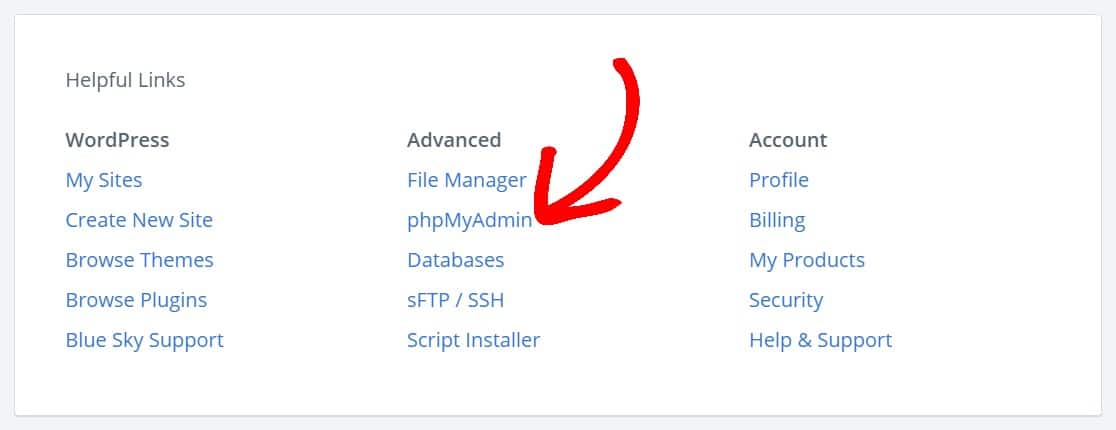
Se você estiver usando o Bluehost, poderá encontrar o phpMyAdmin rolando até o final do seu painel em Links Úteis » Avançado » phpMyAdmin.
Como Acesso Meu Banco de Dados do WordPress?
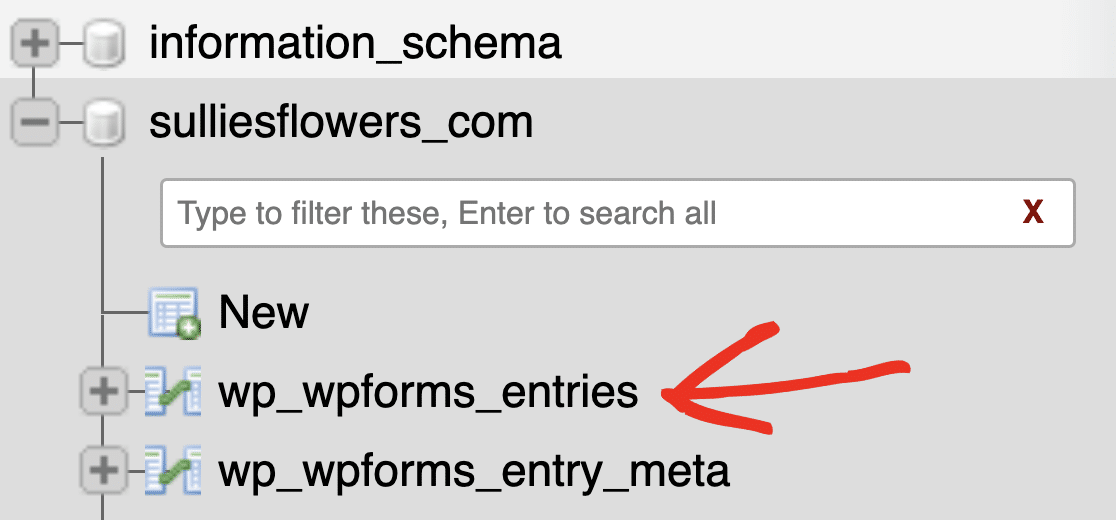
Para visualizar suas entradas de formulário diretamente no banco de dados usando o phpMyAdmin, selecione seu banco de dados do WordPress e clique na tabela wp_wpforms_entries.
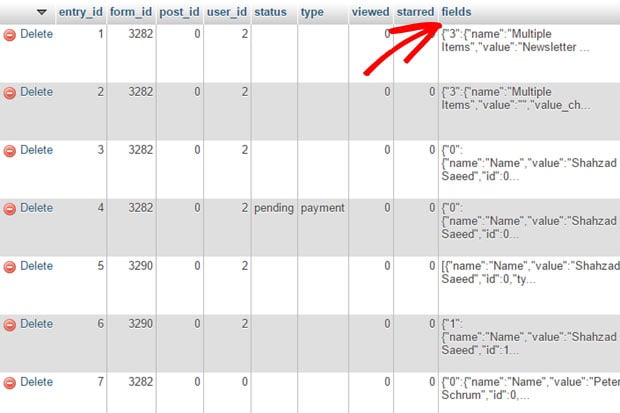
Você encontrará todas as suas entradas de formulário na coluna fields. Você pode navegar, pesquisar e criar tabelas a partir daqui. Para mais detalhes, confira este guia para iniciantes sobre gerenciamento de banco de dados do WordPress com phpMyAdmin.
Dito isso, a maioria das pessoas não precisa tocar no phpMyAdmin. O WPForms oferece uma maneira muito mais fácil de gerenciar tudo a partir do seu painel do WordPress, que é o que abordaremos a seguir.
Como Gerenciar Entradas de Formulário no WordPress
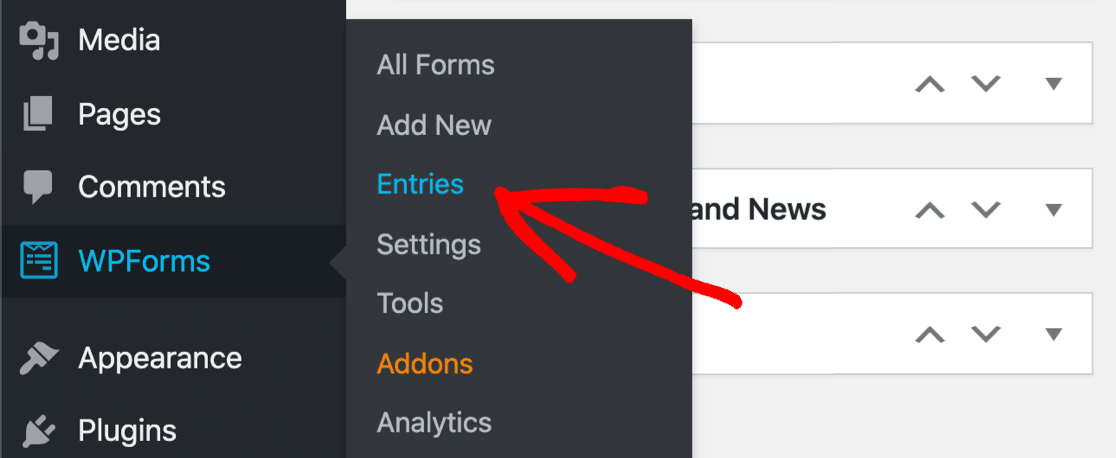
Se você está se perguntando para onde vão os dados do WPForms? — eles vão direto para o seu painel do WordPress em WPForms » Entradas. Você não precisa vasculhar o phpMyAdmin ou tabelas de banco de dados.
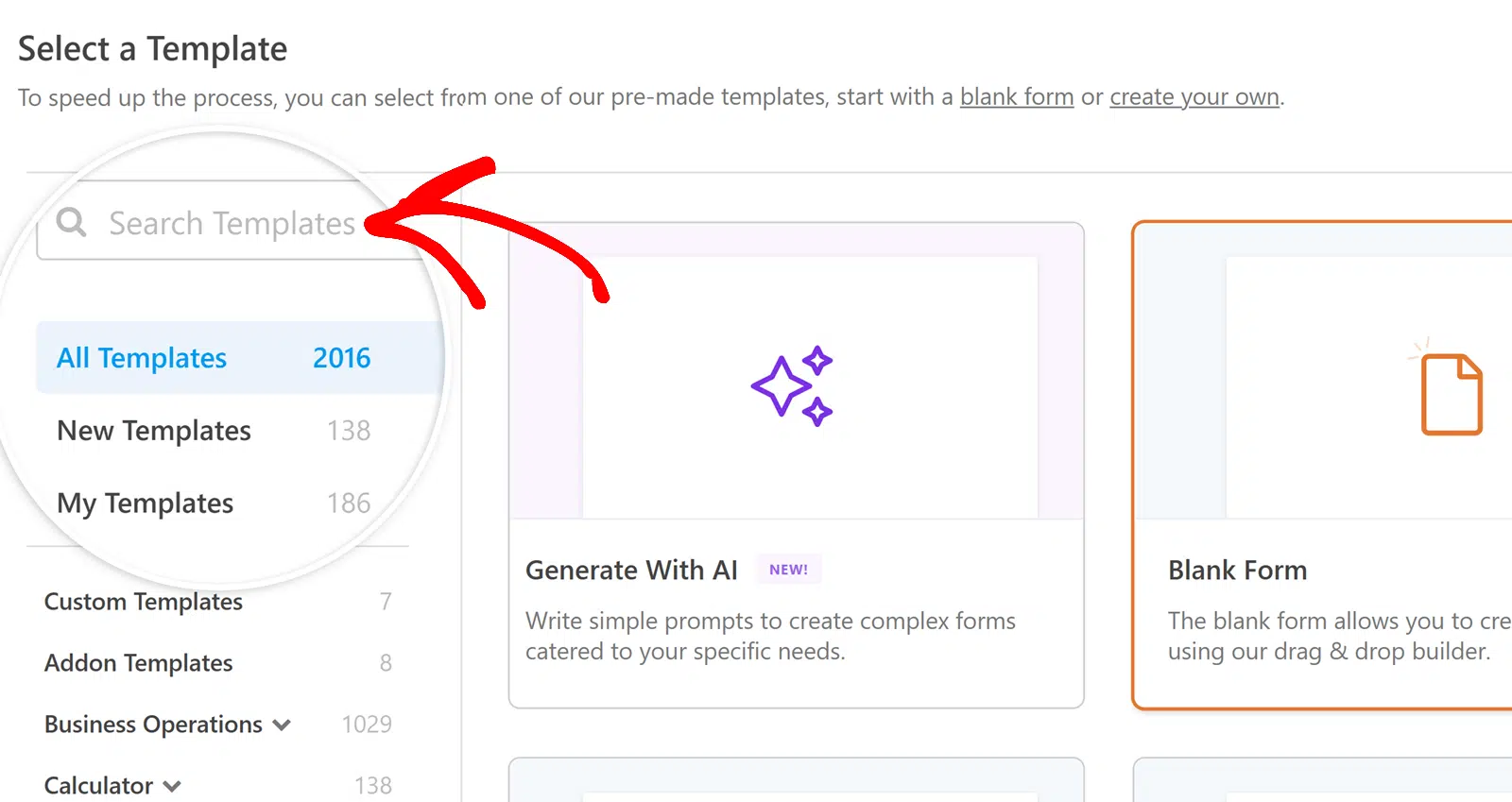
Vamos detalhar como visualizar e gerenciar suas entradas. Primeiro, você precisará de um formulário. Se ainda não tem um, confira nosso guia sobre como criar um formulário de contato simples. Você pode criar um do zero ou escolher entre mais de 2.100 modelos.
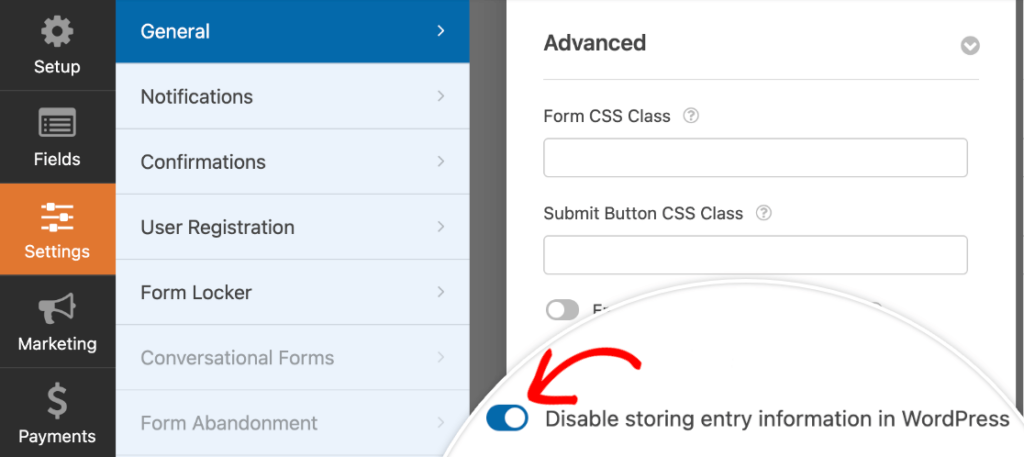
Antes de prosseguir, certifique-se de que o armazenamento de entradas esteja ativado. Vá para o construtor de formulários e clique em Configurações » Geral. Na seção Avançado, confirme que Desativar o armazenamento de informações de entrada no WordPress está desativado.
Após publicar seu formulário, envie uma entrada de teste para ter dados com os quais trabalhar. Em seguida, navegue até WPForms » Entradas no seu painel.
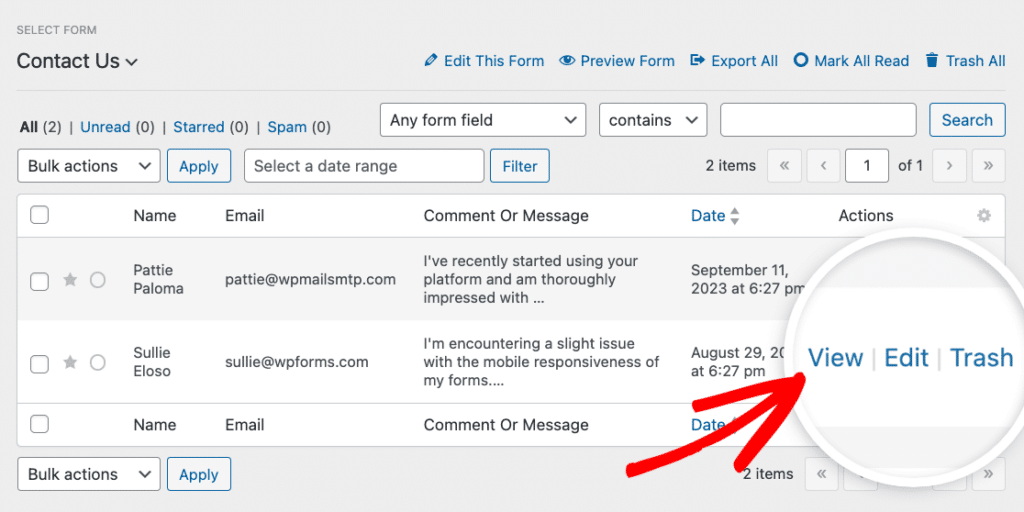
A partir daqui, você pode marcar entradas como favoritas, marcá-las como lidas ou excluir aquelas de que não precisa. Você pode até classificar entradas específicas como spam.

Você também pode pesquisar e filtrar suas entradas. Use a pesquisa ampla Qualquer campo do formulário ou defina condições em campos específicos para encontrar um envio em particular.

Se desejar, você também pode filtrar as entradas do formulário por data, o que é muito útil quando você quer rastrear entradas que provavelmente se perderam entre outras.

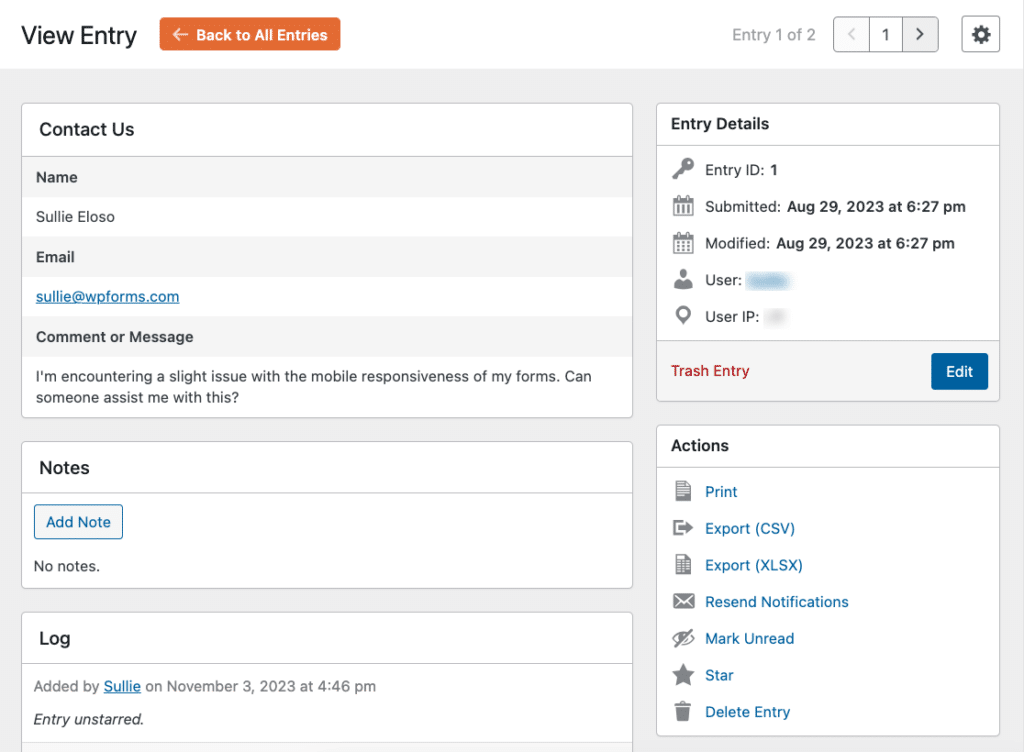
Para abrir a página de entrada individual de um determinado envio, abra a página de Entradas do Formulário e clique em Visualizar ao lado da entrada que você gostaria de ver com mais detalhes.
A partir de uma página de entrada individual, você pode ver muitas informações, incluindo a entrada e as seleções do campo do usuário, a data de envio e os detalhes do usuário, se aplicável.
Visualizando Pagamentos no WPForms
Se você estiver coletando pagamentos através de seus formulários, pode aceitar pagamentos com cartão de crédito com a versão gratuita ou com o WPForms Pro.
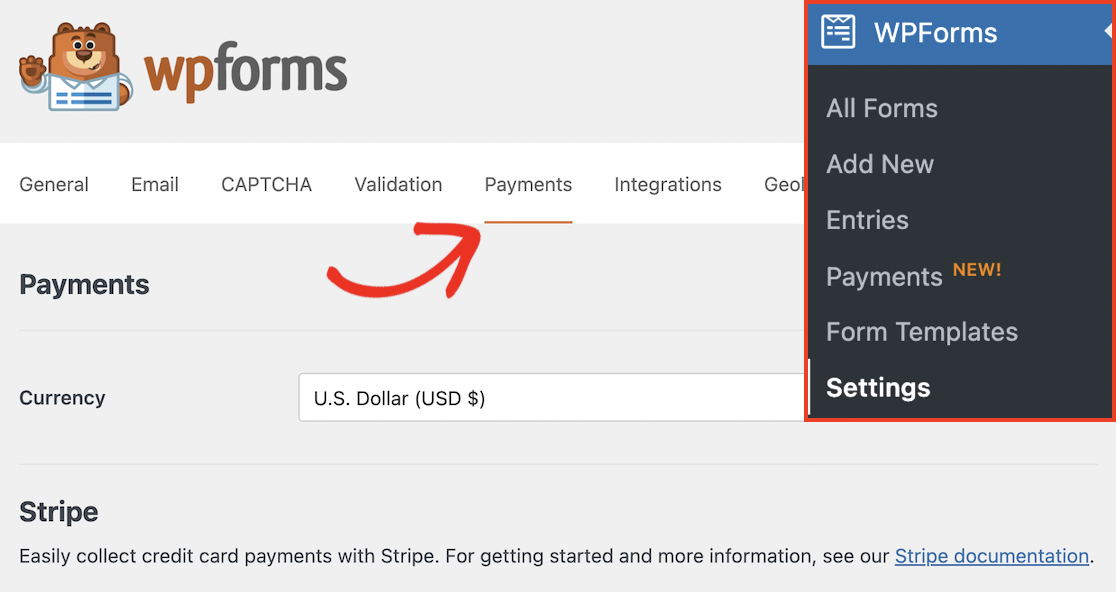
Os detalhes de pagamento são armazenados no banco de dados do WordPress, independentemente da versão que você usa. Acesse seus dados de pagamento na tela Pagamentos na área de configurações do WPForms.
Aqui, você encontrará uma lista de todos os pagamentos feitos em seu site com seus detalhes e o formulário específico usado para realizá-los.
Na parte superior da página de Pagamentos, você verá imediatamente uma representação visual das suas informações de pagamento por meio de um gráfico. Este gráfico fornece uma visão geral dos seus dados de pagamento.
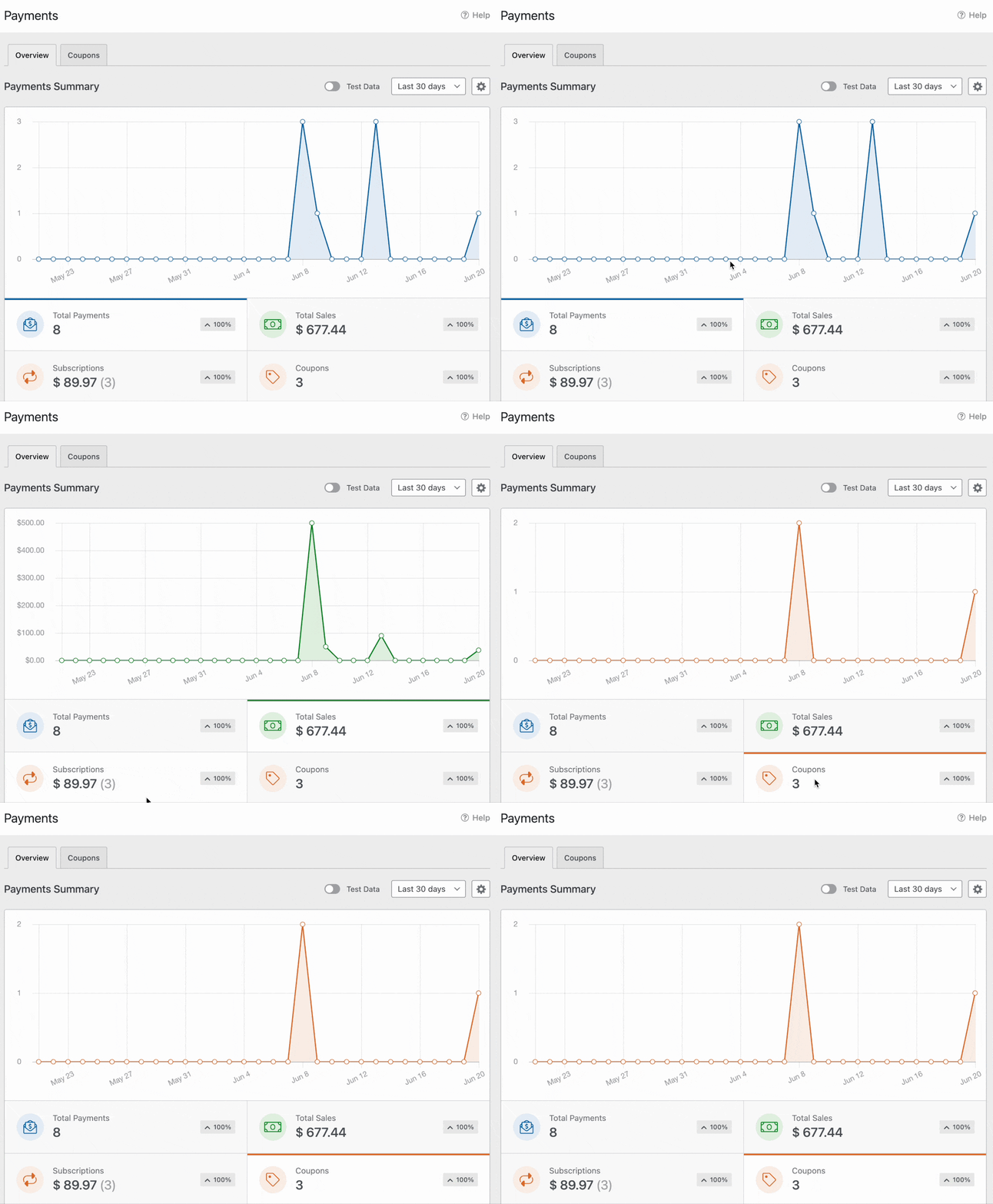
Se você é um usuário WPForms Pro, também pode adicionar códigos de cupom aos seus formulários. Os detalhes do cupom aparecem na área de Pagamentos, juntamente com sua receita e transações.
O Que Fazer Com Seus Dados de Formulário Armazenados
Depois que as entradas do seu formulário forem salvas no banco de dados, o WPForms oferece várias maneiras de usar esses dados além de apenas visualizá-los no painel.
Exportar para CSV ou Excel
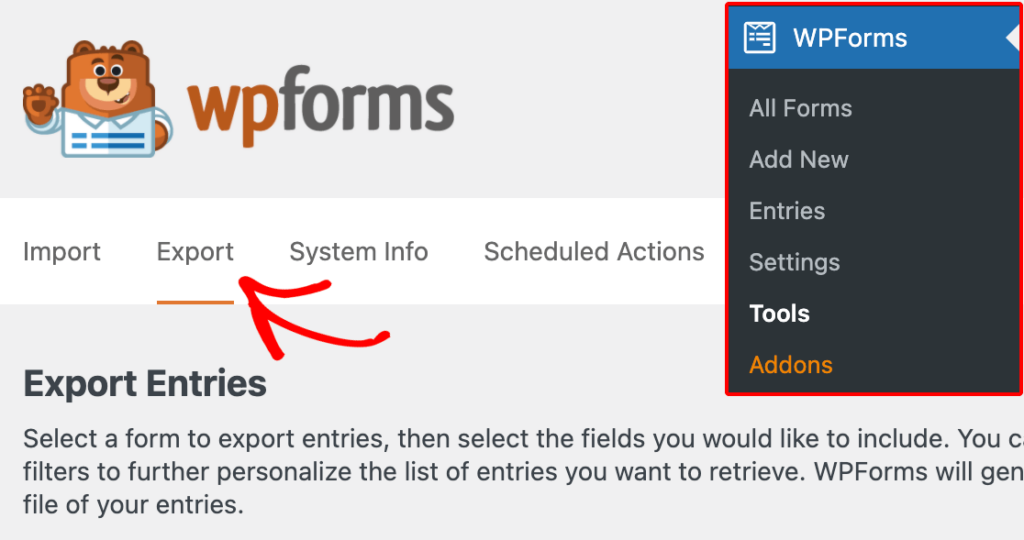
Você pode exportar entradas diretamente da tela de Entradas como um arquivo CSV ou XLSX. Isso é útil para análise offline, compartilhamento de dados com sua equipe ou importação em outras ferramentas. Veja nossos guias sobre exportar entradas de formulário para CSV e exportar para Excel para o guia completo.
Enviar Entradas para o Google Sheets Automaticamente
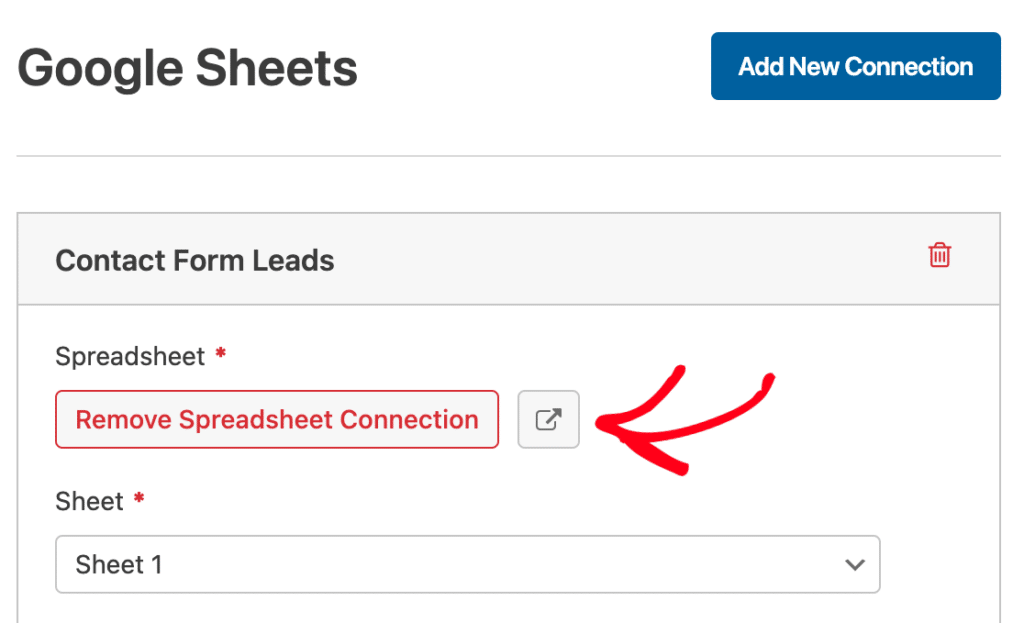
Com o addon do Google Sheets (requer licença Pro), cada nova submissão de formulário é sincronizada com uma planilha do Google em tempo real. Sem exportações manuais. Isso é útil se sua equipe já trabalha no Google Workspace e deseja acesso em tempo real aos dados do formulário.
Gerar PDFs a partir de Entradas
O addon de PDF (requer licença Pro) permite gerar automaticamente documentos PDF estilizados a partir de submissões de formulário. Você pode usá-lo para contratos, recibos, candidaturas ou qualquer cenário em que precise de um documento formatado a partir de dados de formulário. Você também pode salvar submissões de formulário como arquivos PDF e enviá-los como anexos de e-mail.

Automatizar o Gerenciamento de Entradas
O complemento Entry Automation (requer uma licença Elite) permite agendar exportações, exclusões e notificações automáticas de entradas. Por exemplo, você pode automatizar suas exportações de entradas para serem executadas toda segunda-feira de manhã, ou excluir automaticamente entradas com mais de 90 dias para manter seu banco de dados limpo.

Conecte-se a mais de 10.000 aplicativos
Com o complemento Zapier ou o complemento Make (requer uma licença Pro), você pode enviar dados de formulário para praticamente qualquer ferramenta externa: CRMs, aplicativos de gerenciamento de projetos, plataformas de e-mail, planilhas e muito mais.

Bônus: Mantendo Seus Dados de Formulário Armazenados em Conformidade com o GDPR
Se você estiver coletando informações pessoais de visitantes na UE, a conformidade com o GDPR é um requisito. A boa notícia é que o WPForms armazena todos os dados de entrada em seu próprio servidor.
Seus dados nunca passam pelos servidores do WPForms, e eles não têm acesso às suas entradas. Isso garante 100% de privacidade de dados por padrão.
Além disso, o WPForms inclui ferramentas integradas de GDPR em todos os níveis de licença. Veja o que você pode fazer: Ativar Melhorias de GDPR.
Vá para WPForms » Configurações » Geral e ative Melhorias de GDPR. Isso desbloqueia controles de privacidade adicionais:
- Desativar Cookies de Usuário: Impede que o WPForms atribua um cookie UUID aos visitantes. (Isso também desativa os recursos de Entradas Relacionadas, Geolocalização e Abandono de Formulário.)
- Desativar Detalhes do Usuário: Impede a coleta de endereços IP e dados do agente do usuário. Você pode aplicar isso em todo o site ou por formulário em Configurações » Geral » Avançado no construtor de formulários.
Adicionar um campo de Acordo de GDPR
Quando as Melhorias de GDPR estão ativadas, uma caixa de seleção dedicada de Acordo de GDPR fica disponível no construtor de formulários. Este campo é sempre obrigatório, não tem estado marcado padrão e fornece o consentimento explícito que o GDPR exige antes de coletar dados pessoais.
Para um guia detalhado, consulte o guia completo sobre criação de formulários compatíveis com GDPR na documentação do WPForms. E se seus formulários lidam com dados sensíveis, consulte um advogado para garantir que sua configuração atenda às suas obrigações de conformidade específicas.
Perguntas Frequentes sobre o Salvamento de Dados de Formulário do WordPress em um Banco de Dados
Aqui estão as respostas para perguntas comuns sobre o armazenamento de dados de formulário do WordPress.
O WPForms Lite salva as entradas do formulário no banco de dados?
Não. O WPForms Lite envia as submissões apenas por e-mail. Ele não armazena entradas em seu banco de dados ou painel do WordPress. Para salvar entradas no banco de dados, você precisa do WPForms Basic (R$ 249,90/ano) ou superior. Veja nosso guia sobre como ver entradas gratuitamente no WPForms para alternativas.
Para onde vão os dados do WPForms?
O WPForms armazena todos os dados do formulário em 6 tabelas no seu banco de dados WordPress nativo (wp_wpforms_entries, wp_wpforms_entry_meta, wp_wpforms_entry_fields, wp_wpforms_tasks_meta, wp_wpforms_payments e wp_wpforms_payment_meta). Você pode acessar as entradas em WPForms » Entradas no seu painel, ou visualizar os dados brutos através do phpMyAdmin. Seus dados ficam no seu servidor e nunca são enviados para os servidores do WPForms.
Posso exportar as entradas de formulário do WordPress?
Sim. O WPForms permite exportar entradas como arquivos CSV ou XLSX diretamente da tela de Entradas. Com o plano Pro, você também pode sincronizar automaticamente as entradas com o Google Sheets em tempo real, gerar PDFs ou conectar-se a ferramentas externas via Zapier ou Make.
Em seguida, exporte e salve suas entradas de formulário
Agora você sabe exatamente onde seus dados de formulário do WordPress são armazenados, como gerenciá-los a partir do seu painel e como colocá-los para funcionar com exportações, integrações e automação.
Se você quiser dar o próximo passo, confira nossos guias sobre como exportar entradas de formulário do WordPress para CSV e como salvar envios de formulário como arquivos PDF.
Crie seu formulário WordPress agora
Pronto para construir seu formulário? Comece hoje mesmo com o plugin construtor de formulários WordPress mais fácil. WPForms Pro inclui muitos modelos gratuitos e oferece uma garantia de devolução do dinheiro em 14 dias.
Se este artigo ajudou você, por favor, siga-nos no Facebook e Twitter para mais tutoriais e guias gratuitos do WordPress.


Por que o envio no formulário WP não está criando registro no Salesforce, embora conectado?
Olá Jem, sentimos muito por qualquer problema. Para garantir que respondamos à sua pergunta da forma mais completa possível e evitar qualquer confusão.
Você se importaria de entrar em contato conosco com detalhes adicionais e URL do formulário para que possamos ajudá-lo ainda mais neste caso?
Obrigado.
O artigo é confuso, perdi algumas horas com o wpforms e agora vejo que o wpform não está armazenando dados no banco de dados e a única tabela criada pelo wpforms é wp_forms_tasks_meta
Olá,
Sentimos muito por qualquer problema. Para garantir que respondamos à sua pergunta da forma mais completa possível e evitar qualquer confusão.
Você se importaria de entrar em contato conosco com detalhes adicionais sobre o problema que você está enfrentando aqui!
Obrigado 🙂
O mesmo que o usuário acima. Documentação totalmente desatualizada. Isso provavelmente é uma forma de ganhar dinheiro. Agora diz:
Suas entradas de formulário não estão sendo armazenadas localmente, mas são backup remotamente. Se você atualizar para o WPForms PRO, poderá restaurar suas entradas e elas estarão disponíveis no painel do WordPress.
Parece que eles pararam de armazenar no banco de dados.
Olá Jason,
Sinto muito por qualquer confusão que você esteja enfrentando! Por favor, saiba que este artigo é sobre a tabela de dados de como os dados são armazenados no banco de dados. O que você está se referindo é o recurso Lite Connect para habilitar o armazenamento de entradas enquanto você está na versão Lite. Por favor, veja este guia para mais detalhes.
Espero que ajude!
ei, eu quero armazenar minhas entradas do wpform no banco de dados mysql, por favor, me ajude com isso
Olá Manisha,
conectar o WPForms a um banco de dados MySQL seria ótimo, embora não tenhamos um no momento. Fiz uma anotação e a coloquei em nossa lista de recursos para considerarmos no futuro, à medida que continuamos a planejar nosso roteiro.
Vejo que o Zapier, um serviço conector, tem a capacidade de se conectar a isso. Se você quiser considerar essa abordagem, seria uma maneira de se conectar ao serviço agora. Temos um complemento Zapier disponível com nossa licença Pro ou superior.
Aqui está o nosso tutorial sobre como configurar o complemento Zapier.
Você pode ver a página do Zapier sobre esta integração específica aqui
Espero que ajude! 🙂
Olá,
É possível criptografar os dados pessoais no banco de dados?
Gostaríamos de não ter dados pessoais em texto claro no banco de dados
Olá Sylvain – Sinto muito, mas não temos um recurso integrado para criptografar dados em nível de banco de dados. No entanto, seguimos as regras padrão do WordPress ao armazenar dados no banco de dados.
Espero que ajude! 🙂
Eu gostaria apenas de poder editar os dados de entrada do formulário em uma visualização de grade, em vez de ter que entrar em cada envio de formulário. Os usuários inserem os dados e, em seguida, atualizamos alguns outros campos. Existe uma visualização de "editor de planilhas" que permite atualizar mais de um registro por vez?
Olá Jason – Peço desculpas, atualmente não temos um recurso de editor de planilhas de entrada que permitiria editar várias entradas ao mesmo tempo. Concordo que seria ótimo, e adicionarei isso ao nosso rastreador de solicitações de recursos para que os desenvolvedores estejam cientes.
Posso criar um ID de login e senha exclusivos com este plugin para os usuários do meu site?
Olá Oseni – Você pode considerar usar nosso complemento de Registro de Usuário que permite criar formulários de login e registro que podem ser usados para permitir que os usuários façam login e se registrem. O complemento de Registro de Usuário vem com a licença Pro e superior.
Olá, você pode me ajudar com um problema? Eu atualizo um valor específico em todas as entradas salvas no banco de dados e elas mostram o valor correto, mas no painel o sistema ainda mostra a entrada inserida do formulário, que é diferente e não muda.
Por que isso está acontecendo?
Olá George – Teremos prazer em ajudar! Quando tiver um tempo, por favor, entre em contato conosco pelo suporte para que possamos ajudar.
Se você tiver uma licença WPForms, terá acesso ao nosso suporte por e-mail, então por favor envie um ticket de suporte.
Caso contrário, oferecemos suporte complementar limitado no fórum de suporte do WPForms Lite no WordPress.org.
Obrigado 🙂
Estou trabalhando com o plugin WPFORM no WordPress e quero configurá-lo para permitir que os usuários enviem apenas arquivos CSV. Especificamente, quero ler e processar os dados CSV assim que forem enviados. Alguém tem experiência com isso ou pode me guiar sobre como conseguir isso?”
Claro, você pode absolutamente permitir o upload de arquivos CSV seguindo nossa documentação.
Espero que ajude, obrigado 🙂
Eu poderia usar este método para publicar no meu site os dados que capturei no banco de dados?
Oi Keely – Atualmente não temos nenhuma funcionalidade integrada para exibir envios de formulários, embora eu concorde que isso seria super útil e anotei em nossa lista de solicitações de recursos.
Enquanto isso, se você estiver disposto a tentar um pouco de código, temos um trecho de código que permitirá exibir uma tabela de todas as entradas no frontend do seu site.
O código desse tutorial criará um shortcode que pode exibir uma tabela com todos os dados de entrada de um formulário. O código está pronto, você só precisa copiar e colar. Em seguida, de forma semelhante ao shortcode que exibe nossos formulários, você precisará adicionar o seguinte shortcode ao conteúdo da sua página:
[wpforms_entries_table id=”IDDOFORMULARIO”]
Dentro deste shortcode, IDDOFORMULARIO precisará ser substituído pelo ID do seu formulário. Aqui está uma captura de tela mostrando uma maneira de encontrar o ID de um formulário.
E caso ajude, aqui está nosso tutorial com as maneiras mais comuns de adicionar código personalizado como este.
Para a opção mais amigável para iniciantes nesse tutorial, recomendo usar o plugin WPCode. Isso protegerá seu código contra atualizações e o manterá fácil de gerenciar diretamente na sua área de administração do WordPress.
Espero que isso ajude! Obrigado 🙂