


Resumo de IA
Você está trabalhando no Claude e seu site WordPress precisa de um novo formulário. Agora o Claude pode criar esse formulário para você no WPForms, diretamente na conversa em que você já está.
O WPForms já oferece muitas maneiras de criar um formulário, desde seu construtor de arrastar e soltar até seu próprio construtor de formulários com IA, escolhas de IA, cálculos de IA e recursos de Edição Inteligente.
Este é o próximo passo, e ele aponta para uma direção totalmente nova. O assistente que você já usa no mundo agora pode intervir e criar formulários para você.
Crie Formulários com Claude no WPForms 🙂
Como Criar Formulários WordPress Com Claude
Isso funciona por meio da API de Habilidades do WordPress no WordPress 6.9, que permite que assistentes de IA ajam em seu site. Um conector gratuito chamado WPVibe vincula o Claude ao WPForms, para que o Claude possa criar e alterar formulários reais em vez de apenas falar sobre eles.
Para criar um formulário do WordPress com o Claude, você instala o conector WPVibe, vincula o Claude ao seu site, ativa o acesso de gravação e, em seguida, solicita o formulário que deseja. Farei com que o Claude crie um formulário de inscrição de emprego aqui, e os mesmos passos funcionam para qualquer formulário que você precise.
- Passo 1: Instale o Plugin WPForms Pro
- Etapa 2: Instale o WPVibe na Página de IA MCP
- Etapa 3: Adicione o WPVibe ao Claude.ai, Desktop ou Código
- Etapa 4: Conecte seu Site e Confirme o Vínculo
- Etapa 5: Ative o Acesso de Gravação no WPForms
- Etapa 6: Peça ao Claude para Criar seu Formulário
- Etapa 7: Revise e Publique seu Formulário
Passo 1: Instale o Plugin WPForms Pro
O Claude cria seus formulários dentro do WPForms, então você precisa do plugin em seu site primeiro. Se ele já estiver instalado, prossiga e pule para a próxima etapa.
O WPForms é o construtor de formulários mais amigável para iniciantes no WordPress, usado por mais de 5 milhões de sites. Suas ferramentas WPForms AI permitem criar e alterar formulários descrevendo-os, seja dentro do construtor ou trabalhando através do Claude.
A criação de formulários com o Claude é gratuita no WPForms Lite, que cobre oito tipos de campos, mas recomendo o uso do WPForms Pro, pois ele desbloqueia todos os tipos de campos, mais de 40 add-ons, incluindo pagamentos, pesquisas e muito mais!

Para começar, instale o WPForms Pro em seu site. Se precisar de ajuda, siga estas instruções sobre como adicionar um plugin ao WordPress.
Etapa 2: Instale o WPVibe na Página de IA MCP
O Claude acessa seu site por meio de um conector gratuito chamado WPVibe, um servidor MCP da equipe por trás do WPForms que o WPForms pode instalar para você em alguns cliques.
No seu painel do WordPress, vá para WPForms » Ferramentas e abra a aba IA MCP. Esta página é sua base para tudo o que os assistentes de IA podem fazer com seus formulários, e ela contém tanto o botão de instalação quanto o alternador de acesso de gravação que você usará em breve.

Clique no botão Instalar e Ativar WPVibe, e o WPForms instala o conector e recarrega a página por conta própria. Quando terminar, o botão muda para Ir para WPVibe, e um novo item Vibe AI aparece no seu menu do WordPress.

Aquele item de menu Vibe AI é a sua confirmação de que o conector está ativo. Se o seu site bloquear a instalação de plugins pelo painel, você pode instalar o Vibe AI pelo WordPress.org e ativá-lo como qualquer outro plugin.
Etapa 3: Adicione o WPVibe ao Claude.ai, Desktop ou Código
Agora você diz ao Claude onde encontrar seu site. O Claude vem em algumas versões, e todas se conectam ao mesmo URL do servidor WPVibe, https://mcp.wpvibe.ai/mcp.

Escolha a versão do Claude que você realmente usa e siga essa configuração. Você só precisa de uma delas.
Claude na Web
Use isto se você conversa com o Claude no seu navegador em claude.ai. Abra suas configurações, vá para Conectores e escolha adicionar um conector personalizado. Cole o URL do servidor WPVibe e confirme.

Claude Desktop
Use isto se você usa o aplicativo desktop do Claude. Abra seu Claude, vá para a seção Personalizar, selecione Conectores e escolha adicionar um conector personalizado. Cole o URL do servidor WPVibe e confirme.

Claude Code
Use isto se você se sente confortável no terminal ou no Claude Code através do aplicativo desktop. Execute o comando abaixo, e o Claude Code registrará o WPVibe como um servidor MCP.
claude mcp add --transport http wpvibe https://mcp.wpvibe.ai/mcp
Em todos os três métodos, alguns planos do Claude precisam que um administrador permita conectores personalizados primeiro. Se você não vir a opção, verifique com quem gerencia sua conta do Claude.
Etapa 4: Conecte seu Site e Confirme o Vínculo
O Claude agora sabe que o WPVibe existe, mas ainda precisa saber com qual site trabalhar, então o próximo passo é vincular sua instalação específica do WordPress.
Na primeira vez que o Claude usar o WPVibe, ele pedirá para você fazer login. Verifique sua caixa de entrada para uma mensagem do WPVibe e clique no botão de login dentro dela, que vincula sua conta gratuita do WPVibe.
Você não precisará criar uma senha ou fornecer nenhum login do WordPress ao Claude, e o link expira após cerca de 15 minutos, então é melhor fazê-lo imediatamente.

De volta ao seu chat, diga ao Claude para conectar seu site com um prompt como "Conecte meu site em seudominio.com."
O Claude pede permissão para usar a ferramenta de conexão WPVibe e, em seguida, responde com um link de autorização de um clique. Abra o link e aprove para finalizar a conexão do seu site.

Para garantir que tudo esteja vinculado, pergunte "Quais formulários eu tenho no meu site?" O Claude lê seu site e lista os formulários que encontra, o que confirma que a conexão está funcionando.

Se ele não conseguir listar nada, a conexão não foi concluída, então refaça o login e a autorização mais uma vez.
Etapa 5: Ative o Acesso de Gravação no WPForms
Neste momento, o Claude pode ler seus formulários, mas não alterá-los. Ativar o acesso de escrita é o que permite que ele crie. Ele permanece desativado até que você o ative, portanto, nada em seu site muda sem sua permissão.
Volte para WPForms » Ferramentas » AI MCP, onde o seletor Ativar Acesso de Escrita MCP está na posição desativada. Ative o seletor e um indicador Salvo aparecerá para confirmar a alteração.

Com ele ativado, o Claude faz alterações reais nos formulários em seu site ativo, e cada uma delas aparece no construtor, onde você pode revisá-la. Se você usa o Claude apenas ocasionalmente, deixe o acesso de escrita desativado e ative-o quando precisar.
Etapa 6: Peça ao Claude para Criar seu Formulário
Com a conexão ativa e o acesso de escrita ativado, você pode pedir ao Claude um formulário em linguagem natural e ele o criará no WPForms.
Em seu chat, digite um prompt como “Crie um formulário de inscrição de emprego com nome, e-mail, telefone, o cargo para o qual estão se candidatando e upload de currículo“, e envie-o como qualquer outra mensagem.
O Claude pede permissão antes de usar a ferramenta WPForms, então você sempre vê o que ele está prestes a fazer. Aprove a solicitação e ele começará a criar o formulário.
Um momento depois, o Claude confirma que o formulário foi criado e informa quais campos ele adicionou, incluindo o campo de telefone e o upload de currículo.

Abra WPForms » Todos os Formulários e seu novo formulário de inscrição de emprego estará lá, pronto para ser aberto. É um formulário WPForms normal, o mesmo que você criaria manualmente, então tudo no construtor funciona nele.
Se preferir não sair do WordPress, você também pode criar um dentro do construtor do WPForms com o mesmo tipo de prompt e editar seu formulário existente usando o Smart Edit.
Etapa 7: Revise e Publique seu Formulário
O Claude entrega um formulário pronto, e o último passo é garantir que ele corresponda ao que você imaginou antes de ir ao ar. Uma revisão rápida no construtor também permite que você adicione as poucas coisas que o Claude deixa para você.
Clique no seu formulário de inscrição de emprego em WPForms » Todos os Formulários para abri-lo no construtor. Verifique se os campos, rótulos e a ordem correspondem ao que você pediu e ajuste qualquer coisa manualmente ou com outro prompt do Claude se algo estiver incorreto.

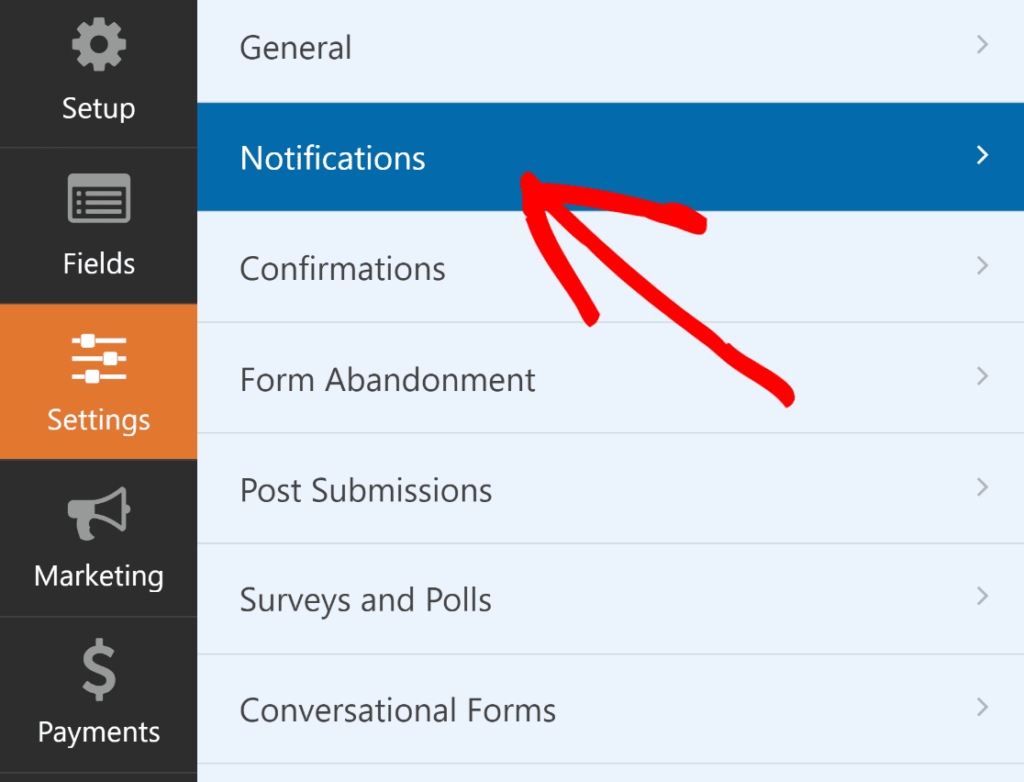
O Claude cria campos e configurações básicas, mas deixa suas notificações e confirmações de propósito. Abra a aba Configurações e configure as notificações por e-mail para que as pessoas certas sejam informadas sobre cada inscrição.
Em seguida, você pode continuar moldando o formulário conversando com o Claude, ou refiná-lo dentro do construtor com Smart Edit sempre que desejar uma alteração.
Envie também uma entrada de teste, para que você possa ver exatamente o que chega à sua caixa de entrada antes que os candidatos reais cheguem. Quando tudo estiver certo, adicione o formulário a uma página com o bloco WPForms e estilize-o.
Para agilizar a personalização do seu formulário, você pode selecionar um tema pronto na seção Tema do Formulário . Neste exemplo, estou usando o tema Sonic (que é um dos meus favoritos).
Quando estiver satisfeito com a aparência, clique no botão Publicar no canto superior direito do editor. Seu formulário de inscrição de emprego agora está ativo em seu site, criado a partir de um único prompt do Claude e pronto para coletar inscrições.

Crie Seus Formulários Com Claude no WPForms :)
Perguntas Frequentes Sobre a Criação de Formulários WordPress Com Claude
Conectar o Claude ao WordPress e criar formulários por chat usando a API Abilities é relativamente novo, então algumas perguntas surgem com frequência.
Preciso saber programar?
Não, conectar o Claude na web ou no aplicativo desktop é tudo com menus e botões, e criar um formulário é apenas uma mensagem de chat. O Claude Code está lá se você preferir o terminal, mas é completamente opcional.
Quais outros assistentes de IA podem criar meus formulários?
Qualquer assistente que suporte o Protocolo de Contexto de Modelo funciona, incluindo ChatGPT e Cursor. Todos eles usam o mesmo URL do servidor WPVibe, então a configuração segue a mesma forma que para o Claude.
É seguro dar ao Claude acesso de gravação?
Sim, o acesso de gravação está desativado até que você o ative, apenas um administrador pode habilitá-lo e você pode desativá-lo a qualquer momento. O Claude também pede permissão antes de cada alteração, e tudo o que ele faz aparece no construtor para você revisar.
O que o Claude não pode fazer com meus formulários?
O Claude cria formulários, adiciona e edita campos, e atualiza o título, descrição e botão de envio de um formulário. Ele não excluirá formulários nem alterará notificações, confirmações, lógica condicional ou configurações de pagamento, então essas coisas ficam em suas mãos dentro do construtor.
Quais campos o Claude pode adicionar?
O Claude funciona com campos comuns como nome, e-mail, telefone, data e hora, upload de arquivo, menus suspensos, múltipla escolha, caixas de seleção, números e texto de parágrafo. Isso cobre a maior parte do que um formulário típico precisa.
Por que o Claude não vê meus formulários ou a aba AI MCP?
A aba AI MCP requer WordPress 6.9 ou posterior e só aparece para administradores. Se o Claude não consegue ver seus formulários, o motivo mais comum é que o acesso de gravação está desativado, então verifique primeiro essa opção.
O Claude pode trabalhar com as entradas do meu formulário também?
Sim, uma vez conectado, o Claude pode navegar e pesquisar suas entradas e recuperar uma única submissão, o que facilita fazer perguntas rápidas sobre suas respostas. O acesso às entradas permanece somente leitura, então o Claude as visualiza, mas nunca as edita ou exclui.
Em seguida, veja como o WPForms se compara como um construtor de formulários com IA
Você conectou o Claude e o deixou criar um formulário real em seu site, algo que a maioria dos plugins de formulário ainda não consegue fazer.
Se você está avaliando suas opções, nossa análise dos melhores construtores de formulários com IA para WordPress mostra a posição de cada ferramenta e o que diferencia o WPForms.
Crie Seus Formulários Com Claude no WPForms :)
Pronto para criar seu formulário? Comece hoje mesmo com o plugin de criação de formulários WordPress mais fácil. WPForms Pro inclui muitos modelos gratuitos e oferece uma garantia de devolução do dinheiro em 14 dias.
Se este artigo o ajudou, siga-nos no Facebook e no X (Twitter) para mais tutoriais e guias gratuitos sobre WordPress.





