


Resumo de IA
Mudar o e-mail de administrador do seu WordPress parece um trabalho de dois segundos e, na maioria das vezes, é. Você vai até suas configurações, insere o novo endereço e salva.
Há uma etapa que confunde as pessoas, no entanto, e é a etapa de confirmação. O WordPress envia um link de verificação para o novo endereço antes de fazer a alteração.
Isso significa que, se o seu site não estiver enviando e-mails de forma confiável, esse link nunca chegará e a alteração falhará silenciosamente. Isso também me pegou da primeira vez.
Então, vou detalhar tudo, começando pela maneira rápida de alterar o endereço no seu painel, depois como garantir que a confirmação realmente chegue à sua caixa de entrada e, finalmente, o que fazer se você ficar bloqueado e não puder receber esse e-mail.
Como Alterar o E-mail do Administrador do WordPress
Este guia abrange as três situações em que você provavelmente se encontra, seja uma alteração normal no seu painel, uma alteração que não será salva devido à entrega de e-mail ou uma alteração forçada para quando você estiver bloqueado e não puder receber a confirmação.
Os Dois Tipos de E-mail de Administrador do WordPress
Antes de alterar qualquer coisa, é útil saber a qual e-mail você realmente se refere, porque o WordPress armazena dois diferentes e eles desempenham funções diferentes.
- Endereço de E-mail de Administração: O WordPress usa este e-mail para avisos importantes, como falhas de atualização, novos registros de usuários e moderação de comentários. Você o altera em Configurações » Geral.
- E-mail da conta do usuário: Este é o endereço vinculado a um login específico, incluindo o seu. O WordPress o usa para redefinições de senha e notificações pessoais. Você o altera no perfil desse usuário em Usuários.
Se você deseja atualizar para onde vão os avisos de administrador do seu site, esse é o primeiro. Se você está alterando o e-mail do seu próprio login, esse é o segundo. A maioria das pessoas acaba fazendo ambos, então vou detalhar cada um.
Método 1: Alterar o E-mail de Administração nas Configurações
Essa rota funciona para a grande maioria dos casos e leva apenas cerca de trinta segundos.
- No seu painel do WordPress, vá para Configurações » Geral.
- Encontre o campo Endereço de E-mail de Administração perto do topo.
- Exclua o endereço antigo e digite o novo.
- Role para baixo e clique em Salvar Alterações.
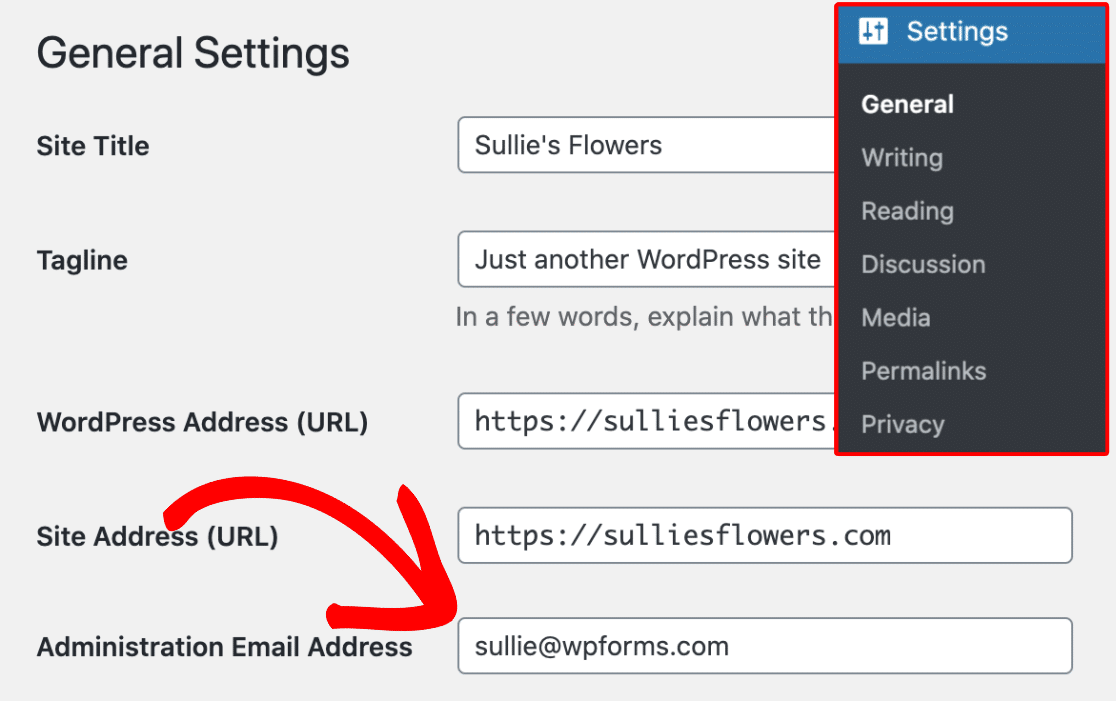
Uma observação rápida sobre o que colocar lá. Eu usaria um endereço de marca no seu próprio domínio, como [email protected], em vez de uma conta gratuita do Gmail ou Yahoo.
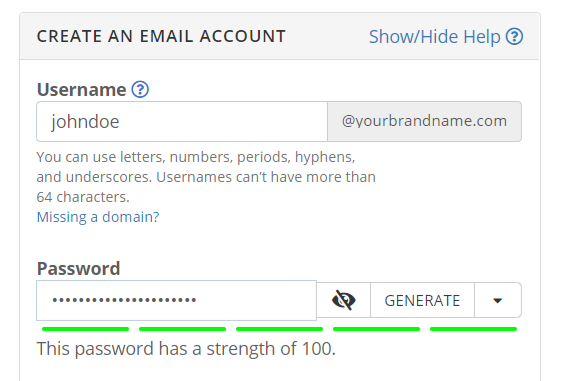
Parece mais profissional e é mais fácil de manter quando você muda de provedor. Se você ainda não tem um, veja como configurar um endereço de e-mail comercial gratuito.
O que surpreende as pessoas é que o WordPress não muda o endereço imediatamente. Ele primeiro envia um link de confirmação para o novo e-mail e exibe um aviso pendente até que você clique nesse link.

Abra a nova caixa de entrada, clique no link e a alteração está feita. Se esse e-mail nunca chegar, não se preocupe, você não está preso. Pule para a correção de entrega de e-mail abaixo e depois volte para concluir esta etapa.
Método 2: Alterar o Endereço de E-mail de um Usuário
O e-mail da administração do site e o seu e-mail pessoal de usuário são separados, portanto, alterar um não afeta o outro. Para atualizar uma conta de usuário, vá para Usuários » Todos os Usuários e clique em Editar sob a pessoa que você deseja alterar.

Isso abre o perfil desse usuário. Role para baixo até o campo E-mail e digite o novo endereço.

Vá em frente e clique em Atualizar Perfil na parte inferior para salvar suas alterações.
Se você estiver editando sua própria conta enquanto estiver logado, o WordPress enviará um e-mail de confirmação para o novo endereço, e você precisará clicar no link dentro dele para concluir a alteração.
Essa é a mesma etapa de confirmação de antes, o que nos leva ao problema que impede muitas pessoas.
Não está recebendo o e-mail de confirmação? Corrija a entrega de e-mail do WordPress primeiro
Essa é a verdadeira razão pela qual as pessoas ficam presas em uma tarefa que parece simples. Você genuinamente não pode concluir a alteração se o e-mail de confirmação não chegar até você, e um grande número de sites WordPress tem problemas para enviar e-mails em primeiro lugar.
A causa é técnica, mas vale a pena entender, porque, por padrão, o WordPress envia e-mails usando a função PHP mail(), que a maioria dos servidores de hospedagem não configura corretamente.
Sem autenticação adequada, provedores como Gmail e Outlook tratam essas mensagens como suspeitas, então elas vão para o spam ou são descartadas completamente. É por isso que seu site WordPress não está enviando e-mails como você esperaria.
A solução é rotear seu e-mail através de um serviço autenticado adequado usando WP Mail SMTP, o plugin de entregabilidade de e-mail mais popular para WordPress.
Ele reconfigura a forma como o WordPress envia e-mails para que suas mensagens, incluindo essa confirmação de administrador, realmente cheguem à caixa de entrada, e a versão gratuita é tudo o que você precisa aqui.
Enquanto você configura tudo, é um bom momento para configurar suas configurações de e-mail do WordPress da maneira certa para que tudo o que seu site envia seja entregue.
Instale o WP Mail SMTP (É Grátis)
Vá em frente e pegue o plugin. A maneira mais simples é procurar por WP Mail SMTP em Plugins » Adicionar Novo no seu painel.
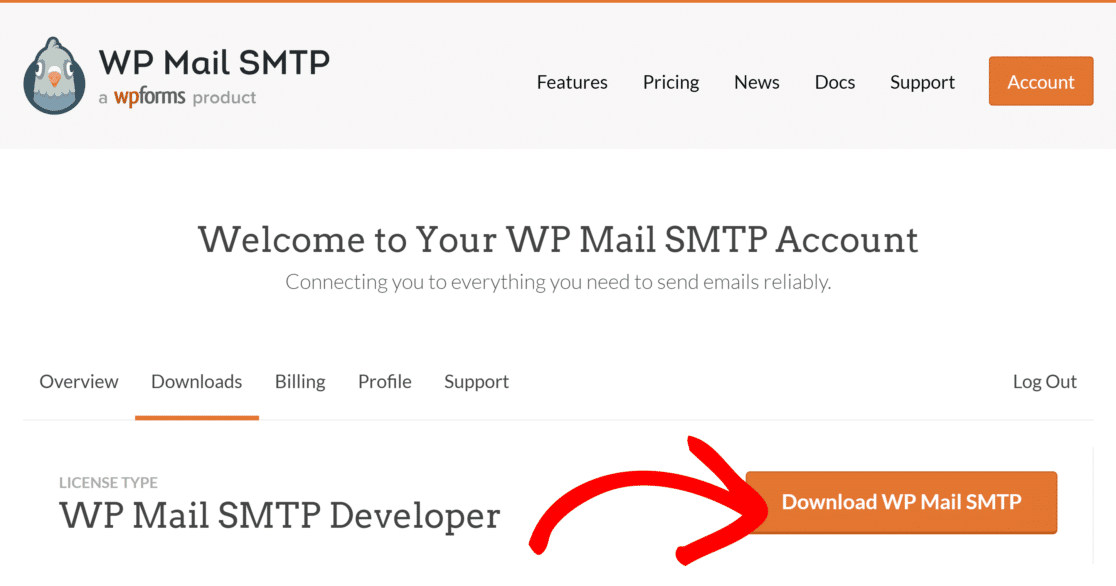
Se você comprou uma licença, também pode baixar o plugin na aba Downloads da sua conta WP Mail SMTP e fazer o upload manualmente, que é o que as capturas de tela abaixo mostram.
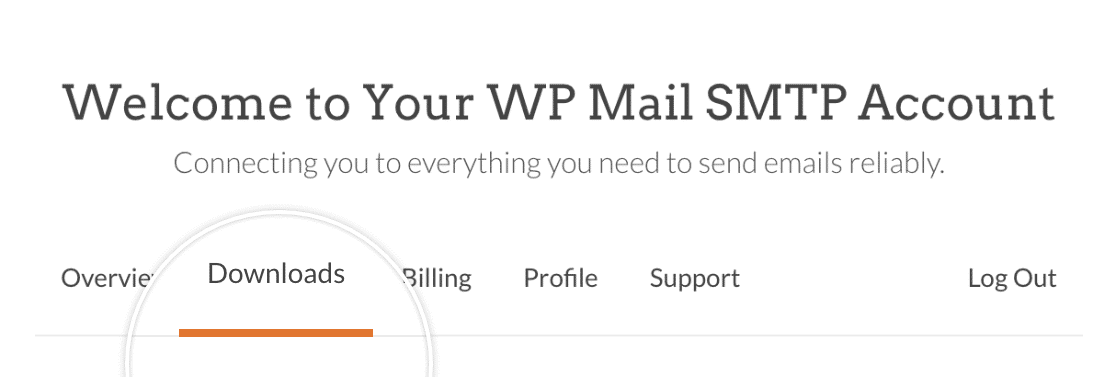
Clique no botão Baixar WP Mail SMTP para salvar o arquivo zip no seu computador.
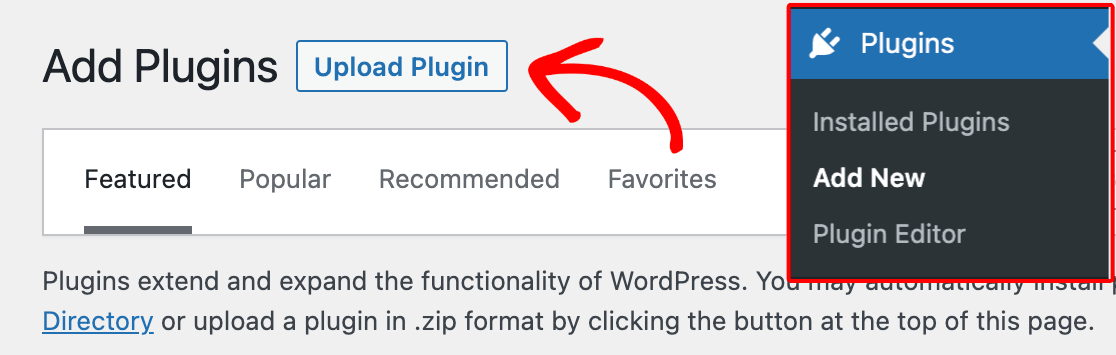
De volta ao seu painel, vá para Plugins » Adicionar Novo e pressione o botão Enviar Plugin.
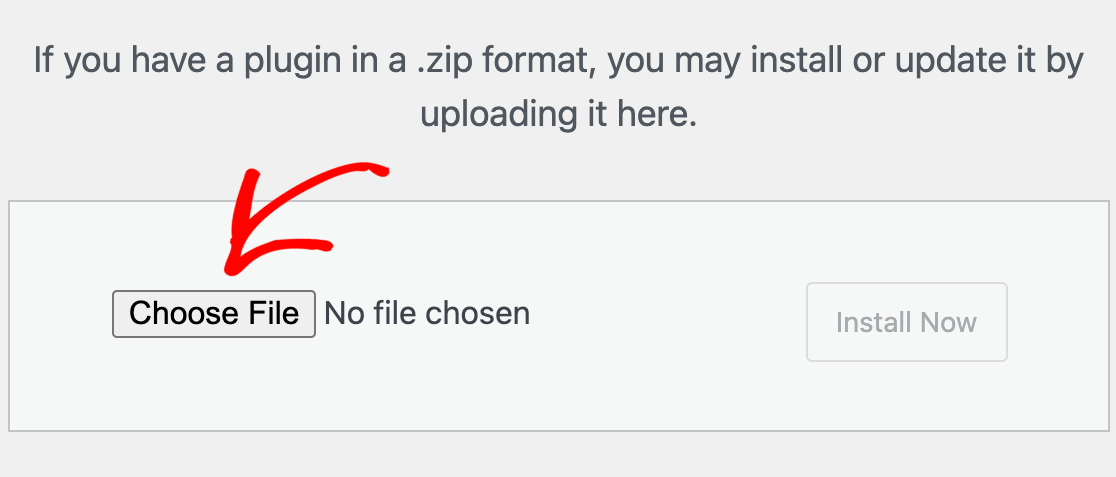
Clique em Escolher Arquivo e selecione o zip do WP Mail SMTP que você acabou de baixar.
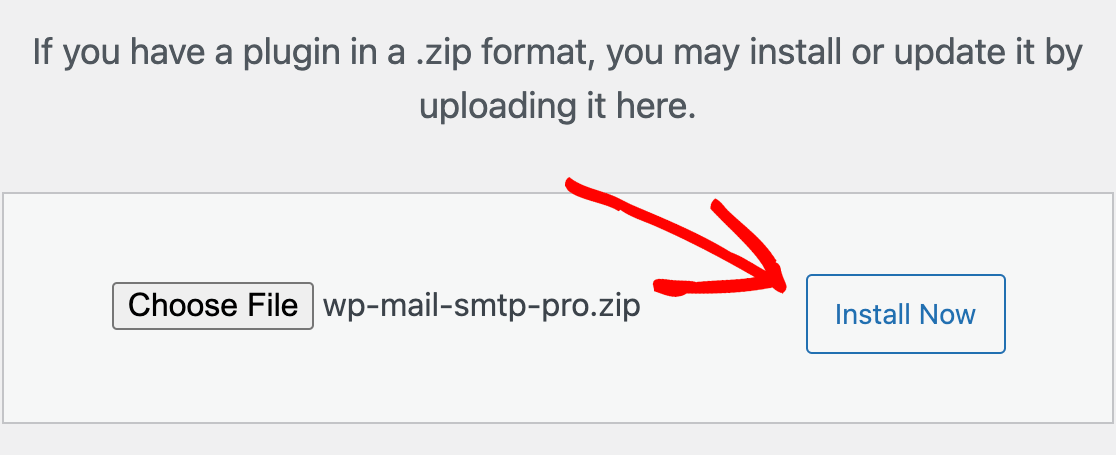
Assim que o arquivo for enviado, clique em Instalar Agora.
Quando a instalação terminar, clique em Ativar Plugin.
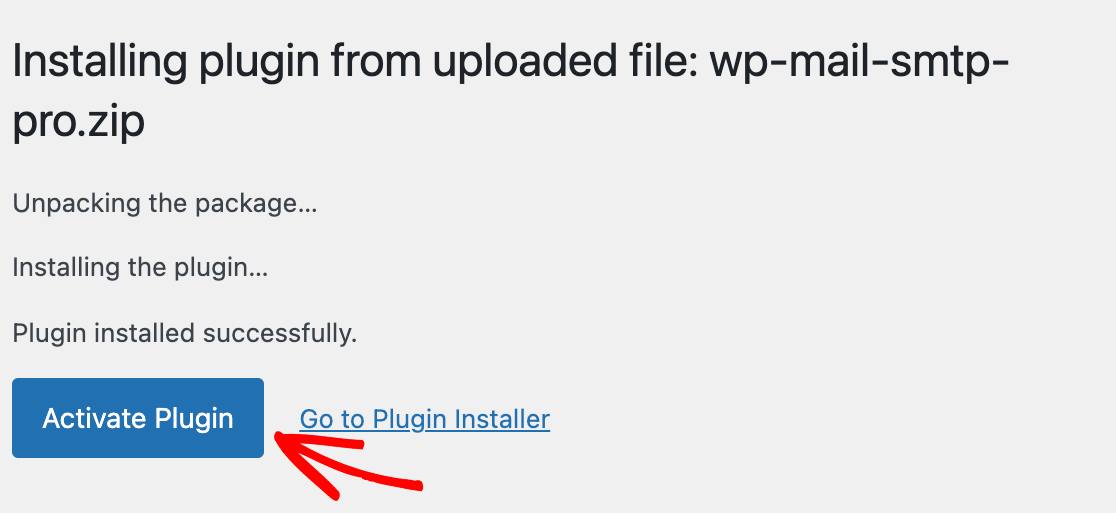
O plugin está instalado e pronto para ser configurado.
Conecte o WP Mail SMTP ao SendLayer
Agora você precisa conectar seu site a um remetente, que é o serviço que faz o envio real. O WP Mail SMTP funciona com todos os principais provedores, e você pode comparar os melhores provedores de serviços SMTP se tiver uma preferência.
Para este tutorial, usarei o SendLayer, pois é o que o WP Mail SMTP recomenda primeiro e o teste gratuito cobre algumas centenas de e-mails, o que é suficiente para confirmar um endereço.
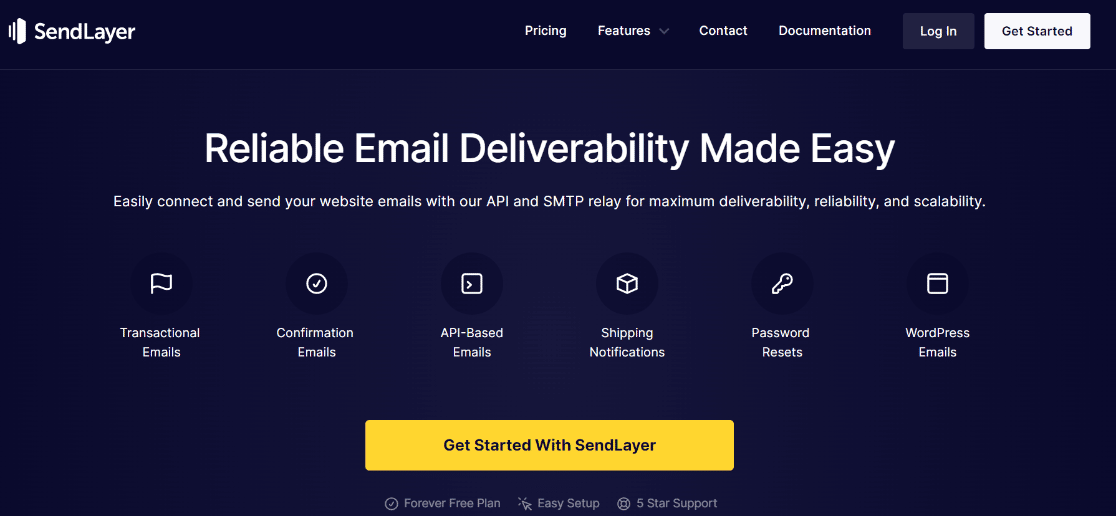
Se você ainda não tem uma conta, siga o breve guia do SendLayer sobre como criar uma nova conta. Assim que entrar, faça login no painel do SendLayer e autorize seu domínio para que seus e-mails sejam verificados como genuínos.
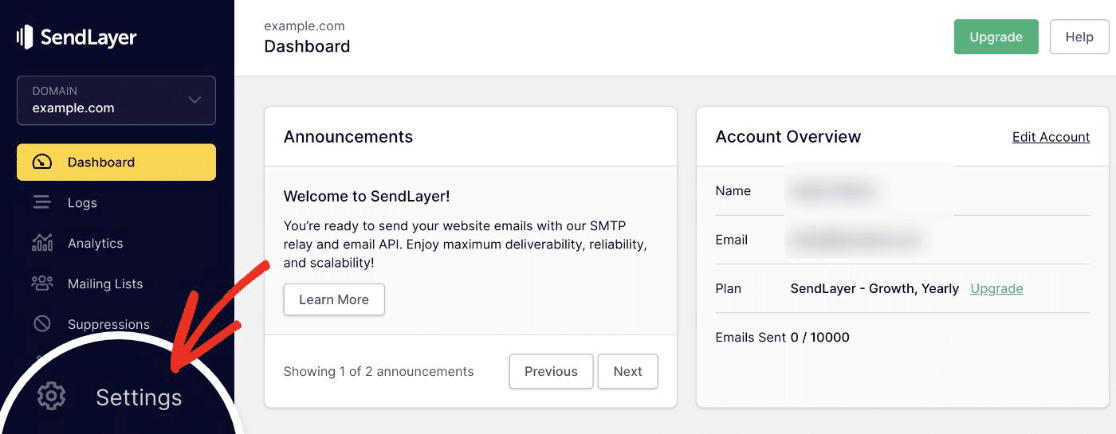
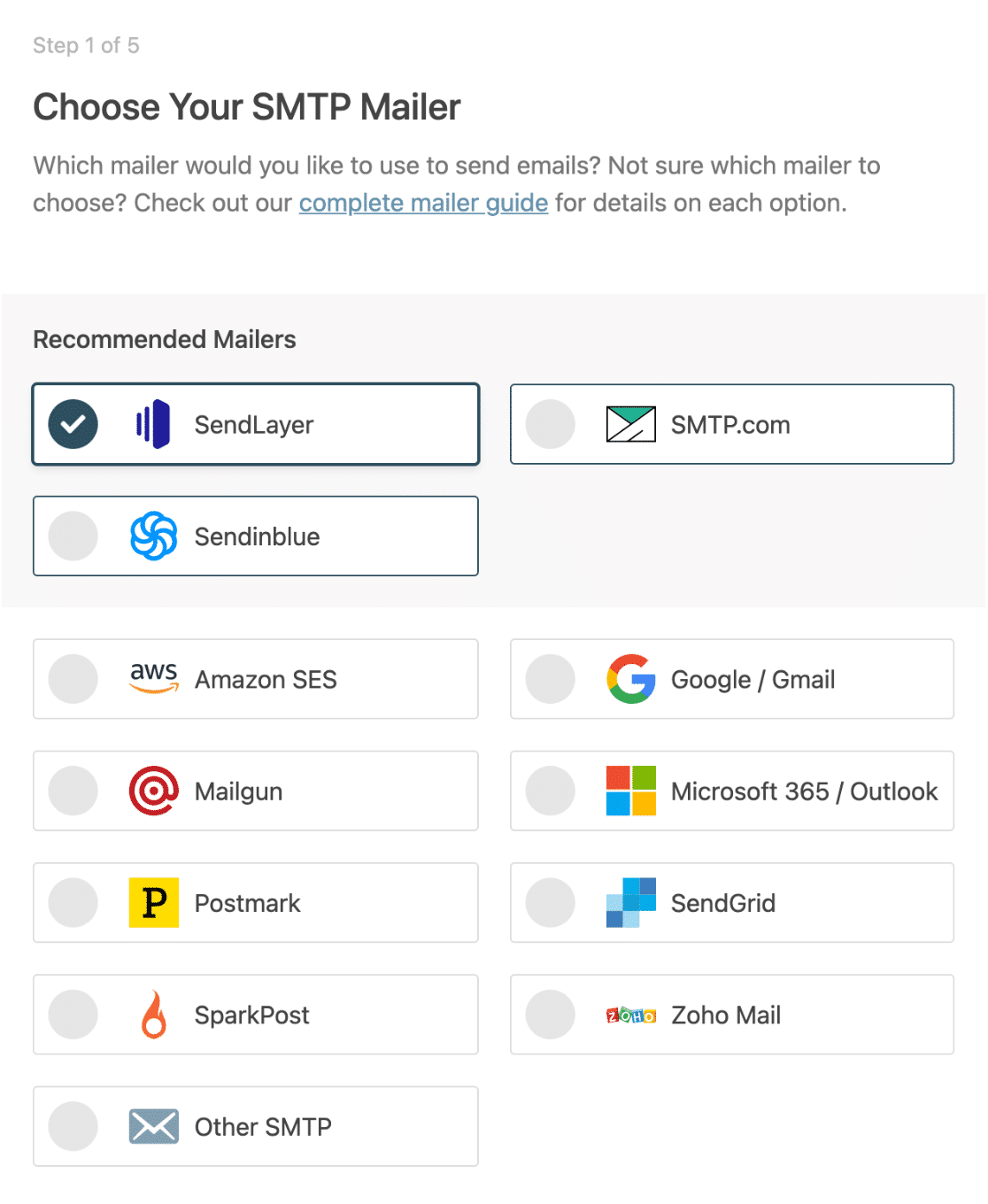
Com seu domínio autorizado, volte ao seu painel do WordPress. O WP Mail SMTP abre o Assistente de Configuração automaticamente, onde você seleciona SendLayer como seu remetente e continua.
O WP Mail SMTP também tem uma opção mais nova, o Conexão Rápida SendLayer, que conecta os dois em cerca de dois minutos sem nenhuma configuração de DNS, mas as etapas padrão aqui funcionam em qualquer site. Em seguida, o assistente solicita alguns detalhes:
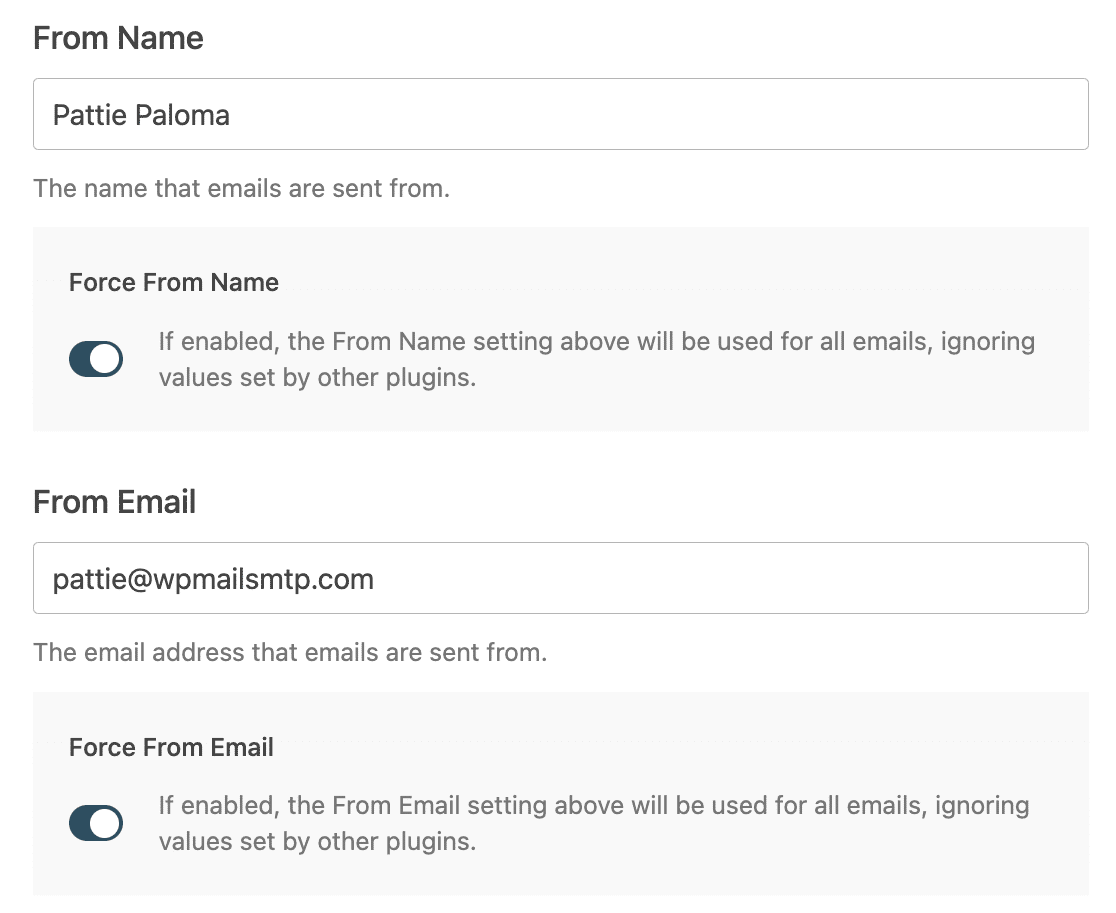
- Chave de API: Copie isso do seu painel do SendLayer.
- Nome de Remetente: O nome do qual você deseja que seus e-mails sejam enviados.
- E-mail de Remetente: O endereço do qual seu site envia, que é seu novo endereço de e-mail de administrador.
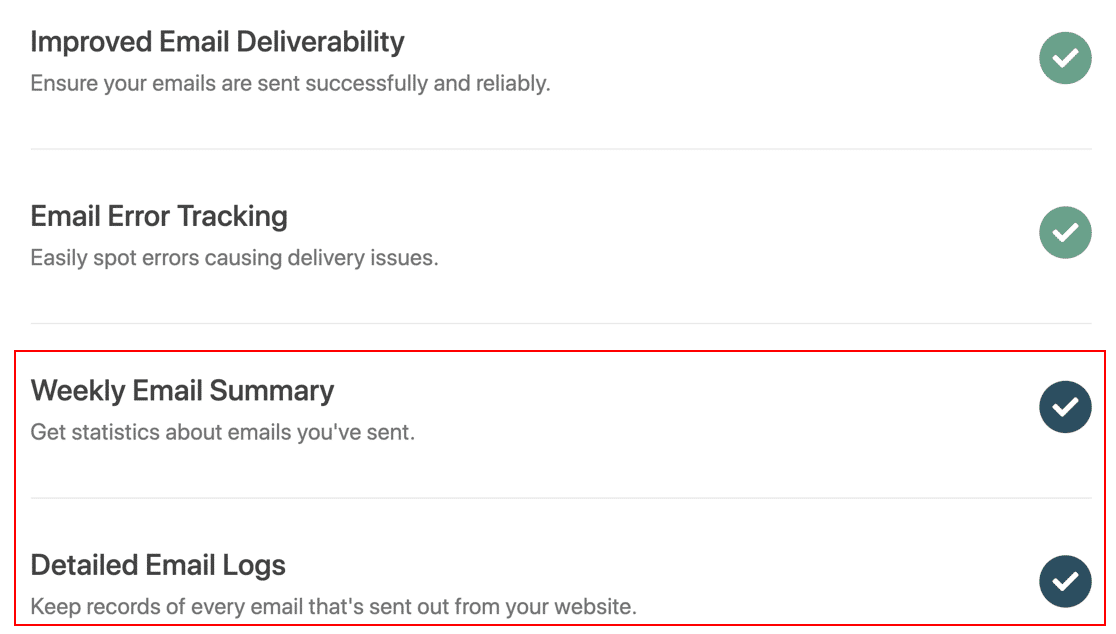
No final do assistente, você pode ativar o resumo semanal de e-mails e o registro de e-mails para ter um registro do que seu site envia.
Eu ativaria essas opções, pois elas facilitam manter um registro de todos os e-mails que seu site envia e identificar problemas de entrega precocemente.
Agora volte para Configurações » Geral (ou seu perfil de usuário) e solicite a alteração de e-mail novamente. Desta vez, a confirmação chegará à sua caixa de entrada, você clica no link e o novo e-mail de administrador estará ativo.
Método 3: Alterar o E-mail do Administrador Sem Confirmação (Usando phpMyAdmin)
Se você não conseguir acessar seu painel de forma alguma, pode alterar o e-mail do administrador diretamente no banco de dados do seu site. Isso pula completamente a etapa de confirmação, sendo o recurso de fallback quando nada mais funciona.
Faça backup do seu banco de dados primeiro, pois você o está editando manualmente. Aqui está o processo:
- Faça login no painel de controle da sua hospedagem e abra o phpMyAdmin. Muitos hosts também permitem que você acesse o banco de dados a partir do seu próprio painel.
- Selecione seu banco de dados do WordPress e abra a tabela wp_options. O prefixo da sua tabela pode ser diferente de
wp_, portanto, procure o nome correspondente. - Encontre a linha onde o option_name é admin_email.
- Clique em Editar, substitua o valor em option_value pelo seu novo endereço e salve.
Isso atualiza o e-mail de administração do site imediatamente, sem nenhuma etapa de confirmação.
Para alterar o e-mail de login de um usuário específico dessa forma, abra a tabela wp_users em vez disso, encontre o usuário e edite o campo user_email. Assim que você voltar, eu ainda configuraria o WP Mail SMTP usando as etapas acima para que seus e-mails futuros realmente sejam enviados.
Perguntas frequentes sobre como alterar o e-mail de administração do WordPress
Aqui estão as perguntas que vejo com mais frequência quando as pessoas alteram o endereço de e-mail de administração do WordPress.
Por que meu e-mail de administração do WordPress não está mudando?
Em quase todos os casos, a alteração está pendente de confirmação. O WordPress envia um link de verificação para o novo endereço e não mudará até que você clique nele.
Se esse e-mail não estiver chegando, seu site tem um problema de entrega de e-mail, então configure o WP Mail SMTP conforme descrito acima e solicite a alteração novamente.
Qual é a diferença entre o e-mail de administração e o e-mail de um usuário?
O e-mail de administração em Configurações » Geral é o contato de todo o site para avisos administrativos, como atualizações e novos registros.
O e-mail de um usuário fica em seu perfil em Usuários e lida com a redefinição de senha e notificações pessoais. Eles são separados, portanto, alterar um não altera o outro.
Como altero o e-mail de administração se estiver bloqueado?
Use o método do banco de dados no phpMyAdmin. Abra a tabela wp_options, encontre a linha admin_email e edite seu valor. Isso ignora o e-mail de confirmação, que é o que o torna útil quando você não consegue fazer login ou receber e-mails.
Onde o e-mail de administração do WordPress é armazenado?
Seu e-mail de administração do site é armazenado na tabela wp_options sob o nome de opção admin_email. Os e-mails individuais dos usuários são armazenados na tabela wp_users no campo user_email.
Em seguida, Impede Redefinições de Senha Não Autorizadas
Se você recebe constantemente e-mails de recuperação de senha, pode ser alguém tentando invadir seu site. Evite essas notificações irritantes e aprenda como impedir que spambots enviem solicitações não autorizadas de redefinição de senha.
Depois que seus e-mails do WordPress chegarem à caixa de entrada de forma confiável, as notificações de seus formulários de contato e de inscrição também chegarão, o que significa que você realmente verá os leads que as pessoas enviam para você.
Crie Seu Formulário WordPress Agora
Pronto para criar seu formulário? Comece hoje mesmo com o plugin de criação de formulários WordPress mais fácil. WPForms Pro inclui muitos modelos gratuitos e oferece uma garantia de devolução do dinheiro em 14 dias.
Se este artigo ajudou você, por favor, siga-nos no Facebook e Twitter para mais tutoriais e guias gratuitos do WordPress.


