


Resumo de IA
Quer gerenciar seus pagamentos do PayPal Commerce com mais eficácia? Descubra como gerenciar pagamentos do PayPal sem esforço usando o addon PayPal Commerce do WPForms, desde o processamento de reembolsos até a supervisão de assinaturas e muito mais.
Este tutorial mostrará como visualizar e gerenciar pagamentos do PayPal Commerce com o WPForms.
Neste Artigo
Requisitos: Para usar o addon PayPal Commerce para WPForms, você precisará:
- Uma licença Pro ou superior
- Uma conta PayPal Business
- Instalar a versão mais recente do WPForms para atender à versão mínima exigida para o addon PayPal Commerce
- Configurar um formulário com integração do PayPal Commerce
Antes de começar, você precisará garantir que o WPForms esteja instalado e ativado em seu site WordPress. Assim que você verificar sua licença, poderá instalar e ativar o addon PayPal Commerce.
Observação: Certifique-se de desativar o addon PayPal Standard se você o tiver instalado. Ambos os addons PayPal não podem ser usados ao mesmo tempo.
Visualizando e Gerenciando Pagamentos
Depois de configurar um formulário com integração do PayPal Commerce e receber alguns pagamentos, você poderá visualizá-los e gerenciá-los diretamente da área de administração do seu site.
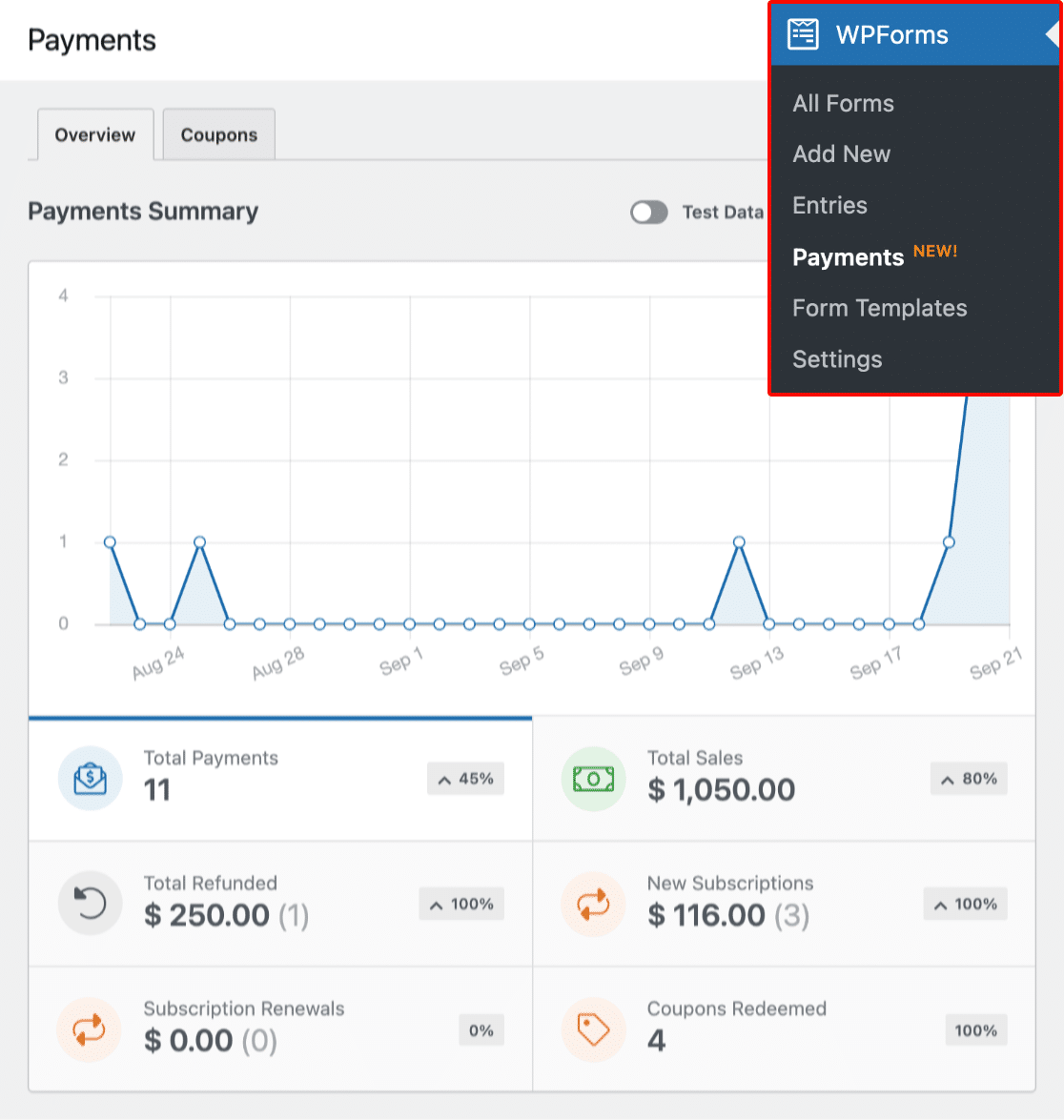
Para fazer isso, vá para WPForms » Pagamentos e selecione a guia Visão Geral para acessar a página de Pagamentos.
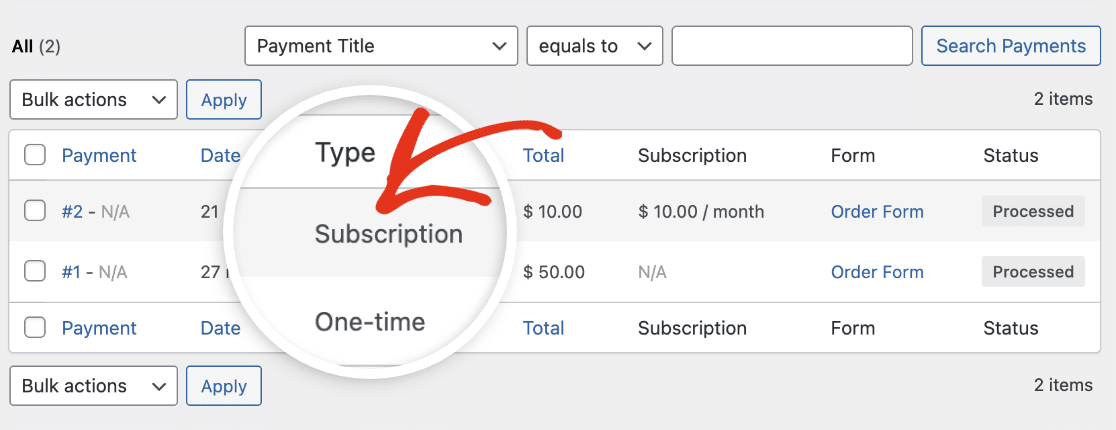
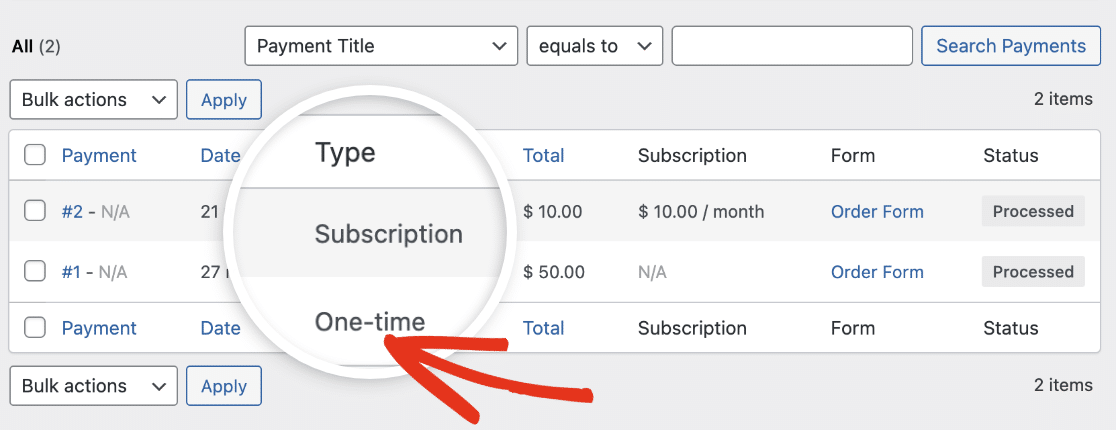
Se a transação for recorrente, você verá Assinatura ao lado dela em Tipo.
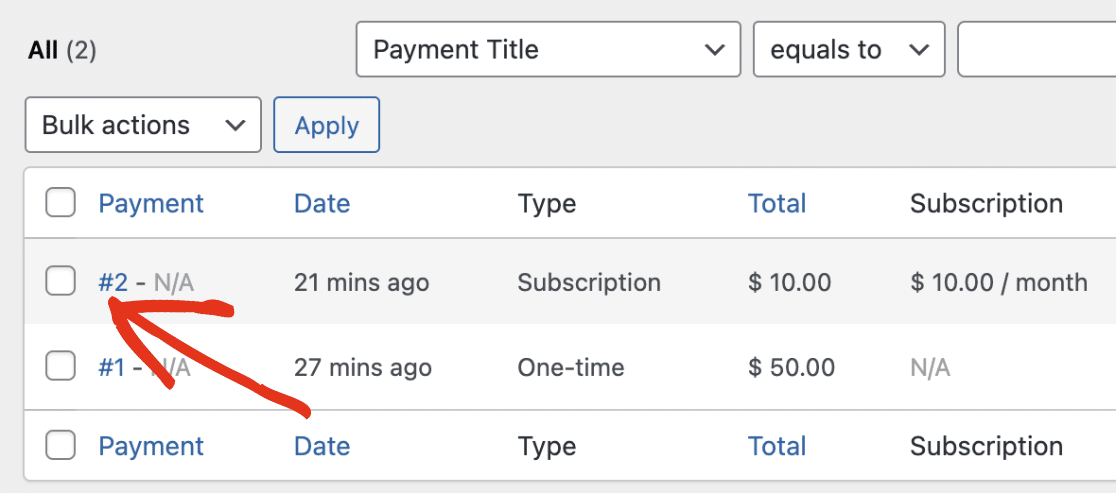
Para visualizar detalhes adicionais sobre uma entrada específica, clique no número da entrada na coluna Pagamento.
Você verá os detalhes do pagamento da entrada específica que selecionou. Se desejar ver um detalhamento da transação, clique no link Ver no PayPal Commerce.
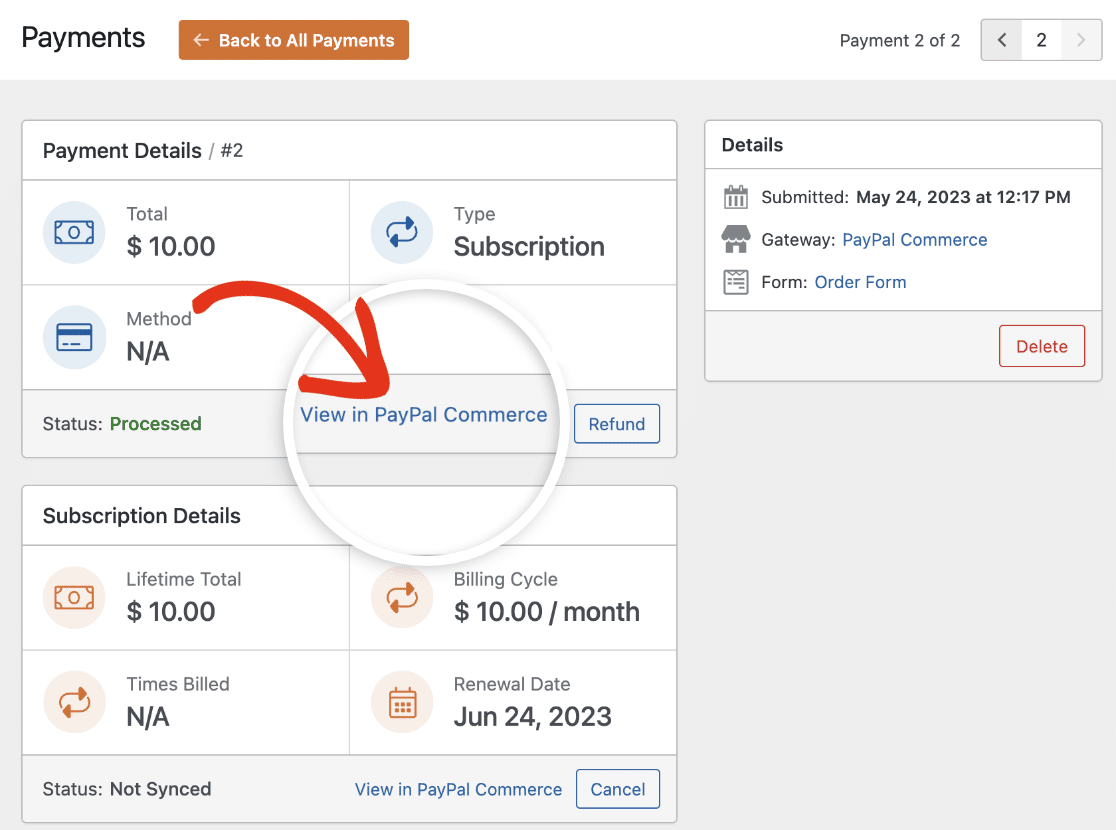
Clicar neste link o direcionará para o seu painel do PayPal para visualizar os detalhes da transação.
Para pagamentos únicos, você verá Pagamento único ao lado da entrada de pagamento na coluna Tipo.
Para saber mais sobre como visualizar e gerenciar seus pagamentos, consulte nosso guia de gerenciamento de entradas de pagamento.
Observação: Se desejar, você pode criar códigos de cupom e oferecer um desconto aos usuários ao preencher seu formulário de pagamento. Para saber mais, confira nosso tutorial sobre o addon de Cupons.
Visualizando Pagamentos Recusados
O WPForms registra eventos de pagamento recusados se o registro de atividades estiver ativado em seu site. Para visualizar os logs de atividades, vá para WPForms » Ferramentas e clique na aba Logs.
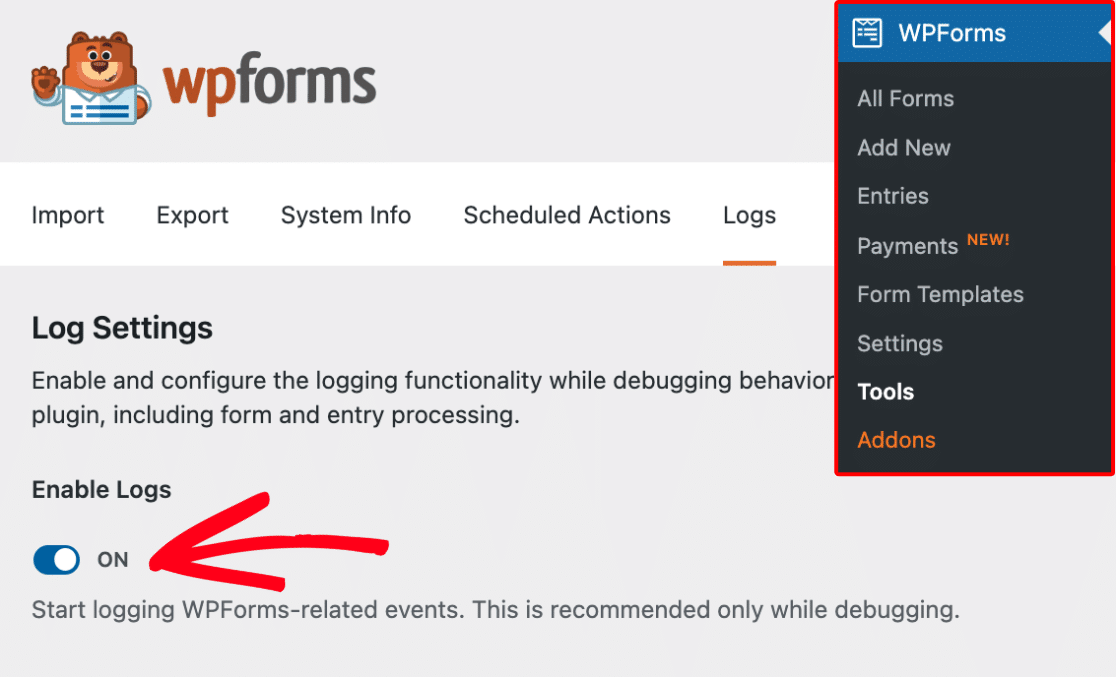
Observação: Para registrar pagamentos recusados, você precisará ativar o registro de atividades nas configurações do seu WPForms.
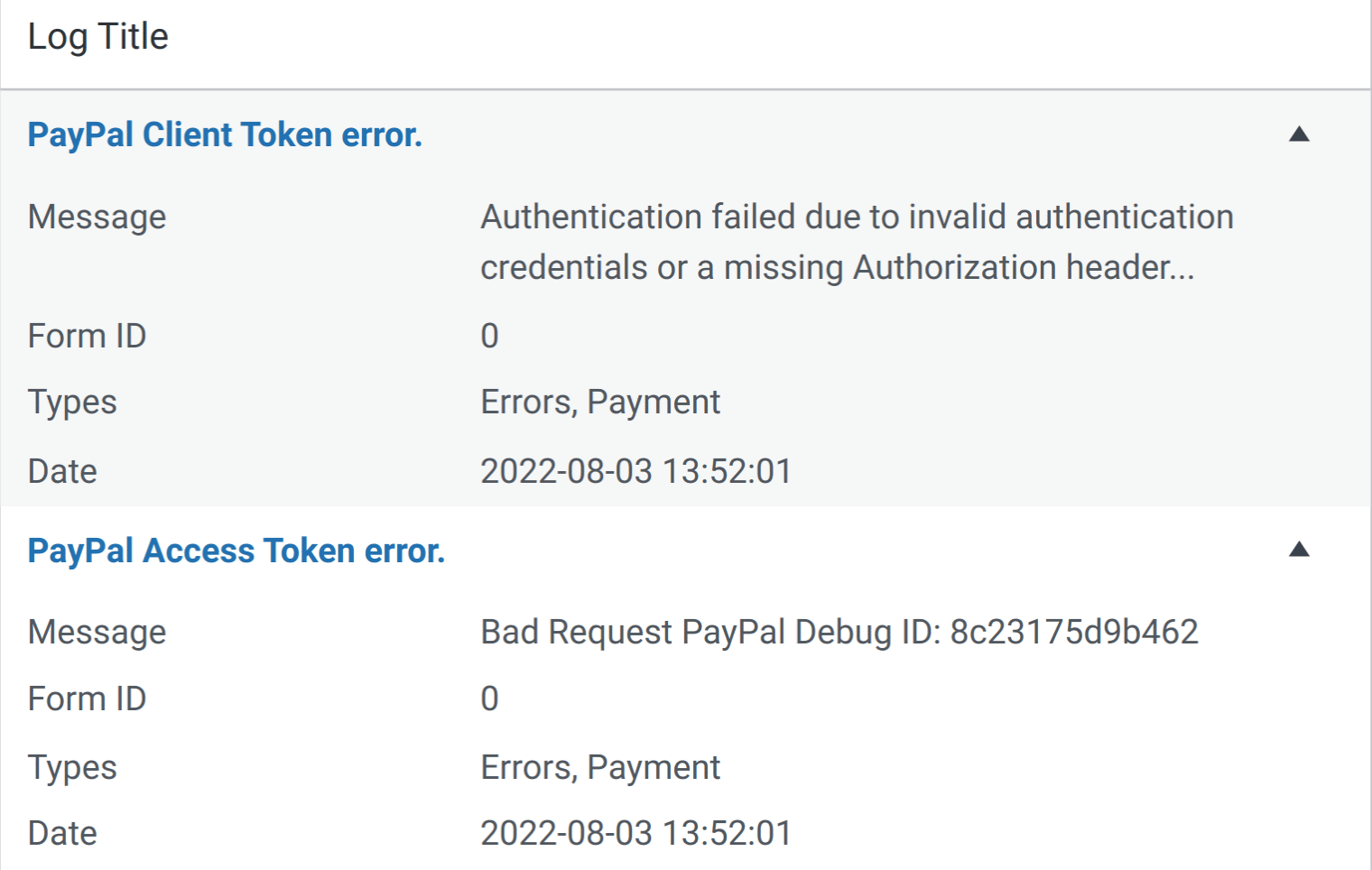
Pagamentos falhados são listados na coluna Tipos como Erros e Pagamento. Na tabela de logs, você também verá uma mensagem detalhando a causa da falha, o ID do Formulário e a data.
Perguntas Frequentes
Estas são algumas das perguntas mais comuns que recebemos sobre como visualizar e gerenciar transações do PayPal Commerce.
Como testar pagamentos do PayPal Commerce em meus formulários?
A melhor maneira de testar seus formulários é enviar uma entrada e seguir os mesmos passos dos seus usuários. Recomendamos configurar o modo de teste do PayPal Commerce antes de adicionar seu formulário a uma página ativa, o que permite testar transações antes de aceitar pagamentos reais. Depois de ativar os pagamentos de teste, você pode visualizar suas transações de teste no painel do WordPress.
Pronto! Agora você sabe como visualizar e gerenciar pagamentos do PayPal Commerce com o WPForms.
Em seguida, você gostaria de alterar a aparência dos seus formulários do PayPal Commerce? Certifique-se de conferir nosso tutorial sobre personalização do campo PayPal Commerce.