


Resumo de IA
Interessado em adaptar o campo PayPal Commerce para combinar com o estilo do seu site? Este guia explora as opções de personalização disponíveis para o addon PayPal Commerce do WPForms, desde o ajuste dos tamanhos dos campos e botões até a modificação das cores.
Este tutorial mostrará como personalizar o campo PayPal Commerce no WPForms.
Neste Artigo
Requisitos: Para usar o addon PayPal Commerce para WPForms, você precisará:
- Uma licença Pro ou superior
- Uma conta PayPal Business
- Instalar a versão mais recente do WPForms para atender à versão mínima exigida para o addon PayPal Commerce
- Configurar um formulário com integração do PayPal Commerce
Antes de começar, você precisará garantir que o WPForms esteja instalado e ativado em seu site WordPress. Assim que você verificar sua licença, poderá instalar e ativar o addon PayPal Commerce.
Observação: Certifique-se de desativar o addon PayPal Standard se você o tiver instalado. Ambos os addons PayPal não podem ser usados ao mesmo tempo.
Personalizando o Campo PayPal Commerce
Existem várias opções disponíveis para configurar a aparência dos seus formulários de pagamento. Para acessar essas opções no construtor de formulários, selecione o campo PayPal Commerce e vá para Opções do Campo » Avançado.
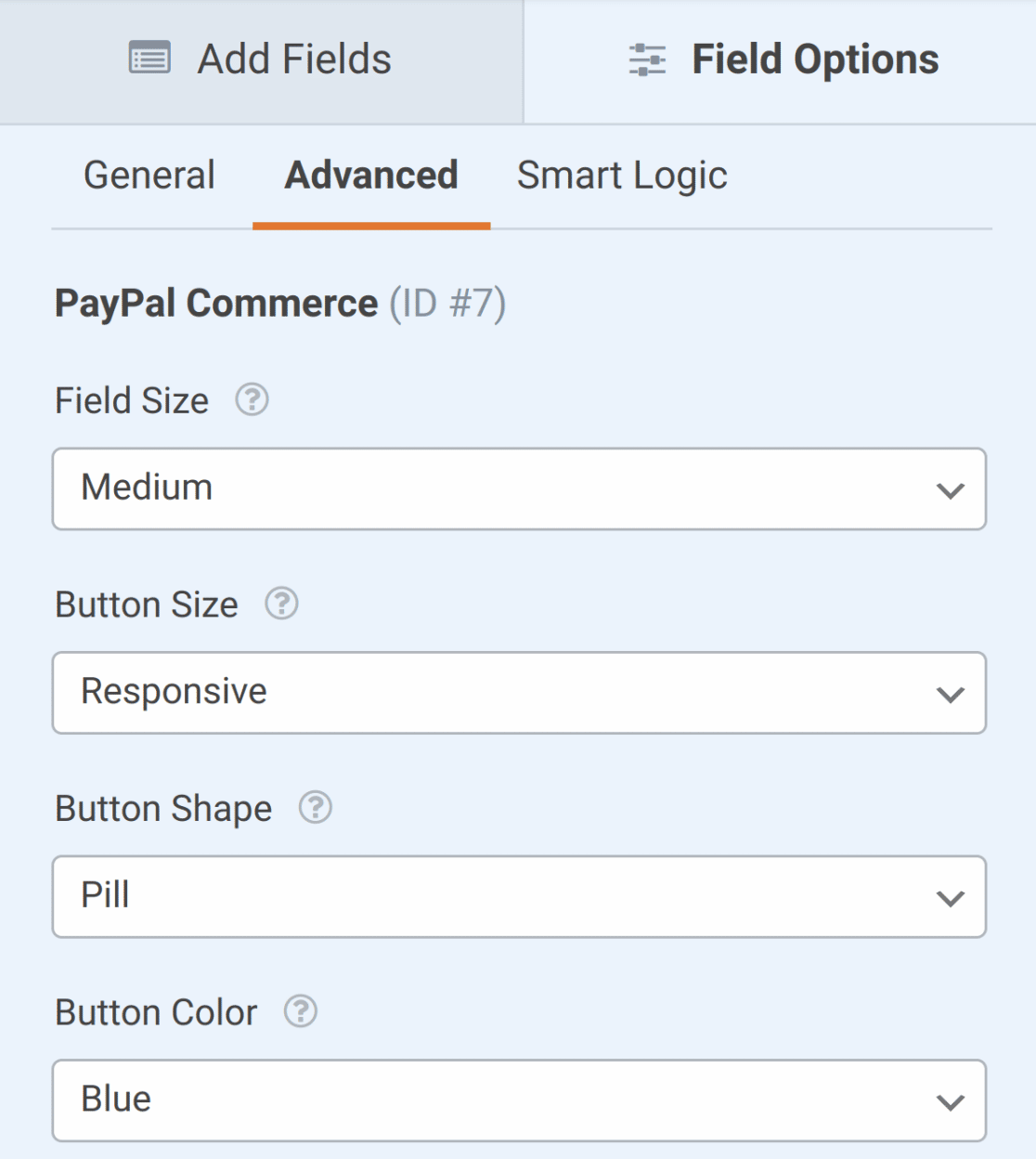
As opções de personalização disponíveis incluem:
Observação: O campo PayPal Commerce e o botão PayPal incluído podem ser modificados para se adequar melhor à aparência do seu site.
No entanto, se você quiser aplicar ainda mais personalização, pode personalizar seu formulário com CSS.
Tamanho do Campo
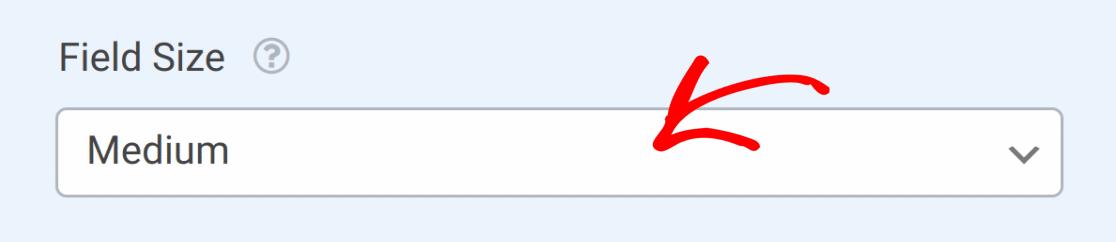
A opção Tamanho do Campo permite definir a largura relativa das entradas incluídas no campo PayPal Commerce. Você pode escolher entre os tamanhos Pequeno, Médio e Grande, sendo que o Grande ocupa a largura disponível do seu formulário.
Escolha um valor na lista suspensa Tamanho do Campo para selecionar o tamanho que você gostaria de usar.
Tamanho do Botão
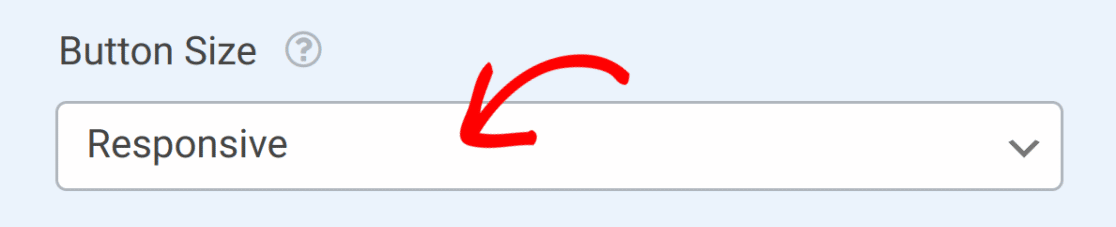
Esta opção define o tamanho do botão PayPal exibido quando o PayPal Credit é escolhido como método de pagamento ou quando pagamentos recorrentes estão ativados.
Junto com as opções Pequeno, Médio e Grande, há uma opção Responsivo, que redimensiona o botão de acordo com o tamanho da tela do dispositivo.
Formato do Botão
Esta opção permite escolher entre um formato Pílula ou Retângulo para o botão PayPal.

Cor do Botão
Se você quiser alterar a cor do botão PayPal, existem vários estilos disponíveis. Para ver os estilos disponíveis e selecionar qual design você prefere, clique na lista suspensa Cor do Botão.
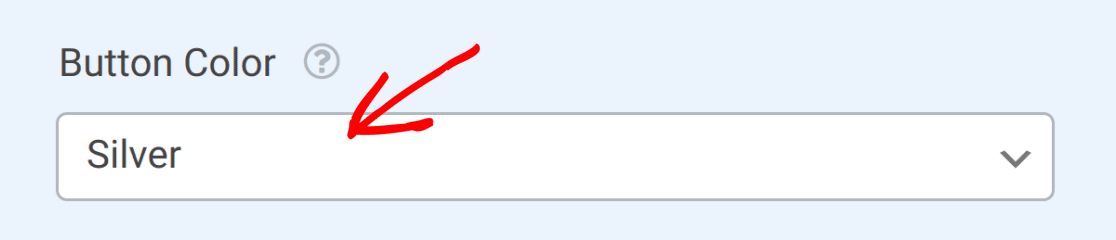
O estilo de botão selecionado é visível no construtor de formulários e na pré-visualização do formulário.
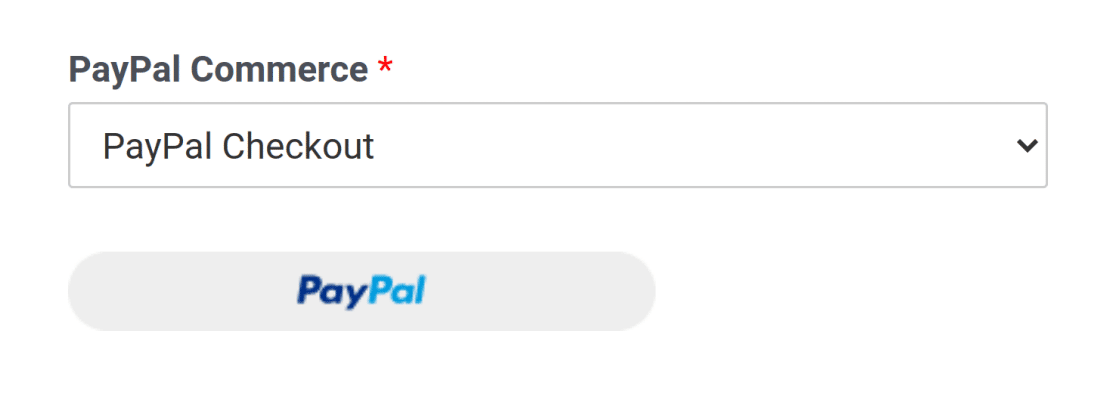
É isso! Agora você sabe como personalizar o campo PayPal Commerce com o WPForms.
Em seguida, quer explorar como adicionar ainda mais estilos aos seus formulários? Certifique-se de conferir nosso tutorial sobre estilização dos seus formulários para mais detalhes.