### [Customizing the PayPal Commerce Field](https://wpforms.com/docs/customizing-the-paypal-commerce-field/)
**Published:** February 23, 2024
**Author:** Editorial Team
**Excerpt:** Learn how to customize the PayPal Commerce field.
**Content:**
PayPal Commerce is a Pro Feature
Unlock PayPal Commerce and other powerful features to grow your business.
[ Get WPForms Pro ](https://wpforms.com/pricing/)
Interested in tailoring the PayPal Commerce field to match your site’s style? This guide explores the customization options available for the WPForms PayPal Commerce addon, from adjusting field and button sizes to modifying colors.
This tutorial will show you how to customize the PayPal Commerce field in WPForms.
**Requirements**: To use the PayPal Commerce addon for WPForms, you’ll need:
- A [Pro license level or higher](https://wpforms.com/pricing/ "WPForms Pricing Page")
- A [PayPal Business account](https://www.paypal.com/us/business "PayPal Business")
- To install the latest version of WPForms to meet the [minimum required version](https://wpforms.com/docs/why-you-should-always-use-the-latest-version-of-wpforms/#version-requirements) for the PayPal Commerce addon
- [Set up a form with PayPal Commerce integration](https://wpforms.com/docs/paypal-commerce-addon/)
---
Before getting started, you’ll first need to make sure WPForms is [installed and activated](https://wpforms.com/docs/install-wpforms-plugin/ "How to Install the WPForms Plugin") on your WordPress site. Once you’ve [verified your license](https://wpforms.com/docs/verify-wpforms-license/ "How to Verify Your WPForms License"), you can [install and activate the PayPal Commerce addon](https://wpforms.com/docs/install-activate-wpforms-addons/ "How to Install and Activate WPForms Addons").
**Note:** Be sure to disable the [PayPal Standard addon](https://wpforms.com/docs/install-use-paypal-addon-wpforms/) if you have it installed. Both PayPal addons can’t be used at the same time.
### Customizing the PayPal Commerce Field
There are various options available for setting up the appearance of your payment forms. To access these options in the form builder, select the **PayPal Commerce** field and go to **Field Options » Advanced**.
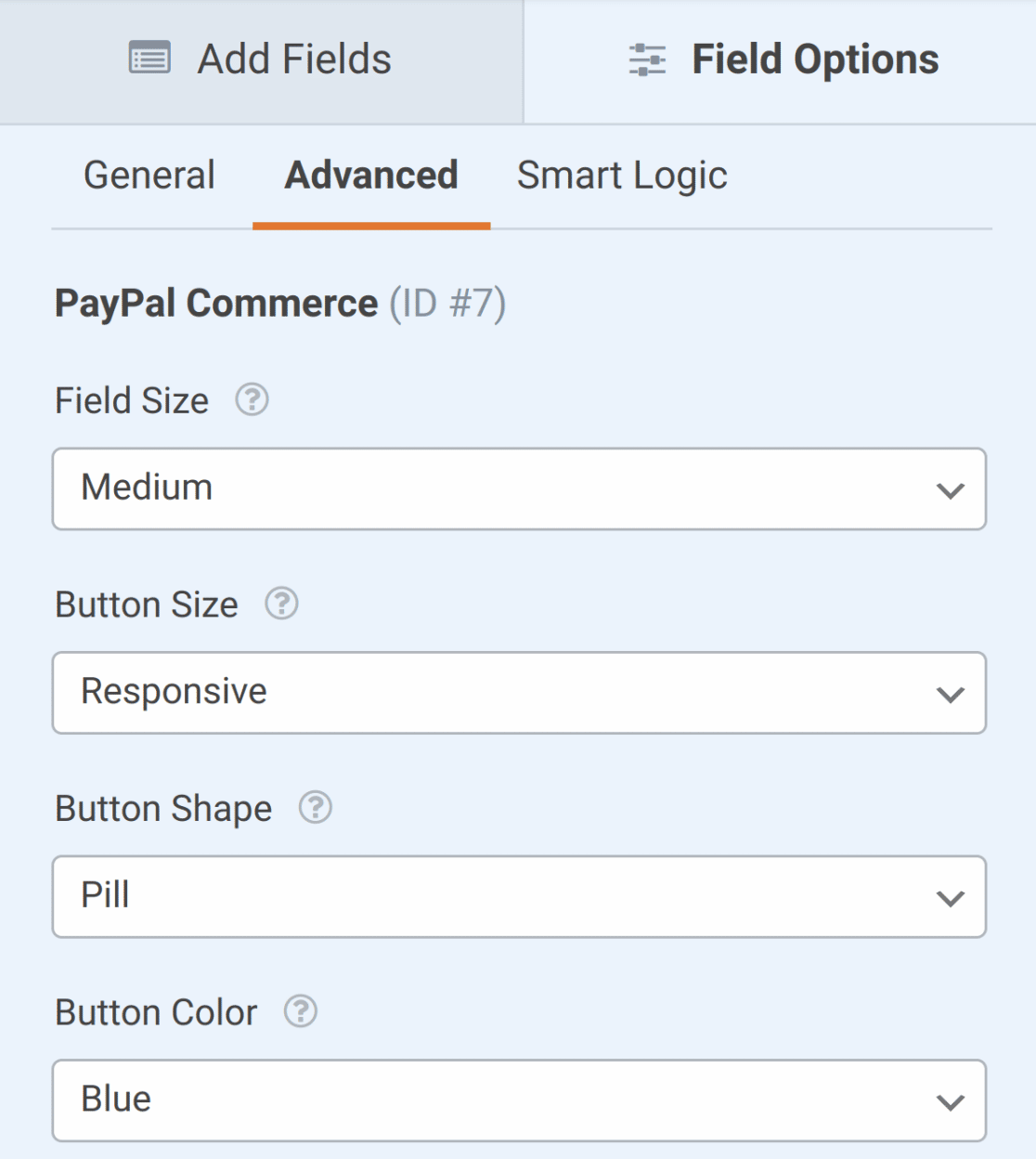
The available customization options include:
- [Field Size](#field-size)
- [Button Size](#button-size)
- [Button Shape](#button-shape)
- [Button Color](#button-color)
**Note:** The **PayPal Commerce** field and the included **PayPal** button can be modified to fit your site’s appearance better.
However, if you’d like to apply even more customization, you can [customize your form with CSS](https://wpforms.com/docs/how-to-style-wpforms-with-custom-css-beginners-guide/).
#### Field Size
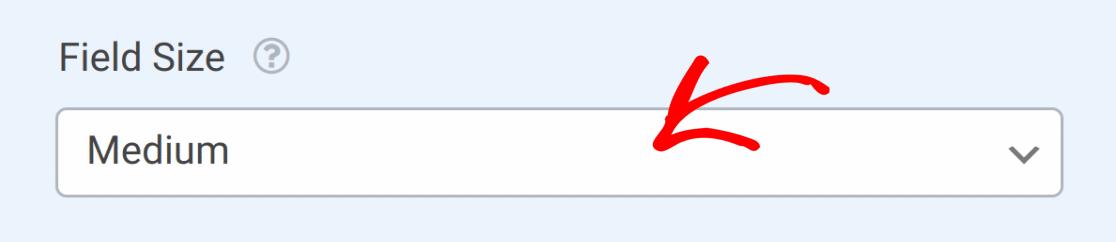
The Field Size option allows you to set the relative width of the inputs included in the **PayPal Commerce** field. You can choose between **Small**, **Medium**, and **Large** sizes, with the **Large** taking up the available width of your form.
Choose a value from the **Field Size** dropdown list to select the size you’d like to use.
#### Button Size
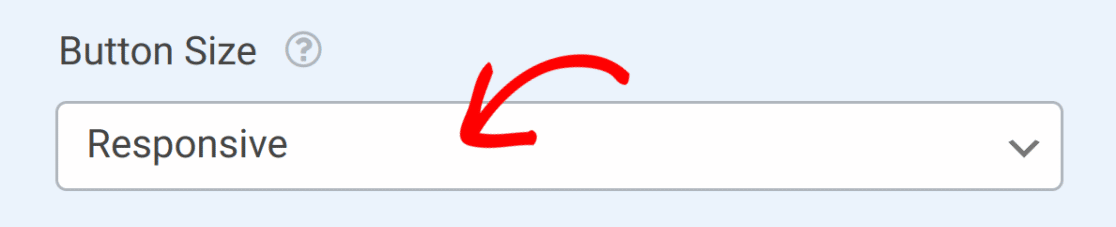
This option sets the size of the **PayPal** button displayed when PayPal Credit is chosen as the payment method or when recurring payments are enabled.
Along with the **Small**, **Medium**, and **Large** options, there is a **Responsive** option, which resizes the button according to the device’s screen size.
#### Button Shape
This option allows you to choose between a **Pill** or **Rectangle** shape for the **PayPal** button.

#### Button Color
If you’d like to change the color of the **PayPal** button, there are various styles available. To view the available styles and select which design you prefer, click on the **Button Color** dropdown list.
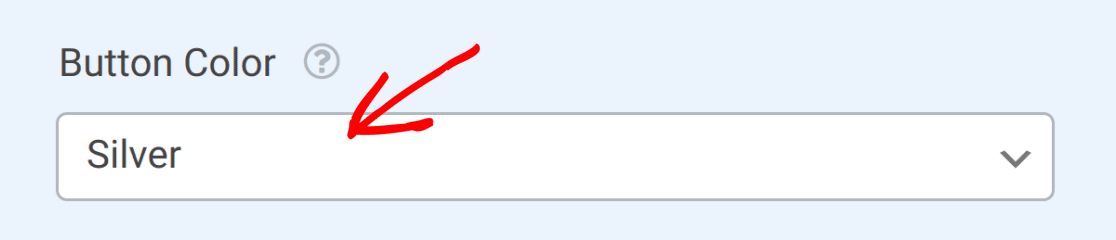
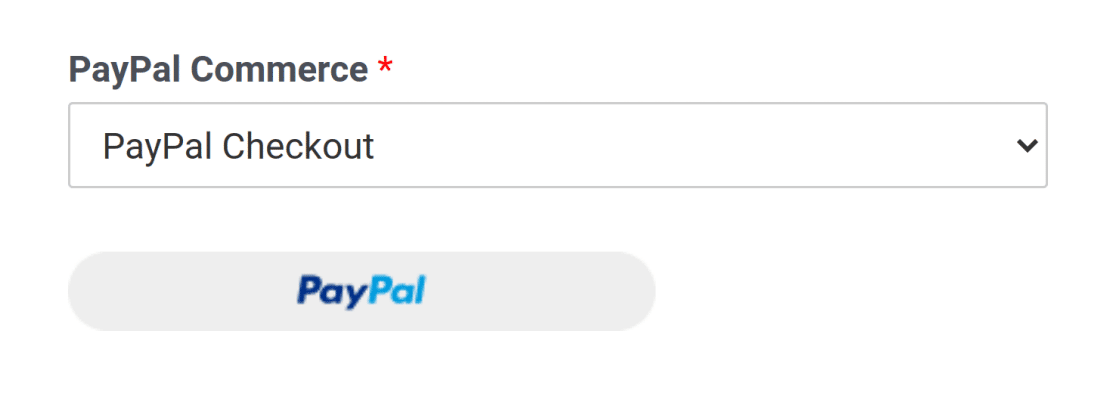
The selected button style is visible in the form builder and form preview.
That’s it! Now you know how to customize the PayPal Commerce field with WPForms.
Next, want to explore how to add even more styles to your forms? Be sure to check out our tutorial on [styling your forms](https://wpforms.com/docs/styling-your-forms/) for more details.
**Categories:** Fields, Payment Forms
---