### [Viewing and Managing PayPal Commerce Payments](https://wpforms.com/docs/viewing-and-managing-paypal-commerce-payments/)
**Published:** February 23, 2024
**Author:** Editorial Team
**Excerpt:** Learn how to view and manage PayPal Commerce payments.
**Content:**
PayPal Commerce is a Pro Feature
Unlock PayPal Commerce and other powerful features to grow your business.
[ Get WPForms Pro ](https://wpforms.com/pricing/)
Looking to manage your PayPal Commerce payments more effectively? Discover how to effortlessly manage PayPal payments using the WPForms PayPal Commerce addon, from processing refunds to overseeing subscriptions and beyond.
This tutorial will show you how to view and manage PayPal Commerce payments with WPForms.
**Requirements**: To use the PayPal Commerce addon for WPForms, you’ll need:
- A [Pro license level or higher](https://wpforms.com/pricing/ "WPForms Pricing Page")
- A [PayPal Business account](https://www.paypal.com/us/business "PayPayl Business")
- To install the latest version of WPForms to meet the [minimum required version](https://wpforms.com/docs/why-you-should-always-use-the-latest-version-of-wpforms/#version-requirements) for the PayPal Commerce addon
- [Set up a form with PayPal Commerce integration](https://wpforms.com/docs/paypal-commerce-addon/)
---
Before getting started, you’ll first need to make sure WPForms is [installed and activated](https://wpforms.com/docs/install-wpforms-plugin/ "How to Install the WPForms Plugin") on your WordPress site. Once you’ve [verified your license](https://wpforms.com/docs/verify-wpforms-license/ "How to Verify Your WPForms License"), you can [install and activate the PayPal Commerce addon](https://wpforms.com/docs/install-activate-wpforms-addons/ "How to Install and Activate WPForms Addons").
**Note:** Be sure to disable the [PayPal Standard addon](https://wpforms.com/docs/install-use-paypal-addon-wpforms/) if you have it installed. Both PayPal addons can’t be used at the same time.
### Viewing and Managing Payments
Once you’ve [set up a form with PayPal Commerce integration](https://wpforms.com/docs/paypal-commerce-addon/) and received some payments, you’ll be able to view and manage them right from your site’s admin area.
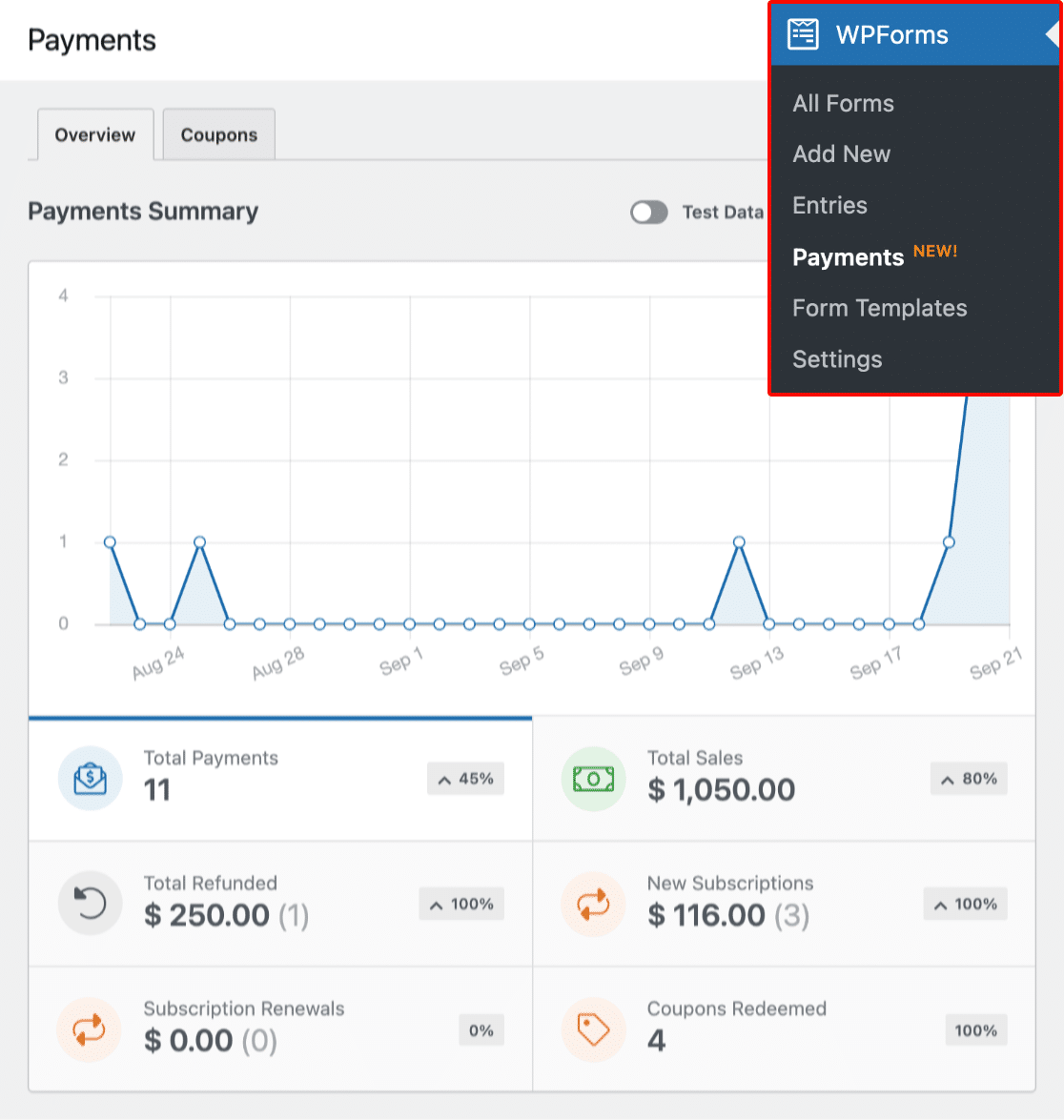
To do this, go to **WPForms » Payments** and select the **Overview** tab to access the Payments page.
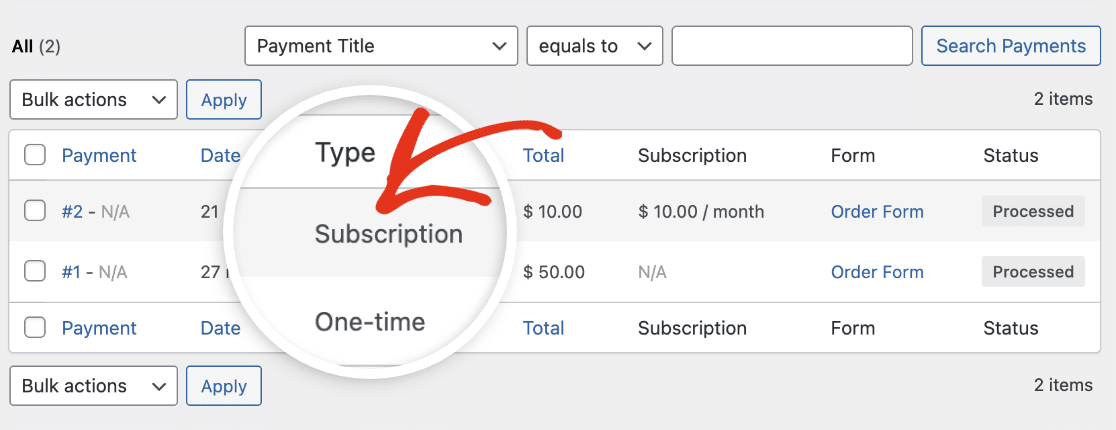
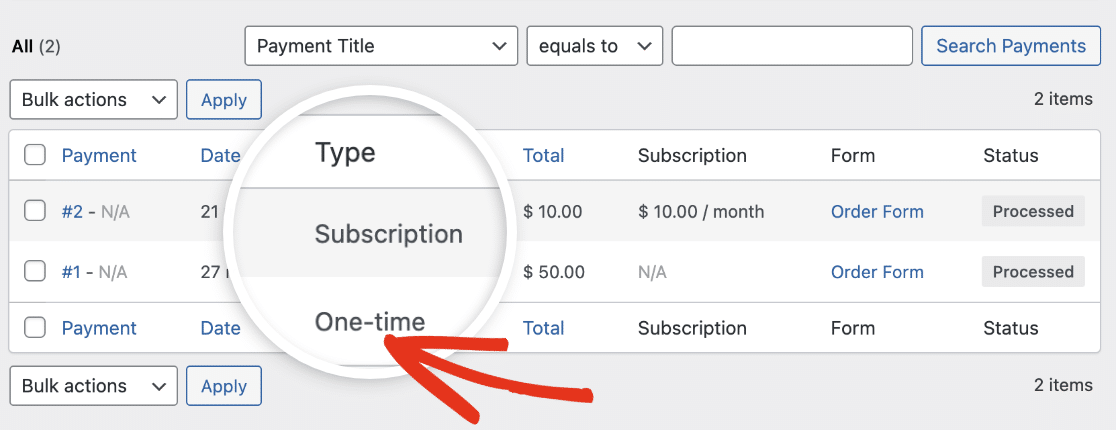
If the transaction is recurring, you’ll see **Subscription** next to it under **Type**.
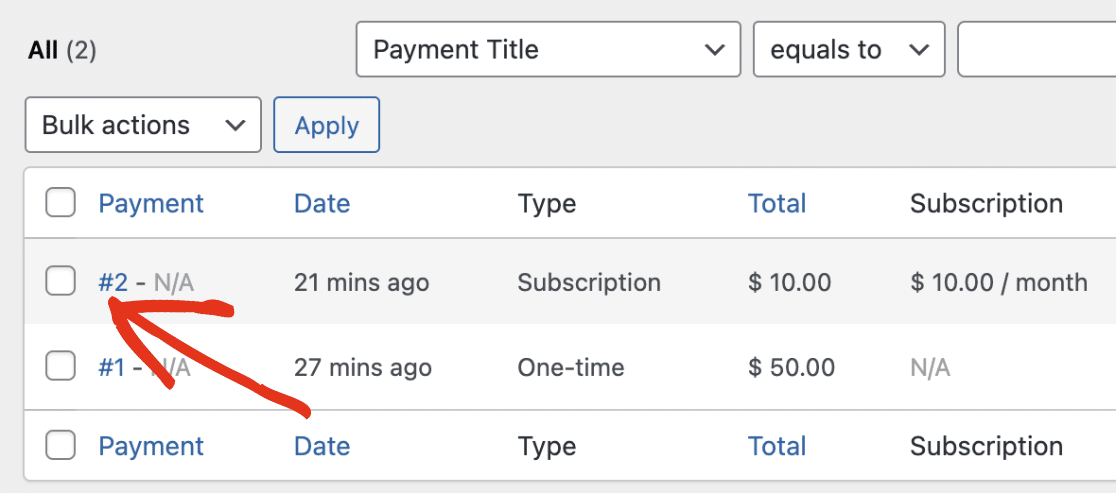
To view additional details about a specific entry, click the entry number under the **Payment** column.
You’ll see payment details for the specific entry you selected. If you’d like to see a detailed breakdown of the transaction, click the **View in PayPal Commerce** link.
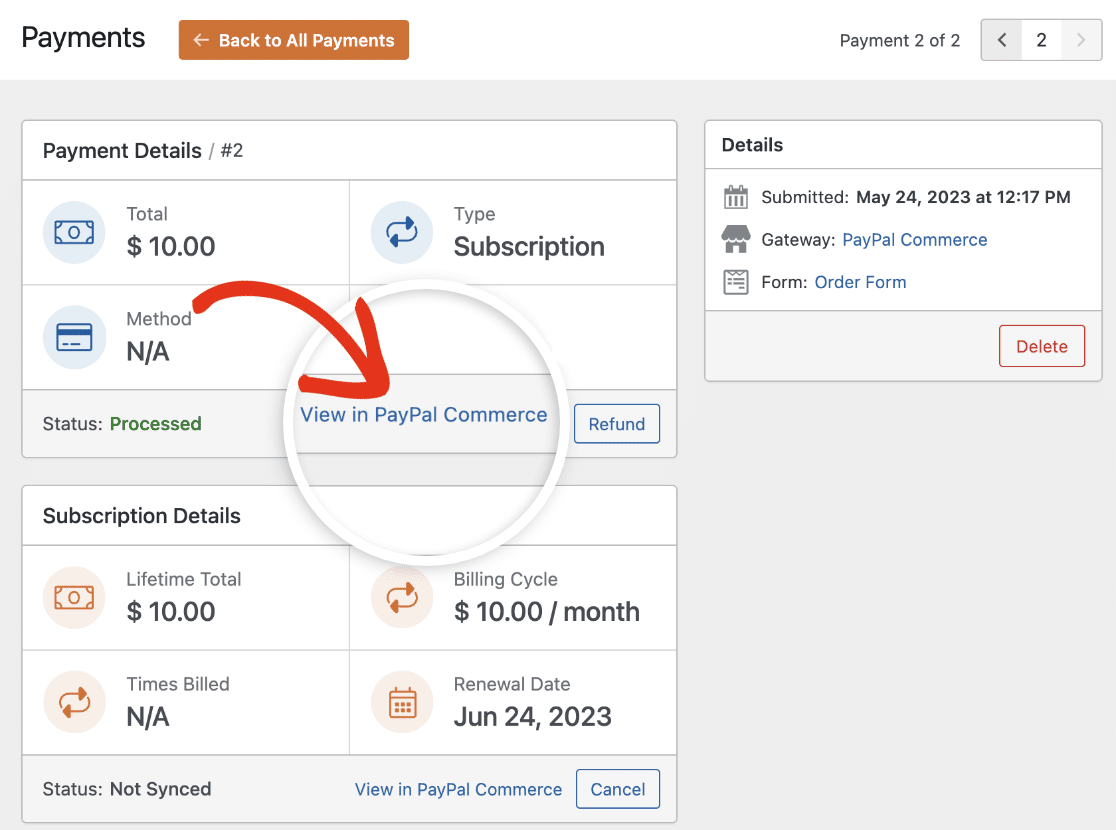
Clicking on this link will direct you to your PayPal dashboard to view the transaction details.
For one-time payments, you’ll see **One-time** next to the payment entry under the **Type** column.
To learn more about viewing and managing your payments, please see our[ managing payment entries](https://wpforms.com/docs/viewing-and-managing-payments/) guide.
**Note:** If you’d like, you can create coupon codes and give users a discount when filling out your payment form. To learn more, check out our [Coupons addon](https://wpforms.com/docs/coupons-addon/) tutorial.
### Viewing Declined Payments
WPForms records declined payment events if [activity logging is enabled](https://wpforms.com/docs/how-to-enable-activity-logging-for-wpforms/) on your site. To view the activity logs, go to **WPForms » Tools** and click on the **Logs** tab.
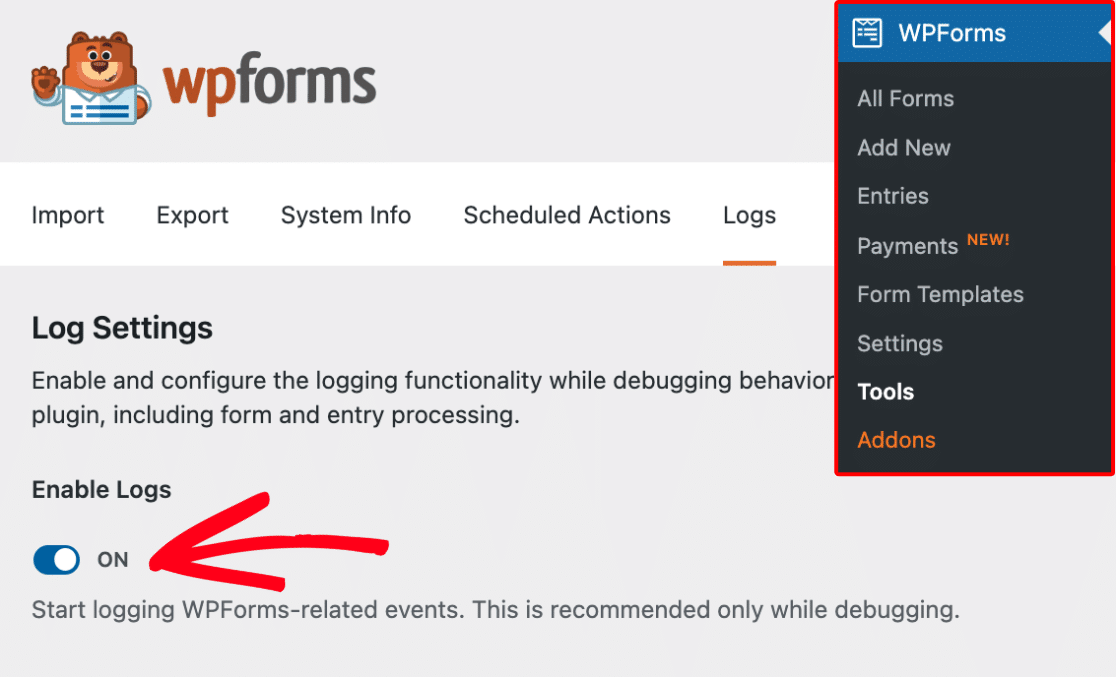
**Note:** To log declined payments, you’ll need to [enable activity logging](https://wpforms.com/docs/how-to-enable-activity-logging-for-wpforms) in your WPForms settings.
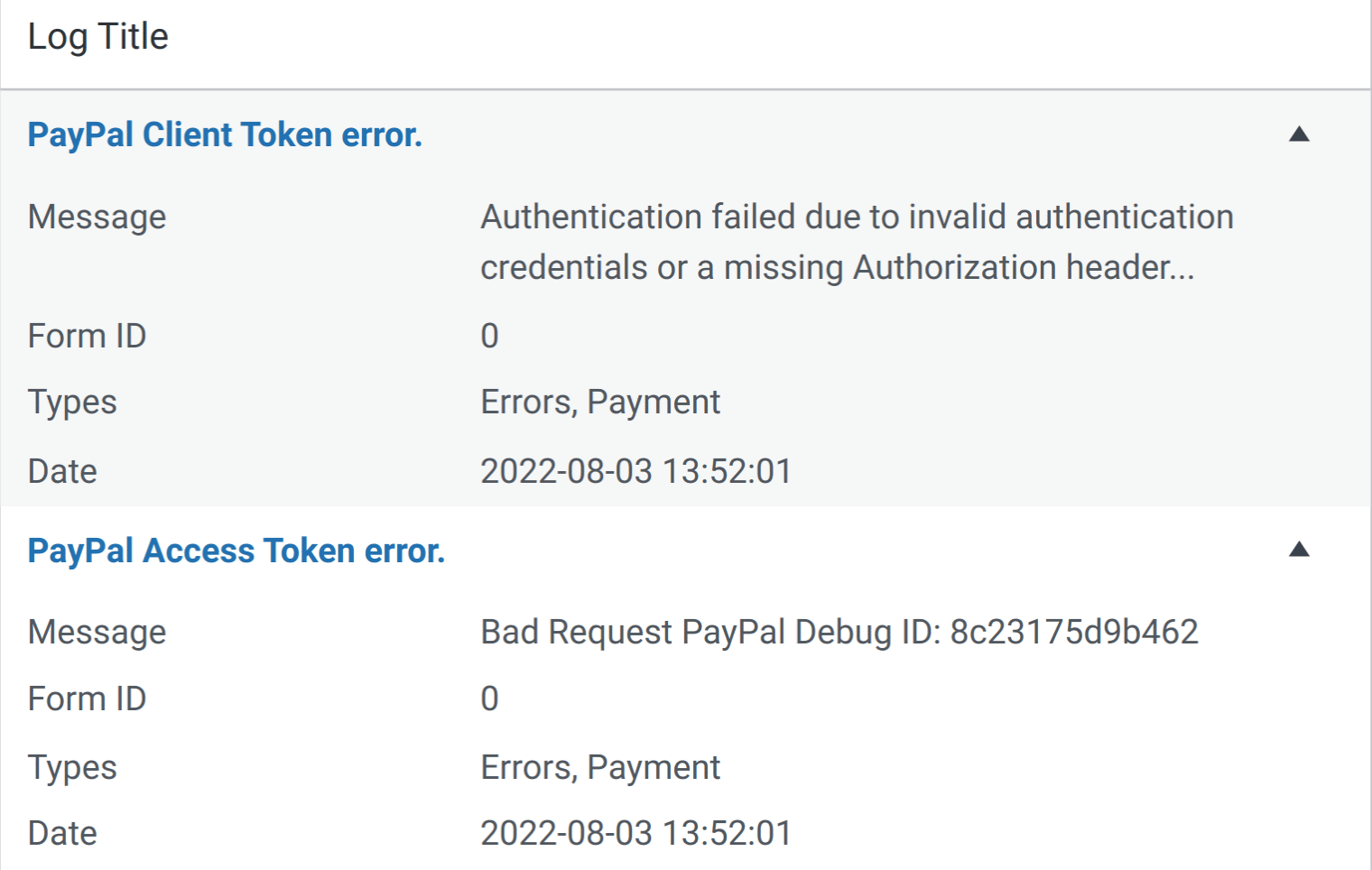
Failed payments are listed under the **Types** column as **Errors** and **Payment**. In the log table, you’ll also see a message detailing the cause of the failure, the Form ID, and the date.
### Frequently Asked Questions
These are some of the most common questions we receive about viewing and managing PayPal Commerce transactions.
##### How do I test PayPal Commerce payments in my forms?
The best way to test out your forms is to submit an entry and follow the same steps as your users. We recommend [setting up PayPal Commerce’s test mode](https://wpforms.com/docs/testing-payments-with-the-paypal-commerce-addon/) before adding your form to a live page, which allows you to test transactions before accepting actual payments. Once you’ve enabled test payments, you can [view your test transactions](https://wpforms.com/docs/viewing-and-managing-payments/#Viewing_Test_Payments) from the WordPress dashboard.
That’s it! Now you know how to view and manage PayPal Commerce payments with WPForms.
Next, would you like to change the appearance of your PayPal Commerce forms? Be sure to check out our tutorial on [customizing the PayPal Commerce field](https://wpforms.com/docs/customizing-the-paypal-commerce-field/).
**Categories:** Payments, Payment Management
---