


Resumo de IA
Gostaria de aceitar pagamentos dos seus clientes através dos seus formulários WordPress? O WPForms facilita a integração do Square e o início da recolha de pagamentos online utilizando o WPForms Lite.
Neste guia, vamos guiá-lo através da configuração do Square com o WPForms Lite para que possa começar a receber pagamentos diretamente dos seus formulários.
Requisitos:
- Precisará da versão 1.9.5 ou superior do WPForms para aceder aos pagamentos Square com o WPForms Lite
- Certifique-se de que instalou a versão mais recente do WPForms para cumprir a versão mínima exigida para o add-on Square
- O Square exige que o seu site tenha SSL (HTTPS) ativado na página onde está a adicionar um formulário de pagamento ativo, pois isto permite-lhe enviar dados de cartão de crédito de forma segura para o Square. Para mais detalhes, consulte o guia do WPBeginner sobre como adicionar SSL e HTTPS no WordPress
Instalar WPForms Lite
Antes de começar, precisará de instalar e ativar o plugin WPForms Lite no seu site WordPress. Pode instalar o WPForms Lite a partir do diretório de plugins do WordPress.
Se não está familiarizado com a instalação de plugins WordPress, consulte o guia da WPBeginner para saber como.
Ligar a sua conta Square
Assim que o WPForms Lite estiver ativo, terá de ligar a sua conta Square. Vá a WPForms » Definições, depois clique no separador Pagamentos.
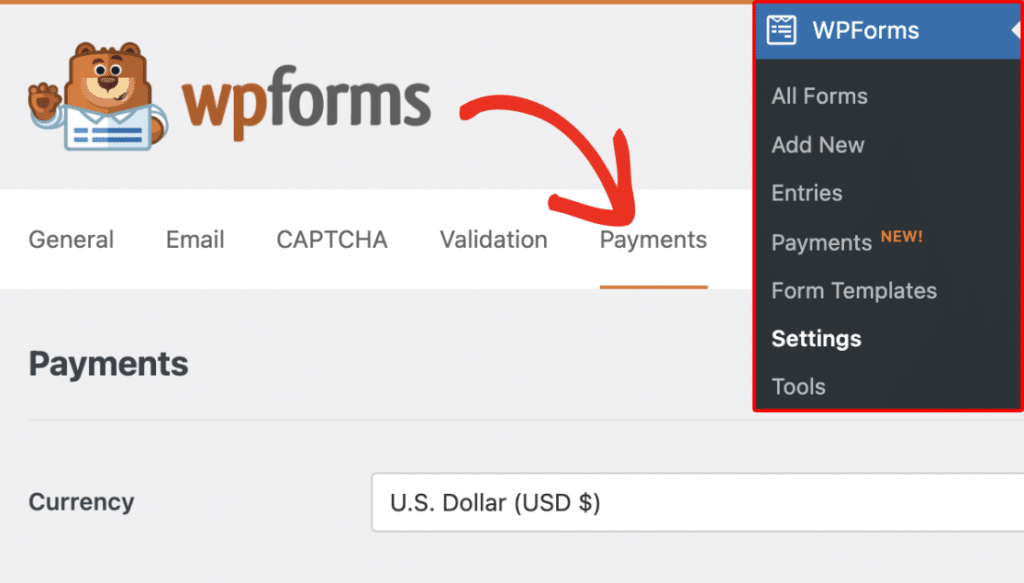
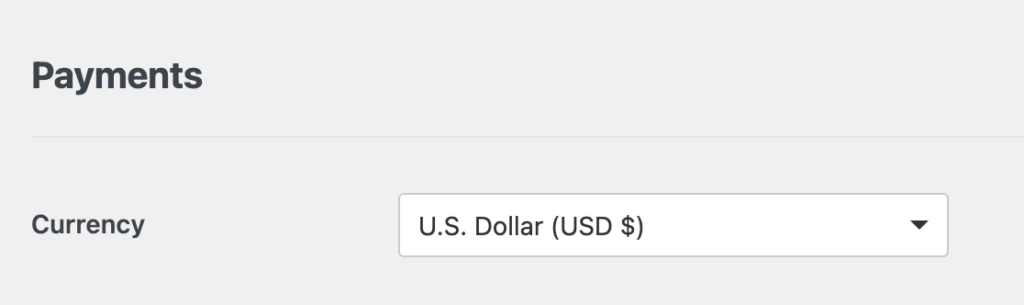
Na secção Pagamentos, certifique-se de que o menu suspenso Moeda está definido para a mesma moeda que a sua conta Square utiliza.
Desloque-se até à secção Square e clique em Ligar ao Square. Será redirecionado para o ecrã de início de sessão do Square, onde poderá iniciar sessão e autorizar a ligação.

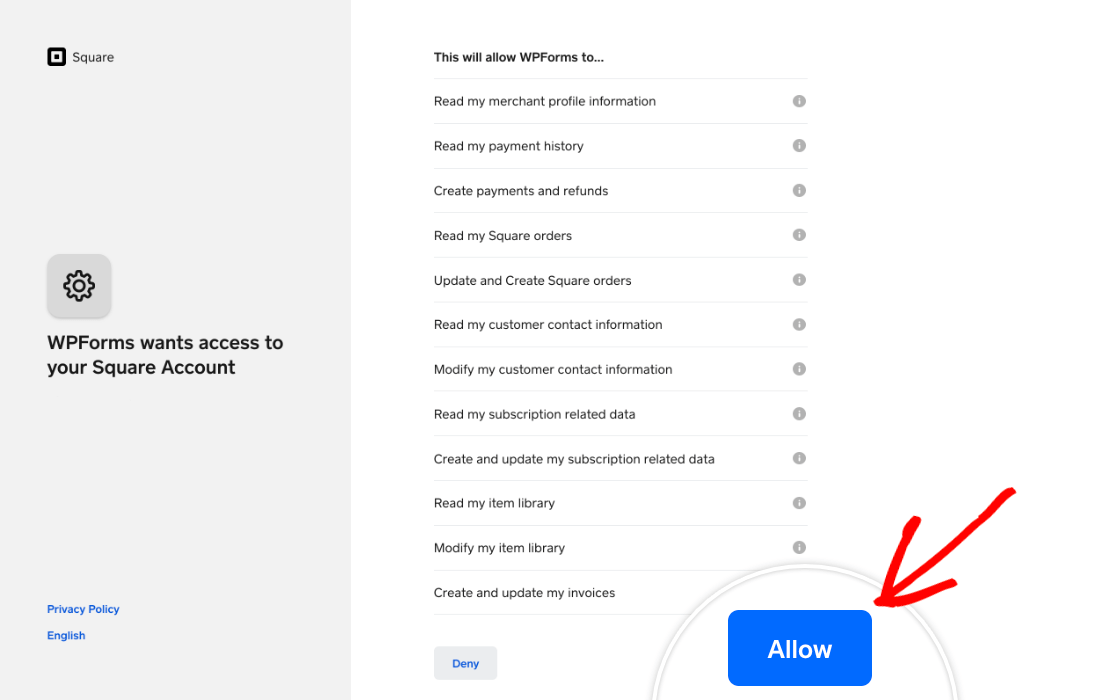
O Square irá então perguntar se pretende conceder ao WPForms certas permissões relacionadas com a sua conta. Clique em Permitir para prosseguir.
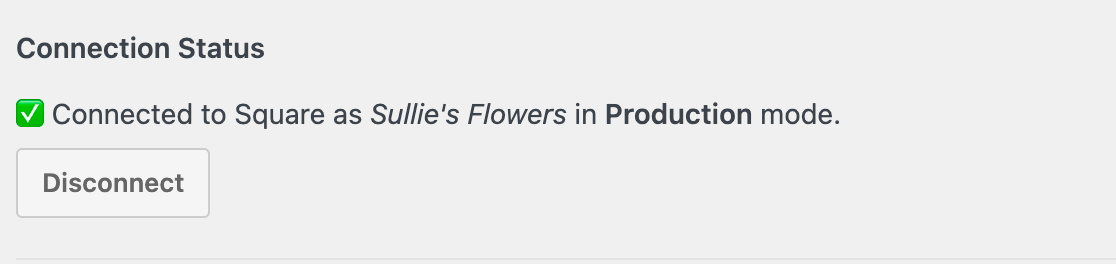
Após a ligação, será devolvido ao seu site. Uma marca de verificação verde aparecerá ao lado do Estado da Ligação se a ligação foi bem-sucedida.
O WPForms também irá importar a sua localização comercial para as definições. Se a sua conta Square tiver várias localizações ativas, pode escolher qual utilizar no menu suspenso Localização Comercial.
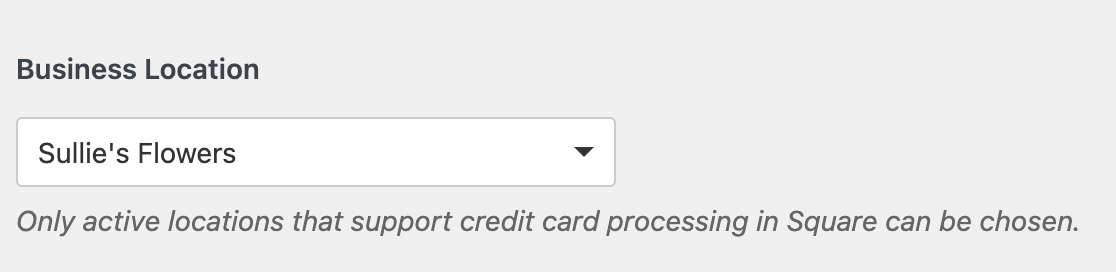
Nota: As localizações são geridas na sua conta Square. Para obter ajuda com a adição, remoção ou edição de localizações, consulte a documentação da Square sobre este tópico.
Por último, certifique-se de guardar as suas definições antes de sair deste ecrã.
Configurar Webhooks do Square
Os Webhooks permitem que o WPForms receba atualizações em tempo real da Square quando um pagamento é concluído, reembolsado ou atualizado. Com os webhooks da Square ativados, os seus formulários mantêm-se sincronizados automaticamente, para que não tenha de acompanhar manualmente as alterações de pagamento.

Para saber como ligar webhooks do Square ao WPForms, siga o nosso guia sobre configuração de webhooks do Square.
Ativar pagamentos Square no Construtor de Formulários
Depois de ligar o seu site à Square, pode ativar pagamentos para um formulário específico. Para tal, crie um novo formulário ou edite um existente para abrir o construtor de formulários.
No construtor de formulários, certifique-se de incluir:
- Um campo de Email e um campo de Nome
- Campo de itens de pagamento (Item único, Vários itens, Itens de caixa de seleção ou Itens de lista suspensa)
- Um campo de pagamento Square
Estes campos são necessários para que o pagamento seja processado corretamente.
Após adicionar os seus campos, vá a Pagamentos » Square. Ative a opção Ativar pagamentos únicos para a posição ligada.

Uma vez ativadas, aparecerão algumas definições adicionais:
Primeiro, introduza uma Descrição do Pagamento, que aparecerá no extrato do cartão de crédito do seu cliente, pelo que é uma boa ideia usar um nome que ele reconheça.
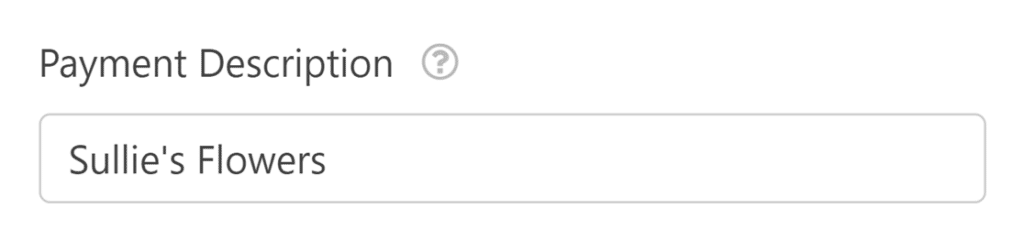
Em seguida, pode mapear alguns campos opcionais do seu formulário para a sua conta Square, se desejar. Utilize os menus pendentes para selecionar Email e Nome do seu formulário.

Se o seu formulário for para aceitar pagamentos únicos, pode guardar as suas alterações e prosseguir para testar o seu formulário de pagamento. No entanto, se precisar de aceitar pagamentos recorrentes, terá de completar definições adicionais.
Ativar Pagamentos Recorrentes
Se o seu formulário se destina a recolher pagamentos de forma recorrente, ative a opção Ativar pagamentos recorrentes.
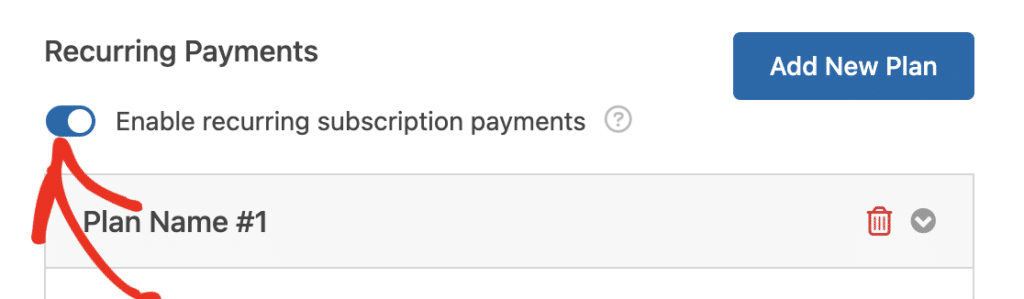
Depois de ativar esta opção, terá de preencher os outros campos desta secção, que incluem:
- Nome do Plano: Introduza um título para a subscrição. Isto aparecerá nas transações deste formulário na sua conta Square.
- Cadência da Fase: Selecione a frequência com que o pagamento deve ocorrer. As opções incluem Mensal, Anual e outras.
- Email do Cliente: Selecione o campo Email do seu formulário para que o cliente possa ser contactado. Isto é necessário para criar uma subscrição para um cliente na Square
- Nome do Cliente: Selecione o campo que contém o nome do cliente.

Testar Pagamentos Square
Após configurar o Square com o WPForms, terá de enviar um pagamento de teste antes de lançar o seu formulário para garantir que tudo funciona como esperado.
Recomendamos a consulta do nosso guia sobre testar pagamentos com o Square para um guia completo.
Visualizar Entradas de Pagamento
Após a publicação do seu formulário e quando os utilizadores começarem a submeter pagamentos, poderá ver os detalhes do pagamento no seu painel WordPress.
Aceda a WPForms » Pagamentos para aceder à página geral. Aqui, pode rever todas as suas entradas de pagamento e acompanhar as receitas.
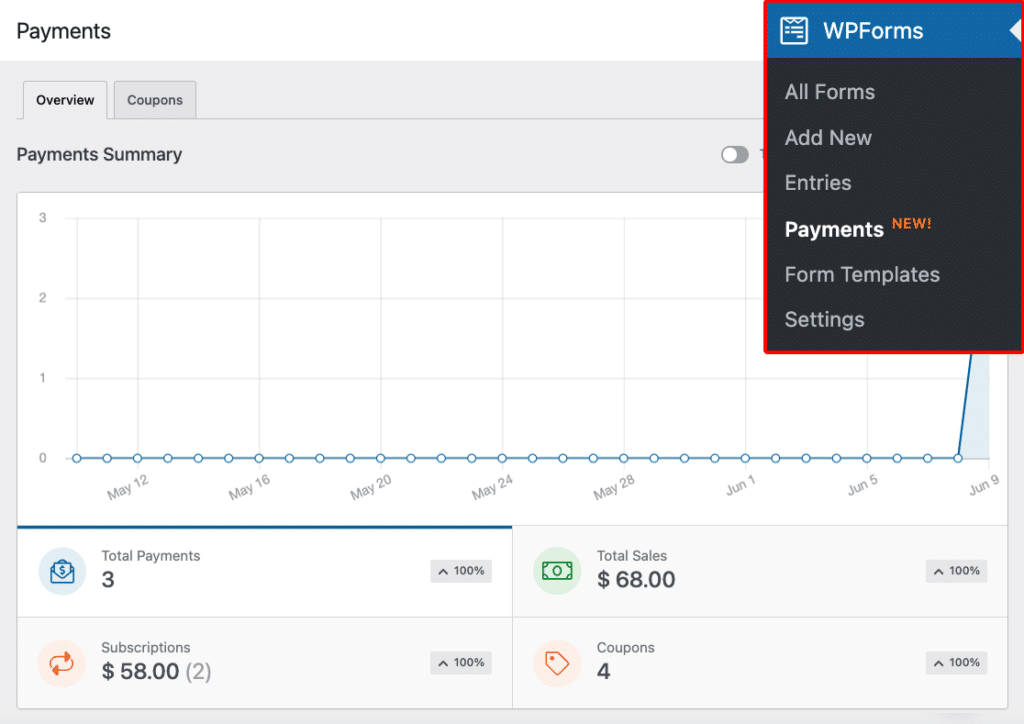
Para saber mais, consulte o nosso guia sobre visualização e gestão de pagamentos de formulários.
Perguntas Frequentes
Estas são algumas das principais questões sobre o addon Square.
Ser-me-á cobrado algo por usar o Square nos meus formulários?
Sim. Se estiver a usar o WPForms Lite, é aplicada uma taxa de 3% a cada transação, além das taxas de processamento da própria Square. Para remover a cobrança adicional de 3%, terá de atualizar para a licença WPForms Pro ou superior.
Para ver as taxas de vendedor atuais do Square para transações online remotas, consulte a sua Página de Preços.
É tudo! Está pronto para começar a aceitar pagamentos Square utilizando o WPForms Lite.
Em seguida, gostaria de saber mais sobre a gestão de pagamentos no WPForms? Consulte o nosso tutorial sobre criação de formulários de pagamento no WPForms para mais informações.


