


Resumo de IA
Gostaria de enviar notificações para seu espaço de trabalho do Slack quando os formulários forem enviados? Com o addon Slack do WPForms, você pode facilmente enviar mensagens para canais, mensagens diretas para usuários e definir lembretes no Slack quando os usuários preencherem seus formulários.
Este tutorial mostrará como instalar e usar o addon Slack com o WPForms.
Requisitos:
- Você precisará de uma licença Plus ou superior para acessar o addon Slack
- Certifique-se de ter instalado a versão mais recente do WPForms para atender à versão mínima exigida para o addon Slack
Antes de começar, você precisará garantir que o WPForms esteja instalado e ativado em seu site WordPress e que você tenha verificado sua licença. Você também precisará ter um espaço de trabalho no Slack e as permissões necessárias para adicionar integrações.
Instalando e Configurando o Addon Slack
Uma vez que o plugin principal do WPForms esteja no lugar e sua licença verificada, prossiga e instale e ative o addon Slack.
Após instalar o addon Slack, você precisará conectar o WPForms à sua conta Slack. Para fazer isso no painel do WordPress, você precisará ir para WPForms » Configurações e clicar na aba Integrações.
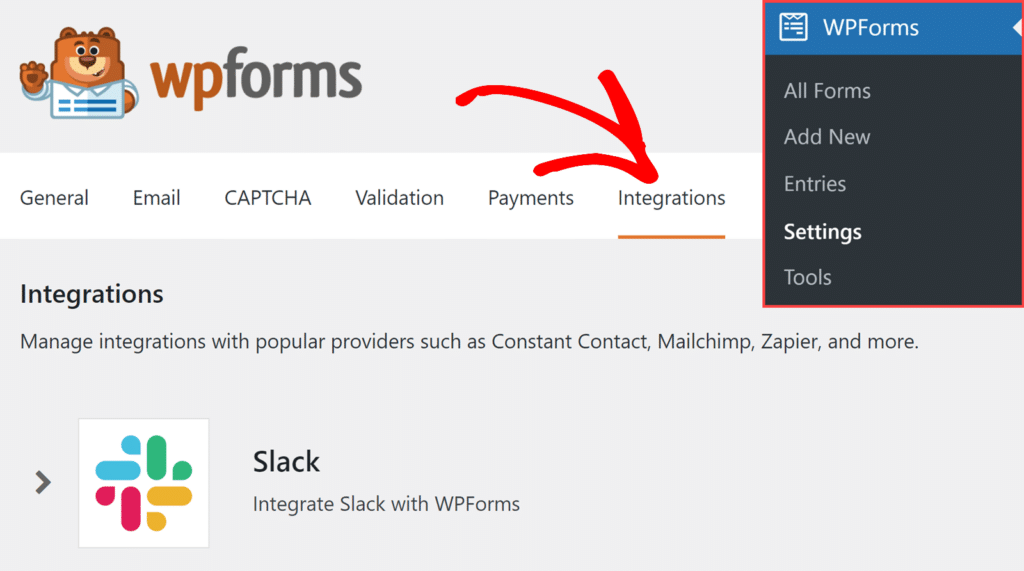
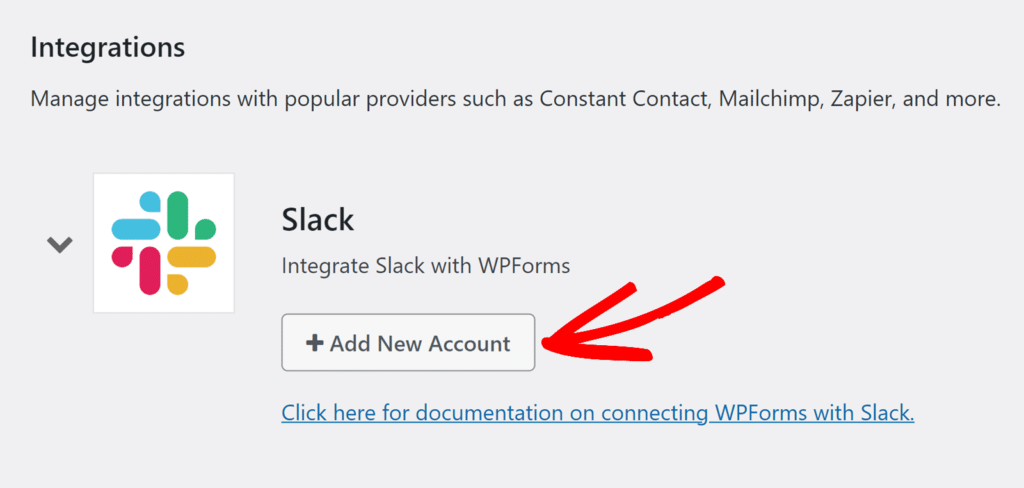
Em seguida, clique na integração Slack para expandir suas configurações. A partir daqui, clique no botão Adicionar Nova Conta.
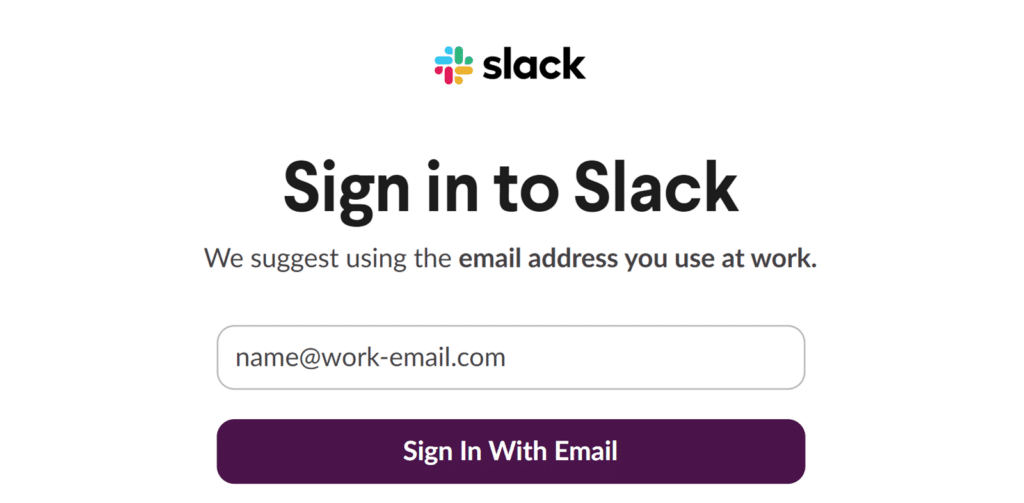
Isso abrirá a página de login do Slack, onde você precisará fazer login no seu workspace do Slack.
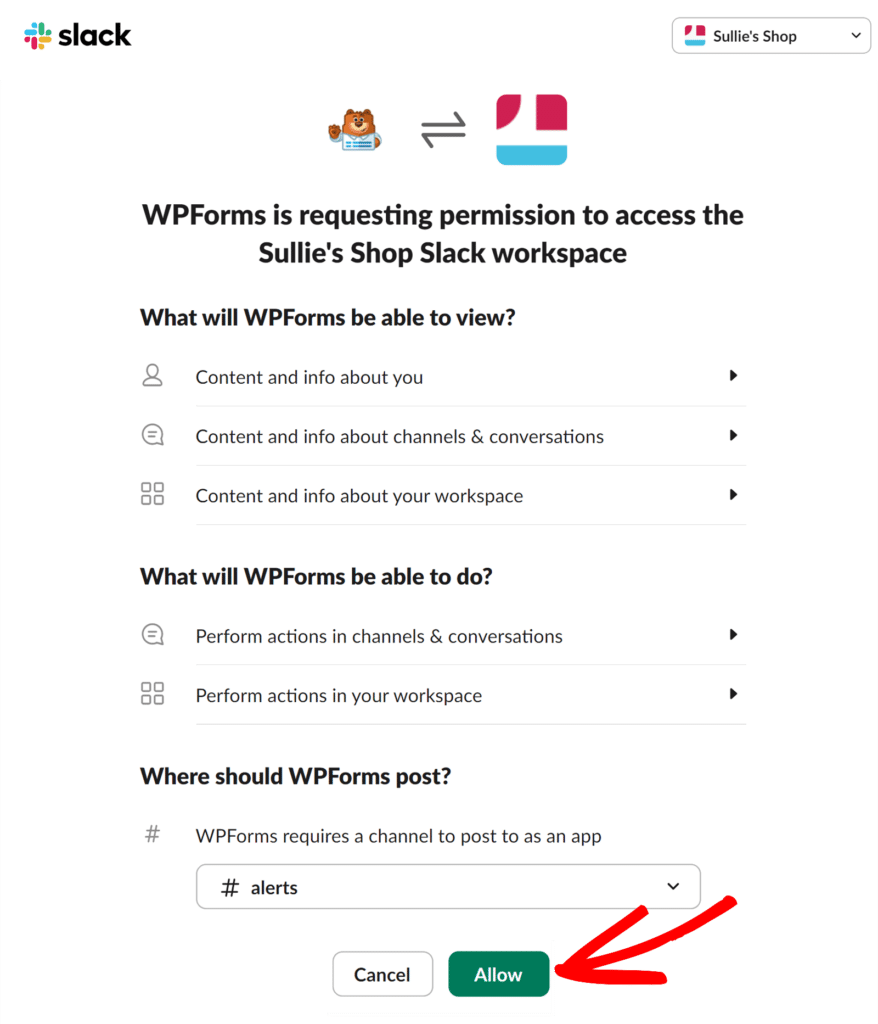
Após o login, você verá uma tela solicitando permissão para o WPForms acessar seu espaço de trabalho do Slack e enviar mensagens. Essas permissões são necessárias para que o WPForms envie notificações e atualizações para seus canais do Slack.
Nesta tela, você precisará selecionar um canal no menu suspenso para onde o WPForms pode postar mensagens. Escolha um canal no menu suspenso e clique em Permitir para concluir a integração.
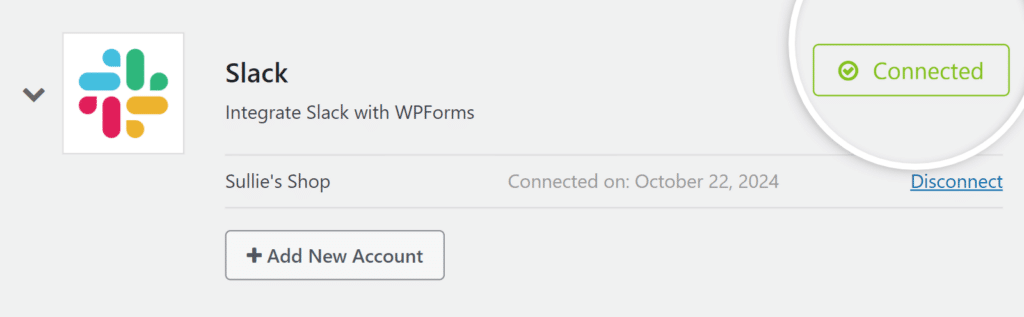
Depois de conceder permissão, você será redirecionado de volta à sua página de Integrações do WPForms. Agora você deve ver que o Slack está conectado com um status verde Conectado.
Adicionando uma Integração Slack aos Seus Formulários
Depois de conectar com sucesso sua conta Slack, você está pronto para vinculá-la a um formulário. Para fazer isso, você primeiro precisará criar um novo formulário ou editar um existente para abrir o construtor de formulários.
No construtor de formulários, vá para Marketing » Slack. Em seguida, clique no botão Adicionar Nova Conexão.
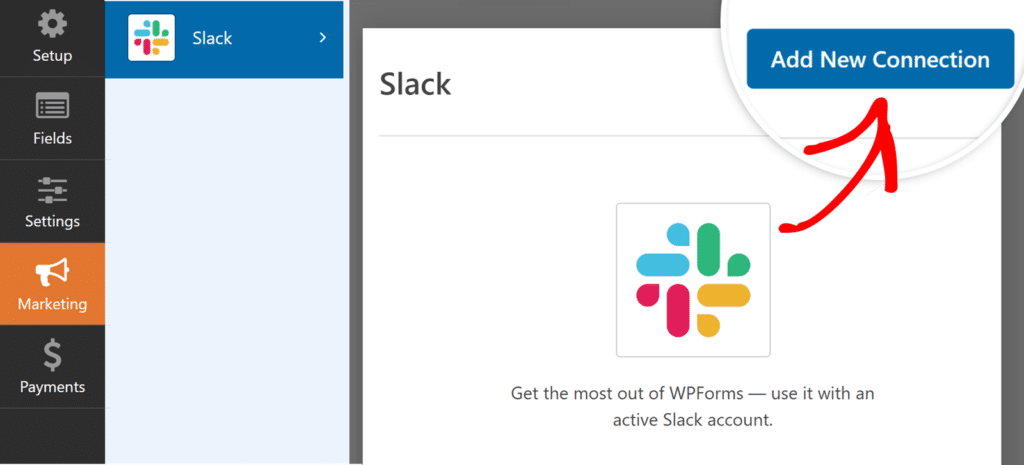
Observação: Após atualizar para o addon Slack v1.1.0, você pode ver um aviso de reautorização para habilitar o acesso a canais privados. Confira nosso FAQ abaixo para mais detalhes
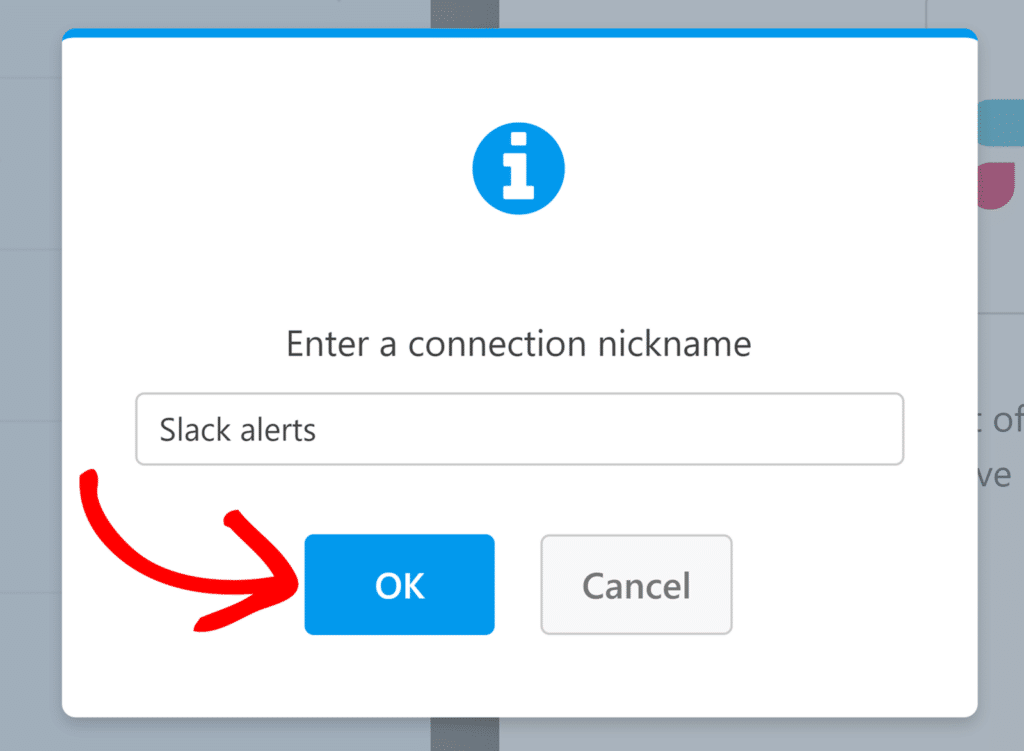
Clicar neste botão abrirá uma sobreposição onde você pode fornecer um apelido para esta conexão. Você pode inserir qualquer apelido que desejar, pois isso é apenas para referência interna.
Clique em OK depois de adicionar um apelido de conexão.
Após nomear a conexão, você precisará selecionar uma conta e escolher uma ação a ser executada quando alguém enviar seu formulário.
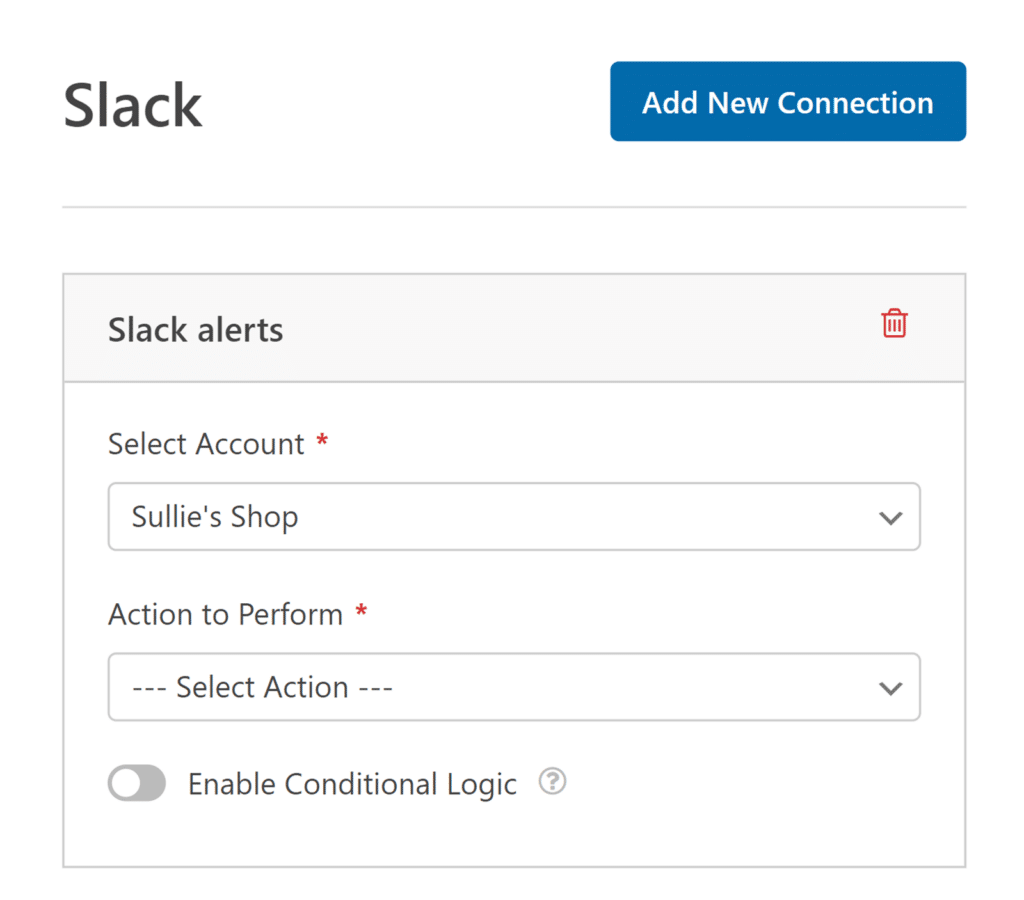
- Selecionar Conta: Escolha entre quaisquer contas Slack que você conectou.
- Ação a Executar: Selecione a ação que você deseja executar quando um usuário preencher este formulário. A opção selecionada aqui também determinará quais configurações adicionais serão exibidas.
Abordaremos cada uma das ações disponíveis e suas opções relacionadas com mais detalhes abaixo.
Enviar uma Mensagem de Canal
Esta ação permite que você envie uma mensagem para um ou mais canais do Slack quando o formulário for enviado.
Depois de selecionar uma ação a ser executada, configurações de configuração adicionais aparecerão.
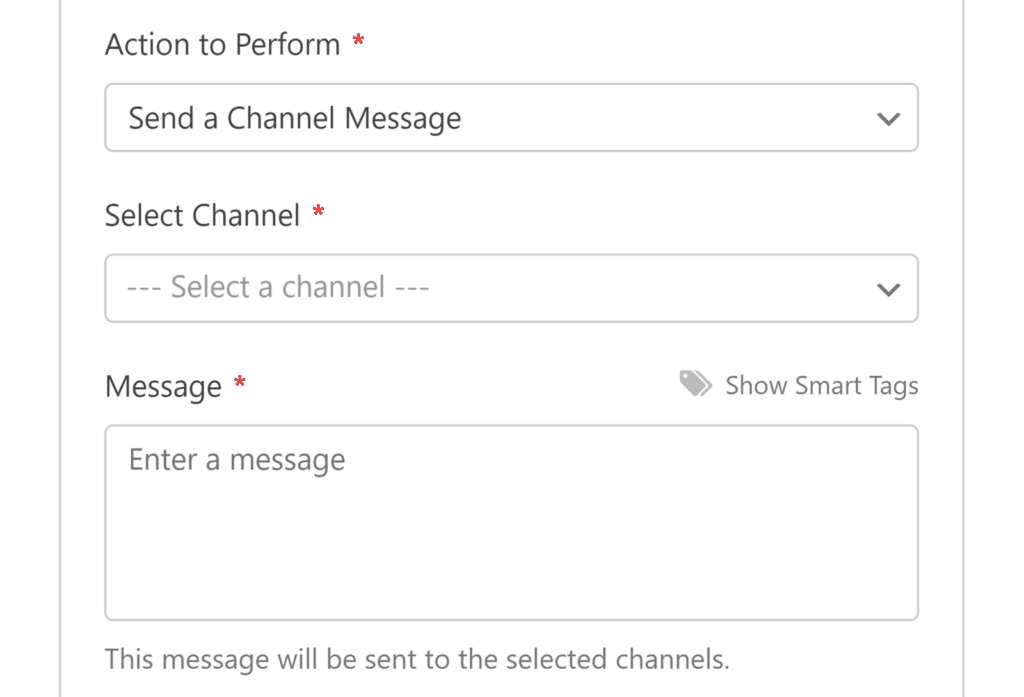
- Selecionar Canal: Escolha os canais do Slack onde você deseja enviar a mensagem.
- Mensagem: Digite a mensagem que você deseja enviar. Você pode usar Smart Tags para incluir dados de campos do formulário em sua mensagem.
Enviar uma Mensagem Direta
Esta ação permite enviar uma mensagem direta para um ou mais usuários do Slack quando o formulário for enviado.
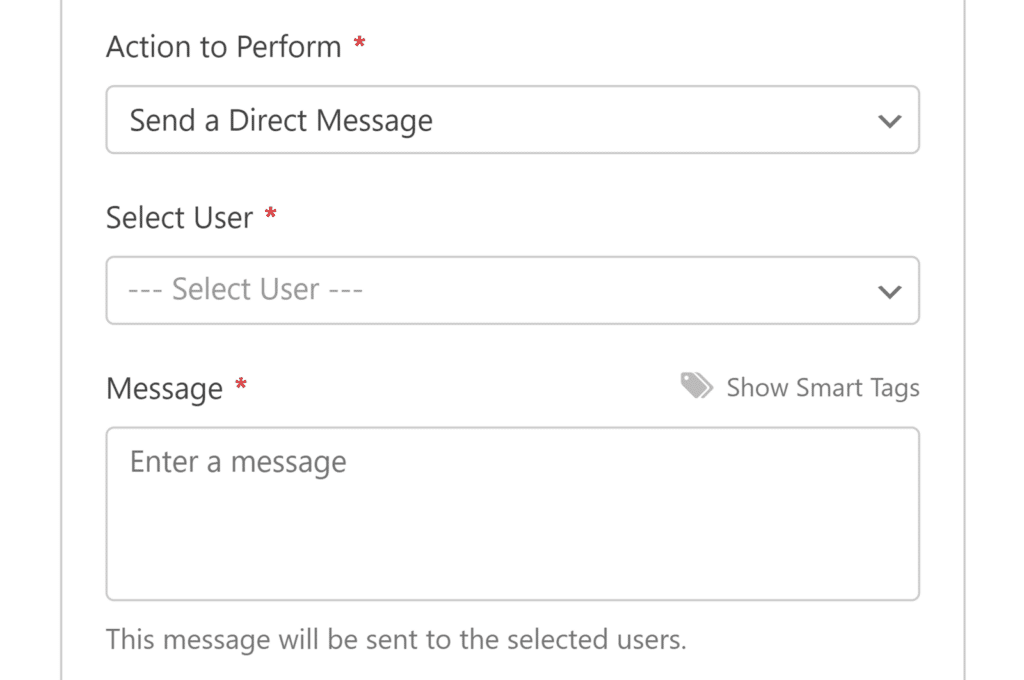
- Selecionar Usuário: Escolha o(s) usuário(s) do Slack que devem receber a mensagem direta.
- Mensagem: Digite a mensagem que você deseja enviar. Assim como nas mensagens de canal, você pode usar Smart Tags aqui.
Definir um Lembrete
Esta ação permite definir lembretes no Slack com mensagens personalizadas quando o formulário for enviado.
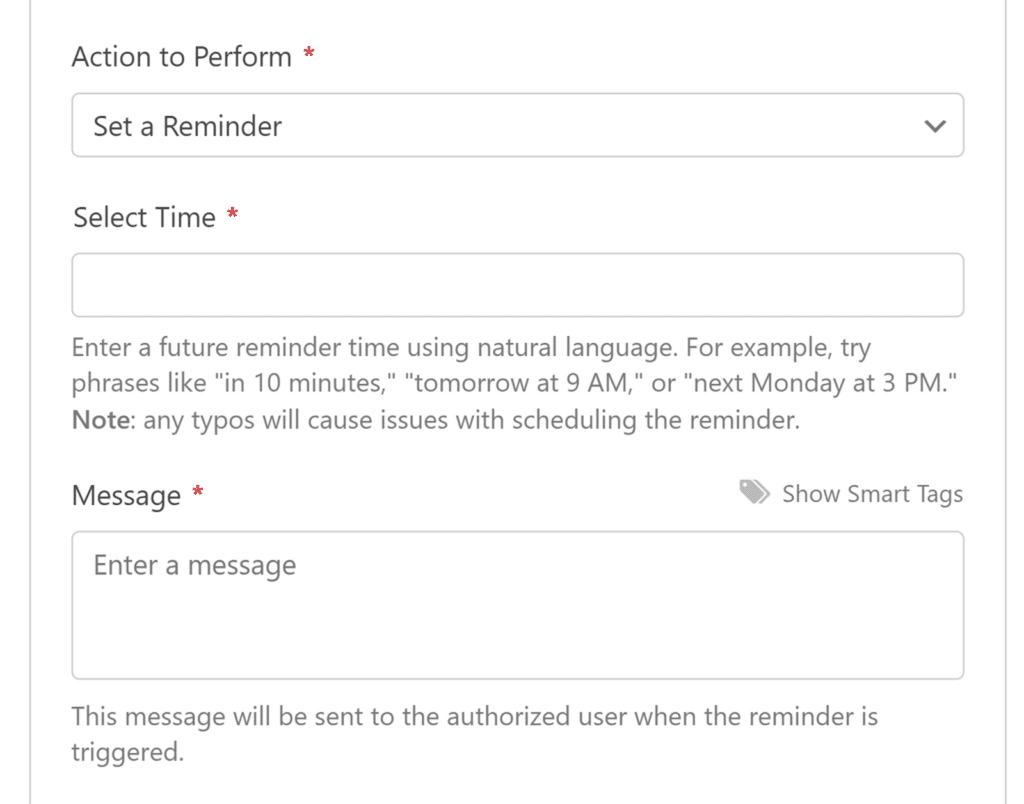
- Selecionar Hora: Insira quando o lembrete deve ser definido usando expressões de linguagem natural em inglês, como "em 10 minutos", "amanhã às 9h" ou "próxima segunda-feira às 15h". Observe que apenas frases em inglês são suportadas para definir horários de lembrete. Certifique-se de verificar o texto que você insere aqui, pois qualquer erro de digitação pode impedir que o lembrete seja agendado corretamente.
- Mensagem: Digite a mensagem que será enviada quando o lembrete for acionado. Smart Tags também podem ser usadas aqui.
Depois de configurar todas as suas configurações, certifique-se de salvar seu formulário.
Configurando Lógica Condicional (Opcional)
Lógica condicional permite que você escolha se uma ação será realizada ou não com base nas escolhas de um usuário em seu formulário.
Como exemplo, mostraremos como você pode usar a lógica condicional para enviar uma mensagem ao Slack se um usuário enviar uma entrada em nosso formulário de contato com uma mensagem que contenha a palavra “Ajuda”.
Para configurar isso, você precisará garantir que seu formulário tenha um campo de Texto de Linha Única ou Texto de Parágrafo. Para nosso exemplo, adicionaremos um campo de Texto de Parágrafo.
Em seguida, você precisará ajustar o rótulo para o campo de entrada de mensagem. Para nosso exemplo, adicionaremos o rótulo Comentário ou Mensagem.
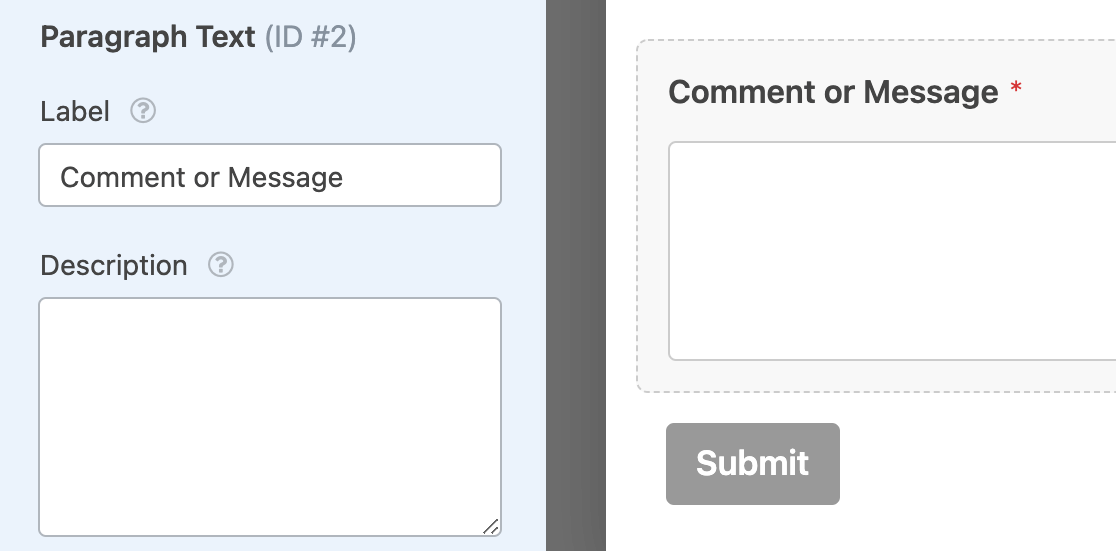
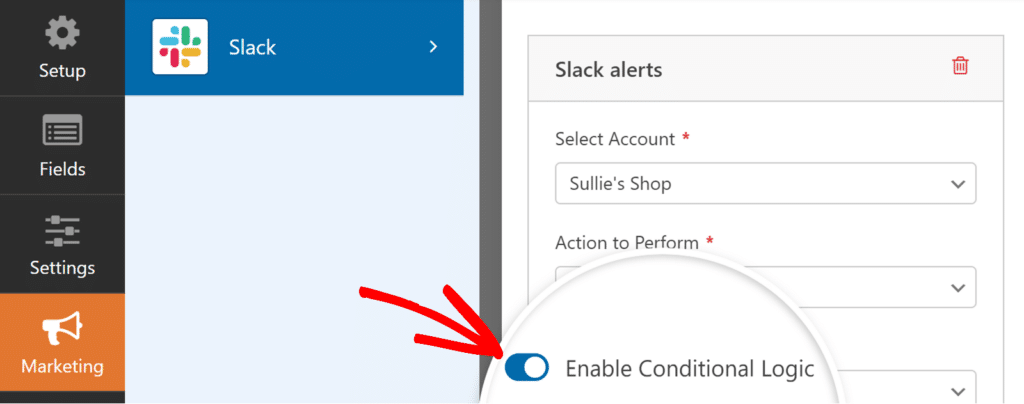
Em seguida, você precisará configurar sua lógica condicional. Na parte inferior das configurações do Slack, ative a opção rotulada Habilitar Lógica Condicional para revelar os menus suspensos para criar sua regra.
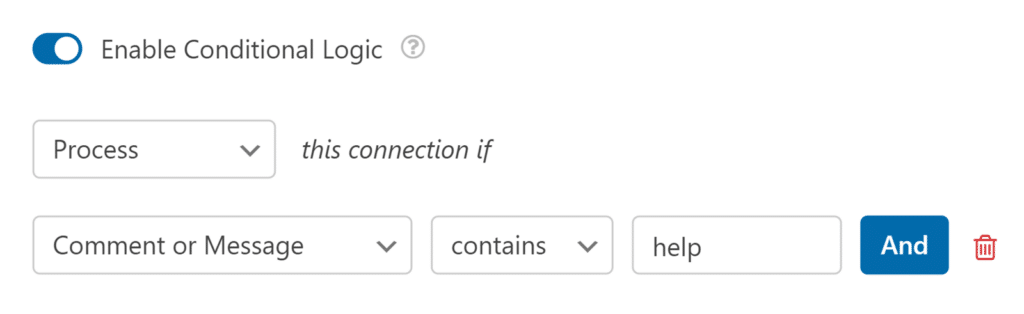
Em seguida, adicione a regra para sua lógica condicional. Para nosso exemplo, definiremos os menus suspensos para ler, Processar esta conexão se Comentário ou Mensagem contiver ajuda.
Finalmente, certifique-se de salvar seu formulário para aplicar a lógica condicional.
Perguntas Frequentes
Estas são algumas das perguntas mais comuns que recebemos sobre o uso do addon do Slack.
Por que estou vendo um aviso de reautorização após atualizar o addon do Slack para a v1.1.0?
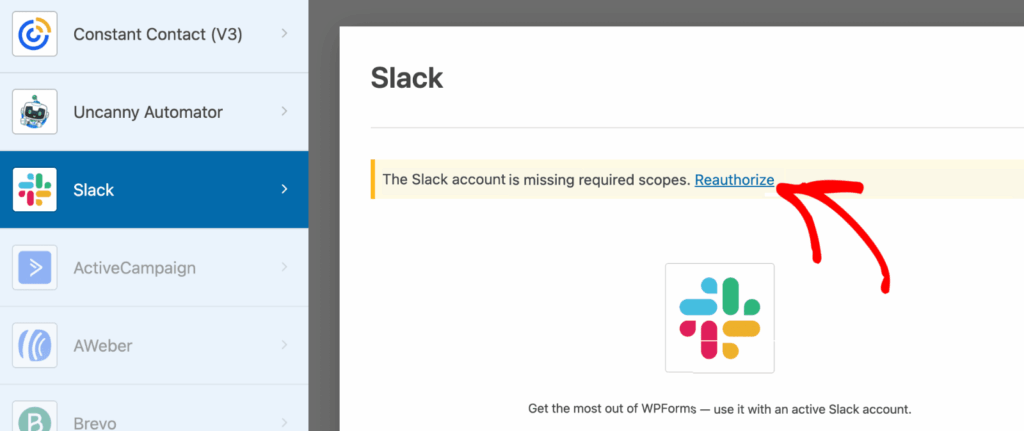
O addon WPForms Slack v1.1.0 adiciona suporte para o envio de mensagens para canais privados. Para usar isso, você precisa reautorizar sua conexão com o Slack. Para fazer isso, clique em Reautorizar no construtor de formulários. Em seguida, selecione um canal (público ou privado) e clique em Permitir para atualizar sua conexão.
Posso formatar minhas mensagens do Slack?
Sim, você pode usar a formatação integrada do Slack em suas mensagens. Isso inclui opções para texto em negrito, texto em itálico, blocos de código em linha e citações em bloco.
Para uma lista completa de opções de formatação e como usá-las, consulte o guia de formatação de texto do Slack.
Posso enviar mensagens para vários canais ou usuários?
Sim, ao usar a ação Enviar uma mensagem de canal, você pode selecionar vários canais para receber a mensagem.
Da mesma forma, com a ação Enviar uma mensagem direta, você pode escolher vários usuários para receber a mensagem direta.
Que idioma devo usar para definir lembretes?
Ao usar a ação Definir um lembrete, o campo de entrada Selecionar hora aceita apenas inglês para processamento de linguagem natural. Por exemplo, você deve usar frases em inglês como "em 2 horas", "na sexta-feira às 9h" ou "na próxima semana às 14h" ao definir o horário do seu lembrete.
É isso! Agora você sabe como configurar o addon do Slack para WPForms.
Em seguida, você gostaria de explorar mais maneiras de otimizar as notificações do seu formulário? Confira nosso guia sobre como configurar e-mails de notificação de formulário para mais detalhes.