


AI Summary
Would you like to receive a weekly report showing how your forms are performing? Email summaries in WPForms will send you a quick rundown of your entries, form views, and more (without any need to log in to WordPress).
This tutorial will show you how to use email summaries in WPForms.
What Are Email Summaries?
Email Summaries are weekly reports sent to your site’s admin email. Each summary covers the previous week, Monday through Sunday, and compares it to the week before.
At the top of the summary, you’ll see your totals for the week. An arrow under each number shows how much it went up or down since the previous week.
- Entries: The number of entries your forms received.
- Views: How many times your forms were viewed.
- Spam: How many spam entries were caught, with your total spam count below. If you use the Form Abandonment addon, this shows Leads Saved instead.
- Payments, Sales, and Refunds: Your payment totals for the week. These appear once your site has collected a live payment.

Below the totals, a table lists each form that received entries this week or the week before. For each form, you’ll see its entries, payments, views, and conversion rate. Click a form’s name to open its entries.
Your summary can also start with a short message about your week. For example, it might celebrate a form’s best week or your first 100 entries, or let you know a form stopped getting entries. At the bottom, you’ll find a button to view your form analytics, along with a tip for getting more out of WPForms.
These reports can be helpful in several ways. For example, if the number of entries isn’t as high as you’d like, then you may want to consider making adjustments to improve form conversions.
Note: If you’re using the Form Abandonment addon to capture partial submissions, those will be included in your entry count.
Previewing Your Email Summary
To see what your next summary will look like, open your WordPress admin area and go to WPForms » Settings. Then, click on the Misc tab.
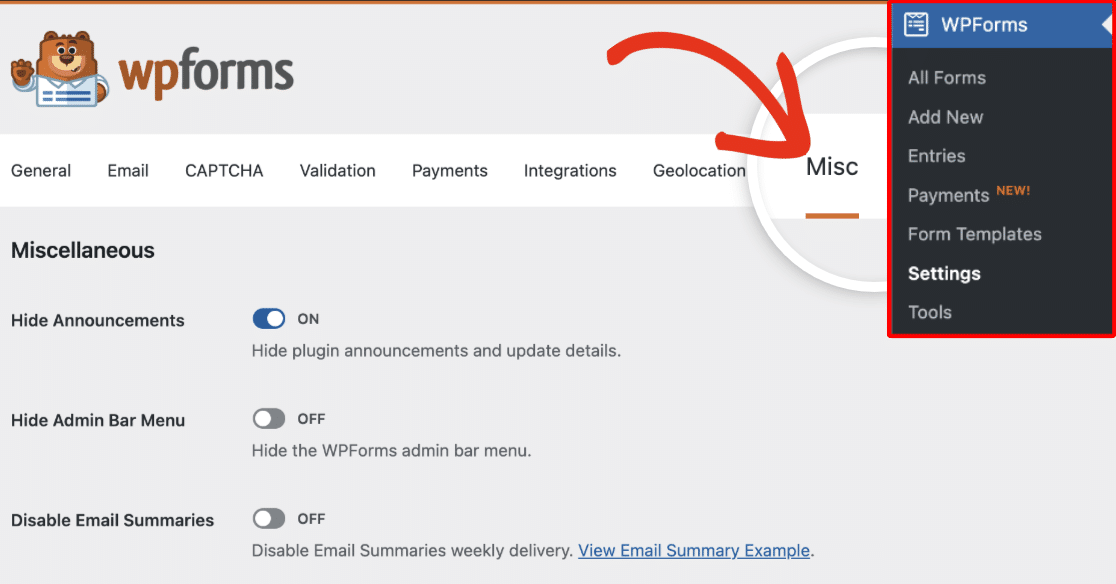
Next, click the View Email Summary Example link below the Disable Email Summaries option.

The example opens in a new tab and uses your site’s real data from last week.
Disabling Email Summaries
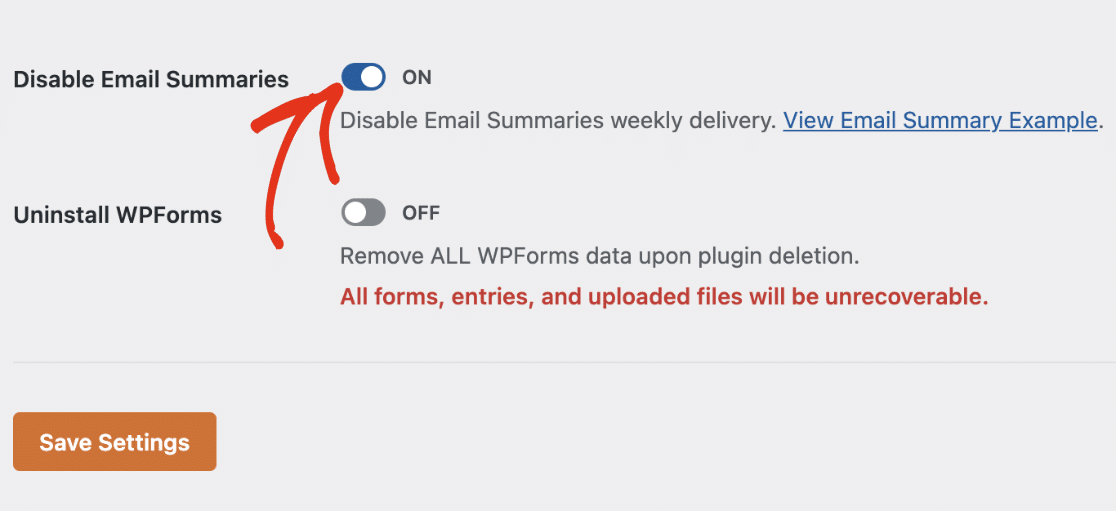
If you’d rather not receive Email Summaries, you can disable this at any time from the same Misc tab.
On this screen, you’ll see a toggle labeled Disable Email Summaries. You’ll need to toggle this option to the on position.
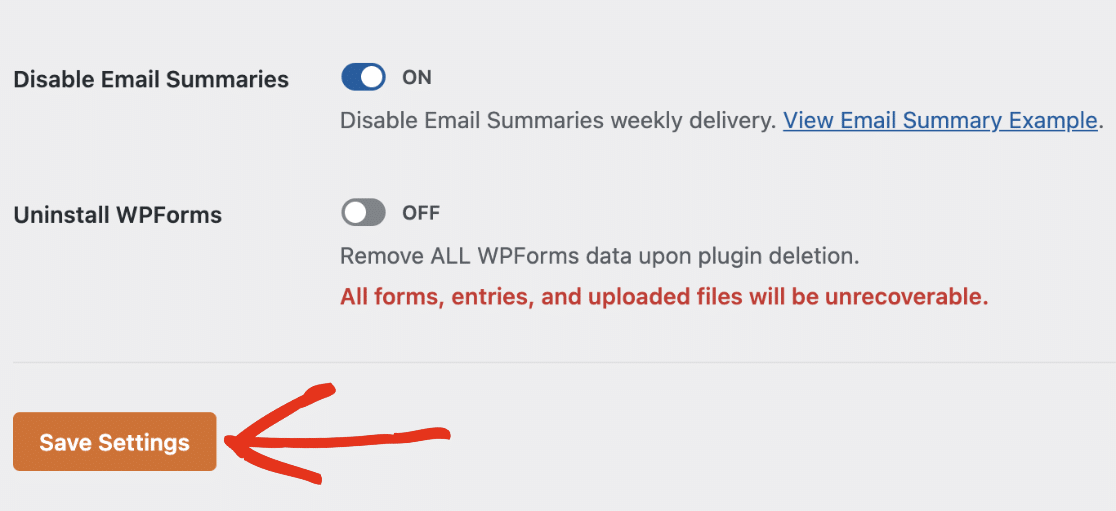
Once you’ve done that, click the Save Settings button to save your changes.
Frequently Asked Questions
These are some of the most common questions we receive about using Email Summaries.
What email address are Email Summaries sent to?
Email Summaries will be sent to your WordPress site’s admin email. If you aren’t sure how to find your site’s admin email, or if you think you might want to change it, be sure to check out WPBeginner’s admin email tutorial.
Why didn’t I receive an Email Summary this week?
Email Summaries are sent when at least one of your forms received entries this week or the week before. If your site didn’t get any form entries in those 2 weeks, the email won’t be sent. If you got entries last week but none this week, you’ll still get a summary with tips for getting more responses.
With a paid license, there’s one exception. If your forms haven’t collected any entries yet, you’ll get a few summaries during your first 9 months reminding you to check your forms.
Do I still get Email Summaries if I’m using WPForms Lite?
All WPForms users will, by default, have Email Summaries enabled.
Note: When enabling Email Summaries for the first time in WPForms Lite, there may be a short delay of 1-2 weeks before you start seeing data reflected in your summaries. This allows WPForms to gather enough information to provide meaningful comparisons.
How can I tell which site is generating the Email Summary?
Email Summaries usually contain the website’s domain from which they were generated. In the Subject line of that particular Email Summary, you’ll find the site’s domain.

How do I stop receiving WPForms email summaries?
If you’re the site administrator, you can disable email summaries from WPForms » Settings » Misc by toggling the Disable Email Summaries option to the on position. See the Disabling Email Summaries section above for details. If you’re not the site administrator, you’ll need to ask the person who manages the WordPress site to disable this setting — email summaries are sent to the site’s admin email address and can only be turned off from the WordPress dashboard.
Can I change how often I receive Email Summaries?
No. Email Summaries are sent once a week. You can turn them off completely by following the steps in the Disabling Email Summaries section above.
Why don’t I see the Conversion column in my summary?
The Conversion column is available with a Pro license or higher. If your license has expired, the column stays in your summary, but its numbers are hidden until you renew.
That’s it! We’ve shared an overview and all of the most common questions about Email Summaries in WPForms.
Next, would you like to do more with your form entries? Be sure to check out our entry management guide for tons of details, like how to export, print, and search entries.


