


Resumo de IA
Quer gerenciar suas transações do Stripe diretamente do painel do WordPress? Saiba como visualizar e lidar com pagamentos do Stripe com o addon WPForms Stripe Pro, incluindo o processamento de reembolsos, gerenciamento de assinaturas e muito mais.
Este tutorial mostrará como visualizar e gerenciar pagamentos do Stripe com o WPForms.
Requisitos:
- Você precisará de uma licença Pro ou superior para acessar o addon Stripe Pro
- Certifique-se de ter instalado a versão mais recente do WPForms para atender à versão mínima exigida para o addon Stripe Pro
- Configure um formulário com integração Stripe
- O Stripe exige que seu site tenha SSL (HTTPS) ativado na página onde você está adicionando um formulário de pagamento em produção, pois isso permite que você envie dados de cartão de crédito com segurança para o Stripe. Para detalhes de configuração, consulte o guia da WPBeginner sobre como adicionar SSL e HTTPS no WordPress
Antes de começar, certifique-se de instalar o WPForms em seu site WordPress e verificar sua licença. Em seguida, instale e ative o addon Stripe Pro.
Observação: A Stripe aplica uma taxa de transação de 3% a cada pagamento processado através da sua plataforma se a sua licença WPForms estiver inativa.
Visualizando e Gerenciando Pagamentos
Depois de configurar um formulário com integração Stripe e receber alguns pagamentos, você poderá visualizá-los e gerenciá-los diretamente da área de administração do seu site.
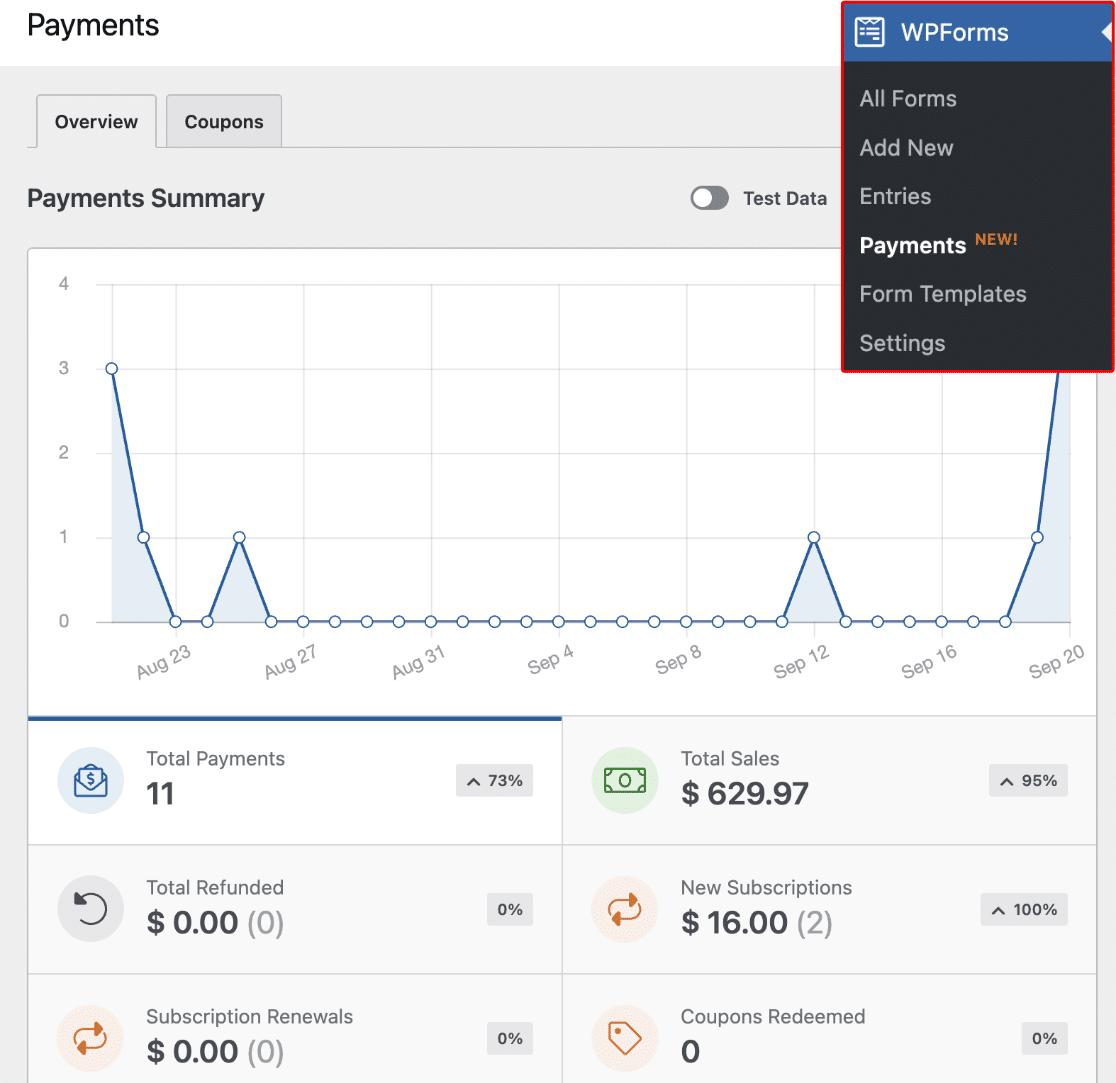
Para fazer isso, vá para WPForms » Pagamentos para acessar a página de visão geral de Pagamentos.
Observação: Se desejar, você pode criar códigos de cupom e oferecer um desconto aos usuários ao preencher seu formulário de pagamento. Para saber mais, confira nosso tutorial sobre o addon de Cupons.
Na página de visão geral de Pagamentos, você pode ver detalhes de transações, rastrear suas vendas, ver tendências de receita, medir o sucesso de seus formulários de pagamento e muito mais.
Você também pode gerenciar suas assinaturas e processar reembolsos para usuários na página de Pagamentos sem precisar visitar sua conta Stripe.
Visualizando Detalhes de Compra no Stripe
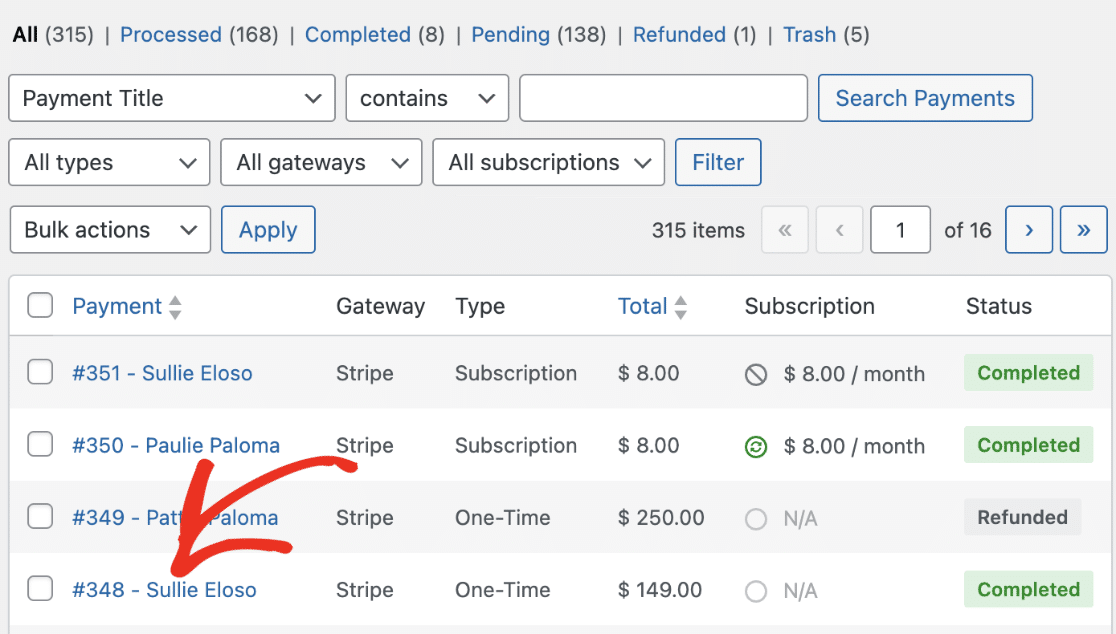
Para acessar facilmente os detalhes do pagamento no Stripe, role até a tabela de entradas de pagamento e clique na entrada cujos detalhes você deseja visualizar.
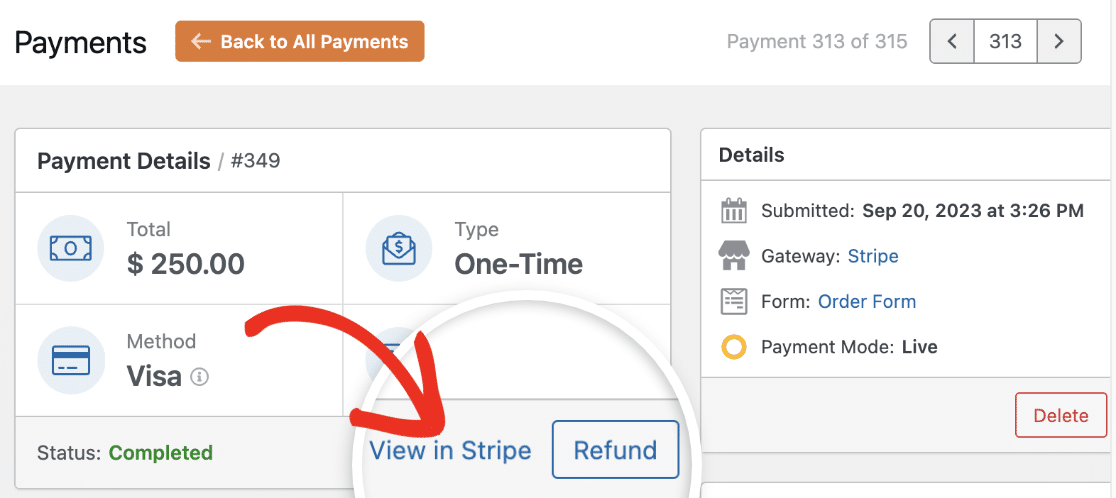
Em Detalhes do Pagamento, clique no link Ver no Stripe para ver detalhes adicionais sobre a transação no Stripe.
Identificando Pagamentos Recorrentes
Para ver se um pagamento é recorrente, role para baixo até a tabela de entradas de pagamento. Se o pagamento for recorrente, você verá Assinatura ao lado dele na coluna Tipo.
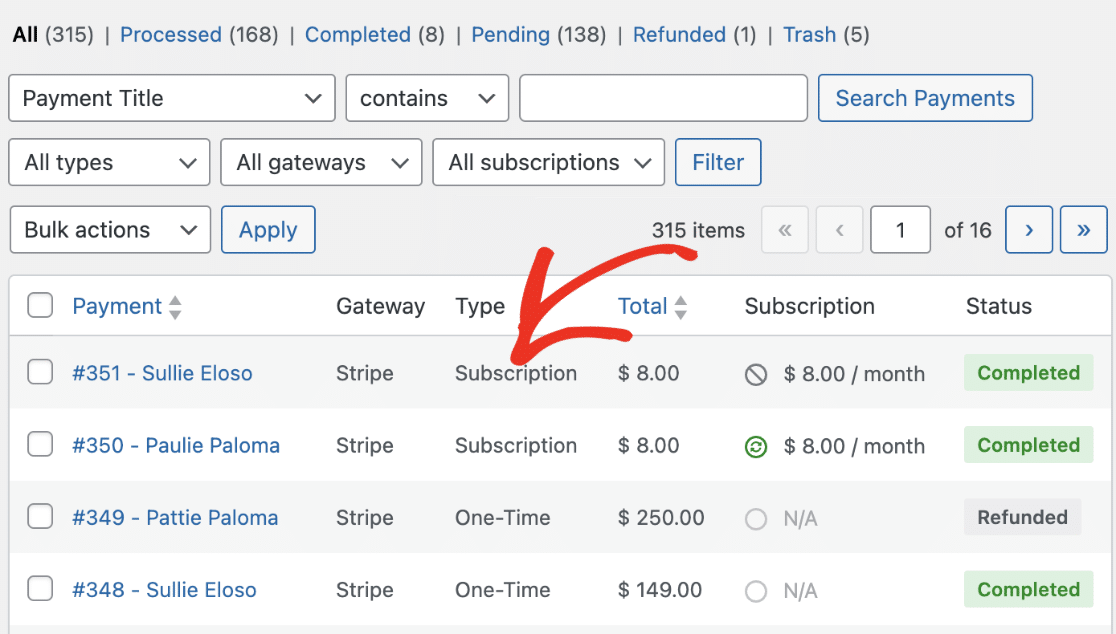
Você também verá o valor da assinatura e o período recorrente em Assinatura.
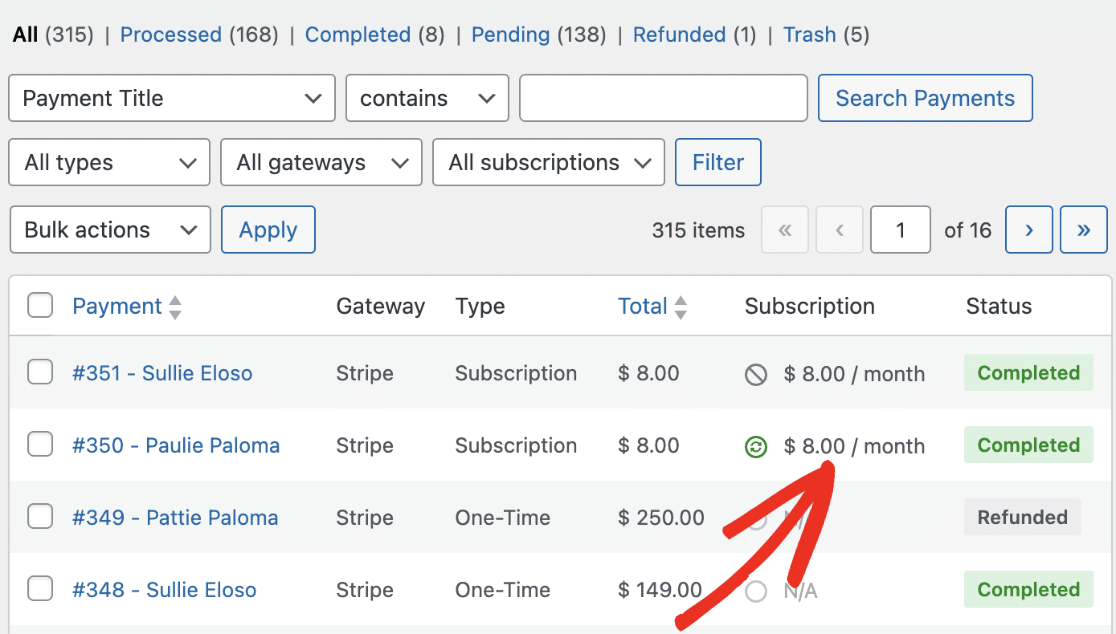
Observação: Assinaturas ativas têm um ícone verde de ativo ao lado delas. Se um plano de assinatura foi cancelado, você verá um ícone de cancelado ao lado do valor da assinatura.
Processando um Reembolso
Comece indo para WPForms » Pagamentos e selecionando o pagamento específico que você gostaria de reembolsar.
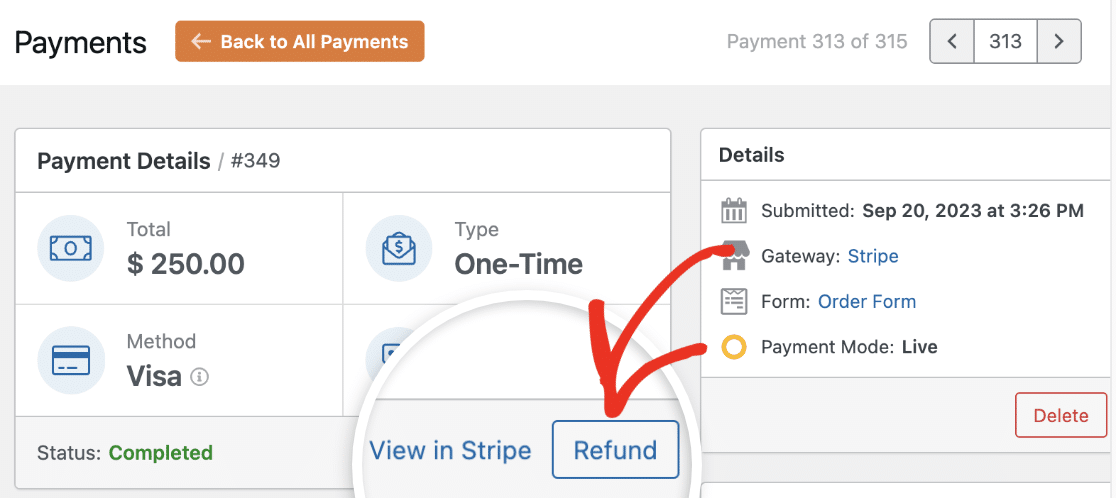
Na página Detalhes do Pagamento, você pode reembolsar o pagamento ao usuário. Para fazer isso, basta clicar no botão Reembolsar.
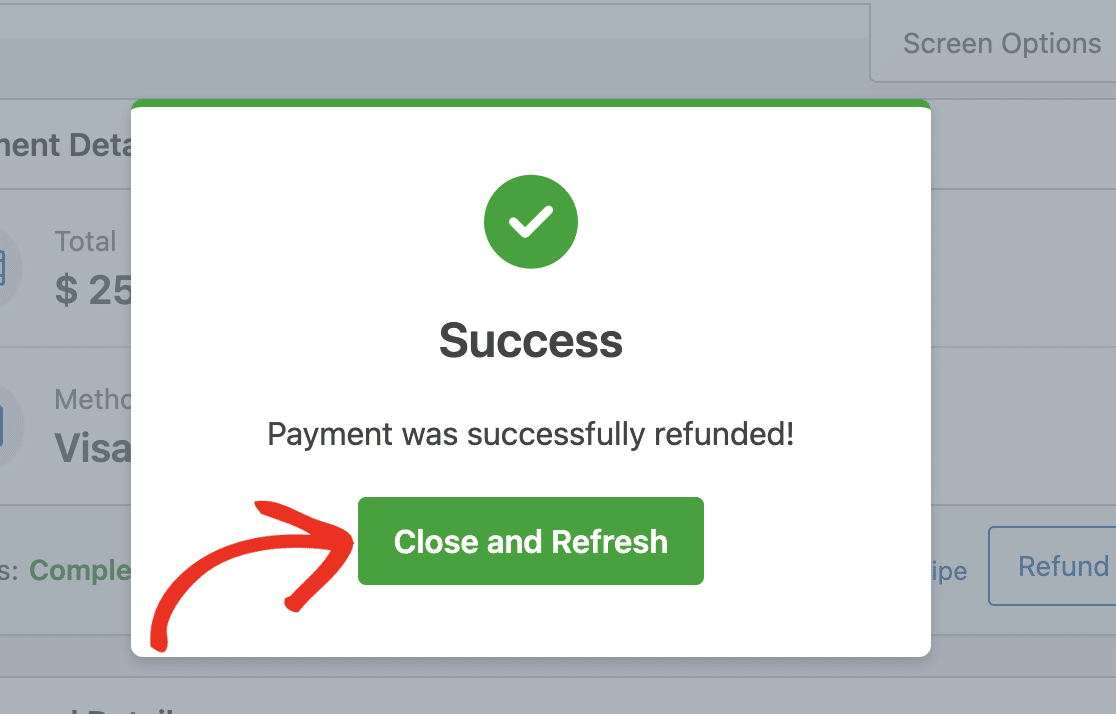
Assim que o processo for concluído, você verá uma notificação de sucesso. Clique no botão Fechar e Atualizar para continuar.
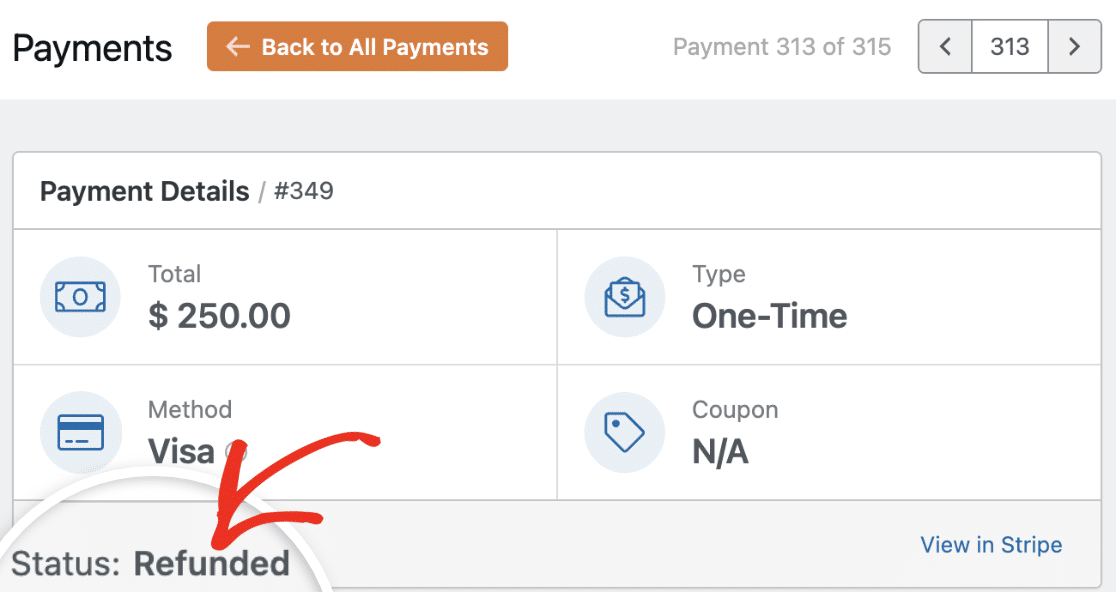
O status será Reembolsado, indicando que o pagamento foi reembolsado ao usuário.
Cancelando Plano de Assinatura
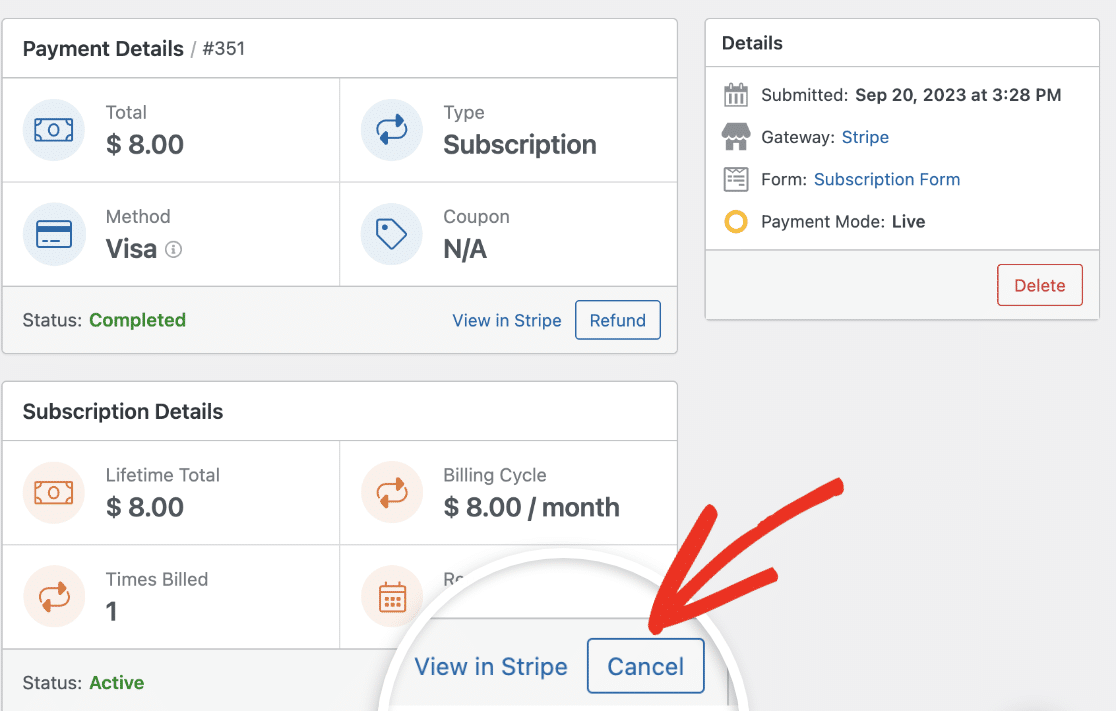
Você pode cancelar assinaturas criadas através dos seus formulários diretamente da página de Pagamentos. Para cancelar uma assinatura, role até a tabela de entradas de pagamento e selecione a entrada cuja assinatura você deseja cancelar.
Você verá detalhes adicionais sobre o pagamento recorrente na seção Detalhes da Assinatura. Para cancelar o plano de assinatura, clique no botão Cancelar.
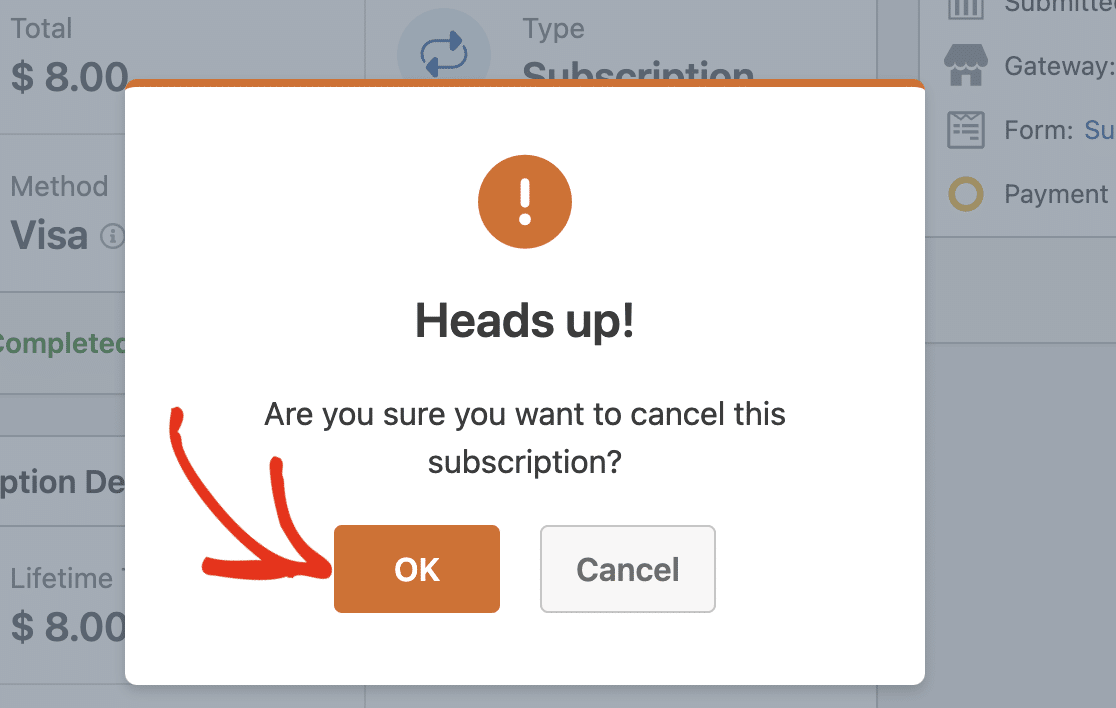
Na sobreposição de confirmação que aparece, clique em OK para prosseguir.
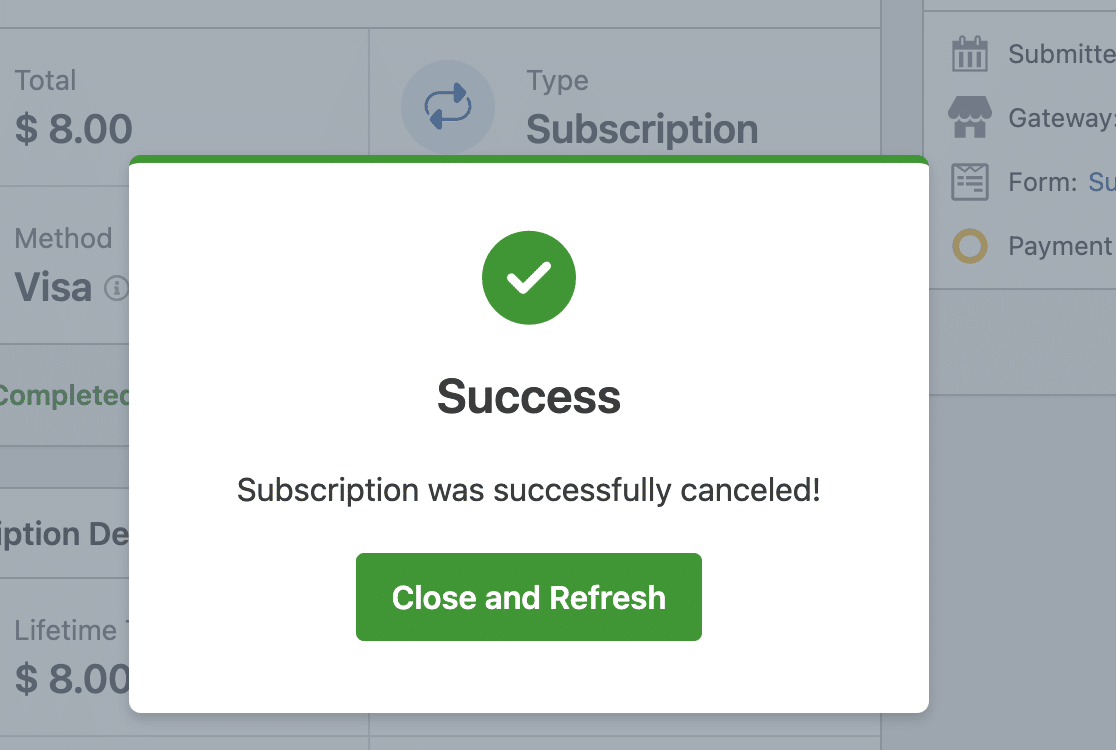
Você deverá ver uma notificação de sucesso depois. Clique no botão Fechar e Atualizar para continuar.
Observação: Se desejar, você ainda pode cancelar assinaturas no painel da sua conta Stripe. Para mais detalhes, confira o guia da Stripe sobre como pausar ou cancelar assinaturas.
Para saber mais sobre como gerenciar pagamentos no WPForms, confira nosso guia sobre visualizar e gerenciar pagamentos de formulários.
Perguntas Frequentes
Estas são algumas das perguntas mais frequentes que recebemos sobre visualização e gerenciamento de transações Stripe.
Como testo os pagamentos da Stripe em meus formulários?
A melhor maneira de testar seus formulários é enviar uma entrada e seguir os mesmos passos dos seus usuários. Recomendamos configurar o Modo de Teste da Stripe antes de adicionar seu formulário a uma página ativa, o que permite testar transações antes de aceitar pagamentos reais. Assim que você habilitar os pagamentos de teste, poderá visualizar suas transações de teste no painel do WordPress.
Pronto! Agora você sabe como visualizar e gerenciar pagamentos Stripe com o WPForms.
Em seguida, você gostaria de personalizar ainda mais seus formulários de pagamento e oferecer ainda mais flexibilidade aos seus usuários? Explore como usar a lógica condicional com pagamentos Stripe para mais detalhes.