


Resumo de IA
Você gostaria de personalizar quais detalhes aparecem nas colunas da página Visão Geral de Formulários no WPForms? Nosso recurso de gerenciamento de colunas permite que você exiba facilmente apenas os detalhes do formulário que são importantes para você.
Este tutorial explicará como personalizar colunas na página Visão Geral de Formulários.
Neste Artigo
Antes de começar, você precisará garantir que o WPForms esteja instalado e ativado em seu site WordPress e que você tenha verificado sua licença.
Personalizando Colunas na Página Visão Geral de Formulários
Observação: Para gerenciar colunas de formulários no WPForms, você deve criar pelo menos um formulário. Além disso, o gerenciamento de envios requer pelo menos um envio submetido. Se você ainda não o fez, pode criar um novo formulário e enviar um teste de envio para prosseguir.
Para começar, vá para WPForms » Todos os Formulários para acessar a página Visão Geral de Formulários. Na página Visão Geral de Formulários, você encontrará uma lista de todos os formulários que você criou em seu site.
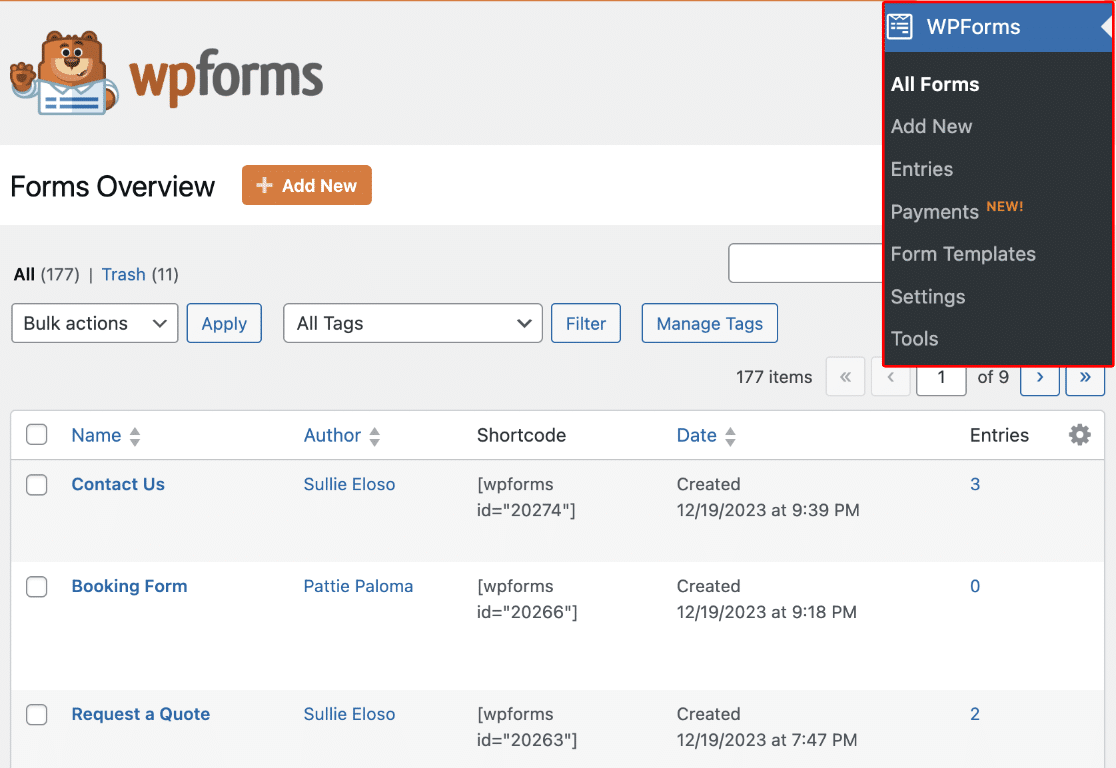
Aqui está uma lista das possíveis colunas que podem ser incluídas em cada linha de formulário:
- Autor: O usuário que criou o formulário.
- Shortcode: Este é o shortcode que inclui o ID do formulário.
- Data: A data em que o formulário foi criado.
- Envios: Isso mostra o número de envios que o formulário possui.
- ID: O identificador exclusivo para cada formulário.
- Tags: Tags atribuídas para organizar e categorizar formulários.
- Locais: Os lugares em seu site onde o formulário é exibido.
Por padrão, cada linha exibirá o nome, shortcode, data e número de envios de cada formulário.

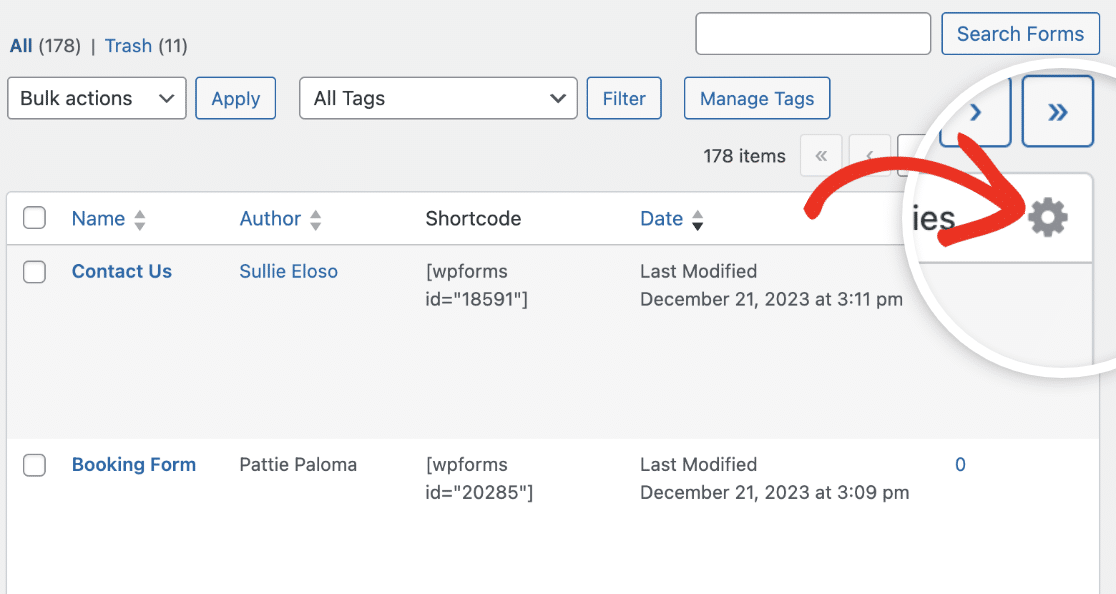
Se desejar, você pode adicionar ou remover colunas da página de visão geral. Para fazer isso, clique no ícone Configurações para ver todas as opções disponíveis.
A partir daqui, marque a caixa ao lado das colunas que você gostaria de adicionar à página de visão geral.
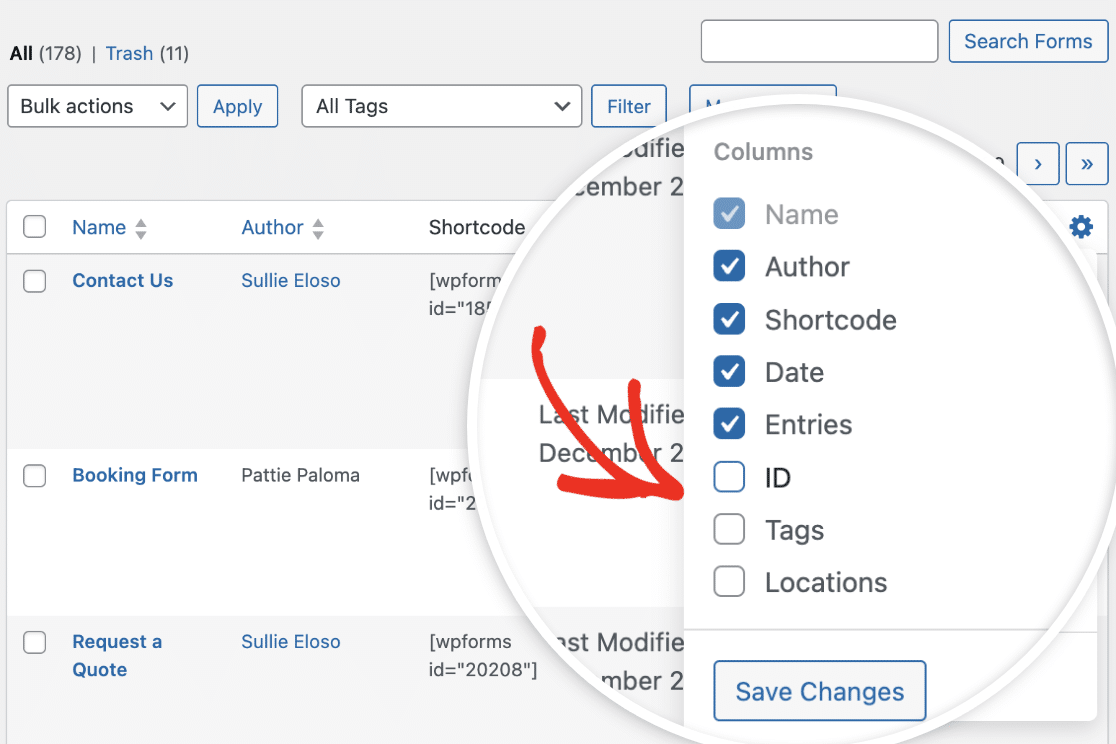
Após fazer suas seleções, clique no botão Salvar Alterações para adicionar as colunas.
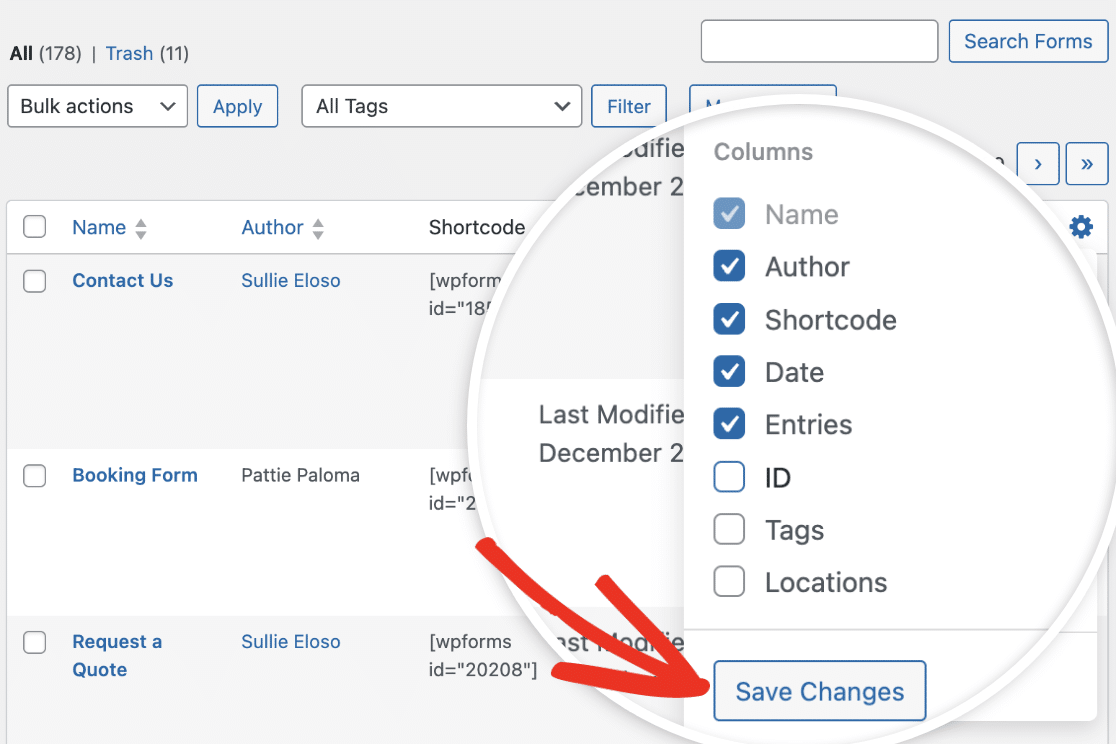
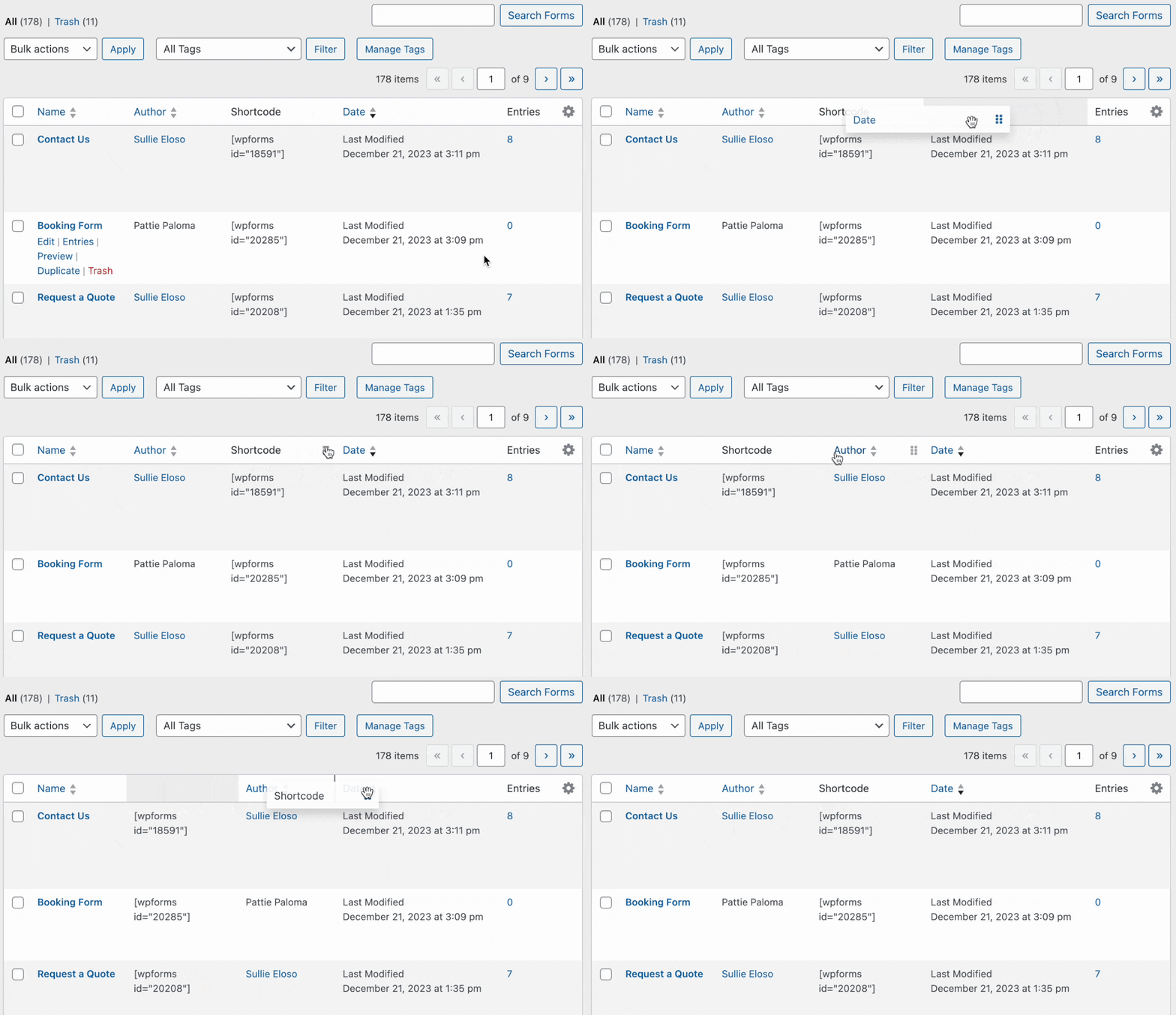
Pronto, as novas colunas serão adicionadas à página de visão geral. Da mesma forma, você pode selecionar qualquer uma delas para reordenar as colunas.
Ao passar o mouse sobre o título de uma coluna, você verá o ícone de arrastar, indicando que a coluna pode ser movida. Para reorganizar as colunas, selecione e arraste o título da coluna para a área onde deseja colocá-la.
Personalizando Linhas na Página Visão Geral de Formulários
Se você quiser personalizar o número de linhas de formulário exibidas na página Visão Geral de Formulários, você pode fazer isso clicando na guia Opções de Tela no canto superior direito da página.
Simplesmente altere o número na caixa ao lado de Número de formulários por página. Por exemplo, vamos alterá-lo para 5, para que apenas 5 formulários sejam exibidos em uma única página.

Depois de adicionar o número de formulários que você gostaria de ver por página, clique no botão Aplicar para salvar suas alterações.

É isso! Agora você sabe como personalizar e gerenciar colunas na página Visão Geral de Formulários do WPForms.
Em seguida, você gostaria de classificar seus formulários para facilitar a localização? Confira nosso guia completo de gerenciamento de formulários para obter detalhes.