


Resumo de IA
Você gostaria de limitar o número de palavras ou caracteres que um usuário pode inserir em determinados campos do seu formulário? Entradas longas podem ser difíceis de revisar e, às vezes, podem não atender aos seus objetivos para um formulário.
Este tutorial mostrará como restringir facilmente o comprimento dos campos de Texto de Linha Única e Texto de Parágrafo.
Neste Artigo
Antes de começar, você precisará garantir que o WPForms esteja instalado e ativado em seu site WordPress e que você tenha verificado sua licença. Em seguida, você pode criar um novo formulário ou editar um existente para acessar o construtor de formulários.
Adicionando um Limite de Caracteres ou Palavras
Assim que o construtor do seu formulário estiver aberto, certifique-se de adicionar um campo de Texto de Linha Única ou Texto de Parágrafo. Para este exemplo, adicionaremos um campo de Texto de Parágrafo.
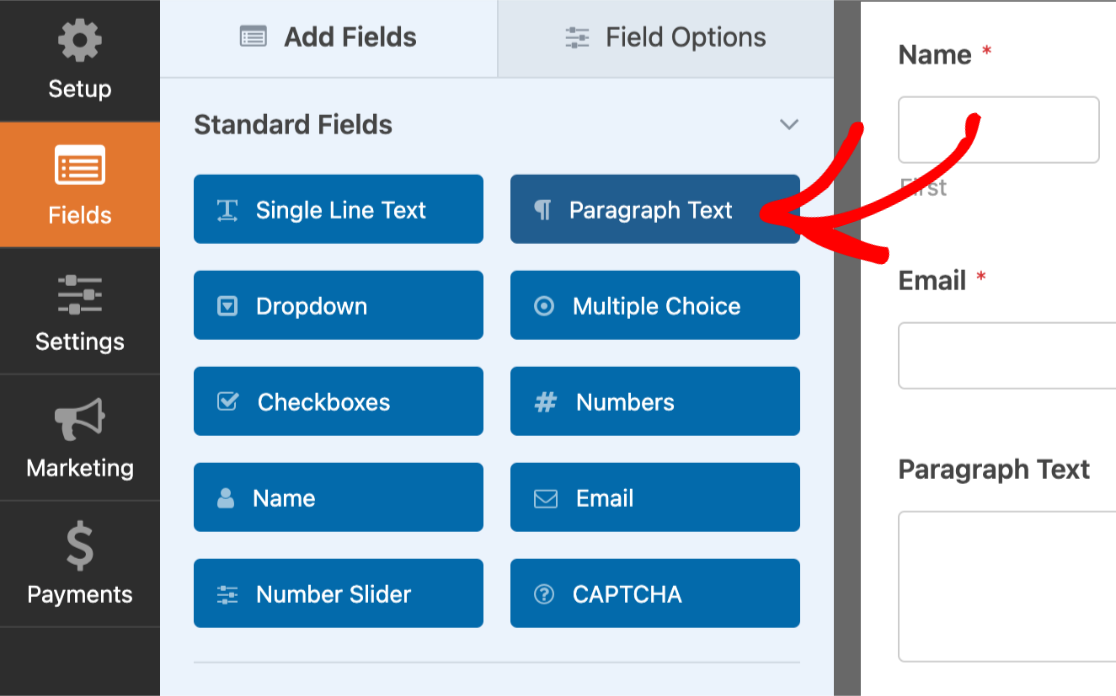
Agora, clique neste campo na área de visualização para abrir suas Opções de Campo.
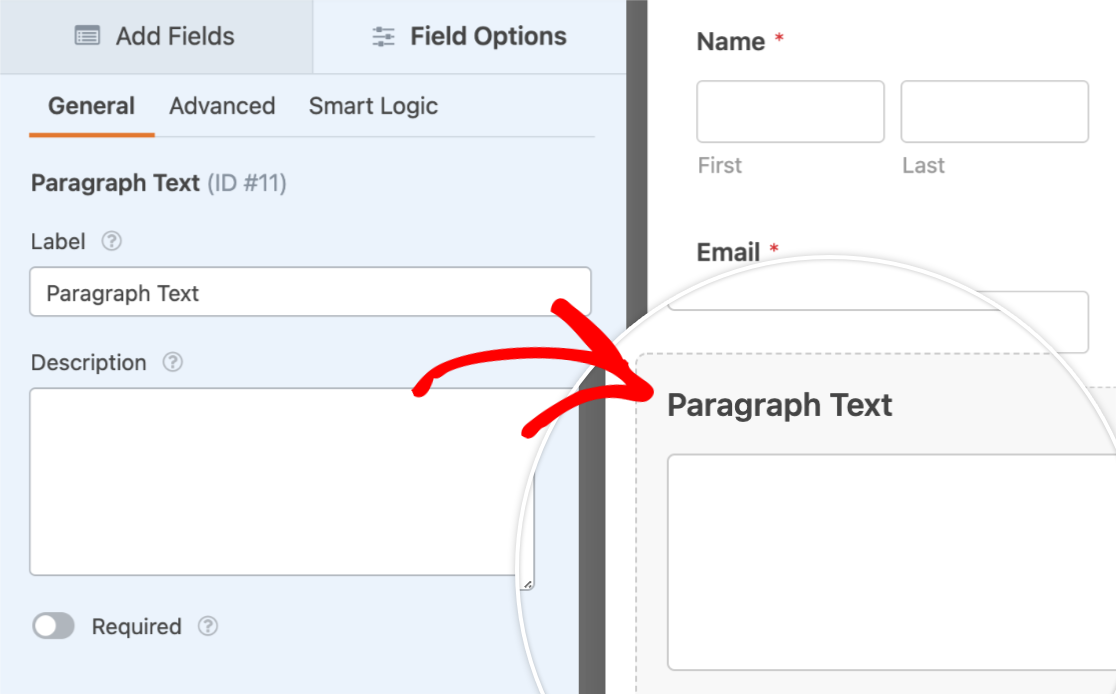
Dentro do painel Opções de Campo, clique na aba Avançado para abrir as opções avançadas do campo.
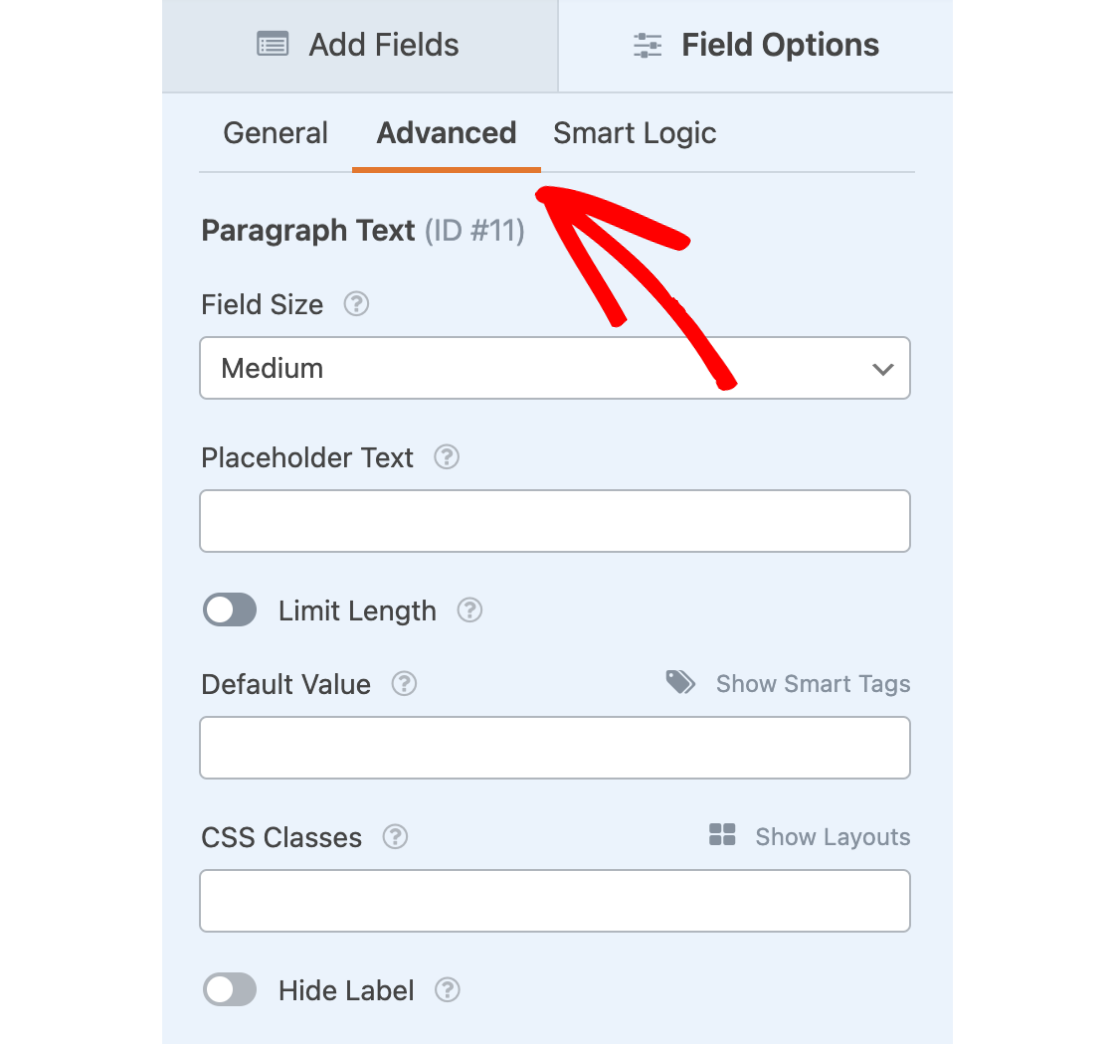
Em seguida, para limitar o número de caracteres ou palavras, selecione a opção Limitar Comprimento.
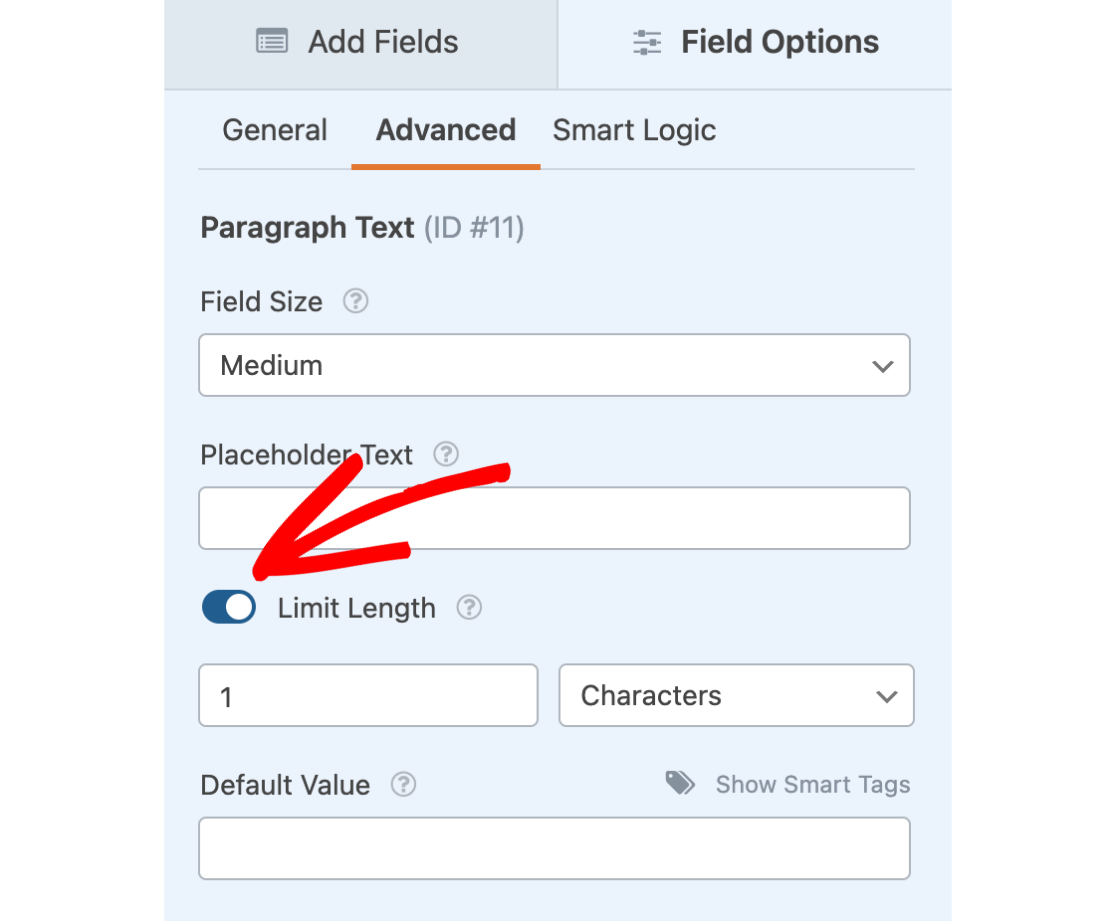
Quando você ativar esta opção, dois campos adicionais serão exibidos:
- Entrada Numérica: Insira um valor numérico para usar como limite máximo.
- Menu suspenso de Caracteres e Palavras: Escolha se você deseja limitar pelo número de caracteres individuais ou palavras.
Observação: Se você escolheu limitar o comprimento por Caracteres, lembre-se de que espaços, pontos, vírgulas, etc., contam para o limite total de caracteres.
Para o nosso exemplo, limitaremos nosso campo a 100 caracteres.
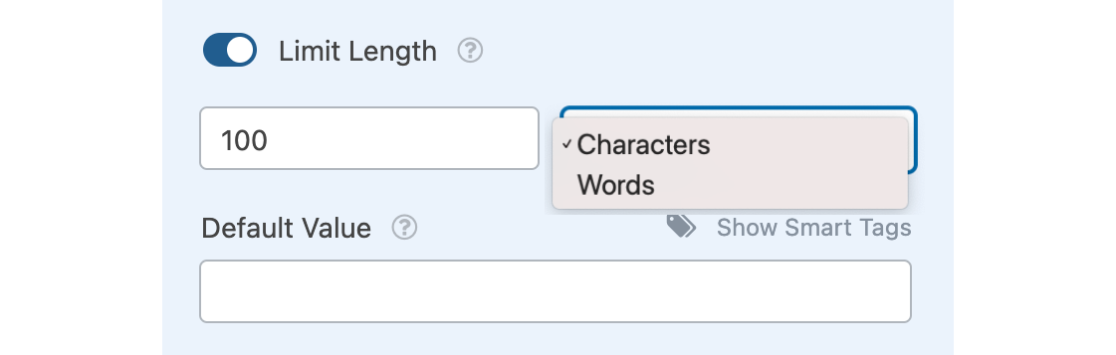
Após configurar essas opções como desejar, certifique-se de salvar seu formulário.
Observação: Para impedir que os usuários insiram caracteres especiais em campos de Texto de Linha Única e Texto de Parágrafo, você pode aplicar certas restrições usando um trecho de código PHP. Para obter instruções sobre como configurar isso, consulte nossa documentação do desenvolvedor.
Testando Seu Formulário
Para a última etapa desta configuração, recomendamos testar seu formulário para que você possa verificar se ele parece e funciona como você gostaria. Nosso guia detalhado sobre testar formulários compartilha uma lista de verificação de etapas recomendadas a serem consideradas antes de publicar seus formulários.
Para este recurso específico, a principal coisa que você deve notar ao testar seu formulário é o texto mostrando quantas palavras ou caracteres são permitidos e quantos foram usados.
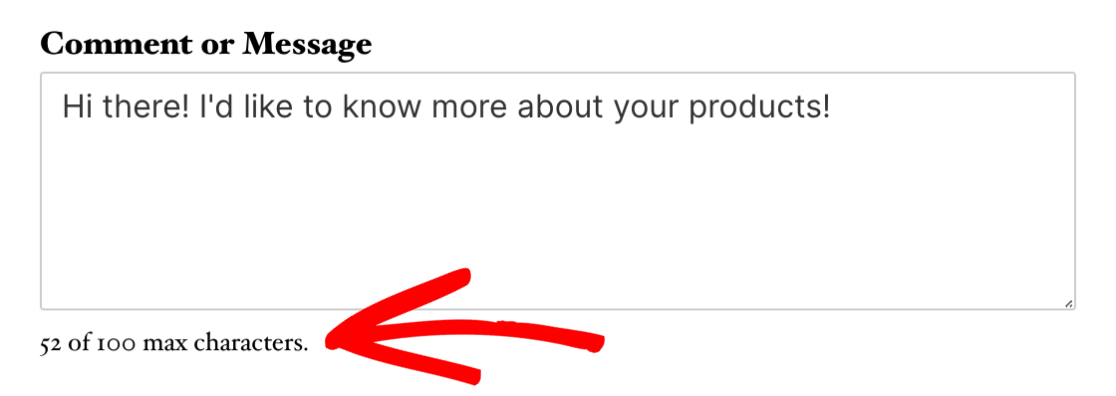
Uma vez que o limite seja atingido, o usuário não poderá inserir nenhum caractere adicional neste campo.
Observação: Para personalização avançada de campos, considere usar máscaras de entrada personalizadas para definir e restringir o formato da entrada. Saiba como implementar isso em nosso guia sobre usando máscaras de entrada personalizadas no WPForms.
Perguntas Frequentes
Abaixo, respondemos a algumas das perguntas mais comuns que recebemos sobre a limitação de palavras ou caracteres.
Posso definir um número mínimo de caracteres para entrada de texto em meus formulários?
Sim, você pode impor uma contagem mínima de caracteres para campos de Texto de Linha Única, Texto de Parágrafo e Senha. Para instruções detalhadas sobre como definir um limite mínimo de caracteres, consulte nossa documentação do desenvolvedor.
Observação: Esteja ciente de que isso requer funcionalidades avançadas, como adicionar código ao seu site, e, portanto, é recomendado para desenvolvedores.
É isso! Agora você pode limitar o número de palavras ou caracteres que um usuário pode inserir em seus campos de Texto de Linha Única e Texto de Parágrafo.
Em seguida, você gostaria de personalizar os e-mails de notificação automáticos do seu formulário? Os e-mails de notificação podem incluir facilmente um logotipo no cabeçalho, cor de fundo personalizada e conteúdo personalizado. Certifique-se de conferir nosso tutorial sobre como configurar e-mails de notificação para obter todos os detalhes.