


Resumo de IA
Gostaria de poder salvar, visualizar ou incorporar seus formulários pressionando algumas teclas do teclado? Com os atalhos de teclado do WPForms, você pode criar formulários mais rápido do que nunca.
Neste artigo, compartilharemos os atalhos de teclado disponíveis no construtor de formulários do WPForms.
Primeiro, certifique-se de que o WPForms está instalado e ativado em seu site WordPress e que você verificou sua licença. Em seguida, você pode criar um novo formulário ou editar um existente para acessar o construtor de formulários.
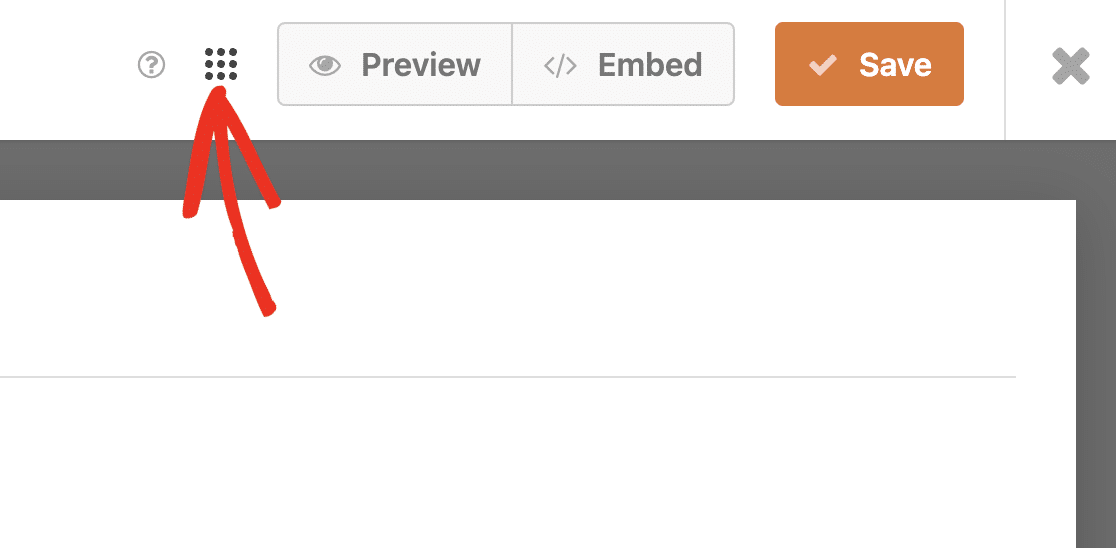
No construtor de formulários, clique no ícone Menu para abrir opções adicionais.
Em seguida, selecione a opção Atalhos de Teclado para abrir a lista de teclas de atalho disponíveis.
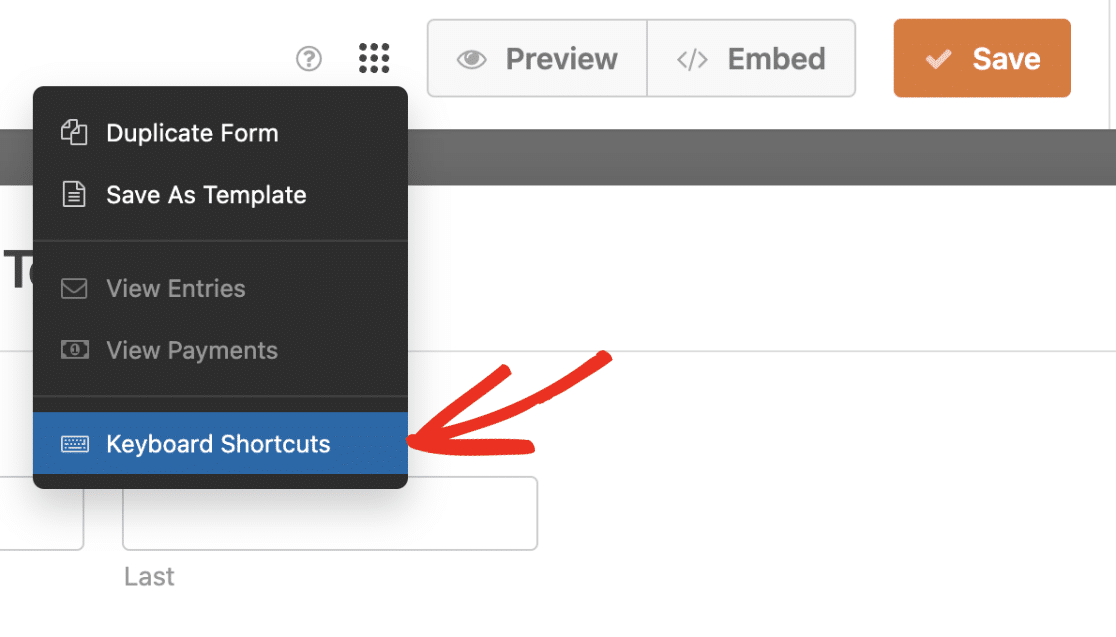
Alternativamente, você pode pressionar Ctrl + / em seu teclado para abrir esta lista.
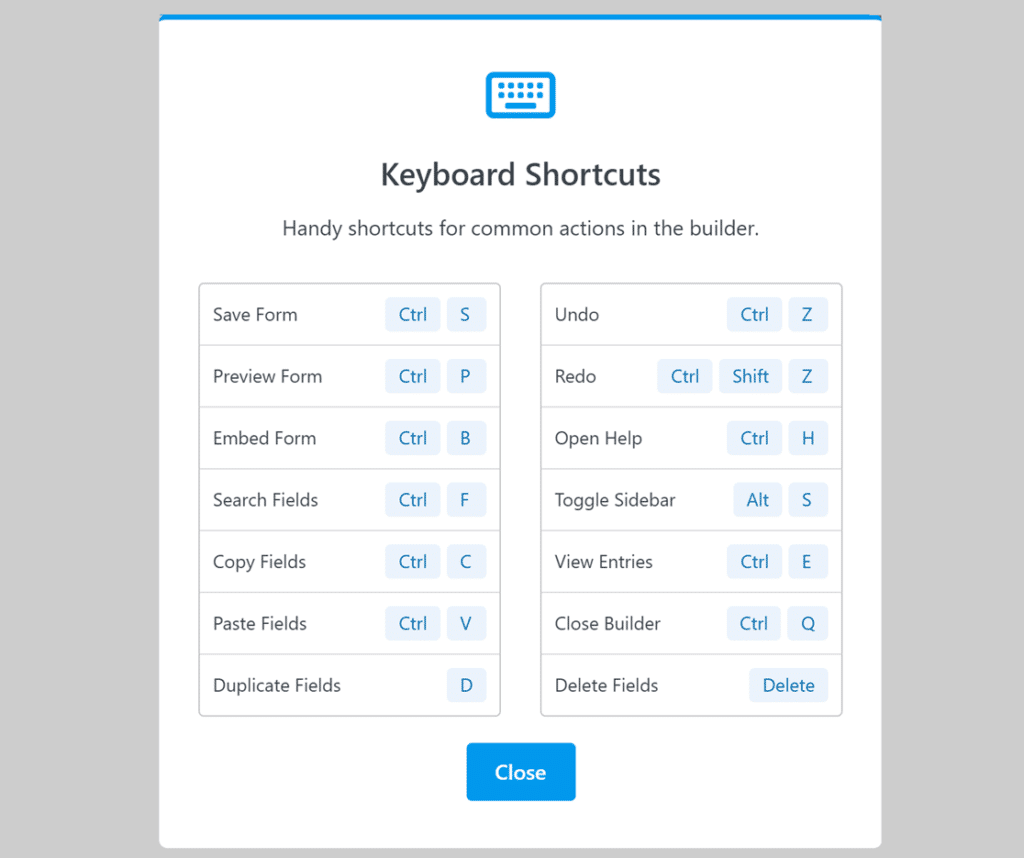
Os atalhos são os seguintes:
- Ctrl + S: Salvar o formulário.
- Ctrl + P: Abrir a pré-visualização do formulário em uma nova aba do navegador.
- Ctrl + B: Abrir a ferramenta de incorporação do construtor de formulários.
- Ctrl + F: Pesquisar campos disponíveis para o construtor de formulários.
- Ctrl + H: Abrir a tela de Ajuda.
- Ctrl + T: Alternar a barra lateral do construtor de formulários no macOS.
- Alt + S: Alternar a barra lateral do construtor de formulários no Windows e Linux.
- Ctrl + E: Visualizar as entradas do formulário em uma nova aba do navegador.
- Ctrl + Q: Sair do construtor de formulários.
- Ctrl / Command + C: Copiar o(s) campo(s) selecionado(s).
- Ctrl / Command + V: Colar o(s) campo(s) copiado(s).
- Ctrl / Command + Z: Desfazer sua última alteração.
- Ctrl / Command + Shift + Z: Refazer sua última alteração desfeita.
- D: Duplicar o campo selecionado.
- Delete: Excluir o(s) campo(s) selecionado(s).
Para fechar a lista de atalhos de teclado (teclas de atalho), clique no botão Fechar ou pressione Ctrl + / novamente.
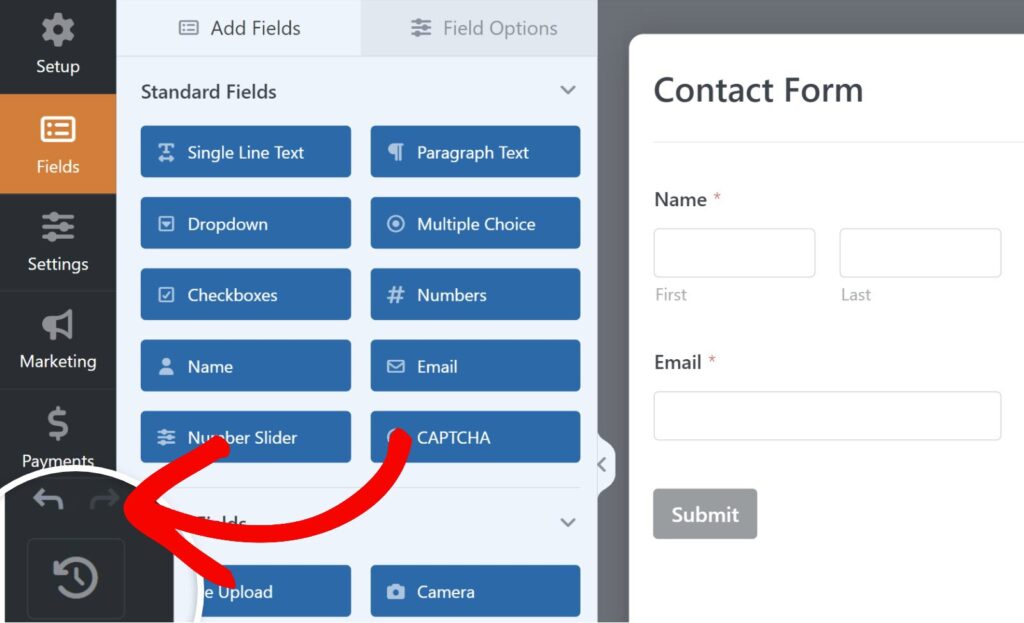
Você também pode usar os ícones Desfazer e Refazer do canto inferior esquerdo do construtor de formulários quando eles estiverem disponíveis.
Selecionando Múltiplos Campos
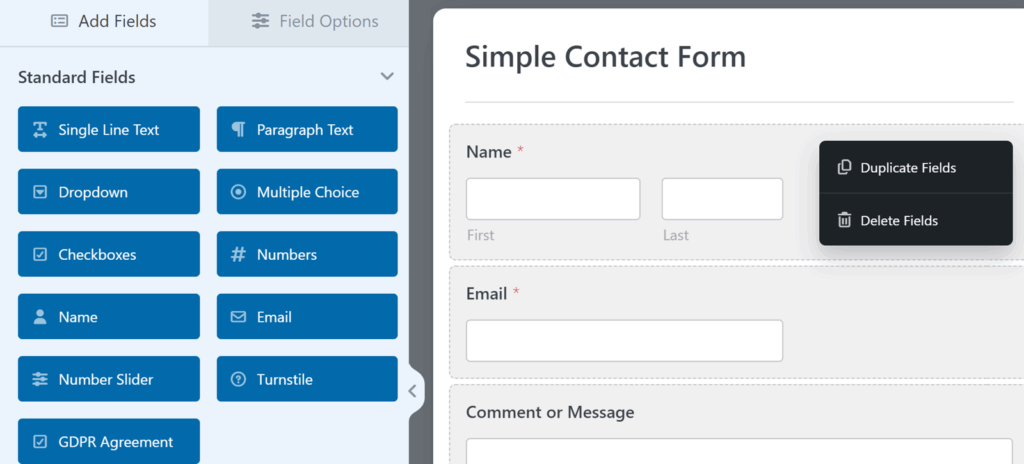
Você também pode selecionar mais de um campo por vez na área de visualização. Isso é útil se você quiser mover, duplicar ou excluir vários campos de uma vez.
Para selecionar vários campos, clique em um campo na área de visualização, em seguida, segure a tecla apropriada e clique em campos adicionais:
- Windows: Segure Ctrl ou Shift e clique nos campos para selecionar vários
- Mac: Segure Command e clique nos campos
Após selecionar vários campos, arraste-os para movê-los juntos ou use as ações disponíveis (como Duplicar Campos ou Excluir Campos) para duplicá-los ou removê-los em massa.
É isso! Agora você sabe como visualizar os atalhos de teclado disponíveis no construtor de formulários do WPForms.
Em seguida, você gostaria de testar seus formulários antes de publicá-los? Nosso checklist completo de testes de formulários o guiará pelo processo passo a passo.