Riassunto AI
Vuoi visualizzare le voci del modulo in una pagina del tuo sito per mostrare pubblicamente le sottomissioni completate dagli utenti? Questo tutorial ti guiderà nella creazione e implementazione di questa funzionalità sul tuo sito WordPress.
Per impostazione predefinita, solo gli utenti pro possono visualizzare le voci del modulo dall'interno dell'amministrazione di WordPress in base ai controlli di accesso assegnati al loro utente. Tuttavia, puoi facilmente creare la funzionalità per visualizzare le voci del modulo sul frontend del tuo sito.
Creazione dello Shortcode
Innanzitutto, ti forniremo uno snippet di codice che dovrà essere aggiunto al tuo sito in modo da poter riutilizzare facilmente questo stesso shortcode, con l'eccezione di aggiornare solo l'ID del modulo secondo le tue necessità.
Aggiungi semplicemente il seguente snippet di codice al tuo sito. Se non sei sicuro di come farlo, consulta questo tutorial.
/**
* Custom shortcode to display WPForms form entries in table view.
*
* Basic usage: [wpforms_entries_table id="FORMID"].
*
* Possible shortcode attributes:
* id (required)  Form ID of which to show entries.
* user           User ID, or "current" to default to current logged in user.
* fields         Comma separated list of form field IDs.
* number         Number of entries to show, defaults to 30.
*
* @link https://wpforms.com/developers/how-to-display-form-entries/
*
* Realtime counts could be delayed due to any caching setup on the site
*
* @param array $atts Shortcode attributes.
*
* @return string
*/

function wpf_entries_table( $atts ) {

// Pull ID shortcode attributes.
$atts = shortcode_atts(
[
'id'     => '',
'user'   => '',
'fields' => '',
'number' => '',
'type'   => 'all', // all, unread, read, or starred.
'sort'   => '',
'order'  => 'asc',
],
$atts
);

// Check for an ID attribute (required) and that WPForms is in fact
// installed and activated.
if ( empty( $atts[ 'id' ] ) || ! function_exists( 'wpforms' ) ) {
return;
}

// Get the form, from the ID provided in the shortcode.
$form = wpforms()->form->get( absint( $atts[ 'id' ] ) );

// If the form doesn't exists, abort.
if ( empty( $form ) ) {
return;
}

// Pull and format the form data out of the form object.
$form_data = ! empty( $form->post_content ) ? wpforms_decode( $form->post_content ) : '';

// Check to see if we are showing all allowed fields, or only specific ones.
$form_field_ids = isset( $atts[ 'fields' ] ) && $atts[ 'fields' ] !== '' ? explode( ',', str_replace( ' ', '', $atts[ 'fields' ] ) ) : [];

// Setup the form fields.
if ( empty( $form_field_ids ) ) {
$form_fields = $form_data[ 'fields' ];
} else {
$form_fields = [];
foreach ( $form_field_ids as $field_id ) {
if ( isset( $form_data[ 'fields' ][ $field_id ] ) ) {
$form_fields[ $field_id ] = $form_data[ 'fields' ][ $field_id ];
}
}
}

if ( empty( $form_fields ) ) {
return;
}

// Here we define what the types of form fields we do NOT want to include,
// instead they should be ignored entirely.
$form_fields_disallow = apply_filters( 'wpforms_frontend_entries_table_disallow', [ 'divider', 'html', 'pagebreak', 'captcha' ] );

// Loop through all form fields and remove any field types not allowed.
foreach ( $form_fields as $field_id => $form_field ) {
if ( in_array( $form_field[ 'type' ], $form_fields_disallow, true ) ) {
unset( $form_fields[ $field_id ] );
}
}

$entries_args = [
'form_id' => absint( $atts[ 'id' ] ),
];

// Narrow entries by user if user_id shortcode attribute was used.
if ( ! empty( $atts[ 'user' ] ) ) {
if ( $atts[ 'user' ] === 'current' && is_user_logged_in() ) {
$entries_args[ 'user_id' ] = get_current_user_id();
} else {
$entries_args[ 'user_id' ] = absint( $atts[ 'user' ] );
}
}

// Number of entries to show. If empty, defaults to 30.
if ( ! empty( $atts[ 'number' ] ) ) {
$entries_args[ 'number' ] = absint( $atts[ 'number' ] );
}

// Filter the type of entries all, unread, read, or starred
if ( $atts[ 'type' ] === 'unread' ) {
$entries_args[ 'viewed' ] = '0';
} elseif( $atts[ 'type' ] === 'read' ) {
$entries_args[ 'viewed' ] = '1';
} elseif ( $atts[ 'type' ] === 'starred' ) {
$entries_args[ 'starred' ] = '1';
}

// Get all entries for the form, according to arguments defined.
// There are many options available to query entries. To see more, check out
// the get_entries() function inside class-entry.php (https://a.cl.ly/bLuGnkGx).
$entries = json_decode(json_encode(wpforms()->entry->get_entries( $entries_args )), true);

if ( empty( $entries ) ) {
return '<p>No entries found.</p>';
}

foreach($entries as $key => $entry) {
$entries[$key][ 'fields' ] = json_decode($entry[ 'fields' ], true);
$entries[$key][ 'meta' ] = json_decode($entry[ 'meta' ], true);
}

if ( !empty($atts[ 'sort' ]) && isset($entries[0][ 'fields' ][$atts[ 'sort' ]] ) ) {
if ( strtolower($atts[ 'order' ]) == 'asc' ) {
usort($entries, function ($entry1, $entry2) use ($atts) {
return strcmp($entry1[ 'fields' ][$atts[ 'sort' ]][ 'value' ], $entry2[ 'fields' ][$atts[ 'sort' ]][ 'value' ]);
});
} elseif ( strtolower($atts[ 'order' ]) == 'desc' ) {
usort($entries, function ($entry1, $entry2) use ($atts) {
return strcmp($entry2[ 'fields' ][$atts[ 'sort' ]][ 'value' ], $entry1[ 'fields' ][$atts[ 'sort' ]]['value']);
});
}
}

ob_start();

echo '<table class="wpforms-frontend-entries">';

echo '<thead><tr>';

// Loop through the form data so we can output form field names in
// the table header.
foreach ( $form_fields as $form_field ) {

// Output the form field name/label.
echo '<th>';
echo esc_html( sanitize_text_field( $form_field[ 'label' ] ) );
echo '</th>';
}

echo '</tr></thead>';

echo '<tbody>';

// Now, loop through all the form entries.
foreach ( $entries as $entry ) {

echo '<tr>';

$entry_fields = $entry[ 'fields' ];

foreach ( $form_fields as $form_field ) {

echo '<td>';

foreach ( $entry_fields as $entry_field ) {
if ( absint( $entry_field[ 'id' ] ) === absint( $form_field[ 'id' ] ) ) {
echo apply_filters( 'wpforms_html_field_value', wp_strip_all_tags( $entry_field[ 'value' ] ), $entry_field, $form_data, 'entry-frontend-table' );
break;
}
}

echo '</td>';
}

echo '</tr>';
}

echo '</tbody>';

echo '</table>';

$output = ob_get_clean();

return $output;
}
add_shortcode( 'wpforms_entries_table', 'wpf_entries_table' );
Ciò che questo snippet di codice farà è permetterti di utilizzare questo shortcode ovunque sul tuo sito che accetti shortcode, come pagine, articoli e aree widget.
Semplicemente usando questo [wpforms_entries_table id="FORMID"], i tuoi visitatori vedranno le voci inviate per il modulo che specifichi in id=”FORMID”.
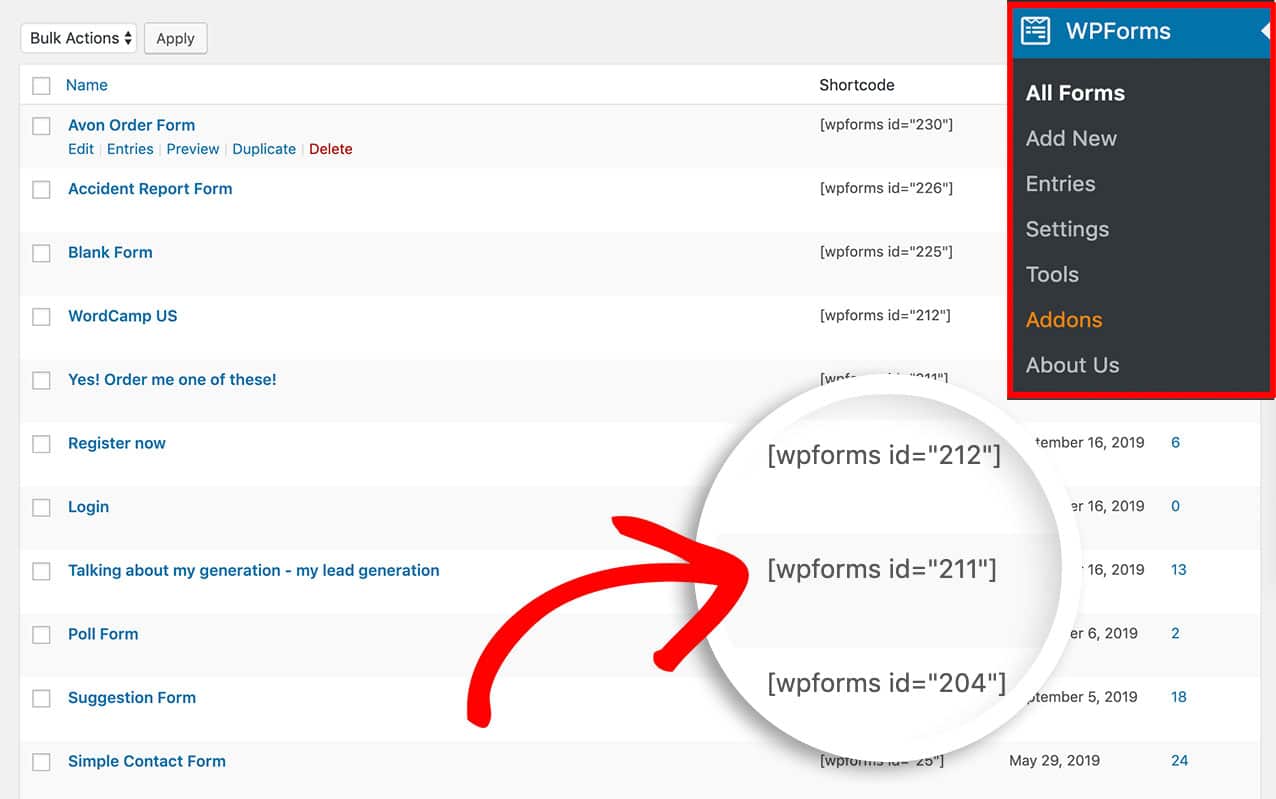
Il numero ID di un modulo si trova andando su WPForms » Tutti i moduli e guardando il numero nella colonna Shortcode per ogni modulo.
Visualizzazione delle voci del modulo
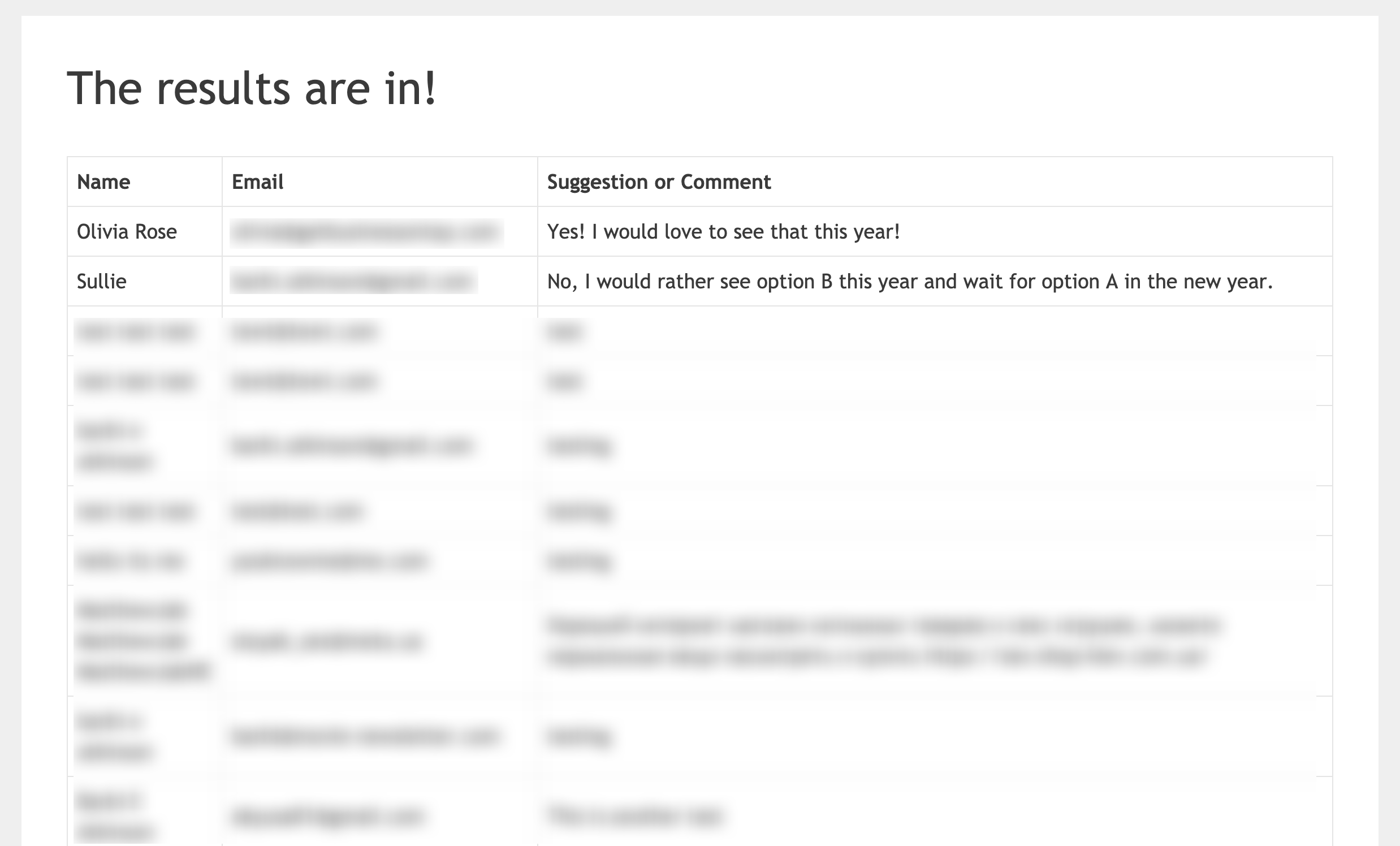
Dopo aver creato lo shortcode, dovrai aggiungerlo a una pagina o a un articolo sul tuo sito per visualizzare le tue voci.
Innanzitutto, dovrai determinare quale ID modulo vuoi visualizzare queste voci. Nel nostro esempio, visualizzeremo le voci per l'ID modulo 211, quindi il nostro shortcode sarà così.
[wpforms_entries_table id="211"]
L'unico attributo richiesto per utilizzare lo shortcode è id, senza definirlo nel tuo shortcode, non verrà visualizzato nulla, quindi l'ID del modulo deve essere elencato all'interno dello shortcode.
Tuttavia, puoi filtrare ulteriormente le tue voci definendo alcuni degli attributi dello shortcode e analizzeremo ogni attributo disponibile.
Definizione dell'attributo type
L'attributo type può essere utilizzato se desideri mostrare solo le voci contrassegnate. Ecco un esempio.
[wpforms_entries_table id="211" type="starred"]
Di seguito sono riportati altri parametri di tipo disponibili che puoi utilizzare:
- all – l'utilizzo di questo attributo visualizzerà tutti i tipi di voci.
- read – questo attributo visualizzerà solo le voci che sono state visualizzate da un amministratore.
- unread – utilizzando questo attributo, vedrai solo le voci che non sono state aperte da un amministratore sul tuo sito.
- starred – questo attributo visualizzerà solo le voci che sono state contrassegnate da un amministratore
Utilizzo dell'attributo user
Se un utente è attualmente connesso al tuo sito e desideri che veda solo le voci del modulo che ha inviato, usa questo shortcode.
[wpforms_entries_table id="FORMID" user="current"]
Se l'utente non è connesso, verranno visualizzate tutte le voci per questo modulo.
Se l'utente è connesso ma non ha completato il modulo (mentre era connesso), verranno visualizzati Nessun risultato trovato. sulla pagina.
Definizione dell'attributo fields
Per visualizzare solo determinati campi, dovrai prima scoprire gli ID dei campi che desideri visualizzare. Per trovare questi ID campo, consulta questo tutorial.
Una volta che conosci gli ID dei campi, userai questo come tuo shortcode. In questo esempio, vogliamo solo il campo Nome che è ID campo 0 e il campo Commenti che è ID campo 2.
[wpforms_entries_table id="211" fields="0,2"]
Nota: Più ID campo sono separati da una virgola nello shortcode.
Utilizzo dell'attributo number
Per impostazione predefinita, lo shortcode visualizzerà solo le prime 30 voci. Tuttavia, se desideri visualizzare una quantità inferiore, dovrai utilizzare il parametro number. Ad esempio, se desideri visualizzare le prime 20 voci, aggiungi il tuo shortcode in questo modo.
[wpforms_entries_table id="211" number="20"]
La variabile number=”20″ passata all'interno dello shortcode determinerà quante voci verranno visualizzate nella tabella. Se vuoi visualizzare tutte le voci, cambia number in 9999.
Utilizzo degli attributi sort e order
Quando utilizzi il tuo shortcode, puoi indicare allo shortcode per quale campo vuoi ordinare la tabella e quindi definire se vuoi che sia ordinata in asc (ordine ascendente) o desc (ordine discendente). Un esempio di tale shortcode sarebbe simile a questo.
[wpforms_entries_table id="211" sort="1" order="asc"]
In questo esempio, visualizzeremo una tabella di voci per l'ID modulo 211 e ordineremo questa tabella in ordine asc (ascendente) utilizzando l'ID campo 1, che è l'ID campo per il campo Nome del modulo.
Styling della tabella (Opzionale)
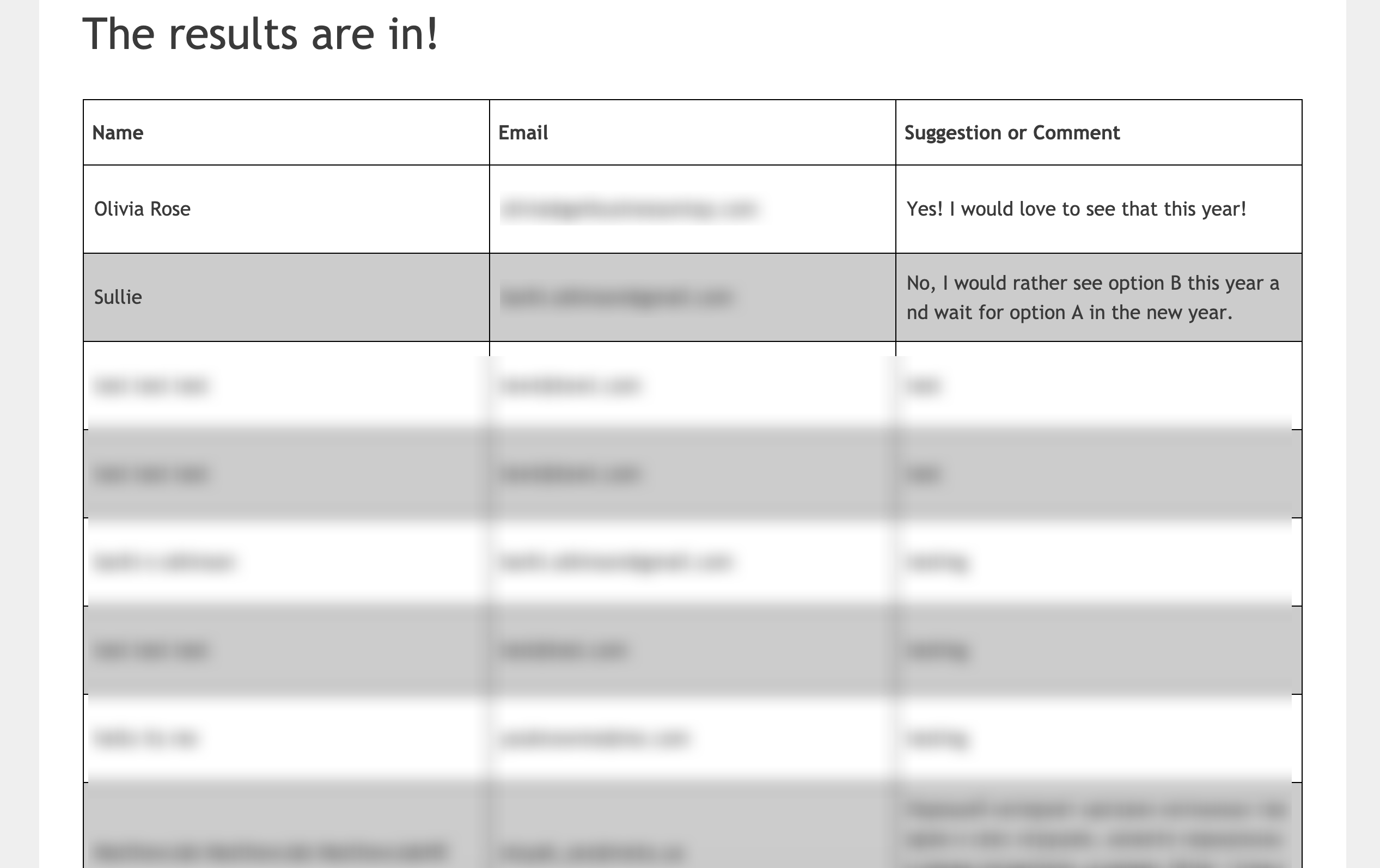
Lo styling della tabella delle voci è completamente opzionale poiché la maggior parte dei temi ha uno stile di tabella predefinito integrato, così come i browser. Tuttavia, volevamo fornirti un esempio, quindi se vuoi cambiare lo stile predefinito della tabella, vorrai copiare e incollare questo CSS sul tuo sito.
Per qualsiasi assistenza su come e dove aggiungere CSS al tuo sito, consulta questo tutorial.
Lo stile della tua tabella delle voci varierà a seconda dello stile predefinito che il tuo tema potrebbe avere o meno per le tabelle.
table {
border-collapse: collapse;
}

thead tr {
height: 60px;
}

table, th, td {
border: 1px solid #000000;
}

td {
white-space: normal;
max-width: 33%;
width: 33%;
word-break: break-all;
height: 60px;
padding: 10px;
}
tr:nth-child(even) {
background: #ccc
}

tr:nth-child(odd) {
background: #fff
}
Aggiunta di una visualizzazione non tabellare
Se preferisci non utilizzare una visualizzazione tabellare HTML per visualizzare le tue voci, abbiamo anche una soluzione alternativa per te. Invece di creare il tuo shortcode con lo snippet di codice sopra, usa invece questo snippet di codice.
/**
* Custom shortcode to display WPForms form entries in non-table view.
*
* Basic usage: [wpforms_entries_table id="FORMID"].
*
* Possible shortcode attributes:
* id (required)  Form ID of which to show entries.
* user           User ID, or "current" to default to current logged in user.
* fields         Comma separated list of form field IDs.
* number         Number of entries to show, defaults to 30.
*
* @link https://wpforms.com/developers/how-to-display-form-entries/
*
* Realtime counts could be delayed due to any caching setup on the site
*
* @param array $atts Shortcode attributes.
*
* @return string
*/

function wpf_entries_table( $atts ) {

// Pull ID shortcode attributes.
$atts = shortcode_atts(
[
'id'     => '',
'user'   => '',
'fields' => '',
'number' => '',
'type'   => 'all', // all, unread, read, or starred.
'sort'   => '',
'order'  => 'asc',
],
$atts
);

// Check for an ID attribute (required) and that WPForms is in fact
// installed and activated.
if ( empty( $atts[ 'id' ] ) || ! function_exists( 'wpforms' ) ) {
return;
}

// Get the form, from the ID provided in the shortcode.
$form = wpforms()->form->get( absint( $atts[ 'id' ] ) );

// If the form doesn't exist, abort.
if ( empty( $form ) ) {
return;
}

// Pull and format the form data out of the form object.
$form_data = ! empty( $form->post_content ) ? wpforms_decode( $form->post_content ) : '';

// Check to see if we are showing all allowed fields, or only specific ones.
$form_field_ids = isset( $atts[ 'fields' ] ) && $atts[ 'fields' ] !== '' ? explode( ',', str_replace( ' ', '', $atts[ 'fields' ] ) ) : [];

// Setup the form fields.
if ( empty( $form_field_ids ) ) {
$form_fields = $form_data[ 'fields' ];
} else {
$form_fields = [];
foreach ( $form_field_ids as $field_id ) {
if ( isset( $form_data[ 'fields' ][ $field_id ] ) ) {
$form_fields[ $field_id ] = $form_data[ 'fields' ][ $field_id ];
}
}
}

if ( empty( $form_fields ) ) {
return;
}

// Here we define what the types of form fields we do NOT want to include,
// instead they should be ignored entirely.
$form_fields_disallow = apply_filters( 'wpforms_frontend_entries_table_disallow', [ 'divider', 'html', 'pagebreak', 'captcha' ] );

// Loop through all form fields and remove any field types not allowed.
foreach ( $form_fields as $field_id => $form_field ) {
if ( in_array( $form_field[ 'type' ], $form_fields_disallow, true ) ) {
unset( $form_fields[ $field_id ] );
}
}

$entries_args = [
'form_id' => absint( $atts[ 'id' ] ),
];

// Narrow entries by user if user_id shortcode attribute was used.
if ( ! empty( $atts[ 'user' ] ) ) {
if ( $atts[ 'user' ] === 'current' && is_user_logged_in() ) {
$entries_args[ 'user_id' ] = get_current_user_id();
} else {
$entries_args[ 'user_id' ] = absint( $atts[ 'user' ] );
}
}

// Number of entries to show. If empty, defaults to 30.
if ( ! empty( $atts[ 'number' ] ) ) {
$entries_args[ 'number' ] = absint( $atts[ 'number' ] );
}

// Filter the type of entries: all, unread, read, or starred
if ( $atts[ 'type' ] === 'unread' ) {
$entries_args[ 'viewed' ] = '0';
} elseif( $atts[ 'type' ] === 'read' ) {
$entries_args[ 'viewed' ] = '1';
} elseif ( $atts[ 'type' ] === 'starred' ) {
$entries_args[ 'starred' ] = '1';
}

// Get all entries for the form, according to arguments defined.
// There are many options available to query entries. To see more, check out
// the get_entries() function inside class-entry.php (https://a.cl.ly/bLuGnkGx).
$entries = json_decode(json_encode(wpforms()->entry->get_entries( $entries_args )), true);

if ( empty( $entries ) ) {
return '<p>No entries found.</p>';
}

foreach($entries as $key => $entry) {
$entries[$key][ 'fields' ] = json_decode($entry[ 'fields' ], true);
$entries[$key][ 'meta' ] = json_decode($entry[ 'meta' ], true);
}

if ( !empty($atts[ 'sort' ]) && isset($entries[0][ 'fields' ][$atts[ 'sort' ]] ) ) {
if ( strtolower($atts[ 'order' ]) == 'asc' ) {
usort($entries, function ($entry1, $entry2) use ($atts) {
return strcmp($entry1[ 'fields' ][$atts[ 'sort' ]][ 'value' ], $entry2[ 'fields' ][$atts[ 'sort' ]][ 'value' ]);
});
} elseif ( strtolower($atts[ 'order' ]) == 'desc' ) {
usort($entries, function ($entry1, $entry2) use ($atts) {
return strcmp($entry2[ 'fields' ][$atts[ 'sort' ]][ 'value' ], $entry1[ 'fields' ][$atts[ 'sort' ]]['value']);
});
}
}

ob_start();

echo '<div class="wrapper">';

echo '<div class="header-row">';

// Loop through the form data so we can output form field names in
// the table header.
foreach ( $form_fields as $form_field ) {

// Output the form field name/label.
echo '<span class="column-label">';
echo esc_html( sanitize_text_field( $form_field[ 'label' ] ) );
echo '</span>';
}

echo '</div>';

echo '<div class="entries">';

// Now, loop through all the form entries.
foreach ( $entries as $entry ) {

echo '<div class="entry-details">';

$entry_fields = $entry[ 'fields' ];

foreach ( $form_fields as $form_field ) {

echo '<span class="details">';

foreach ( $entry_fields as $entry_field ) {
if ( absint( $entry_field[ 'id' ] ) === absint( $form_field[ 'id' ] ) ) {
echo apply_filters( 'wpforms_html_field_value', wp_strip_all_tags( $entry_field[ 'value' ] ), $entry_field, $form_data, 'entry-frontend-table' );
break;
}
}

echo '</span>';
}

echo '</div>';
}

echo '</div>';

echo '</div>';

$output = ob_get_clean();

return $output;
}
add_shortcode( 'wpforms_entries_table', 'wpf_entries_table' );
Tuttavia, è importante notare qui che poiché non stiamo utilizzando una tabella standard, non verrà applicato alcuno stile predefinito quando si utilizza questa opzione, quindi il CSS nel passaggio successivo è fondamentale, ma elencheremo le classi CSS utilizzate in modo che tu possa applicare il tuo stile a questa opzione.
Styling del Non-tabella
Di seguito è riportato un elenco dettagliato delle classi CSS utilizzate e del loro possibile scopo (se necessario).
- .wrapper – questo è un wrapper generale attorno all'intero blocco di voci e può essere utilizzato se si desidera ridurre la larghezza del blocco in modo che non si estenda al 100% della pagina.
- .header-row – questo è un altro wrapper generale attorno alle etichette di ciascuna colonna (solo le etichette) se si desidera modificare il colore di sfondo della sezione delle etichette.>
- .column-label – questo wrapper avvolgerà ogni singolo titolo dell'etichetta. Ad esempio, Nome, Indirizzo email e Suggerimento/Commento hanno ciascuno uno di questi wrapper che li circonda e potrebbe essere utilizzato per definire la dimensione di questo testo.
- .entries – questo è un wrapper generale attorno alle voci stesse se si desidera modificare il colore di sfondo di questa sezione in modo che appaia diverso dalle etichette.
- .entry-details – questo è un wrapper generale attorno a ciascuna voce individuale e potrebbe essere utile se si desidera fornire un colore di sfondo diverso per ogni riga di voce.
- .details – ogni colonna di informazioni è racchiusa in questa classe in modo da poter aggiungere qualsiasi stile aggiuntivo desiderato come dimensione del carattere, colore, ecc.
È possibile utilizzare il CSS sottostante per aggiungere uno stile predefinito per la visualizzazione non tabellare.
Per qualsiasi assistenza su come e dove aggiungere CSS al tuo sito, consulta questo tutorial.
.wrapper {
width: 100%;
clear: both;
display: block;
}

.header-row {
float: left;
width: 100%;
margin-bottom: 20px;
border-top: 1px solid #eee;
padding: 10px 0;
border-bottom: 1px solid #eee;
}

span.details, span.column-label {
display: inline-block;
float: left;
width: 33%;
margin-right: 2px;
text-align: center;
margin: 5px 0;
}

.entries {
display: block;
clear: both;
width: 100%;
}

.header-row span.column-label {
text-transform: uppercase;
letter-spacing: 2px;
}

.entry-details {
border-bottom: 1px solid #ccc;
width: 100%;
display: block;
float: left;
margin: 20px 0;
padding-bottom: 20px;
}
Nota: Il CSS fornito sopra si basa sulla visualizzazione di soli 3 campi dalla tua voce, il campo Nome, Email e Commenti. Se desideri visualizzare più campi, ricorda di aggiornare il tuo CSS di conseguenza.
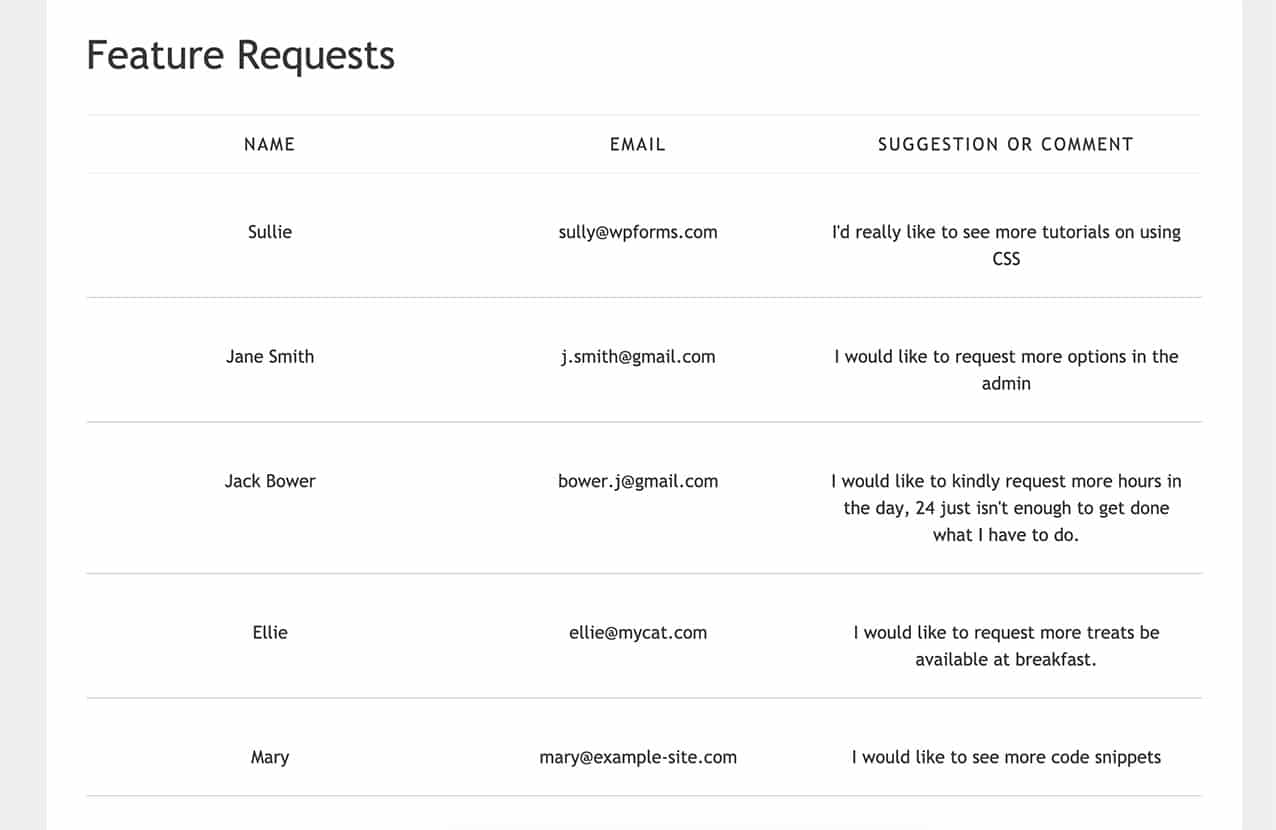
E questo è tutto, hai creato uno shortcode che può essere aggiunto in vari punti del tuo sito in modo da poter visualizzare le voci del tuo modulo agli utenti non amministratori. Desideri anche visualizzare quante voci rimangono sul tuo modulo quando utilizzi il componente aggiuntivo Form Locker? Prova il nostro snippet di codice per Come visualizzare il numero limite di voci rimanenti.
Filtro di Riferimento
FAQ
Queste sono le risposte ad alcune delle domande più frequenti sulla visualizzazione delle voci del modulo in una pagina o in un post di WordPress.
D: Come posso visualizzare solo un conteggio delle voci non lette?
R: Aggiungeresti questo snippet al tuo sito.
<?php
/**
* Custom shortcode to display WPForms form entries count for a form.
*
* Realtime counts could be delayed due to any caching setup on the site
*
* @link https://wpforms.com/developers/how-to-display-form-entries/
*
*/

function wpf_dev_entries_count( $atts ) {

// Pull ID shortcode attributes.
$atts = shortcode_atts(
[
'id'     => '',
'type'   => 'all', // all, unread, read, or starred.
],
$atts
);

if ( empty( $atts['id'] ) ) {
return;
}

$args = [
'form_id' => absint( $atts['id'] ),
];

if ( $atts['type'] === 'unread' ) {
$args['viewed'] = '0';
} elseif( $atts['type'] === 'read' ) {
$args['viewed'] = '1';
} elseif ( $atts['type'] === 'starred' ) {
$args['starred'] = '1';
}

return wpforms()->entry->get_entries( $args, true );

}
add_shortcode( 'wpf_entries_count', 'wpf_dev_entries_count' );
Quindi sei libero di utilizzare questo shortcode ovunque sul tuo sito WordPress dove sono accettati gli shortcode.
[wpf_entries_count id="13" type="unread"]
Puoi semplicemente cambiare il type in unread, read o starred.
D: Perché le mie voci più recenti non vengono visualizzate?
R: Ciò è probabilmente dovuto alla cache a livello di server, sito o browser. Assicurati che la tua cache sia completamente svuotata.
D: Devo avere colonne?
R: No, affatto. Puoi visualizzare le tue voci posizionando l'etichetta davanti al valore del campo e avendo ogni campo su una riga separata usando questo snippet e CSS.
/**
* Custom shortcode to display WPForms form entries in non-table view.
*
* Basic usage: [wpforms_entries_table id="FORMID"].
*
* Possible shortcode attributes:
* id (required)  Form ID of which to show entries.
* user           User ID, or "current" to default to current logged in user.
* fields         Comma separated list of form field IDs.
* number         Number of entries to show, defaults to 30.
*
* @link https://wpforms.com/developers/how-to-display-form-entries/
*
* Realtime counts could be delayed due to any caching setup on the site
*
* @param array $atts Shortcode attributes.
*
* @return string
*/

function wpf_entries_table( $atts ) {

// Pull ID shortcode attributes.
$atts = shortcode_atts(
[
'id'     => '',
'user'   => '',
'fields' => '',
'number' => '',
'type'   => 'all', // all, unread, read, or starred.
'sort'   => '',
'order'  => 'asc',
],
$atts
);

// Check for an ID attribute (required) and that WPForms is in fact
// installed and activated.
if ( empty( $atts['id'] ) || ! function_exists( 'wpforms' ) ) {
return;
}

// Get the form, from the ID provided in the shortcode.
$form = wpforms()->form->get( absint( $atts['id'] ) );

// If the form doesn't exist, abort.
if ( empty( $form ) ) {
return;
}

// Pull and format the form data out of the form object.
$form_data = ! empty( $form->post_content ) ? wpforms_decode( $form->post_content ) : '';

// Check to see if we are showing all allowed fields, or only specific ones.
$form_field_ids = isset( $atts['fields'] ) && $atts['fields'] !== '' ? explode( ',', str_replace( ' ', '', $atts['fields'] ) ) : [];

// Setup the form fields.
if ( empty( $form_field_ids ) ) {
$form_fields = $form_data['fields'];
} else {
$form_fields = [];
foreach ( $form_field_ids as $field_id ) {
if ( isset( $form_data['fields'][$field_id] ) ) {
$form_fields[$field_id] = $form_data['fields'][$field_id];
}
}
}

if ( empty( $form_fields ) ) {
return;
}

// Here we define what the types of form fields we do NOT want to include,
// instead they should be ignored entirely.
$form_fields_disallow = apply_filters( 'wpforms_frontend_entries_table_disallow', [ 'divider', 'html', 'pagebreak', 'captcha' ] );

// Loop through all form fields and remove any field types not allowed.
foreach ( $form_fields as $field_id => $form_field ) {
if ( in_array( $form_field['type'], $form_fields_disallow, true ) ) {
unset( $form_fields[$field_id] );
}
}

$entries_args = [
'form_id' => absint( $atts['id'] ),
];

// Narrow entries by user if user_id shortcode attribute was used.
if ( ! empty( $atts['user'] ) ) {
if ( $atts['user'] === 'current' && is_user_logged_in() ) {
$entries_args['user_id'] = get_current_user_id();
} else {
$entries_args['user_id'] = absint( $atts['user'] );
}
}

// Number of entries to show. If empty, defaults to 30.
if ( ! empty( $atts['number'] ) ) {
$entries_args['number'] = absint( $atts['number'] );
}

// Filter the type of entries: all, unread, read, or starred
if ( $atts['type'] === 'unread' ) {
$entries_args['viewed'] = '0';
} elseif( $atts['type'] === 'read' ) {
$entries_args['viewed'] = '1';
} elseif ( $atts['type'] === 'starred' ) {
$entries_args['starred'] = '1';
}

// Get all entries for the form, according to arguments defined.
// There are many options available to query entries. To see more, check out
// the get_entries() function inside class-entry.php (https://a.cl.ly/bLuGnkGx).
$entries = json_decode(json_encode(wpforms()->entry->get_entries( $entries_args )), true);

if ( empty( $entries ) ) {
return '<p>No entries found.</p>';
}

foreach($entries as $key => $entry) {
$entries[$key]['fields'] = json_decode($entry['fields'], true);
$entries[$key]['meta'] = json_decode($entry['meta'], true);
}

if ( !empty($atts['sort']) && isset($entries[0]['fields'][$atts['sort']] ) ) {
if ( strtolower($atts['order']) == 'asc' ) {
usort($entries, function ($entry1, $entry2) use ($atts) {
return strcmp($entry1['fields'][$atts['sort']]['value'], $entry2['fields'][$atts['sort']]['value']);
});
} elseif ( strtolower($atts['order']) == 'desc' ) {
usort($entries, function ($entry1, $entry2) use ($atts) {
return strcmp($entry2['fields'][$atts['sort']]['value'], $entry1['fields'][$atts['sort']]['value']);
});
}
}

ob_start();

echo '<div class="wrapper">';
echo '<div class="entries">';

// Now, loop through all the form entries.
foreach ( $entries as $entry ) {

echo '<div class="entry-details">';

$entry_fields = $entry['fields'];

foreach ( $form_fields as $form_field ) {

echo '<span class="details">';
echo '<span class="label">' . esc_html( sanitize_text_field( $form_field['label'] ) ) . ':</span>';

foreach ( $entry_fields as $entry_field ) {
if ( absint( $entry_field['id'] ) === absint( $form_field['id'] ) ) {
echo apply_filters( 'wpforms_html_field_value', wp_strip_all_tags( $entry_field['value'] ), $entry_field, $form_data, 'entry-frontend-table' );
break;
}
}

echo '</span>';
}

echo '</div>';
}

echo '</div>';
echo '</div>';

$output = ob_get_clean();

return $output;
}

add_shortcode( 'wpforms_entries_table', 'wpf_entries_table' );
Usa questo CSS qui sotto per lo stile della vista non tabellare.
Per qualsiasi assistenza su come e dove aggiungere CSS al tuo sito, consulta questo tutorial.
.wrapper {
width: 100%;
clear: both;
display: block;
}

span.details {
display: block;
margin-right: 2px;
margin: 5px 0;
}

.entries {
display: block;
clear: both;
width: 100%;
}

.entry-details {
border-bottom: 1px solid #ccc;
width: 100%;
display: block;
margin: 20px 0;
padding-bottom: 20px;
}

span.label {
font-weight: bold;
margin-right: 5px;
}