AI要約
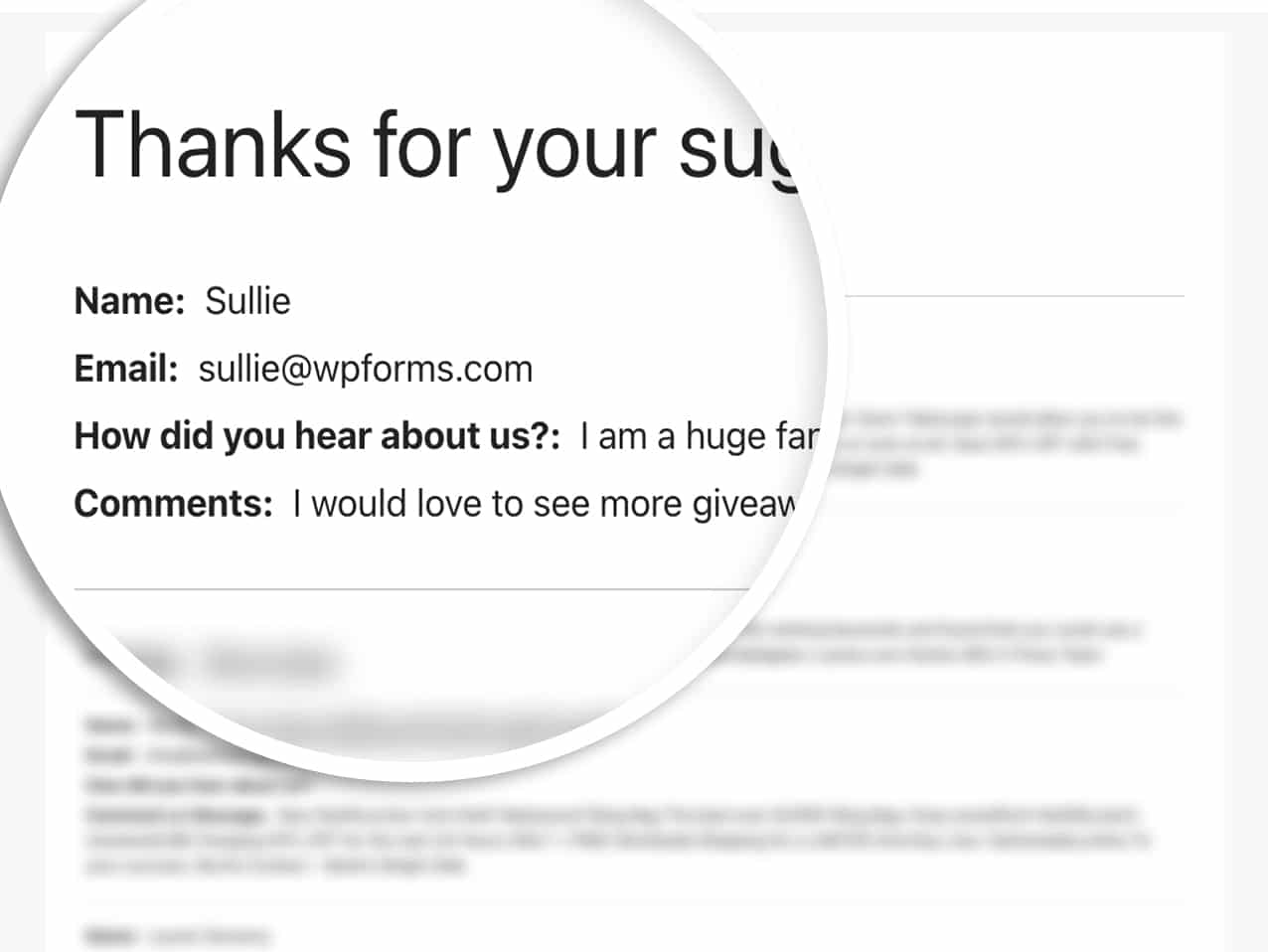
サイト内のページにフォームの投稿を表示して、ユーザーが完了したフォームの送信を一般に公開したいですか? このチュートリアルでは、WordPressサイトでこの機能を作成および実装する方法を説明します。
デフォルトでは、プロユーザーのみが、ユーザーに割り当てられたアクセス制御に基づいて、WordPress管理画面内からフォームの投稿を表示できます。ただし、サイトのフロントエンドにフォームの投稿を表示する機能を簡単に作成できます。
ショートコードの作成
まず、サイトに追加する必要があるコードスニペットを提供します。これにより、フォームIDを必要に応じて更新するだけで、同じショートコードを簡単に再利用できます。
このコードスニペットをサイトに追加するだけです。方法がわからない場合は、このチュートリアルを確認してください。
/**
* Custom shortcode to display WPForms form entries in table view.
*
* Basic usage: [wpforms_entries_table id="FORMID"].
*
* Possible shortcode attributes:
* id (required)  Form ID of which to show entries.
* user           User ID, or "current" to default to current logged in user.
* fields         Comma separated list of form field IDs.
* number         Number of entries to show, defaults to 30.
*
* @link https://wpforms.com/developers/how-to-display-form-entries/
*
* Realtime counts could be delayed due to any caching setup on the site
*
* @param array $atts Shortcode attributes.
*
* @return string
*/

function wpf_entries_table( $atts ) {

// Pull ID shortcode attributes.
$atts = shortcode_atts(
[
'id'     => '',
'user'   => '',
'fields' => '',
'number' => '',
'type'   => 'all', // all, unread, read, or starred.
'sort'   => '',
'order'  => 'asc',
],
$atts
);

// Check for an ID attribute (required) and that WPForms is in fact
// installed and activated.
if ( empty( $atts[ 'id' ] ) || ! function_exists( 'wpforms' ) ) {
return;
}

// Get the form, from the ID provided in the shortcode.
$form = wpforms()->form->get( absint( $atts[ 'id' ] ) );

// If the form doesn't exists, abort.
if ( empty( $form ) ) {
return;
}

// Pull and format the form data out of the form object.
$form_data = ! empty( $form->post_content ) ? wpforms_decode( $form->post_content ) : '';

// Check to see if we are showing all allowed fields, or only specific ones.
$form_field_ids = isset( $atts[ 'fields' ] ) && $atts[ 'fields' ] !== '' ? explode( ',', str_replace( ' ', '', $atts[ 'fields' ] ) ) : [];

// Setup the form fields.
if ( empty( $form_field_ids ) ) {
$form_fields = $form_data[ 'fields' ];
} else {
$form_fields = [];
foreach ( $form_field_ids as $field_id ) {
if ( isset( $form_data[ 'fields' ][ $field_id ] ) ) {
$form_fields[ $field_id ] = $form_data[ 'fields' ][ $field_id ];
}
}
}

if ( empty( $form_fields ) ) {
return;
}

// Here we define what the types of form fields we do NOT want to include,
// instead they should be ignored entirely.
$form_fields_disallow = apply_filters( 'wpforms_frontend_entries_table_disallow', [ 'divider', 'html', 'pagebreak', 'captcha' ] );

// Loop through all form fields and remove any field types not allowed.
foreach ( $form_fields as $field_id => $form_field ) {
if ( in_array( $form_field[ 'type' ], $form_fields_disallow, true ) ) {
unset( $form_fields[ $field_id ] );
}
}

$entries_args = [
'form_id' => absint( $atts[ 'id' ] ),
];

// Narrow entries by user if user_id shortcode attribute was used.
if ( ! empty( $atts[ 'user' ] ) ) {
if ( $atts[ 'user' ] === 'current' && is_user_logged_in() ) {
$entries_args[ 'user_id' ] = get_current_user_id();
} else {
$entries_args[ 'user_id' ] = absint( $atts[ 'user' ] );
}
}

// Number of entries to show. If empty, defaults to 30.
if ( ! empty( $atts[ 'number' ] ) ) {
$entries_args[ 'number' ] = absint( $atts[ 'number' ] );
}

// Filter the type of entries all, unread, read, or starred
if ( $atts[ 'type' ] === 'unread' ) {
$entries_args[ 'viewed' ] = '0';
} elseif( $atts[ 'type' ] === 'read' ) {
$entries_args[ 'viewed' ] = '1';
} elseif ( $atts[ 'type' ] === 'starred' ) {
$entries_args[ 'starred' ] = '1';
}

// Get all entries for the form, according to arguments defined.
// There are many options available to query entries. To see more, check out
// the get_entries() function inside class-entry.php (https://a.cl.ly/bLuGnkGx).
$entries = json_decode(json_encode(wpforms()->entry->get_entries( $entries_args )), true);

if ( empty( $entries ) ) {
return '<p>No entries found.</p>';
}

foreach($entries as $key => $entry) {
$entries[$key][ 'fields' ] = json_decode($entry[ 'fields' ], true);
$entries[$key][ 'meta' ] = json_decode($entry[ 'meta' ], true);
}

if ( !empty($atts[ 'sort' ]) && isset($entries[0][ 'fields' ][$atts[ 'sort' ]] ) ) {
if ( strtolower($atts[ 'order' ]) == 'asc' ) {
usort($entries, function ($entry1, $entry2) use ($atts) {
return strcmp($entry1[ 'fields' ][$atts[ 'sort' ]][ 'value' ], $entry2[ 'fields' ][$atts[ 'sort' ]][ 'value' ]);
});
} elseif ( strtolower($atts[ 'order' ]) == 'desc' ) {
usort($entries, function ($entry1, $entry2) use ($atts) {
return strcmp($entry2[ 'fields' ][$atts[ 'sort' ]][ 'value' ], $entry1[ 'fields' ][$atts[ 'sort' ]]['value']);
});
}
}

ob_start();

echo '<table class="wpforms-frontend-entries">';

echo '<thead><tr>';

// Loop through the form data so we can output form field names in
// the table header.
foreach ( $form_fields as $form_field ) {

// Output the form field name/label.
echo '<th>';
echo esc_html( sanitize_text_field( $form_field[ 'label' ] ) );
echo '</th>';
}

echo '</tr></thead>';

echo '<tbody>';

// Now, loop through all the form entries.
foreach ( $entries as $entry ) {

echo '<tr>';

$entry_fields = $entry[ 'fields' ];

foreach ( $form_fields as $form_field ) {

echo '<td>';

foreach ( $entry_fields as $entry_field ) {
if ( absint( $entry_field[ 'id' ] ) === absint( $form_field[ 'id' ] ) ) {
echo apply_filters( 'wpforms_html_field_value', wp_strip_all_tags( $entry_field[ 'value' ] ), $entry_field, $form_data, 'entry-frontend-table' );
break;
}
}

echo '</td>';
}

echo '</tr>';
}

echo '</tbody>';

echo '</table>';

$output = ob_get_clean();

return $output;
}
add_shortcode( 'wpforms_entries_table', 'wpf_entries_table' );
このコードスニペットは、ページ、投稿、ウィジェットエリアなど、ショートコードを受け入れるサイトのどこにでもこのショートコードを使用できるようにします。
この[wpforms_entries_table id="FORMID"]を使用するだけで、訪問者はid=”FORMID”で指定したフォームに送信された投稿を表示できます。
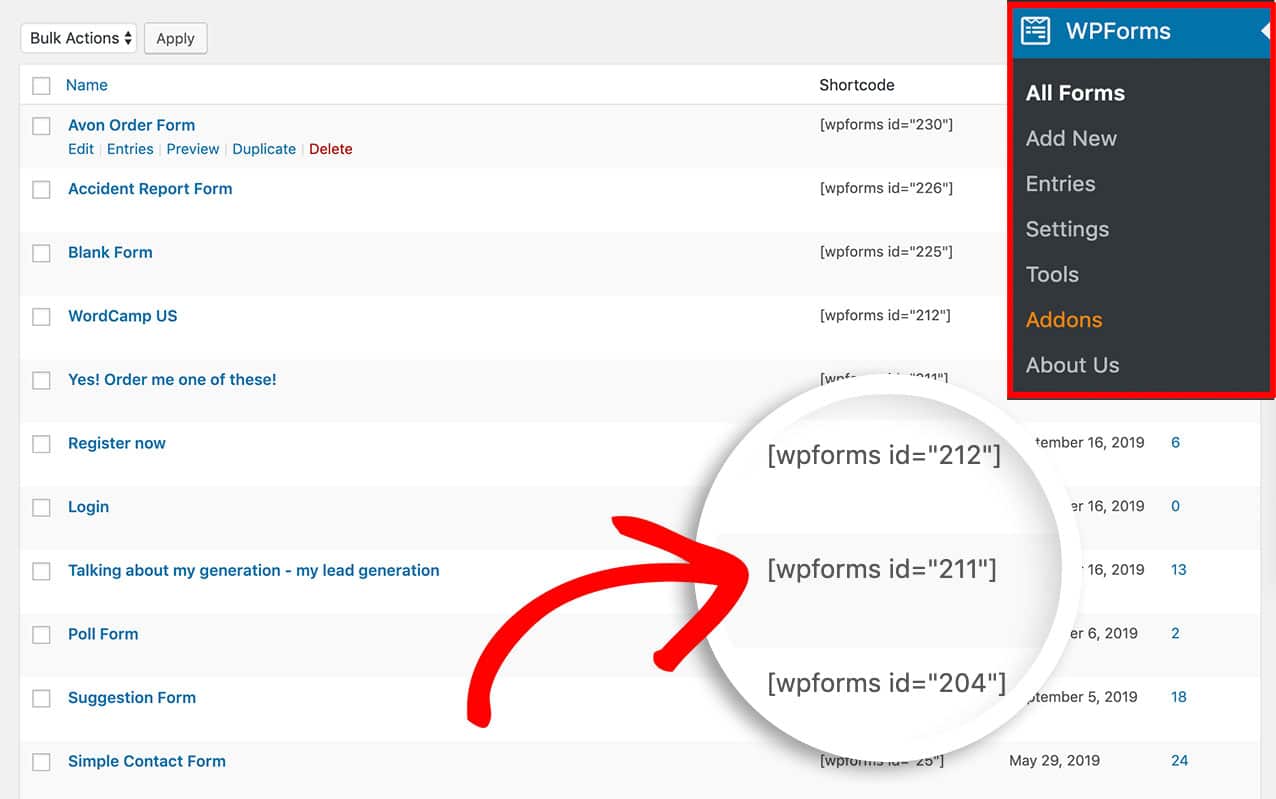
フォームのID番号は、WPForms » すべてのフォームに移動し、各フォームのショートコード列の番号を確認することで見つけることができます。
フォームの投稿を表示する
ショートコードを作成したら、投稿を表示するためにサイトのページまたは投稿に追加する必要があります。
まず、これらの投稿を表示したいフォームIDを決定する必要があります。この例では、フォームID 211の投稿を表示するため、ショートコードは次のようになります。
[wpforms_entries_table id="211"]
ショートコードを使用するために必要な唯一の属性はidです。ショートコードでこれを定義しないと何も表示されないため、フォームIDはショートコード内にリストする必要があります。
ただし、ショートコードの属性の一部を定義することで、投稿をさらに絞り込むことができます。利用可能な各属性を確認します。
type属性の定義
type属性は、スター付きの投稿のみを表示したい場合に使用できます。例を次に示します。
[wpforms_entries_table id="211" type="starred"]
以下は、使用できるその他の利用可能なタイプパラメータです。
- all – この属性を使用すると、すべての投稿タイプが表示されます。
- read – この属性は、管理者が表示した投稿のみを表示します。
- unread – この属性を使用すると、サイトの管理者が開いていない投稿のみが表示されます。
- starred – この属性は、管理者がスターを付けた投稿のみを表示します。
user属性の活用
ユーザーが現在サイトにログインしていて、自分が送信したフォームの投稿のみを表示したい場合は、このショートコードを使用します。
[wpforms_entries_table id="FORMID" user="current"]
ユーザーがログインしていない場合、このフォームのすべての投稿が表示されます。
ユーザーがログインしているが、フォーム(ログイン中)を完了していない場合、ページに「結果が見つかりませんでした。」と表示されます。
fields属性の定義
特定のフィールドのみを表示するには、まず表示したいフィールドのIDを見つける必要があります。フィールドIDを見つけるには、こちらのチュートリアルを確認してください。
フィールドIDがわかったら、これをショートコードとして使用します。この例では、Nameフィールド(フィールドID 0)とCommentsフィールド(フィールドID 2)のみを表示したいとします。
[wpforms_entries_table id="211" fields="0,2"]
注意:複数のフィールドIDは、ショートコード内でカンマを使用して区切ります。
number属性の使用
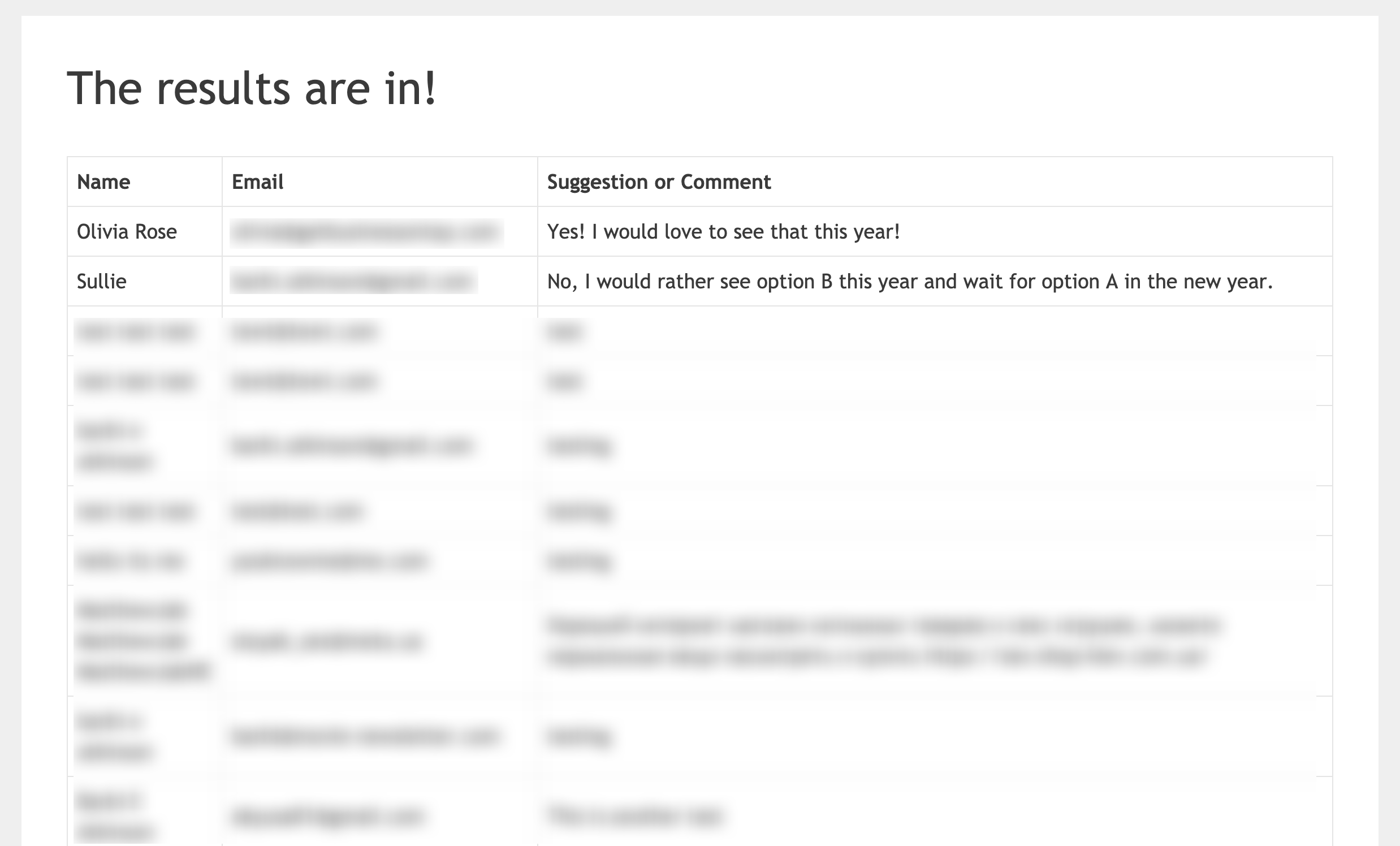
デフォルトでは、ショートコードは最初の30件のエントリのみを表示します。ただし、より少ない数を表示したい場合は、numberパラメータを使用する必要があります。たとえば、最初の20件のエントリを表示したい場合は、次のようにショートコードを追加します。
[wpforms_entries_table id="211" number="20"]
ショートコード内に渡されるnumber=”20″変数が、テーブルに表示されるエントリの数を決定します。すべてのエントリを表示したい場合は、numberを9999に変更してください。
sortおよびorder属性の使用
ショートコードを使用する際に、テーブルを並べ替えたいフィールドを指定し、asc(昇順)またはdesc(降順)で並べ替えるかどうかを定義できます。そのショートコードの例は次のようになります。
[wpforms_entries_table id="211" sort="1" order="asc"]
この例では、フォームID211のエントリのテーブルを表示し、フォームのNameフィールドのフィールドIDであるフィールドID1を使用して、このテーブルをasc(昇順)で並べ替えます。
テーブルのスタイリング(オプション)
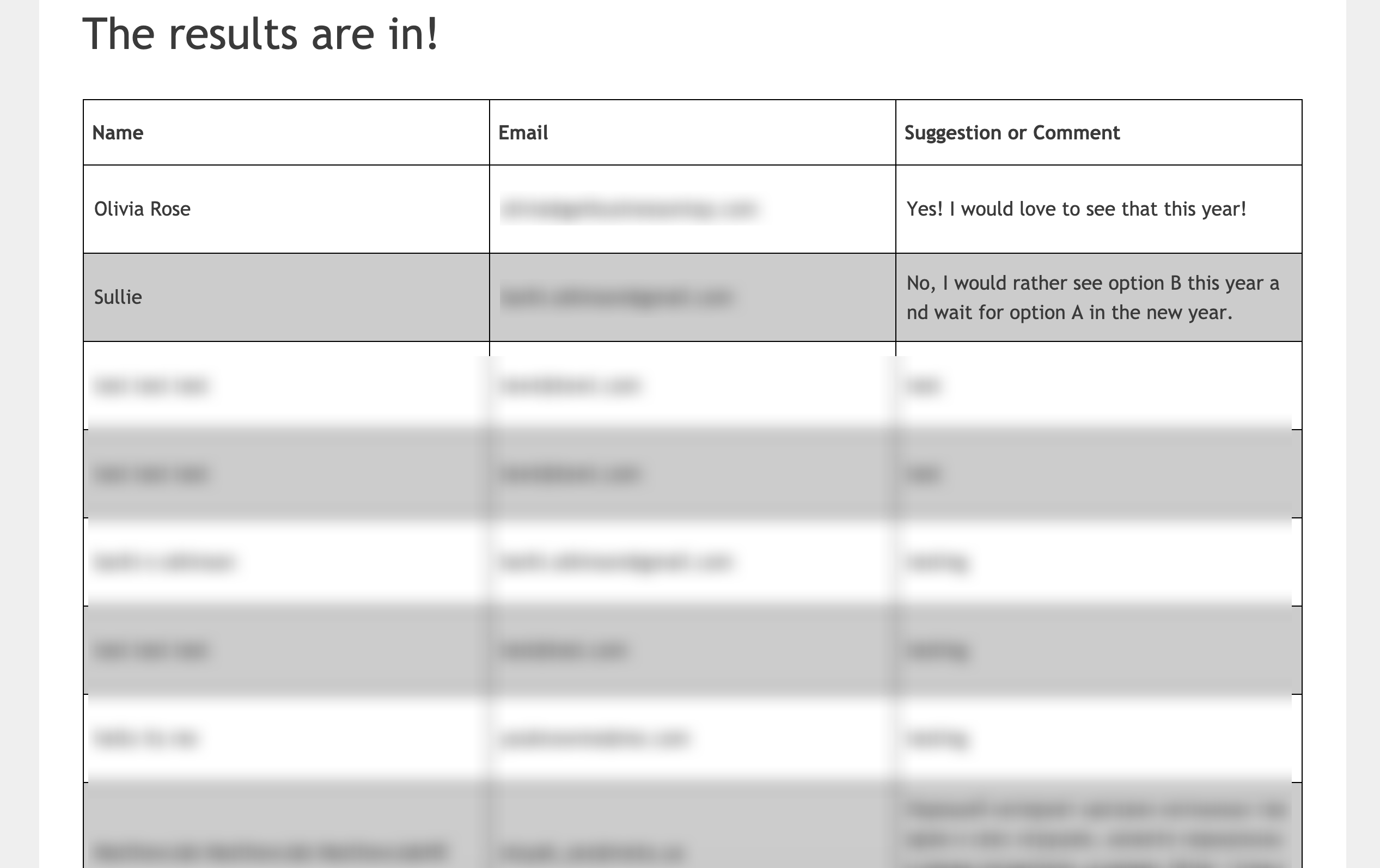
エントリテーブルのスタイリングは完全にオプションです。ほとんどのテーマには、ブラウザと同様に、デフォルトのテーブルスタイリングが組み込まれています。ただし、開始するための例を用意しましたので、デフォルトのテーブルスタイリングを変更したい場合は、このCSSをサイトにコピーして貼り付けてください。
サイトにCSSを追加する方法と場所については、こちらのチュートリアルを確認してください。
エントリテーブルのスタイリングは、テーマがテーブルに持つ可能性のあるデフォルトのスタイリングによって異なります。
table {
border-collapse: collapse;
}

thead tr {
height: 60px;
}

table, th, td {
border: 1px solid #000000;
}

td {
white-space: normal;
max-width: 33%;
width: 33%;
word-break: break-all;
height: 60px;
padding: 10px;
}
tr:nth-child(even) {
background: #ccc
}

tr:nth-child(odd) {
background: #fff
}
テーブル以外の表示の追加
エントリを表示するためにHTMLテーブルビューを使用したくない場合は、代替ソリューションも用意しています。上記のコードスニペットでショートコードを作成する代わりに、このコードスニペットを使用してください。
/**
* Custom shortcode to display WPForms form entries in non-table view.
*
* Basic usage: [wpforms_entries_table id="FORMID"].
*
* Possible shortcode attributes:
* id (required)  Form ID of which to show entries.
* user           User ID, or "current" to default to current logged in user.
* fields         Comma separated list of form field IDs.
* number         Number of entries to show, defaults to 30.
*
* @link https://wpforms.com/developers/how-to-display-form-entries/
*
* Realtime counts could be delayed due to any caching setup on the site
*
* @param array $atts Shortcode attributes.
*
* @return string
*/

function wpf_entries_table( $atts ) {

// Pull ID shortcode attributes.
$atts = shortcode_atts(
[
'id'     => '',
'user'   => '',
'fields' => '',
'number' => '',
'type'   => 'all', // all, unread, read, or starred.
'sort'   => '',
'order'  => 'asc',
],
$atts
);

// Check for an ID attribute (required) and that WPForms is in fact
// installed and activated.
if ( empty( $atts[ 'id' ] ) || ! function_exists( 'wpforms' ) ) {
return;
}

// Get the form, from the ID provided in the shortcode.
$form = wpforms()->form->get( absint( $atts[ 'id' ] ) );

// If the form doesn't exist, abort.
if ( empty( $form ) ) {
return;
}

// Pull and format the form data out of the form object.
$form_data = ! empty( $form->post_content ) ? wpforms_decode( $form->post_content ) : '';

// Check to see if we are showing all allowed fields, or only specific ones.
$form_field_ids = isset( $atts[ 'fields' ] ) && $atts[ 'fields' ] !== '' ? explode( ',', str_replace( ' ', '', $atts[ 'fields' ] ) ) : [];

// Setup the form fields.
if ( empty( $form_field_ids ) ) {
$form_fields = $form_data[ 'fields' ];
} else {
$form_fields = [];
foreach ( $form_field_ids as $field_id ) {
if ( isset( $form_data[ 'fields' ][ $field_id ] ) ) {
$form_fields[ $field_id ] = $form_data[ 'fields' ][ $field_id ];
}
}
}

if ( empty( $form_fields ) ) {
return;
}

// Here we define what the types of form fields we do NOT want to include,
// instead they should be ignored entirely.
$form_fields_disallow = apply_filters( 'wpforms_frontend_entries_table_disallow', [ 'divider', 'html', 'pagebreak', 'captcha' ] );

// Loop through all form fields and remove any field types not allowed.
foreach ( $form_fields as $field_id => $form_field ) {
if ( in_array( $form_field[ 'type' ], $form_fields_disallow, true ) ) {
unset( $form_fields[ $field_id ] );
}
}

$entries_args = [
'form_id' => absint( $atts[ 'id' ] ),
];

// Narrow entries by user if user_id shortcode attribute was used.
if ( ! empty( $atts[ 'user' ] ) ) {
if ( $atts[ 'user' ] === 'current' && is_user_logged_in() ) {
$entries_args[ 'user_id' ] = get_current_user_id();
} else {
$entries_args[ 'user_id' ] = absint( $atts[ 'user' ] );
}
}

// Number of entries to show. If empty, defaults to 30.
if ( ! empty( $atts[ 'number' ] ) ) {
$entries_args[ 'number' ] = absint( $atts[ 'number' ] );
}

// Filter the type of entries: all, unread, read, or starred
if ( $atts[ 'type' ] === 'unread' ) {
$entries_args[ 'viewed' ] = '0';
} elseif( $atts[ 'type' ] === 'read' ) {
$entries_args[ 'viewed' ] = '1';
} elseif ( $atts[ 'type' ] === 'starred' ) {
$entries_args[ 'starred' ] = '1';
}

// Get all entries for the form, according to arguments defined.
// There are many options available to query entries. To see more, check out
// the get_entries() function inside class-entry.php (https://a.cl.ly/bLuGnkGx).
$entries = json_decode(json_encode(wpforms()->entry->get_entries( $entries_args )), true);

if ( empty( $entries ) ) {
return '<p>No entries found.</p>';
}

foreach($entries as $key => $entry) {
$entries[$key][ 'fields' ] = json_decode($entry[ 'fields' ], true);
$entries[$key][ 'meta' ] = json_decode($entry[ 'meta' ], true);
}

if ( !empty($atts[ 'sort' ]) && isset($entries[0][ 'fields' ][$atts[ 'sort' ]] ) ) {
if ( strtolower($atts[ 'order' ]) == 'asc' ) {
usort($entries, function ($entry1, $entry2) use ($atts) {
return strcmp($entry1[ 'fields' ][$atts[ 'sort' ]][ 'value' ], $entry2[ 'fields' ][$atts[ 'sort' ]][ 'value' ]);
});
} elseif ( strtolower($atts[ 'order' ]) == 'desc' ) {
usort($entries, function ($entry1, $entry2) use ($atts) {
return strcmp($entry2[ 'fields' ][$atts[ 'sort' ]][ 'value' ], $entry1[ 'fields' ][$atts[ 'sort' ]]['value']);
});
}
}

ob_start();

echo '<div class="wrapper">';

echo '<div class="header-row">';

// Loop through the form data so we can output form field names in
// the table header.
foreach ( $form_fields as $form_field ) {

// Output the form field name/label.
echo '<span class="column-label">';
echo esc_html( sanitize_text_field( $form_field[ 'label' ] ) );
echo '</span>';
}

echo '</div>';

echo '<div class="entries">';

// Now, loop through all the form entries.
foreach ( $entries as $entry ) {

echo '<div class="entry-details">';

$entry_fields = $entry[ 'fields' ];

foreach ( $form_fields as $form_field ) {

echo '<span class="details">';

foreach ( $entry_fields as $entry_field ) {
if ( absint( $entry_field[ 'id' ] ) === absint( $form_field[ 'id' ] ) ) {
echo apply_filters( 'wpforms_html_field_value', wp_strip_all_tags( $entry_field[ 'value' ] ), $entry_field, $form_data, 'entry-frontend-table' );
break;
}
}

echo '</span>';
}

echo '</div>';
}

echo '</div>';

echo '</div>';

$output = ob_get_clean();

return $output;
}
add_shortcode( 'wpforms_entries_table', 'wpf_entries_table' );
しかし、ここで注意すべき重要な点は、標準的なテーブルを使用しないため、このオプションを使用してもデフォルトのスタイルは適用されないということです。そのため、次のステップのCSSが不可欠ですが、CSSクラスをリストアップして、このオプションに独自のスタイルを適用できるようにします。
テーブル以外のスタイリング
以下は、使用されているCSSクラスとその目的(必要な場合)の詳細なリストです。
- .wrapper – これは、エントリのブロック全体を囲む全体的なラッパーであり、ブロックの幅を縮小してページ全体に100%表示されないようにしたい場合に使用できます。
- .header-row – これは、各列のラベル(ラベルのみ)を囲む別の全体的なラッパーであり、ラベルセクションの背景色を変更したい場合に便利です。
- .column-label – このラッパーは、個々のラベルタイトルを囲みます。たとえば、Name、Email Address、Suggestion/Comment のそれぞれにこのラッパーが囲まれており、このテキストのサイズをターゲットにするために使用できます。
- .entries – これは、エントリ自体を囲む全体的なラッパーであり、ラベルとは異なる外観にするためにこのセクションの背景色を変更したい場合に便利です。
- .entry-details – これは、個々のエントリを囲む全体的なラッパーであり、各エントリ行に異なる背景色を提供したい場合に役立ちます。
- .details – 各列の情報はこのクラスでラップされているため、`font-size`、`color`などの追加のスタイルを自由に追加できます。
以下のCSSを使用して、テーブル以外の表示にデフォルトのスタイルを追加できます。
サイトにCSSを追加する方法と場所については、こちらのチュートリアルを確認してください。
.wrapper {
width: 100%;
clear: both;
display: block;
}

.header-row {
float: left;
width: 100%;
margin-bottom: 20px;
border-top: 1px solid #eee;
padding: 10px 0;
border-bottom: 1px solid #eee;
}

span.details, span.column-label {
display: inline-block;
float: left;
width: 33%;
margin-right: 2px;
text-align: center;
margin: 5px 0;
}

.entries {
display: block;
clear: both;
width: 100%;
}

.header-row span.column-label {
text-transform: uppercase;
letter-spacing: 2px;
}

.entry-details {
border-bottom: 1px solid #ccc;
width: 100%;
display: block;
float: left;
margin: 20px 0;
padding-bottom: 20px;
}
注意:上記のCSSは、エントリから3つのフィールド(Name、Email、Comments)のみを表示することに基づいています。より多くのフィールドを表示したい場合は、それに応じてCSSを更新してください。
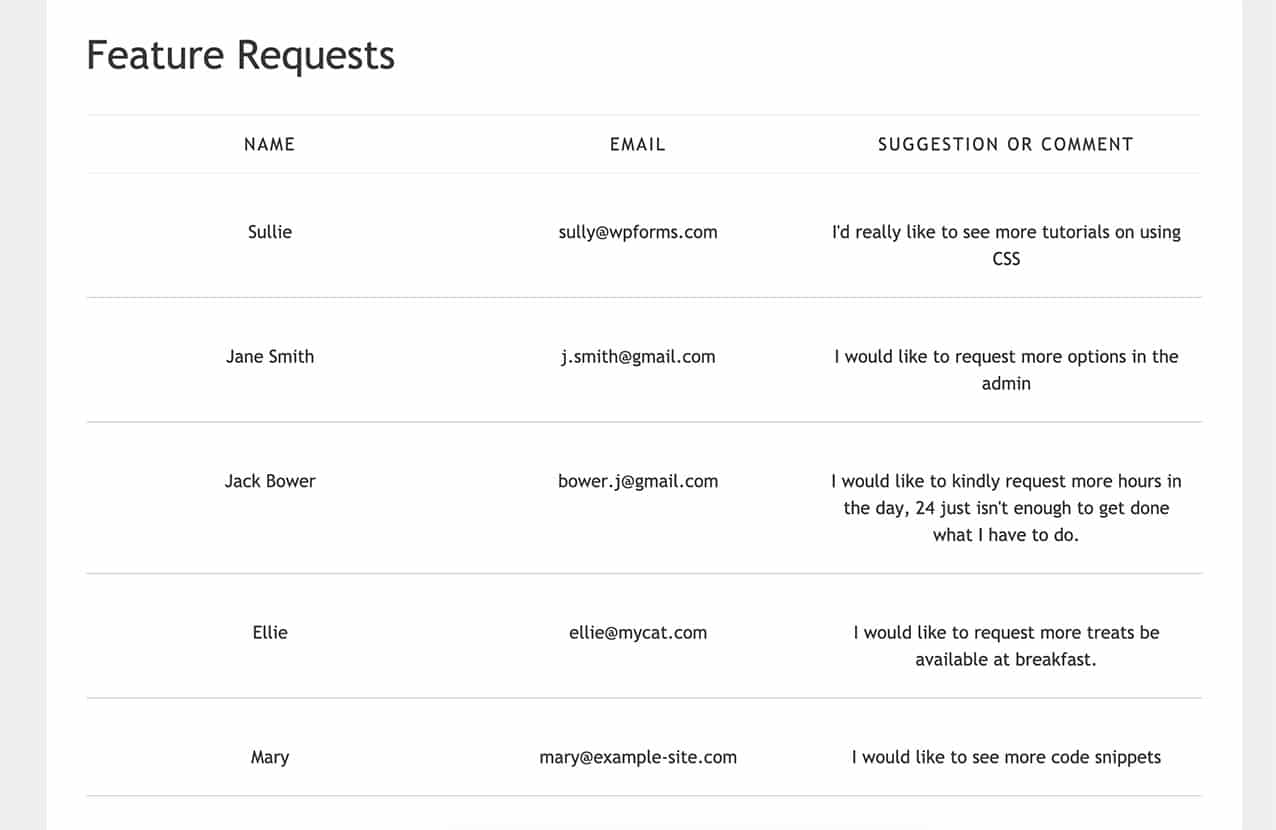
これで、サイトのさまざまな場所に簡単に追加できるショートコードが作成され、フォームエントリを管理者以外のユーザーに表示できるようになりました。また、Form Lockerアドオンを使用しているときに、フォームに残っているエントリ数を表示したいですか?残りのエントリ制限数を表示する方法のコードスニペットを試してみてください。
参照フィルター
よくある質問
これらは、WordPressのページまたは投稿にフォームエントリを表示することに関するよくある質問への回答です。
Q:未読エントリのカウントのみを表示するにはどうすればよいですか?
A:このスニペットをサイトに追加します。
<?php
/**
* Custom shortcode to display WPForms form entries count for a form.
*
* Realtime counts could be delayed due to any caching setup on the site
*
* @link https://wpforms.com/developers/how-to-display-form-entries/
*
*/

function wpf_dev_entries_count( $atts ) {

// Pull ID shortcode attributes.
$atts = shortcode_atts(
[
'id'     => '',
'type'   => 'all', // all, unread, read, or starred.
],
$atts
);

if ( empty( $atts['id'] ) ) {
return;
}

$args = [
'form_id' => absint( $atts['id'] ),
];

if ( $atts['type'] === 'unread' ) {
$args['viewed'] = '0';
} elseif( $atts['type'] === 'read' ) {
$args['viewed'] = '1';
} elseif ( $atts['type'] === 'starred' ) {
$args['starred'] = '1';
}

return wpforms()->entry->get_entries( $args, true );

}
add_shortcode( 'wpf_entries_count', 'wpf_dev_entries_count' );
その後、ショートコードが受け入れられるWordPressサイトのどこにでも、このショートコードを自由に使用できます。
[wpf_entries_count id="13" type="unread"]
単に`type`を`unread`、`read`、または`starred`に変更するだけです。
Q:新しいエントリが表示されないのはなぜですか?
A:これは、サーバーレベル、サイトレベル、またはブラウザーレベルのいずれかのキャッシュが原因である可能性が高いです。キャッシュが完全にクリアされていることを確認してください。
Q: 列は必須ですか?
A: いいえ、まったく必須ではありません。このスニペットとCSSを使用して、ラベルをフィールド値の前に配置し、各フィールドを別々の行に表示することで、エントリを表示できます。
/**
* Custom shortcode to display WPForms form entries in non-table view.
*
* Basic usage: [wpforms_entries_table id="FORMID"].
*
* Possible shortcode attributes:
* id (required)  Form ID of which to show entries.
* user           User ID, or "current" to default to current logged in user.
* fields         Comma separated list of form field IDs.
* number         Number of entries to show, defaults to 30.
*
* @link https://wpforms.com/developers/how-to-display-form-entries/
*
* Realtime counts could be delayed due to any caching setup on the site
*
* @param array $atts Shortcode attributes.
*
* @return string
*/

function wpf_entries_table( $atts ) {

// Pull ID shortcode attributes.
$atts = shortcode_atts(
[
'id'     => '',
'user'   => '',
'fields' => '',
'number' => '',
'type'   => 'all', // all, unread, read, or starred.
'sort'   => '',
'order'  => 'asc',
],
$atts
);

// Check for an ID attribute (required) and that WPForms is in fact
// installed and activated.
if ( empty( $atts['id'] ) || ! function_exists( 'wpforms' ) ) {
return;
}

// Get the form, from the ID provided in the shortcode.
$form = wpforms()->form->get( absint( $atts['id'] ) );

// If the form doesn't exist, abort.
if ( empty( $form ) ) {
return;
}

// Pull and format the form data out of the form object.
$form_data = ! empty( $form->post_content ) ? wpforms_decode( $form->post_content ) : '';

// Check to see if we are showing all allowed fields, or only specific ones.
$form_field_ids = isset( $atts['fields'] ) && $atts['fields'] !== '' ? explode( ',', str_replace( ' ', '', $atts['fields'] ) ) : [];

// Setup the form fields.
if ( empty( $form_field_ids ) ) {
$form_fields = $form_data['fields'];
} else {
$form_fields = [];
foreach ( $form_field_ids as $field_id ) {
if ( isset( $form_data['fields'][$field_id] ) ) {
$form_fields[$field_id] = $form_data['fields'][$field_id];
}
}
}

if ( empty( $form_fields ) ) {
return;
}

// Here we define what the types of form fields we do NOT want to include,
// instead they should be ignored entirely.
$form_fields_disallow = apply_filters( 'wpforms_frontend_entries_table_disallow', [ 'divider', 'html', 'pagebreak', 'captcha' ] );

// Loop through all form fields and remove any field types not allowed.
foreach ( $form_fields as $field_id => $form_field ) {
if ( in_array( $form_field['type'], $form_fields_disallow, true ) ) {
unset( $form_fields[$field_id] );
}
}

$entries_args = [
'form_id' => absint( $atts['id'] ),
];

// Narrow entries by user if user_id shortcode attribute was used.
if ( ! empty( $atts['user'] ) ) {
if ( $atts['user'] === 'current' && is_user_logged_in() ) {
$entries_args['user_id'] = get_current_user_id();
} else {
$entries_args['user_id'] = absint( $atts['user'] );
}
}

// Number of entries to show. If empty, defaults to 30.
if ( ! empty( $atts['number'] ) ) {
$entries_args['number'] = absint( $atts['number'] );
}

// Filter the type of entries: all, unread, read, or starred
if ( $atts['type'] === 'unread' ) {
$entries_args['viewed'] = '0';
} elseif( $atts['type'] === 'read' ) {
$entries_args['viewed'] = '1';
} elseif ( $atts['type'] === 'starred' ) {
$entries_args['starred'] = '1';
}

// Get all entries for the form, according to arguments defined.
// There are many options available to query entries. To see more, check out
// the get_entries() function inside class-entry.php (https://a.cl.ly/bLuGnkGx).
$entries = json_decode(json_encode(wpforms()->entry->get_entries( $entries_args )), true);

if ( empty( $entries ) ) {
return '<p>No entries found.</p>';
}

foreach($entries as $key => $entry) {
$entries[$key]['fields'] = json_decode($entry['fields'], true);
$entries[$key]['meta'] = json_decode($entry['meta'], true);
}

if ( !empty($atts['sort']) && isset($entries[0]['fields'][$atts['sort']] ) ) {
if ( strtolower($atts['order']) == 'asc' ) {
usort($entries, function ($entry1, $entry2) use ($atts) {
return strcmp($entry1['fields'][$atts['sort']]['value'], $entry2['fields'][$atts['sort']]['value']);
});
} elseif ( strtolower($atts['order']) == 'desc' ) {
usort($entries, function ($entry1, $entry2) use ($atts) {
return strcmp($entry2['fields'][$atts['sort']]['value'], $entry1['fields'][$atts['sort']]['value']);
});
}
}

ob_start();

echo '<div class="wrapper">';
echo '<div class="entries">';

// Now, loop through all the form entries.
foreach ( $entries as $entry ) {

echo '<div class="entry-details">';

$entry_fields = $entry['fields'];

foreach ( $form_fields as $form_field ) {

echo '<span class="details">';
echo '<span class="label">' . esc_html( sanitize_text_field( $form_field['label'] ) ) . ':</span>';

foreach ( $entry_fields as $entry_field ) {
if ( absint( $entry_field['id'] ) === absint( $form_field['id'] ) ) {
echo apply_filters( 'wpforms_html_field_value', wp_strip_all_tags( $entry_field['value'] ), $entry_field, $form_data, 'entry-frontend-table' );
break;
}
}

echo '</span>';
}

echo '</div>';
}

echo '</div>';
echo '</div>';

$output = ob_get_clean();

return $output;
}

add_shortcode( 'wpforms_entries_table', 'wpf_entries_table' );
テーブル以外の表示のスタイリングには、以下のCSSを使用してください。
サイトにCSSを追加する方法と場所については、こちらのチュートリアルを確認してください。
.wrapper {
width: 100%;
clear: both;
display: block;
}

span.details {
display: block;
margin-right: 2px;
margin: 5px 0;
}

.entries {
display: block;
clear: both;
width: 100%;
}

.entry-details {
border-bottom: 1px solid #ccc;
width: 100%;
display: block;
margin: 20px 0;
padding-bottom: 20px;
}

span.label {
font-weight: bold;
margin-right: 5px;
}