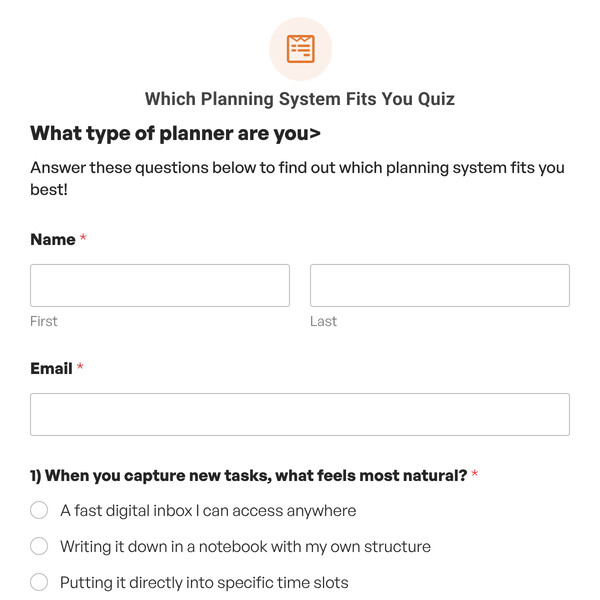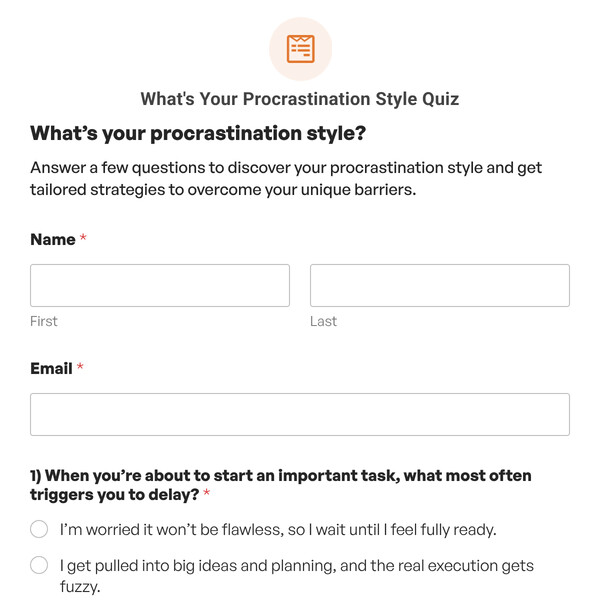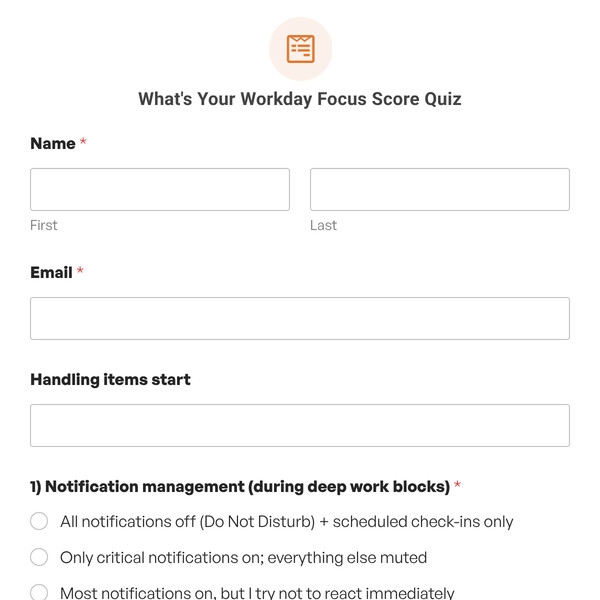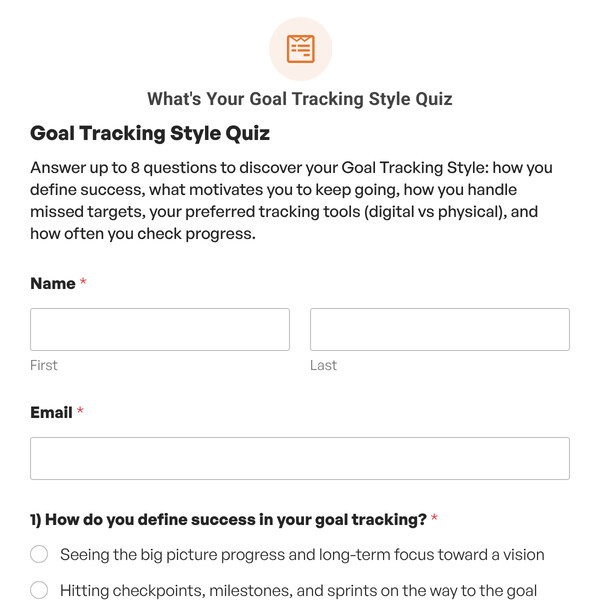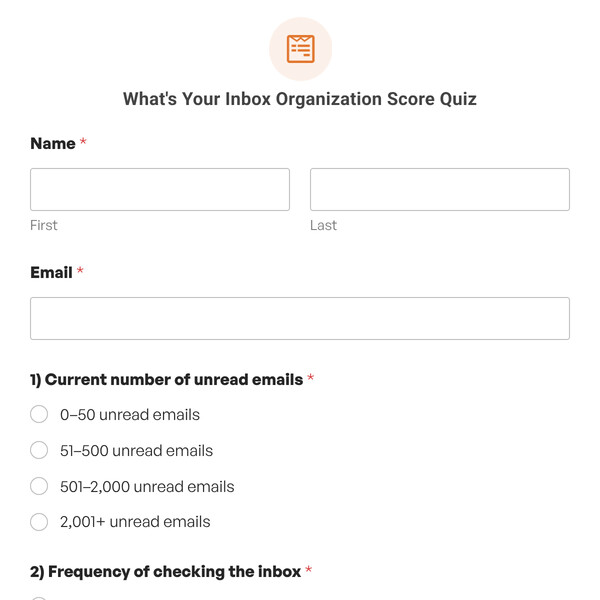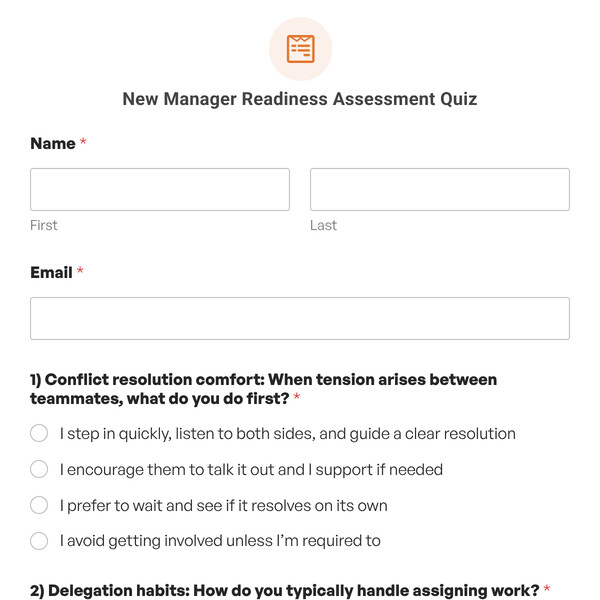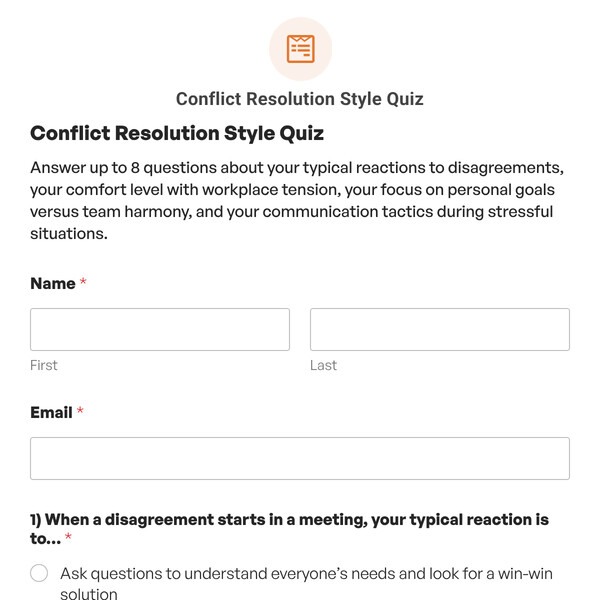
Need to create a quiz that evaluates preferences and calculates scores based on varying importance of different answers? The Weighted Quiz Template gives you a ready-to-customize foundation for creating any type of weighted assessment where different responses carry different numerical values.
Understanding the Weighted Quiz Template
This customizable template includes 10 pre-configured multiple-choice questions with three answer options each, where every answer is assigned a numerical weight value. Instead of the rigid “right or wrong” scoring, this template calculates a total weighted score as a percentage and displays one of three outcomes based on score thresholds.
How Weighted Quizzes Work
- No correct/incorrect designation: Every answer is valid but has different point values.
- Weight values: Each answer choice gets a number from 0-99 representing its value.
- Score calculation: WPForms adds up all selected answer weights.
- Percentage conversion: Total score is converted to a percentage of the maximum possible score.
- Threshold outcomes: Different messages display based on percentage score ranges.
- Response analytics: View visual graphs on completion rates, score ranges, and more.
Score Threshold System
The template includes three pre-configured outcomes based on two conditional logic operators:
- Greater than: Score must exceed the specified percentage.
- Less than: Score must be below the specified percentage.
You can adjust these percentages or add additional outcome tiers. For example:
- High Score: Shows when Quiz Score is greater than 79%.
- Mid Score: Shows when Quiz Score is less than 80% AND greater than 59%.
- Low Score: Shows when Quiz Score is less than 60%.
10 Pre-Structured Questions
Each placeholder question includes:
- Multiple choice field type.
- Three answer options (First Choice, Second Choice, Third Choice).
- Weight value input fields for each answer (0-90)
- Required field validation.
- “Include in Quiz Scoring” enabled.
How to Customize Your Weighted Quiz
- Define Your Assessment Scale: Decide what you’re measuring (readiness, maturity, capability, alignment, effectiveness), determine how many outcome levels you need (3, 4, 5, or more), and establish what score ranges represent each level.
- Set Weight Values: Click on each question, assign weight values to each answer choice based on how well it represents maturity/capability/effectiveness, ensure weight distribution creates meaningful score differentiation, and maintain consistency in how you assign values across questions.
- Replace Questions: Update each placeholder question with your actual assessment content, modify answer choices to reflect realistic options for your topic, and ensure answer text clearly differentiates between maturity/capability levels.
- Adjust Score Thresholds: Go to the Outcome tab, click on each outcome, modify the percentage thresholds to match your scale, and add additional outcome tiers if needed for more granular feedback.
- Write Outcome Messages: Replace placeholder outcome text with specific feedback for each score range, include actionable next steps or recommendations, use smart tags to personalize with participant name and score, and add resources, links, or CTAs relevant to each level.
- Add or Remove Questions: Use “Add Fields” to include more questions for comprehensive assessment (remember to assign weights), or delete questions to create quicker evaluations.
Ready to Create Your Weighted Quiz?
Start with a professional template that has weighted scoring and threshold outcomes already configured. Provide the strategic thinking about what to measure, how to weight responses, and what scores mean. Get WPForms Pro to access the Weighted Quiz Template and create sophisticated assessments in no time!