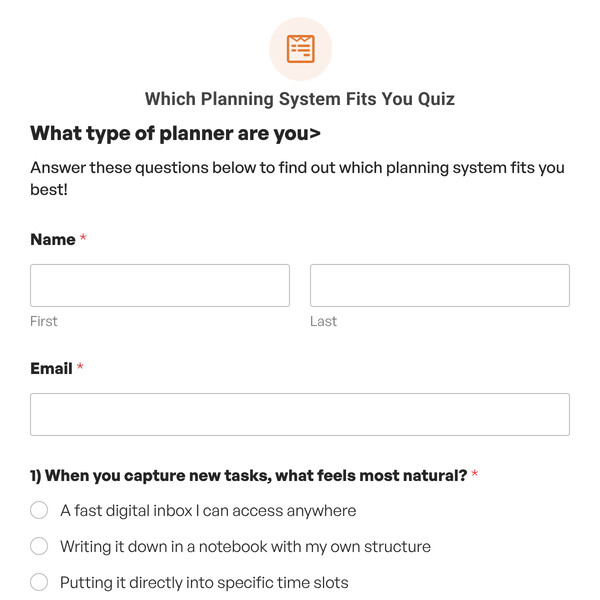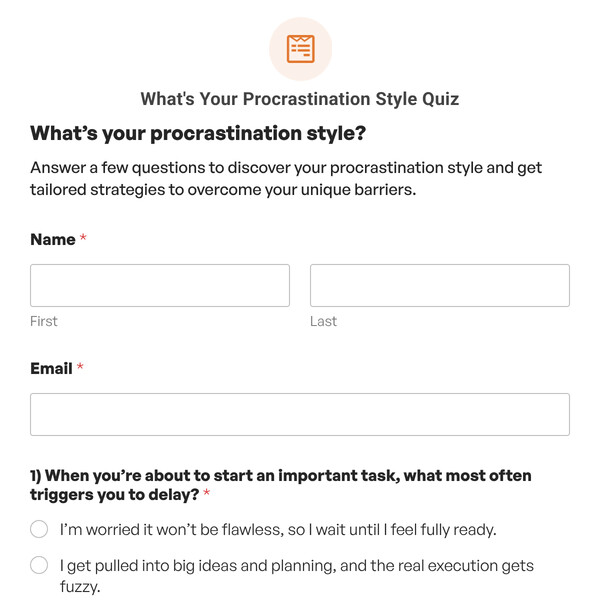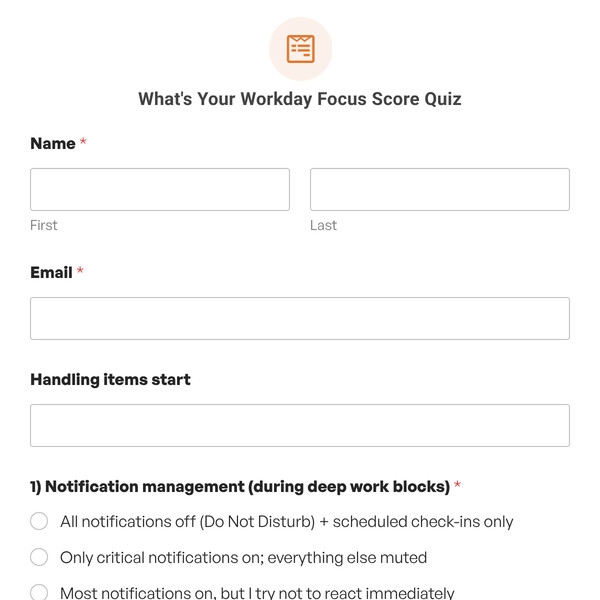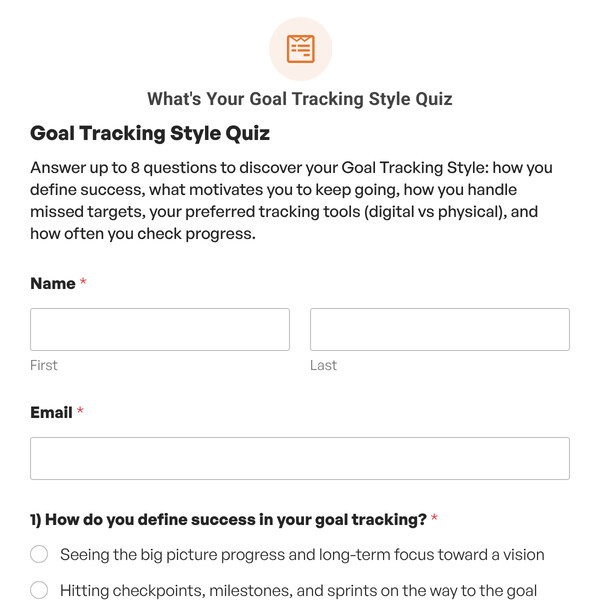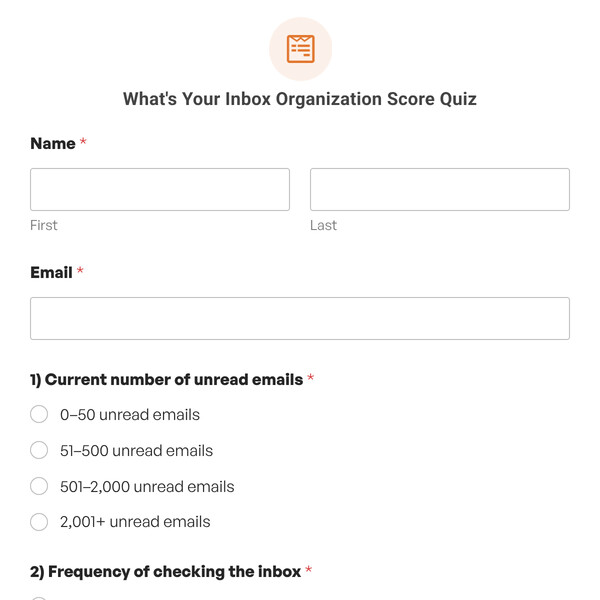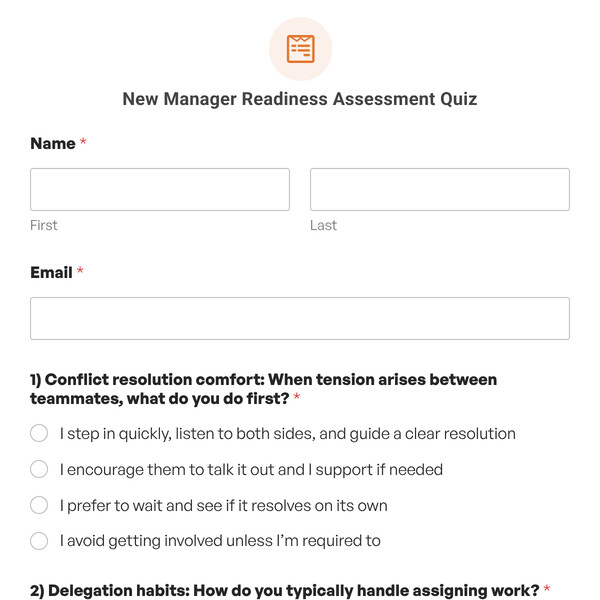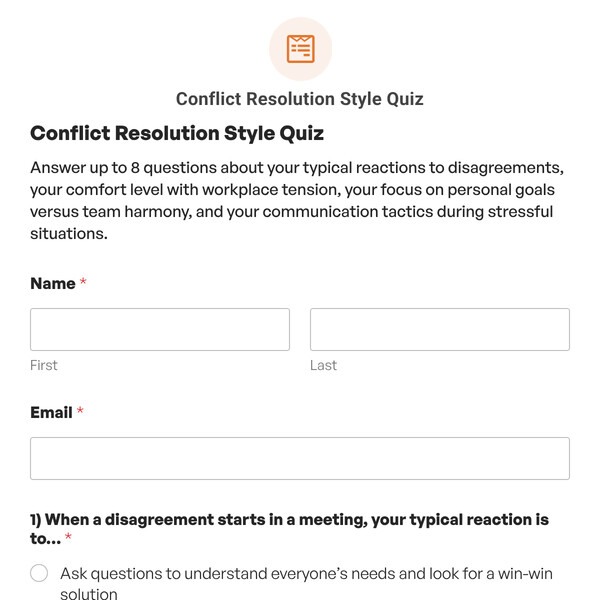
Need a quiz that uses a one-question-at-a-time format and measures responses on a scale rather than marking them right or wrong? The Weighted Quiz (Multi-Step) Template from WPForms combines the scoring of weighted quizzes with a streamlined, one-question-per-page format that improves focus and completion rates.
Understanding the Multi-Step Weighted Quiz Template
This multi-step weighted quiz includes 10 pre-configured questions displayed across separate pages, plus a dedicated welcome page for participant information. Each question appears individually with a progress indicator, and every answer choice has an assigned weight value.
Page 1: Welcome Screen
- Name field (First and Last)
- Email field
- Launch button: “Let’s Go!” (customizable)
- Progress display: “Step 1 of 11”
- Optional: Add assessment description or expectations
Pages 2-11: Weighted Questions
- One question per page (Question 1 through Question 10).
- Four answer choices with pre-assigned weight values.
- “Next” button for advancement.
- Progress tracker showing position and completion status.
- Page breaks creating the stepped experience.
How Multi-Step Weighted Scoring Works
The calculation is identical to single-page weighted quizzes. The only difference is the user experience.
- Weight values are assigned to each answer choice (just like single-page).
- As participants advance, their selections are tracked.
- Weights accumulate across all pages.
- Maximum possible score equals the sum of all highest-weight answers.
- Final score is calculated as: (Total Points Earned ÷ Maximum Possible Points) × 100.
- Percentage determines which outcome displays.
How to Customize Your Multi-Step Weighted Quiz
- Plan Your Weighting System: Decide what you’re measuring (maturity, capability, alignment, effectiveness), determine how many outcome levels you need (3, 4, 5, or more), and establish what score ranges represent each level.
- Set Weight Values: Click on each question, assign weight values to each answer choice based on how well it represents maturity/capability/effectiveness, ensure weight distribution creates meaningful score differentiation, and maintain consistency in how you assign values across questions.
- Replace Questions: Update each placeholder question with your actual assessment content, modify answer choices to reflect realistic options for your topic, and ensure answer text clearly differentiates between maturity/capability levels.
- Adjust Score Thresholds: Go to the Outcome tab, click on each outcome, modify the percentage thresholds to match your scale, add additional outcome tiers if needed for more granular feedback, and ensure conditional logic uses correct operators (greater than/less than only).
- Write Outcome Messages: Replace placeholder outcome text with specific feedback for each score range, include actionable next steps or recommendations, use smart tags to personalize with participant name and score, and add resources, links, or CTAs relevant to each level.
- Add or Remove Questions: Use “Add Fields” to include more questions for comprehensive assessment (remember to assign weights), or delete questions to create quicker evaluations.
Ready to Create Your Multi-Step Weighted Quiz?
Give participants a focused assessment experience that measures performance one thoughtful question at a time. Get WPForms Pro to access the Weighted Quiz (Multi-Step) Template and create sophisticated evaluations that people actually complete.