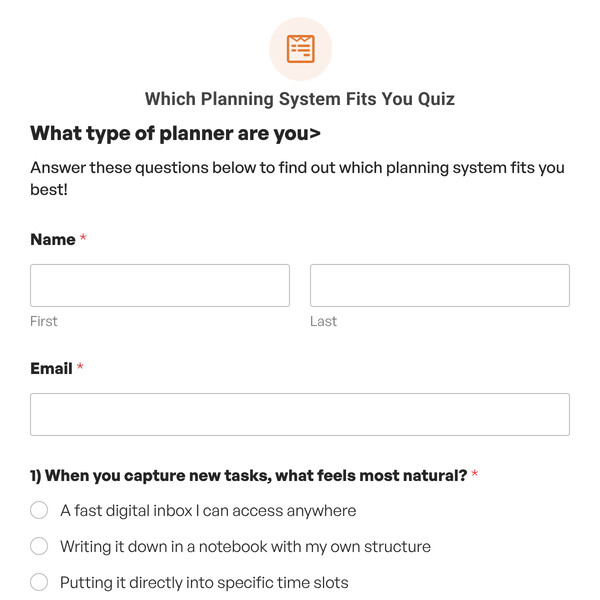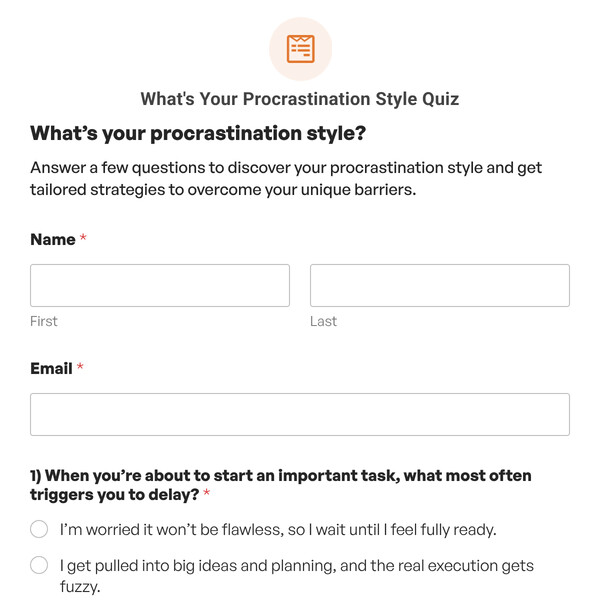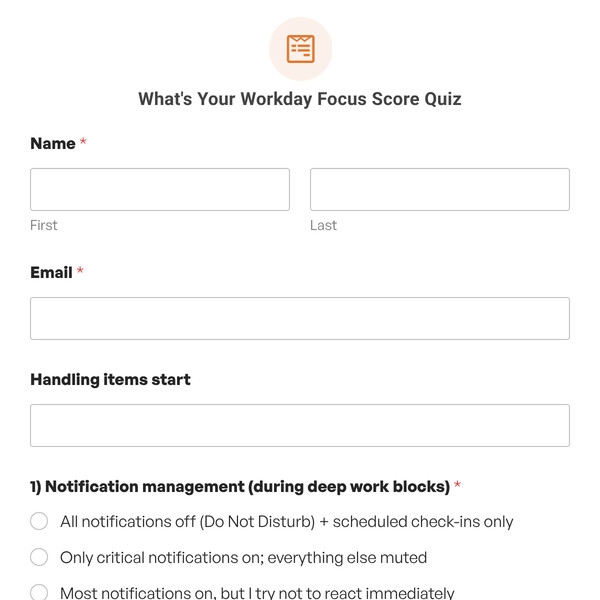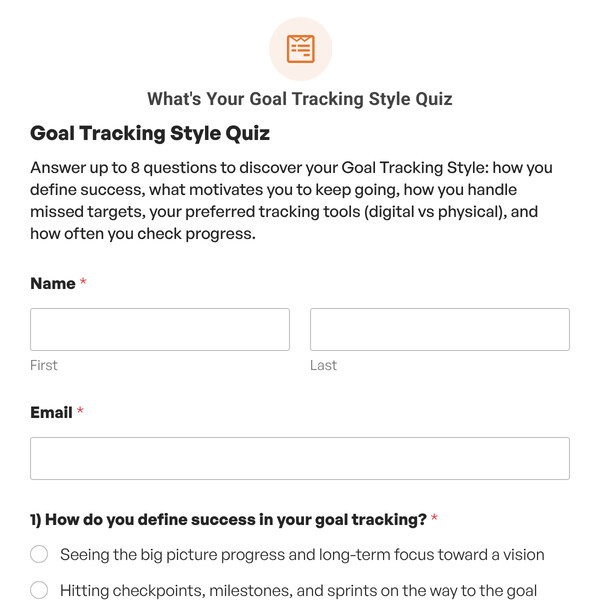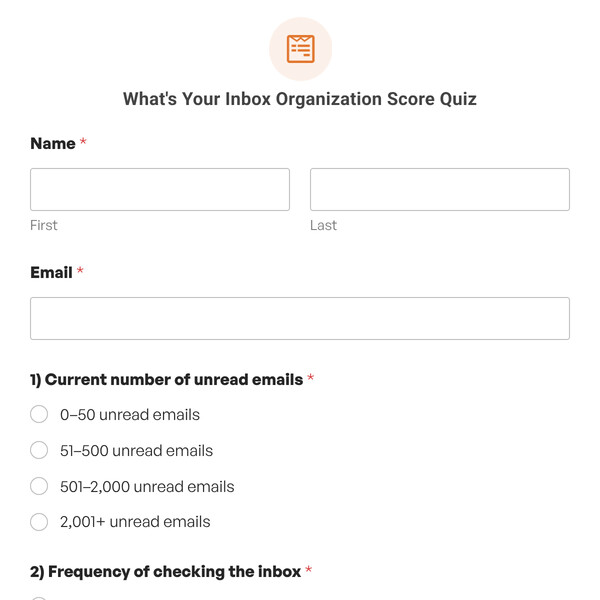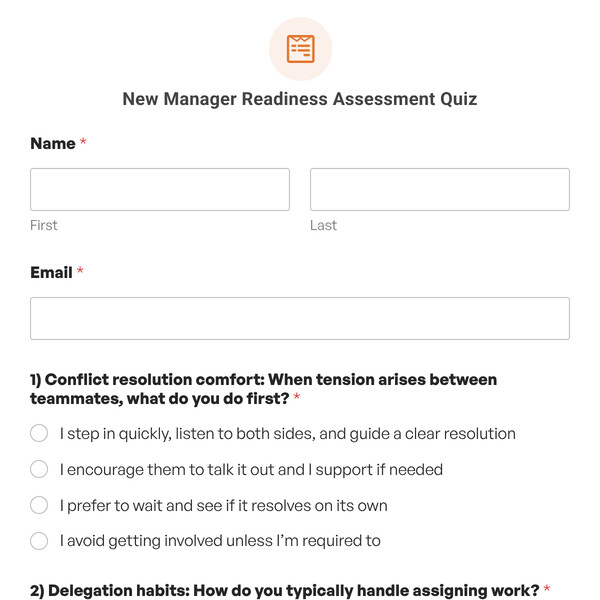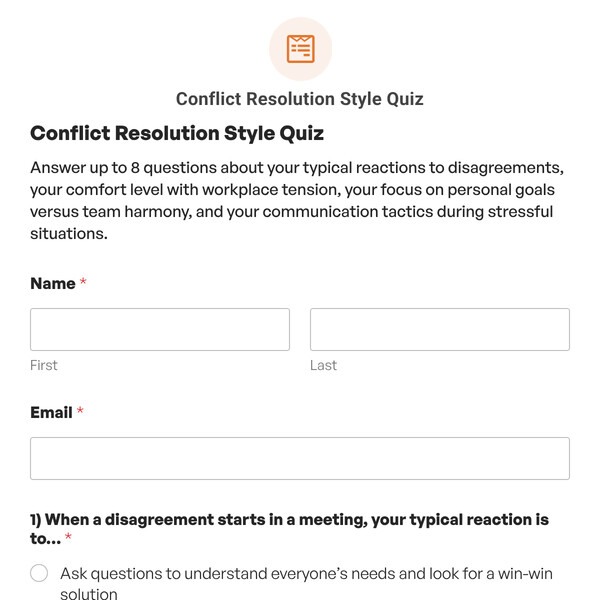
Need a graded quiz that feels less overwhelming and keeps participants engaged one question at a time? The Multi-Step Graded Quiz Template from WPForms gives you all the benefits of automatic grading with a cleaner, more focused user experience that displays one question per page.
Understanding the Multi-Step Graded Quiz Template
This multi-step graded quiz includes 10 pre-configured questions spread across 11 distinct pages, plus a dedicated first page for collecting name and email. Each question appears individually with a progress indicator showing participants exactly where they are in the quiz.
Page 1: Information Collection
- Name field (First and Last)
- Email field
- Custom button text: “Let’s Go!” (can be changed to “Start Quiz,” “Begin,” etc.)
- Progress indicator: “Step 1 of 11”
Pages 2-11: Individual Questions
- One question per page (Question 1 through Question 10)
- Three answer choices per question
- “Next” button to advance (can be customized)
- Progress indicator showing current position
- Page breaks separating each question
How Multi-Step Grading Works
Despite being spread across multiple pages, the quiz scoring works exactly the same as the single-page version:
- Each question is set to “Include in Quiz Scoring”
- One answer per question is marked as correct
- WPForms tracks responses across all pages
- Upon submission, the total score is calculated automatically
- Participants see their grade, percentage, and outcome message instantly
How to Customize Your Multi-Step Graded Quiz
Transforming the template to your specific needs is straightforward:
- Update the Welcome Page: Edit the Name and Email fields on Page 1, customize the button text (default: “Let’s Go!”), and optionally add instructions using a Content field.
- Replace Questions: Navigate through pages 2-11, replace each placeholder question with your actual content, update answer choices, and mark the correct answer with the checkmark icon.
- Adjust Page Breaks: Click on each Page Break element to customize navigation button text, enable/disable the Previous button, and add page titles if desired.
- Add or Remove Questions/Pages: Insert new Page Break elements to add question pages, or delete Page Breaks and questions to create shorter quizzes (note: the progress indicator will update automatically).
- Configure Grading and Outcomes: Go to the Settings tab to adjust the grading scale if needed, then customize outcome messages in Outcomes tab for each grade level.
- Set Up Notifications: Configure email notifications in the Notifications tab to send results to participants and admins, using smart tags to include scores and grades.
Ready to Create Your Multi-Step Graded Quiz?
Start with this template, customize your questions and grading, optimize the progress experience, and launch with confidence knowing that your participants will stay engaged from first click to final grade. Get WPForms Pro to access the Graded Quiz (Multi-Step) Template and create engaging assessments that people actually finish.