


Resumo de IA
Introdução
Gostaria de personalizar o endereço de e-mail de remetente que o addon Salvar e Continuar usa ao enviar o link para continuar? Usando um pequeno trecho de código, você pode facilmente personalizar este e-mail para ser diferente do seu e-mail de administrador do WordPress. Neste tutorial, vamos guiá-lo através de como conseguir isso.
Criando o formulário
Primeiro, você precisará criar um formulário. Estamos usando um dos muitos modelos úteis para o nosso formulário. Para saber mais sobre os modelos do WPForms, por favor, dê uma olhada nesta documentação.
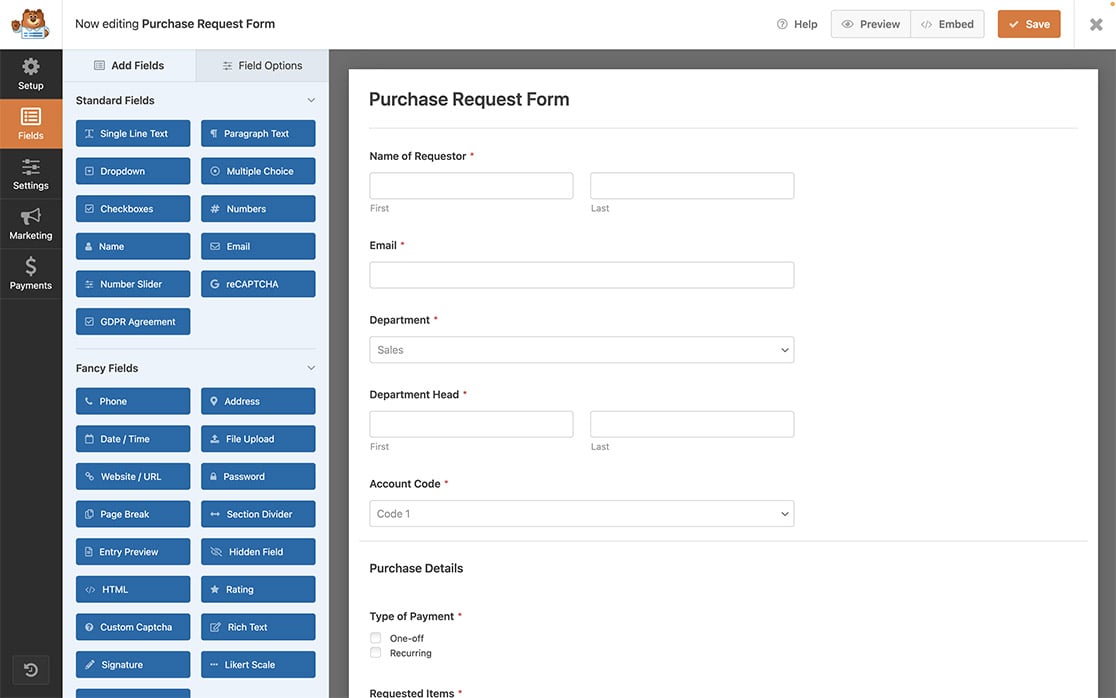
Se precisar de ajuda para criar um formulário, você sempre pode consultar esta documentação.
Ativando o Salvar e Continuar
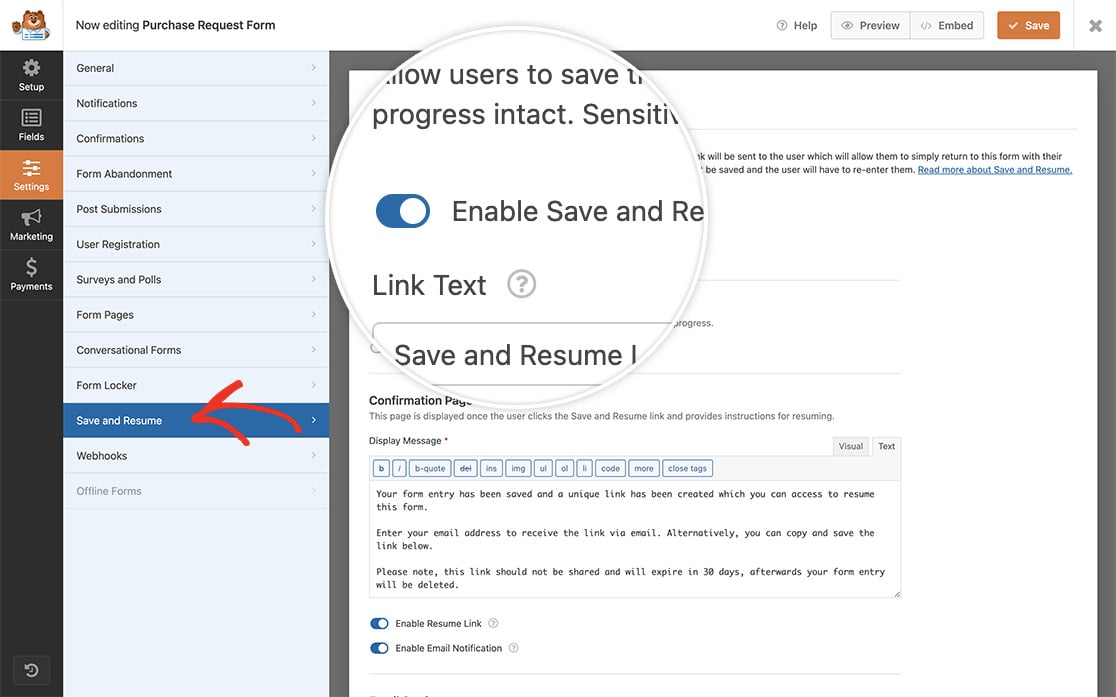
Em seguida, precisaremos ativar o Salvar e Continuar no formulário. Para fazer isso, clique em Configurações dentro do construtor de formulários e ative o interruptor para Ativar Salvar e Continuar. Depois de ativar isso, você pode prosseguir com a configuração das configurações e mensagens. Para mais ajuda com o addon Salvar e Continuar e configuração, por favor, consulte esta documentação.
Adicionando o snippet
Agora é hora de adicionar o trecho de código ao seu site. Se precisar de ajuda sobre como e onde adicionar trechos de código ao seu site, confira este tutorial.
Você precisará alterar o $from_address para corresponder ao endereço de e-mail que você deseja definir. E simplesmente adicionando este trecho de código, qualquer e-mail enviado com o addon Salvar e Continuar parecerá ser de [email protected].
As configurações de e-mail podem apresentar mau funcionamento se os plugins SMTP ou códigos personalizados forem alterados.
E é isso! Você personalizou com sucesso um trecho de código para o endereço de e-mail do remetente. Gostaria também de personalizar o endereço de e-mail de resposta? Confira nosso tutorial sobre Como Alterar o E-mail de Resposta para o Addon Salvar e Continuar.
Perguntas Frequentes
P: Posso alterar o nome de remetente também?
R: Com certeza! Para alterar o nome, use este trecho de código.
/*
* Customize the from name address that Save and Resume addon uses
*
* @link https://wpforms.com/developers/how-to-customize-the-from-email-address-for-the-save-and-resume-addon/
*/

    function save_resume_change_from_name( $from_name, $email ) {

        if ( $email->template instanceof WPFormsSaveResume\Email\Templates\SaveResume ) {

            // Change from name with Save and Resume email
            $from_name = 'Sullie Eloso';

        }

        return $from_name;

    }
    add_action( 'wpforms_emails_mailer_get_from_name', 'save_resume_change_from_name', 10, 2 );
P: Posso usar isso para o addon de Registro de Usuário também?
R: Com certeza! Você usaria este trecho de código em vez disso.
/*
 * Change the reply-to email address that the User and Registration addon uses
*
* @link https://wpforms.com/developers/how-to-customize-the-from-email-address-for-the-save-and-resume-addon/
*/

function user_registration_change_reply_to( $reply_to, $email ) {

    if ( $email->template instanceof WPFormsUserRegistration\EmailNotifications\Templates\General ) {

        // Change reply-to address on User Registration email
        $reply_to = '[email protected]';

    }

    return $reply_to;

}
add_action( 'wpforms_emails_mailer_get_reply_to_address', 'user_registration_change_reply_to', 10, 2 );