


AI要約
GDPRが有効な場合に、スマートフォンフィールドにデフォルトの国旗を設定しますか?スマートフォンフォームフィールドを使用する場合、デフォルトの国旗はユーザーのIPアドレスに基づいて設定されます。GDPR設定が有効な場合、この設定はブロックされるため、訪問者が手動で設定する必要があります。
短いJavaScriptコードスニペットを使用すると、GDPR契約に違反することなく、ユーザーの手間を省くために、国旗を番号でデフォルトの国に設定できます。このチュートリアルでその方法を説明します。
フォームの設定
まず、このチュートリアルの目的のために、WPFormsのGDPR設定を既に有効にしていると仮定します。これについてさらにサポートが必要な場合は、このドキュメントを確認してください。
GDPRの設定が有効になったら、フォームにスマートフォンを追加する時間です。
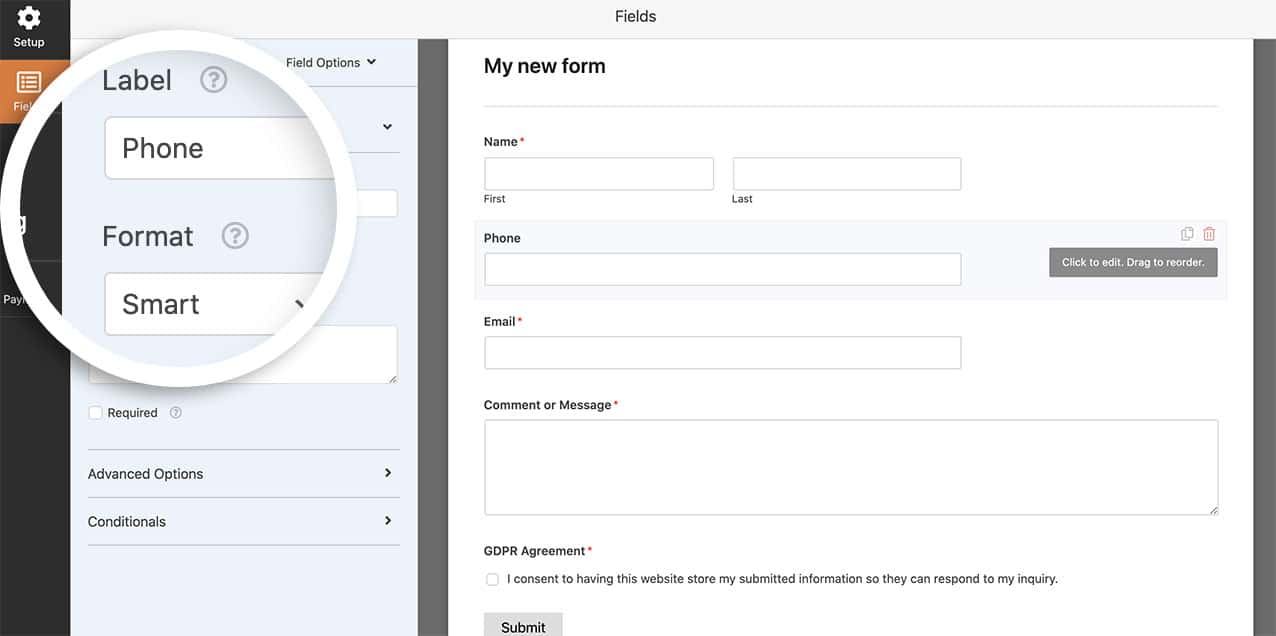
フィールドが追加されたので、GDPR同意フォームフィールドも追加できます。
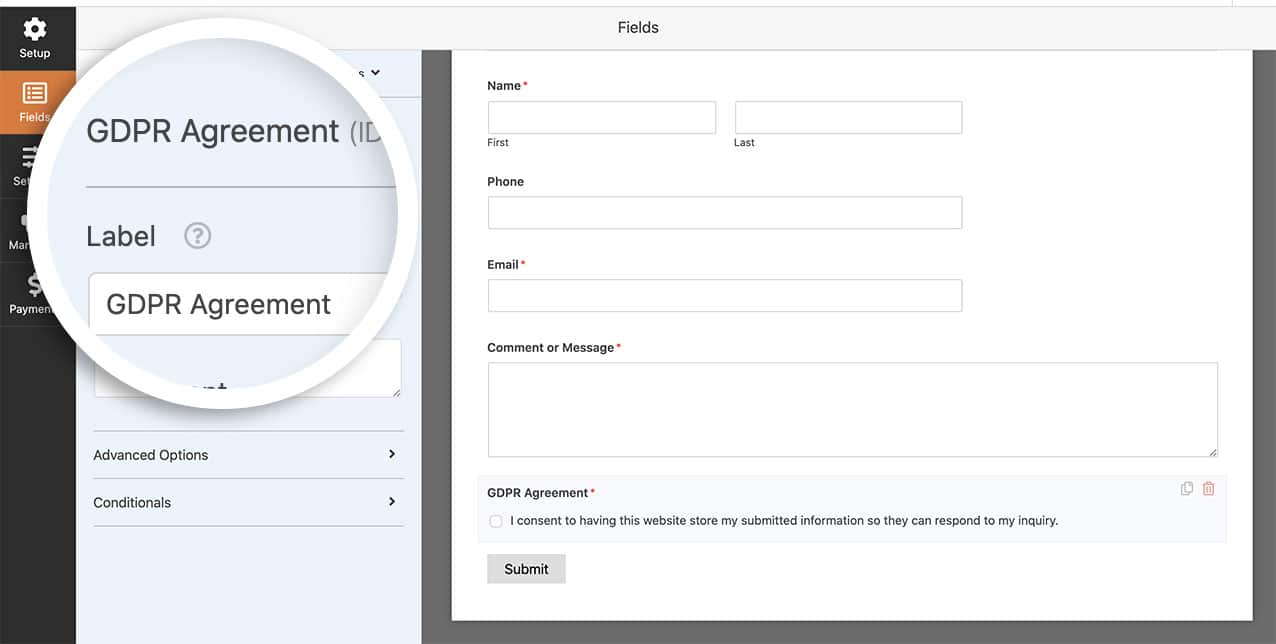
デフォルトの国旗の設定
次に、次のコードスニペットをサイトに追加します。スニペットをサイトに追加する方法と場所がわからない場合は、このチュートリアルを確認してください。
/**
 * Set the country code on Smart Phone form field country flag
 *
 * @link   https://wpforms.com/how-to-set-a-default-flag-on-smart-phone-field-with-gdpr/
 */

function wpf_dev_smart_phone_field_initial_country() {
    ?>
    <script type="text/javascript">
        jQuery( document ).on( 'wpformsReady', function() {
            jQuery( '.wpforms-smart-phone-field' ).each(function(e){
                var $el = jQuery( this ),
                    iti = $el.data( 'plugin_intlTelInput' ),
                    options;
                // Options are located in different keys of minified and unminified versions of jquery.intl-tel-input.js.
                if ( iti.d ) {
                    options = Object.assign( {}, iti.d );
                } else if ( iti.options ) {
                    options = Object.assign( {}, iti.options );
                }
                if ( ! options ) {
                    return;
                }
                $el.intlTelInput( 'destroy' );
                $el.off( 'validate' );

                // Put a country code here according to this list: https://en.wikipedia.org/wiki/ISO_3166-1_alpha-2
                options.initialCountry = 'SZ'.toLowerCase();

                $el.intlTelInput( options );

                // Restore hidden input name after intlTelInput is reinitialized.
                $el.siblings( 'input[type="hidden"]' ).each(function() {
                    const $hiddenInput = jQuery( this );
                    $hiddenInput.attr( 'name', $hiddenInput.attr( 'name' ).replace( 'wpf-temp-', '' ) );
                });
            });
        } );
    </script>
    <?php
}
add_action( 'wpforms_wp_footer_end', 'wpf_dev_smart_phone_field_initial_country', 30 );
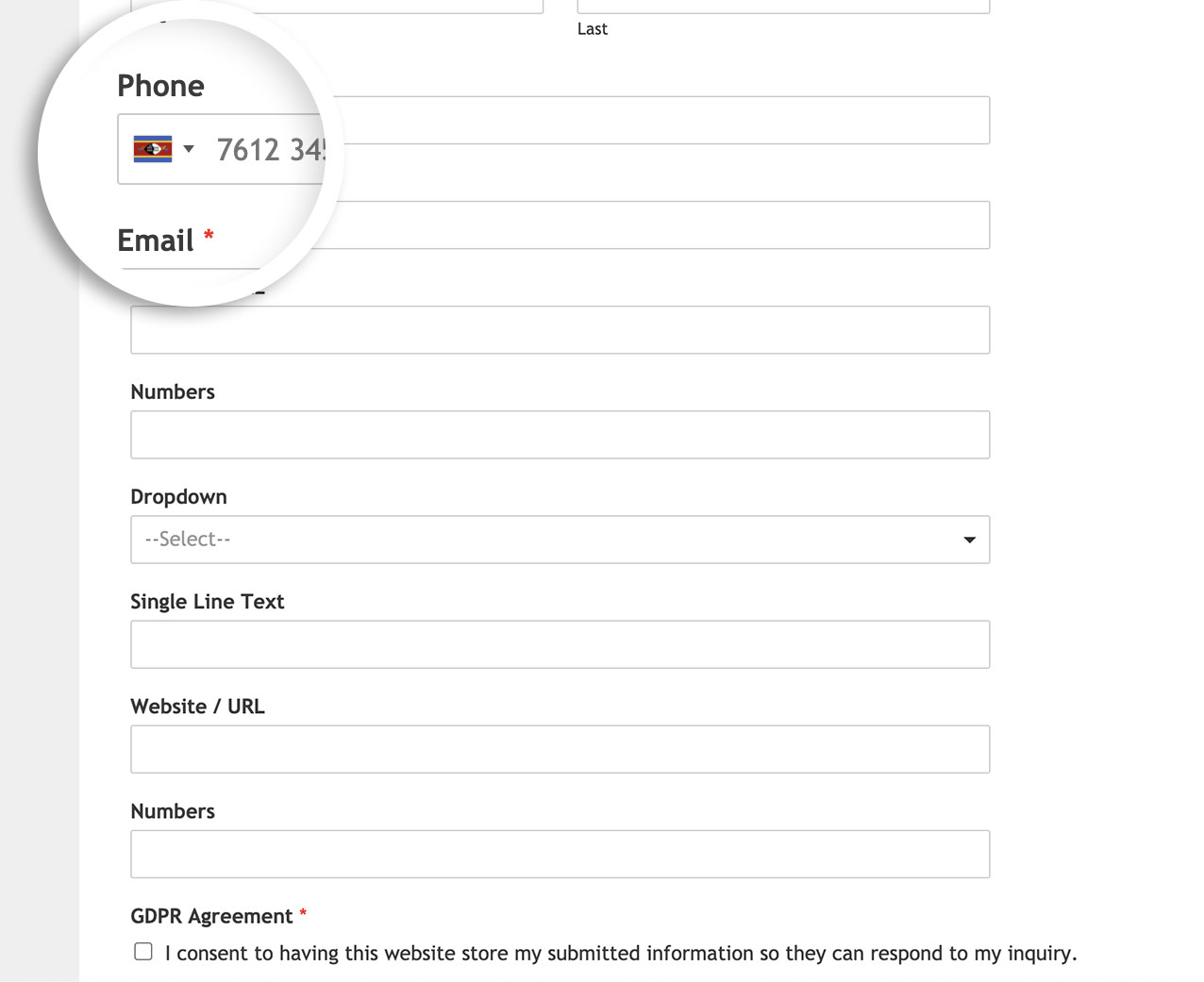
上記のコードはoptions.initialCountry = 'SZ';を探し、その国のフラグを設定します。
フラグを設定したい正しい国コードを見つけるのに役立つ場合は、このページで正しい番号を見つけてください。
これで、ページが読み込まれると、フィールドのフラグが自動的に設定されます。
スマートフォンフィールドでも国を制限しますか?スマートフォンフォームフィールド内で国を制限する方法に関するチュートリアルをご覧ください。
参照アクション
よくある質問
Q: これはページ区切りがあるフォームでも機能しますか?
A: フォームにページ区切りフォームフィールドがある場合は、このチュートリアルのスニペットも使用してください。
Q: 特定の国のみを制限するにはどうすればよいですか?
A: 特定の国のみを受け入れたい場合は、このスニペットを使用します。私たちの例では、米国と英国の正しいコードの2文字の国コードを確認し、options.onlyCountriesのコード行に配置しました。
/**
 * Restrict countries to only on Smart Phone form field country flag
 *
 * @link   https://wpforms.com/how-to-set-a-default-flag-on-smart-phone-field-with-gdpr/
 */

function wpf_dev_smart_phone_field_restrict_countries() {
    ?>
    <script type="text/javascript">
        jQuery( document ).on( 'wpformsReady', function() {
            jQuery( '.wpforms-smart-phone-field' ).each(function(e){
                var $el = jQuery( this ),
                    iti = $el.data( 'plugin_intlTelInput' ),
                    options;
                // Options are located in different keys of minified and unminified versions of jquery.intl-tel-input.js.
                if ( iti.d ) {
                    options = Object.assign( {}, iti.d );
                } else if ( iti.options ) {
                    options = Object.assign( {}, iti.options );
                }
                if ( ! options ) {
                    return;
                }
                $el.intlTelInput( 'destroy' );
                $el.off( 'validate' );

                // Set the initial country
                options.initialCountry = 'gb'.toLowerCase();

                // Put a country code here according to this list: https://en.wikipedia.org/wiki/List_of_ISO_3166_country_codes
                options.onlyCountries = [ 'gb','us' ];

                $el.intlTelInput( options );

                // Restore hidden input name after intlTelInput is reinitialized.
                $el.siblings( 'input[type="hidden"]' ).each(function() {
                    const $hiddenInput = jQuery( this );
                    $hiddenInput.attr( 'name', $hiddenInput.attr( 'name' ).replace( 'wpf-temp-', '' ) );
                });
            });
        } );
    </script>
    <?php
}
add_action( 'wpforms_wp_footer_end', 'wpf_dev_smart_phone_field_restrict_countries', 30 );
Q: 「優先国をリストの一番上に」有効にするにはどうすればよいですか?
A: 希望する国をリストの上部に表示するには、代わりにこのスニペットを使用してください。
/**
 * Show preferred countries inside the Smart Phone form field
 *
 * @link   https://wpforms.com/developers/how-to-set-a-default-flag-on-smart-phone-field-with-gdpr/
 */

function wpf_dev_smart_phone_field_preferred_countries() {
    ?>
    <script type="text/javascript">
        jQuery( document ).on( 'wpformsReady', function() {
            jQuery( '.wpforms-smart-phone-field' ).each(function(e){
                var $el = jQuery( this ),
                    iti = $el.data( 'plugin_intlTelInput' ),
                    options;
                // Options are located in different keys of minified and unminified versions of jquery.intl-tel-input.js.
                if ( iti.d ) {
                    options = Object.assign( {}, iti.d );
                } else if ( iti.options ) {
                    options = Object.assign( {}, iti.options );
                }
                if ( ! options ) {
                    return;
                }

                $el.intlTelInput( 'destroy' );
                $el.off( 'validate' );

                // Put a country code here according to this list: https://en.wikipedia.org/wiki/ISO_3166-1_alpha-2
                options.initialCountry = 'in'.toLowerCase();

                // the countries at the top of the list. defaults to united states and united kingdom
                options.preferredCountries = ["de", "in"]; //your preferred country

                $el.intlTelInput( options );

                // Restore hidden input name after intlTelInput is reinitialized.
                $el.siblings( 'input[type="hidden"]' ).each(function() {
                    const $hiddenInput = jQuery( this );
                    $hiddenInput.attr( 'name', $hiddenInput.attr( 'name' ).replace( 'wpf-temp-', '' ) );
                });
            });
        } );
    </script>
    <?php
}
add_action( 'wpforms_wp_footer_end', 'wpf_dev_smart_phone_field_preferred_countries' );


