


AI要約
パスワードフィールドに関連付けられたサブラベルをパーソナライズしたいですか?数行のPHPコードで、要件に合わせてこれらのラベルを簡単にカスタマイズできます。
パスワードフィールドには、特にパスワード確認を有効にするオプションがオンになっている場合、通常、その下にサブラベルが含まれます。この機能により、ユーザーはパスワードを2回入力して確認する必要があります。ただし、デフォルトのサブラベルは、必ずしも希望するメッセージやブランディングに完全に一致するとは限りません。
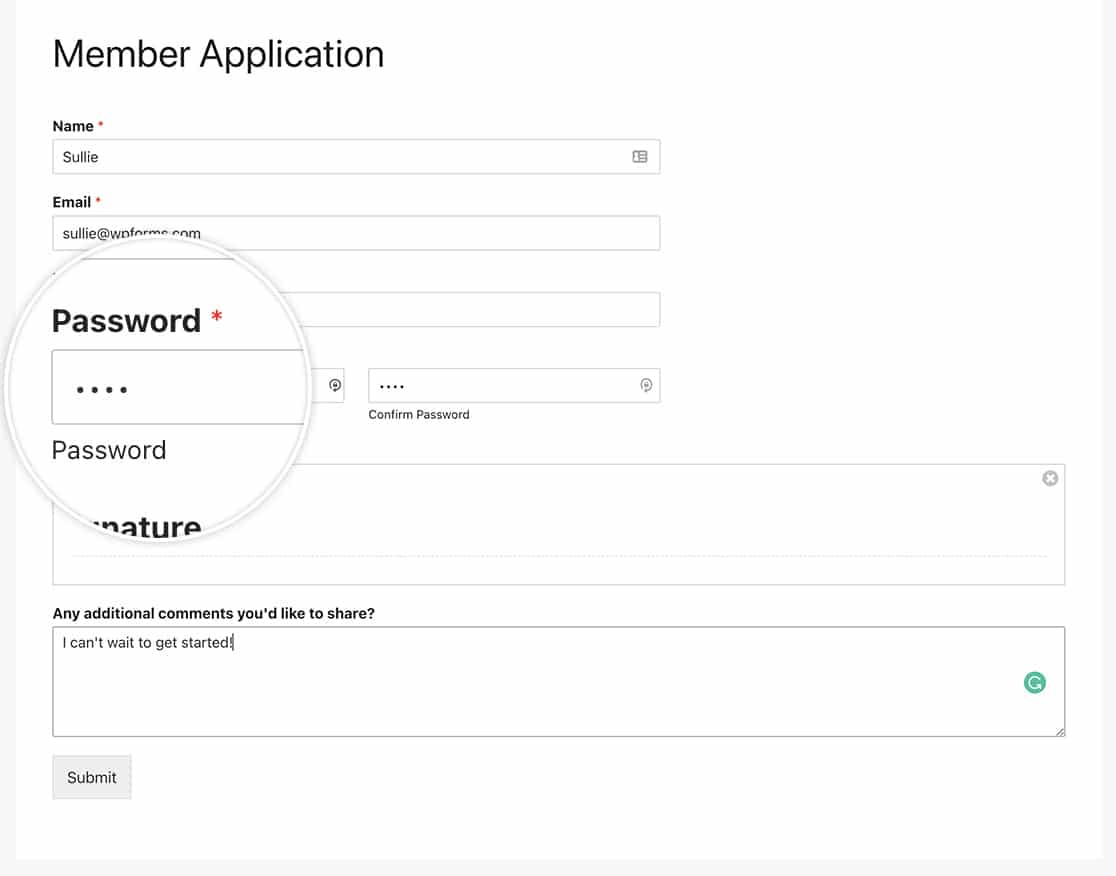
このチュートリアルでは、PHPを使用してこれらのサブラベルのテキストを変更する方法を説明します。
フォームの作成
まず、フォームを作成し、フォームフィールドを追加することから始めます。また、パスワードフォームフィールドを追加し、パスワード確認を有効にするを有効にします。
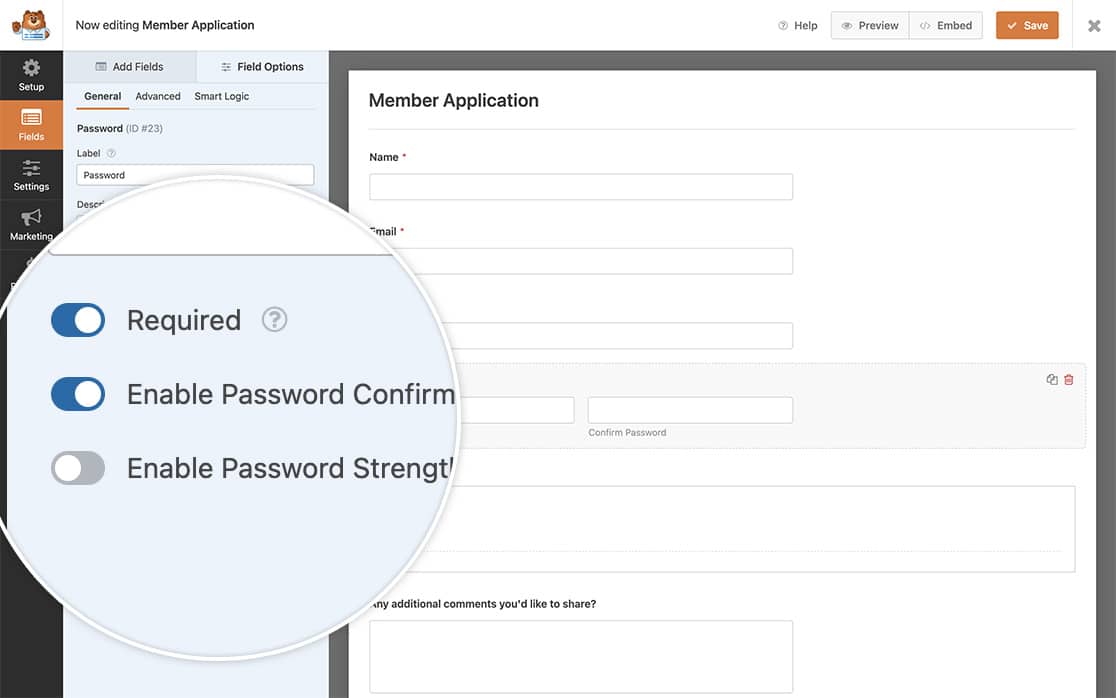
フォームの作成にヘルプが必要な場合は、このドキュメントを確認してください。
パスワードのサブラベルを変更する
パスワードフォームフィールドの下に表示されるテキストを変更するには、このスニペットをサイトに追加する必要があります。
スニペットをサイトに追加する方法についてヘルプが必要な場合は、このチュートリアルを参照してください。
/**
 * Change the sublabels for the Password field.
 *
 * @link https://wpforms.com/developers/how-to-change-the-password-field-sublabels/
 */

function wpf_dev_password_field_properties( $properties, $field, $form_data ) {

    // Change sublabel values on the primary password field
    $properties[ 'inputs' ][ 'primary' ][ 'sublabel' ][ 'value' ] = __( 'Please enter a password that you will use to sign on to your account.', 'your-text-domain' );

	// Change the sublabel values on the secondary password field
    $properties[ 'inputs' ][ 'secondary' ][ 'sublabel' ][ 'value' ] = __( 'Please re-enter that password again just for confirmation.', 'your-text-domain' );

    return $properties;
}
add_filter( 'wpforms_field_properties_password' , 'wpf_dev_password_field_properties', 10, 3 );
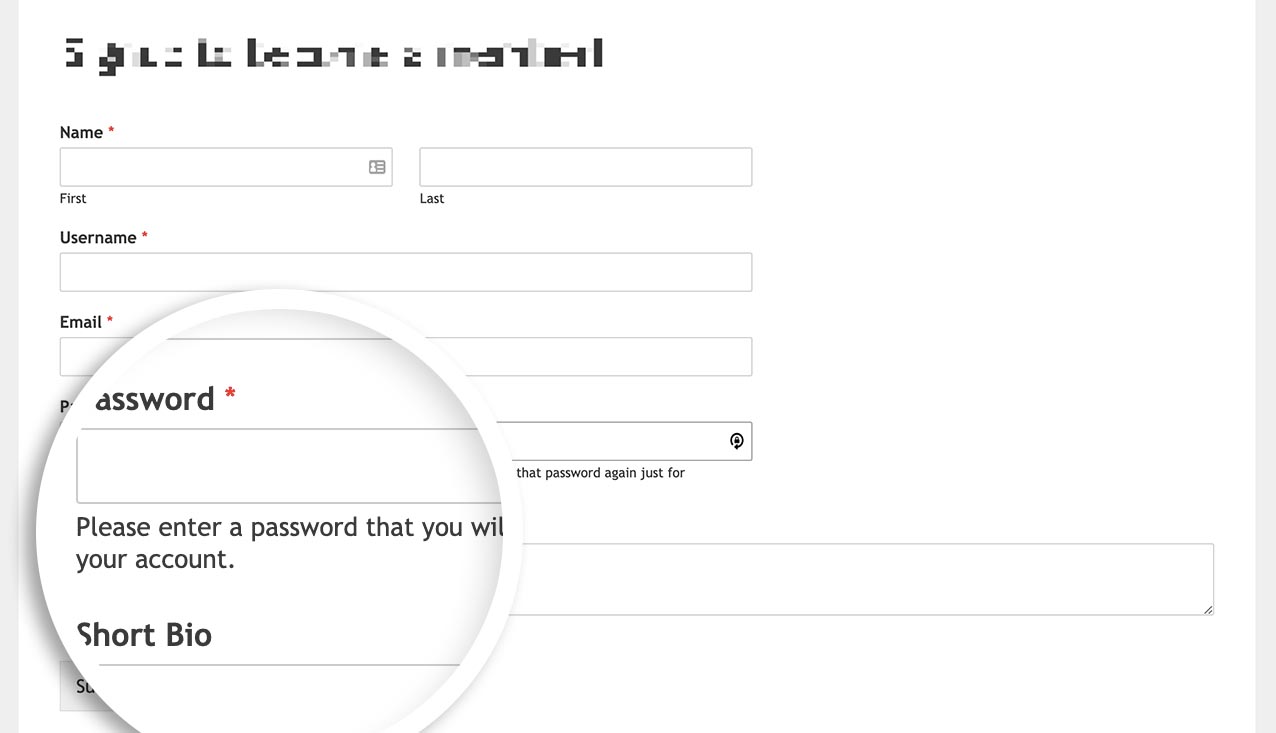
これでサブラベルを変更するために必要なすべてが揃いました。登録プロセスを完了した後、ユーザーを自動的にログインさせたいですか?登録後のユーザー自動ログイン方法に関するチュートリアルをご覧ください。
参照フィルター
よくある質問
Q: これらを1つのフォームのみで変更できますか?
A: もちろんです。特定のフォームのみでこれらのサブラベルを変更したい場合は、代わりにこのスニペットを使用し、フォームID123を自分のフォームIDに合わせて更新することを忘れないでください。フォームIDの見つけ方がわからない場合は、こちらの役立つガイドをご覧ください。
/**
 * Change the sublabels for the Password field.
 *
 * @link https://wpforms.com/developers/how-to-change-the-password-field-sublabels/
 */

function wpf_dev_password_field_properties( $properties, $field, $form_data ) {

	// Only process this snippet on the form ID 123
    if ( absint( $form_data[ 'id' ] ) !== 123 ) {

        return $properties;
    }

    // Change sublabel values on the primary password field
    $properties[ 'inputs' ][ 'primary' ][ 'sublabel' ][ 'value' ] = __( 'Please enter a password that you will use to sign on to your account.', 'your-text-domain' );

	// Change the sublabel values on the secondary password field
    $properties[ 'inputs' ][ 'secondary' ][ 'sublabel' ][ 'value' ] = __( 'Please re-enter that password again just for confirmation.', 'your-text-domain' );

    return $properties;
}
add_filter( 'wpforms_field_properties_password' , 'wpf_dev_password_field_properties', 10, 3 );
スニペットに示すように、フォームIDのチェックを追加するだけで済みます。if ( absint( $form_data[ 'id' ] ) !== 123 ) { return $properties; } 。スニペットの残りの部分は、すべてのフォームの例とまったく同じです。


