


AI要約
単一行テキストまたは段落テキストのフォームフィールドで文字数制限を使用している場合に、フィールドの下に表示される文字数制限のテキストを変更する方法について興味がありますか?
デフォルトでは、現在の文字数と最大文字数のメッセージがフォームフィールドの下に表示されます。例えば、フォームの設定に応じて0/50文字(最大)または0/50語(最大)のようになります。このメッセージを、残りの文字数を含めるようにパーソナライズできます。この調整は、簡単なPHPスニペットで簡単に行えます。このチュートリアルでは、PHPを使用してこのメッセージを変更する方法を説明します。
フォームの作成
まず、フォームを作成し、フォームフィールドを追加する必要があります。
フォームの作成についてサポートが必要な場合は、こちらのドキュメントをご覧ください。
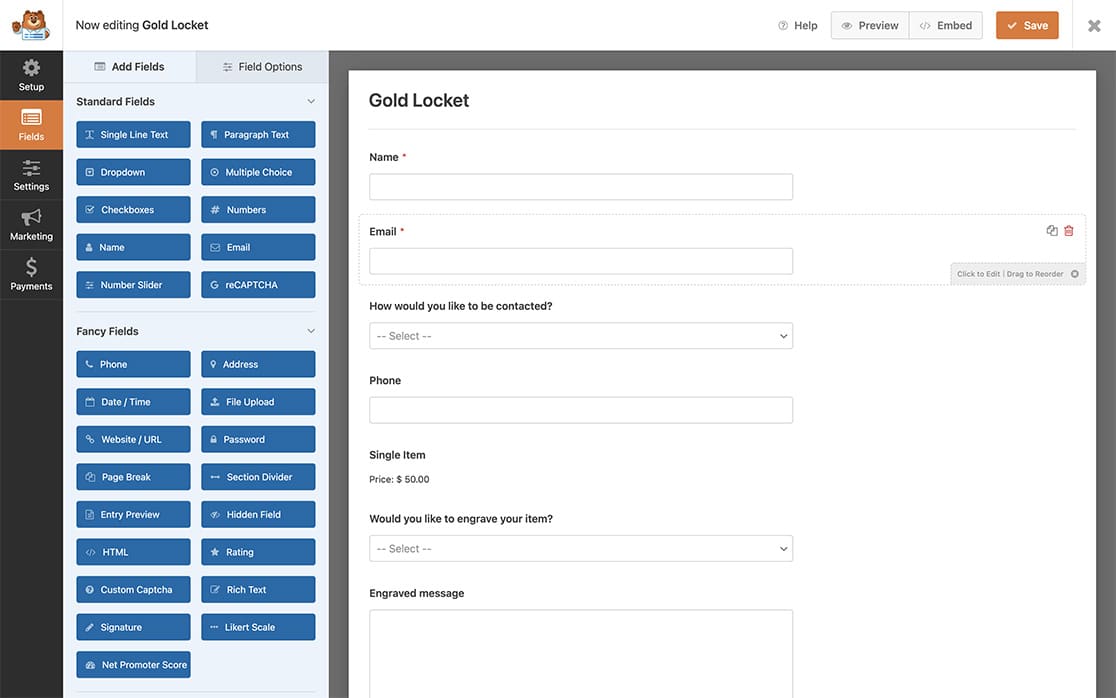
彫刻されたメッセージを保持するために、段落テキストフォームフィールドを追加しました。
文字数制限の設定
次に、追加した段落テキストを選択し、詳細設定タブをクリックして、長さ制限オプションを有効にし、制限を100に設定して、ドロップダウンから文字を選択します。
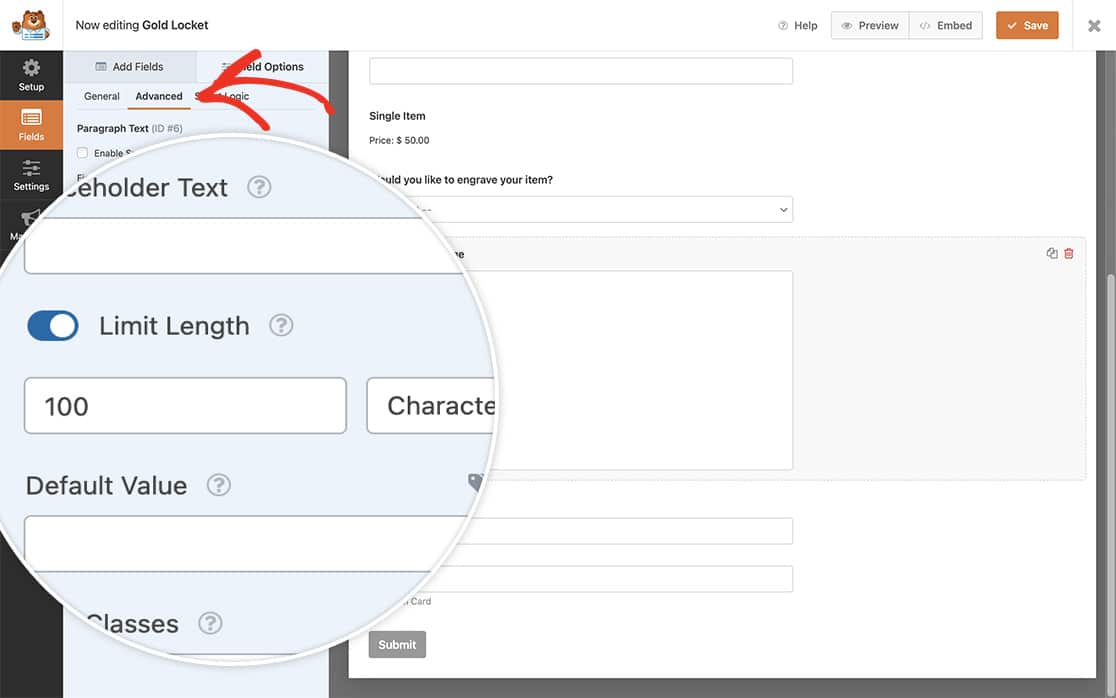
長さ制限オプションの詳細については、こちらのドキュメントをご覧ください。
制限文字検証テキストの変更
これで、スニペットをサイトに追加する時間です。
スニペットをサイトに追加する方法や場所がわからない場合は、このチュートリアルを確認してください。
/**
 * Change the text for the character limit.
 *
 * @link https://wpforms.com/developers/how-to-change-the-limit-character-validation-text/
 */

function wpf_dev_frontend_strings( $strings ) {

    // val_limit_words when using words
    // val_limit_characters when using characters

    // Change the message that will appear to your visitors after the = sign below
    $strings[ 'val_limit_characters' ] = __( 'You have used {count} characters out of allotted {limit}. You have {remaining} remaining.', 'plugin-domain' );

	return $strings;
}

add_filter( 'wpforms_frontend_strings' , 'wpf_dev_frontend_strings', 10, 1 );
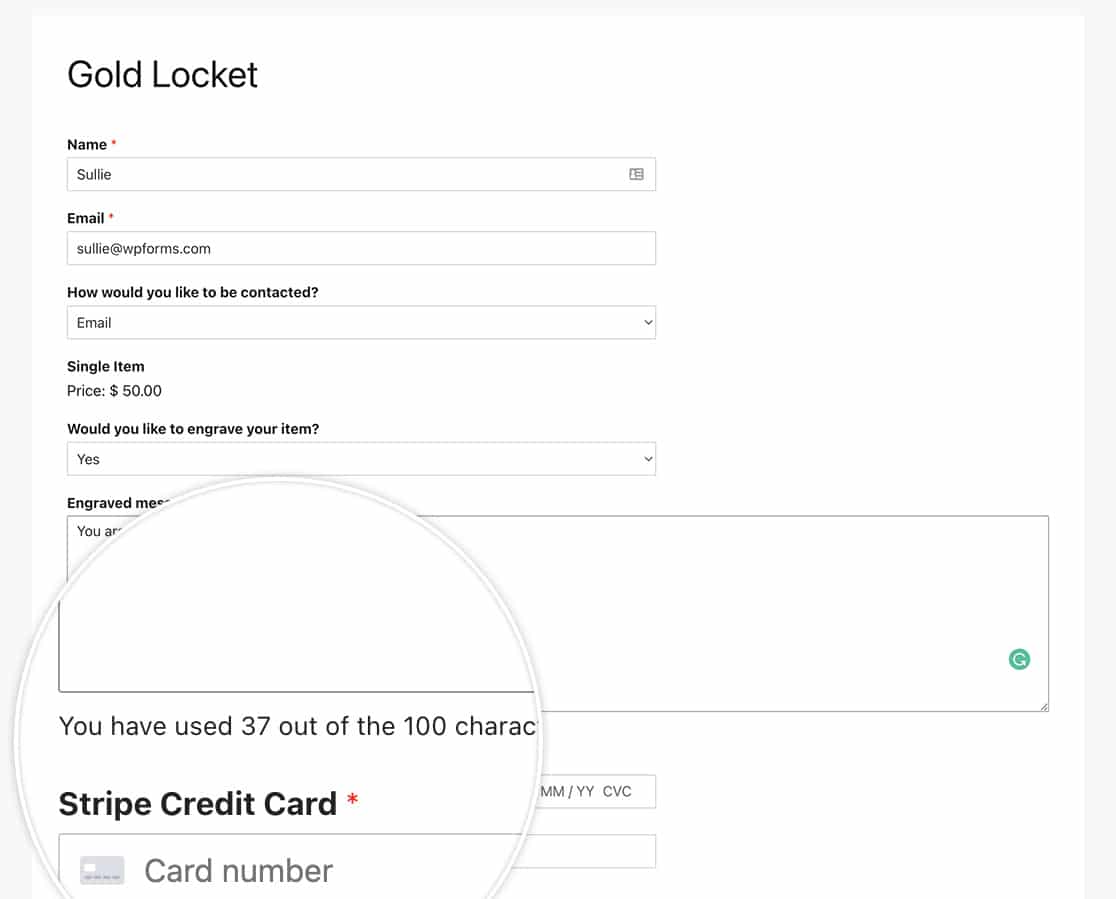
これで完了です!文字数または単語数制限を使用している場合に、フォームフィールドの下に表示される制限文字テキストを正常に変更しました。フォームフィールドに最小文字数を設定することもできますか?テキストフォームフィールドに最小文字数を設定する方法のチュートリアルをご覧ください。
参照フィルター
よくある質問
Q: 文字数制限ではなく、単語数制限を使用している場合のテキストをどのように変更しますか?
A: 単語数制限のテキストを変更するには、次のコードスニペットを使用してください。
/**
 * Change the text for the character limit.
 *
 * @link https://wpforms.com/developers/how-to-change-the-limit-character-validation-text/
 */

function wpf_dev_frontend_strings( $strings ) {

    // val_limit_words when using words
    // val_limit_characters when using characters

    // Change the message that will appear to your visitors after the = sign below
    $strings[ 'val_limit_words' ] = __( 'You have used {count} words out of allotted {limit}. You have {remaining} remaining.', 'plugin-domain' );
	return $strings;
}

add_filter( 'wpforms_frontend_strings' , 'wpf_dev_frontend_strings', 10, 1 );
Q: 1つの関数で単語と文字の両方を変更できますか?
A: もちろんです!このスニペットを使用して、1つの関数で単語と文字の両方のテキストを変更できます。
/**
 * Change the text for the character and word limit.
 *
 * @link https://wpforms.com/developers/how-to-change-the-limit-character-validation-text/
 */

function wpf_dev_frontend_strings( $strings ) {

    // val_limit_words when using words
    // val_limit_characters when using characters

    // Change the message that will appear to your visitors after the = sign below
    $strings[ 'val_limit_words' ] = __( 'You have used {count} words out of allotted {limit}. You have {remaining} remaining.', 'plugin-domain' );
    $strings[ 'val_limit_characters' ] = __( 'You have used {count} characters out of allotted {limit}. You have {remaining} remaining.', 'plugin-domain' );
    return $strings;
}

add_filter( 'wpforms_frontend_strings' , 'wpf_dev_frontend_strings', 10, 1 );
Q: 表示されるテキストを完全に削除できますか?
A: もちろん、このメッセージを削除できます。ただし、訪問者が入力中に制限のためにそれ以上入力できなくなった場合、フォームの完了時に混乱を招く可能性があることに注意してください。制限を説明する何らかのメッセージを残すことをお勧めします。ただし、それでもメッセージを完全に削除したい場合は、代わりにこのスニペットを使用してください。
/**
 * Remove the text for the character and word limit.
 *
 * @link https://wpforms.com/developers/how-to-change-the-limit-character-validation-text/
 */

function wpf_dev_frontend_strings( $strings ) {

    // val_limit_words when using words
    // val_limit_characters when using characters

    // Change the message that will appear to your visitors after the = sign below
    $strings[ 'val_limit_words' ] = '';
    $strings[ 'val_limit_characters' ] = '';
    return $strings;
}

add_filter( 'wpforms_frontend_strings' , 'wpf_dev_frontend_strings', 10, 1 );


