


AI要約
ユーザーエクスペリエンスを向上させるために、フォームの自動フォーカスを有効にすることに興味がありますか?自動フォーカスを使用すると、ページが読み込み終わったときにカーソルが最初のフォームフィールド内に自動的にアクティブになり、ユーザーインタラクションが合理化されます。この簡単な機能強化は、JavaScriptコードスニペットで実現でき、そのプロセスをガイドします。
フォームの作成
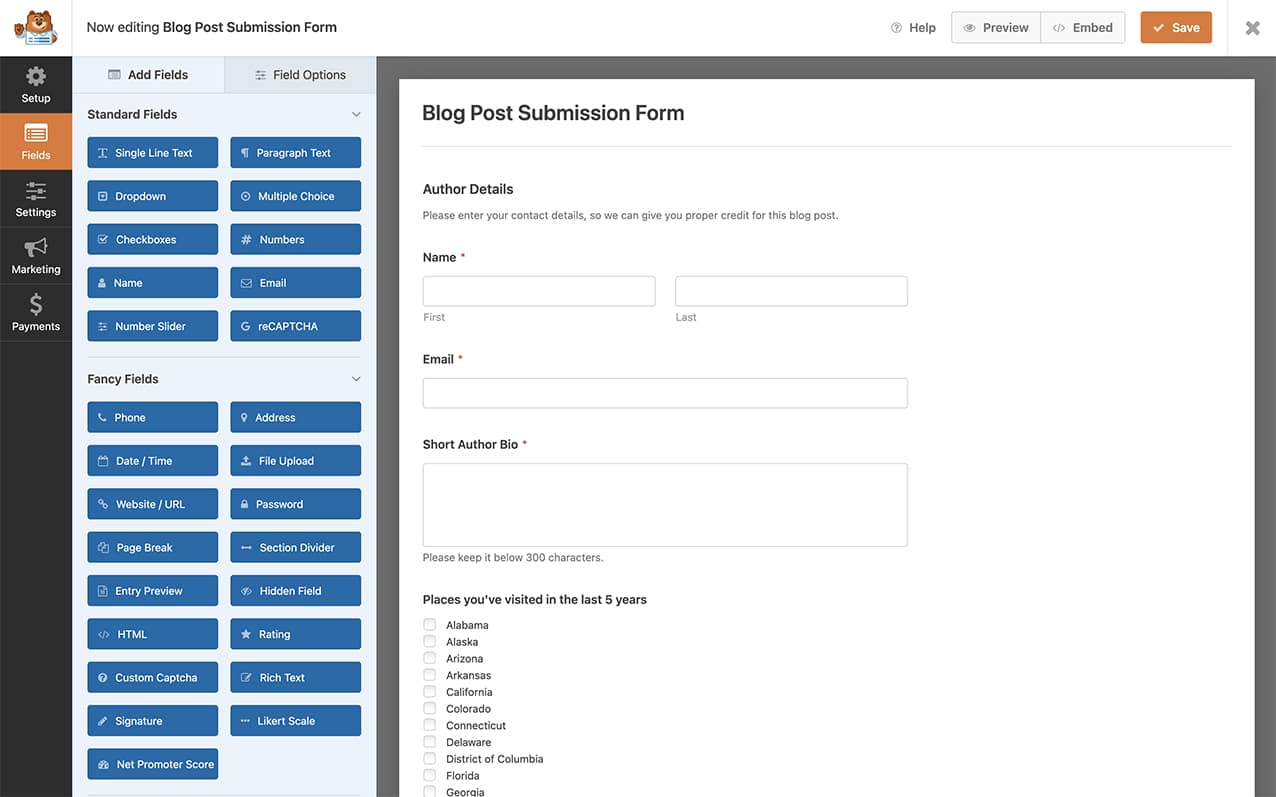
まず、フォームを作成し、フォームフィールドを追加する必要があります。フォームの作成についてサポートが必要な場合は、こちらのドキュメントをご覧ください。
自動フォーカスを追加するためのスニペットを作成する
次に、このコードスニペットをサイトに追加する必要があります。
サイトにスニペットを追加する方法についてサポートが必要な場合は、こちらのチュートリアルをご覧ください。
/**
 * Add autofocus to the first form field of the form
 *
 * @link https://wpforms.com/developers/how-to-add-autofocus-on-your-form/
 */

function wpf_dev_autofocus() {
?>
<script type="text/javascript">
    jQuery(document).ready(function() {

        var first_input = jQuery( 'form.wpforms-form input[type=text]:visible:enabled:first, textarea:visible:enabled:first' )[0];

        if (first_input != undefined) {
            first_input.focus();
        }

    });
</script>
<?php
}
add_action( 'wpforms_wp_footer_end', 'wpf_dev_autofocus', 10 );
このコードスニペットは、forms.wpforms-form を探しているため、WPFormsにのみ適用され、フォームの最初のフォームフィールドを探して、すぐにそのフィールドに:focus要素を追加します。
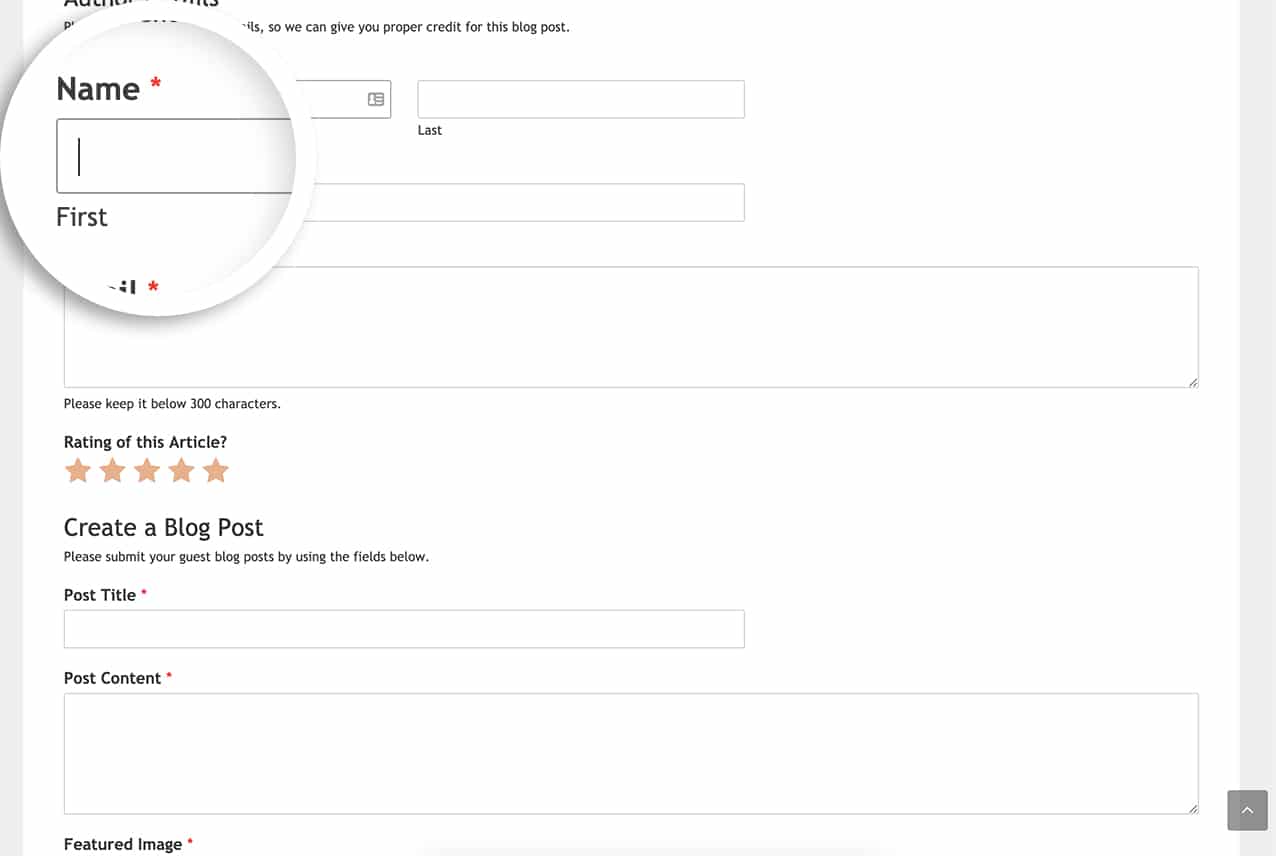
これで完了です!WPFormsで強化されたすべてのフォームに自動フォーカス機能が正常に実装されました。フォーカスをさらに目立たせるためのCSSを追加しますか?フォームフィールドフォーカスにCSSを追加する方法の記事をご覧ください。
参照アクション
よくある質問
Q: マルチページフォームで自動フォーカスをアクティブに保つにはどうすればよいですか?
A: マルチページフォームがある場合は、このコードスニペットを使用してください。
/**
 * Add autofocus to first form field of form
 *
 * @link https://wpforms.com/developers/how-to-add-autofocus-on-your-form/
 */

function wpf_dev_autofocus() {
?>
<script type="text/javascript">
    jQuery(document).ready(function() {

        var first_input = jQuery( 'form.wpforms-form input[type=text]:visible:enabled:first, textarea:visible:enabled:first' )[0];

        if (first_input != undefined) {
            first_input.focus();
        }

        jQuery( '.wpforms-page-next' ).on("click", function() {
            var page_first_input = jQuery(this).closest( '.wpforms-page' ).next().find( 'input, textarea' ).first();

            if (page_first_input != undefined) {
                setTimeout(function() {
                    page_first_input.focus();
                }, 100);
            }
        });

    });
</script>
<?php
}
add_action( 'wpforms_wp_footer_end', 'wpf_dev_autofocus', 10 );


