


AI要約
WPFormsの日付フィールドの日付オプションをカスタマイズしますか? 日付/時刻フィールドには、日付セレクターのフォーマットオプションが2つあります。日付ピッカー(ユーザーにカレンダーを表示)または日付ドロップダウンです。
バージョン1.6.3のリリースにより、WPFormsはフォームビルダー内で日数の制限、過去の日付の無効化、さらには時間の制限を行うオプションを提供します。これらが必要な場合は、このドキュメントを確認してください。
このチュートリアルでは、日付ドロップダウンフィールドのカスタマイズと、日付ピッカーの日付ブロックの計算に焦点を当てます。
このドキュメントのコードスニペットを使用する場合は、制限に関するフォームビルダーのオプションをオフにする必要があることを覚えておくことが重要です。日付を制限するための組み込みオプションの詳細については、このドキュメントを確認してください。
フォームの作成
スニペットを追加する前に、フォームを作成してフィールドを追加する必要があります。このチュートリアルは日付ドロップダウンフィールドに基づいているため、少なくとも1つの日付フィールドを追加する必要があります。
フォームの作成にサポートが必要な場合は、このチュートリアルを参照してください。
日付フィールドを追加したら、タイプを日付ドロップダウンに選択したことを確認してください。フォームフィールドの高度なオプションをクリックして、日付タイプを設定できます。
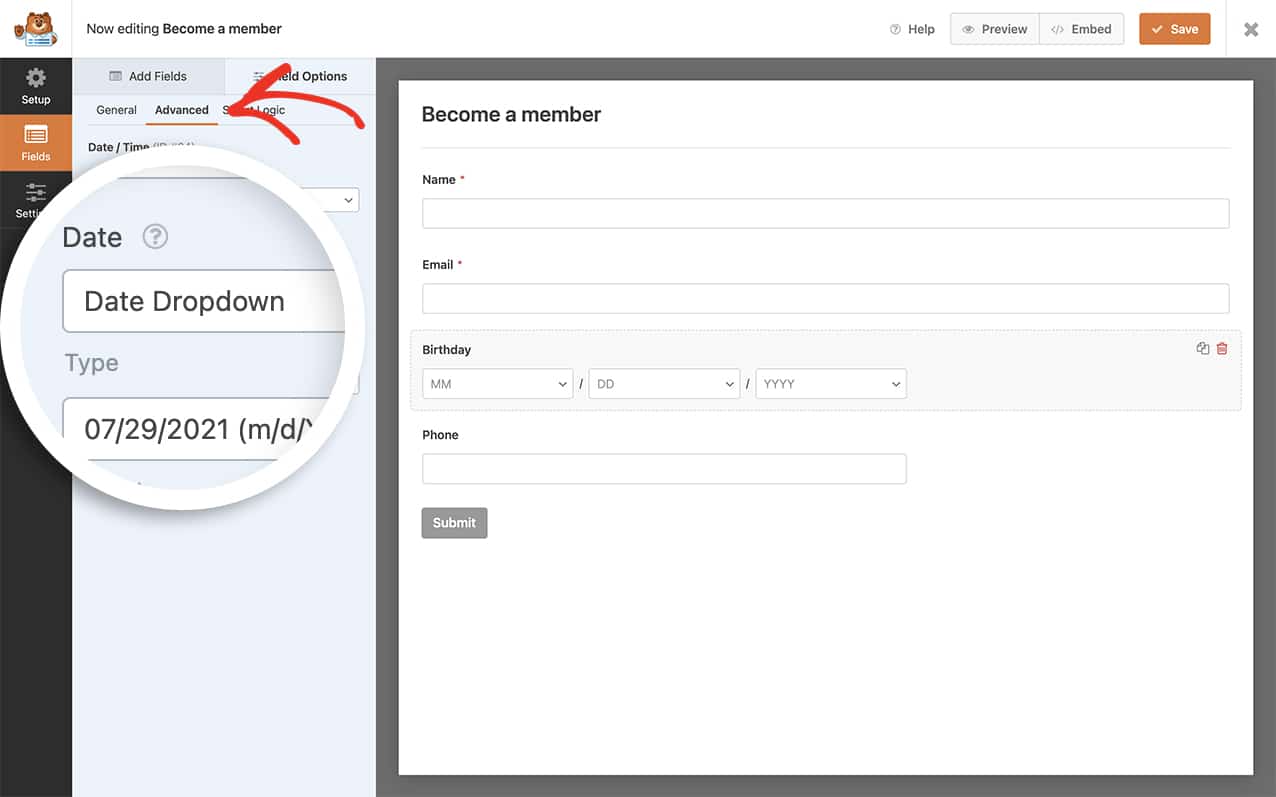
日付フィールドのカスタマイズ
日付フィールドをカスタマイズするには、以下のコードスニペットのいずれかをサイトに追加する必要があります。
コードスニペットをサイトに追加する方法を学ぶのに役立つ場合は、このチュートリアルを確認してください。
以下のコードスニペットの一部では、特定のフォームIDとフィールドID情報を使用する必要があります。
日付ドロップダウンでのスニペットの使用
ドロップダウンの日数を月と一致するように制限する
日数フィールドをその特定の月の利用可能な日数と一致させるには、このスニペットを使用します。
/**
 * Limit the days dropdown to match how many days are available for the selected month.
 *
 * @link https://wpforms.com/developers/customize-the-date-time-field-date-options/
 */

function wpf_dev_days_dropdown_match_month( ) {
?>

<script type="text/javascript">
    var date = new Date();

    var month = date.getMonth();

    var year = date.getFullYear();

    var totalDays = 31; // Default day amount

    jQuery(function($){

        $( 'select[id$="-month"]' ).on( 'change', function(){
            month = $(this).val();
            totalDays = daysInMonth(month, year);
            $(this).parent().find( 'select[id$="-day"] option:not(:first-child)').each(function(){
                $(this).remove();
            });
            for (var i = 1; i <= totalDays; i++) {
                $(this).parent().find( 'select[id$="-day"]' ).append($( "<option></option>" ).attr( "value", i).text(i));
            }
        });

        $( 'select[id$="-year"]' ).on( 'change', function(){
            year = $(this).val();
            totalDays = daysInMonth(month, year);
            $(this).parent().find( 'select[id$="-day"] option:not(:first-child)').each(function(){
                $(this).remove();
            });
            for (var i = 1; i <= totalDays; i++) {
                $(this).parent().find('select[id$="-day"]').append($( "<option></option>" ).attr( "value", i).text(i));
            }
        });
    });

    function daysInMonth (month, year) {
        return new Date(year, month, 0).getDate();
    }
    </script>

<?php
}

add_action( 'wpforms_wp_footer_end', 'wpf_dev_days_dropdown_match_month', 30 );
日付ドロップダウン内の月、日、年の制限
以下のスニペットは、ドロップダウンフィールドを更新して、利用可能な月は5月〜12月、利用可能な日は20〜31、利用可能な年は2020〜2021のみを表示するようにします。必要に応じてフィールドを変更できます。
これを適用するには2つの異なる方法があります:
- 特定のフォーム内のすべての日付ドロップダウンフィールド
- 特定のフォーム内の特定の日付ドロップダウン。
特定のフォーム内のすべての日付ドロップダウンフィールド
以下のスニペットは、フォームID10にのみ適用されます。
/**
 * Filters labels and options within the date field’s dropdown format.
 *
 * @link https://wpforms.com/developers/customize-the-date-time-field-date-options/
 */

function wpf_dev_datetime_date_dropdowns( $args, $form_id, $field ) {

    $form_id = (int) $form_id;

    // Only apply if the form's ID is 10
    if ( $form_id === 10 ) {

        // Set the lower and upper limits for each date dropdown
        $args[ 'months' ] = range( 5, 12 );
        $args[ 'days' ] = range( 20, 31 );
        $args[ 'years' ] = range( 2024, 2025 );

    }

    return $args;
}
add_filter( 'wpforms_datetime_date_dropdowns', 'wpf_dev_datetime_date_dropdowns', 10, 3 );
特定のフォーム内の特定の日付ドロップダウンをターゲットにする
以下は、フォームID10内のフィールドID3の日付ドロップダウンに適用されます。
/**
 * Filters labels and options within the date field’s dropdown format.
 *
 * @link https://wpforms.com/developers/customize-the-date-time-field-date-options/
 */

function wpf_dev_datetime_date_dropdowns( $args, $form_id, $field ) {

    $form_id = (int) $form_id;

    // Only apply if the form's ID is 10 and field ID 3
    if ( $form_id === 10 && $field['id'] == 3) {

        // Set the lower and upper limits for each date dropdown
        $args[ 'months' ] = range( 5, 12 );
        $args[ 'days' ] = range( 20, 31 );
        $args[ 'years' ] = range( 2024, 2025 );

    }

    return $args;
}
add_filter( 'wpforms_datetime_date_dropdowns', 'wpf_dev_datetime_date_dropdowns', 10, 3 );
今日から日付ドロップダウンを開始する
Date Dropdownでは、このスニペットを使用して、月、日、年を今日の日付に自動的にデフォルト設定できます。
/**
 * Select from today's date going forward within the range limit specified below
 *
 * @link https://wpforms.com/developers/customize-the-date-time-field-date-options/
 */

function wpf_dev_datetime_date_dropdowns( $args, $form_id, $field ) {

    if( $form_id != 143 ) {
        return $args;
    }

    // Set the lower and upper limits for each date dropdown

    $args[ 'months' ] = range( date('m'), 12 );
    $args[ 'days' ] = range( date('d'), 31 );
    $args[ 'years' ] = range( date('Y'), 2030 );

    return $args;
}
add_filter( 'wpforms_datetime_date_dropdowns', 'wpf_dev_datetime_date_dropdowns', 10, 3 );
Date Pickerでのスニペットの使用
過去の日付を無効にし、今後31日間のみを表示する
このスニペットでは、過去の日付をすべて無効にし、フォームID 1137およびフィールドID 14の現在の日付から31日後までの選択のみを許可します。これらのIDをご自身のフォームおよびフィールドIDに合わせて変更することを忘れないでください。これらのIDがどこにあるかわからない場合は、こちらのチュートリアルを確認してください。
/**
 * Disable past dates, allow for selection for today + the next 31 days
 *
 * @link https://wpforms.com/developers/customize-the-date-time-field-date-options/
 */

function wpf_limit_date_picker() {
    ?>
    <script type="text/javascript">
    var d = new Date();
        window.wpforms_1137_14 = window.wpforms_1137_14 || {};
            window.wpforms_1137_14.datepicker = {
            disableMobile: true,
            // Don't allow users to pick dates less than 1 days out
            minDate: d.setDate(d.getDate()),
            maxDate: d.setDate(d.getDate() + 31),
        }
    </script>
    <?php
}
add_action( 'wpforms_wp_footer_end', 'wpf_limit_date_picker', 10 );
昨日、今日、明日の日付を表示する
new Date().fp_incr(-1)を使用すると、数値を増減させるだけでminDateとmaxDateの表示日数を簡単に制御できます。数値の前にマイナス記号(-)を付けると、過去の日付になります。
フォームを昨日から開始したいので、minDateは(-1)のみを許可し、maxDateは(1)(今日と明日を含む)で終了します。
/**
 * Allow date picker yesterday, today, and tomorrow
 *
 * @link https://wpforms.com/developers/customize-the-date-time-field-date-options/
 */

function wpf_dev_limit_date_picker() {
    ?>
    <script type="text/javascript">
        window.wpforms_datepicker = {
            disableMobile: true,
            // Don't allow users to pick past dates
            minDate: new Date().fp_incr(-1), // 1 day in the past
            // Don't allow users to pick any more than today
            maxDate: new Date().fp_incr(1) // 1 day in the future
        }
    </script>
    <?php
}
add_action( 'wpforms_wp_footer_end', 'wpf_dev_limit_date_picker', 10 );
翌日以降の日付をDate Pickerに表示する
過去の日付(今日を含む)をすべて除外するこのコードスニペットを簡単に使用できます。
ピッカーの制限を希望する日数に合わせて、 +1)を単純に変更してください。
/**
 * Show dates from the next day and onwards
 *
 * @link https://wpforms.com/developers/customize-the-date-time-field-date-options/
 */

function wpf_limit_date_picker() {
    ?>
    <script type="text/javascript">
        var d = new Date();
        window.wpforms_datepicker = {
            disableMobile: true,
            // Don't allow users to pick dates less than 1 days out
            minDate: d.setDate(d.getDate() + 1),
        }
    </script>
    <?php
}
add_action( 'wpforms_wp_footer_end', 'wpf_limit_date_picker', 10 );
Date Pickerで特定の日付範囲をブロックする
Date Pickerで特定の日付範囲をブロックするには、このスニペットを使用します。
/**
 * Limit the dates available in the Date Time date picker: Block out certain date ranges
 *
 * @link https://wpforms.com/developers/customize-the-date-time-field-date-options/
 */

function wpf_limit_date_picker() {
    ?>
    <script type="text/javascript">
        var d = new Date();
        window.wpforms_datepicker = {
            disableMobile: true,
            // Don't allow users to pick specific range of dates
            disable: [
                {
                    from: "2024-12-24",
                    to: "2024-12-26"
                },
                {
                    from: "2024-12-31",
                    to: "2025-01-01"
                }
            ]
        }
    </script>
    <?php
}
add_action( 'wpforms_wp_footer_end', 'wpf_limit_date_picker', 10 );
月の特定の日付のみを許可する
Date Pickerでユーザーが特定の日の選択のみを許可したい場合は、以下のスニペットを使用できます。この例では、各月の5日と20日のみが選択可能で、他のすべての日付は無効になります。
許可する日を変更するには、23行目(日数をチェックする条件)の日の数値を、使用したい日に置き換えてください。
16行目の5と20を、ご自身の要件に合わせて他の日付番号に置き換えることができます。
Date Picker内の日付の選択範囲を制限する
Date Picker内でユーザーが選択できる将来の日付を制限したい場合は、このコードスニペットを使用します。
/**
 * Don't allow date to be selected after maxDate
 *
 * @link https://wpforms.com/developers/customize-the-date-time-field-date-options/
 */

function wpf_dev_limit_date_picker() {
    ?>
    <script type="text/javascript">
        window.wpforms_datepicker = {
            disableMobile: true,
            // Don't allow users to pick past dates
            minDate: new Date(),
            // Don't allow users to pick dates after Dec 31, 2025
            maxDate: new Date( '2025-12-31' )
        }
    </script>
    <?php
}
add_action( 'wpforms_wp_footer_end', 'wpf_dev_limit_date_picker', 10 );
Date Pickerで過去の日付と月曜日をすべて除外する
過去の日付と将来の月曜日をすべて制限するには、このスニペットを使用します。
/**
 * Don't allow users to pick Mondays
 *
 * @link https://wpforms.com/developers/customize-the-date-time-field-date-options/
 */

function wpf_dev_limit_date_picker() {
    ?>
    <script type="text/javascript">
        window.wpforms_datepicker = {
            disableMobile: true,
            // Don't allow users to pick past dates
            minDate: new Date(),
            // Don't allow users to pick Mondays
            enable: [
                function(dateObj){
                    return dateObj.getDay() !== 1;
                }
            ]
        }
    </script>
    <?php
}
add_action( 'wpforms_wp_footer_end', 'wpf_dev_limit_date_picker', 10 );
現在の日付が選択されたときにメッセージを表示する
この例では、現在の日付が選択されたときにポップアップメッセージを表示します。
/**
 * Display pop up message when current date is selected
 *
 * @link https://wpforms.com/developers/customize-the-date-time-field-date-options/
 */

 function wpf_dev_check_date() {
    ?>
    <script type="text/javascript">
// Only display the message if the form ID is 323 and the field ID is 4
            window.wpforms_323_4 = window.wpforms_323_4 || {};
            window.wpforms_323_4.datepicker = {
                mode: "single",
                onClose: function(selectedDates, dateStr, instance) {
                    var today = new Date();
                    if (selectedDates[0].toLocaleDateString("en-US") == today.toLocaleDateString("en-US")) {
                        alert( 'Custom Message: You have selected todays date' );
                        this.clear();
                    }

                }

            }
    </script>
    <?php
}
add_action( 'wpforms_wp_footer_end', 'wpf_dev_check_date', 10 );
特定の曜日の無効化
この例では、このスニペットを使用して、Date Pickerから日曜日を完全に無効にします。
/**
 * Disable a specific day of the week
 *
 * @link https://wpforms.com/developers/customize-the-date-time-field-date-options/
 */

function wpf_limit_date_picker_disable_specific_weekday() {
    ?>
    <script type="text/javascript">
        var d = new Date();

        // Only apply to the form ID 420 and the field ID 1
        window.wpforms_420_1 = window.wpforms_420_1 || {};
        window.wpforms_420_1.datepicker = {
            disableMobile: true,
            // Don't allow users to pick specific day of the week
            disable: [
                function(date) {
                    // return true to disable
                    // 1 = Monday; 2 = Tuesday; 3 = Wednesday; 4 = Thursday; 5 = Friday; 6 = Saturday; 0 = Sunday
                    return (date.getDay() === 0);
                }
            ]
        }
    </script>
    <?php
}
add_action( 'wpforms_wp_footer_end', 'wpf_limit_date_picker_disable_specific_weekday', 10 );
スニペット内のreturn (date.getDay() === 0);は日曜日のみを無効にします。各曜日は特定の数値で表されます。
- 1 = 月曜日
- 2 = 火曜日
- 3 = 水曜日
- 4 = 木曜日
- 5 = 金曜日
- 6 = 土曜日
- 7 = 日曜日
ご希望の曜日になるように、数値表現を見つけてスニペットを更新してください。
window.wpforms_420_1 は、フォームID(420)と、日付ピッカーのフィールドID(_1)を表します。これらの2つのIDをご自身のフォームIDとフィールドIDに合わせて更新する必要があります。
フォームとフィールドID番号を見つけるためのヘルプについては、こちらのチュートリアルをご覧ください。
カレンダーの開始日を変更する
週の開始日を表示する日付ピッカーを変更するには、このスニペットを使用します。月曜日は数字の1を表し、曜日は数値順に続くことに注意してください。
/**
 * Change the start day of the week
 *
 * @link https://wpforms.com/developers/customize-the-date-time-field-date-options/
 */

function wpf_dev_set_start_day() {
    ?>
    <script type="text/javascript">
        window.wpforms_datepicker = {
            disableMobile: true,
            "locale": {

        // Enter the number for the day you want the week to start
        // 1 = Monday; 2 = Tuesday; 3 = Wednesday; 4 = Thursday; 5 = Friday; 6 = Saturday; 7 = Sunday

                "firstDayOfWeek": 1 // start week on Monday
            }
        }
    </script>
    <?php
}
add_action( 'wpforms_wp_footer_end', 'wpf_dev_set_start_day', 10 );
未来の日付を無効にする
このスニペットを使用すると、maxDateが今日の日付(現在)に設定されるため、ユーザーは未来の日付を選択できなくなります。
/**
* Disable future dates
*
* @link https://wpforms.com/developers/customize-the-date-time-field-date-options/
*/
function wpf_dev_limit_date_picker() {
   ?>
   <script type="text/javascript">
      window.wpforms_datepicker = {
        disableMobile: true,
        // Don't allow users to pick past dates
        maxDate: new Date(),
      }
   </script>

   <?php
}
add_action( 'wpforms_wp_footer_end', 'wpf_dev_limit_date_picker', 10 );
特定の日付ピッカー内の特定のフォームIDとフィールドIDをターゲットにする
日付ピッカーを使用する場合、単一のフォームまたは特定のフォーム内の特定の日付フィールドをターゲットにすることができます。
以下のスニペット例では、window.wpforms_21_1 が表示されます。ここで、_21 はフォームIDを表し、_1 はフィールドIDを表します。
フォームとフィールドID番号を見つけるのに役立つ情報が必要な場合は、こちらのチュートリアルをご覧ください。
いくつかのコードスニペットを以下に示します。最初のものは過去30日間の選択のみを許可します:
/**
 * Only allow for a selection of only the past 30 days
 *
 * @link https://wpforms.com/developers/customize-the-date-time-field-date-options/
 */

function wpf_dev_limit_date_picker() {
    ?>
    <script type="text/javascript">
        window.wpforms_21_1 = window.wpforms_21_1 || {};
        window.wpforms_21_1.datepicker = {
            disableMobile: true,
            // Don't allow users to pick more than 30 days in the past and exclude future dates
            minDate: new Date().fp_incr(-30)
            }
    </script>
    <?php
}
add_action( 'wpforms_wp_footer_end', 'wpf_dev_limit_date_picker', 10 );
次のコードスニペットは、過去30日間と「今日」を選択できるようにします:
/**
 * Only allow for a selection of the past 30 days and "today"
 *
 * @link https://wpforms.com/developers/customize-the-date-time-field-date-options/
 */

function wpf_dev_limit_date_picker() {
    ?>
    <script type="text/javascript">
        window.wpforms_21_1 = window.wpforms_21_1 || {};
        window.wpforms_21_1.datepicker = {
            disableMobile: true,
            // Don't allow users to pick more than 30 days in the past
            minDate: new Date().fp_incr(-30),
        maxDate: "today"
            }
    </script>
    <?php
}
add_action( 'wpforms_wp_footer_end', 'wpf_dev_limit_date_picker', 10 );
今月のみ、単一の日に制限する
この例では、今月は単一の日のみ予約を受け付けます。
/**
 * Limit to 1 single day for the current month only.
 *
 * @link https://wpforms.com/developers/customize-the-date-time-field-date-options/
 */

function wpf_dev_one_day_current_month( ) {
?>

<script type="text/javascript">
        window.wpforms_datepicker = {
            disableMobile: true,
            disable: [
                function(date) {
                    var currentDate = new Date();
                    var currentMonth = currentDate.getMonth();
                    var currentYear = currentDate.getFullYear();
                    var selectedMonth = date.getMonth();
                    var selectedYear = date.getFullYear();

                    if (selectedMonth !== currentMonth || selectedYear !== currentYear) {
                        return false;
                    }

                    var day = date.getDay();
                    var firstDayOfMonth = new Date(selectedYear, selectedMonth, 1).getDay();
                    var offset = (day >= firstDayOfMonth) ? (day - firstDayOfMonth) : (day + 7 - firstDayOfMonth);
                    var secondThursday = new Date(selectedYear, selectedMonth, offset + 8);

                    if (date.getDate() === secondThursday.getDate() && day === 4) {
                        return false;
                    }

                    return true;
                }
            ]
        };
    </script>

<?php
}

add_action( 'wpforms_wp_footer_end', 'wpf_dev_one_day_current_month', 30 );
この例では、2番目の日付選択フィールドの最小日付を動的に設定し、最初の日付が選択されてから少なくとも21日後であることを保証します。
/**
 * Add 21 days to the first date selection to block these days from the second selection
 *
 * @link https://wpforms.com/developers/customize-the-date-time-field-date-options/
 */

function wpf_dev_block_days_date_selection( ) {
?>

<script type="text/javascript">
        jQuery(document).ready(function($) {

            $( "#wpforms-1277-field_19" ).flatpickr({
                dateFormat: "m/d/Y",
                onClose: function( selectedDates, dateStr, instance ) {
                    if ( selectedDates.length > 0 ) {
                        var minSecondDate = new Date( selectedDates[0] );
                        // Adding 21 days to the selected 1st date
                        minSecondDate.setDate( minSecondDate.getDate() + 21 );
                        $( "#wpforms-1277-field_20" ).flatpickr({
                            minDate: minSecondDate,
                            dateFormat: "m/d/Y"
                        });
                    }
                }
            });
        });
    </script>

<?php
}

add_action( 'wpforms_wp_footer_end', 'wpf_dev_block_days_date_selection', 30 );
日付と時刻のサブラベルを翻訳する
日付/時刻フィールドの「日付」と「時刻」のサブラベルを翻訳するには、このコードスニペットを使用できます:
``/**
 * Translate Date and Time sublabels in the Date/Time field
 *
 * @link https://wpforms.com/developers/customize-the-date-time-field-date-options
 */
function custom_translate_date_time_sublabels( $properties, $field, $form_data ) {
    // Check if the field is of type 'date-time'
    if ( 'date-time' === $field['type'] ) {
        // Change the sublabel for the date field
        if ( isset( $properties['inputs']['date']['sublabel']['value'] ) ) {
            $properties['inputs']['date']['sublabel']['value'] = __( 'Your Translated Date Label');
        }
        // Change the sublabel for the time field
        if ( isset( $properties['inputs']['time']['sublabel']['value'] ) ) {
            $properties['inputs']['time']['sublabel']['value'] = __( 'Your Translated Time Label');
        }
    }
    return $properties;
}
add_filter( 'wpforms_field_properties', 'custom_translate_date_time_sublabels', 10, 3 );
このスニペットを使用するには:
- 「Your Translated Date Label」を「日付」の目的の翻訳に置き換えてください
- 「Your Translated Time Label」を「時刻」の目的の翻訳に置き換えてください
たとえば、ラベルをスペイン語に翻訳するには:
$properties['inputs']['date']['sublabel']['value'] = __( 'Fecha');
$properties['inputs']['time']['sublabel']['value'] = __( 'Tiempo');

最後に、このドキュメントのコードスニペットをいずれか使用している場合は、制限に関するフォームビルダーのオプションをオフにすることを忘れないでください。日付を制限するための組み込みオプションの詳細については、こちらのドキュメントをご覧ください。
これで、日付ドロップダウンまたは日付ピッカーをカスタマイズするために必要なすべてが揃いました!日付範囲または複数日を許可するように日付ピッカーをカスタマイズしますか?日付範囲または複数日を日付ピッカーで許可する方法のチュートリアルをお試しください。


