


Riassunto AI
Introduzione
Desideri disabilitare l'editor WYSIWYG che appare nelle impostazioni di Conferma? Per impostazione predefinita, quando ti trovi nell'editor di moduli, vedrai l'editor WYSIWYG standard utilizzato da WordPress. Ma se volessi disabilitare questo campo, puoi farlo facilmente aggiungendo alcune righe di PHP. In questo tutorial, ti guideremo attraverso i passaggi su come disabilitare questo editor.
Cos'è un editor WYSIWYG? Questo è ciò che viene tipicamente definito un Editor Visivo o un campo di testo RTF (Rich Text Format). Quando accedi alla scheda delle impostazioni di Conferma dall'editor di moduli, vedrai tipicamente due schede. Una è per l'editor di testo Visivo (WYSIWYG) e l'altra è una scheda di solo Testo.
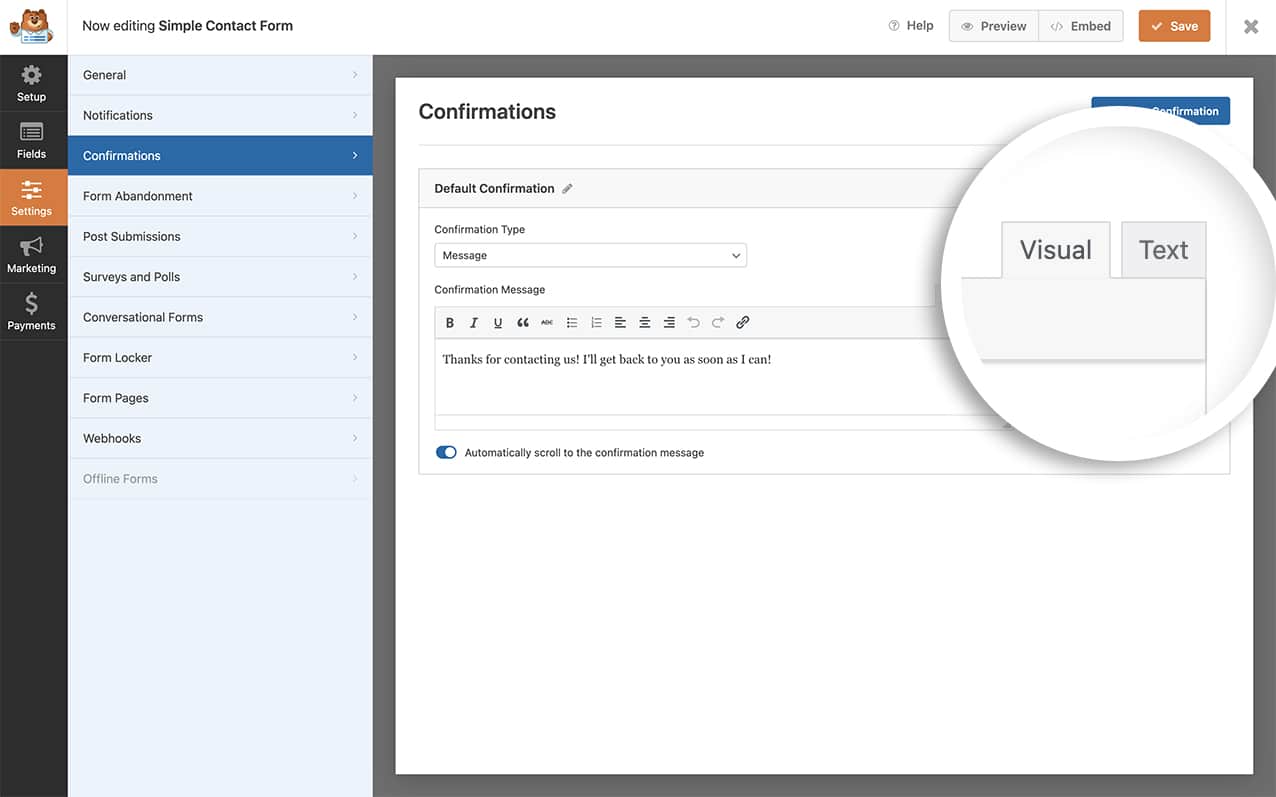
L'editor di solo Testo è tipicamente utilizzato più spesso dagli utenti che hanno familiarità con la scrittura HTML.
Aggiungere lo snippet per disabilitare l'editor WYSIWYG
Prima di creare il modulo, aggiungiamo prima lo snippet che disabiliterà questo editor. Per fare ciò, copia e incolla questo snippet sul tuo sito.
Se hai bisogno di aiuto nell'aggiungere snippet al tuo sito, consulta questo tutorial.
/**
Disable the WYSIWYG editor in the Confirmation settings.

@link https://wpforms.com/developers/how-to-disable-the-wysiwyg-editor-inside-the-confirmation-settings/
 */
function wpf_dev_builder_enqueues( $view ) {
 wp_add_inline_script(
 'wpforms-builder',
 '(function( $ ) {

     // Prevent crash: module reads tinymceDefaults.tinymce.toolbar1 before
     // calling wp.editor.initialize — needs a valid object, not false.
     // This runs synchronously so WPFormsBuilder is guaranteed to exist.
     if ( typeof WPFormsBuilder !== "undefined" && WPFormsBuilder.settings ) {
         WPFormsBuilder.settings.tinymceDefaults.tinymce = { toolbar1: "" };
     }

     $( document ).ready( function() {

         // Layer 1: wp.editor.initialize intercept.
         // Prevents tmce-active class + TinyMCE init flow for confirmation editors.
         if ( typeof wp !== "undefined" && wp.editor && wp.editor.initialize && ! wp.editor.initialize.wpfPatched ) {
             var wpInit = wp.editor.initialize;
             wp.editor.initialize = function( id, settings ) {
                 if ( typeof id === "string" && /^wpforms[-]panel[-]field[_-]confirmations/.test( id ) ) {
                     settings = Object.assign( {}, settings, { tinymce: false } );
                 }
                 return _wpInit.call( this, id, settings );
             };
             wp.editor.initialize.wpfPatched = true;
         }

         // Layer 2: tinymce.init intercept.
         // Belt-and-suspenders — catches TinyMCE even if wp.editor.initialize
         // is called from a path our Layer 1 missed.
         if ( typeof tinymce !== "undefined" && ! tinymce.init.wpfPatched ) {
             var mceInit = tinymce.init;
             tinymce.init = function( settings ) {
                 if ( settings && settings.selector && /wpforms[-]panel[-]field[-]confirmations/.test( settings.selector ) ) {
                     return;
                 }
                 return _mceInit.apply( this, arguments );
             };
             tinymce.init._wpfPatched = true;
         }

         // Layer 3: event fallback — re-init any editor that slipped through.
         $( "#wpforms-builder" ).on( "wpformsBuilderConfirmationsReady", function() {
             if ( typeof wp === "undefined" || ! wp.editor ) return;
             $( ".wpforms-panel-field-confirmations-message" ).each( function() {
                 var id = $( this ).attr( "id" );
                 if ( ! id ) return;
                 wp.editor.remove( id );
                 wp.editor.initialize( id, { tinymce: false, quicktags: true } );
             } );
         } );

     } );

 } )( jQuery );'
 );

}
add_action( 'wpforms_builder_enqueues', 'wpf_dev_builder_enqueues', 10, 1 );
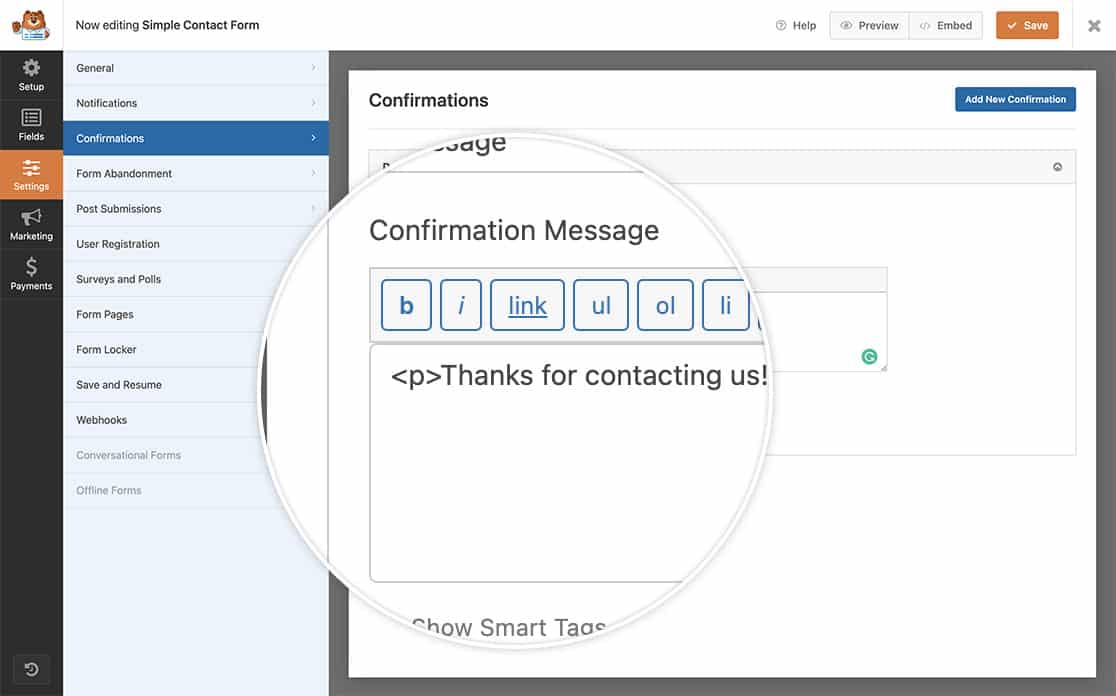
Questo disabiliterà completamente l'editor Visivo (l'editor WYSIWYG) e vedrai solo l'editor di Testo.
Desideri anche disabilitare lo scorrimento automatico quando ci sono errori nel modulo? Dai un'occhiata al nostro articolo su Come disabilitare l'effetto di scorrimento sugli errori di validazione dei campi.


