


Resumo de IA
Gostaria de incrementar uma contagem a cada envio de formulário? Com um simples trecho de código, você pode adicionar um contador de auto-incremento dentro de um campo Oculto que aumenta a cada nova entrada. Esse recurso é particularmente útil para rastrear envios sequencialmente ou criar números de referência exclusivos.
Este guia mostrará como configurar um contador incremental que aumenta a cada nova entrada.
Configurando o Formulário
Para começar, abra o construtor de formulários criando um novo formulário ou editando um existente.
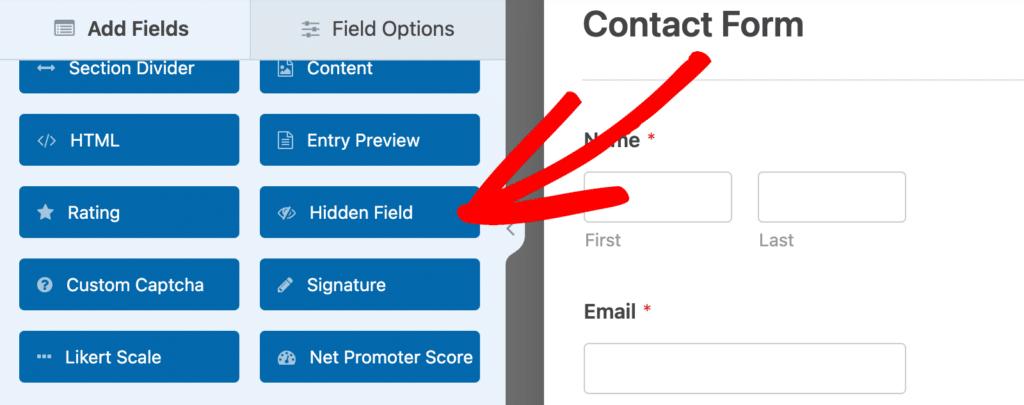
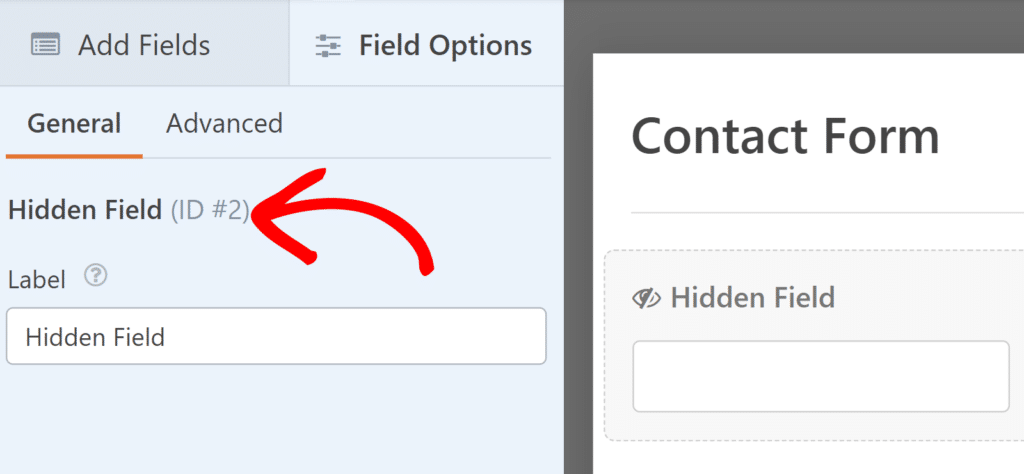
Em seguida, para que o contador funcione, você precisará adicionar um campo Oculto – você pode encontrá-lo na seção Campos Elegantes. Seus usuários não verão este campo no formulário, mas ele armazenará nosso valor de contador nos bastidores.
Adicionando o Trecho de Código
O seguinte trecho de código contará as entradas do seu formulário e atribuirá um número incremental a cada novo envio.
O trecho funciona verificando primeiro se o formulário enviado corresponde ao ID do formulário especificado. Quando encontra uma correspondência, ele conta todas as entradas existentes para esse formulário e adiciona 1 para criar o número da nova entrada.
Esse número é então preenchido com zeros à esquerda e armazenado em seu campo Oculto. O processo acontece automaticamente toda vez que alguém envia seu formulário.
Personalizando o Contador
Você precisará personalizar três valores chave no trecho de código para o seu formulário específico:
- Na linha 9, você precisará alterar
1000para o ID do seu próprio formulário. - Na linha 16, substitua
15para corresponder ao ID do seu Campo Oculto. - Na linha 19, você verá
3, que define quantos dígitos aparecem em seus números. O código adiciona zeros no início para tornar todos os números do mesmo comprimento. Por exemplo, com 3 dígitos, seus números ficariam assim: 001, 002, 003 e assim por diante.
Testando seu Contador
Depois de adicionar e personalizar o trecho de código, é hora de garantir que tudo funcione corretamente. Envie uma entrada de teste através do seu formulário e verifique a entrada em WPForms » Entradas. Você deverá ver seu número incremental armazenado no campo Oculto. Envie outra entrada de teste para confirmar que o número aumenta como esperado.
Perguntas Frequentes
P: Posso atribuir um prefixo a este número?
R: Com certeza! Aqui está um exemplo de como adicionar algumas letras antes do número. Vamos adicionar order- antes da nossa contagem. Você pode fazer isso modificando a linha 23 no trecho de código.
$fields[$my_field_id]['value'] = 'ORDER-' . zeroise($new_total_entries, $min_digits);
Isso será exibido como ORDER-001, ORDER002, e assim por diante. Você pode alterar 'ORDER' para qualquer prefixo que desejar, como 'REF', 'Ticket' ou o que melhor se adequar às suas necessidades.
É isso! Agora você tem um formulário que atribui automaticamente um número incremental a cada novo envio.
Gostaria de atribuir um número de ID exclusivo a cada envio de formulário? Confira nosso guia sobre criação de IDs exclusivos para entradas de formulário.