


Resumo de IA
Gostaria de personalizar os intervalos de tempo disponíveis no seletor de Horário do campo Data/Hora? Por padrão, o Seletor de Horário oferece intervalos definidos em 15 minutos, 30 minutos e 1 hora.
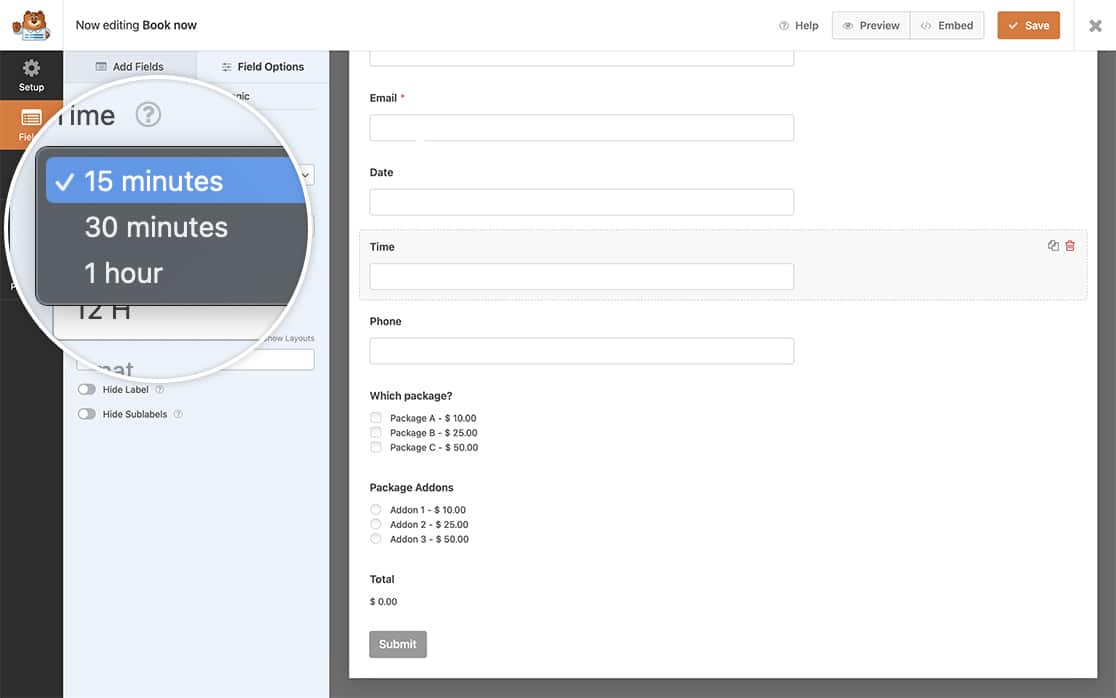
No entanto, se você precisar de incrementos de tempo mais específicos, pode facilmente criar intervalos adicionais para melhor atender às suas necessidades. Neste tutorial, mostraremos como!
Adicionando intervalos de tempo adicionais
Vamos começar adicionando o trecho de código que criará intervalos de tempo adicionais em nosso construtor de formulários. Para fazer isso, você precisará copiar e colar este trecho de código em seu site.
Se precisar de ajuda para adicionar trechos de código ao seu site, consulte este tutorial.
/**
 * Add additional time intervals for the Time field Interval dropdown
 *
 * @link   https://wpforms.com/developers/how-to-create-additional-intervals-for-the-date-time-field-time-picker/
 */

function wpf_dev_datetime_time_intervals( $intervals ) {

     // Add time interval of 5 minutes
     $intervals[ '5' ] = esc_html__( '5 minutes', 'wpforms' );
     ksort( $intervals );

     return $intervals;
}

add_filter( 'wpforms_datetime_time_intervals' , 'wpf_dev_datetime_time_intervals', 10, 1 );
A variável $intervals[ '5' ] conterá os minutos. Se você quisesse criar um bloco de 4 horas, por exemplo, alteraria o 5 para 240.
Criando seu formulário
Em seguida, você precisará criar um novo formulário e adicionar um campo Data / Hora a ele. Para fins deste tutorial, vamos separar a data em um campo e o horário em um campo separado.
Se precisar de ajuda para criar seu formulário, consulte esta documentação.
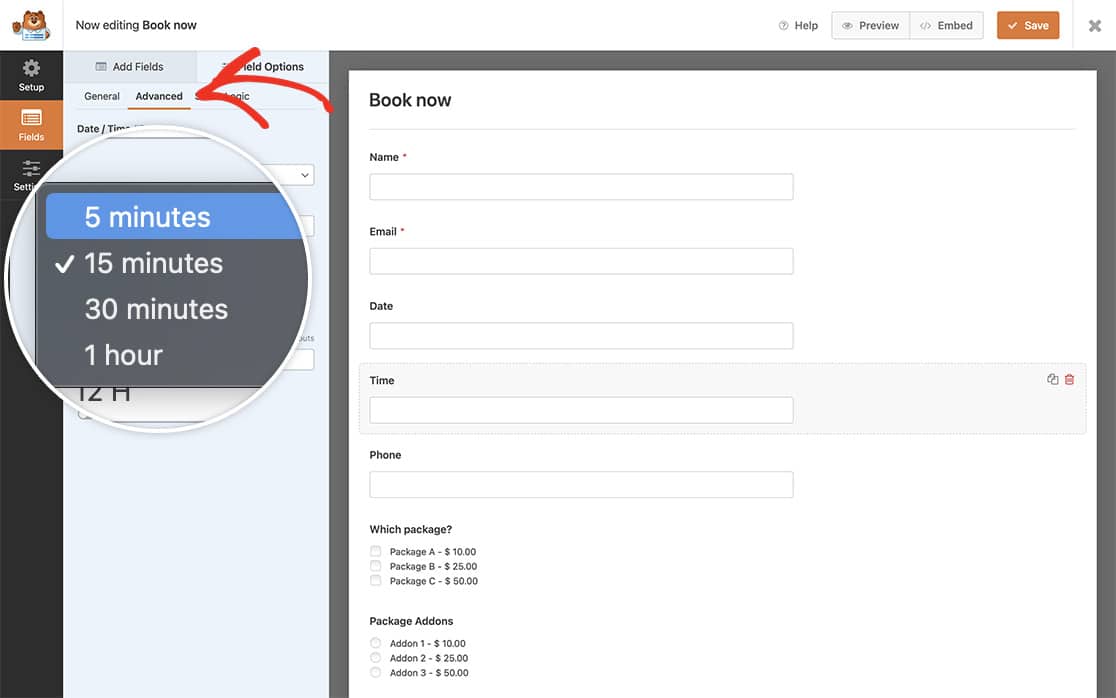
Como adicionamos nosso snippet primeiro, assim que adicionarmos o campo Horário ao nosso formulário e abrirmos as Opções Avançadas, veremos dentro do menu suspenso para Intervalos o novo intervalo que acabamos de adicionar.
Selecione a nova opção e salve o formulário.
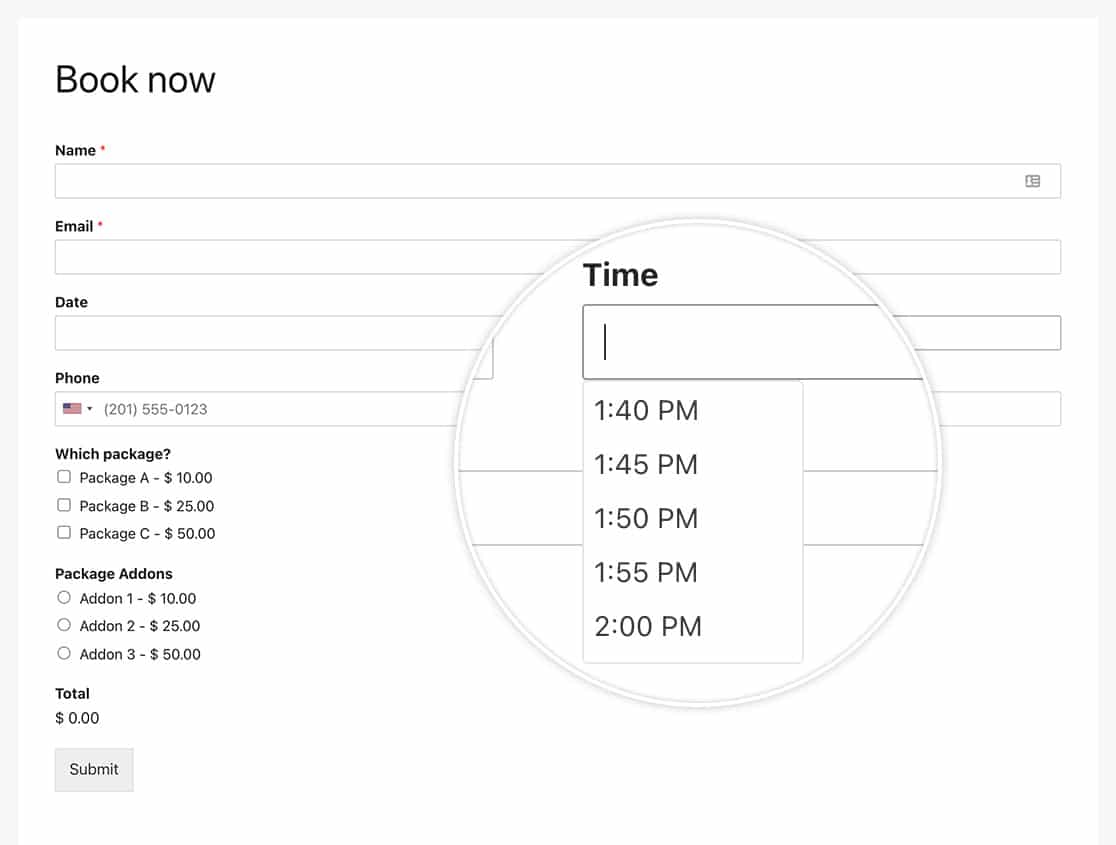
Agora, quando seus visitantes preencherem o formulário, eles verão que o seletor de horário mostra blocos a cada 5 minutos.
Gostaria de criar formatos adicionais para o campo de Horário também? Dê uma olhada em nosso artigo sobre Como Criar Formatos Adicionais para o Seletor de Horário do Campo Data e Hora.
Filtro de Referência
Referência de Filtro: wpforms_datetime_time_intervals
Perguntas Frequentes
P: Posso adicionar mais de um intervalo de tempo por vez?
R: Com certeza! Você pode criar quantos quiser usando este formato para seu snippet.
/**
 * Add additional time intervals for the Time field Interval dropdown
 *
 * @link   https://wpforms.com/developers/how-to-create-additional-intervals-for-the-date-time-field-time-picker/
 */

function wpf_dev_datetime_time_intervals( $intervals ) {

     // Add time interval of 5 minutes
     $intervals[ '5' ] = esc_html__( '5 minutes', 'wpforms' );

	 // Add time interval of 2 hours
	 $intervals[ '120' ] = esc_html__( '2 hours', 'wpforms' );

     ksort( $intervals );

     return $intervals;
}

add_filter( 'wpforms_datetime_time_intervals' , 'wpf_dev_datetime_time_intervals', 10, 1 );