


Resumo de IA
Introdução
Gostaria de personalizar a posição do popup do campo Date Picker usando um snippet simples? Por padrão, o popup se ajusta dinamicamente com base na posição do campo e na barra de rolagem da página. Este tutorial irá guiá-lo através do processo, oferecendo instruções passo a passo sobre como definir a posição do popup permanentemente usando um snippet.
Criando o formulário
Vamos começar criando nosso formulário e incorporando dois campos de formulário de seleção de data.
Após adicionar os campos de formulário Date, navegue até a aba Advanced e opte por Date Picker no menu suspenso Date.
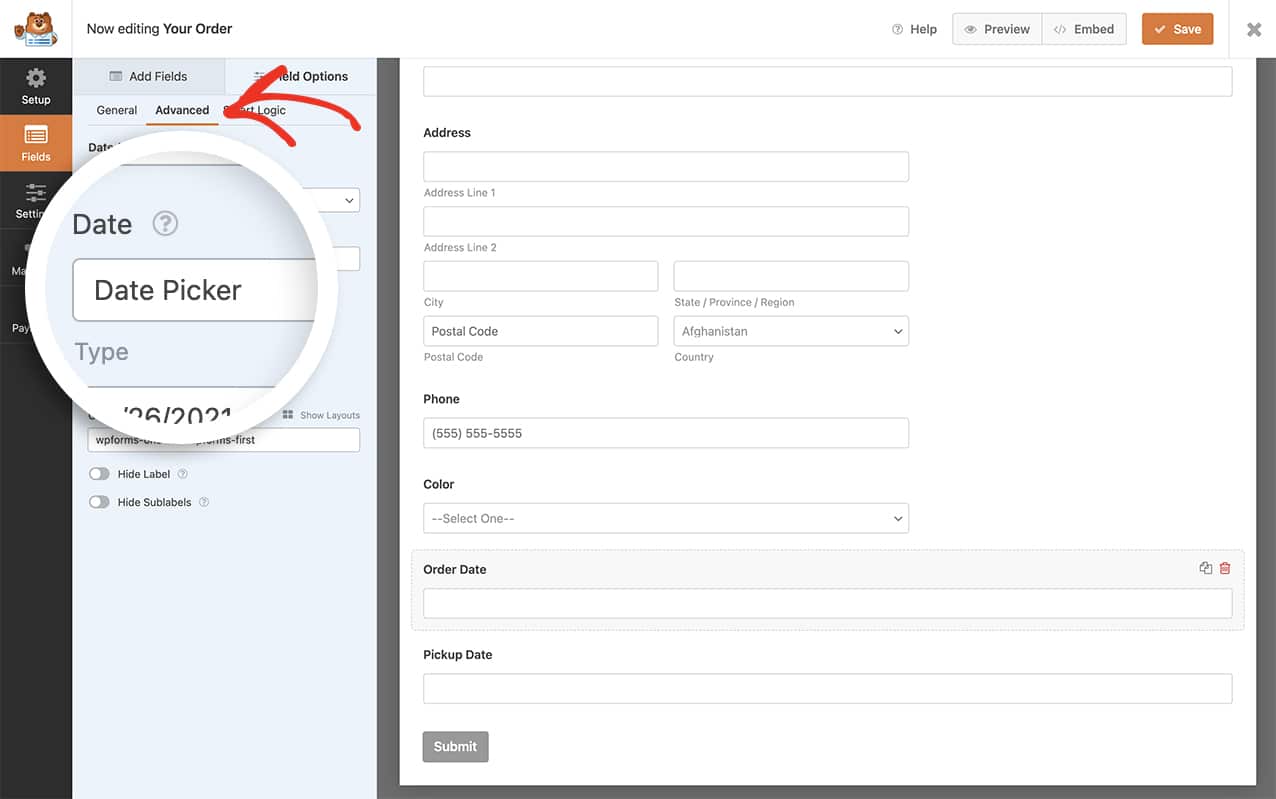
Se precisar de ajuda para criar seu formulário, por favor, revise esta documentação.
Adicionando o snippet
Em seguida, você precisará adicionar um pequeno trecho de código ao seu site para alterar a posição do popup. Se você não tem certeza de como adicionar trechos ao seu site, por favor, confira este tutorial.
Para todos os formulários
Use este snippet para todos os seletores de data do WPForms em seu site.
/**
 * Change the position of the date picker popup
 *
 * @link https://wpforms.com/developers/how-to-change-the-position-of-the-date-picker-popup/
 */

function wpf_move_datepicker_placement() {
    ?>

    <script type="text/javascript">

        var d = new Date();
        window.wpforms_datepicker = {

			// Set the date picker popup to "above" or "below"
			position: "above"

		}

    </script>

    <?php
}
add_action( 'wpforms_wp_footer_end', 'wpf_move_datepicker_placement', 10 );
Para um formulário específico
Para direcionar um formulário específico e ID de campo, por favor, use este snippet.
/**
 * Change the position of the date picker popup for a specific form and field ID
 *
 * @link https://wpforms.com/developers/how-to-change-the-position-of-the-date-picker-popup/
 */

function wpf_move_datepicker_placement() {
    ?>

    <script type="text/javascript">

        var d = new Date();
        window.wpforms_21_1 = window.wpforms_21_1 || {};
        window.wpforms_21_1.datepicker = {

            // Set the date picker popup to "above" or "below"
            position: "above"
        }

    </script>

    <?php
}
add_action( 'wpforms_wp_footer_end', 'wpf_move_datepicker_placement', 10 );
No snippet acima, estamos direcionando o ID do formulário 21 e, dentro desse formulário, estamos direcionando apenas o ID do campo 1.
Se precisar de ajuda para encontrar os IDs do seu formulário e campo, por favor, veja este tutorial.
E é tudo o que você precisa para alterar a posição do popup do seletor de data. Gostaria de personalizar ainda mais o campo seletor de data? Dê uma olhada em nosso tutorial sobre Como Permitir Intervalo de Datas ou Múltiplas Datas no Seletor de Datas.
Relacionado
Referência de Ação: wpforms_wp_footer_end