


Resumo de IA
Você deseja personalizar os subrótulos associados aos seus campos de Senha? Com apenas algumas linhas de código PHP, você pode adaptar esses rótulos sem esforço para que correspondam melhor às suas necessidades.
Os campos de senha geralmente incluem subrótulos abaixo deles, especialmente quando a opção Ativar Confirmação de Senha está ativada. Esse recurso garante que os usuários confirmem suas senhas inserindo-as duas vezes. No entanto, os subrótulos padrão podem nem sempre corresponder perfeitamente à sua mensagem ou marca desejada.
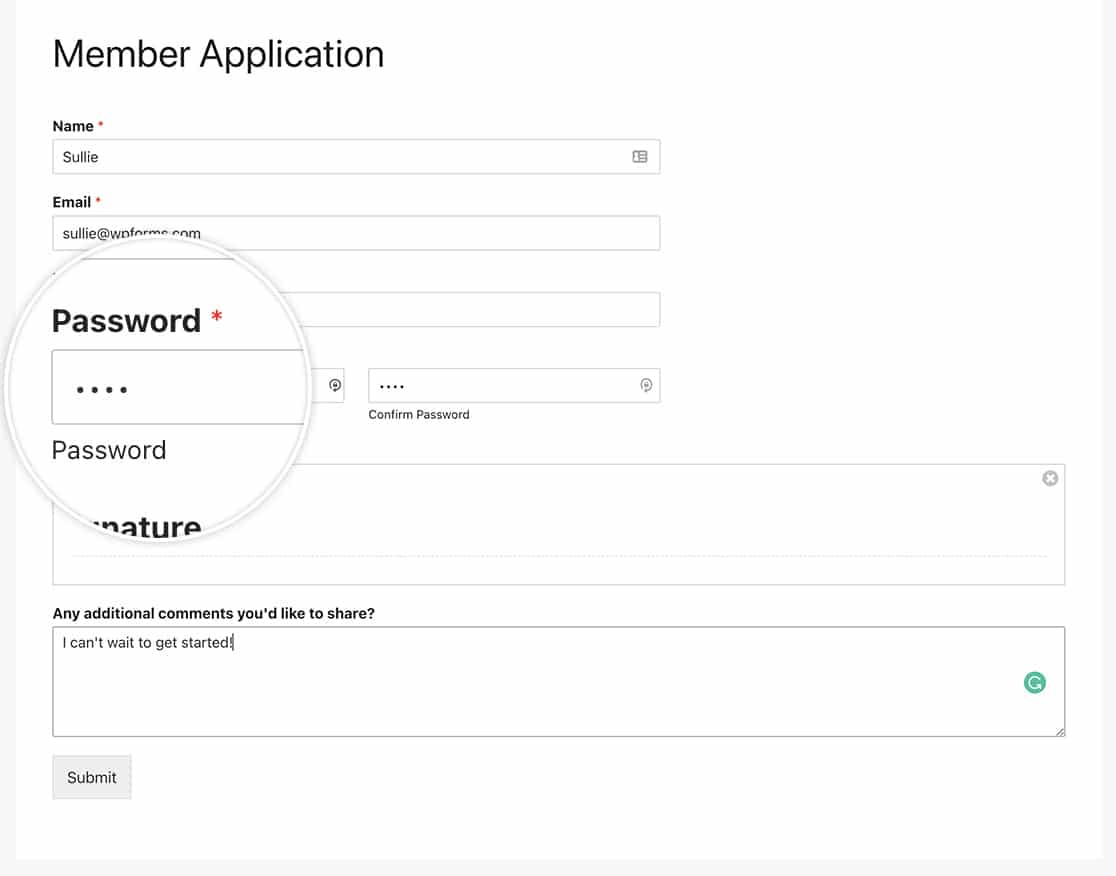
Neste tutorial, mostraremos como usar PHP para alterar o texto desses subrótulos.
Criando o formulário
Primeiro, começaremos criando nosso formulário e adicionando nossos campos. Também adicionaremos o campo de formulário Senha e ativaremos a Ativação de Confirmação de Senha.
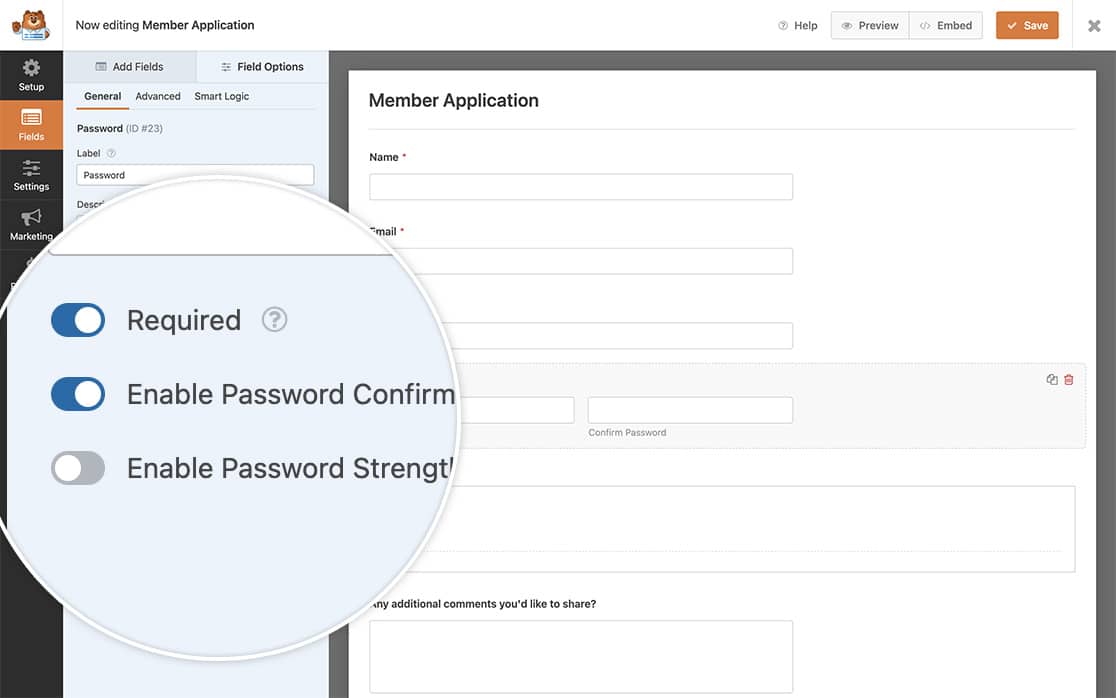
Se precisar de ajuda para criar seu formulário, por favor, revise esta documentação.
Alterando os subrótulos de senha
Para alterar o texto que aparece abaixo do campo de formulário Senha, precisaremos adicionar este trecho ao nosso site.
Se precisar de ajuda sobre como adicionar trechos ao seu site, consulte este tutorial.
/**
 * Change the sublabels for the Password field.
 *
 * @link https://wpforms.com/developers/how-to-change-the-password-field-sublabels/
 */

function wpf_dev_password_field_properties( $properties, $field, $form_data ) {

    // Change sublabel values on the primary password field
    $properties[ 'inputs' ][ 'primary' ][ 'sublabel' ][ 'value' ] = __( 'Please enter a password that you will use to sign on to your account.', 'your-text-domain' );

	// Change the sublabel values on the secondary password field
    $properties[ 'inputs' ][ 'secondary' ][ 'sublabel' ][ 'value' ] = __( 'Please re-enter that password again just for confirmation.', 'your-text-domain' );

    return $properties;
}
add_filter( 'wpforms_field_properties_password' , 'wpf_dev_password_field_properties', 10, 3 );
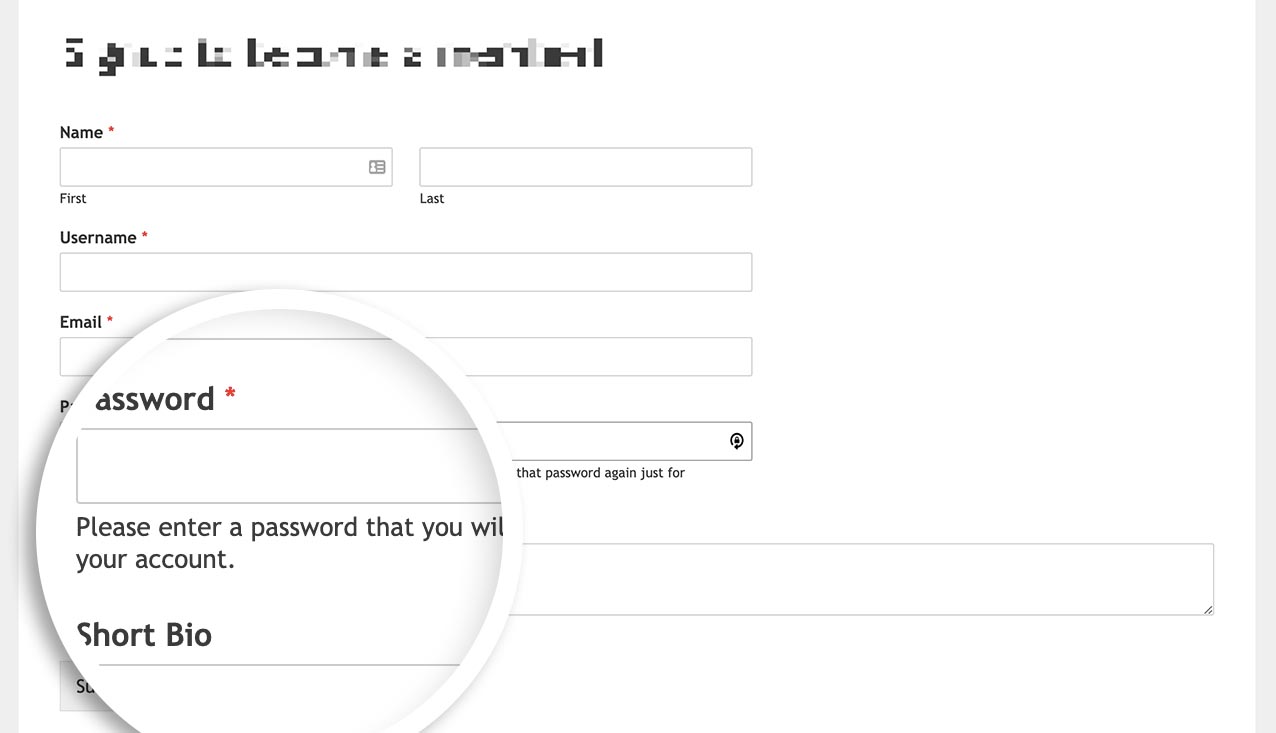
E é tudo o que você precisa para alterar os subrótulos. Gostaria de fazer login automático dos usuários após a conclusão do processo de registro? Dê uma olhada em nosso tutorial sobre Como Fazer Login Automático de Usuários Após o Registro.
Filtro de Referência
Perguntas Frequentes
P: Posso alterar isso para apenas um formulário?
R: Com certeza, se você deseja alterar esses sub-rótulos apenas para um formulário específico, use este snippet em vez disso e lembre-se de atualizar o ID do formulário 123 para corresponder ao seu próprio ID de formulário. Se precisar de ajuda para encontrar o ID do seu formulário, por favor, revise este guia útil.
/**
 * Change the sublabels for the Password field.
 *
 * @link https://wpforms.com/developers/how-to-change-the-password-field-sublabels/
 */

function wpf_dev_password_field_properties( $properties, $field, $form_data ) {

	// Only process this snippet on the form ID 123
    if ( absint( $form_data[ 'id' ] ) !== 123 ) {

        return $properties;
    }

    // Change sublabel values on the primary password field
    $properties[ 'inputs' ][ 'primary' ][ 'sublabel' ][ 'value' ] = __( 'Please enter a password that you will use to sign on to your account.', 'your-text-domain' );

	// Change the sublabel values on the secondary password field
    $properties[ 'inputs' ][ 'secondary' ][ 'sublabel' ][ 'value' ] = __( 'Please re-enter that password again just for confirmation.', 'your-text-domain' );

    return $properties;
}
add_filter( 'wpforms_field_properties_password' , 'wpf_dev_password_field_properties', 10, 3 );
Como você pode ver no snippet, tudo o que precisamos fazer é adicionar a verificação do ID do formulário com if ( absint( $form_data[ 'id' ] ) !== 123 ) { return $properties; } , o restante do snippet permanece exatamente o mesmo do exemplo com todos os formulários.