


AI要約
はじめに
フォームの日付ピッカーフィールドに基づいて誰かの年齢を表示しますか? このチュートリアルでは、生年月日(DOB)を収集し、JavaScriptを使用して計算および表示するフォームの作成方法を説明します。
- 今日の年齢
- 特定の日付(未来または過去)の年齢
フォームの作成
まず、新しいフォームを作成し、フィールドを追加しましょう。少なくとも1つの日付フィールドを含めるようにしてください。
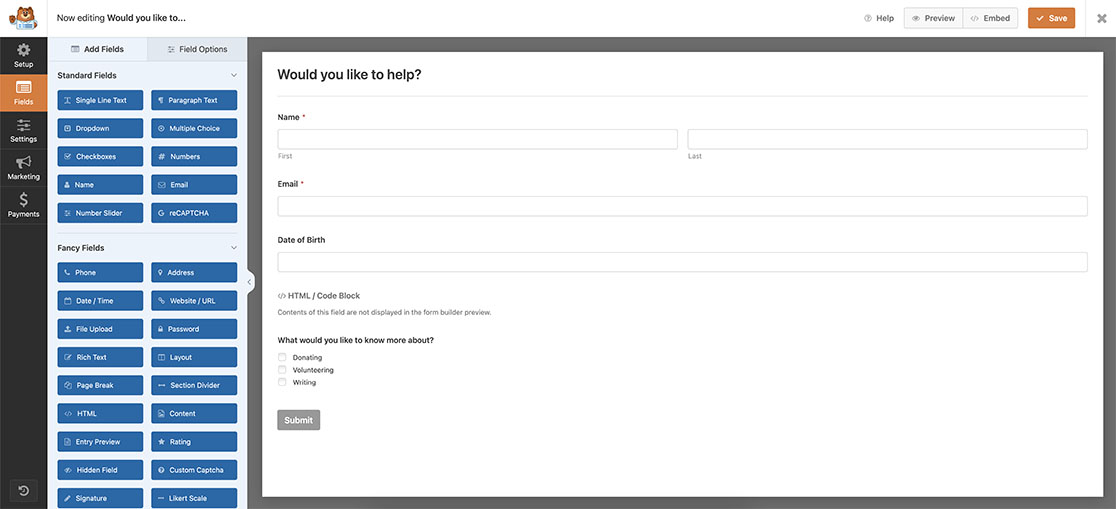
フォームの作成にヘルプが必要な場合は、このドキュメントを確認してください。
HTMLフィールドの追加
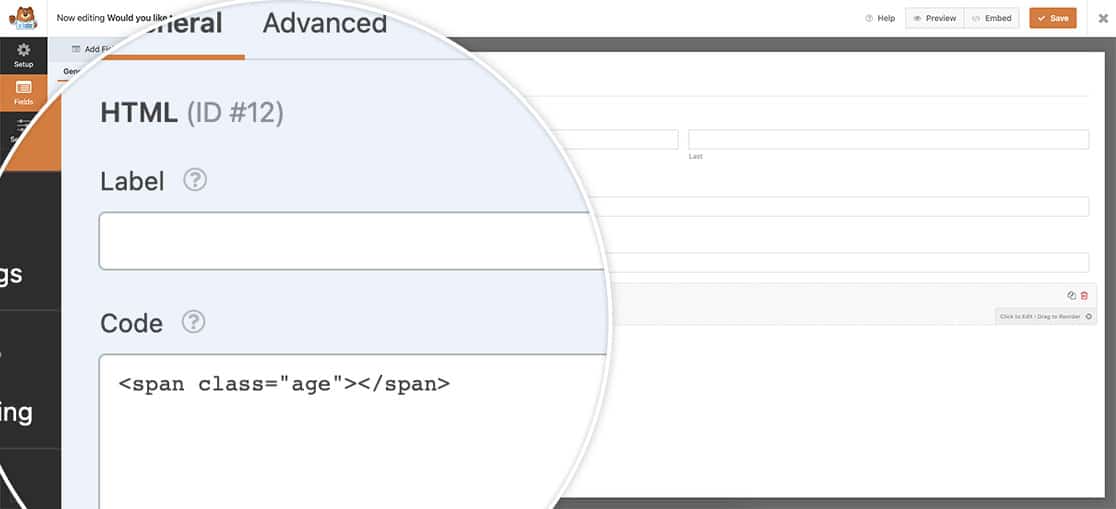
最終的な目標は、誕生日が選択されたら年齢を表示することなので、HTMLフィールドを追加しましょう。このフィールド内に、クラス名を「age」とする空のHTMLスパンを埋め込みます。この空のスパンはプレースホルダーとして機能し、日付ピッカーフィールドがユーザーの選択をキャプチャするとすぐに年齢を動的に表示します。<span class="age"></span>
スニペットの追加
以下のスニペットのいずれかをサイトに追加してください。
各スニペットは、特定のフォームIDと日付フィールドID(例:3535_9)を探します。これらのIDをフォームとフィールドに合わせて更新してください。
オプション1:今日の年齢を表示する
/**
 * Calculate age based on date of birth date picker field
 *
 * @link https://wpforms.com/developers/how-to-display-the-age-from-a-date-picker-field/
 */
function wpf_dev_check_age() {
?>
<script>
jQuery(function($) {
	// Update the 3535_9 to match the form and field ID
	// of your form and date picker field
	window.wpforms_3535_9 = window.wpforms_3535_9 || {};
	window.wpforms_3535_9.datepicker = {
		mode: "single",
		onClose: function(selectedDates, dateStr, instance) {

			// Set today as the current date
			var today = new Date();

			// Set the DOB as the selected date of birth
			var DOB = selectedDates[0];

			// Calculate age in ms, then convert to years
			var age = today.getTime() - DOB.getTime();
			age = Math.floor(age / (1000 * 60 * 60 * 24 * 365.25));

			// Build and display message
			var totalMessage = 'Your age is ' + age;
			jQuery('.age').text(totalMessage);
		}
	}
});
</script>
<?php
}
add_action( 'wpforms_wp_footer', 'wpf_dev_check_age', 10 );
オプション2:選択した特定の日付の年齢を表示する(将来の年齢)
これは、特定のターゲット日付の年齢を知りたい場合に使用します。たとえば、「2026年5月9日」などです。これは、学校の入学や適格性の確認などのシナリオに役立ちます。特定の日に何歳になるかを知る必要がある場合です。
TARGET_DATEの値を、必要な日付に変更してください。
/**
 * Calculate age as of a specific target date based on selected date of birth
 */
function wpf_dev_check_future_age() {
?>
<script>
jQuery(function($) {

	// Update the 3535_9 to match the form and field ID
	window.wpforms_3535_9 = window.wpforms_3535_9 || {};
	window.wpforms_3535_9.datepicker = {
		mode: "single",
		onClose: function(selectedDates, dateStr, instance) {

			// Fixed target date (YYYY-MM-DD)
			var TARGET_DATE = new Date('2026-05-09T00:00:00');

			// Selected Date of Birth
			var DOB = selectedDates[0];

			// If DOB is missing, do nothing
			if (!DOB) {
				return;
			}

			// Calculate age as of target date
			var age = TARGET_DATE.getTime() - DOB.getTime();

			// Convert ms → years
			age = Math.floor(age / (1000 * 60 * 60 * 24 * 365.25));

			// Build message
			var totalMessage = 'Your age on May 9, 2026 will be ' + age;

			// Output into the HTML span with class "age"
			jQuery('.age').text(totalMessage);
		}
	}
});
</script>
<?php
}
add_action( 'wpforms_wp_footer', 'wpf_dev_check_future_age', 10 );
- 「ターゲット日付」は未来または過去の日付にすることができます。計算はどちらでも機能します。
- メッセージ内に日付をハードコーディングしたくない場合は、代わりに
TARGET_DATE変数からメッセージを作成できます。
これで、日付ピッカーフィールドから年齢を計算するために必要なすべてが揃いました。日付ピッカーポップアップの位置も変更したいですか? 日付ピッカーポップアップの位置を変更する方法のチュートリアルをご覧ください。
参照
アクションリファレンス: wpforms_wp_footer


