


AI要約
はじめに
ラベルの後に価格を表示することを選択したときに表示されるハイフンを削除して、支払いフォームのラベルをカスタマイズしますか?支払いフィールドのデフォルトの動作には、ラベルと表示価格の間にハイフンが含まれていますが、これは常にデザインの好みに合致するとは限りません。
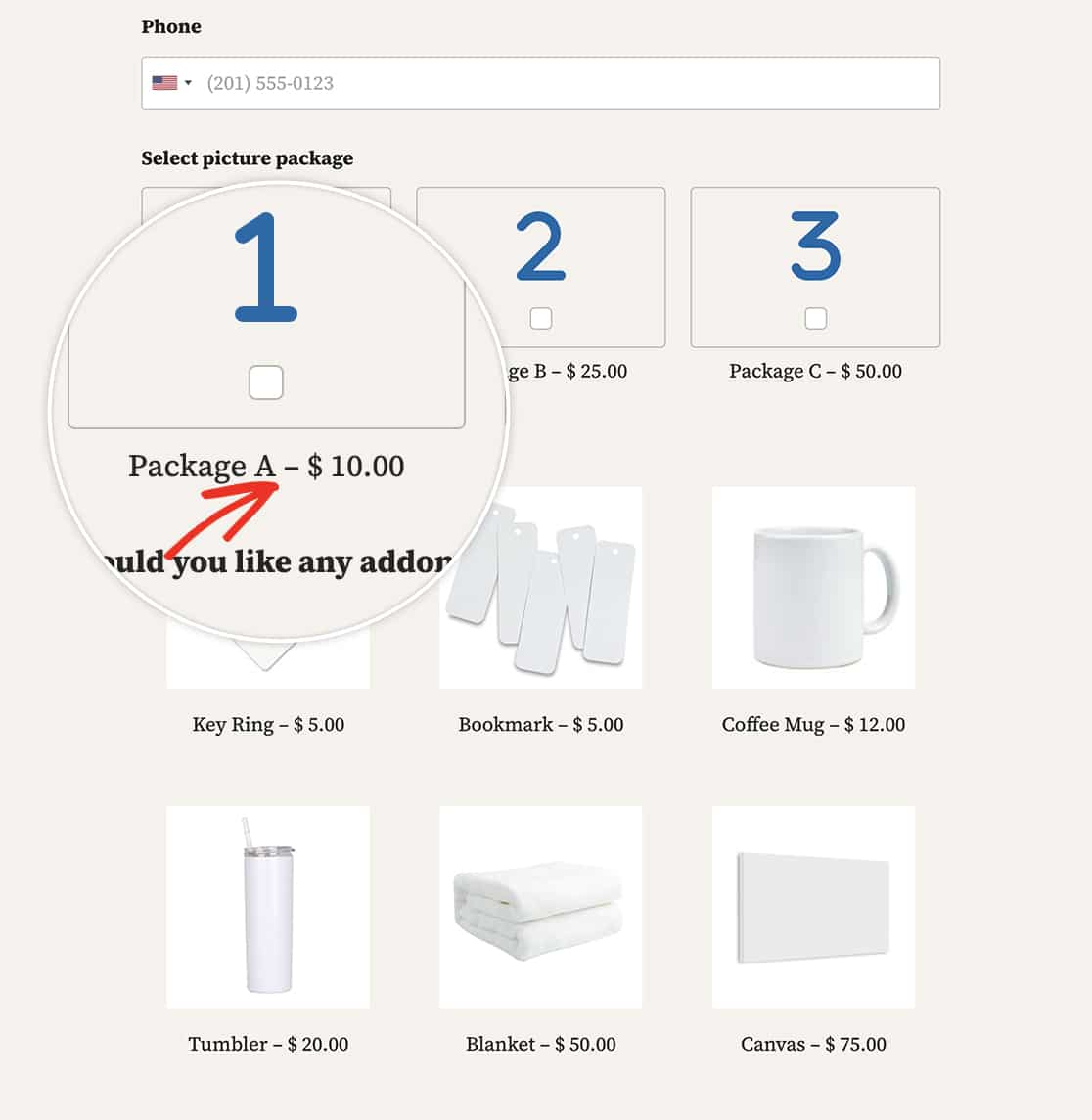
心配いりません!このチュートリアルでは、支払いフィールドのラベルをカスタマイズするプロセスを説明します。ハイフンを完全に削除したい場合でも、別の文字に置き換えたい場合でも、対応できます。スニペット不要の方法とPHPベースの方法の2つの方法を見つけて、フォームの美観に合ったラベルと価格の表示を簡単に実現しましょう。
フォームの作成
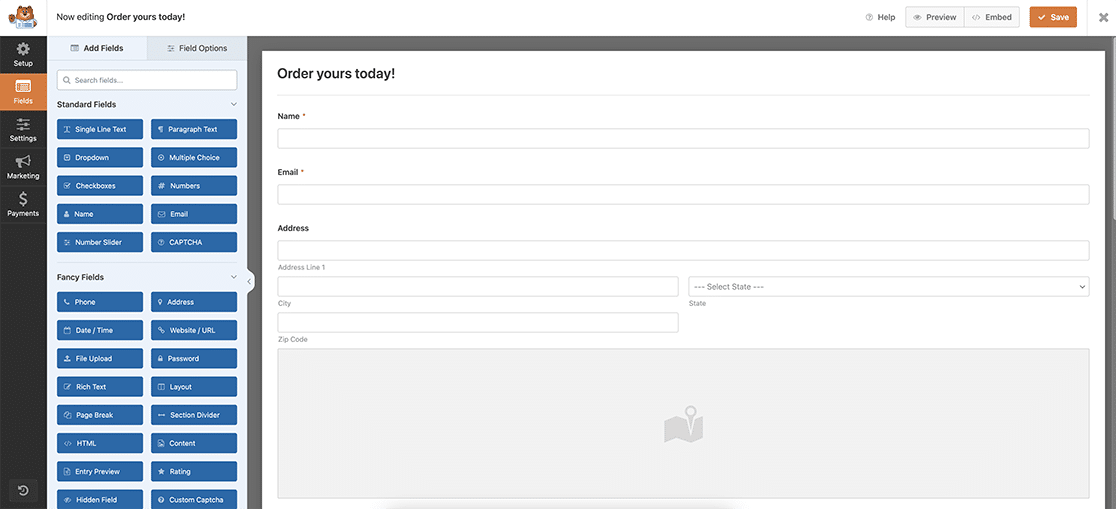
まず、支払いを受け付けるすべての必須フィールドを備えた標準的な注文フォームを作成します。このタイプのフォームの作成にサポートが必要な場合は、こちらの便利なガイドをご覧ください。
ハイフンの削除
方法1:スニペット不要
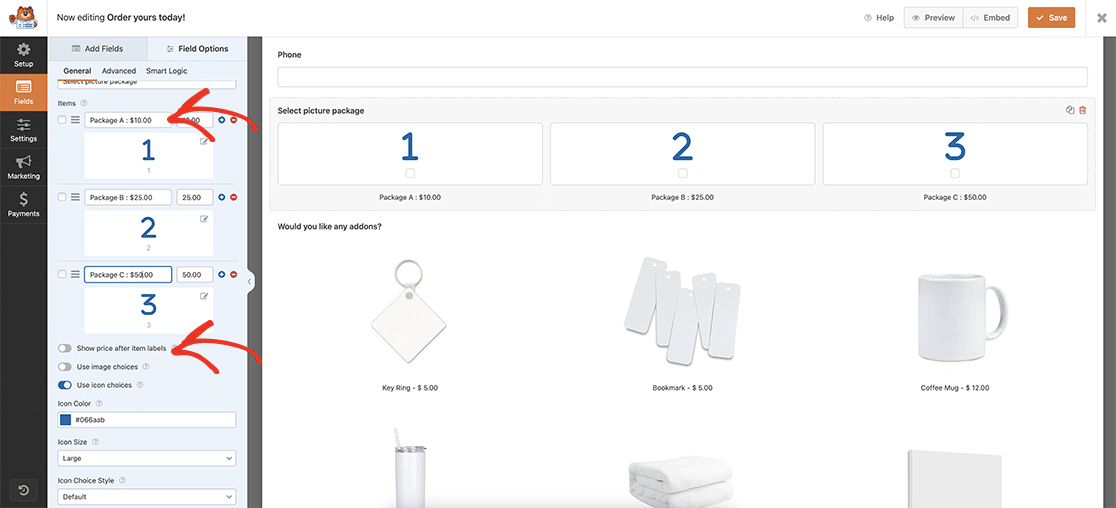
お約束通り、ハイフンを変更または完全に削除したいが、フィールドに価格を表示したい場合は、表示したいとおりにラベルを正確に手動で入力してください。
この方法ではコードスニペットは不要で、アイテムラベルの後に価格を表示が無効になっていることも確認しました。フォームに表示したいとおりにラベルを正確に入力するだけで、ハイフンなし、またはこの例のようにハイフンをコロンに置き換えることができます。
方法2:PHPベース
PHPを使用してこのハイフンを削除または変更したい場合は、まず支払いフィールドをクリックし、各フィールドの詳細設定タブで、アイテムラベルの後に価格を表示を有効にしてクリックします。これにより、フォームは自動的にアイテムのラベルと価格をハイフンで区切って配置します。
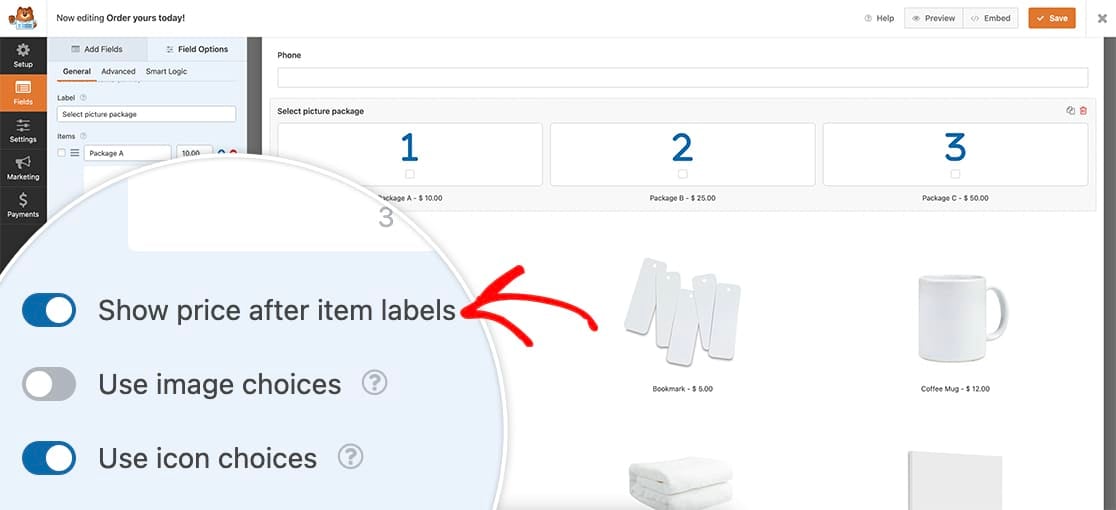
フォームを保存したら、スニペットを追加する時間です。このスニペットをサイトにコピーして貼り付けるだけです。
/**
 * Remove or change hyphen payment form labels
 *
 * @link https://wpforms.com/developers/how-to-customize-payment-form-labels/
 */

function wpf_remove_hyphen_separator() {
    ?>
    <script>
        document.addEventListener( 'DOMContentLoaded', function() {

			// The querySelectorAll targets all Payment fields:
			// .wpforms-image-choices-label is for Multiple / Checkbox Items with image choices turned on
			// .wpforms-icon-choices-label is for Multiple / Checkbox Items with icon choices turned on
			// .wpforms-field-payment-checkbox input + .wpforms-field-label-inline is for Checkbox Items without icon or image choices - in this case we know the label follows the checkbox input which allows us to target it only for this case
			// .wpforms-field-payment-multiple input + .wpforms-field-label-inline is for Multiple Items without icon or image choices - same as above
			// .wpforms-field-payment-select option is for Dropdown Items (both Classic and Modern)

			var labelElements = document.querySelectorAll( ".wpforms-image-choices-label, .wpforms-icon-choices-label, .wpforms-field-payment-checkbox input + .wpforms-field-label-inline, .wpforms-field-payment-multiple input + .wpforms-field-label-inline, .wpforms-field-payment-select option" );
            labelElements.forEach(function(labelElement) {
                labelElement.textContent = labelElement.textContent.replace(' – ', ' : ');
            });
        });
    </script>
    <?php
}

add_action( 'wpforms_wp_footer_end', 'wpf_remove_hyphen_separator', 10 );
このスニペットは、支払いフィールドを探し、ハイフン(–)をコロン(:)に置き換えます。
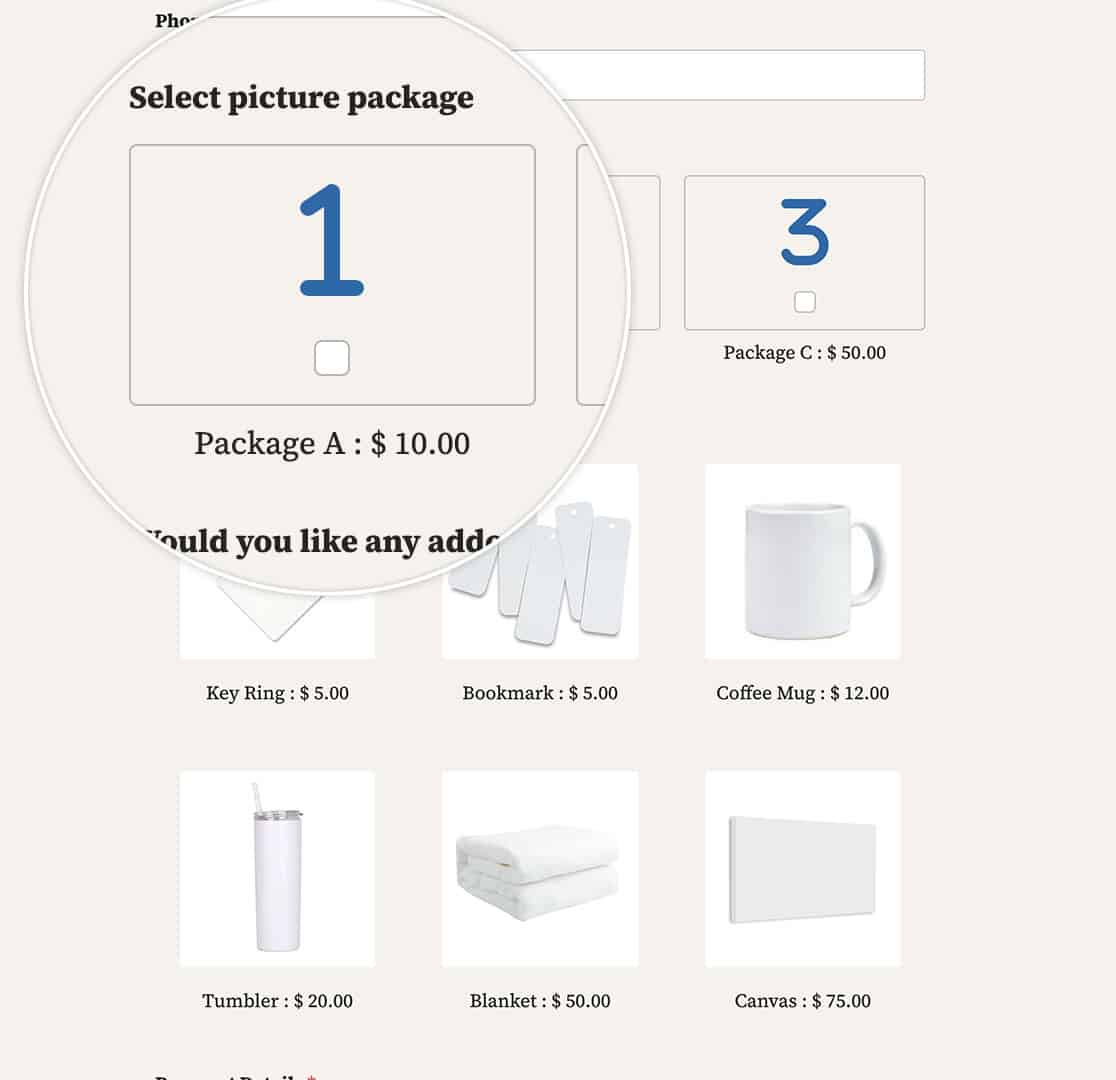
これで、支払いフォームのラベルをカスタマイズするために必要なすべてが揃いました!メール通知にもこの変更を加えたいですか?メール通知内の支払い区切り文字を変更する方法の記事をご覧ください。
関連
アクション参照: wpforms_wp_footer_end
よくある質問
Q: 区切り文字をまったく使用したくない場合はどうすればよいですか?
A: ラベルと価格の間にスペースだけを残すには、代わりにこのスニペットを使用してください。
/**
 * Remove or change hyphen payment form labels
 *
 * @link https://wpforms.com/developers/how-to-customize-payment-form-labels/
 */

function wpf_remove_hyphen_separator() {
    ?>
    <script>
        document.addEventListener( 'DOMContentLoaded', function() {

			// The querySelectorAll targets all Payment fields:
			// .wpforms-image-choices-label is for Multiple / Checkbox Items with image choices turned on
			// .wpforms-icon-choices-label is for Multiple / Checkbox Items with icon choices turned on
			// .wpforms-field-payment-checkbox input + .wpforms-field-label-inline is for Checkbox Items without icon or image choices - in this case we know the label follows the checkbox input which allows us to target it only for this case
			// .wpforms-field-payment-multiple input + .wpforms-field-label-inline is for Multiple Items without icon or image choices - same as above
			// .wpforms-field-payment-select option is for Dropdown Items (both Classic and Modern)

			var labelElements = document.querySelectorAll( ".wpforms-image-choices-label, .wpforms-icon-choices-label, .wpforms-field-payment-checkbox input + .wpforms-field-label-inline, .wpforms-field-payment-multiple input + .wpforms-field-label-inline, .wpforms-field-payment-select option" );
            labelElements.forEach(function(labelElement) {
                labelElement.textContent = labelElement.textContent.replace(' – ', '  ');
            });
        });
    </script>
    <?php
}

add_action( 'wpforms_wp_footer_end', 'wpf_remove_hyphen_separator', 10 );
これらのスニペットの唯一の変更点は、replace(' – ', ' : '); という行が replace(' – ', ' '); になっていることです。ここでは、区切り文字として単一のスペースを残しています。


