AI要約
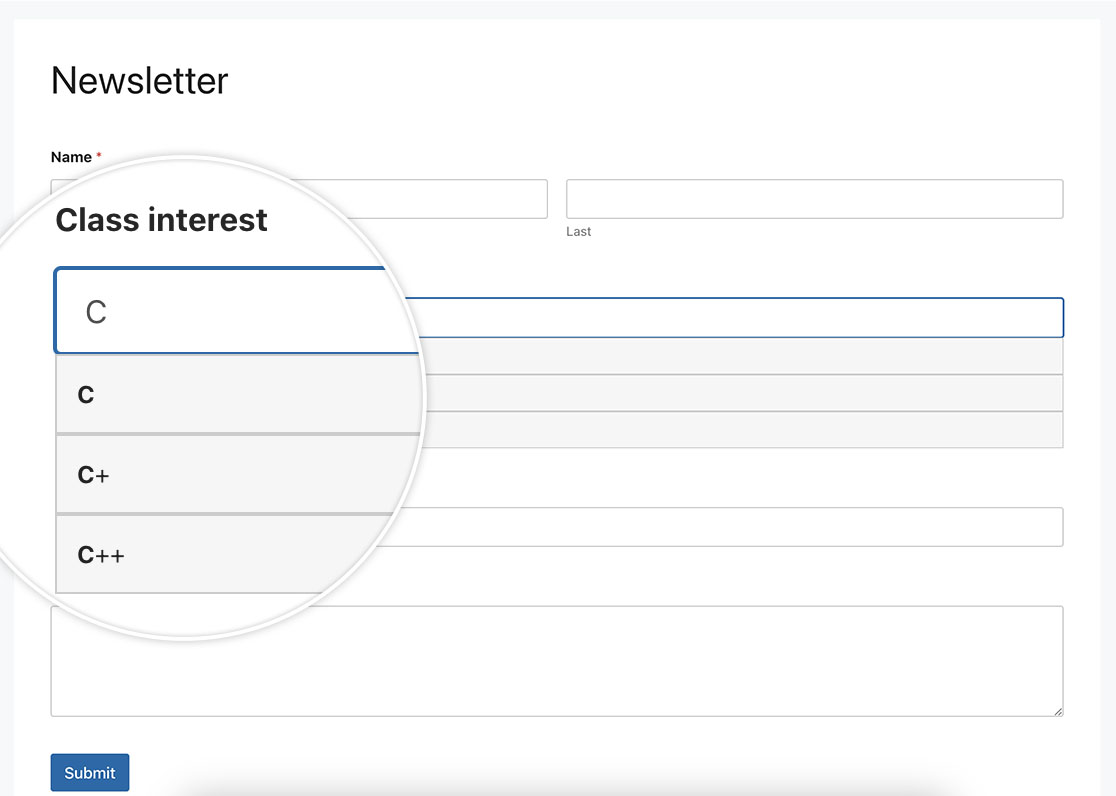
フォームにオートコンプリートフィールドを作成しますか? オートコンプリート機能は、ユーザーが入力する際に候補を表示することでユーザーエクスペリエンスを大幅に向上させ、時間を節約し、データの整合性を確保できます。この記事では、JavaScriptを使用して、事前に承認された回答のリストを持つテキスト入力フィールドにオートコンプリートを実装する方法を説明します。
フォームの作成
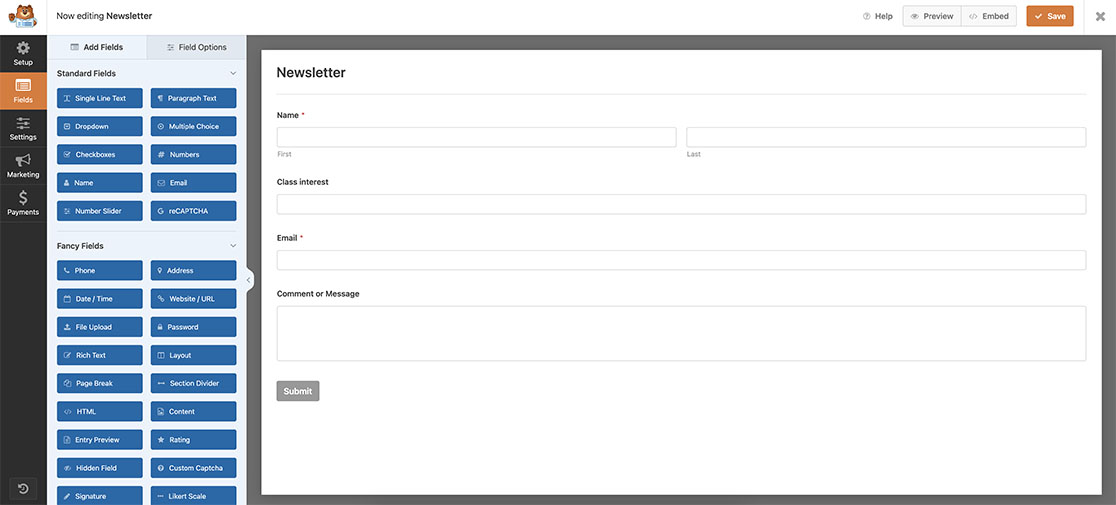
まず、新しいフォームを作成し、少なくとも1つの1行テキストフォームフィールドを含むフィールドを追加します。フォームの作成にヘルプが必要な場合は、この役立つガイドを確認してください。
オートコンプリートフィールドの作成
次に、このスニペットをサイトに追加します。カスタムスニペットをサイトに追加する場所と方法について支援が必要な場合は、このチュートリアルを確認してください。
/**
 * Turn any Single Line Text field into an autocomplete field
 *
 * @link https://wpforms.com/developers/how-to-create-an-autocomplete-field-in-your-form/
 */

function wpf_dev_text_autocomplete( ) {
?>

<script>
function autocomplete(inp, arr) {

  /*the autocomplete function takes two arguments,
  the text field element and an array of possible autocompleted values:*/
  var currentFocus;

  /*execute a function when someone writes in the text field:*/
  inp.addEventListener("input", function(e) {
      var a, b, i, val = this.value;

      /*close any already open lists of autocompleted values*/
      closeAllLists();
      if (!val) { return false;}
      currentFocus = -1;

      /*create a DIV element that will contain the items (values):*/
      a = document.createElement("DIV");
      a.setAttribute("id", this.id + "autocomplete-list");
      a.setAttribute("class", "autocomplete-items");

      /*append the DIV element as a child of the autocomplete container:*/
      this.parentNode.appendChild(a);

      /*for each item in the array...*/
      for (i = 0; i < arr.length; i++) {

        /*check if the item starts with the same letters as the text field value:*/
        if (arr[i].substr(0, val.length).toUpperCase() == val.toUpperCase()) {

          /*create a DIV element for each matching element:*/
          b = document.createElement("DIV");

          /*make the matching letters bold:*/
          b.innerHTML = "<strong>" + arr[i].substr(0, val.length) + "</strong>";
          b.innerHTML += arr[i].substr(val.length);

          /*insert a input field that will hold the current array item's value:*/
          b.innerHTML += "<input type='hidden' value='" + arr[i] + "'>";

          /*execute a function when someone clicks on the item value (DIV element):*/
          b.addEventListener("click", function(e) {

              /*insert the value for the autocomplete text field:*/
              inp.value = this.getElementsByTagName("input")[0].value;

              /*close the list of autocompleted values,
              (or any other open lists of autocompleted values:*/
              closeAllLists();
          });
          a.appendChild(b);
        }
      }
  });

  /*execute a function presses a key on the keyboard:*/
  inp.addEventListener("keydown", function(e) {
      var x = document.getElementById(this.id + "autocomplete-list");
      if (x) x = x.getElementsByTagName("div");
      if (e.keyCode == 40) {

        /*If the arrow DOWN key is pressed,
        increase the currentFocus variable:*/
        currentFocus++;

        /*and and make the current item more visible:*/
        addActive(x);
      } else if (e.keyCode == 38) { //up

        /*If the arrow UP key is pressed,
        decrease the currentFocus variable:*/
        currentFocus--;

        /*and and make the current item more visible:*/
        addActive(x);
      } else if (e.keyCode == 13) {

        /*If the ENTER key is pressed, prevent the form from being submitted,*/
        e.preventDefault();
        if (currentFocus > -1) {

          /*and simulate a click on the "active" item:*/
          if (x) x[currentFocus].click();
        }
      }
  });

  function addActive(x) {

    /*a function to classify an item as "active":*/
    if (!x) return false;

    /*start by removing the "active" class on all items:*/
    removeActive(x);
    if (currentFocus >= x.length) currentFocus = 0;
    if (currentFocus < 0) currentFocus = (x.length - 1);

    /*add class "autocomplete-active":*/
    x[currentFocus].classList.add("autocomplete-active");
  }

  function removeActive(x) {

    /*a function to remove the "active" class from all autocomplete items:*/
    for (var i = 0; i < x.length; i++) {
      x[i].classList.remove("autocomplete-active");
    }
  }

  function closeAllLists(elmnt) {

    /*close all autocomplete lists in the document,
    except the one passed as an argument:*/
    var x = document.getElementsByClassName("autocomplete-items");
    for (var i = 0; i < x.length; i++) {
      if (elmnt != x[i] && elmnt != inp) {
        x[i].parentNode.removeChild(x[i]);
      }
    }
  }

  /*execute a function when someone clicks in the document:*/
  document.addEventListener("click", function (e) {
      closeAllLists(e.target);
  });
}

/*An array containing all the programming class names*/
var classes = ["JavaScript","HTML/CSS","Python","C","C+","C++","Java","TypeScript","Pearl","R","SQL","PHP"];

/*initiate the autocomplete function on the "myInput" element, and pass along the countries array as possible autocomplete values:*/
autocomplete(document.getElementById("wpforms-3241-field_6"), classes);
</script>

<?php
}

add_action( 'wpforms_wp_footer_end', 'wpf_dev_text_autocomplete', 30 );
autocomplete(document.getElementById(“wpforms-3241-field_6”), classes); は、フォームID 3241 およびフィールドID 6 を具体的にターゲットにし、そのフィールドがクリックされると、このスニペットがトリガーされ、スニペット内の classes リストを検索しながら、フィールドに入力された文字に基づいてオートコンプリートを実行しようとします。
var classes = ["JavaScript","HTML/CSS","Python","C","C+","C++","Java","TypeScript","Pearl","R","SQL","PHP"];
classes リストを、フィールドに必要なものに合わせて更新する必要があります。また、独自のIDに合わせて wpforms-3241-field_6 を更新する必要があります。IDの検索にヘルプが必要な場合は、このチュートリアルを確認してください。
CSSの追加
最後のステップは、CSSを追加することです。このCSSをコピーしてサイトに貼り付けます。カスタムCSSの追加方法と場所についてヘルプが必要な場合は、このチュートリアルを参照してください。
.autocomplete-items div {
  padding: 10px;
  cursor: pointer;
  background-color: #f6f6f6;
  border: 1px solid #cccccc;
  font-size: 12px;
}

/*when hovering an item:*/
.autocomplete-items div:hover {
  background-color: #e9e9e9;
}

/*when navigating through the items using the arrow keys:*/
.autocomplete-active {
  background-color: #1E90FF !important;
  color: #ffffff;
}
これで完了です! 1行テキストフィールドをオートコンプリートフィールドに正常に変換しました。フォームにカラーピッカーフィールドを追加しますか? フォームにカラーピッカーを追加する方法のチュートリアルをご覧ください。